MyTime allows clients to communicate with merchants through the messaging feature in the Guest App. For merchants with multiple franchise locations, clients can choose the specific location they would like to contact. This article provides step-by-step instructions on how clients can send, view, and respond to messages using the Guest App.
Things to Know:
- Clients can message any franchise location directly from the Guest App
- By default, messages sent through the MyTime Communicator are delivered to clients as push notifications in the Guest App
- For global clients, messages sent via push notification will include the name of the child account that initiated the message
- Clients and staff can share photos through the MyTime Communicator for added context
- When a location is deleted, all messages sent from that location are permanently removed and will no longer appear in the Communicator. This includes all conversation history, past messages, and related details, which will no longer be accessible or visible after deletion.
Clients can send messages to your business using the Guest App by following these steps:
- Download the guest app from either the Google Play Store (for Android users) or the Apple Store (for iOS users)
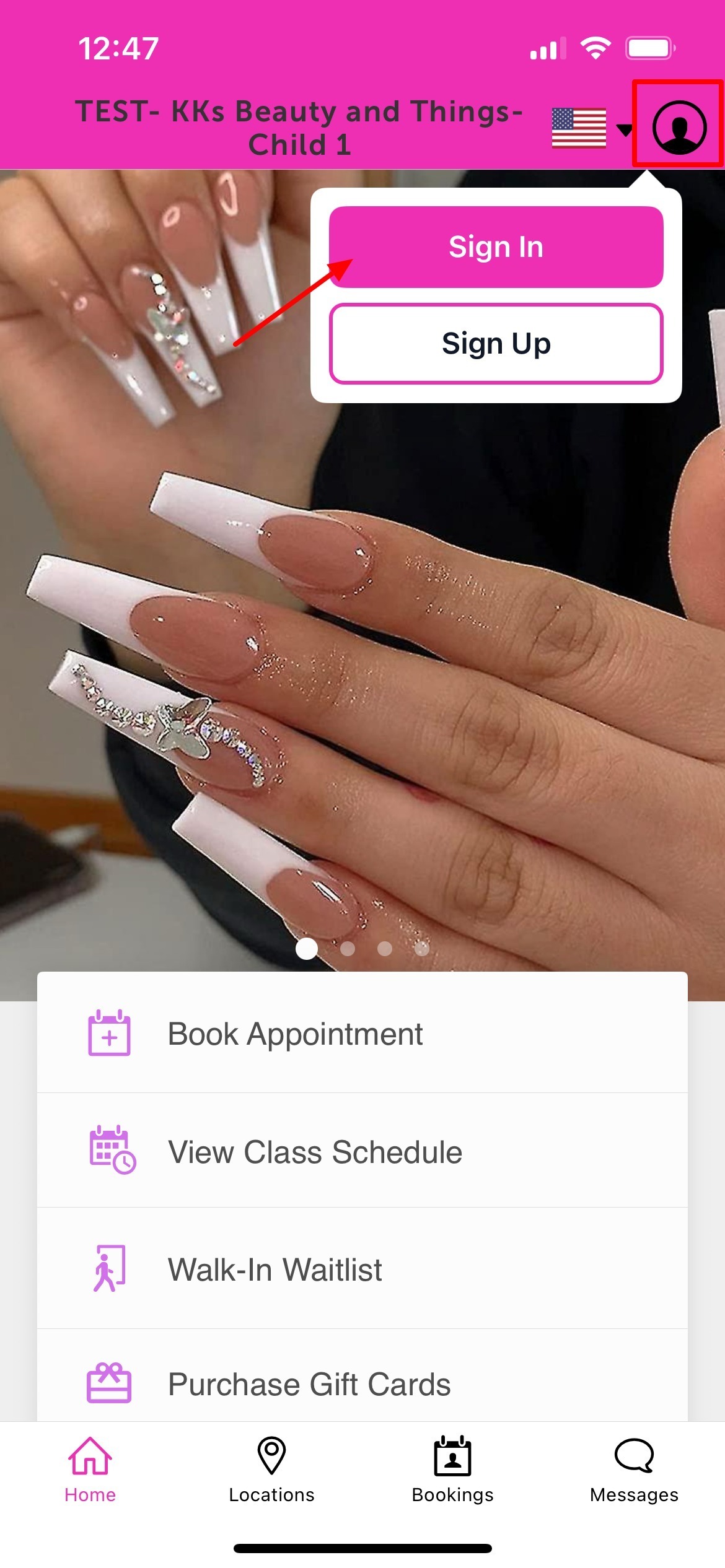
- Upon downloading, navigate to the home screen and tap on the account icon located in the top right corner, tap sign in
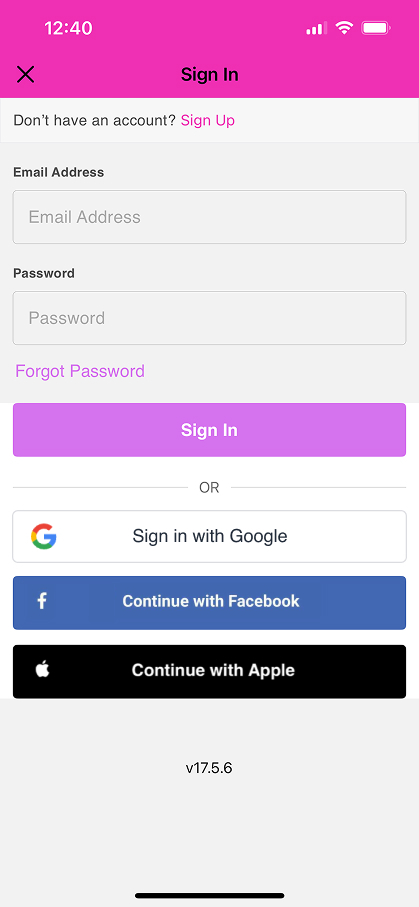
- Choose their login method:
- Standard: Enter their registered email address and password, then click 'Sign In'.
- Social Login: Select 'Continue with Google,' 'Continue with Apple,' or 'Continue with Facebook' to use their existing social media credentials.
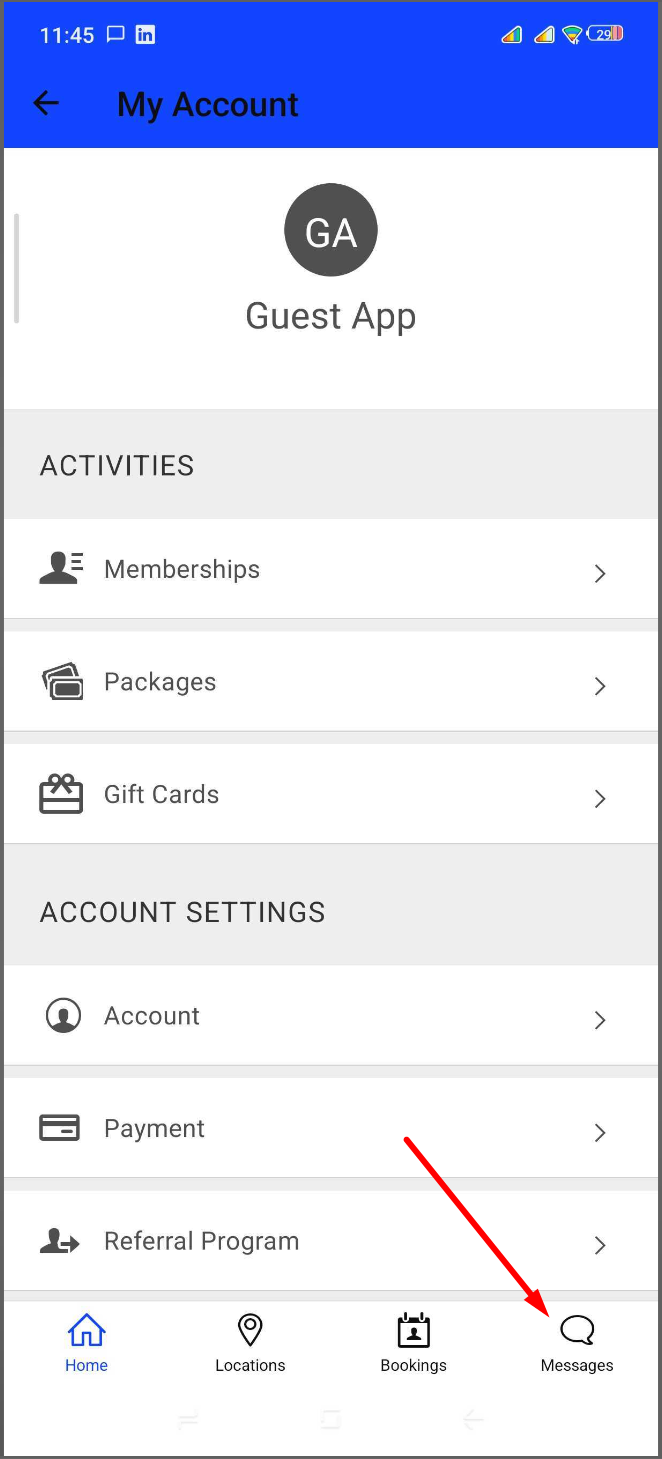
- After signing in, they will be directed to the My Account page
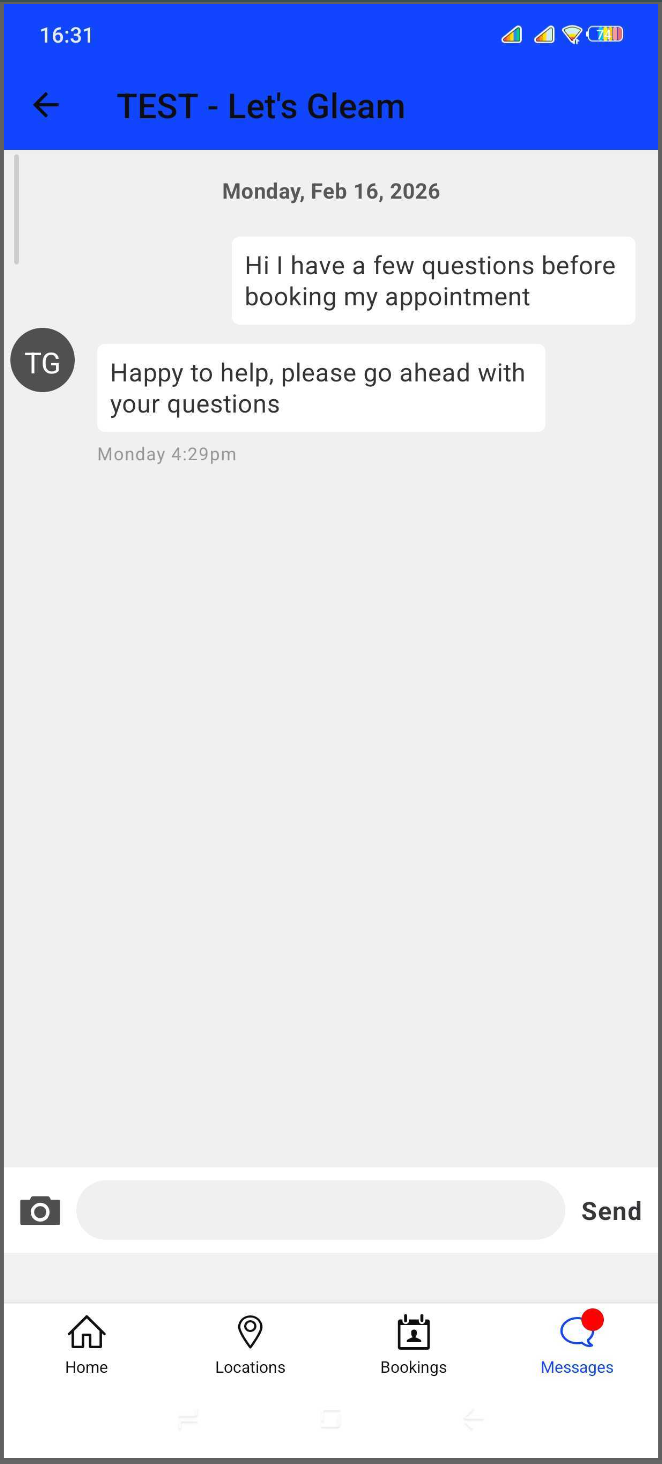
- Tap the Messages icon at the bottom of the screen
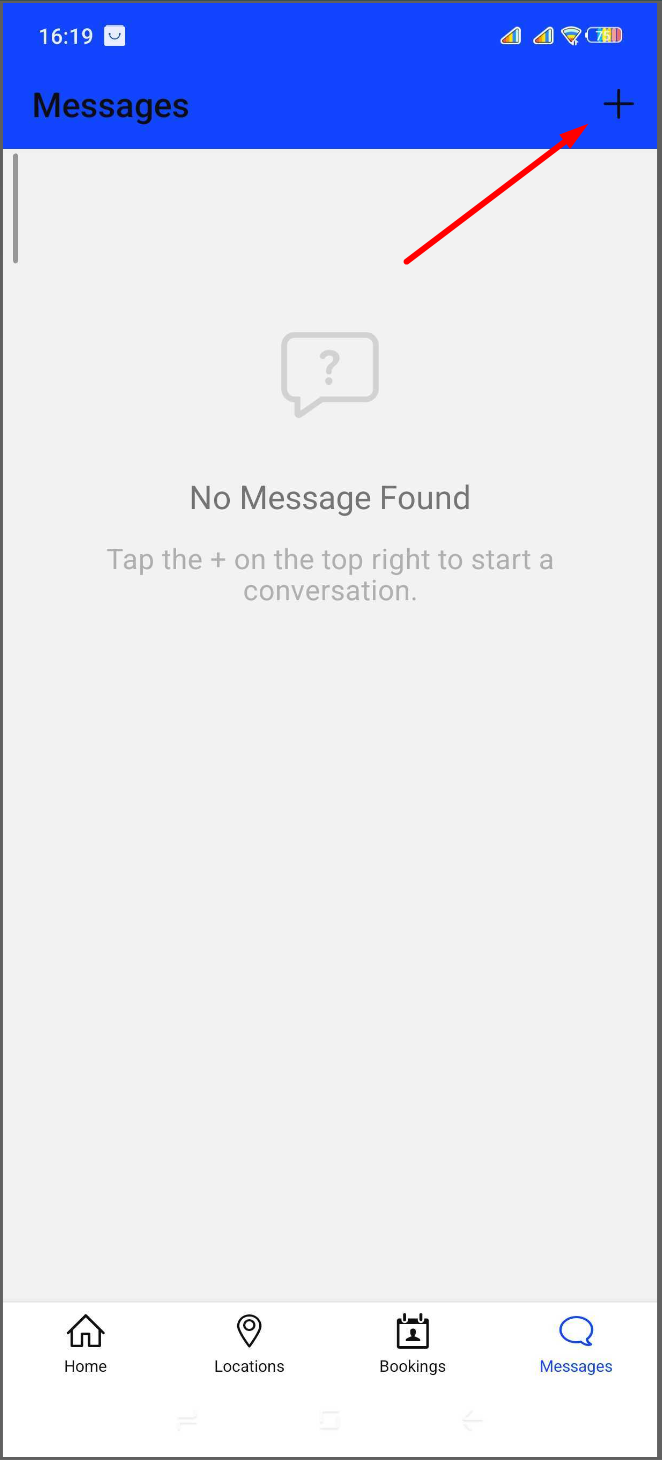
- Tap the plus (+) sign at the top of the screen to start a new message
- Select the location they want to message
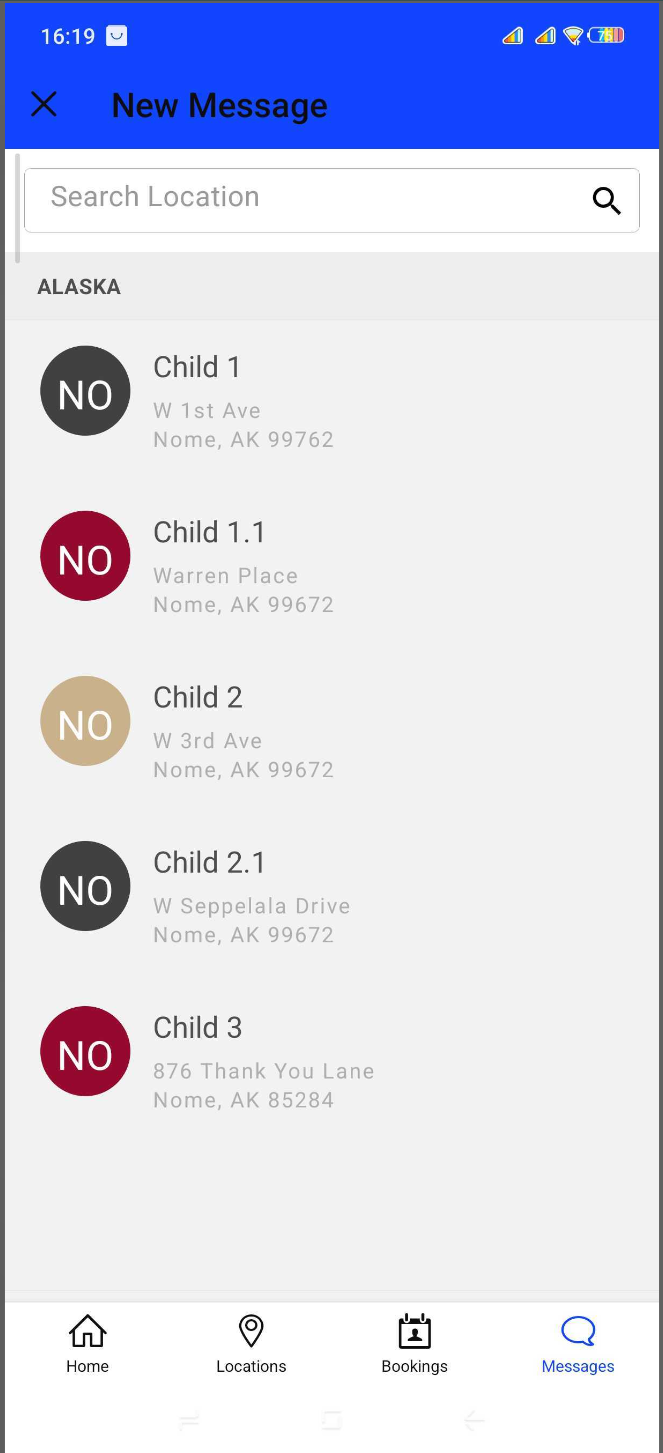
- Compose and send the message
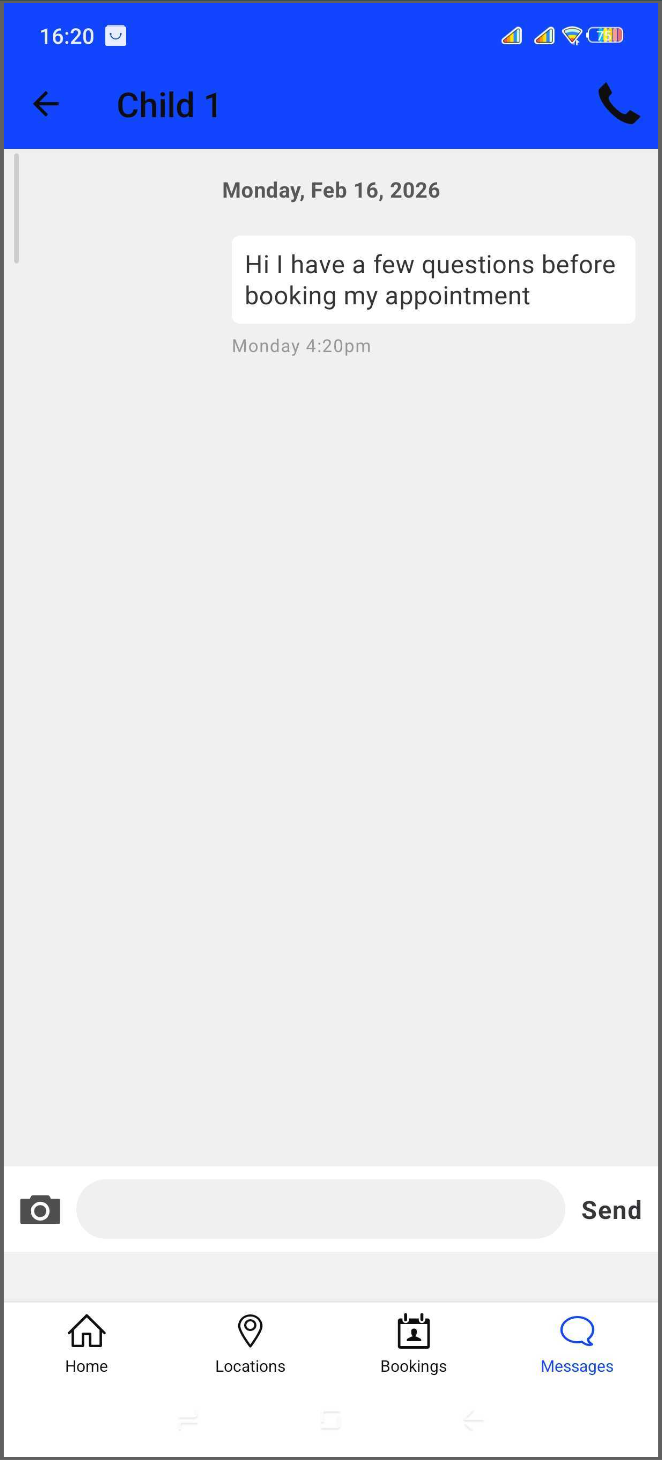
- Once the message is sent, you (in-store) will receive a notification through MyTime Communicator
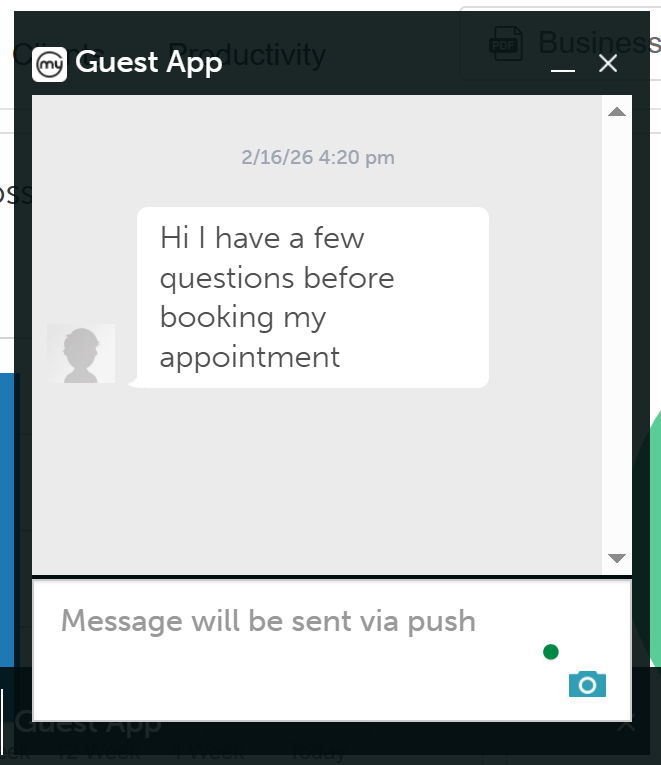
- After you respond, the client will receive a push notification on their device
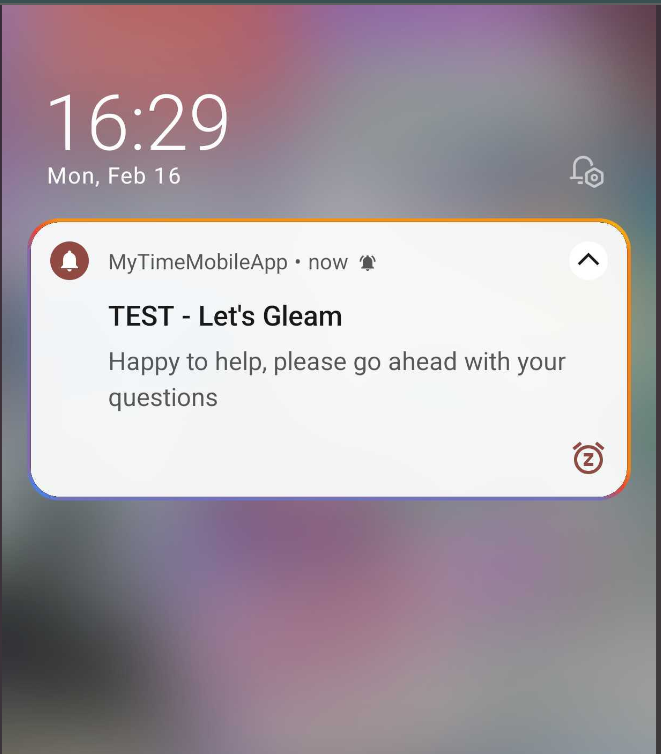
- Tapping the push notification will open the chat in the Guest App, where they can view and reply to your message
By following the steps in this article, your clients will be able to communicate effectively with you from the guest app.
For more information, contact us at support@mytime.com.
Related Articles:
Was this article helpful?
That’s Great!
Thank you for your feedback
Sorry! We couldn't be helpful
Thank you for your feedback
Feedback sent
We appreciate your effort and will try to fix the article