In this article, we will walk through the steps of how to send, view, and respond to messages via the Communicator on the scheduler app. Depending on your account configuration, the Communicator features two distinct layout options:
- Default View: Our classic interface with individual chat pop-up windows.
- Inbox View: A unified messaging workspace that consolidates all client messages into a full-screen layout, giving your team a centralized place to review threads, manage responses, and track ongoing customer conversations.
Things to know:
- The ability to access and reply to messages via the Communicator is governed by the "Accessing Communicator" access control setting.
- Benefits of the Communicator:
- Real-Time Chat: Engage in live conversations with your clients, facilitating instant communication for quick and efficient interactions.
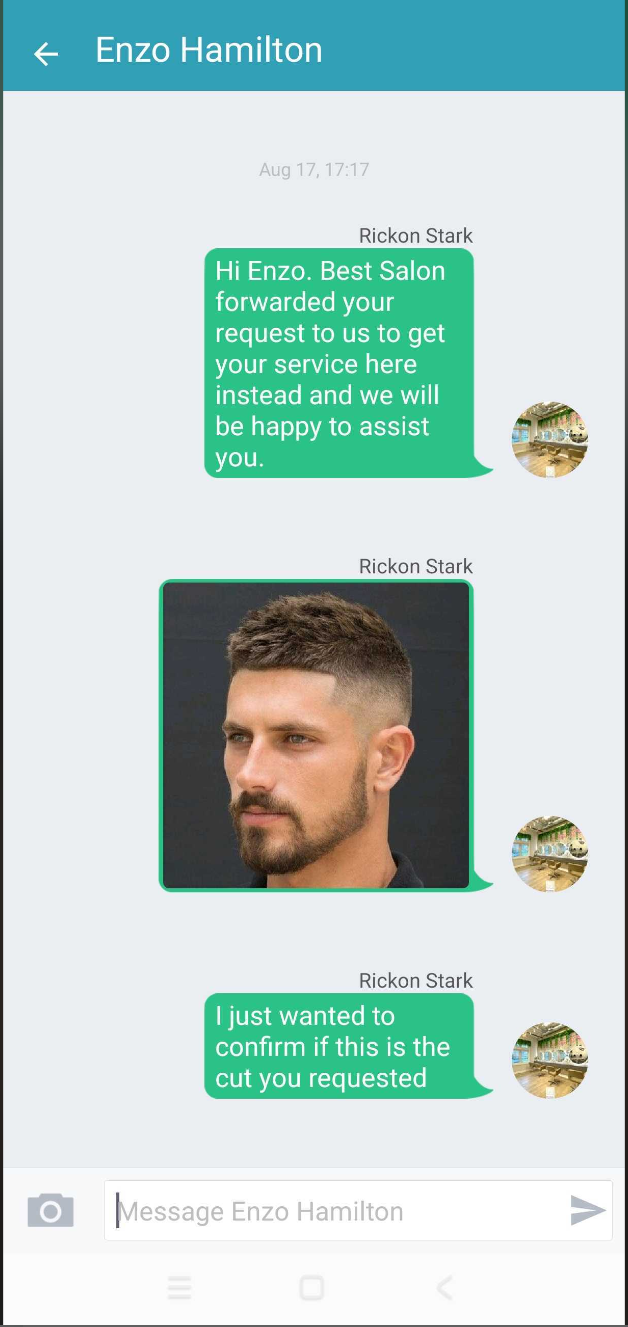
- Photo Sharing: Seamlessly share photos with your clients directly through the MyTime Communicator, adding visual context to your conversations.
- Automated Conversation Saving: Every conversation with your clients is automatically saved, ensuring a comprehensive record of interactions for future reference.
- Multi-Platform Accessibility: Access the MyTime Communicator from your phone, web browser, or through the dedicated MyTime app available on both Android and iOS devices.
- Phone Numbers & SMS Usage:
- SMS costs are calculated per segment, not per message. Carriers treat each segment as a separate message for delivery and billing, so every segment is counted and charged individually. This billing method is determined by carriers and is not specific to MyTime. Learn more about SMS segments & billing here.
- Default vs. Dedicated Numbers: Messages send from randomly assigned numbers by default. Dedicated local area code numbers are available as a paid add-on ($5/month per number).
- Multi-Location & Franchise Rules: Dedicated numbers can be assigned to individual locations. For franchises, numbers must be purchased at the child account level (the Communicator is unavailable at the parent level).
- SMS Segment Billing: Inbound and outbound messages count toward SMS usage and are billed per carrier segment rather than per message.
- SMS costs are calculated per segment, not per message. Carriers treat each segment as a separate message for delivery and billing, so every segment is counted and charged individually. This billing method is determined by carriers and is not specific to MyTime. Learn more about SMS segments & billing here.
- Smart Channel Routing (Ghost Text):
- Push Notification: Displays "Messages will be sent via push notification" if the client has the custom guest app. (Child account names are included for global accounts).
- SMS: Displays "Messages will be sent via SMS" if the client has a valid phone number and is opted in to transactional SMS.
- Email: Displays "Messages will be sent via email" if the client lacks a valid phone number/SMS opt-in but has a valid email address opted in to transactional emails.
- Color Coding:
- Light Grey Text: Automated SMS messages and marketing SMS campaigns.
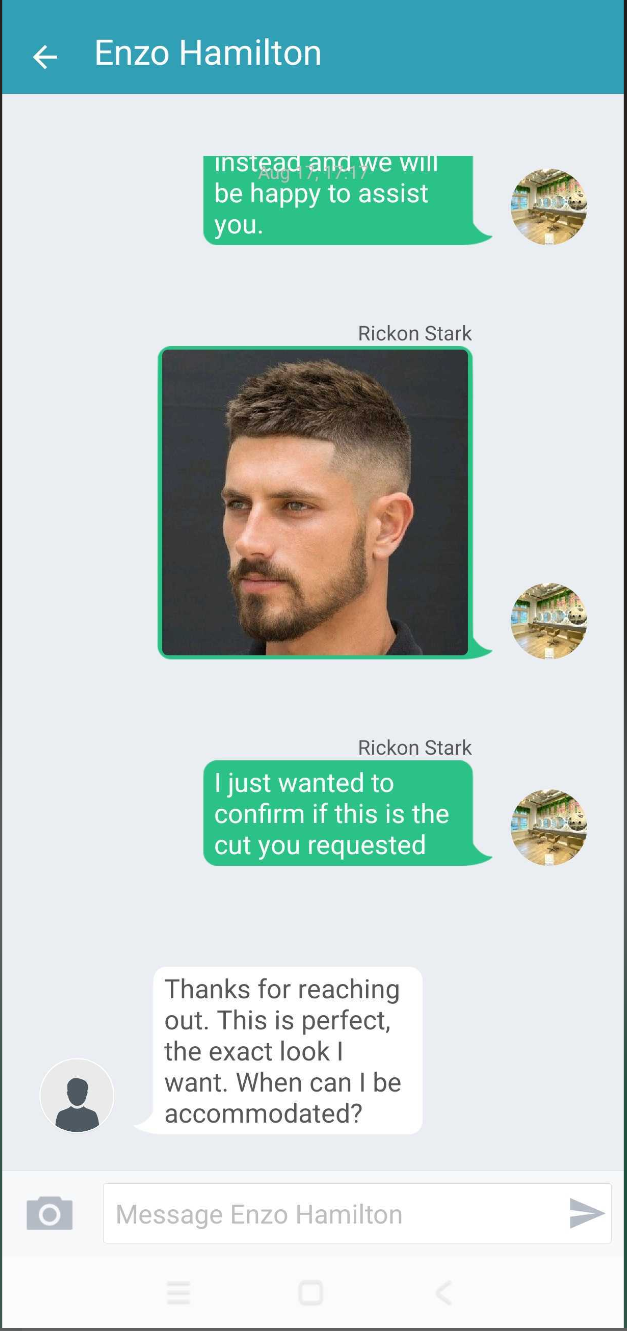
- Green Text: Manual messages sent by a staff member.
- Photo & Attachment Rules
- Supported Formats:
JPEG,JPG,PNG,GIF,PJPEG, andX-PNG. - Size Limit: Files must be under 5 MB (uploading larger or unsupported files triggers an error message).
- If a larger or unsupported image is added, you will receive an error message. Not a recognized image file" error plus "Supported image types are 'jpeg', 'jpg', 'png', 'gif', 'pjpeg', and 'x-png'"
- Supported Formats:
- Delivery Alerts & Unread Notifications:
- Failed Delivery Alerts: A "Message failed to deliver" notice appears in the chat alongside an audio cue if an SMS fails to send. Additionally, staff members will receive audio feedback, ensuring prompt awareness of the unsuccessful delivery.
- After-Hours / Closed App Email Alerts: If the app or browser is closed, or a message goes unread after business hours, email alerts are sent to staff members with "Receive operations alerts email" enabled (My Account > Communication Preferences). The system routes the alert in the following order:
- Push Notification: Sent to the owner and all staff members at that location who use the MyTime mobile app.
- SMS: Sent to the company's mobile number on file if push notifications are unavailable.
- Email: Sent to every staff member at that location with "Receive operations alerts email" enabled if no mobile number is on file. If no staff members are opted in, the email is sent to the company owner as a fallback.
- Fallback: Sent to the company owner if no staff members are opted in.
- Read Delay: No email is sent if the message is opened in the Communicator within ~10 seconds of receipt.
- Communicator Inbox View:
- This feature requires the "Enable Communicator Inbox" hidden setting that must be enabled by the MyTime team. To request access, please contact support@mytime.com.
- Conversations are categorized as Open (awaiting response) or Closed (resolved).
- If a client replies to a closed conversation, the thread automatically moves back to Open.
- By default, messages are attributed to the logged-in user. If team members share hardware, use the 'Sending As' staff dropdown in the chat window to switch the sender identity for accurate tracking. The Sending As selector determines who is credited as the sender for outgoing messages but is defaulted to the logged-in staff member's name. Staff members can send on behalf of any staff member they have permission for or default to the Front Desk.
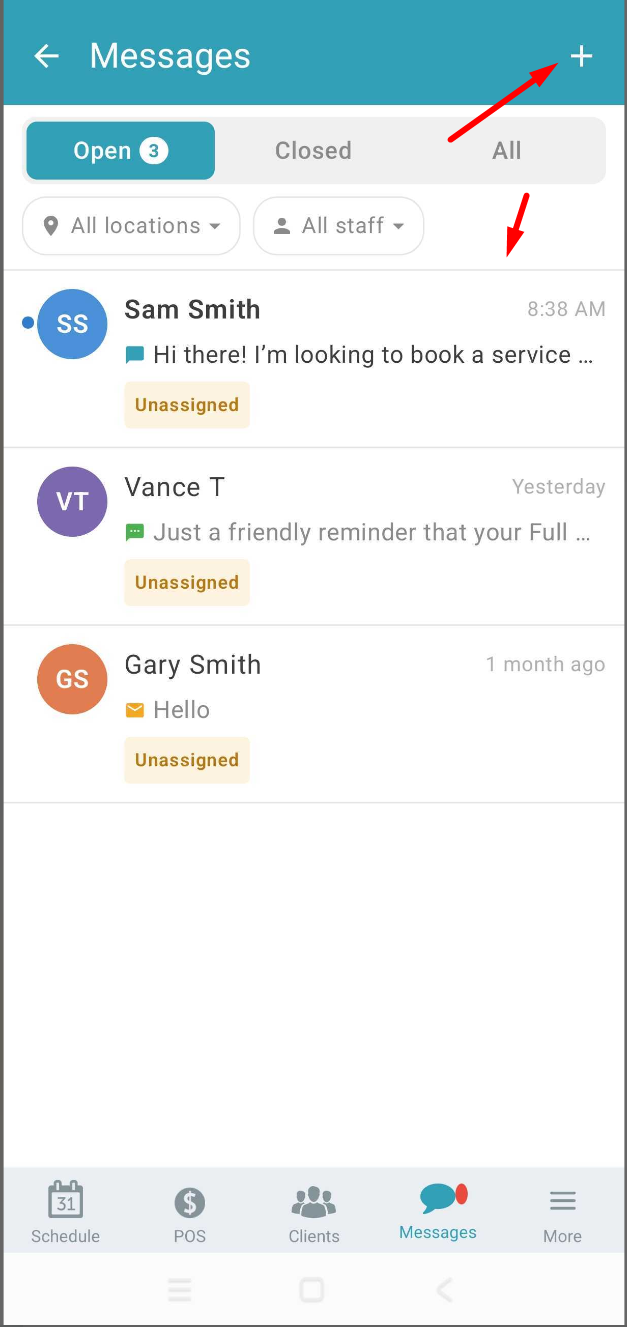
- Each conversation row displays key status indicators:
- Channel Badge: Shows the communication method (SMS, Email, Chat, etc.).
- Status Tags: Identifies unread messages (NEW) or resolved threads (CLOSED).
- Assignee: Displays the assigned staff member’s name or an UNASSIGNED tag.
- Dynamic Loading & Conversation Limits: Your inbox displays up to 200 conversations at a time for optimal performance. Older conversations load automatically as you scroll down the list. To view conversations beyond the 200-item limit, search for the client’s name or a keyword using the search bar at the top.
Contents:
- Utilizing the Default Communicator on Scheduler App
- Utilizing the Communicator Inbox on Scheduler App
Utilizing the Default Communicator on Scheduler App
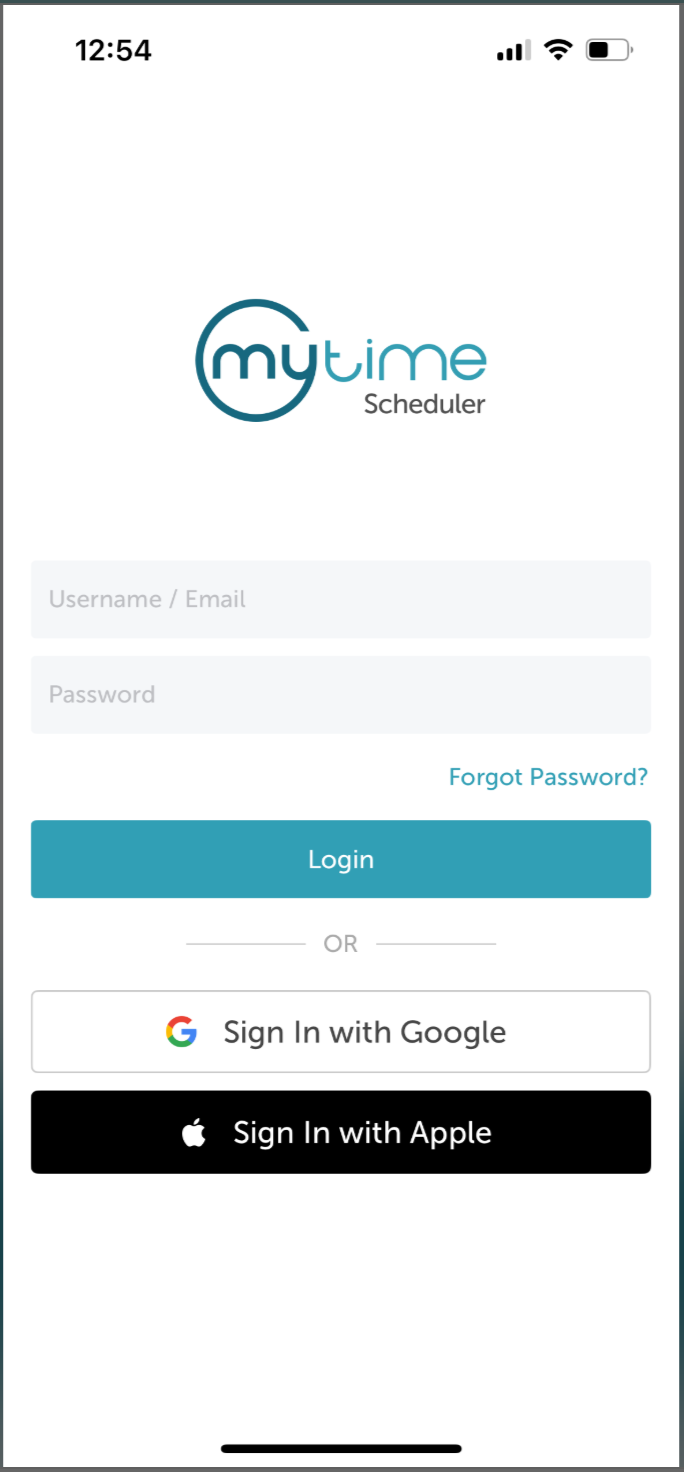
- Launch the MyTime Scheduler app on your device
- Choose your login method:
- Standard: Enter your registered email address and password, then tap 'Sign In'
- Social Login: Select 'Continue with Google' or 'Continue with Apple' to use your existing credentials for a faster login experience. For detailed instructions, learn more here
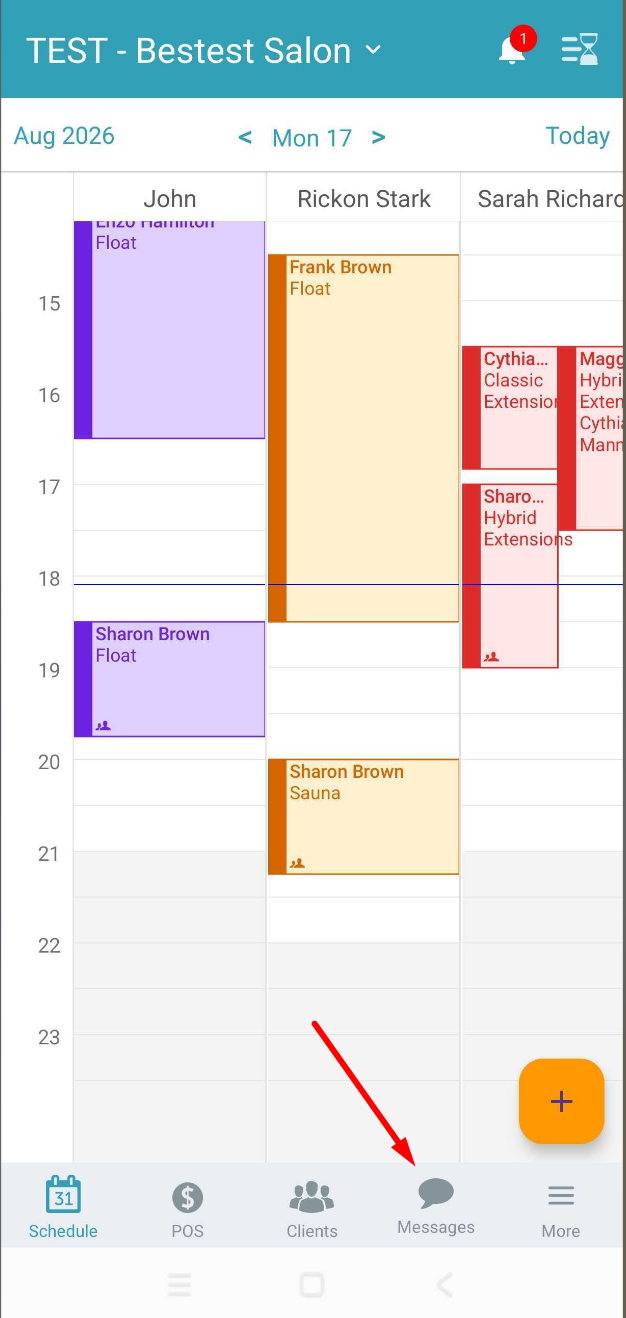
- Select the Messages tab at the bottom of the screen
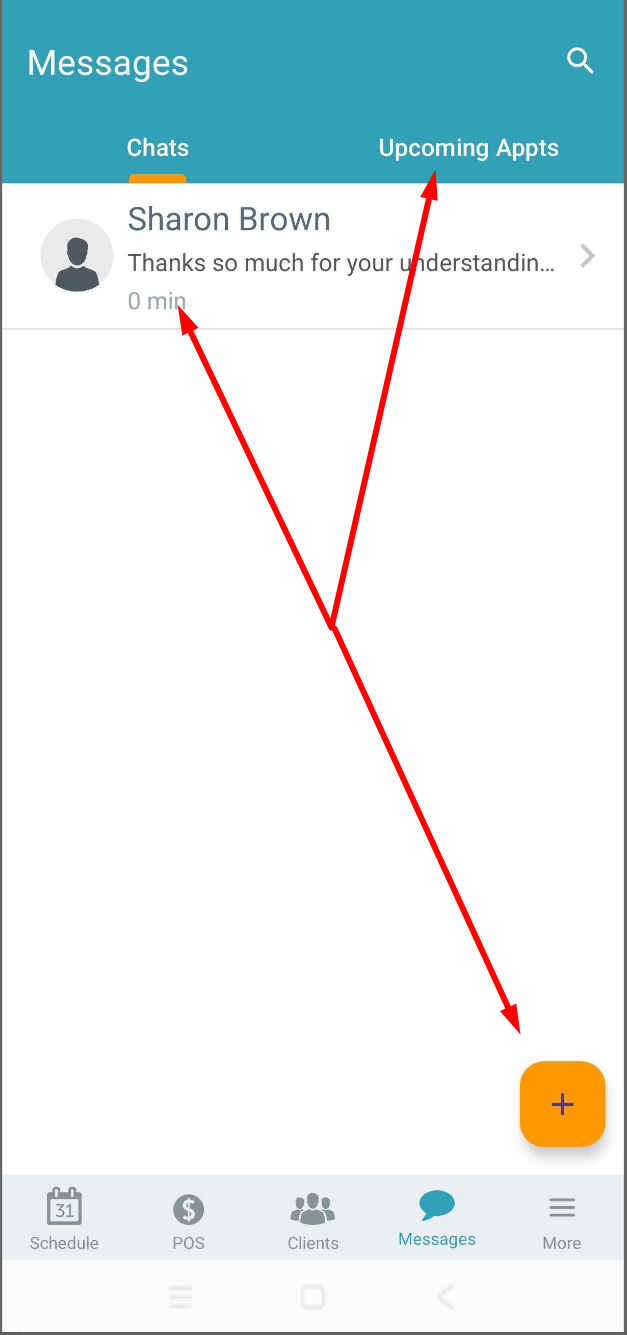
- Select an existing chat from the list, click the 'Upcoming Appts' tab for clients with upcoming appointments for that day, or search for a client using the + icon on the bottom right corner of the screen
- Compose a message or attach a file and send
Handling Incoming Messages
When a new message arrives via the Communicator while using the scheduler app:
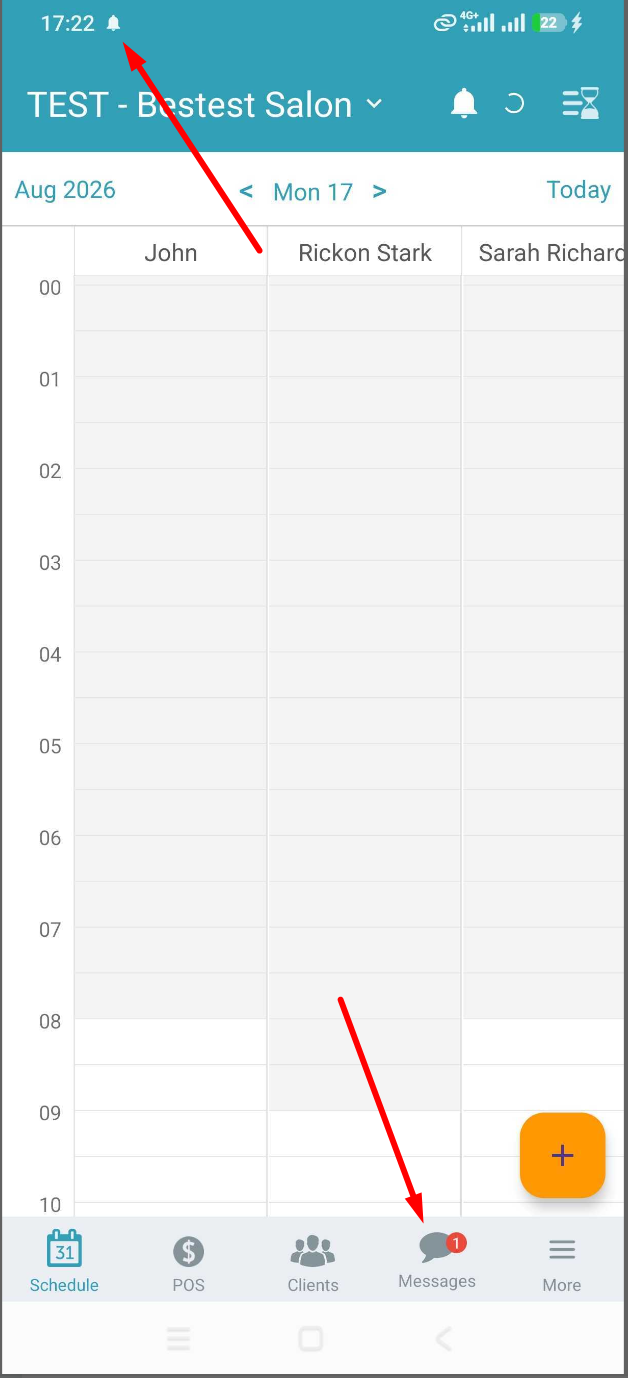
- A notification sound will be played, and the notification icon will appear at the top of your phone. Additionally, the Scheduler will display the unread number badge attached to the Messages icon on the bottom of the screen
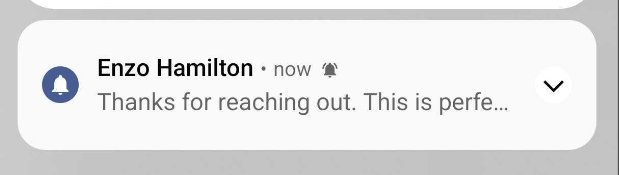
- Pulling down the notification bar on your phone will expose the message
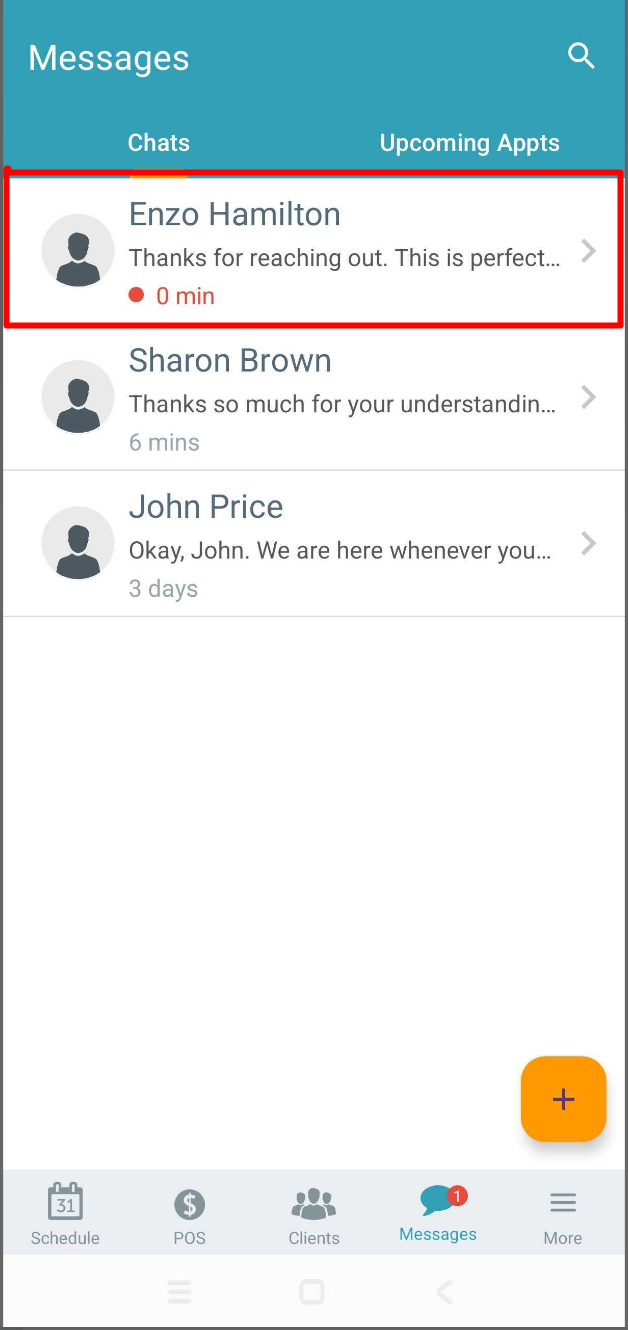
- Clicking the Message icon will display the new message at the top of the 'Chats' tab with the number of minutes since it arrived
- Pulling down the notification bar on your phone will expose the message
- Select the conversation to review the chat history, draft your response, and send
Utilizing the Communicator Inbox on Scheduler App
Once the hidden setting is enabled:
- Launch the MyTime Scheduler app on your device
- Choose your login method:
- Standard: Enter your registered email address and password, then tap 'Sign In'
- Social Login: Select 'Continue with Google' or 'Continue with Apple' to use your existing credentials for a faster login experience. For detailed instructions, learn more here
- Select the Messages tab at the bottom of the screen
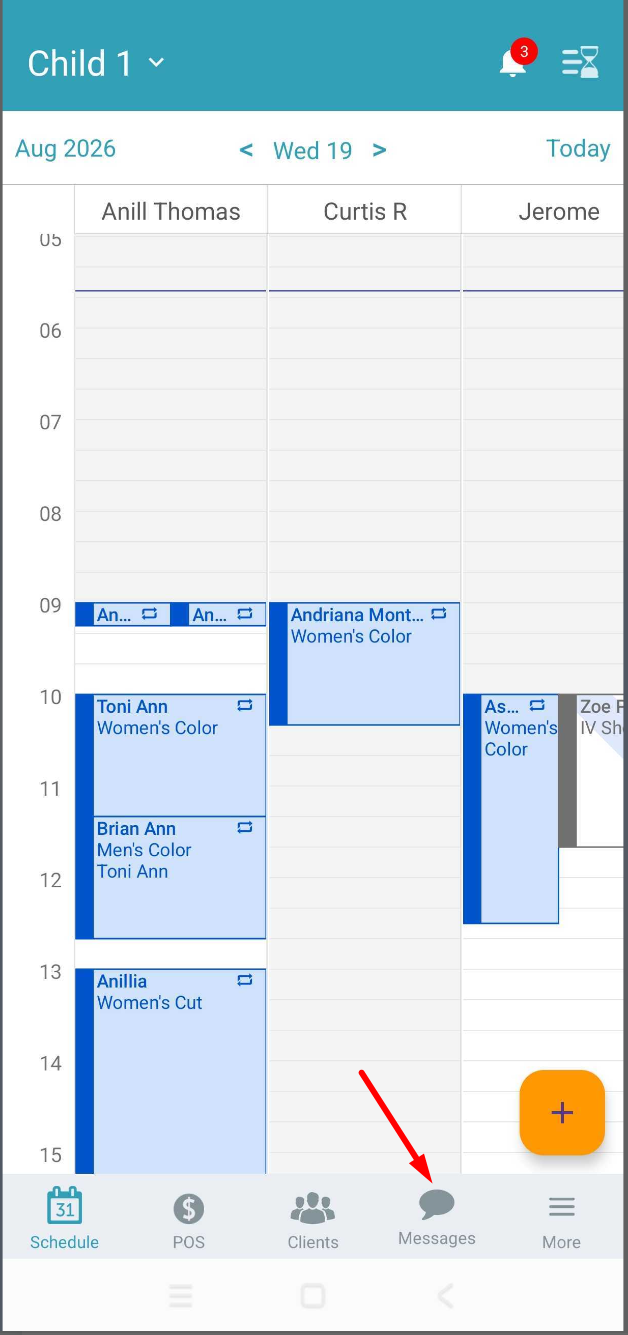
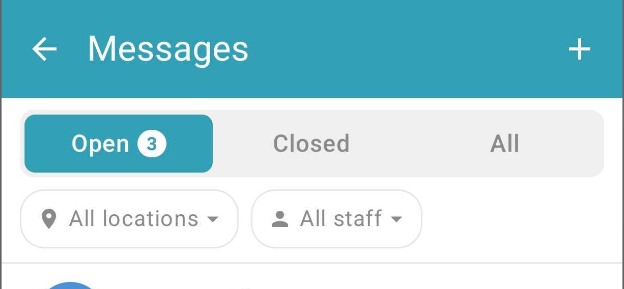
- You can use the top filter controls to refine your view:
- Status: Toggle between Open, Closed, or All conversations. Messages are sorted by most recent message.
- Location: Filter by a single location, multiple locations, or all locations.
- Assignment: Isolate messages assigned to a specific staff member, view unassigned general messages, or view all.
- Select an existing chat from the list, or tap the + icon on the top right corner of the screen to search for a client and start a new conversation
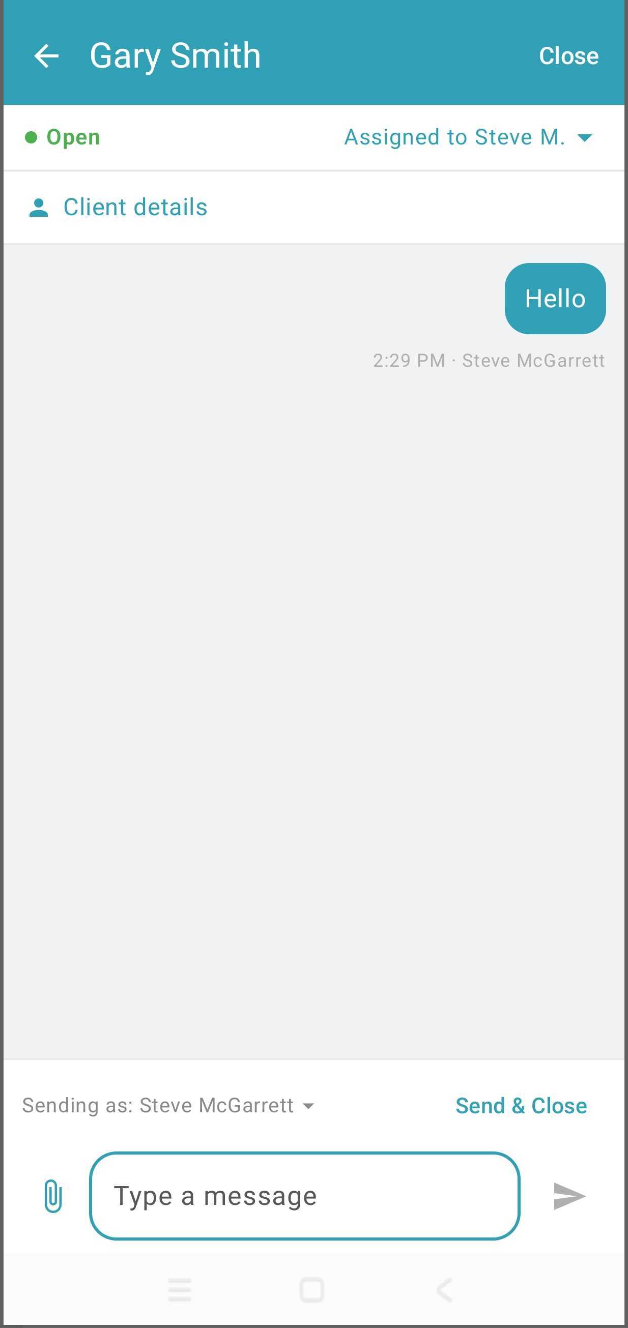
- Once a conversation is open, the screen displays the following details:
- Header: Displays the client’s name along with the option to close the chat.
- Assignment Status: Shows the current status of the chat and the staff member assigned to it.
- Client Details: Tap Client Details to view an overview of the client's profile.
- From there, select View full client profile to access their complete account.
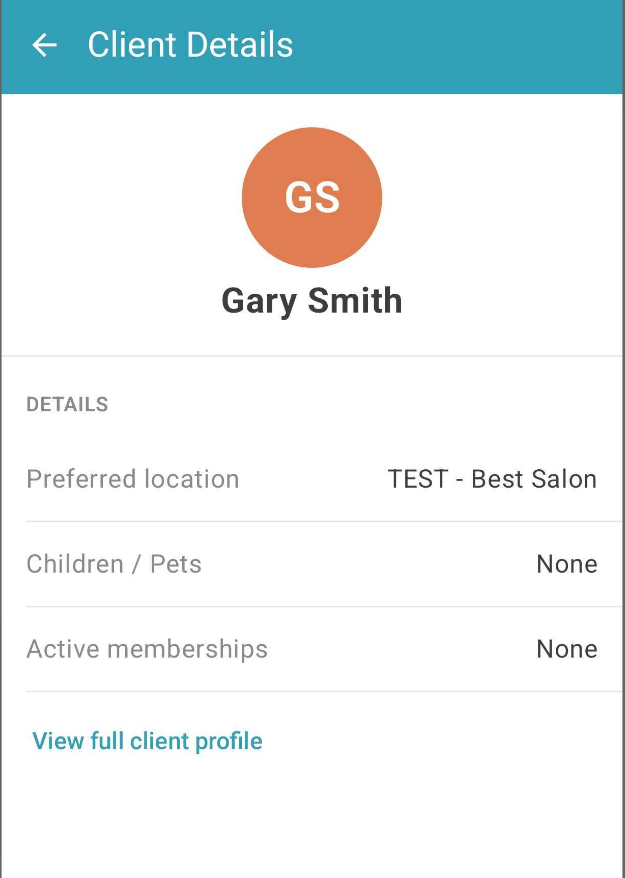
- From there, select View full client profile to access their complete account.
- Type your message in the text box or click the paperclip icon to attach a file
- Choose your delivery method:
- Send & Leave Open (Arrow Icon): Sends the message and keeps the conversation active in your Open queue.
- Send & Close: Sends the message and immediately archives the thread to your Closed view.
Handling Incoming Messages
When a new message arrives via the Communicator while using the scheduler app:
- An alert sound will play, a notification icon will appear in your phone's status bar, and an unread badge counter will display over the Messages icon at the bottom of the screen
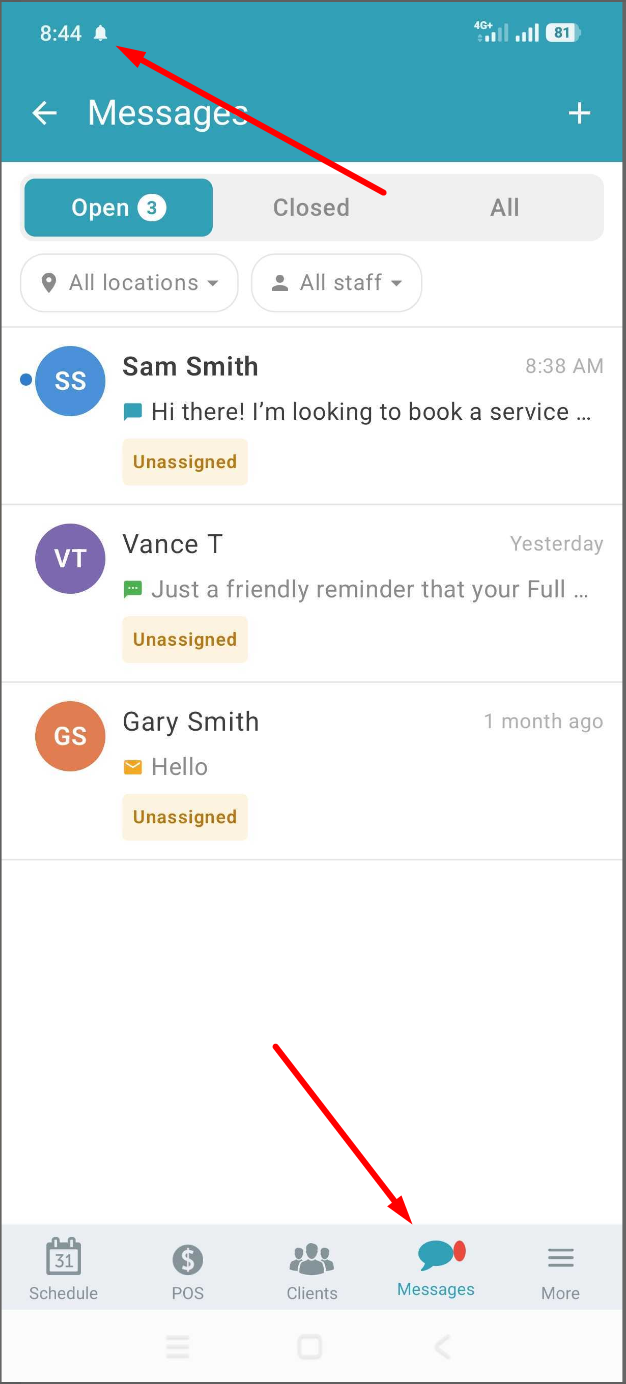
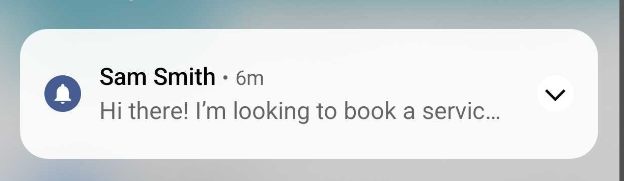
- Pull down your phone’s notification bar to preview the incoming message text instantly.
- Tap the Messages icon at the bottom of the screen to open your inbox. The new message will automatically appear at the top of the Chats tab.
- Pull down your phone’s notification bar to preview the incoming message text instantly.
- Select the conversation to review the chat history, draft your response, and send.

Related Article:
Installing MyTime on Scheduler App (Android and iOS)
Signing into MyTime on Scheduler App (Android and iOS)
Was this article helpful?
That’s Great!
Thank you for your feedback
Sorry! We couldn't be helpful
Thank you for your feedback
Feedback sent
We appreciate your effort and will try to fix the article