At MyTime, we understand that payment issues can occur unexpectedly. To prevent service interruptions, we provide a 7-day grace period to update your payment information and restore full access to your account. This article explains what happens when a subscription payment fails and how to resolve it.
Things to know:
- For franchise businesses:
- If the parent account pays for the subscription, the payment method must be updated on the parent profile.
- If a child location pays for its own subscription, the payment method must be updated on the child account.
- Only the account owner can update subscription payment information.
- The red payment failure banner is visible only to:
- Parent account staff
- Location owners
- Location managers
- When a subscription payment fails
- You will receive an email notification informing you that the subscription payment attempt has failed.
- MyTime will automatically retry the payment daily for 7 days.
- This 7-day period is your grace period to update your payment information.
- If payment is still unsuccessful after the grace period:
- Your account will be suspended.
- MyTime will continue attempting to process the charge once per month until payment is successful.
- Once you update your payment method:
- MyTime will immediately retry the outstanding subscription charge.
- If the payment is successful, full account access will be restored.
- A red error banner will appear at the top of your dashboard when a payment fails. This banner will remain visible until the outstanding balance is successfully processed.
Contents:
- Email and Dashboard Banner for Failed Payments.
- Updating Your Bank Account on File
- Updating Your Credit Card on File
Email and Dashboard Banner for Failed Payments.
Email Received
When a subscription payment fails, you will receive an email notification similar to the example below.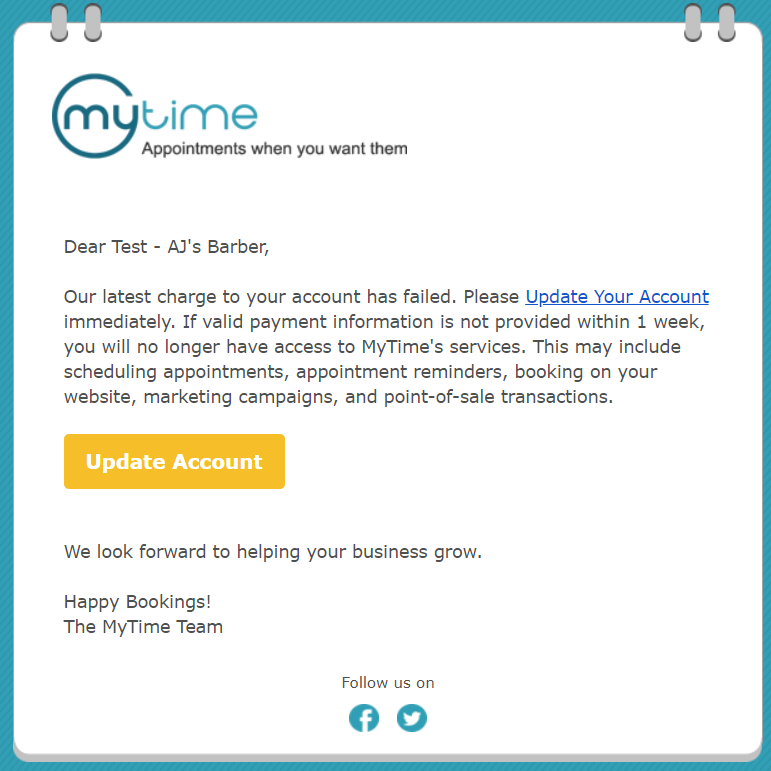
Red Banner
A red error banner will appear at the top of your MyTime dashboard. 
This message serves as a notice that failure to make payments may result in the suspension of your account. Your account will be suspended once the grace period concludes, and this warning message will persist until the required payments are settled. To update your information, click the "Update and Charge Now" link or go directly to My Account.

Updating Your Bank Account on File
If you pay through your checking account:
Go to My Account.
Under Payment Method, select Pay from Checking Account (no fee).
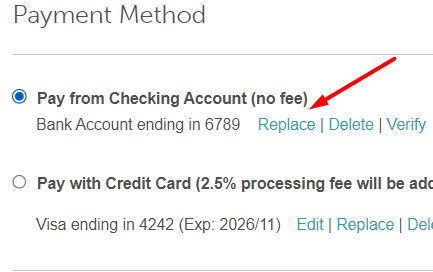
Click Replace.
Enter your bank account details.
Stripe (our payment processor) will make two small deposits into your account.
Once received, return to My Account → Payment Method.
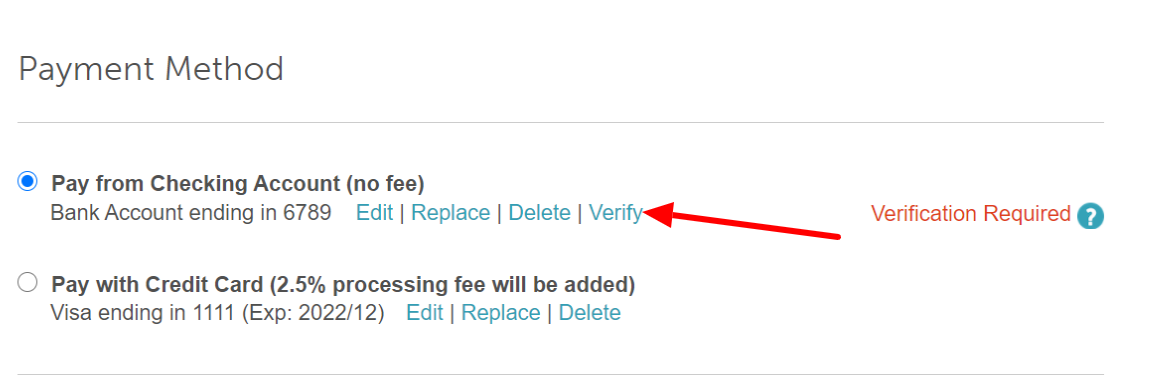
Click 'Verify' next to the bank details
Enter the two deposit amounts
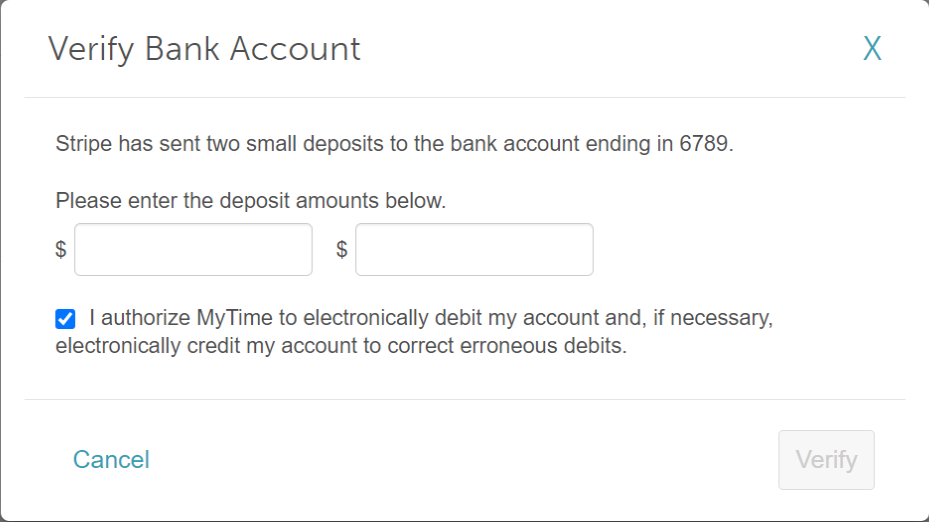
Select Verify to confirm your account.
Save your changes.
Updating Your Credit Card on File
If you pay for your subscription by credit card:
Go to My Account.
Under Payment Method, select Pay with Credit Card (2.5% processing fee will be added).
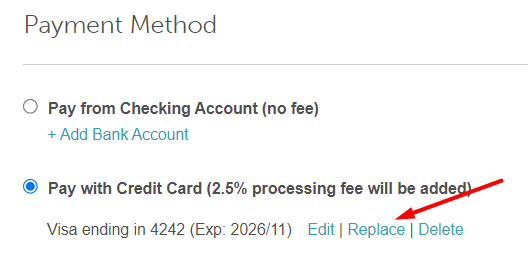
Click Replace.
Enter your new card details.
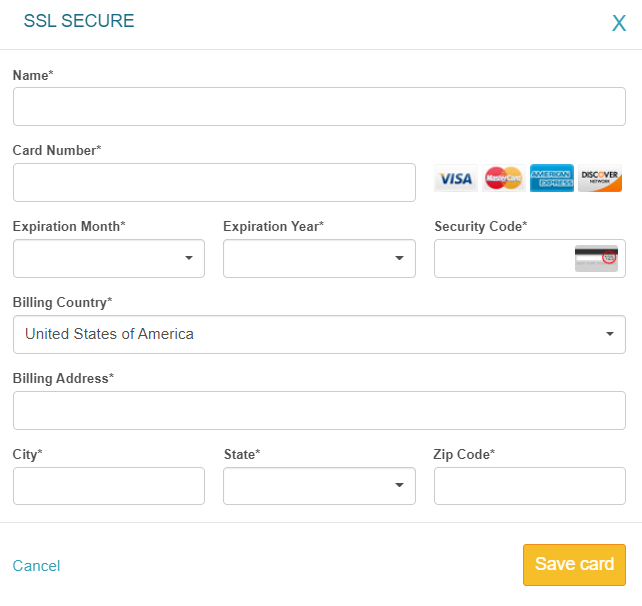
Select Save Card.
Click Save Changes.
Once your payment method has been updated and verified, MyTime will automatically process the outstanding charge and remove the payment failure alerts.
For more information, contact us at support@mytime.com.
Was this article helpful?
That’s Great!
Thank you for your feedback
Sorry! We couldn't be helpful
Thank you for your feedback
Feedback sent
We appreciate your effort and will try to fix the article