Things to know:
- Both Client Invoicing and Self-Pay must be enabled on your account for clients to use self-checkout. Learn more about invoicing here.
- The ability to customize the self-checkout automated messages is governed by the "Accessing Automated Messages" access control setting.
- If both the Self-Checkout and Invoicing templates are enabled simultaneously, clients will receive both notifications when an appointment is marked completed.
- Delivery Requirements:
- SMS: Clients must have a valid phone number on file and must have opted in to receive transactional SMS.
- Email: Clients must have a valid email address on file and must have opted in to receive transactional emails.
- Push Notifications: Delivered exclusively to clients who have installed your custom, white-labeled MyTime Guest App.
- SMS Segments & Billing:
- SMS billing is calculated per segment, not per message.
- Each segment is billed individually
- Each recipient receives their own copy of the message
- Total cost = segments × recipients × rate. Example: 2-segment message sent to 50 recipients = 100 billable segments
- Learn more about SMS Segments & Billing here
- Automated SMS messages are not sent from your dedicated business phone number. Because these messages support two-way interaction without native metadata, MyTime rotates sending numbers to accurately match incoming replies with the correct ticket.
- For multi-location accounts, messages automatically customize to the client's associated location. The system determines the sender identity using the following hierarchy:
- Sender Name Priority:
- Location Nickname (Highest Priority): Defined under Business Setup > Business Profile > Edit Location.
- Reply-To Name: Used if no location nickname is configured.
- Company Name (Fallback): Used if neither a nickname nor Reply-To Name is set.
- Reply-To Email Address Priority:
- Defaulted to the location's email address set under Business Setup > Business Profile > Edit Location.
- If no location email is set, the system falls back to the location owner's email address.
- If the custom setting "Use a specific reply-to email for outbound emails" is active, the system routes replies to the specific address designated there.
- Sender Name Priority:
- Template Formatting & Best Practices: Reserved Characters {}: Curly brackets are reserved as variable placeholders. If client or pet profile names include brackets (e.g., {Bella}), any automated notification referencing that variable may fail to send.
- Pasting Content: The template editor automatically preserves line breaks and paragraph spacing pasted from external documents, removing the need for manual reformatting.
- When an appointment ends, MyTime automatically builds a unique link for that specific client's invoice and includes it in their text or email. Tapping the link takes them straight to their bill so they can pay on their phone.
- The ability to customize automated messages is not available on the Scheduler App
Contents:
Enabling Self-Checkout Setting
- Navigate to Business Setup > Settings
- Scroll to the POS section
- Locate the "Enable invoicing clients" setting
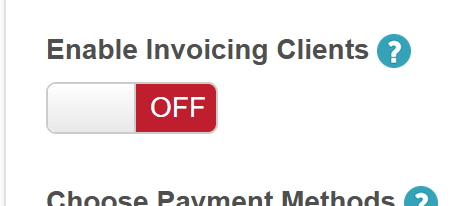
- Toggle to 'Yes' to expose the 'Enable Self-Pay' setting
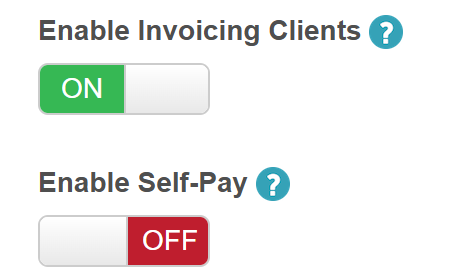
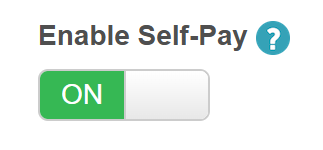
- Toggle to 'Yes'
- Save changes
Customizing Self-Checkout Template
Once the Self-Pay setting is enabled, you can customize the template:
Navigate to Marketing > Automated Messages
In the Booking Notification section, locate the Self-Checkout template
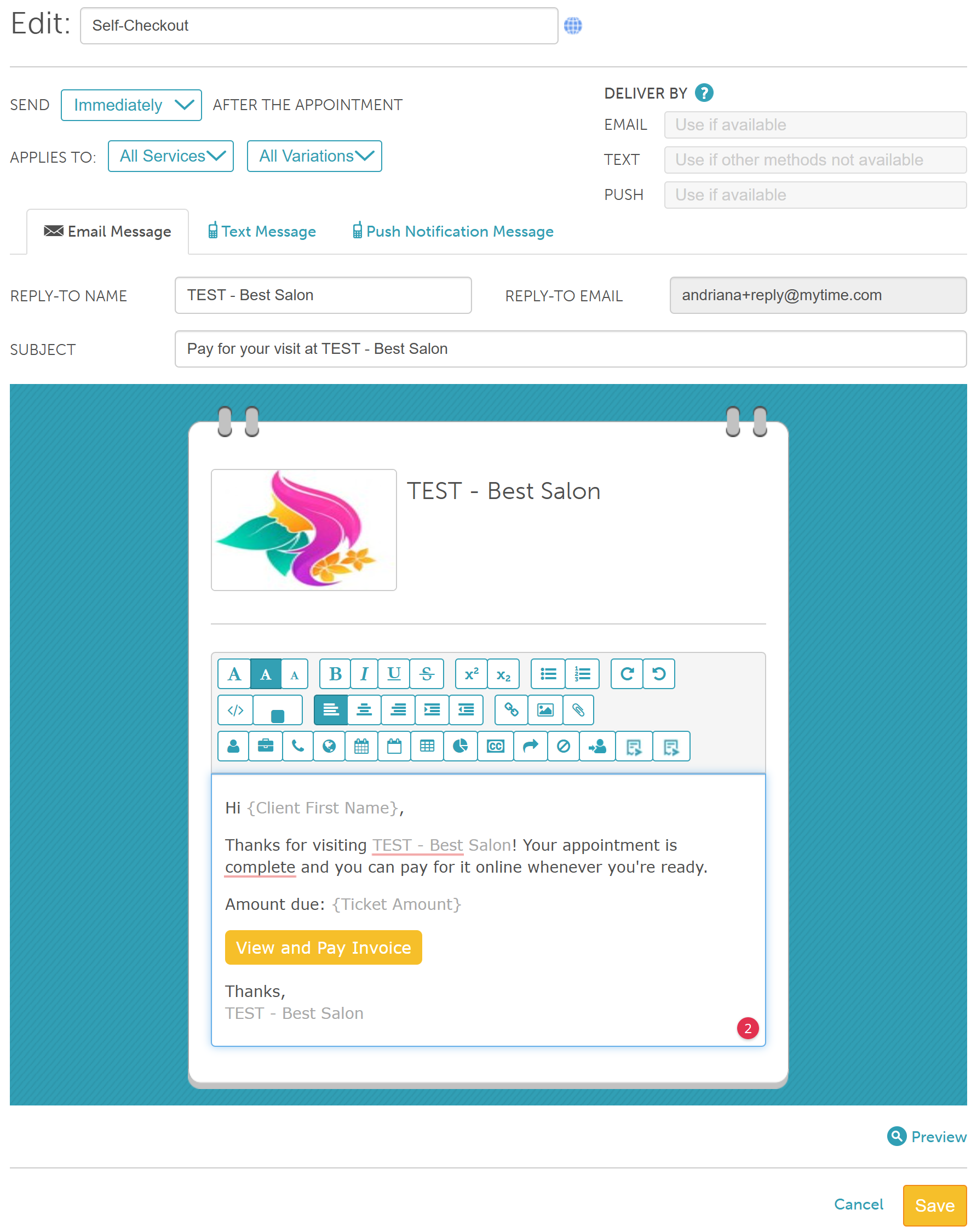
Hover over the template and select View (or Edit) to adjust message content, delivery channels, and timing

Configure the available settings (if your subscription allows):
Template Name: Customize the internal name of the template
Send X After the Appointment: Decide how long after the appointment is completed the notification should be sent. By default, this dropdown is set to 'Immediately,' but it can also be configured to minutes or hours.
Applies To: Choose the service category and specific variation(s) that trigger automated notifications for your template.
Reply-to name: This is the name that appears when clients reply to an automated email. By default, it is pulled from the business name set on the Business Profile page.
Delivery By: You can specify a fallback delivery method (email, SMS, or push notification) when the primary method is unavailable. Learn more here
Use if available: This is the primary method that will be attempted first
Use if other methods not available: This method will be attempted if the primary option is unavailable (because contact information is not on file or the user opted out)
Never Use: This method will not be used, even if none of the other options are available
The header contains your location information. You can edit this information from your business profile. Learn how to here
The appointment details, such as service, date, time, etc., cannot be edited. These are custom contents that will be set on delivery.
Save changes
Related Articles:
Was this article helpful?
That’s Great!
Thank you for your feedback
Sorry! We couldn't be helpful
Thank you for your feedback
Feedback sent
We appreciate your effort and will try to fix the article