This article will walk you through the steps for canceling appointments via the guest app.
Things to know:
- Clients can only cancel an appointment outside the cancellation window if it is still in a pending state. Once the appointment is accepted, the cancel link disappears.
- The cancellation policy is always displayed to the client during cancellation.
- If a cancellation fee is configured:
- It only applies if the client cancels within the specified cancellation window.
- The card on file is charged automatically when the fee applies.
- The Appointment Confirmation page will show the fee charged.
- Two tickets are generated: one voided for the original appointment and one active for the fee.
- If the appointment was booked in-store but canceled online, no ticket is created for the original appointment, but a ticket for the fee appears.
- The bookings page will display "canceled" next to any recently canceled appointment
- When an appointment is booked online, a ticket is automatically generated. If the appointment is later canceled (either online or in-store), the system will handle the associated ticket based on the service configuration:
- Deposit Fee Configured: If a deposit is required for the service, canceling the appointment will automatically close the ticket.
- Prepaid Appointments: If the appointment is prepaid and canceled within the cancellation policy, the ticket is automatically voided.
- If the cancellation occurs outside the policy and a cancellation fee is charged, the ticket will be automatically closed instead.
- Cancellation Fee Applied: Whether or not the appointment was prepaid, if a cancellation fee is applied at the time of cancellation, the ticket will be automatically closed.
- Appointments with Tax Applied: If tax is applied to the appointment, canceling it will result in the ticket being automatically voided.
- No Deposit, Prepayment, Cancellation Fee, or Tax: If none of the above conditions apply, the ticket will be automatically voided upon cancellation.
To cancel an appointment via the guest app, Client should:
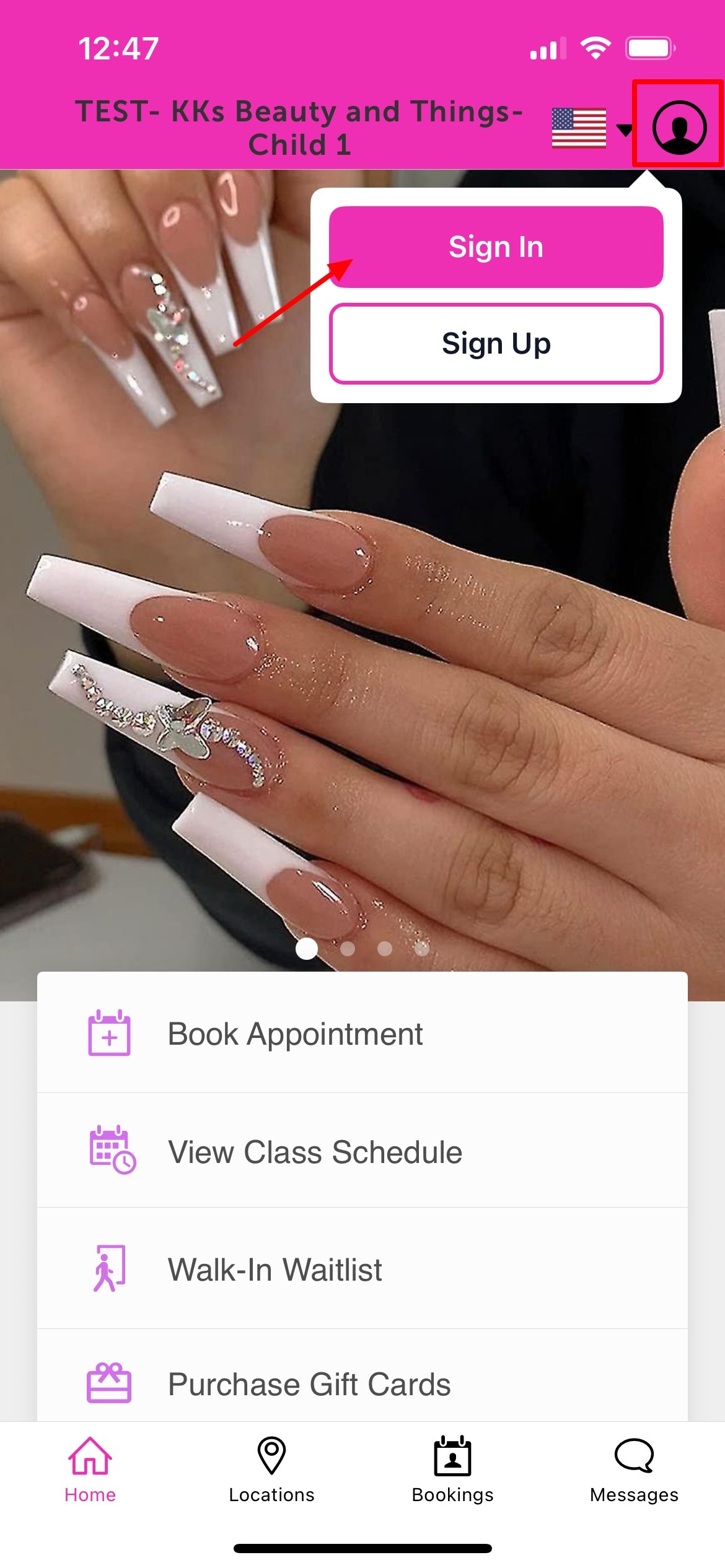
2. Upon downloading, navigate to the home screen and tap on the account icon located in the top right corner, tap sign in
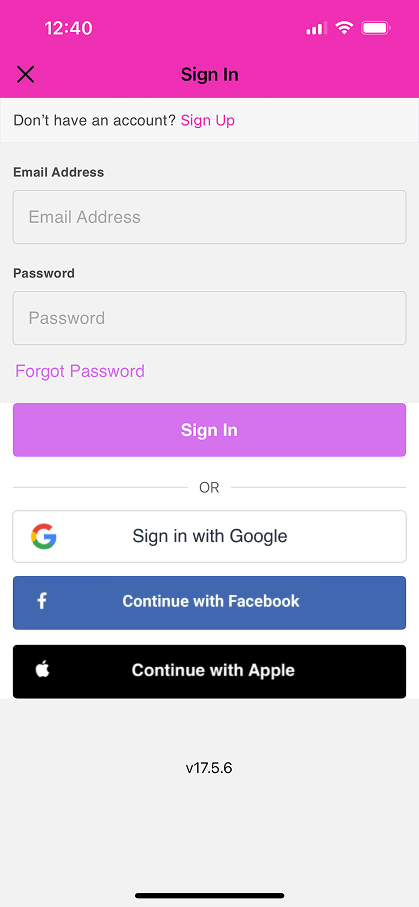
 3. Choose their login method:
- Standard: Enter their registered email address and password, then click 'Sign In'.
- Social Login: Select 'Continue with Google,' 'Continue with Apple,' or 'Continue with Facebook' to use their existing social media credentials.
 4. Upon signing in, clients will be directed to the My Account page, providing them access to view and manage their account details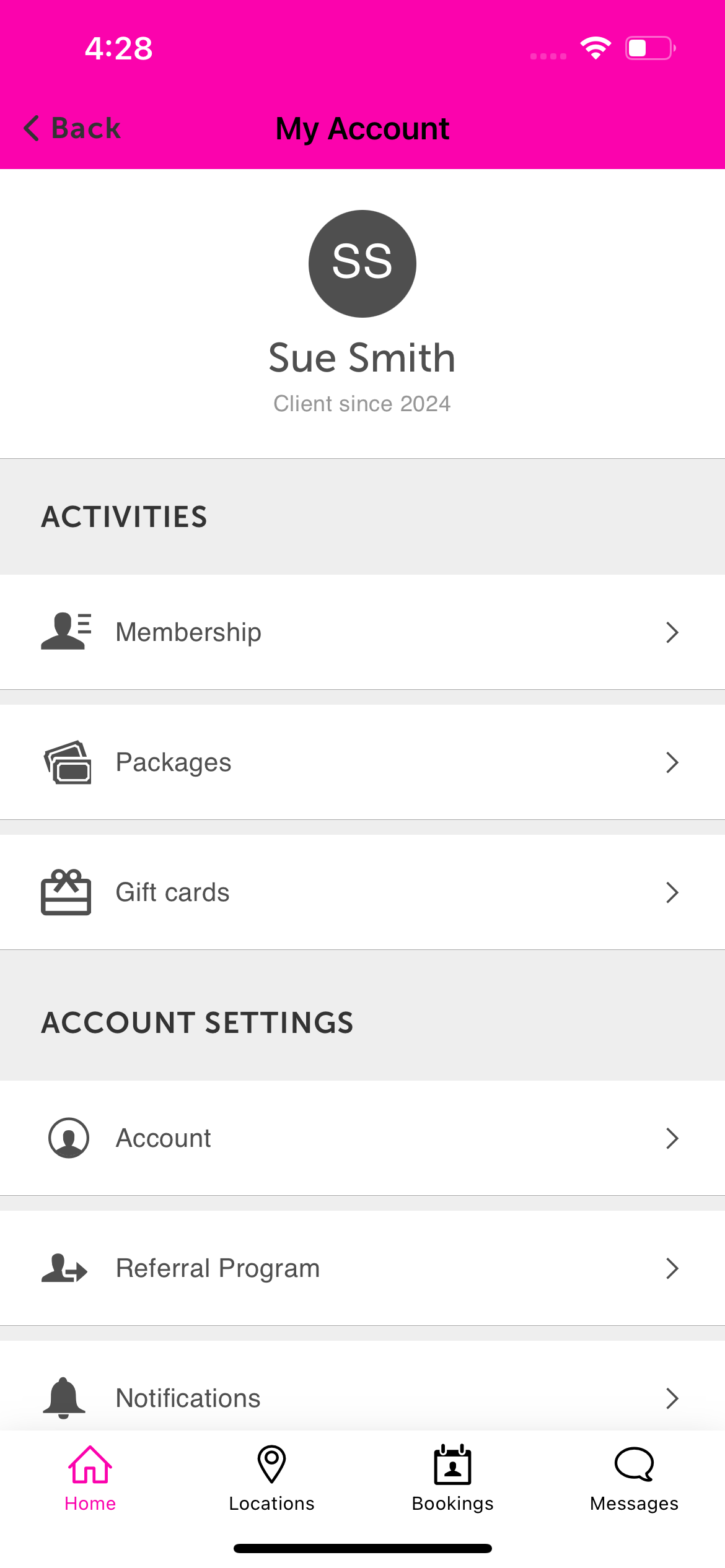
5. Select "Bookings" located at the bottom of the screen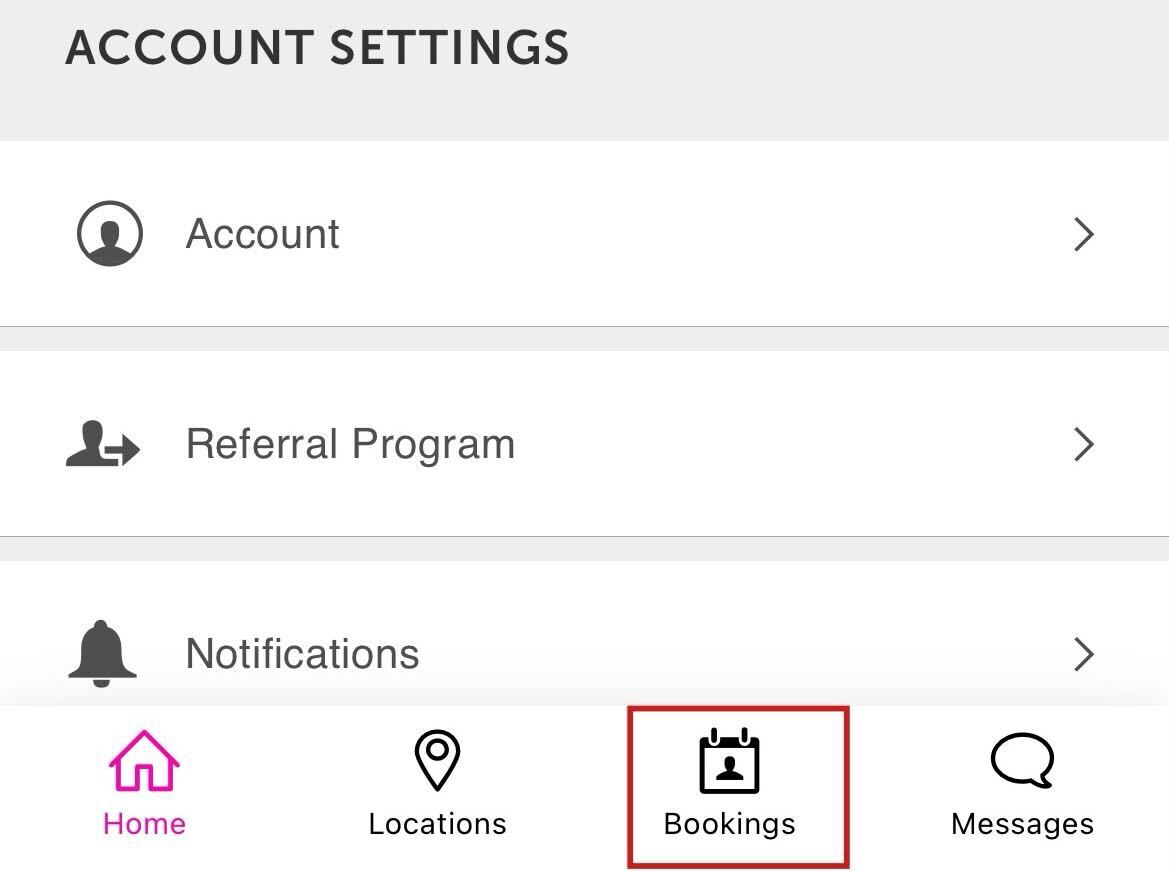
6. From the "Upcoming" tab, locate and select the appointment you wish to cancel
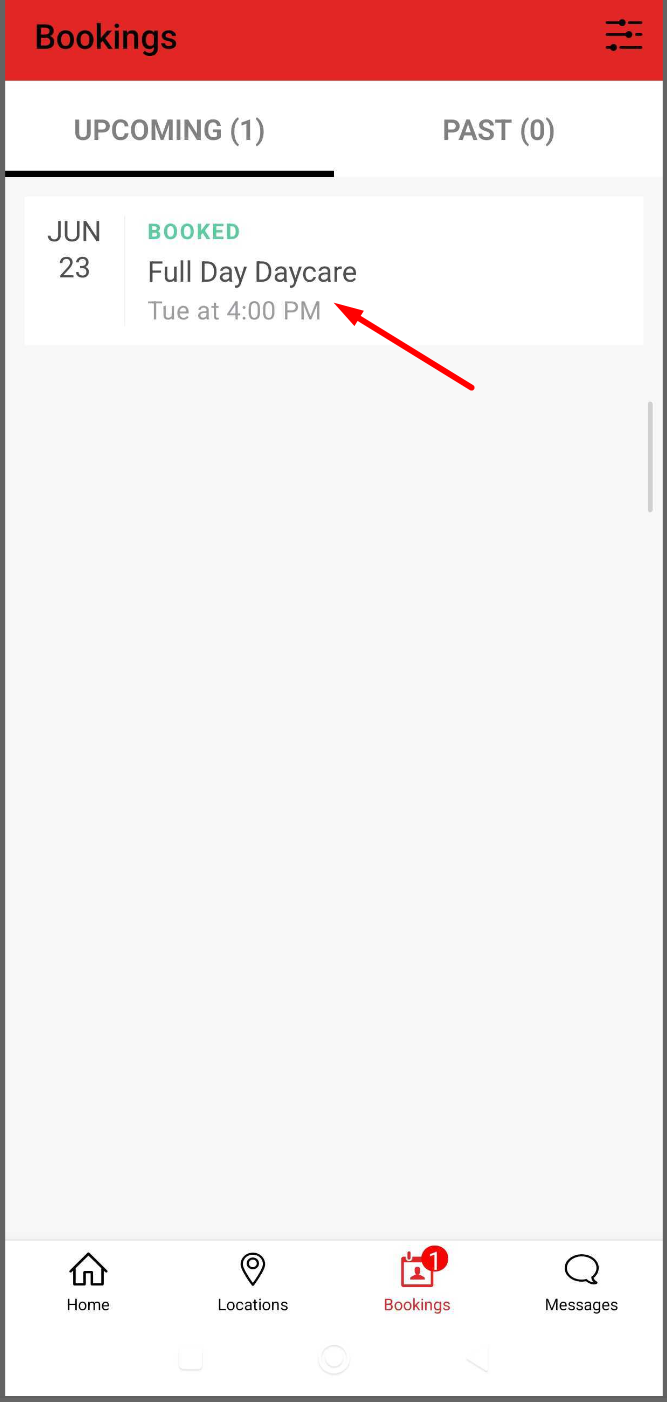
7. Select the "Cancel Appointment" option at the top of the screen 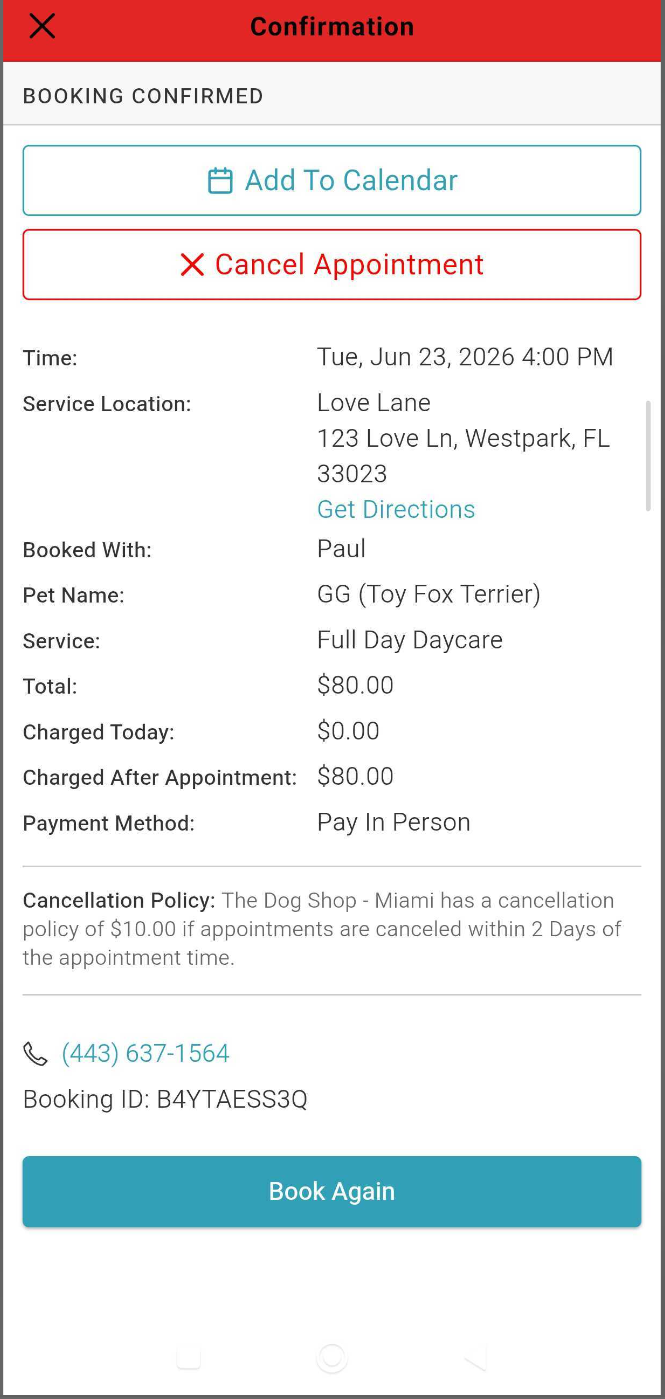
8. On the confirmation page that appears, select "Yes, Cancel Appointment"
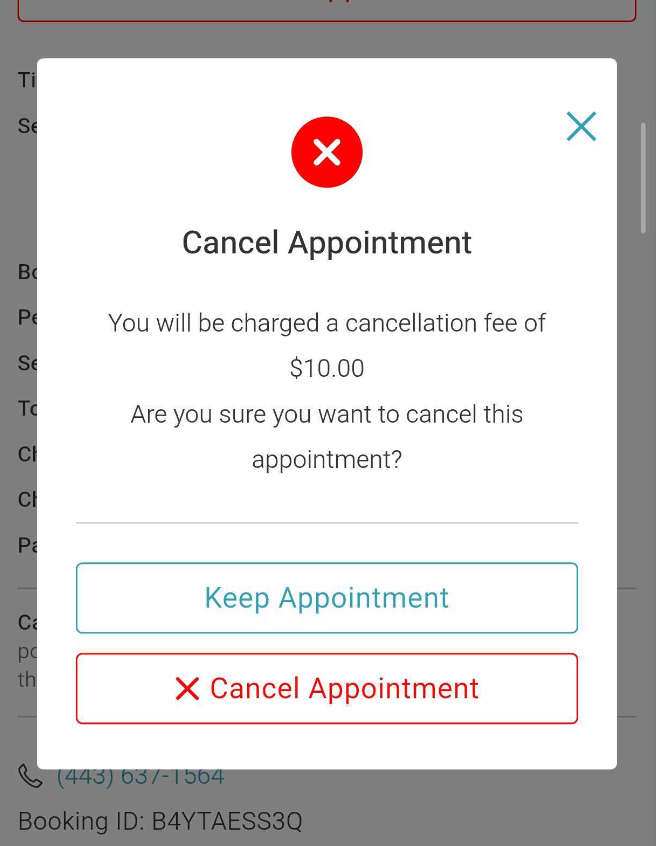
9. Once the appointment has been successfully canceled, a confirmation will be displayed 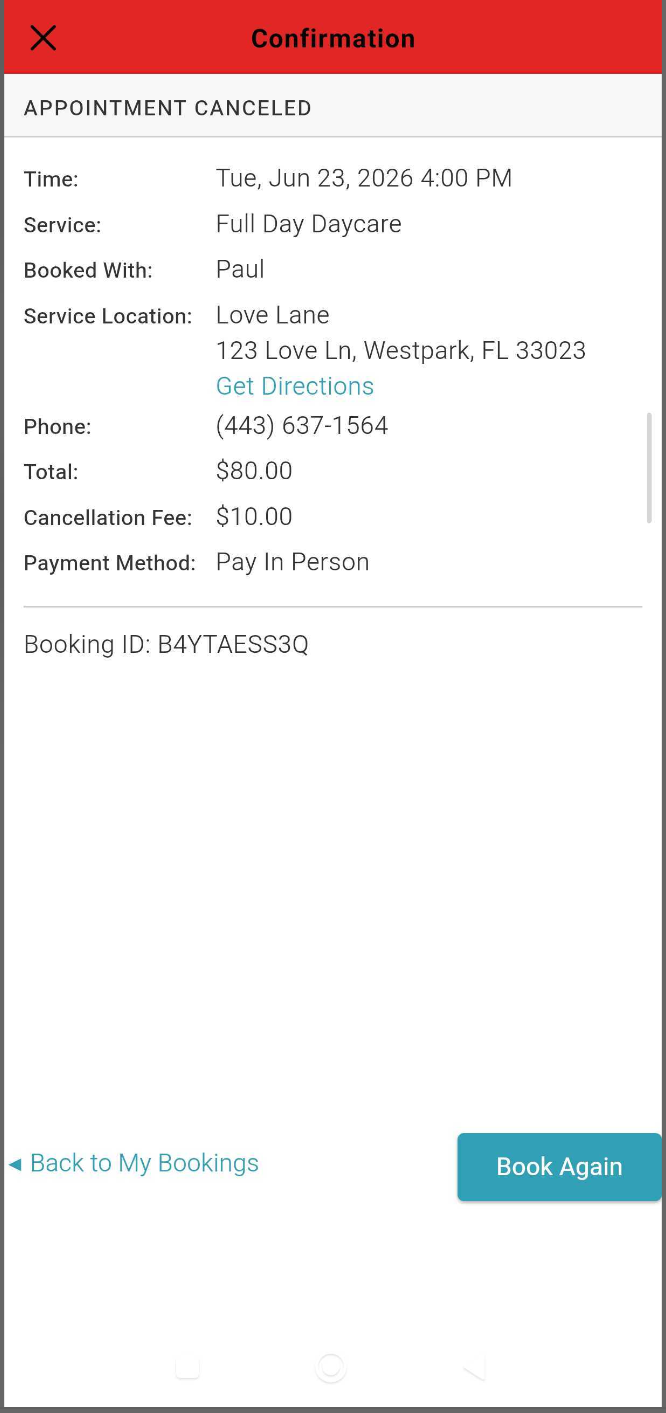
10. The bookings page will now reflect "(canceled)" next to the recently canceled appointment.
Troubleshooting & Cancellation Errors
When canceling appointments, you may encounter the following system blocks depending on your setup:
Paid Appointments: If a payment has already been successfully processed for an appointment that requires cancellation, the system will display an error message and block the cancellation until the payment is refunded.

Missing Credit Cards: If your business has a cancellation policy configured but the client does not have a credit card saved to their account, the system will trigger an error message when they attempt to process the cancellation fee. 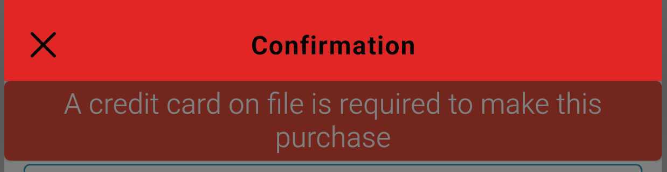
For more information, contact us at support@mytime.com.
Related Articles
Account Management on Guest App
Purchasing Packages on the Guest App
Purchasing Memberships on the Guest App
Purchasing Gift Cards on the Guest App
Booking Appointments via the Guest App
Booking Classes via the Guest App
Was this article helpful?
That’s Great!
Thank you for your feedback
Sorry! We couldn't be helpful
Thank you for your feedback
Feedback sent
We appreciate your effort and will try to fix the article