When clients book appointments online, you can decide how payments are handled: require online payment, accept only in-person payments, or let clients choose their preferred method.
Things to know:
To accept online payments, you must first have an active merchant processing account. Contact the Processing Team at processing@mytime.com to get started.
Access to the Payment & Deposit tab is governed by the "Accessing Payments & Deposits" access control setting.
You can select one of three payment preference models for your online booking widget:
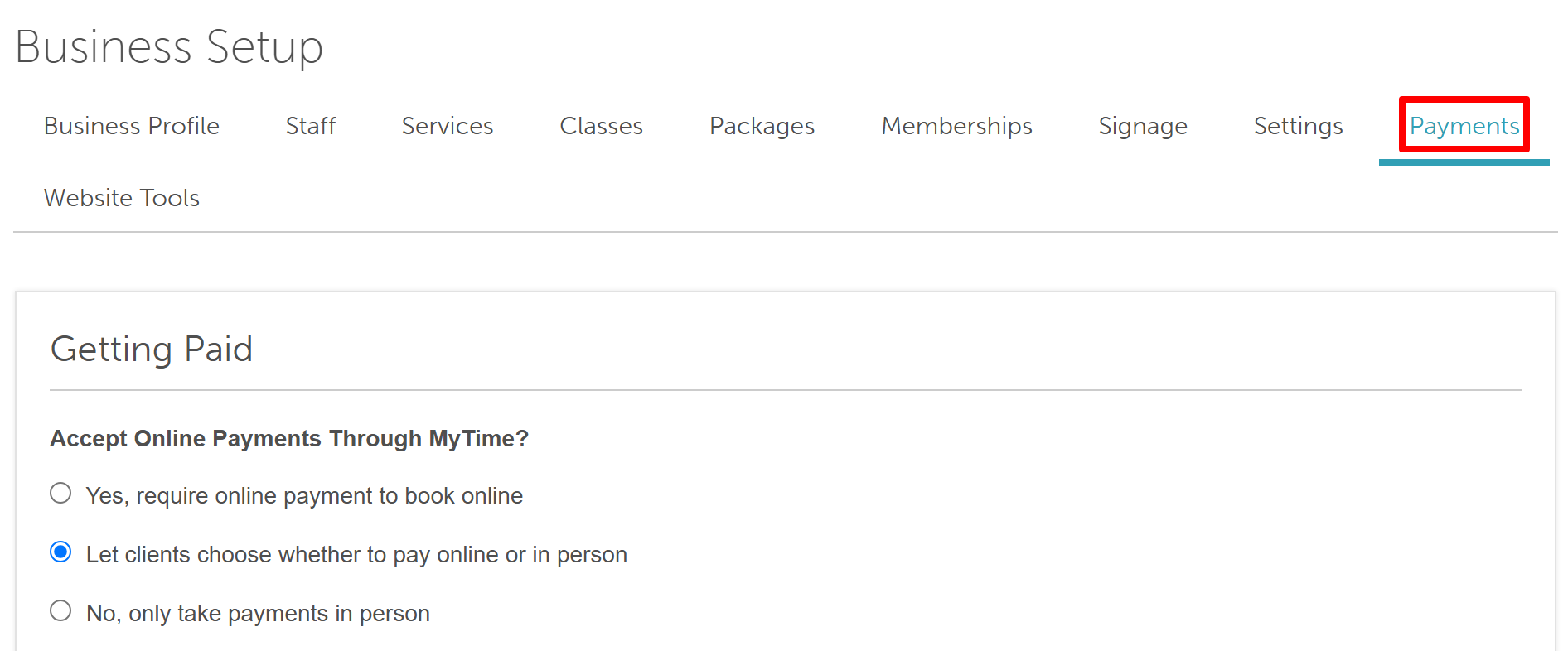
Yes, require online payment to book online: Clients must pay online at the time of booking to successfully confirm their appointment.
Let clients choose whether to pay online or in person: Clients select at checkout whether to pay immediately online or pay in-store at the time of service.
No, only take payments in person: Clients bypass online payment and pay in person when receiving their service.
Important Exception: Even if set to No, only take payments in person, clients will still be required to enter a credit card if your calendar settings require a card on file to schedule, or if a cancellation policy fee applies to the booking.
How Online Payments Work (Processing Timeline): When online payments are enabled, transactions flow through an automated verification and capture window:
The Booking Hold: When a client books an appointment, a temporary hold for the service amount is placed on their credit card. (Note: If a deposit is required, the deposit is charged immediately, and the hold is placed on the remaining balance. For appointments booked more than 6 days out, holds may temporarily expire and be re-authorized closer to the appointment date).
The Auto-Charge Window: The system automatically finalizes the charge approximately 2 to 3 hours after the appointment or class session officially ends.
Handling Tips: If tipping is enabled, this 2-to-3-hour window allows time for a tip to be added (either by the client via text or by the business at the POS). Once the window passes, the temporary hold converts into an authorized charge that automatically includes any added tip.
Payout Deposit: Funds are processed and deposited directly into your linked bank account within 1–2 business days following the completed appointment.
- The setup option displayed in the top-right user menu depends on how you access the account and your assigned role:
- When navigating from the Parent Account (Location Management tab):
- Admin: Displays Business Setup when viewing the location account.
- Login As: Displays Location Setup when viewing the location account.
- When logged in directly at the Location Level:
- Location Owners & Location Managers: Display Location Setup.
- Service Providers & All Other Roles: Display Profile Setup.
To adjust your payment settings:
- Navigate to Business Setup / Location Setup
- Select Payments & Deposits
- From here, you can choose your payment preference
- Save changes
For more information, contact us at support@mytime.com or (385) 233-6964.
Related Articles:
Was this article helpful?
That’s Great!
Thank you for your feedback
Sorry! We couldn't be helpful
Thank you for your feedback
Feedback sent
We appreciate your effort and will try to fix the article