You can sell gift certificates for specific services, classes, products, or a combination of items alongside standard dollar-value gift cards. Once purchased, clients can redeem their unique code at the POS, during online booking, or through an invoice link. In this article, we'll show you how to sell gift certificates in-store.
Things to know:
- Selling gift certificates in POS is controlled by a hidden setting and the "Creating Tickets" access control permission.
- To configure gift certificates, learn more here.
- Franchise Businesses:
- Global vs. Local Availability
- Global Gift Certificates: Created at the parent account level. These can be sold and redeemed across all business locations.
- Local Gift Certificates: Created at an individual child location. These can only be sold and redeemed at locations under that specific child account.
- Global vs. Local Availability
- The ticket automatically calculates the price based on the included items. Once payment is complete, the closed ticket displays the unique gift certificate code, recipient details, delivery date, and validity period.
- Once sold, the gift certificate appears on the client's profile under the Gift Card section.
- Gift certificates can be emailed immediately or scheduled for a future date. If a gift certificate has an expiration timeframe, the countdown begins on the exact date the recipient receives the email—not the purchase date. Once expired, it can no longer be redeemed.
- Example:
- If a client buys a gift certificate with a 90-day expiration on May 1 and schedules email delivery for May 15, the 90-day countdown starts on May 15.
- Example:
- Certificates scheduled for future delivery display a Not Delivered Yet status until sent.
- Refunding Gift Certificates
- Staff can process a full refund for an unused gift certificate directly from the original purchase ticket.
- Once a gift certificate has been redeemed or used, the purchase ticket will no longer allow a refund.
To sell a gift certificate in-store:
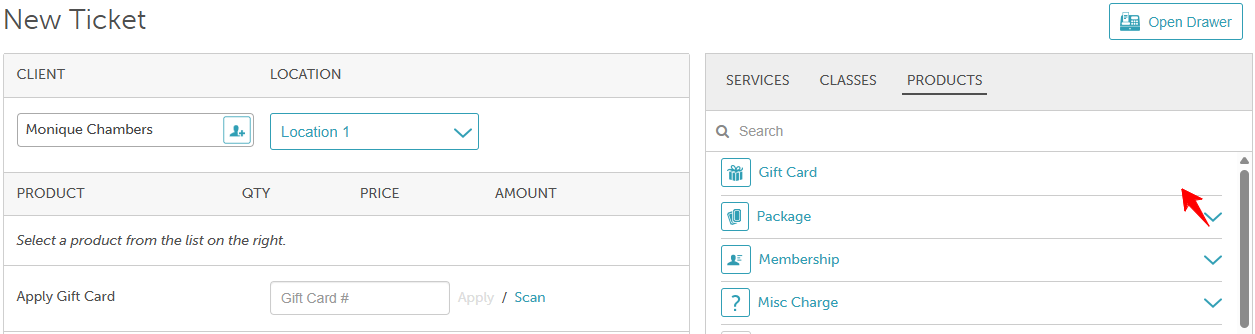
- Go to POS > New Ticket.
- Add a client to the ticket.
- Select the Product tab, then click Gift Card.
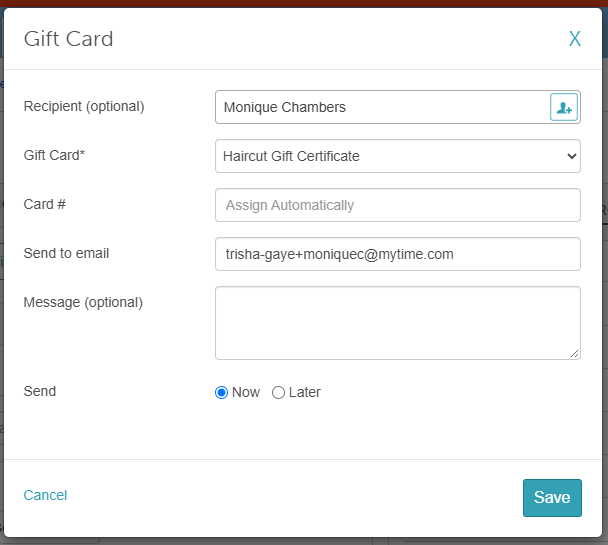
- In the gift card modal, enter the following details:
- Recipient: Search for an existing client by name, email, or phone number, or click the Add a Client icon to create a new profile.
- Gift Card: Select the desired gift certificate from the list.
- Card Number: Leave blank to let MyTime generate a code automatically, or enter a custom code.
- Send to email: Enter the recipient's email address.
- Message: (Optional) Enter a custom message to include in the gift certificate email.
- Send: Choose whether to send the gift certificate Now or Later. Selecting Later lets you schedule a future date and time for email delivery.
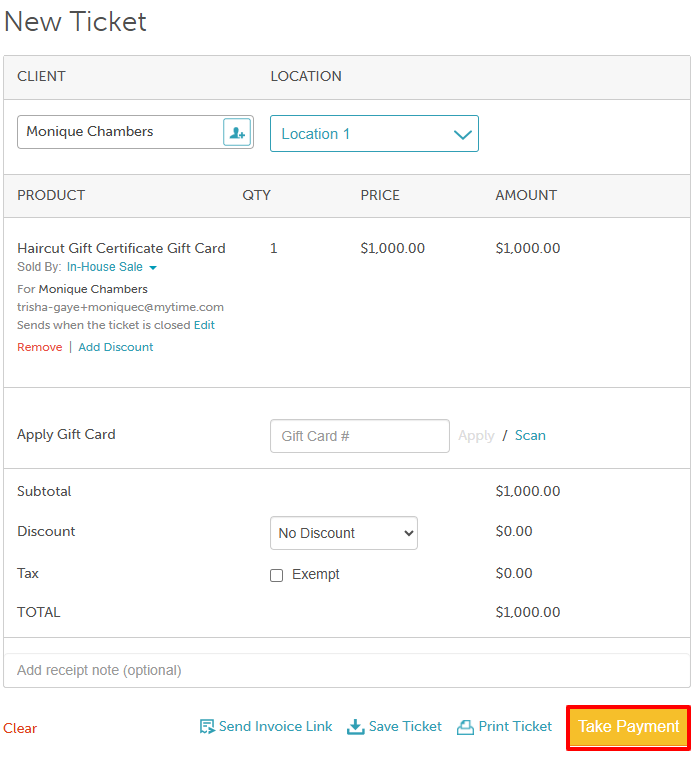
- Click Save.
- Click Take Payment to process the transaction, then Close Ticket
For more information contact us at support@mytime.com.
Related Articles:
Redeeming Gift Certificates in POS
Was this article helpful?
That’s Great!
Thank you for your feedback
Sorry! We couldn't be helpful
Thank you for your feedback
Feedback sent
We appreciate your effort and will try to fix the article