You can sell gift certificates for specific services, classes, products, or a combination of items alongside standard dollar-value gift cards. Once purchased, clients can redeem their unique code at the POS, during online booking, or through an invoice link. In this article, we'll show you how your clients can purchase gift certificates online.
Things to know:
- To enable online purchases for gift cards, the following steps must be completed:
- A payment account must be set up to process card payments. If you do not have a payment account, please email processing@mytime.com for help.
- Your account must be live.
- Online booking must be enabled. Learn more here
- The "Enable Gift Card Purchase" company setting must be enabled
- Selling gift certificates requires a hidden setting to be enabled by MyTime Support. Once enabled, you'll need to configure your gift certificates before clients can buy them online—click here to learn how.
- The booking widget features a Gift Cards tab that displays all active gift certificates and their prices. Selecting a certificate shows the specific items it includes.
- Purchasers can buy a gift certificate for someone else by entering the recipient's name, email address, and an optional message. The certificate is then delivered directly to the recipient via email.
- You can copy a direct shareable link for any gift certificate. Clicking this link takes clients straight to the booking widget with that specific certificate pre-selected, skipping the main menu.
- If you delete a gift certificate, any previously shared links for it will redirect visitors to your booking site's general services list instead.
- Purchased gift certificates appear under the Gift Cards section of the client's profile.
To purchase a gift certificate online, your clients will need to follow these steps:
- Navigate to your booking widget.
- Select the desired location (only applicable for accounts with multiple locations).
- Click the "Sign In" button at the top of the page
- Choose their login method:
- Standard: Enter their registered email address and password, then click 'Sign In'
- Social Login: Select 'Continue with Google,' 'Continue with Apple,' or 'Continue with Facebook' to use their existing social media credentials
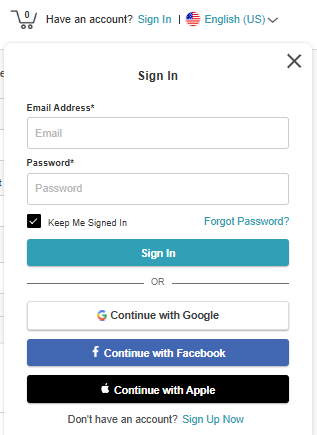
- Once their credentials or social accounts are authenticated, they will be instantly logged into the booking widget
- Click the Gift Cards link in the header
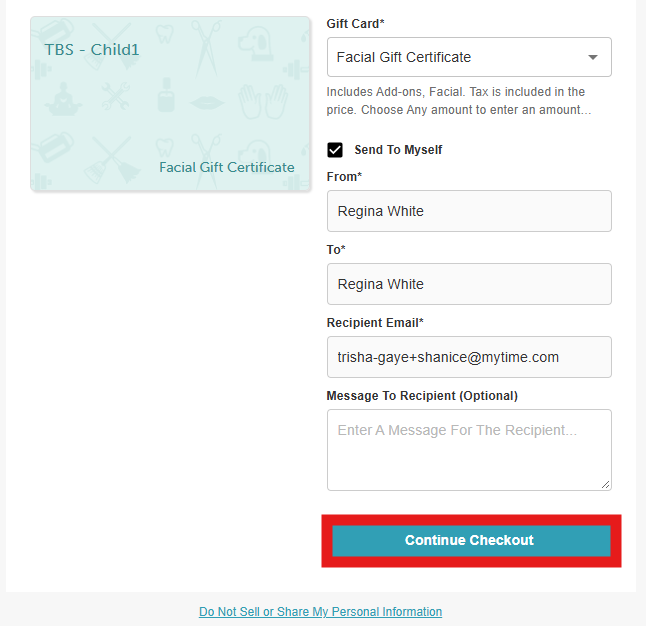
- Enter the purchase details:
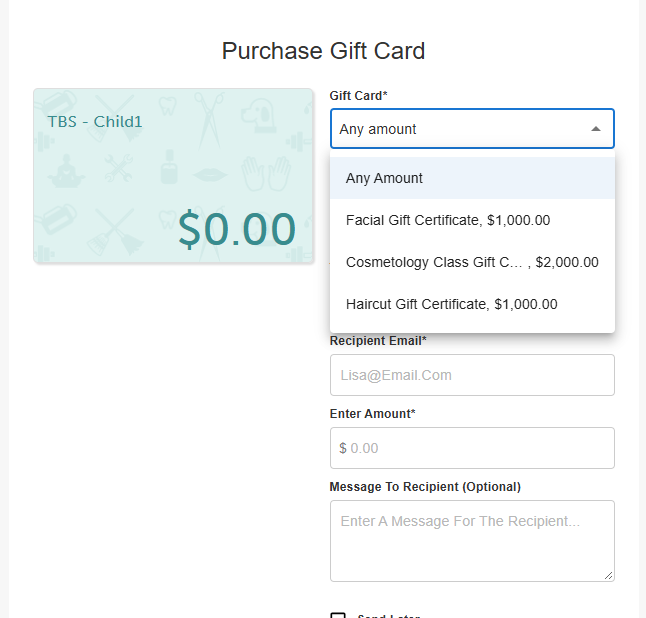
- Gift Card: Select a specific gift certificate or choose the Any Amount option.
- Send to Myself: (Visible only when logged in) Checking this box automatically fills in the client's details for the From, To, and Recipient Email fields.
- From: Enter the sender's name.
- To: Enter the recipient's name.
- Recipient Email: Enter the recipient's email address.
- Message to recipient (Optional): Add a personal note to include with the gift certificate.
- Send Later: Checking this box reveals a calendar and time picker to schedule when the gift certificate will be emailed.
- Click Continue Checkout.
- On the checkout page, enter payment details using a credit/debit card, Google Pay, or Apple Pay (if available).
- To apply a discount: Enter a valid promo code in the Apply Gift Card/Promo Code field.
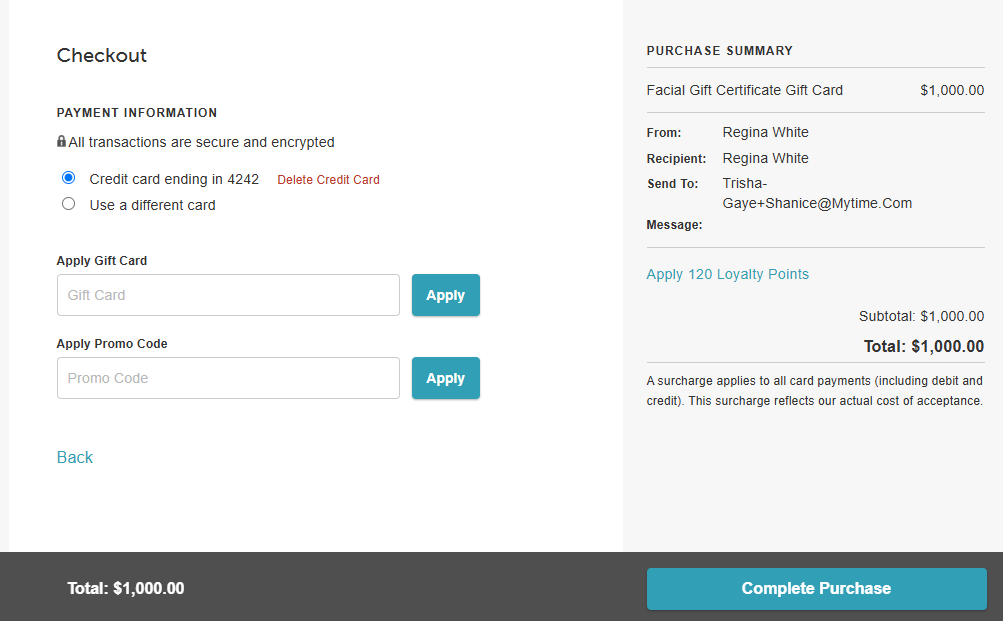
- Select the Complete Purchase button.
For more information, contact us at support@mytime.com or (385) 233-6964.
Related Article:
Was this article helpful?
That’s Great!
Thank you for your feedback
Sorry! We couldn't be helpful
Thank you for your feedback
Feedback sent
We appreciate your effort and will try to fix the article