You can create and sell gift certificates for specific services, classes, products, or a combination of items (such as "One Haircut" or "Three Deep Tissue Massages") alongside standard dollar-value gift cards. Once purchased, clients can redeem their unique gift certificate code as a payment method at the POS, during online booking, or via an invoice link. To run a sale, you can also create auto-apply promotions or promo codes that discount specific gift certificates.
Things to know:
- This feature is controlled by a hidden setting. To enable it for your account, contact MyTime Support at Support@mytime.com.
- The ability to create, customize, or edit gift certificates is controlled by the "Accessing Services Menu" access control setting.
- Item-Based vs. Monetary
- Item-Based Gift Certificates: Tied to specific services, classes, products, or combinations of items. Item quantities must be whole numbers (e.g., 1, 3, or 5); fractions and decimals (such as 1.5) are not supported.
- Monetary Gift Certificates ("Any Amount"): Appears at the top of your gift certificate list and is enabled by default. While active, clients can purchase a certificate for any dollar amount they choose. You can configure a separate expiration period specifically for monetary certificates (controlled at the parent account level).
- Item-Based Gift Certificates: Tied to specific services, classes, products, or combinations of items. Item quantities must be whole numbers (e.g., 1, 3, or 5); fractions and decimals (such as 1.5) are not supported.
- Franchise Businesses:
- Global vs. Local Availability
- Global Gift Certificates (Globe Icon): Created at the parent account level. These can be sold and redeemed across all business locations.
- Local Gift Certificates (Location Icon): Created at an individual child location. These can only be sold and redeemed at locations under that specific child account.
- Global Gift Certificates (Globe Icon): Created at the parent account level. These can be sold and redeemed across all business locations.
- Global vs. Local Availability
- Limitations & Troubleshooting
- Not Reloadable: Unlike monetary gift cards, custom item-based gift certificates cannot have additional credits or funds added to them after purchase.
- No Auto-Apply at Checkout: Gift certificates work as a payment method rather than a package, so they do not automatically apply to a client's bill. To redeem one, either the client (during online booking or invoice payment) or a staff member (at the POS) must manually enter the unique gift certificate code.
- Redemption Error Message: If a client attempts to apply an item-based gift certificate to a ticket that does not include any of the covered items, the system will display: "Gift Certificate cannot be used for anything on this ticket."
- Not Reloadable: Unlike monetary gift cards, custom item-based gift certificates cannot have additional credits or funds added to them after purchase.
Contents
- Configure Monetary Gift Cards
- Configure Item-Based Gift Certificates
- Managing and Sharing Gift Certificates
Configure Monetary Gift Cards
- Navigate to Business Setup (or Location Setup) > Services
- Scroll to the bottom of the page and select Customize Gift Cards.
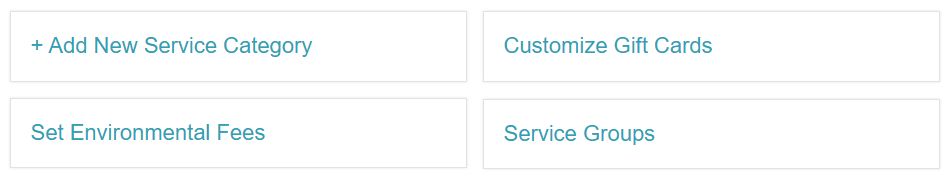
- On the Customize Your Gift Card page, scroll to the Gift Cards section and filter by location
- At the top of your gift card list, locate the Any amount option and click the Edit (pencil) icon
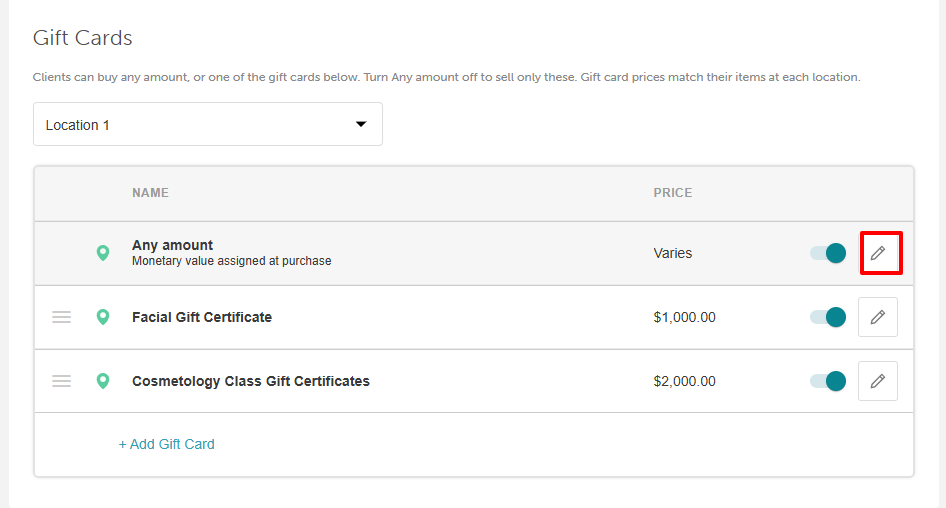
- Configure your preferences:
- Expiration: Choose whether the gift card expires after a set period or never expires (controlled at the parent account level)
- Enable Online Purchase: Select whether clients can purchase this gift card online
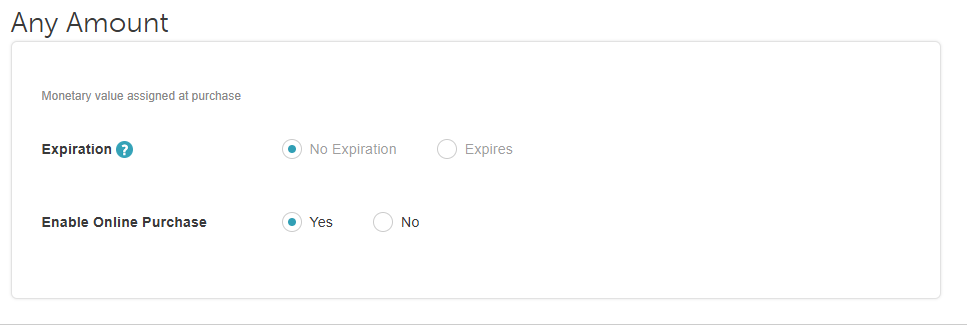
- Expiration: Choose whether the gift card expires after a set period or never expires (controlled at the parent account level)
- Click Save
Tip: To sell only item-based gift certificates, toggle the Any amount switch Off and click Save.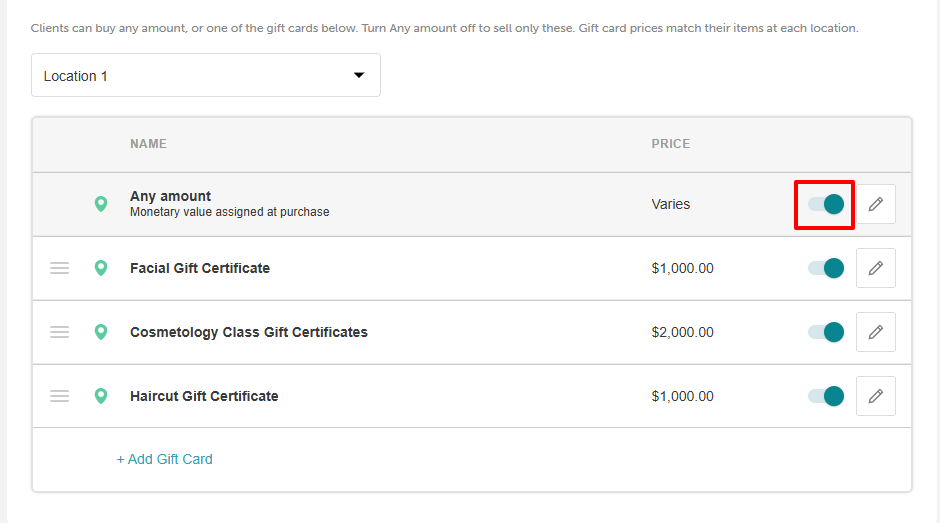
Configure Item-Based Gift Certificates
- Navigate to Business Setup (or Location Setup) > Services.
- Scroll to the bottom of the page and select Customize Gift Cards.
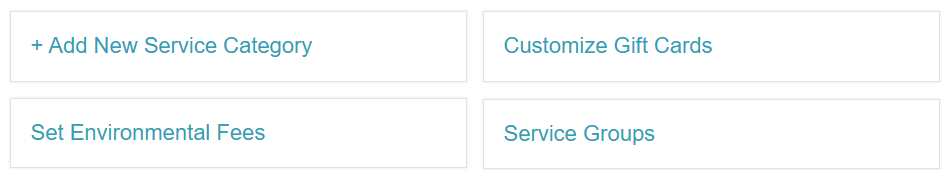
- On the Customize Your Gift Card page, scroll to the Gift Cards section and filter by location.
- Click + Add Gift Card.
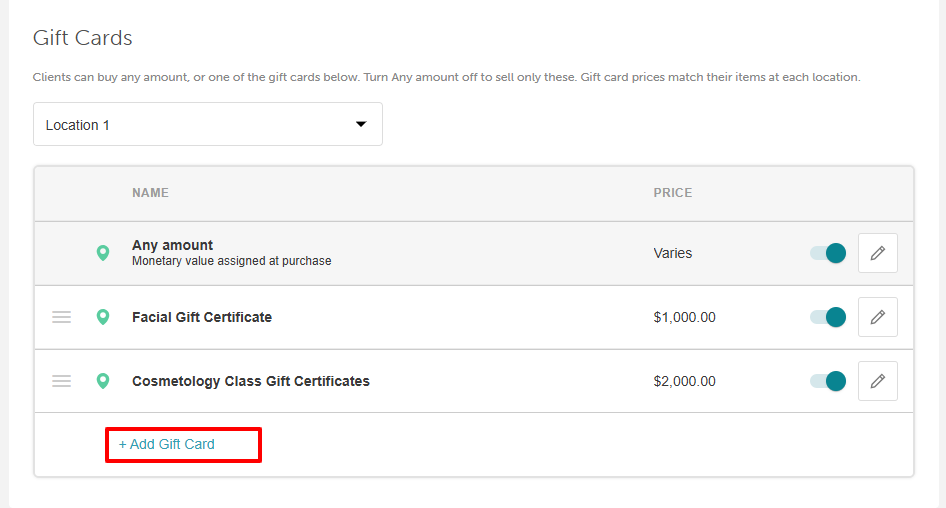
- Fill in the gift certificate details:
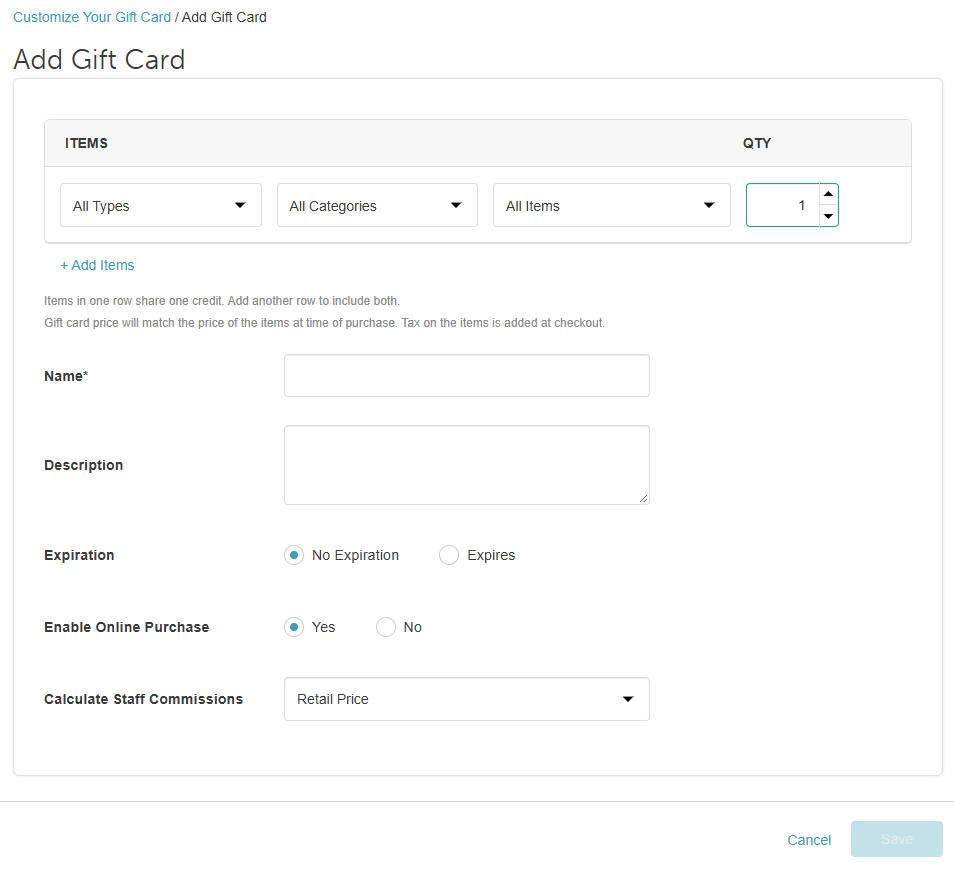
- Items:
- Type: Select what the gift certificate covers (Services, Classes, or Products).
- Category: Choose a specific category or select all categories.
- Item: Select the individual service, class, or product from that category.
- Quantity: Enter how many sessions or items the certificate covers as a whole number (e.g., 5 Haircut Services—if a client books a 6th haircut, the gift certificate will not apply).
- Type: Select what the gift certificate covers (Services, Classes, or Products).
- Name: Enter a display name for the gift certificate.
- Description: Add an optional description for clients and staff.
- Expiration: Choose whether the gift certificate expires after a set period or never expires.
- Enable Online Purchase: Select whether clients can purchase this gift certificate online.
- Calculate Staff Commissions: Choose whether staff commissions are calculated based on the item's retail price or the gift certificate price.
- Items:
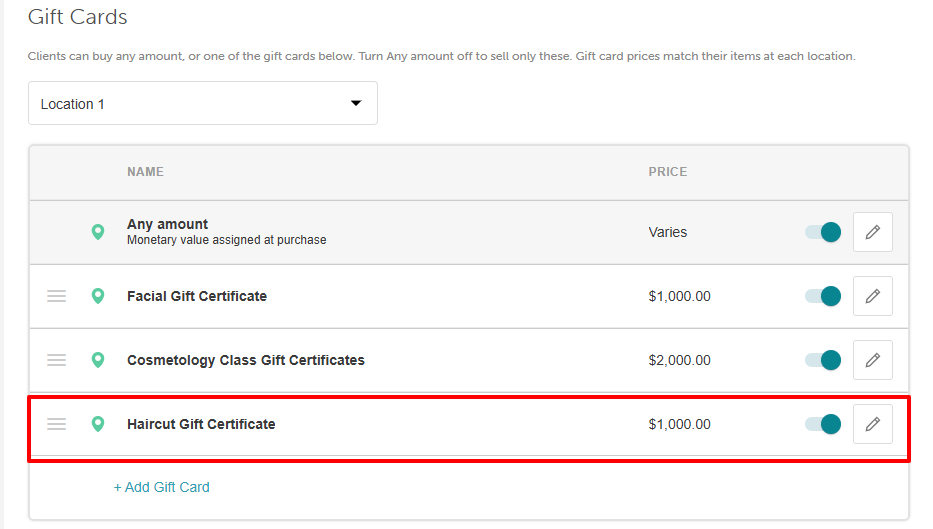
- Click Save. The gift certificate now appears in your list alongside its calculated price for the selected location.
Managing and Sharing Gift Certificates
Once your gift certificates are set up, you can control how they appear and behave across your POS and online booking site:
Action | How to Do It |
| Pause or Resume Sales | Flip the on/off toggle switch next to any gift certificate to temporarily pause sales at both the POS and online booking site without deleting it. |
| Edit Details | Click the pencil icon next to a gift certificate to update its name, included items, online availability, or expiration period, then click Save. |
| Share a Direct Link | Open the edit modal for a saved certificate with Enable Online Purchase set to Yes, then click Get Shareable Link. Embed this URL in your booking widget to send clients straight to checkout with that certificate pre-selected. |
| Reorder Display List | Drag and drop gift certificates in your setup list to change the order clients and staff see them. |
| Delete Permanently | Delete a gift certificate to permanently remove it from your setup list so it can no longer be sold online or at the POS. (Note: Certificates already purchased by clients remain valid until they expire or run out of credit.) |
For more information, contact us at support@mytime.com or (385) 233-6964.
Related Articles:
Was this article helpful?
That’s Great!
Thank you for your feedback
Sorry! We couldn't be helpful
Thank you for your feedback
Feedback sent
We appreciate your effort and will try to fix the article