At MyTime, you can easily customize electronic gift cards to reinforce your brand identity and provide a more personalized experience for customers. A well-designed gift card not only enhances the gifting process but also encourages customer loyalty and increases sales.
Things to Know:
- The ability to customize electronic gift cards is controlled by the “Accessing Services Menu” access control setting.
- The selected gift card design will appear in your booking widget whenever a client purchases a gift card. The design will also be displayed in the email confirmation sent to the client.
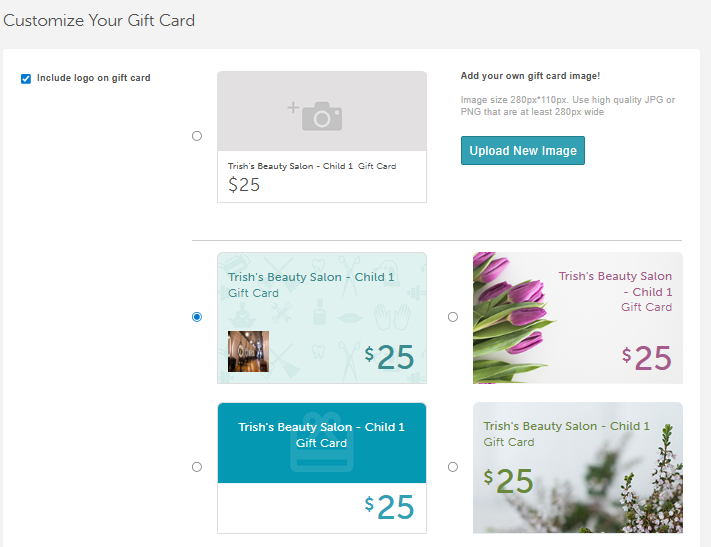
- You may upload your own design or use one of MyTime’s pre-made options.
- Image Requirements: Use a high-quality JPG or PNG image. The recommended size is 280px × 110px with a minimum width of 280px for best display quality.
- Adding your business logo helps reinforce your brand on every purchase.
- The setup option displayed in the top-right user menu depends on how you access the account and your assigned role:
- When navigating from the Parent Account (Location Management tab):
- Admin: Displays Business Setup when viewing the location account.
- Login As: Displays Location Setup when viewing the location account.
- When logged in directly at the Location Level:
- Location Owners & Location Managers: Display Location Setup.
- Service Providers & All Other Roles: Display Profile Setup.
- The ability to customize gift cards is not available on the Scheduler app.
To customize electronic gift cards:
- Navigate to Business Setup / Location Setup > Services
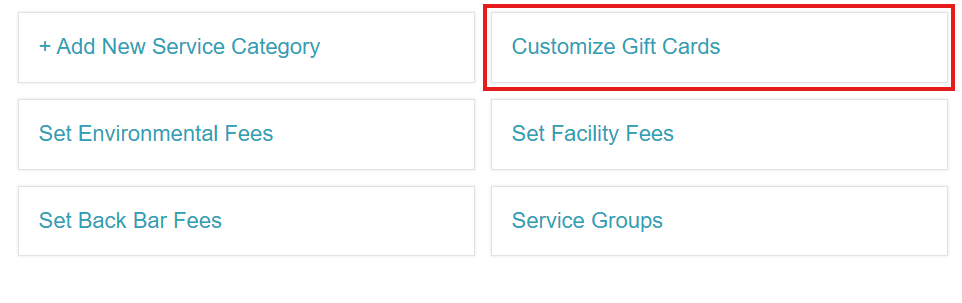
- Scroll to the bottom of the Services menu, then select Customize Gift Cards
- Choose your preferred option:
- Upload Your Own Image – Select the first option and click Upload New Image
- Select a Pre-Made Design – Pick from MyTime’s available templates on the gift card
- Click Save to apply your changes
You’ve now successfully customized your electronic gift cards!
Related Articles:
- Gift Card Settings
- Gift Card Expiration
- Selling Electronic Gift Cards in POS
- Selling Gift Cards Online through Booking Widget and Express Checkout Link
- Adding Gift Cards Manually on Client Profile
- Editing Gift Cards in the Client Profile
- Gift Card Activity Report
- Gift Card Balances Report
Was this article helpful?
That’s Great!
Thank you for your feedback
Sorry! We couldn't be helpful
Thank you for your feedback
Feedback sent
We appreciate your effort and will try to fix the article