MyTime allows staff to monitor appointment status totals and resource capacity directly on the schedule. This feature provides immediate operational visibility into daily check-in volume, staff workloads, and facility utilization. In this article, we will discuss how to display the appointment count by status and the resource capacity on the scheduler app.
Things to know:
- Status counts are only visible in agenda and day views. They are not displayed in week, month, or split views
- Pending appointments and No-Shows are excluded from the Arriving, Checked-In, and Completed counts. Once a pending appointment is accepted, it moves to Booked status and is included in the count.
- Each day of a multi-day appointment is treated as a separate occurrence and counted individually for each day it spans.
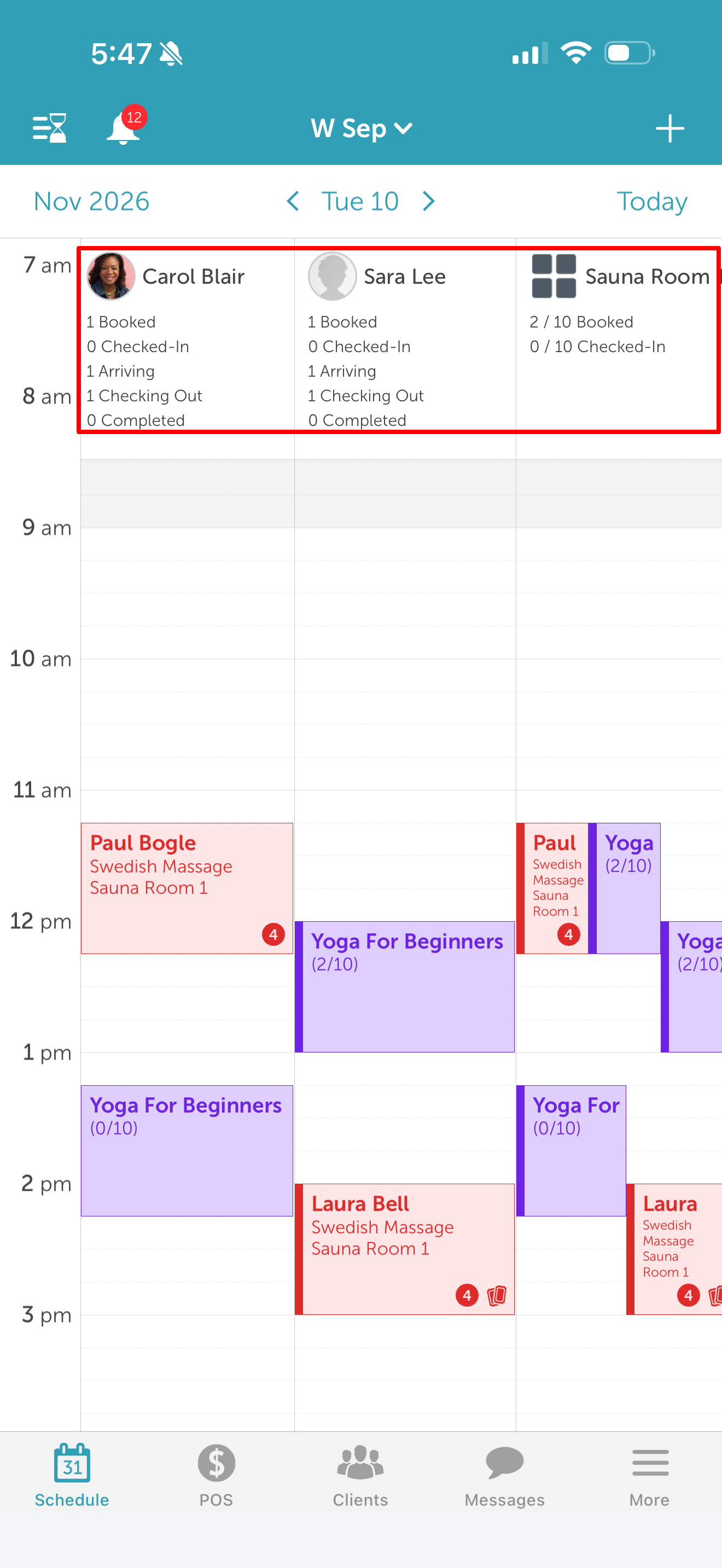
- Appointment Count Metrics: When enabled, appointment status counters appear at the top of the Scheduler App in Day and Agenda views, providing real-time visibility into each staff member's appointment activity.
Appointment Status Definitions:
Booked: Includes appointments in Booked, Confirmed, and Arriving status.
Arriving: Appointments scheduled for the selected day that have not yet been checked in.
Checked-In: Appointments currently in Checked-In status, including those marked as Booked, Confirmed, or Completed.
Checking Out: Appointments scheduled to end on the selected day that have not completed checkout, including appointments marked Completed but still in Checked-In status.
Completed: Appointments marked as Completed for the selected day.
Overnight: Active appointments assigned to a staff member that are scheduled to end on a future date.
Multi-Service Appointments: An appointment with multiple services assigned to the same staff member counts as one appointment. If services are assigned to different staff members, the appointment counts once for each assigned staff member.
Multi-Day Appointments: Each calendar day covered by a multi-day appointment is counted separately. Appointments ending at exactly 12:00 AM are included in both calendar days based on their status progression.
Resource Capacity Counters: Resource counters display the number of appointments booked or currently checked in against the resource's maximum configured capacity, using the format
X/Y.Booked: Appointments assigned to the resource that have not yet checked in.
Checked-In: Clients currently checked in and actively using the resource.
Capacity Overbooking: Staff can manually bypass resource capacity restrictions when scheduling appointments. When this happens, the counter's denominator continues to reflect the resource's configured maximum capacity, even if the total number of appointments exceeds that limit.
Multi-Day Resource Capacity: Active multi-day appointments that continue beyond the selected date are included in resource capacity counts, even if they are not scheduled to end on that day. This ensures ongoing stays, such as pet boarding appointments, remain reflected in resource utilization.
To view the appointment count in the Scheduler App:
- Launch the MyTime Scheduler app on your device
- Choose your login method:
- Standard: Enter your registered email address and password, then tap 'Sign In'
- Social Login: Select 'Continue with Google' or 'Continue with Apple' to use your existing credentials for a faster login experience. For detailed instructions, learn more here
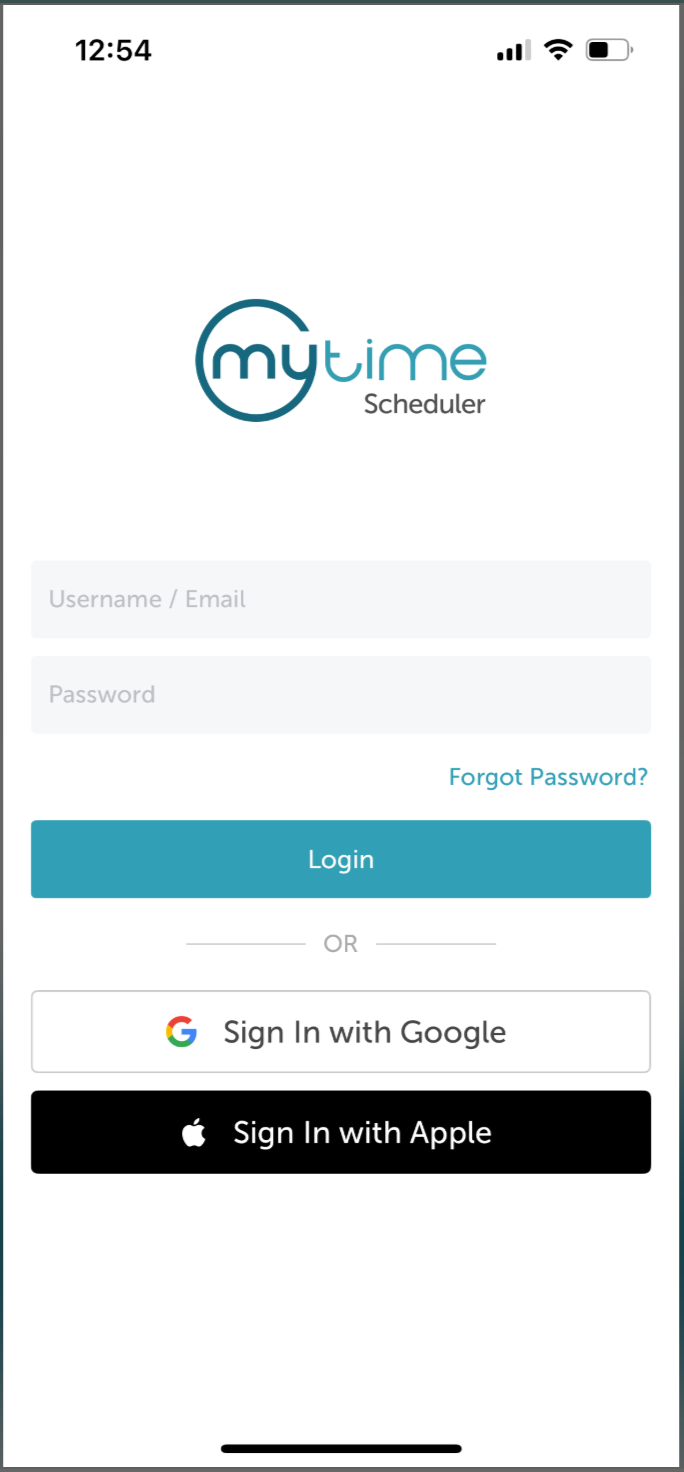
- Once signed in, you will be directed to the schedule by default
- Tap the location at the top of the screen
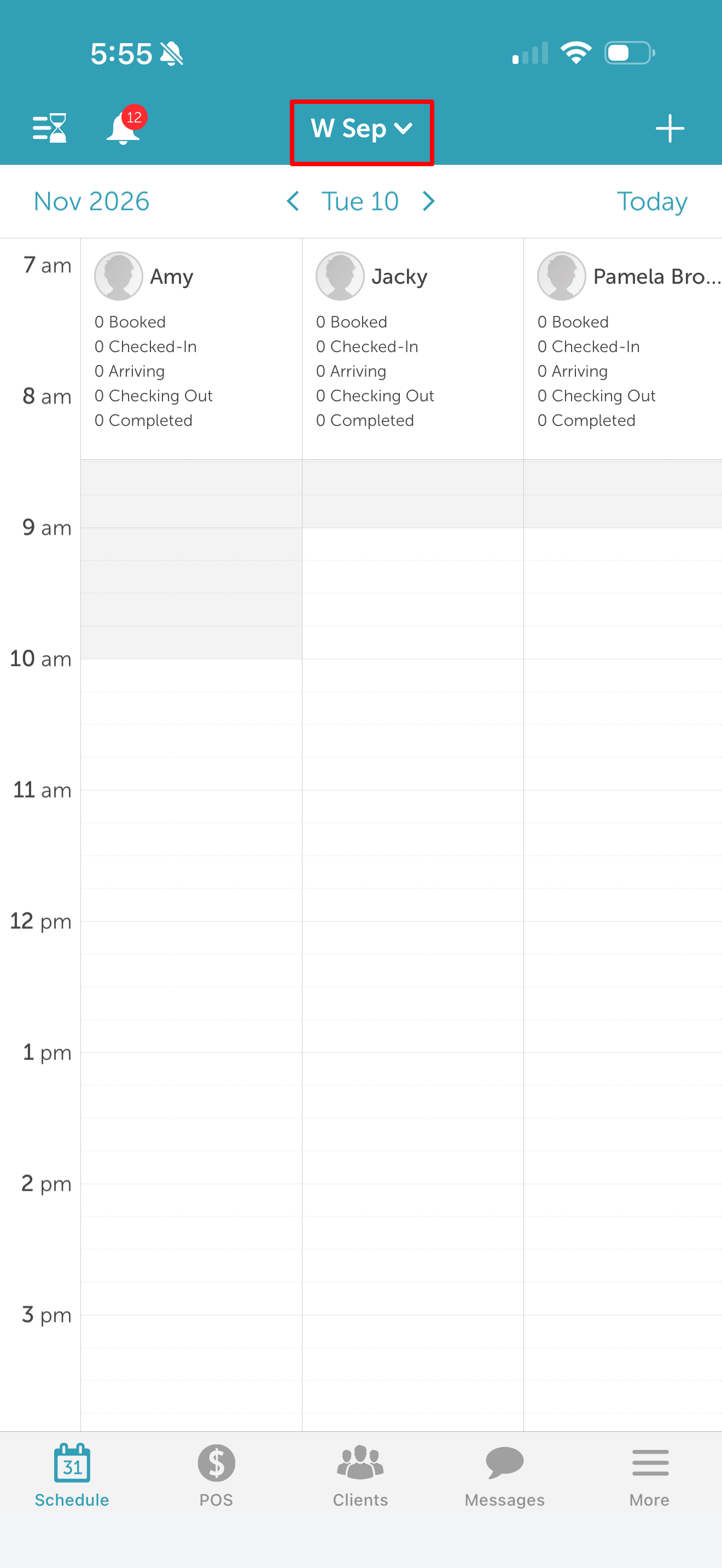
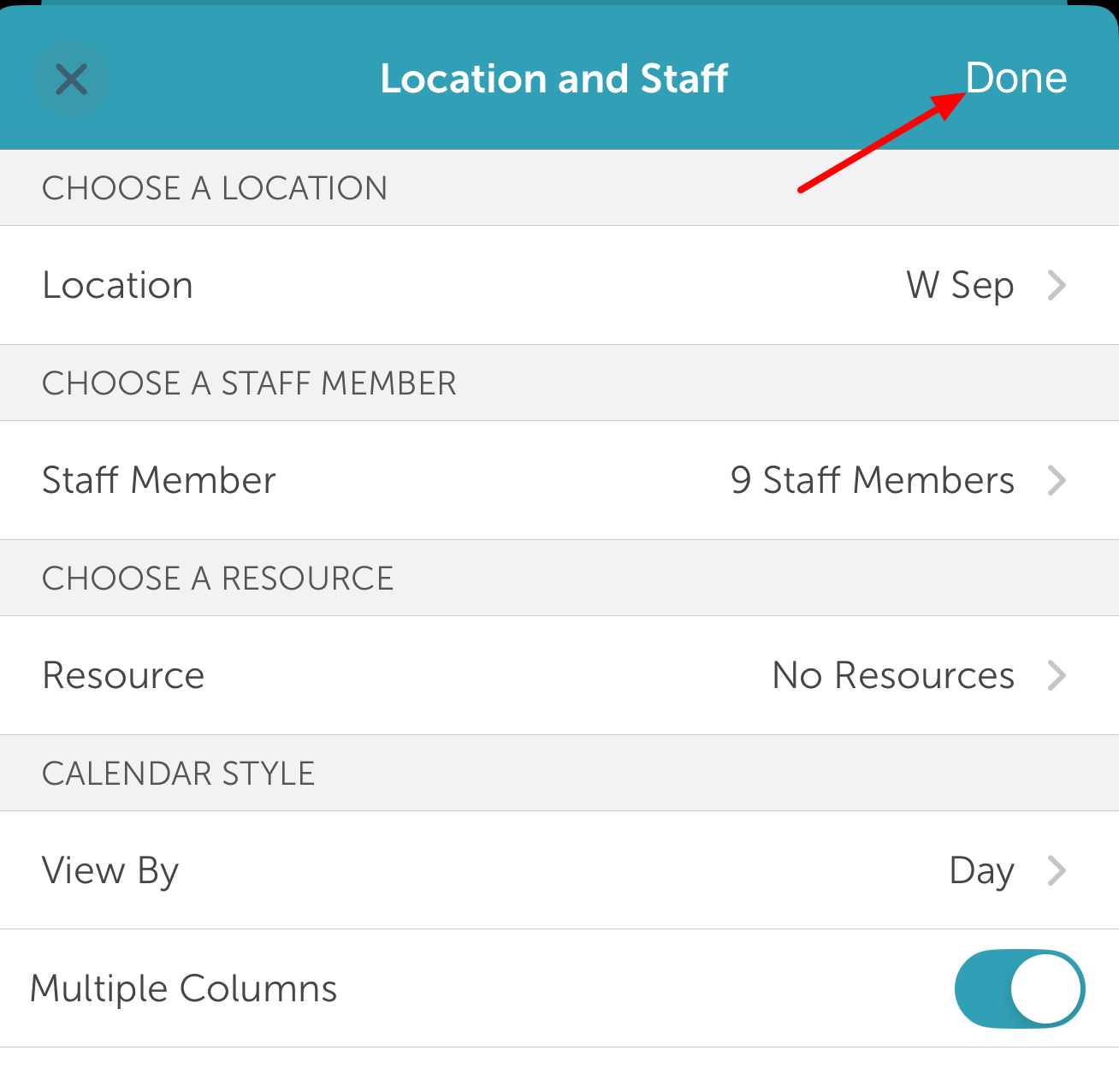
- Select the desired location, staff members, and resources
- Filter to Day View or Agenda View
- Tap Done in the top-right of the screen
- At the top of the schedule, view the count for each enabled appointment status and resource capacity metric under each staff member's name
For more information, contact us at support@mytime.com.
Related Articles:
Installing MyTime on Scheduler App (Android and iOS)
Signing into MyTime on Scheduler App (Android and iOS)
Calendar Display in the Scheduler App
Was this article helpful?
That’s Great!
Thank you for your feedback
Sorry! We couldn't be helpful
Thank you for your feedback
Feedback sent
We appreciate your effort and will try to fix the article