The appointment visit count on the scheduler app shows which visit each appointment is for a client within a specific service category. Completed appointments display their place in the client’s history, and upcoming appointments display the next visit number, based on how many the client has already completed. This helps you quickly see how many times a client has booked that service before, giving you insight into client loyalty and booking history without leaving the schedule.
Things to know:
- Visit counts are only displayed when the "Display Service Count on Appointment Tiles" setting is enabled
- Only completed appointments are counted; canceled appointments and no-shows are excluded
- Visit counts are tracked per service category, not per individual service
- For pet businesses, the visit count combines appointments across all pets owned by the client
- When viewing future appointments, the tile displays the projected visit number (e.g., if a client completed 3 massages, their next booked massage will show as visit #4)
- Add-on services are not included in visit counts
CONTENTS
View Number of Appointment Visits on Schedule
To see appointment visit countS on the schedule:
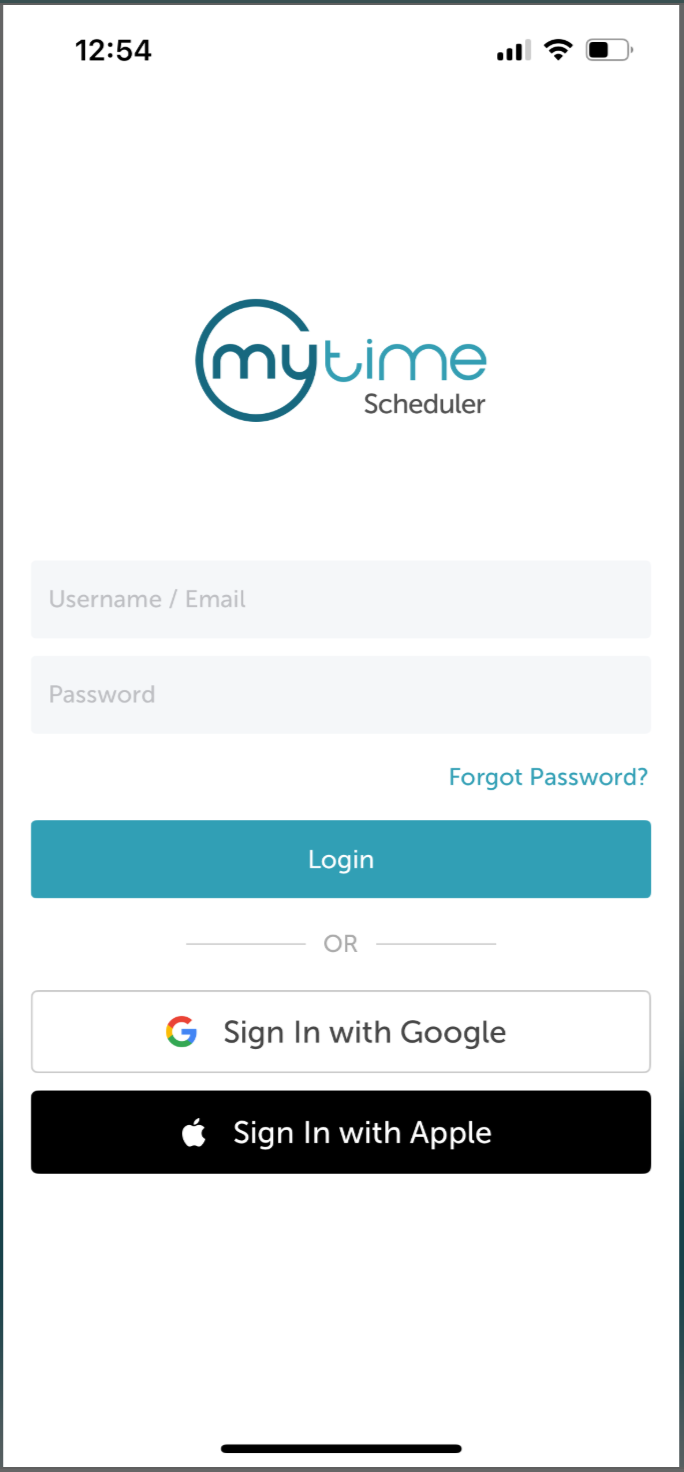
1. Launch the MyTime Scheduler app on your device
2. Choose your login method:
- Standard: Enter your registered email address and password, then tap 'Sign In'
- Social Login: Select 'Continue with Google' or 'Continue with Apple' to use your existing credentials for a faster login experience. For detailed instructions, learn more here
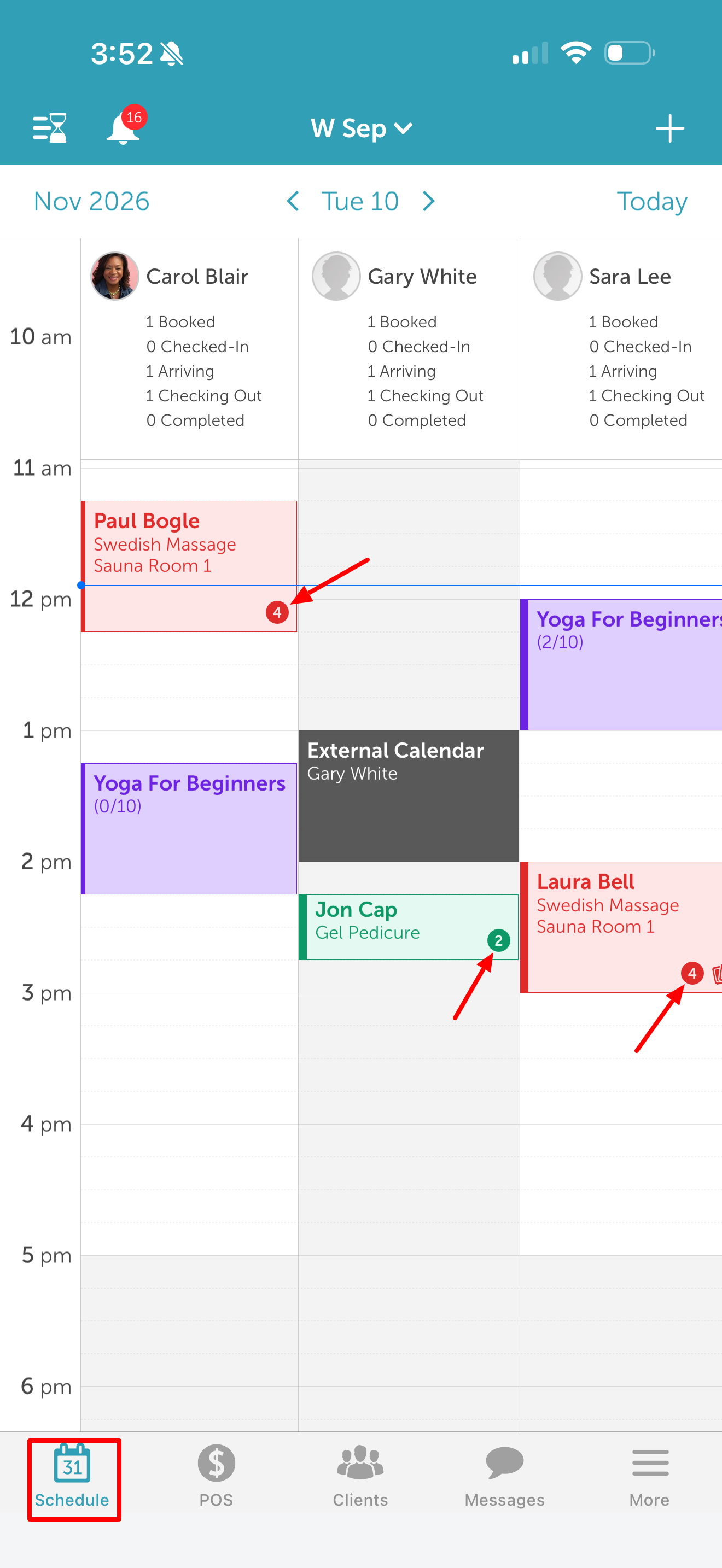
3. From the default Schedule view, locate any booked appointment tile
4. The visit count appears in the bottom-right corner of the tile, displaying the client's visit number for that service category
Visit Count Behavior by Appointment Type
The visit count calculates differently depending on the appointment's status, scheduling structure, or booking type:
| Appointment Type | Behavior & Example |
| Completed Appointments | Past completed appointments are assigned consecutive numbers. Example: Maxine completes a Swedish Massage on Jan 1 (1), Mar 1 (2), and May 1 (3). |
| Future Appointments | Future bookings reflect the projected next visit number based on completed history. Example: Lucy completed 2 Gel Pedicures in the past and has 3 upcoming bookings. All 3 future appointment tiles will display "3" until completed. |
| Recurring Appointments | Canceling or deleting a recurring instance updates subsequent counts automatically. Example: Maxine completes Jan (1) and Feb (2) massages, but cancels Mar. Her upcoming April and May tiles show "3" until completed. |
| No-Show Appointments | No-shows display the current count but do not advance the visit progression. Example: Samantha’s 5th Gel Pedicure is marked as a No-Show. Her next scheduled appointment will still show "5" rather than advancing to 6. |
| Waitlist Appointments | Waitlisted entries display the projected visit count while waiting for confirmation. Example: Troy completed 2 Hot Stone Massages. When placed on the waitlist for a new slot, the tile displays "3". |
| Couples Appointments | Tracks primary account history only; guest histories are excluded. Example: Marsha books a Couples Massage with Phillip. The tile count reflects Marsha's category history only. |
| Service Group Appointments | Displays the highest individual category count among all services in the group. Example: Jade completed 1 Gel Manicure in the past. She books a Service Group containing a Gel Manicure and a Gel Pedicure. The group tile displays "2". |
Related Articles
Was this article helpful?
That’s Great!
Thank you for your feedback
Sorry! We couldn't be helpful
Thank you for your feedback
Feedback sent
We appreciate your effort and will try to fix the article