MyTime allows you to modify appointment details directly from the Point of Sale (POS) screen on the Scheduler app without switching back to the calendar. This article guides you through editing appointments directly in POS.
Things to know:
The ability to edit appointments directly in POS on the Scheduler app is controlled by the "Creating Tickets" and "Accessing Appointments" access permissions.
You can edit open appointments at any time before the ticket is closed.
Changes to appointment details (such as date, time, or service) may trigger client notifications if automated messages are enabled.
Membership and package coverage is recalculated based on the edited appointment details.
To edit appointments directly in POS:
1. Launch the MyTime Scheduler app on your device
2. Choose your login method:
- Standard: Enter your registered email address and password, then tap 'Sign In'
- Social Login: Select 'Continue with Google' or 'Continue with Apple' to use your existing credentials for a faster login experience. For detailed instructions, learn here
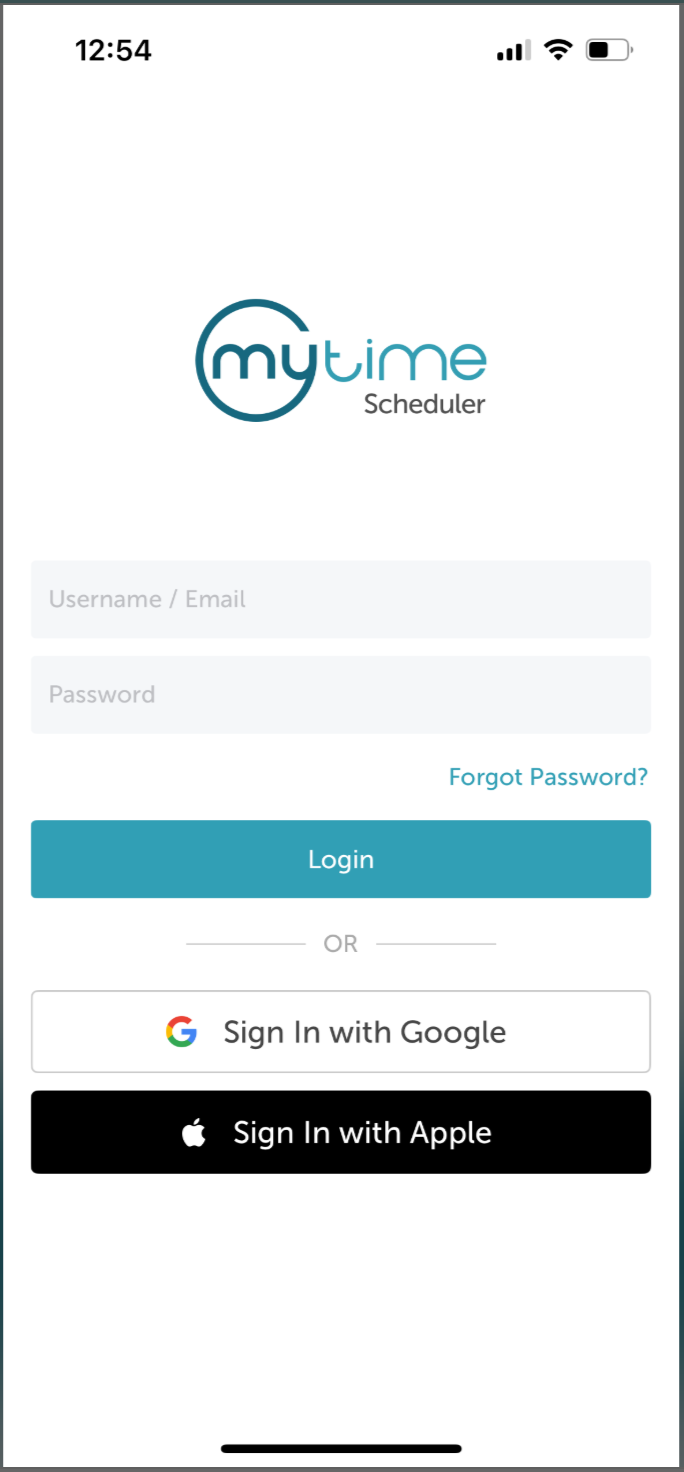
3. After signing in, you will be directed to the Schedule by default
4. Tap 'POS' at the bottom of the screen 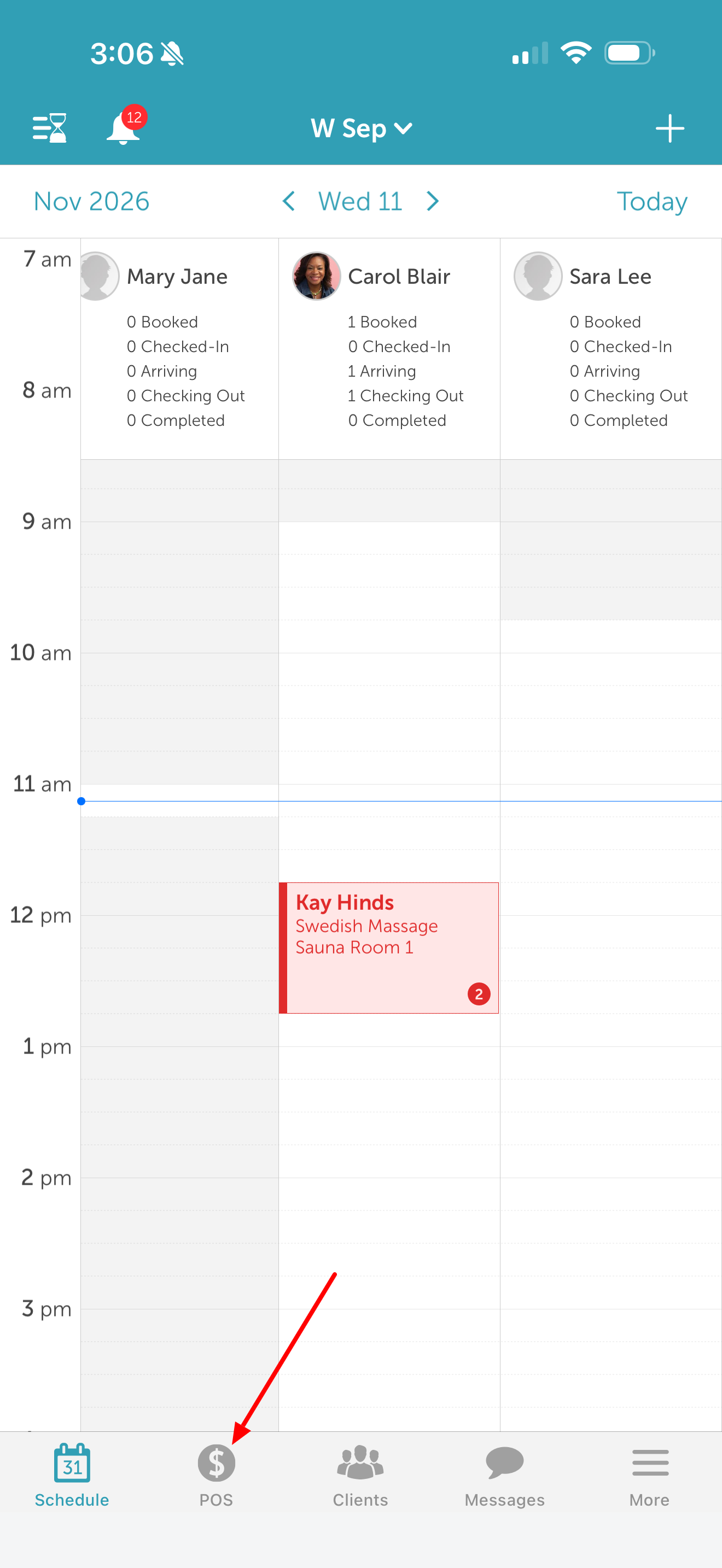
5. Tap '+ Appointment'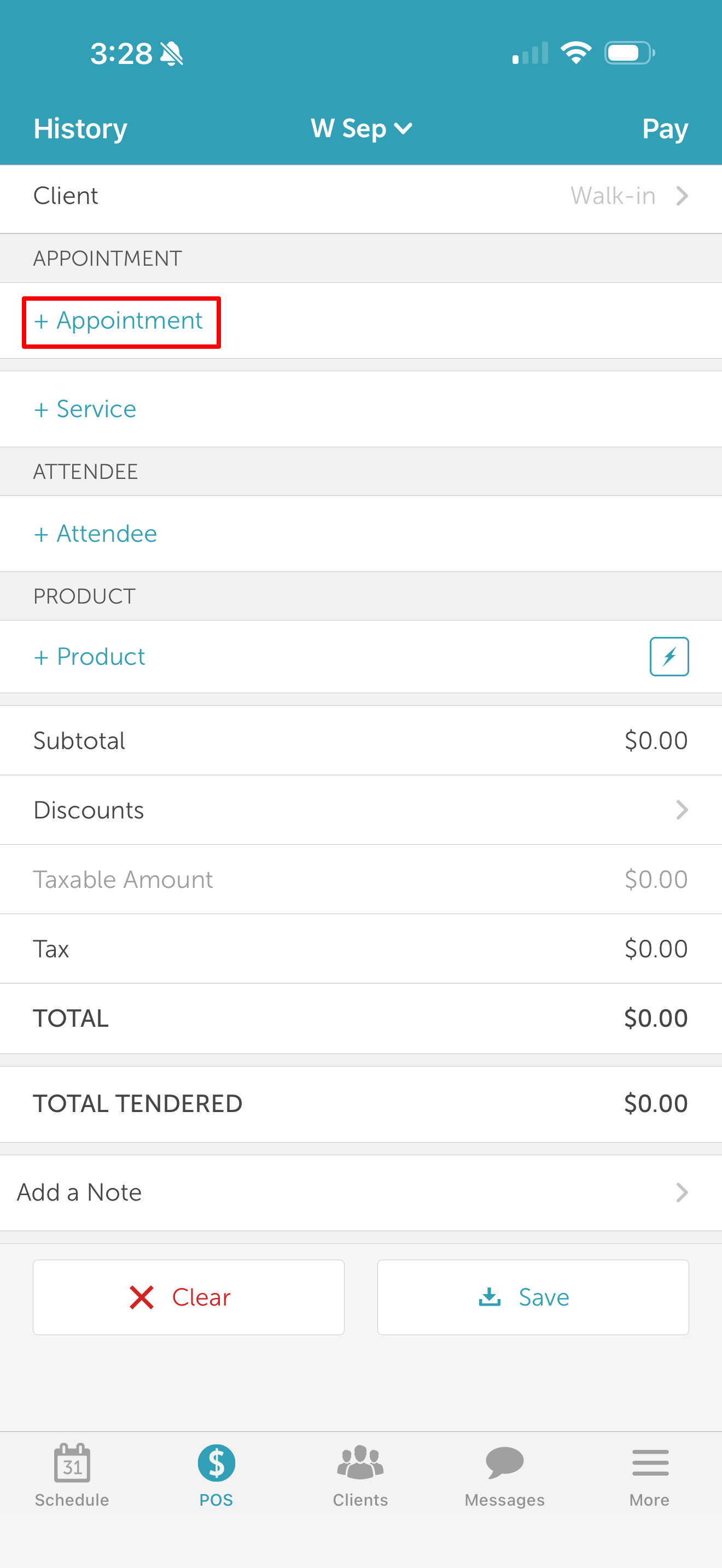
6. Select the desired appointment to add to the ticket (If the appointment is already on an open ticket, simply open that ticket)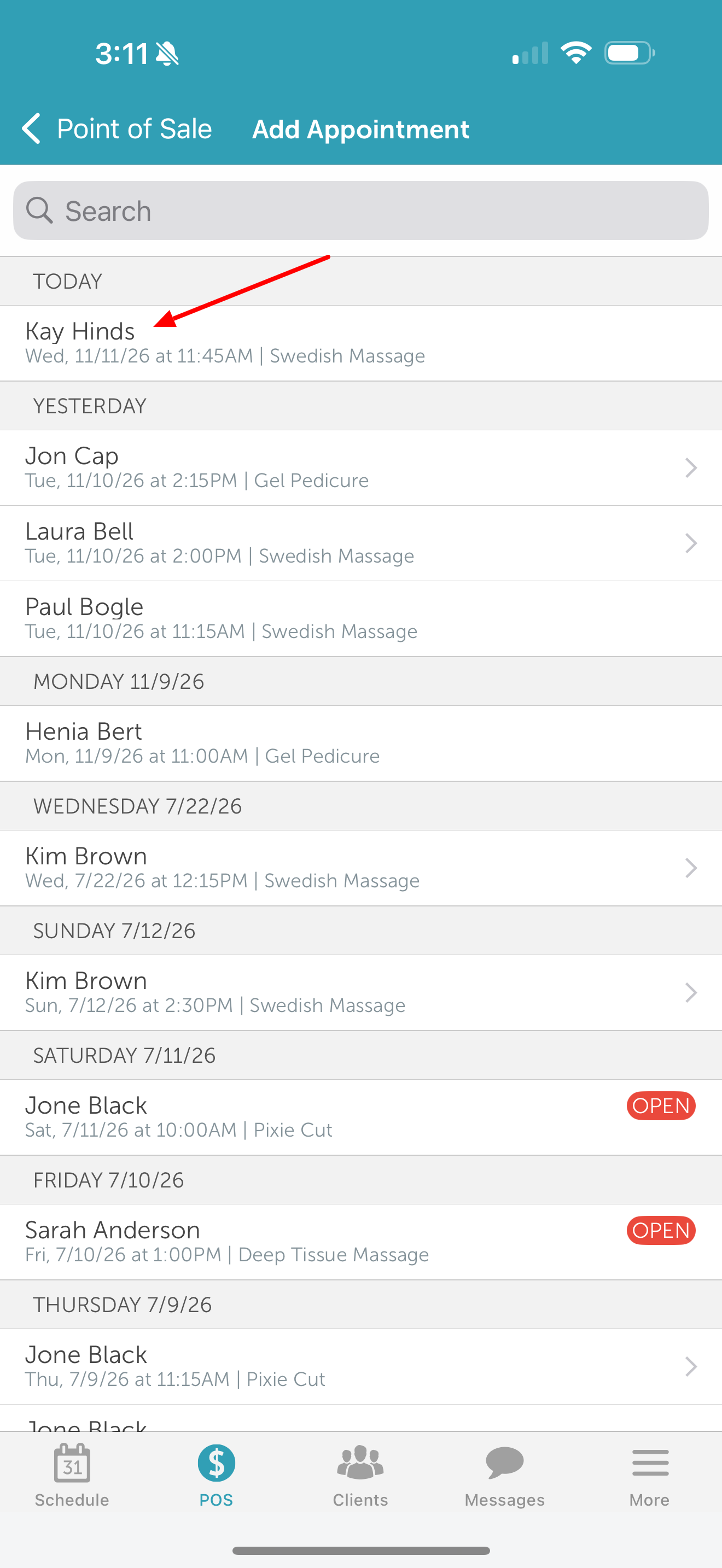
7. Tap the appointment line item on the ticket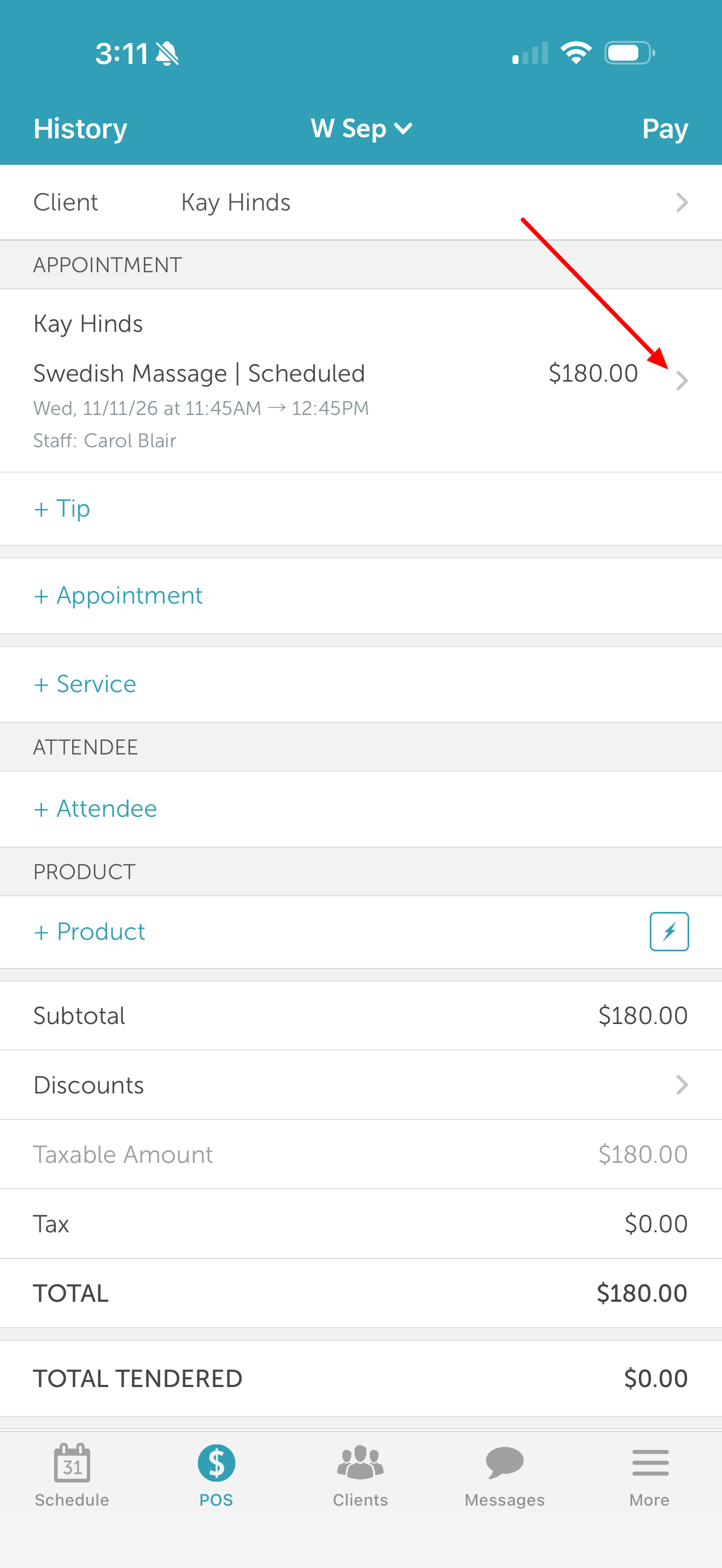
8. Tap 'Edit Appointment'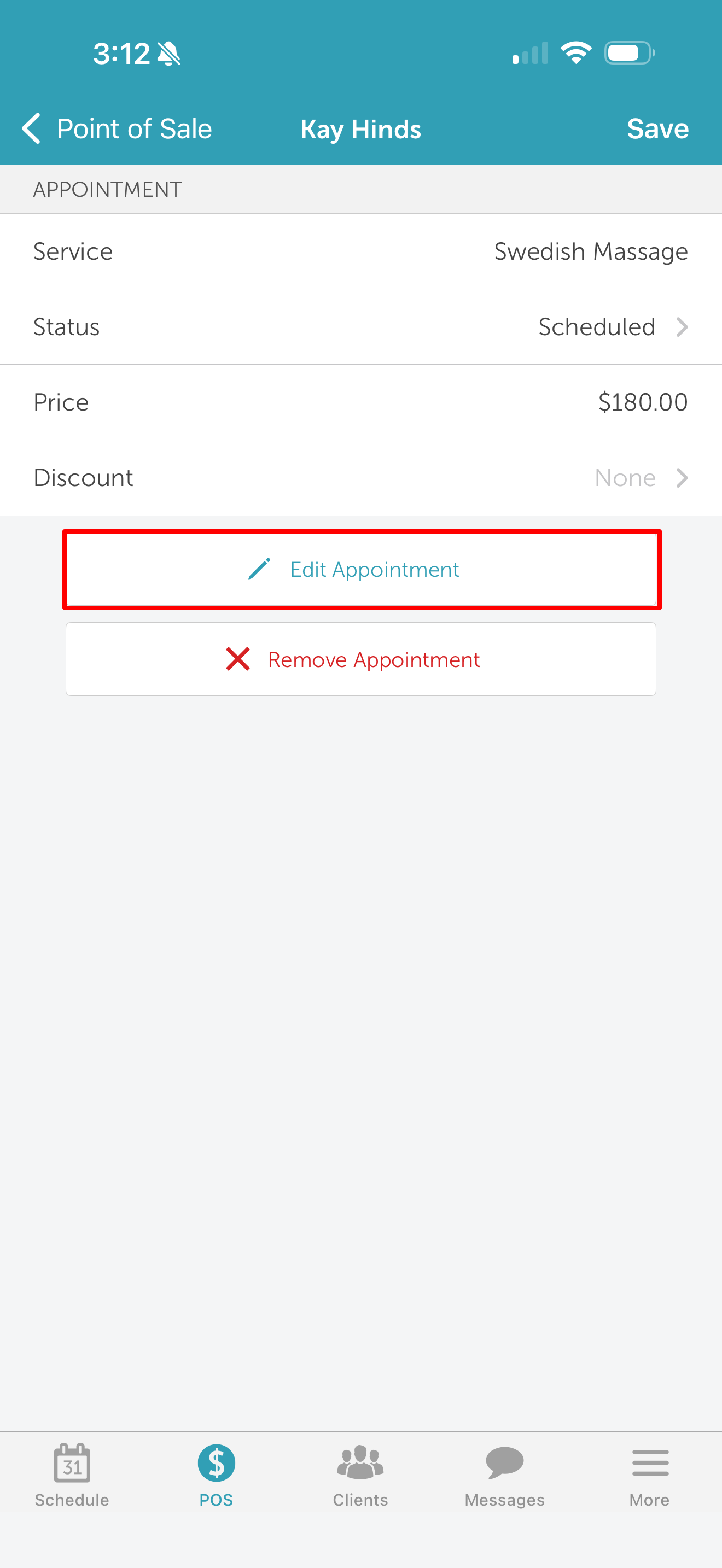
9. Make your desired changes (such as Service, Date, Time, Duration, Staff, Client, Pet/Family Member, Resource, or Add-ons)
10. Tap 'Save' in the top-right corner of the screen to update the appointment 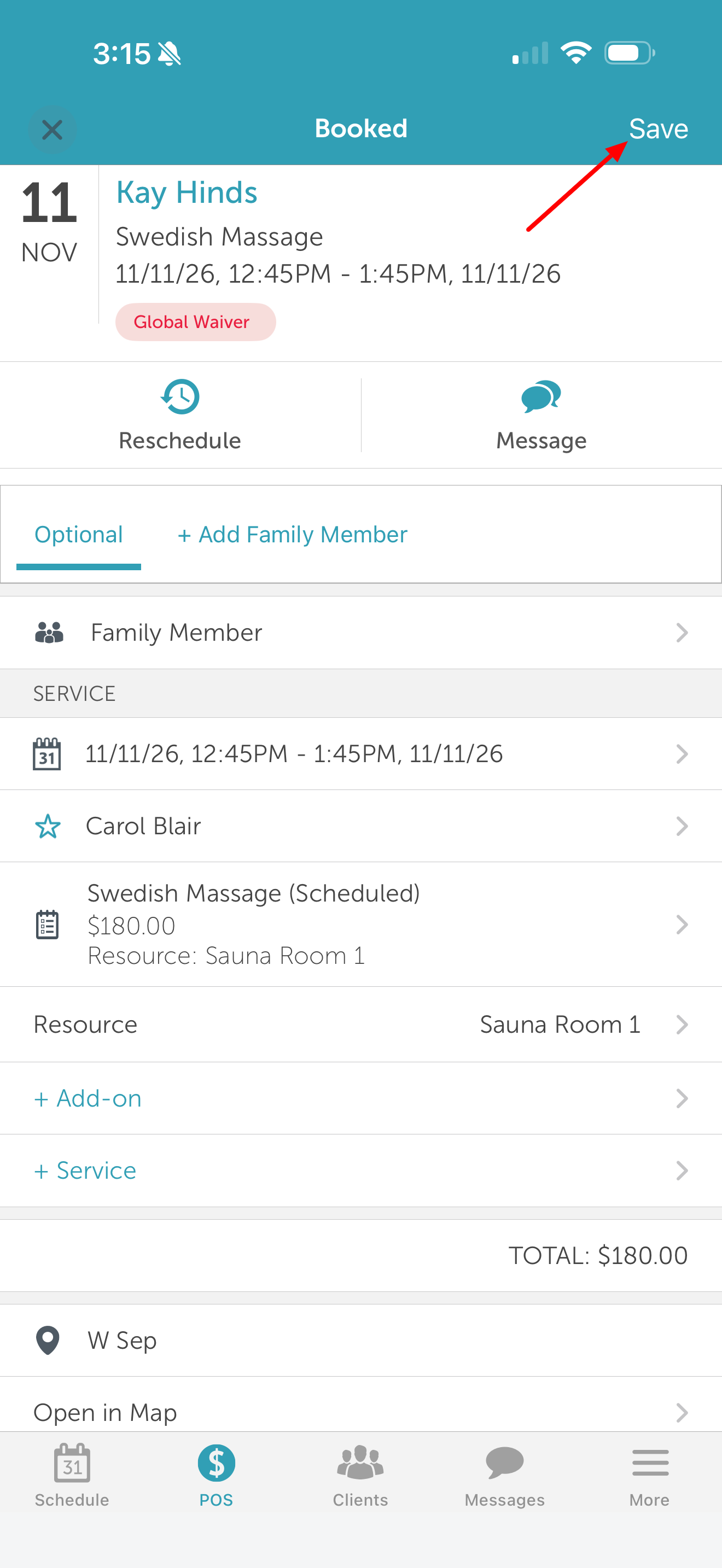
11. Once saved, the ticket automatically updates to reflect the new appointment details, pricing, and applicable package or membership coverage.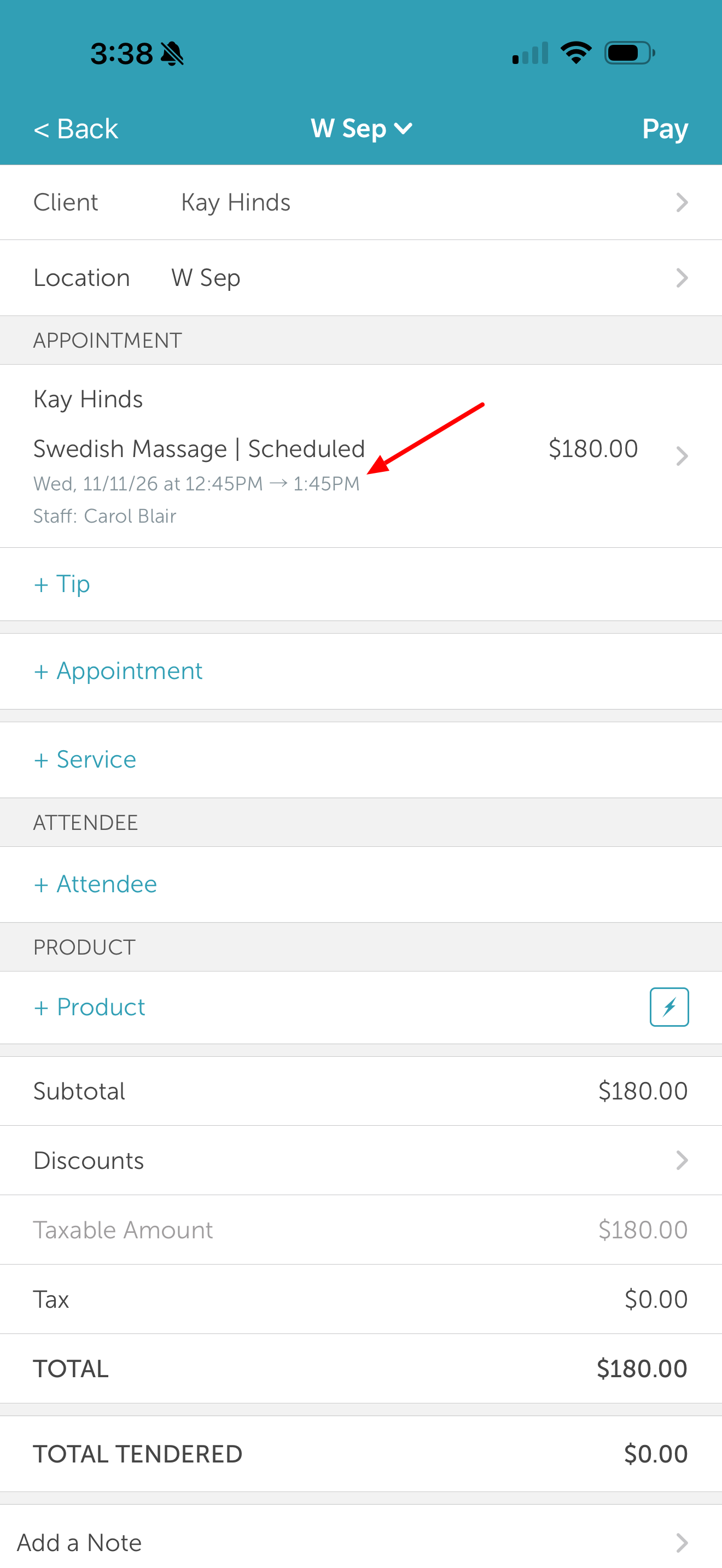
For more information, contact us at support@mytime.com.
Related Articles:
Was this article helpful?
That’s Great!
Thank you for your feedback
Sorry! We couldn't be helpful
Thank you for your feedback
Feedback sent
We appreciate your effort and will try to fix the article