After completing an appointment, clients receive an automated prompt asking them to rate their experience directly inside the Guest App. Depending on their rating, clients are either guided to post a public review (such as on Google) or directed to submit private feedback directly to your team.
Things to know:
- This feature uses your existing automated message template. Ensure it is enabled under Marketing > Automated Messages > Transactional > Request Review.
- Clients actively browsing the app will see an in-app banner (if signed in); otherwise, they receive a standard mobile push notification once the scheduled delay passes.
- Review Routing & Thresholds:
- Positive Reviews (Default: 4–5 Stars): Clients are prompted to share their review publicly on your connected external platform.
- Negative Reviews (Default: 1–3 Stars): Clients are directed to a private feedback form to resolve issues internally.
- Customizing the Threshold: To change which ratings trigger external reviews, go to Business Setup > Settings and update the setting: "Suggest External Review Site If Client Rating Is Equal To Or Above."
- Google Authentication: Review links open in a secure, embedded browser. Depending on device settings, clients may be prompted to log into their Google account or re-confirm their star rating on Google's page.
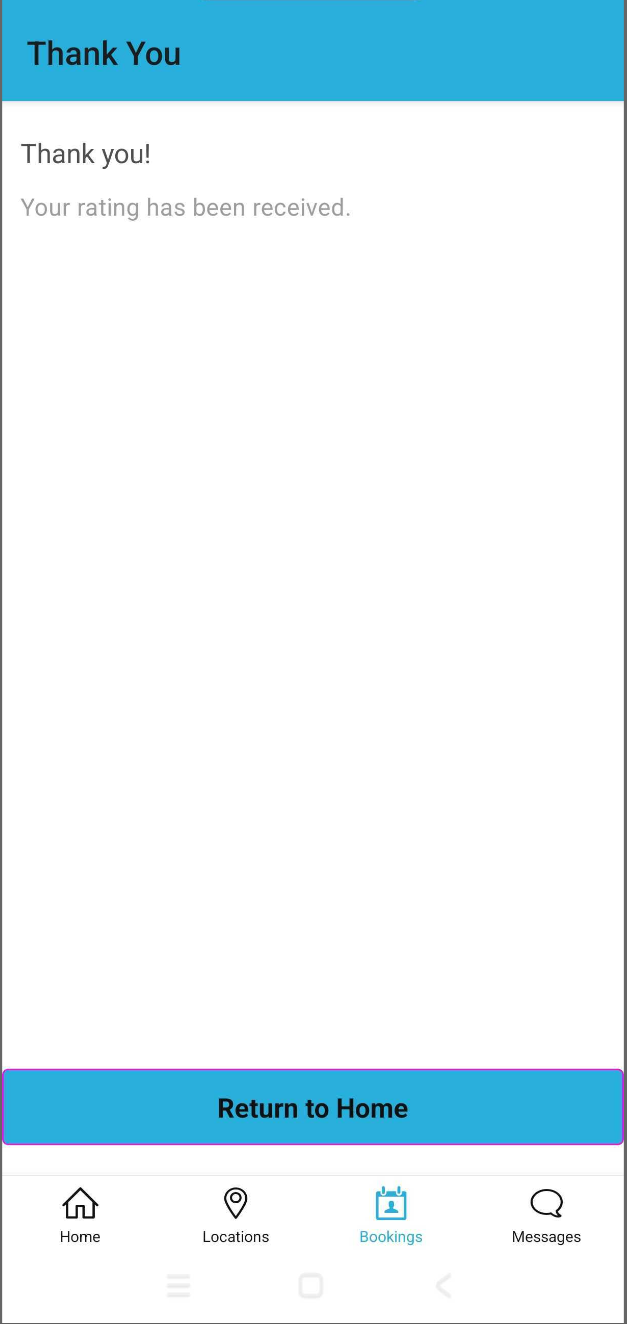
- Verification Limitations: Due to third-party privacy restrictions, the app cannot track whether a client actually clicked "Post" on Google or closed the browser. In either scenario, returning to the app displays the thank-you screen.
Here is what your clients experience when rating an appointment:
Receiving the Prompt
Once the appointment is marked complete and the message delay elapses:
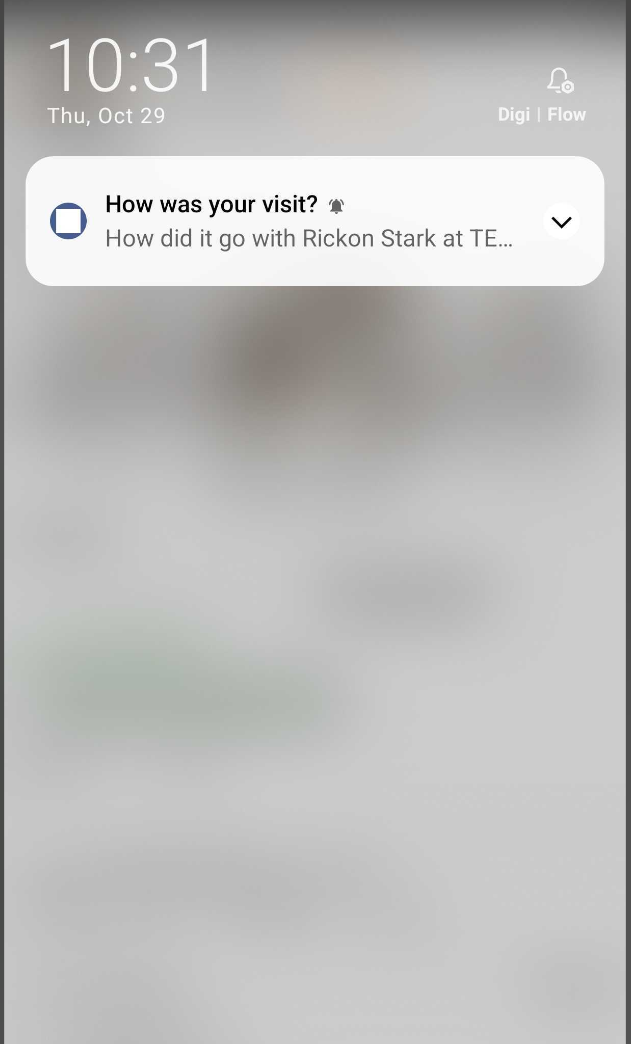
- Push Notification: Displays the prompt "How was your visit?" Tapping it opens the rating screen directly.
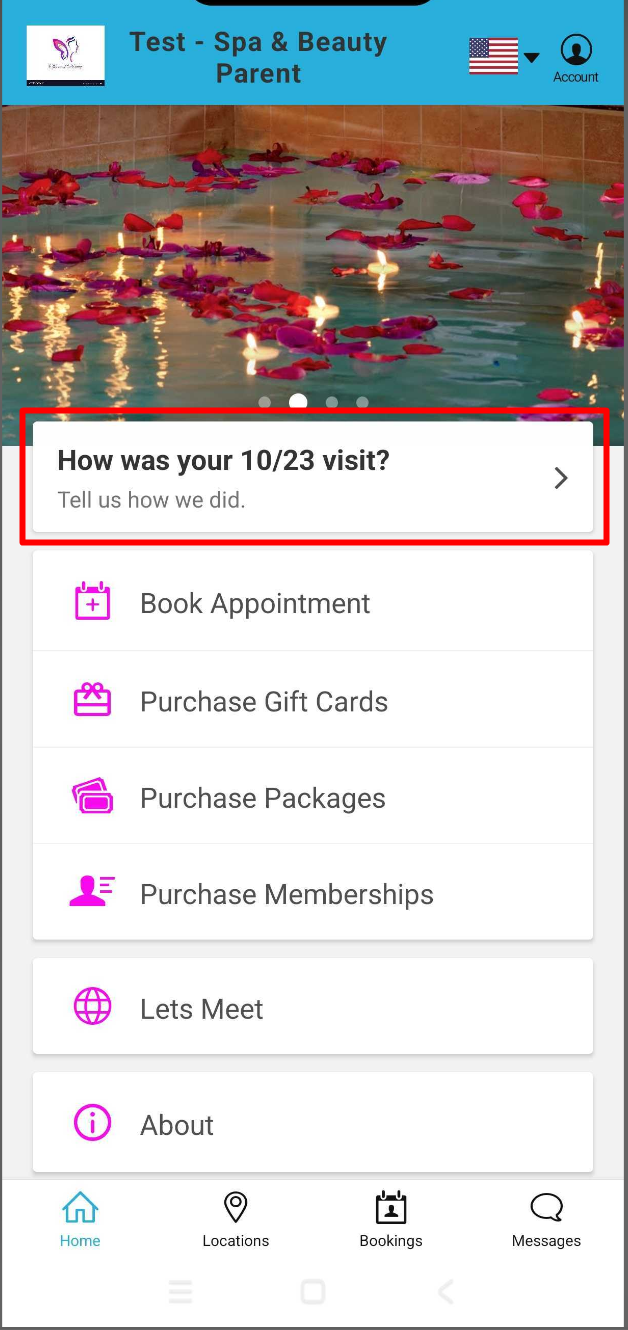
- In-App Prompt: If the client is signed in and browsing the app, a rating banner appears across the bottom of the screen.
Selecting a Rating
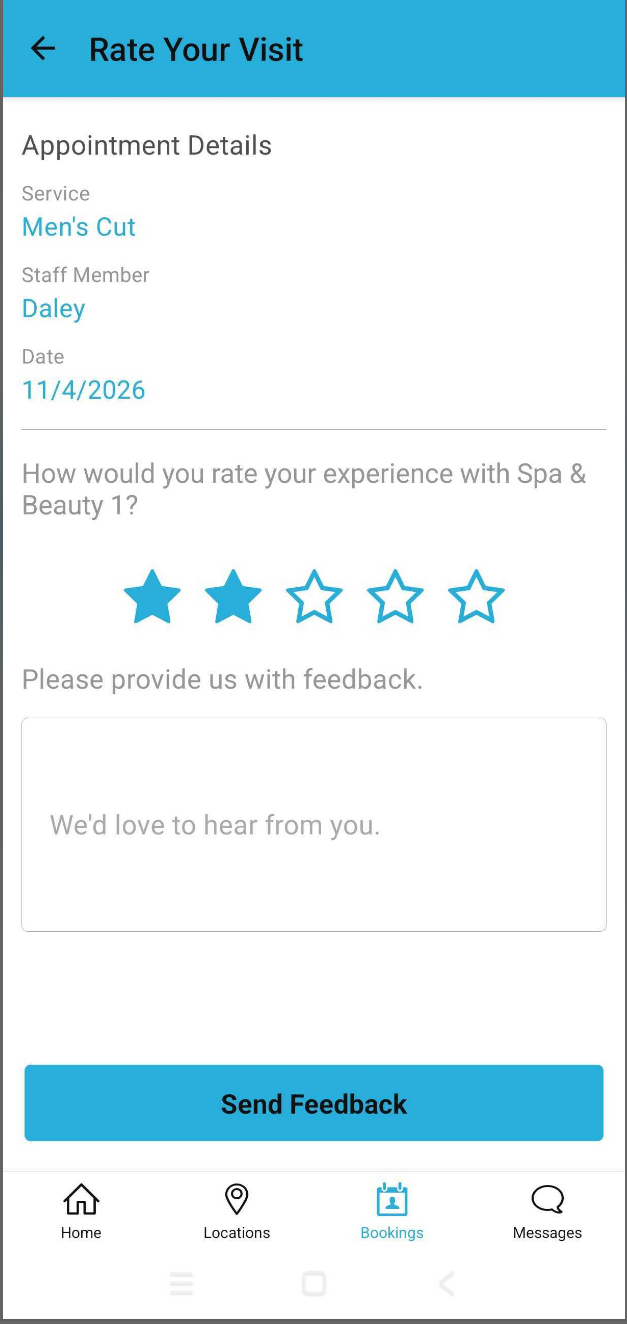
On the Rate Your Visit screen, the client reviews their appointment details (service, provider, and date) and chooses a rating from 1 to 5 stars
Ratings Below Threshold (1–3 Stars — Private Feedback):
- The client enters their comments into a private feedback box
- Tapping Submit Feedback routes the response directly to your email
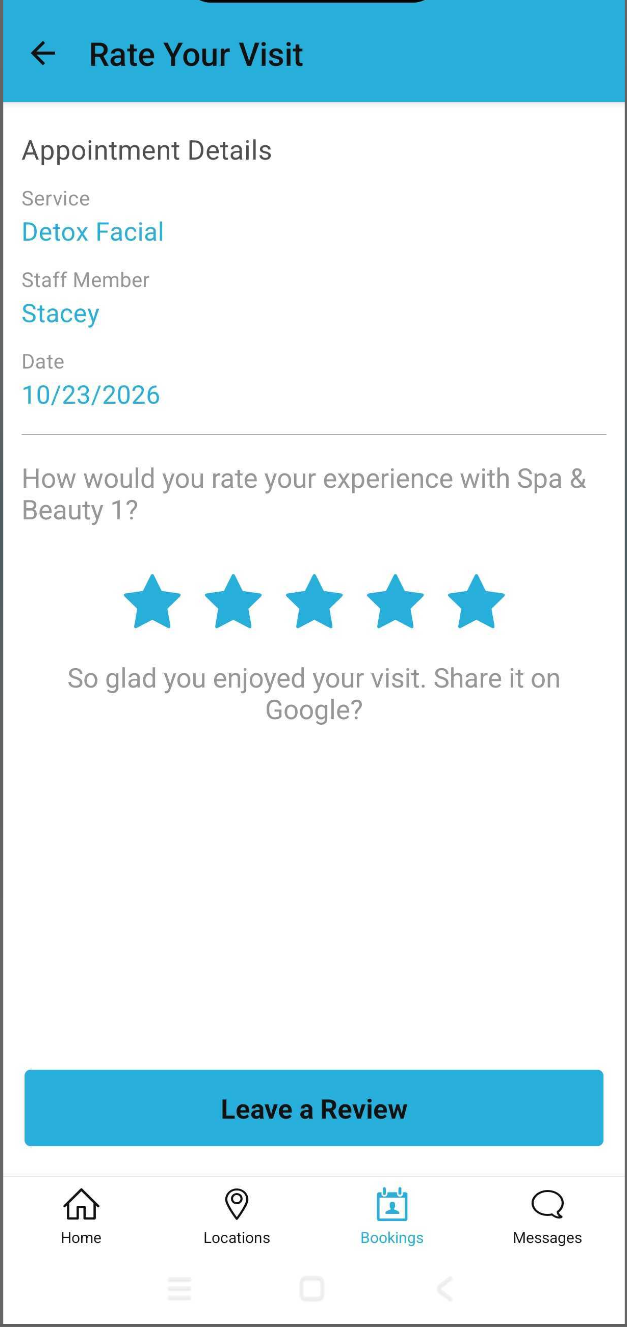
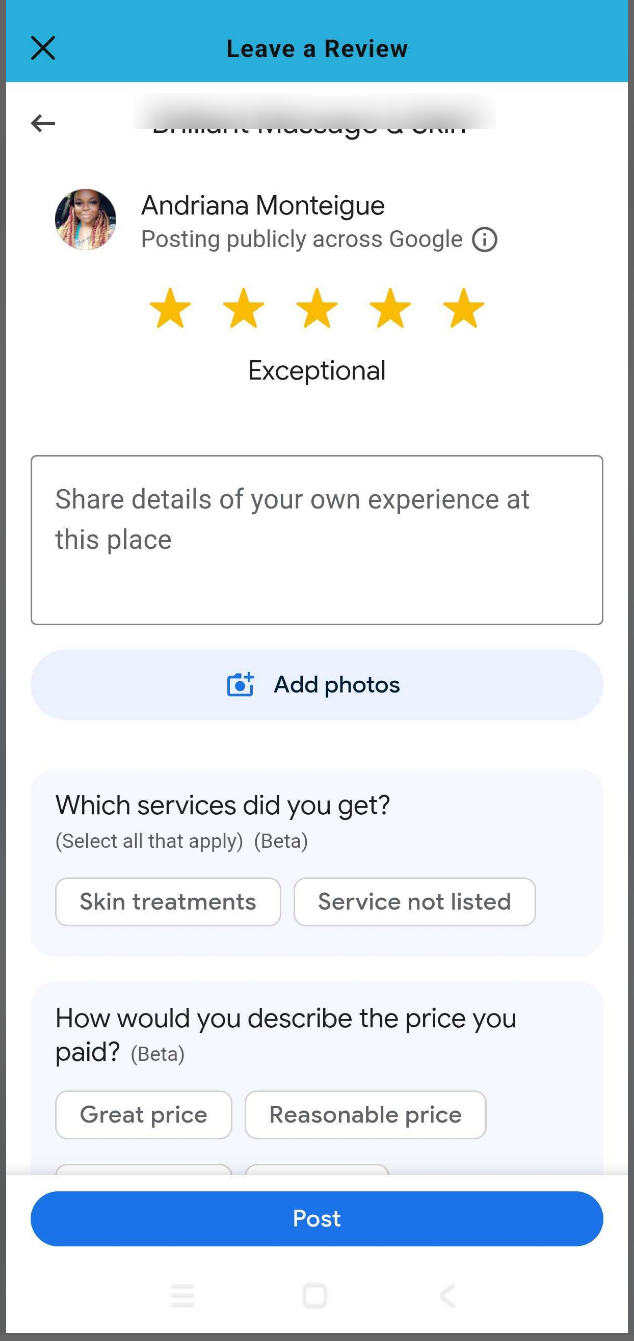
Ratings At or Above Threshold (4–5 Stars — Public Review):
- Tapping Leave a Review redirects the client to your external review page (e.g., Google) in an embedded window
- The client signs in (if prompted), confirms their rating, writes their review, and taps Post
After submitting private feedback or closing the external review window, the client is taken to a thank-you screen where they tap Done to return to the app home page.
For more information, contact us at support@mytime.com or (385) 233-6964.
Related Articles:
Account Management on Guest App
Purchasing Packages on the Guest App
Purchasing Memberships on the Guest App
Purchasing Gift Cards on the Guest App
Was this article helpful?
That’s Great!
Thank you for your feedback
Sorry! We couldn't be helpful
Thank you for your feedback
Feedback sent
We appreciate your effort and will try to fix the article