When a class session reaches full capacity, you can add interested clients to the waitlist directly from the MyTime Scheduler App. If a spot opens due to a cancellation or reschedule, the system automatically notifies waitlisted clients so they can book the available seat.
Things to know:
- The ability to manage class waitlists is controlled by the "Schedule Classes/Events" access control setting, which must be set to Edit.
- To use the classes waitlist feature in the Scheduler App, the "Enable Classes Waitlist" company setting must be enabled. Turning this setting on will then allow your staff to successfully add clients to the class waitlist. Learn more here
- The Enable Waitlisting toggle must also be turned ON within each individual class modal. It is off by default and can be enabled when scheduling a class or at any time after it has been created.
- The Join Waitlist option only appears on the class roster once the session has reached full capacity. It will not appear if spots are still available.
- A green dot will appear beside each client waitlist entry if a spot opens
- When a spot becomes available, all waitlisted clients for that session are notified simultaneously via email, SMS, or push notification, based on your Class Session Available automated message settings. Notifications are not sent if the opening falls within your business's advance booking cutoff window. Example: A yoga class at 6:00 PM is fully booked, and three clients join the waitlist.
- At 2:00 PM, a spot opens: All waitlisted clients are notified.
- At 5:30 PM, a spot opens and the business has a 1-hour cutoff: No notifications are sent, since the opening falls within the cutoff window.
- Spots are filled on a first-come, first-served basis — the first client to complete their booking secures the available seat.
- Clients can remove themselves from the waitlist at any time from their online account.
- If the class session is overbooked, the "Note: This session exceeds the {attendee type} limit" error message will be displayed
- If the class session is full, the "Note: This session has reached the {attendee type} limit" error message will be displayed
Contents:
Adding a Client to the Waitlist from the Class Roster
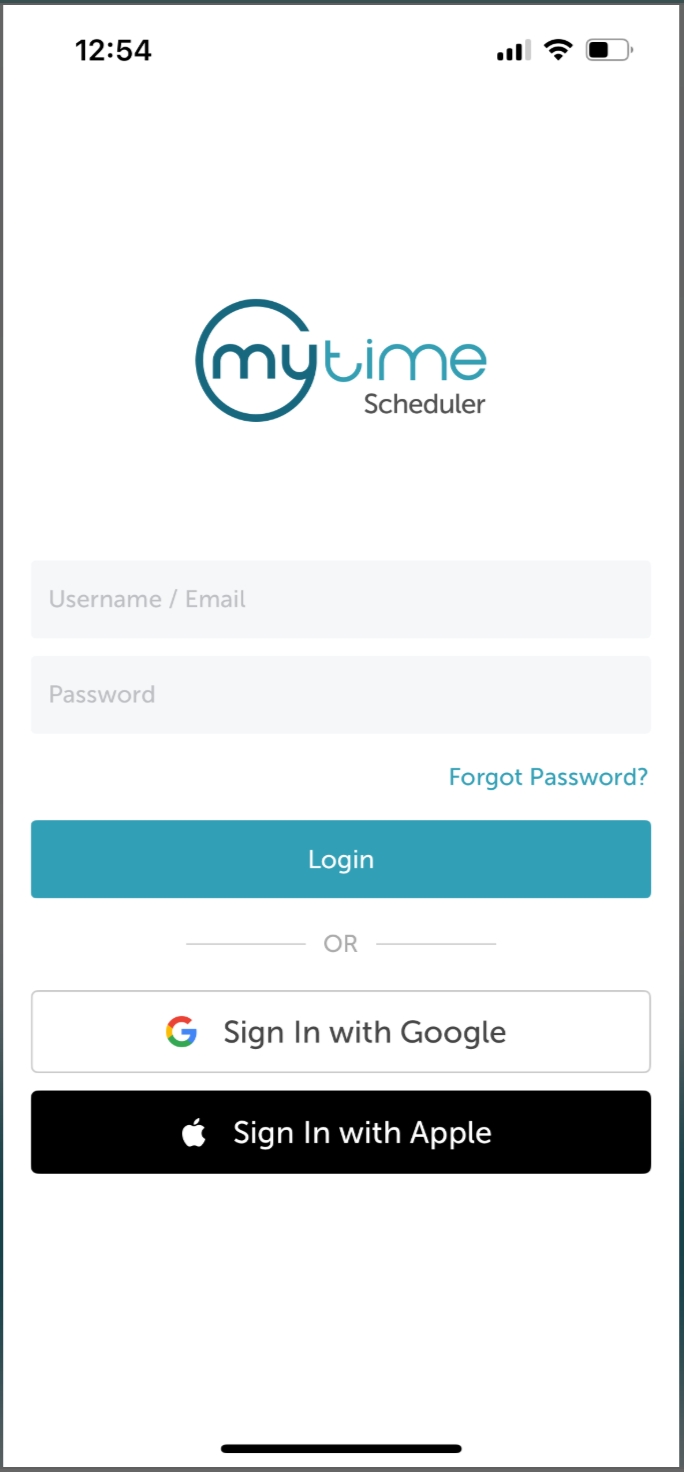
1. Launch the MyTime Scheduler app on your device
2. Choose your login method:
- Standard: Enter your registered email address and password, then tap 'Sign In'
- Social Login: Select 'Continue with Google' or 'Continue with Apple' to use your existing credentials for a faster login experience. For detailed instructions, learn more here
3. Navigate to the Schedule
4. Locate and select the desired class on your schedule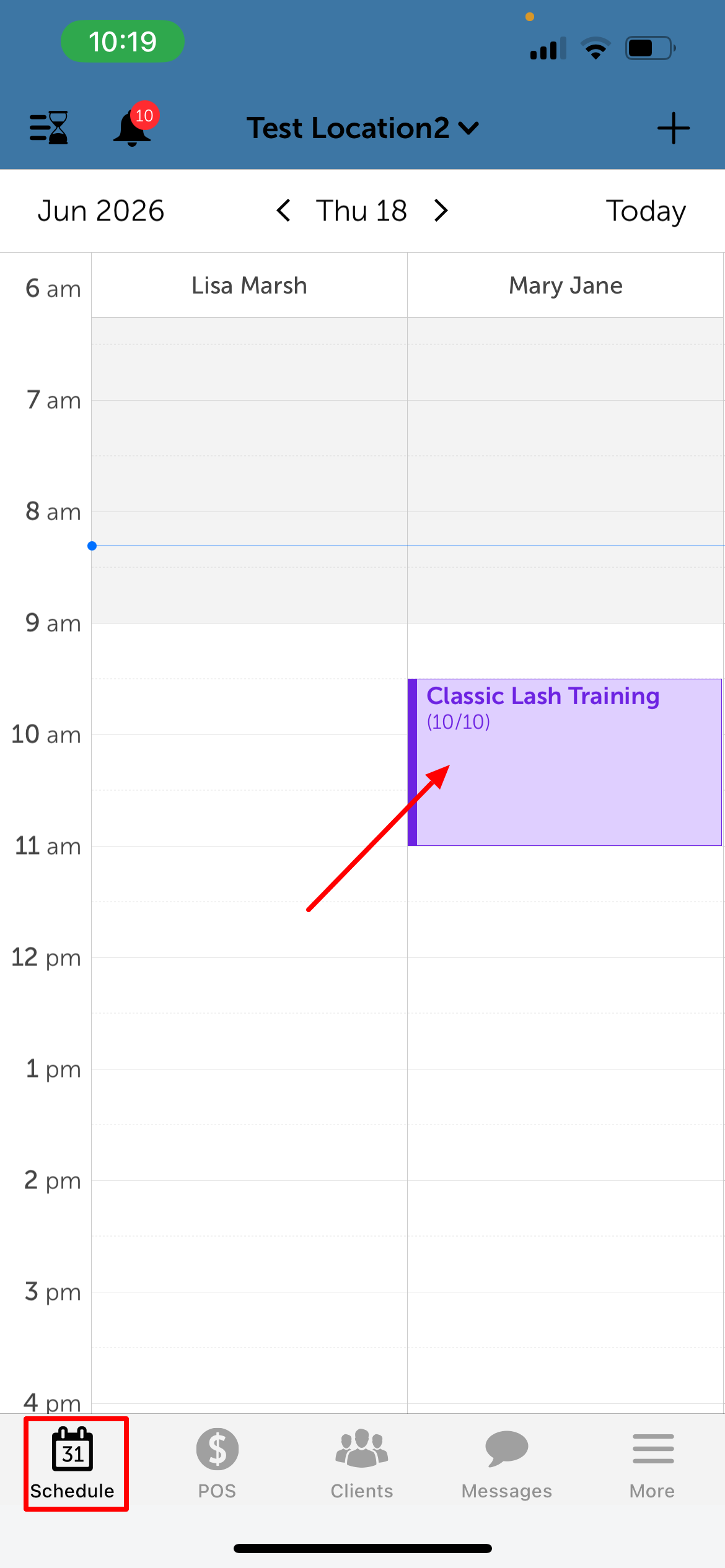
5. Select "View Attendees" 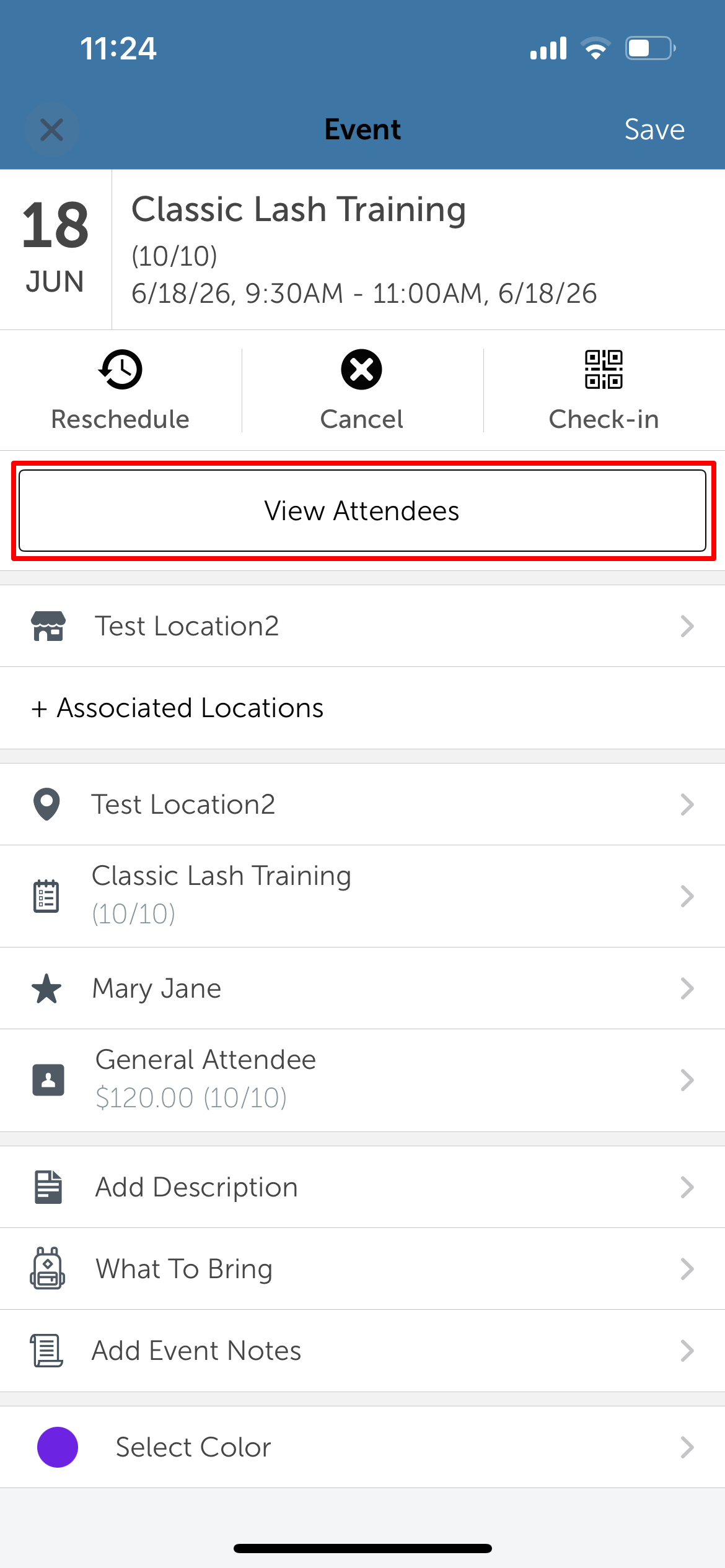
6. Tap "+ Add to Waitlist" 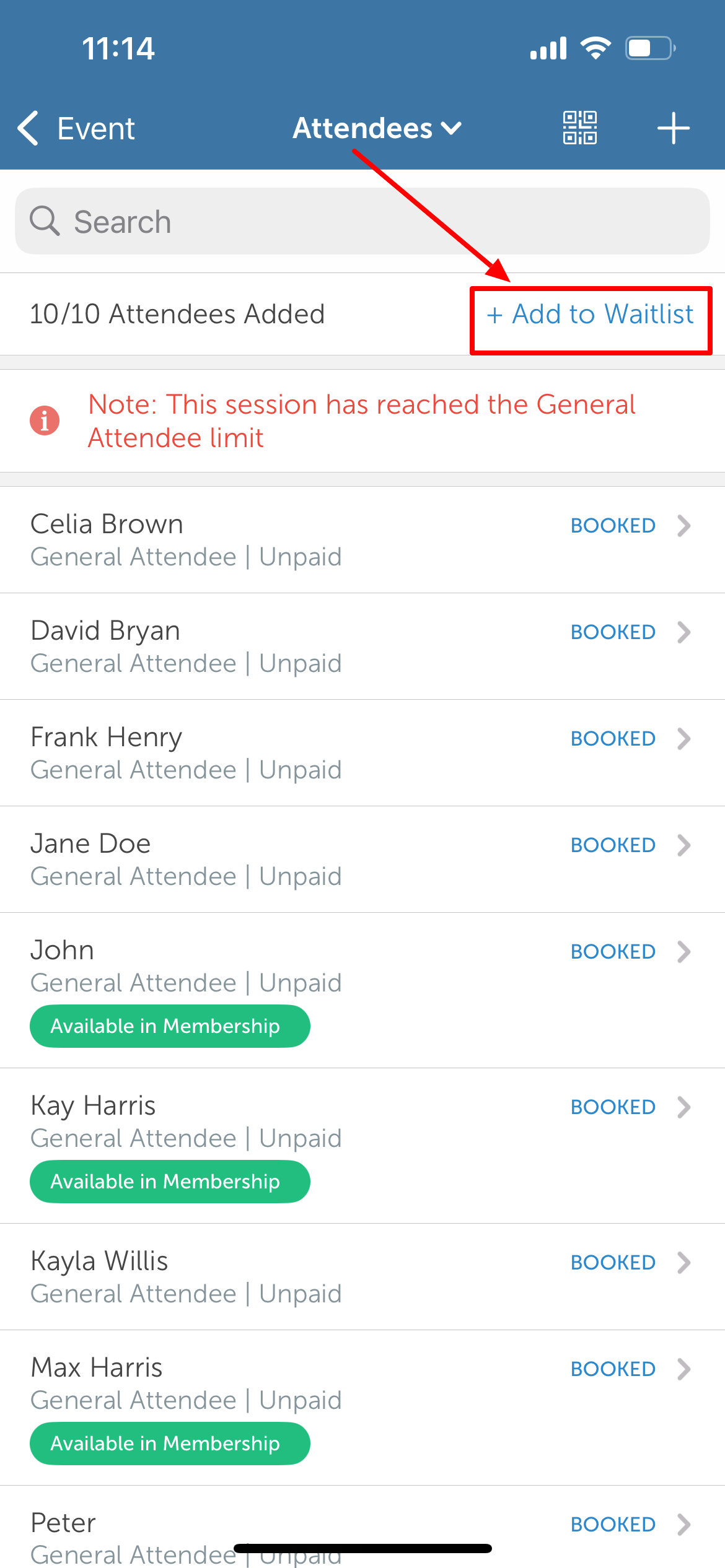
7. Type the client's name in the 'Search' field, or select the client from the client list 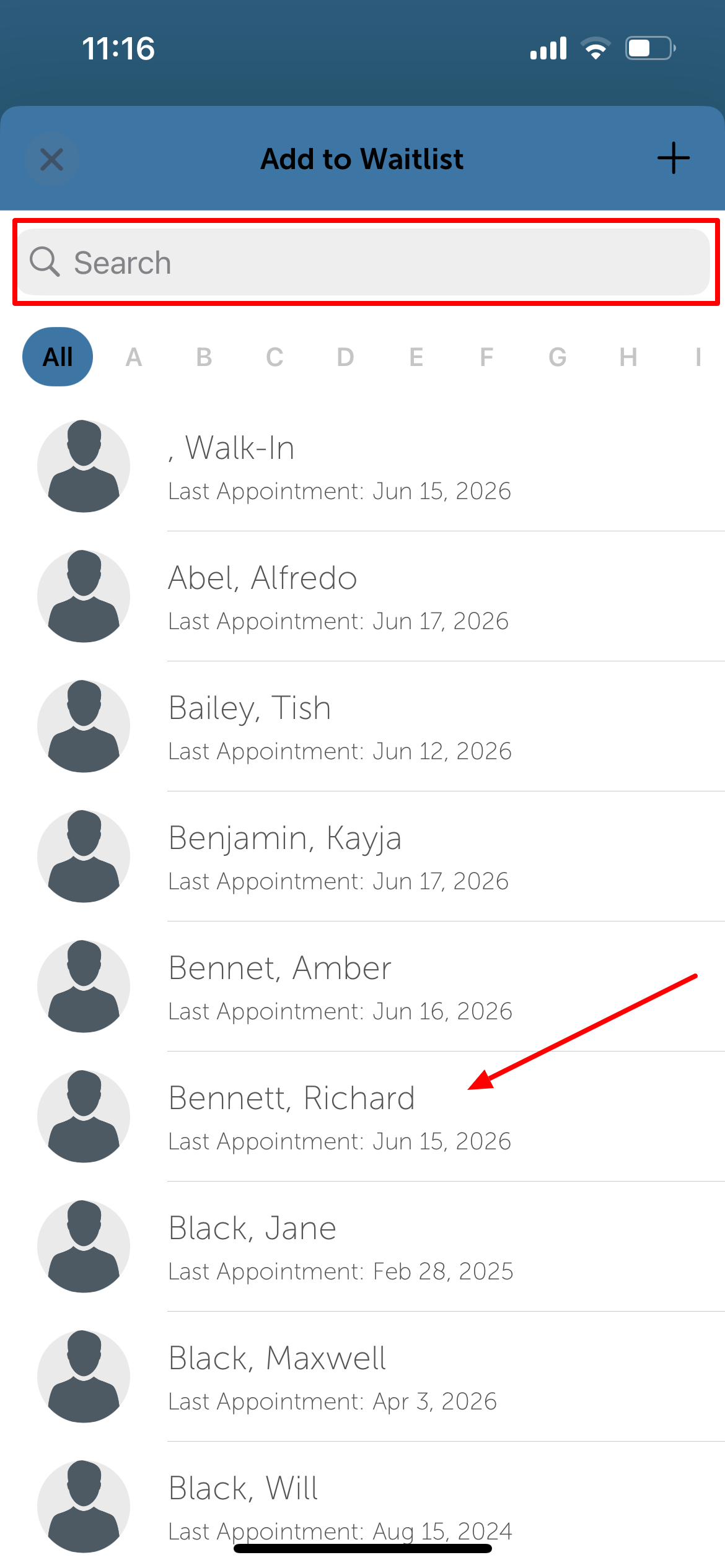
8. Select the attendee type 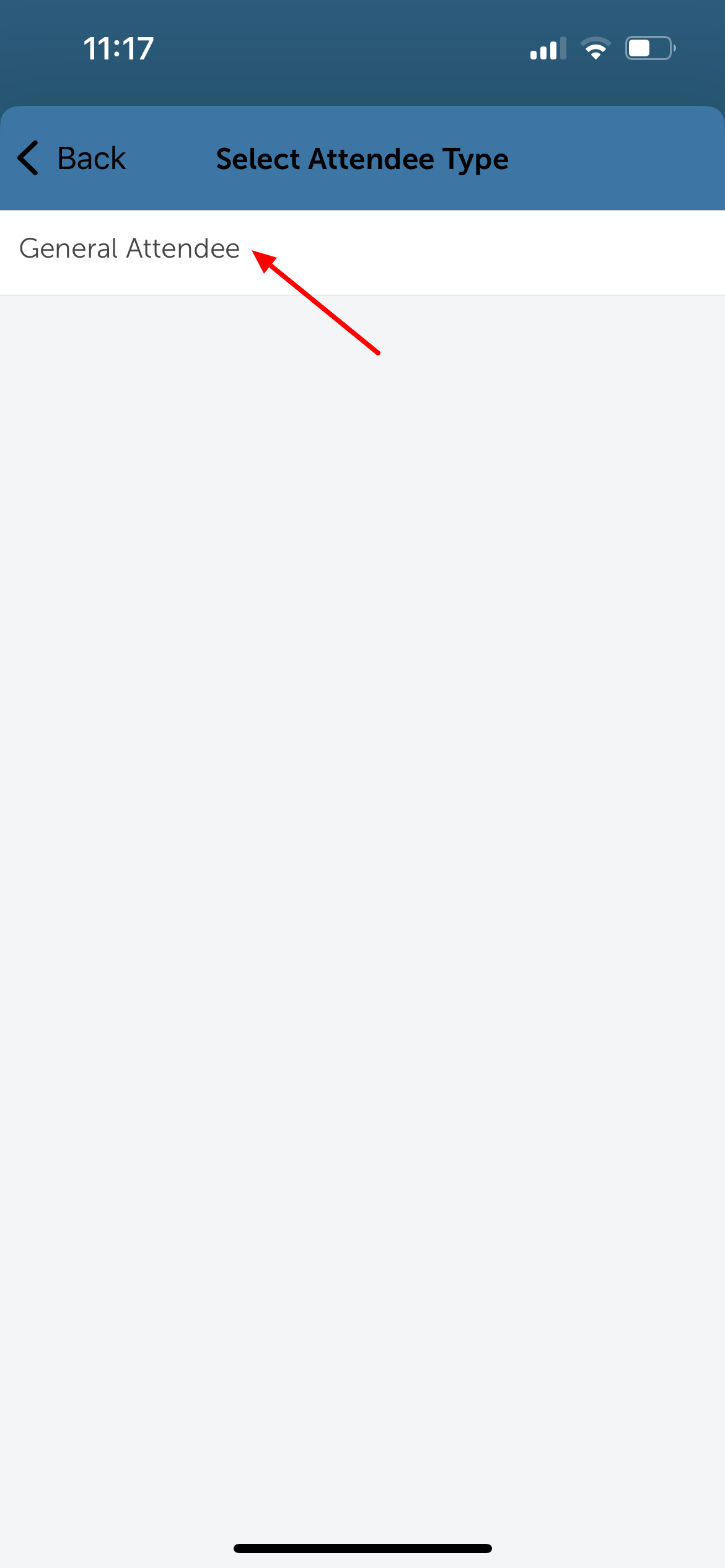
9. The client will be added to the class waitlist 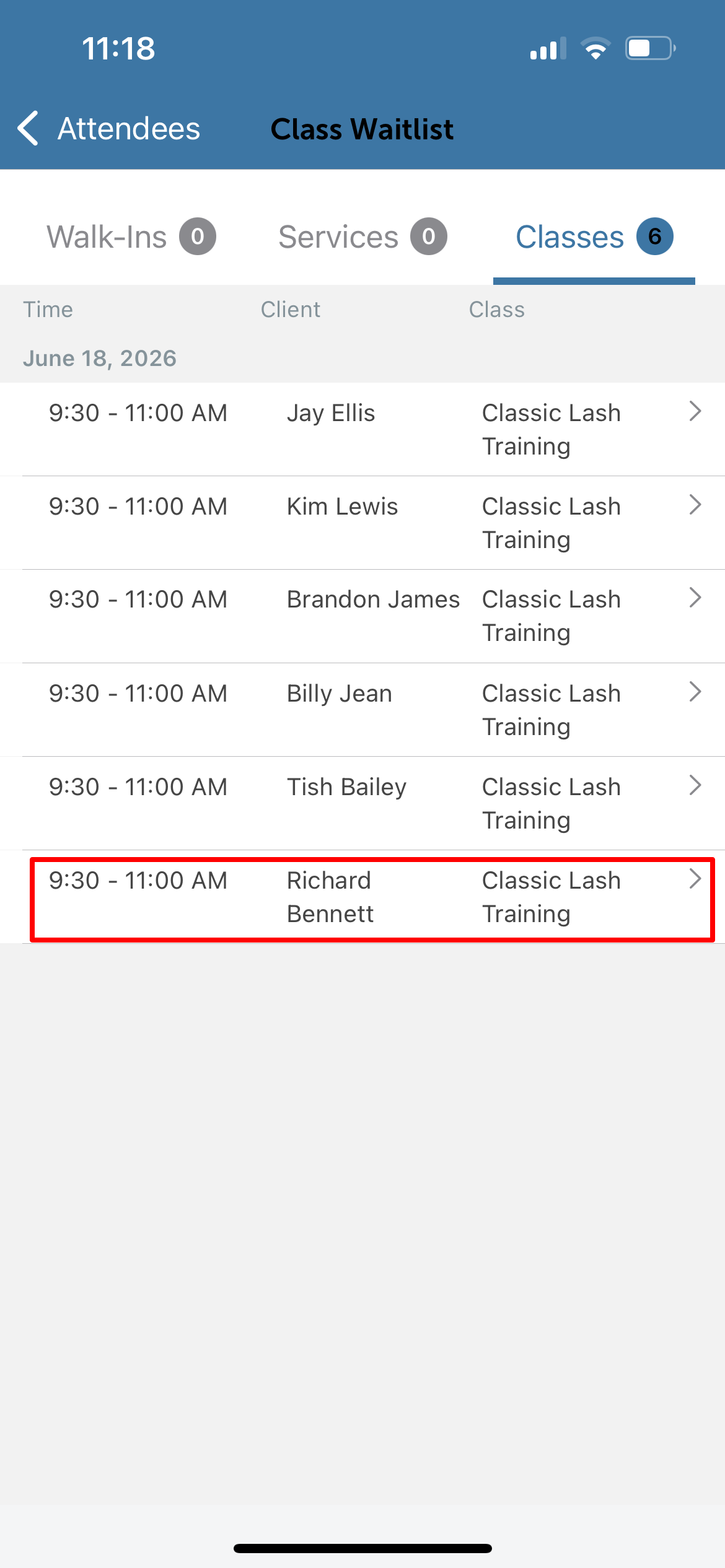
Viewing and Managing the Class Waitlist
To view the current waitlist:
1. From the Schedule screen, tap the Open Waitlist button in the top left corner 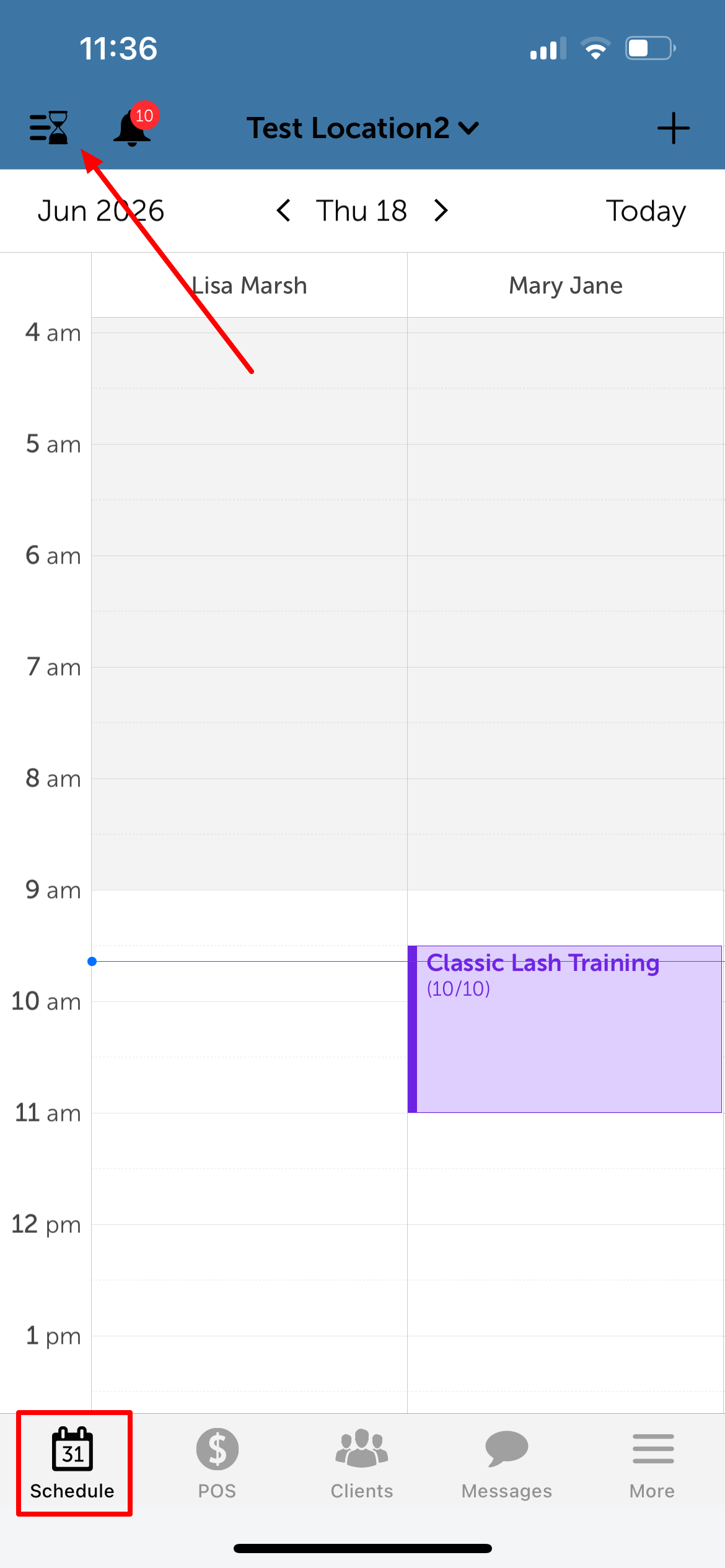
2. You will be directed to the Classes tab by default. This tab displays all clients currently waiting, including the time of the scheduled class, client name, and name of the class.
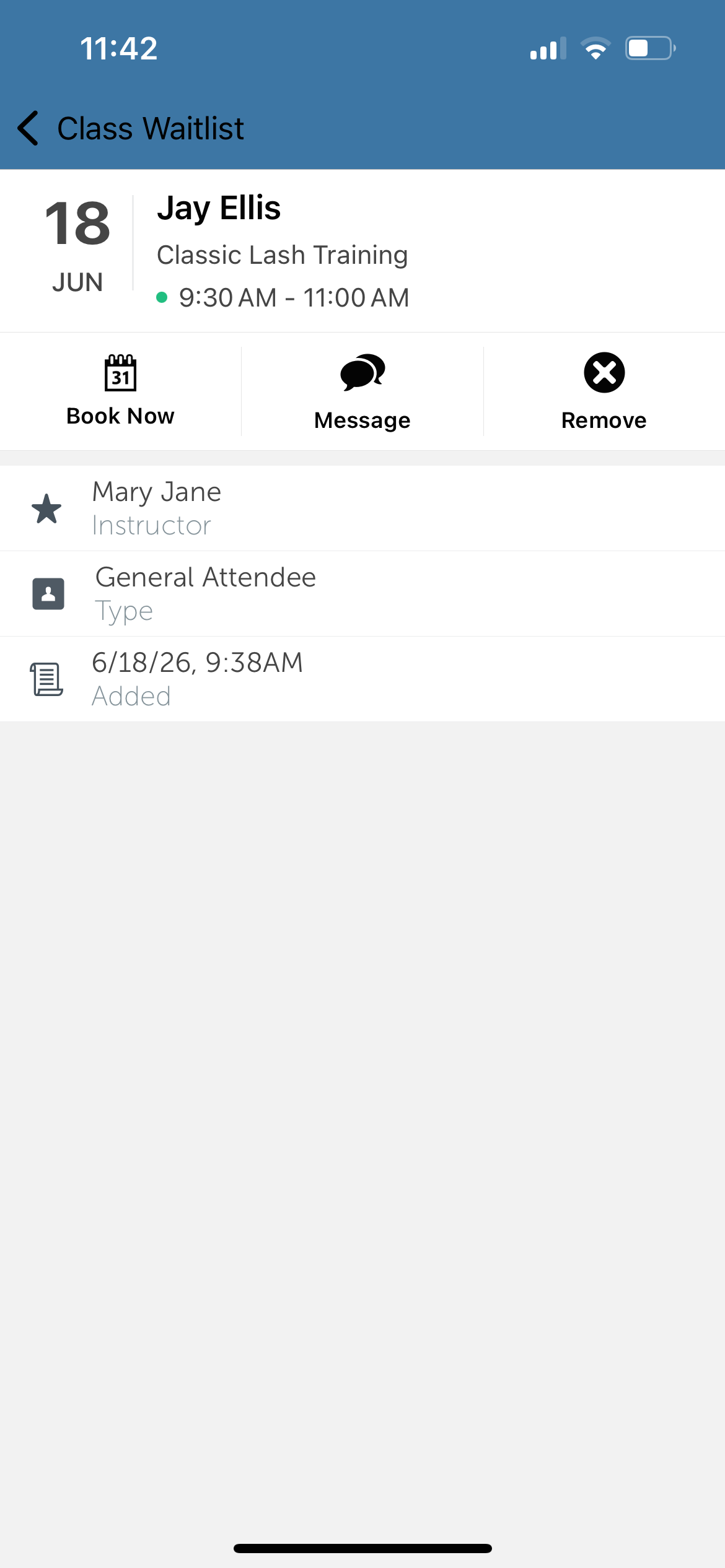
3. Tap the (>) arrow for the desired client to open their full waitlist entry details 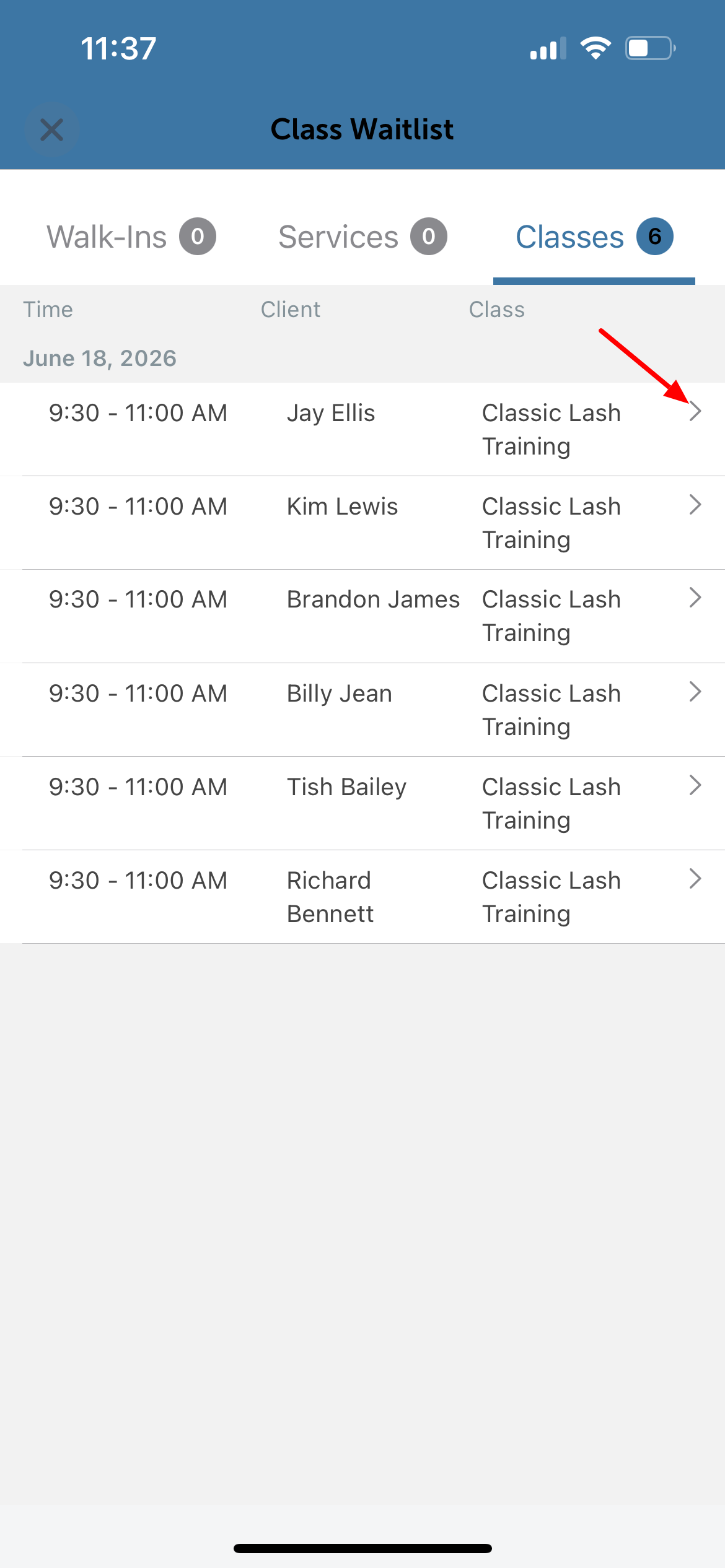
4. From this screen, you can manage the entry using the following options:
- Identify Openings: A green dot next to a class time indicates that a seat is currently available for that specific attendee type
- Book Class Session: Tap "Book Now to instantly schedule the client into the class session, which will open the Add Attendee screen. Note: The Book Now button will be disabled if there are no open seats available.
- Message a Client: Tap the message icon to reach out directly via the Communicator
- Remove a Client: Tap the X icon to delete and remove a client from the waitlist
- Review Details: View the requested staff member, the attendee type, and the exact date and time the client was originally added to the waitlist.
For more information, contact our Support Team at support@mytime.com or (385) 233-6964.
Related Articles
Adding Clients to the Class Waitlist In-store
Adding Clients to Class Sessions on Scheduler App
Scheduling Classes/Events on Scheduler App
Checking In Clients to Classes on Scheduler App
Was this article helpful?
That’s Great!
Thank you for your feedback
Sorry! We couldn't be helpful
Thank you for your feedback
Feedback sent
We appreciate your effort and will try to fix the article