When a class reaches full capacity, clients can join the waitlist to be notified if a spot becomes available. This helps fill cancellations, maximize revenue, and avoid overbooking. This article outlines how clients can join a class waitlist online.
Things to know:
- To enable the online waitlist feature for your clients, ensure the following settings are configured:
- Company Setting: To use the Class Waitlist feature, activate the "Enable Classes Waitlist" setting under Business Setup > Settings. Once enabled, staff can add clients to the class waitlist.
- Class-Level Setting: The "Enable Waitlisting" toggle must be turned on for each class within the class modal
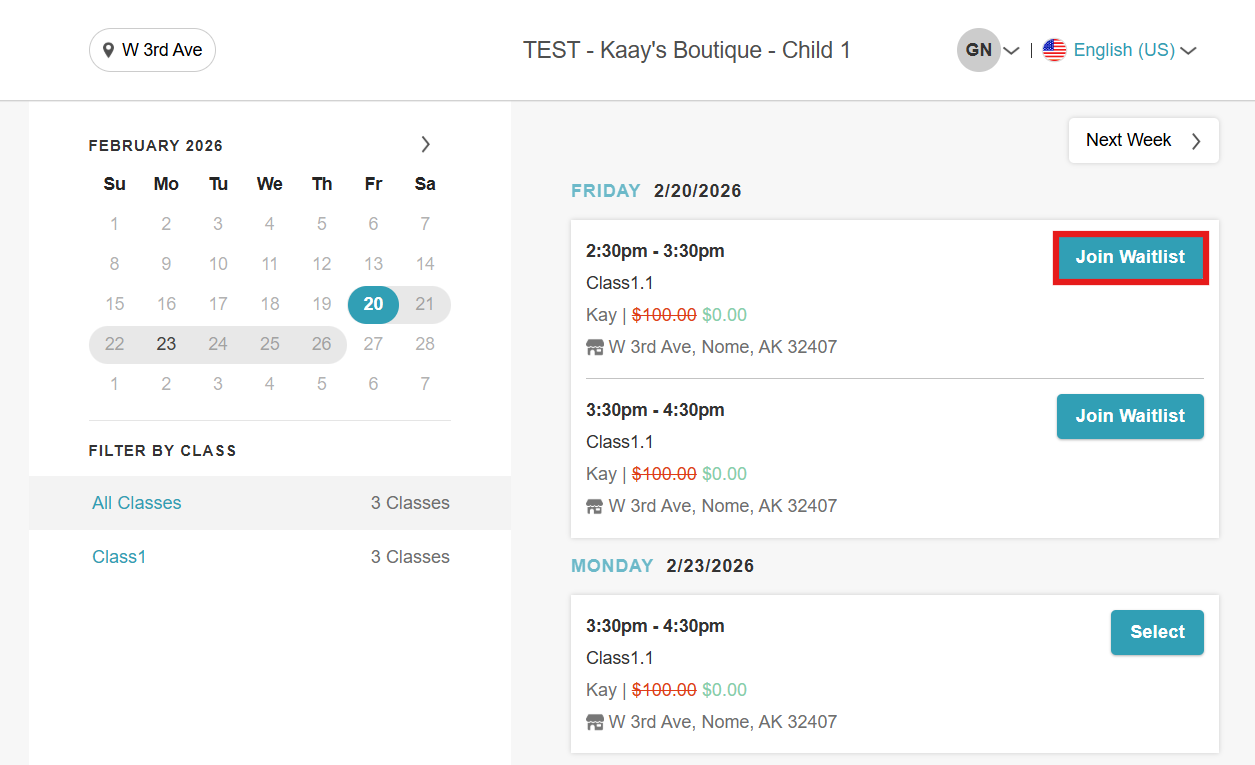
- The Join Waitlist option appears only after a class is fully booked
- Clients can join the waitlist for multiple sessions, even on the same day
- There is no limit on how far in advance a client can join a waitlist
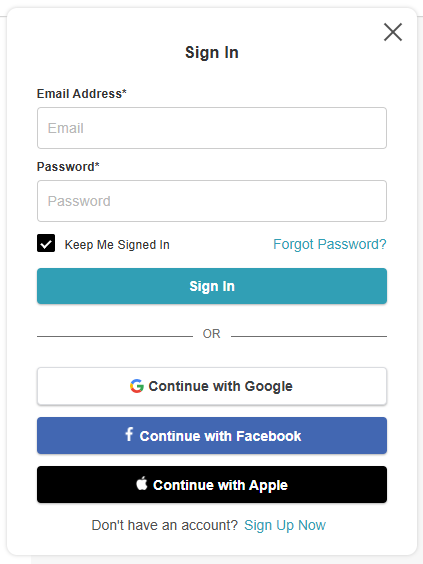
- Clients must be signed in to join the waitlist. If they exit the sign-in prompt, they will see "Please sign in to join the waitlist.”
- Clients can select their attendee type and the number of seats to waitlist
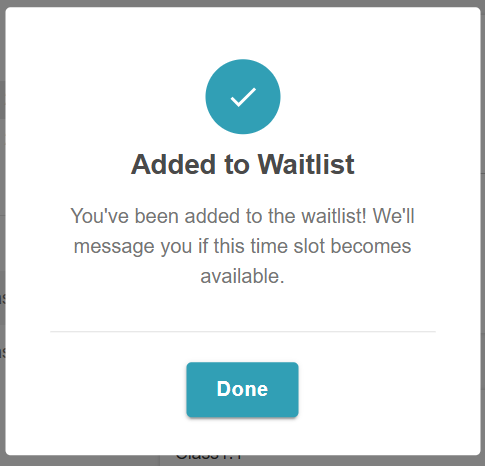
- A confirmation pop-up appears once they are successfully added
- Staff can view the total number of waitlisted clients in-store via the Waitlist modal
- Clients can remove themselves from the waitlist at any time
- When a spot opens up in a class session, clients on the waitlist receive a "Class Session Available" notification. This email includes a deep link that simplifies the booking process:
- Direct Checkout: Clicking the link bypasses class selection and takes the client straight to the checkout screen with the correct class and attendee types already in their cart.
- Cart Persistence: If the client refreshes their browser, the URL parameters automatically restore the cart so they don't lose their selection.
- Automatic Error Handling: If the link is invalid or the session is no longer available, the client is redirected to the main class selection page instead of getting stuck on a loading screen.
- Full Compatibility: Works for all class types (local, global, or recurring), membership-included classes, and for both guests and logged-in users
- Spots are filled on a first-come, first-served basis, meaning the first client to successfully complete the booking will secure the available spot. Example: If three clients are notified of an opening and click “booking link,” the first client to complete the booking will secure the spot, while the other two will no longer see availability once it has been filled.
- Notifications will not be sent if the opening occurs within the business’s advance booking cutoff window. Example: A yoga class at 6:00 PM is fully booked, and three clients join the waitlist.
- At 2:00 PM, a spot opens: All waitlisted clients are notified.
- At 5:30 PM, a spot opens and the business has a 1-hour cutoff: No notifications are sent, since the opening falls within the cutoff window.
- Clients can view all classes they have joined the waitlist for in the Waitlisted section under Account → Bookings.
Clients can add themselves to a class waitlist by following these steps:
- Navigate to your booking URL or click the Book button on your website
- Select the preferred location (if applicable)
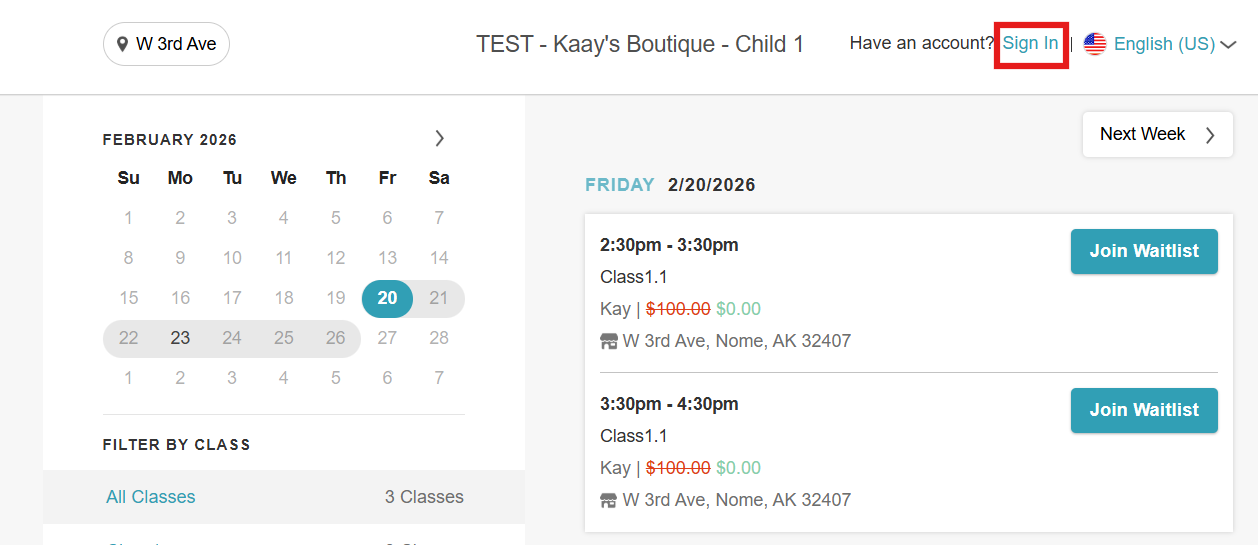
- Click Sign In at the top-right corner of the booking widget
- Sign in using an existing MyTime account, Facebook, Google, or Apple ID, or create a new account
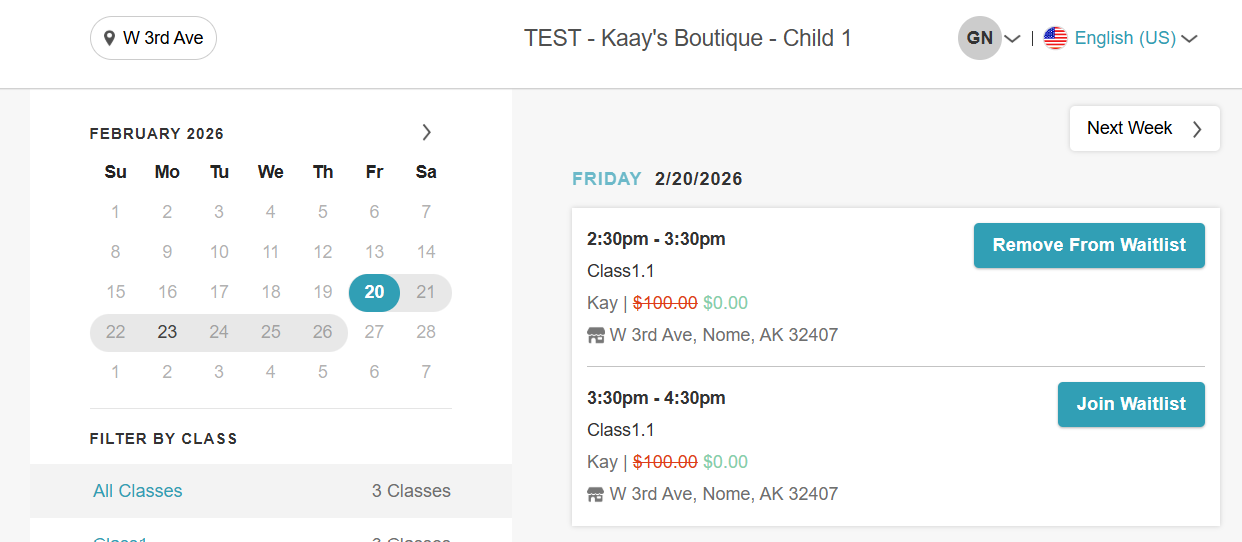
- Locate the desired class and click the "Join Waitlist" button
- Select the attendee type and the number of seats requested
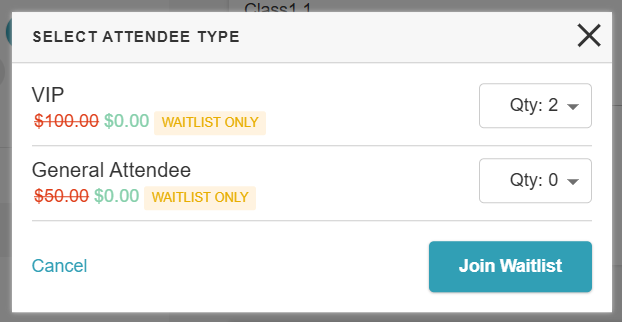
- Click "Join Waitlist"
- Click "Done" on the confirmation pop-up
- Once added, the "Remove From Waitlist" button becomes visible. Clients can select this at any time if they are no longer interested in the session. Note: Removing themselves from the waitlist does not prevent clients from re-joining later if they change their mind.
For more information, contact us at support@mytime.com or (385) 233-6964.
Related Articles:
Adding Clients to the Class Waitlist In-store
Adding Clients to the Classes Waitlist on Scheduler App
Was this article helpful?
That’s Great!
Thank you for your feedback
Sorry! We couldn't be helpful
Thank you for your feedback
Feedback sent
We appreciate your effort and will try to fix the article