After a class is created, you can add clients directly from the roster. This article provides step-by-step guidance on how to manage class attendees.
Things to know:
- The ability to add attendees to classes/events is controlled by the "Schedule Classes/Events" access control setting.
- The attendee type and the amount charged are determined by the class configuration. Learn more here
- You can add more attendees than the scheduled limit, but the system will notify you when the limit is exceeded
Multiple attendees can be added to a class session by selecting quantities for specific attendee types directly from the class roster.
Each time an attendee is added, the "Booked" section on the right increases by one
When viewing a class or event roster, you can customize how your clients are displayed using:
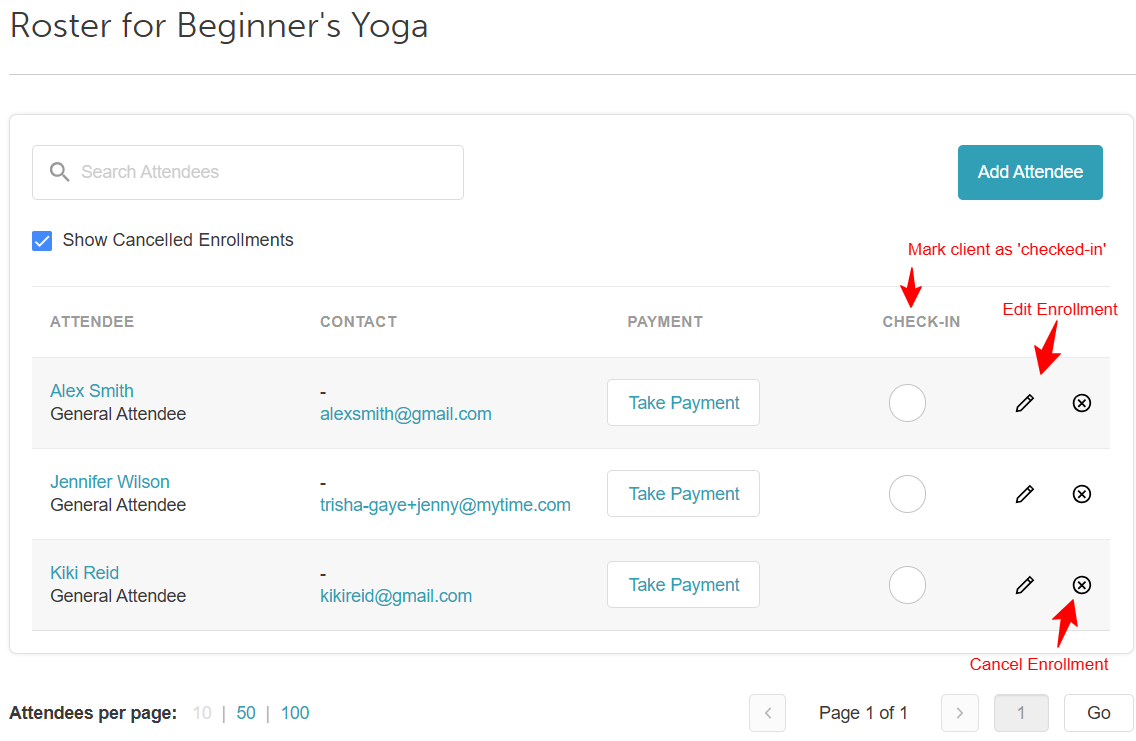
Show Cancelled Enrollments Checkbox:
Enabled: The roster includes clients who have cancelled their spots, allowing you to track historical changes or identify recently vacated openings.
Disabled (Default): The roster displays only active participants for a streamlined check-in process.
'Sort class session roster by attendee name' company setting:
Enabled: The list automatically reorganizes into alphabetical order by the client’s first name.
Disabled: The list displays attendees chronologically, based on the order in which they were originally added to the session.
When viewing a class roster, staff can quickly locate enrolled attendees by searching for either the dependent (family member/pet) or the primary account holder.
Searching by Family Member / Pet Name: Enter the family member or pet's first name, last name, or full name. Partial name searches (3+ characters) also return matching records.
Searching by Primary Client: Enter the primary client's name, email address, or phone number to locate all associated family members or pets on the roster.
To access the roster:
- Navigate to your schedule
- Locate the class/event on the schedule
- Click on the class/event
- Select the View Attendees button
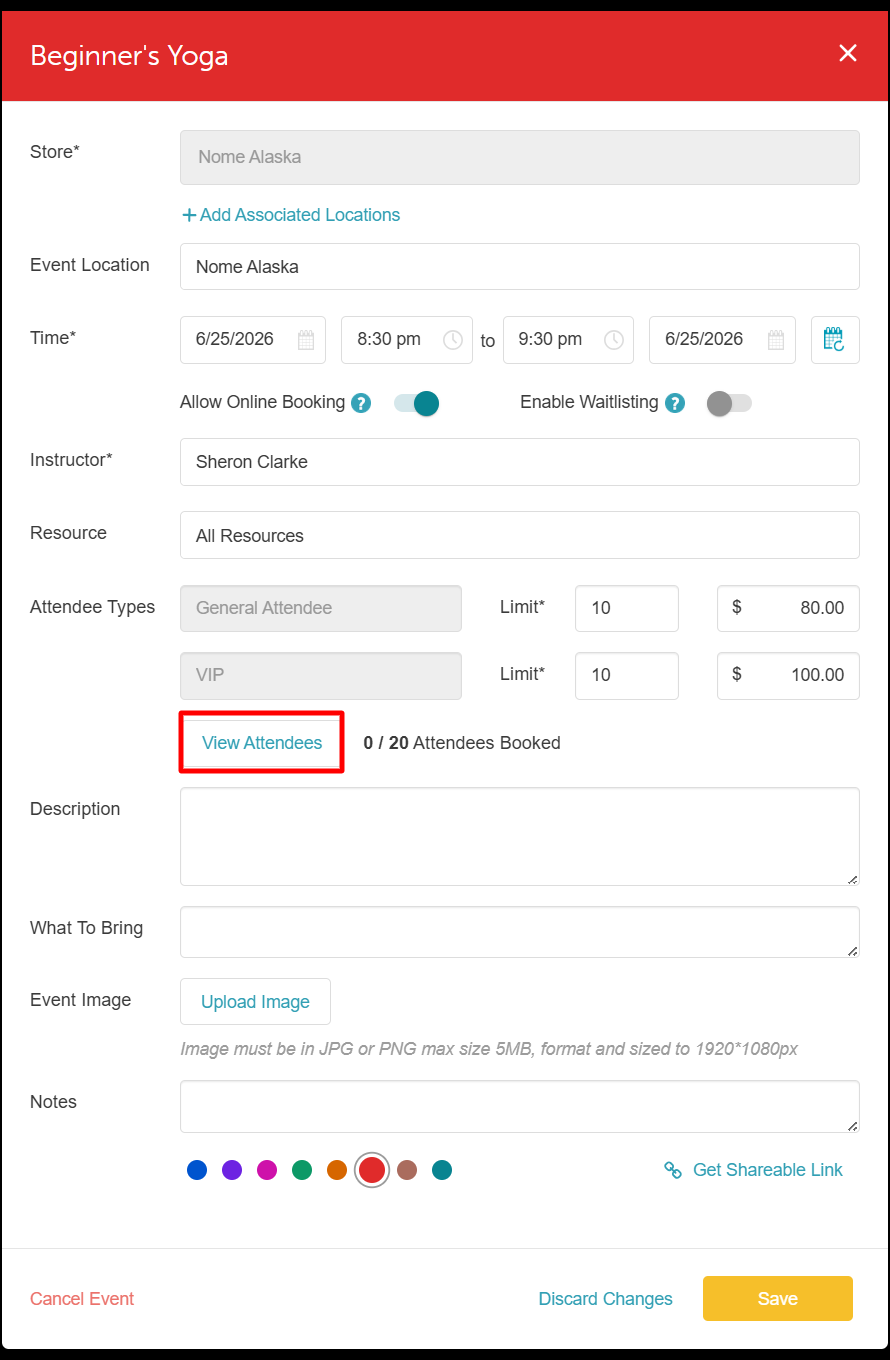
- When the roster opens, click on Add Attendee
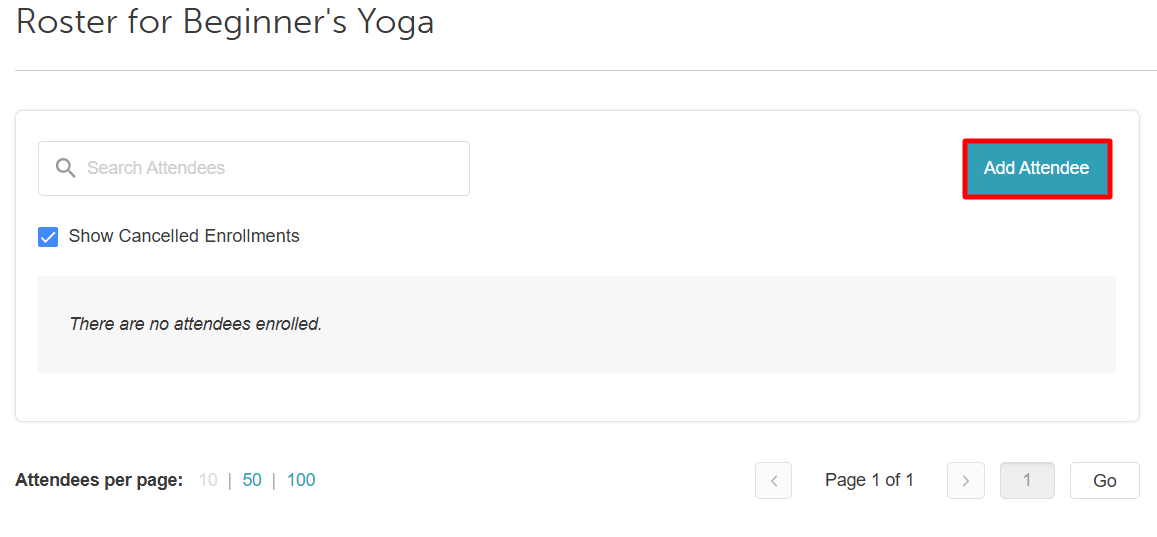
- You can search for an existing client using the search field or add a new client using the icon on the right-hand side.
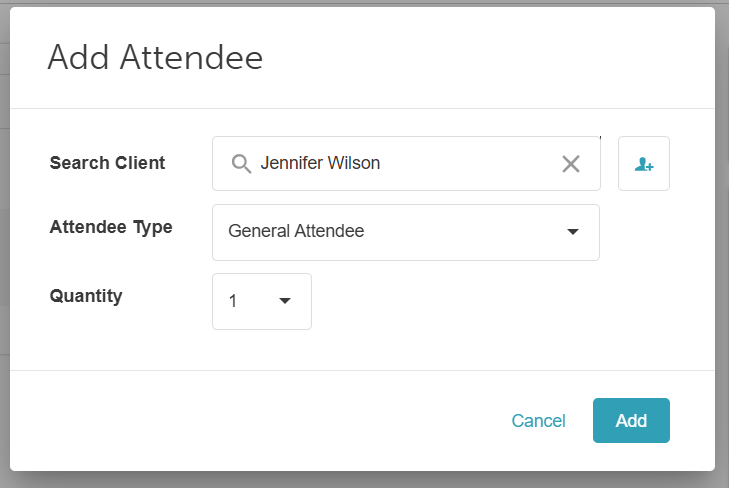
- Select the appropriate Attendee Type
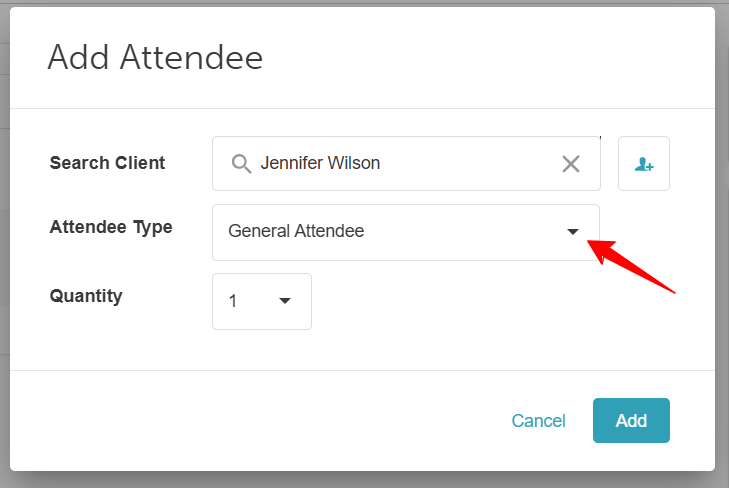
- If the "Allow Selecting Session Enrollment Attendee Quantity on Roster Page” setting is enabled, use the Quantity field to choose how many spots the client would like to book for that attendee type
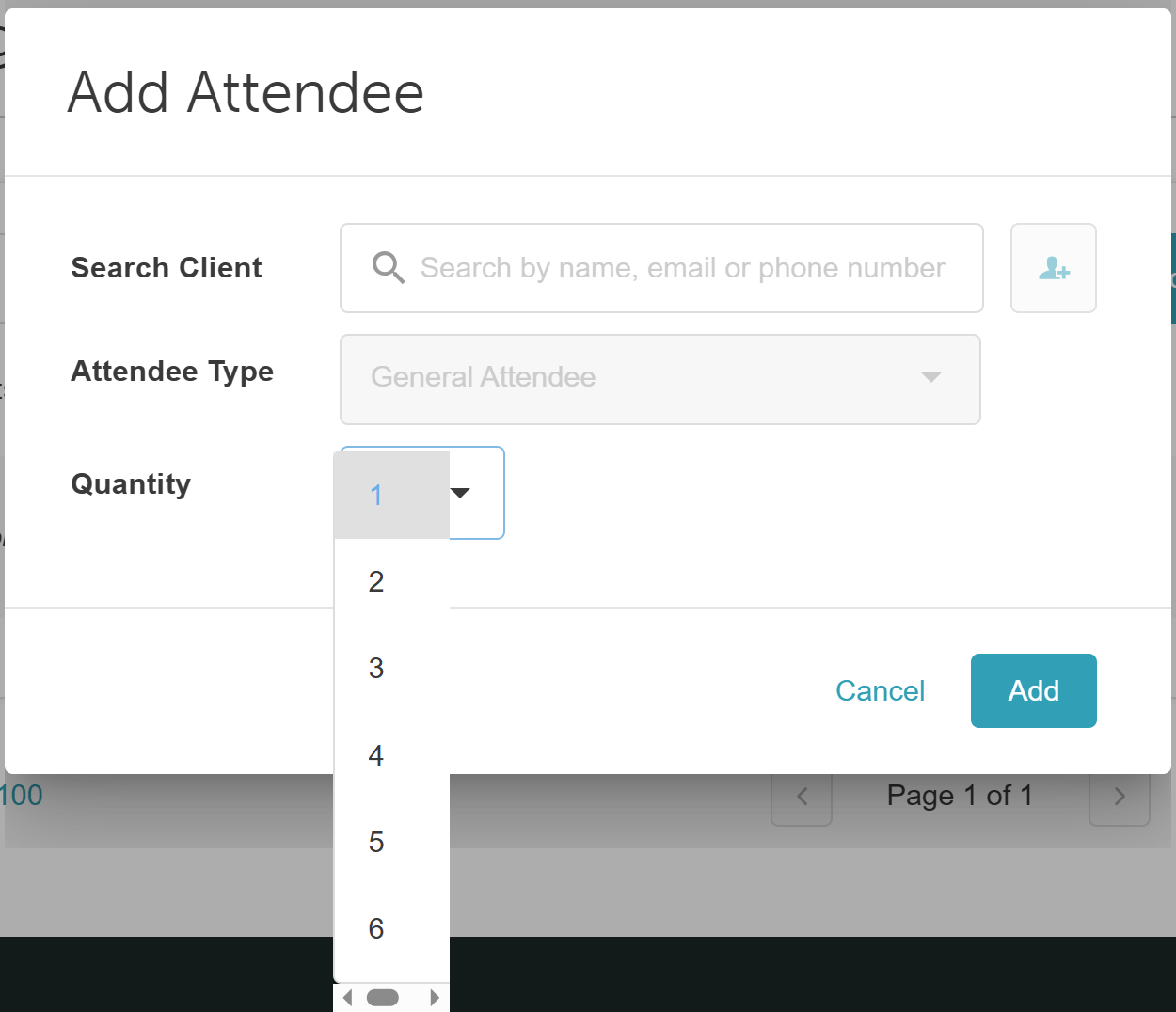
- Next, select the Add button
- The client will then be successfully added to the class/event session
- Use the following buttons to perform an action on the roster
For more information, contact us at support@mytime.com or (385) 233-6964.
Related Articles:
Was this article helpful?
That’s Great!
Thank you for your feedback
Sorry! We couldn't be helpful
Thank you for your feedback
Feedback sent
We appreciate your effort and will try to fix the article