This article provides steps for scheduling recurring sessions and the seamless process of adding attendees to a full roster.
Things to know:
- Scheduling classes/events requires both the "Schedule Classes/Events" company setting and the "Schedule Classes/Events" access control permission.
- Classes can be scheduled at either physical or virtual locations
- You can create recurring classes, or courses, to automatically enroll clients in multiple sessions of the recurring class. Instead of opening each individual class session to manually add the same attendee, you can enroll clients and select whether they should join a single session or all the upcoming sessions in the series. You can also configure a course to allow open enrollment at any point in the series with an individual session commitment, or restrict enrollment to the first session only with a strict commitment to all remaining dates.
- Most fields will auto-fill based on the class configuration. While you cannot change the attendee type during scheduling, other pre-filled details can be adjusted as needed. Learn more here.
- The attendee type and the amount charged are determined by the class configuration.
- Multiple attendees can be added to a class session by selecting quantities for specific attendee types directly from the class roster.
- By default attendee capacity always takes priority over the resource’s capacity. Example:
- A classroom resource is set to accommodate 4 people per time slot.
- The class assigned to that classroom has an attendee capacity of 10.
- Despite the resource’s limit, all 10 attendees can be enrolled for that class session.
- You can enable the “Enable Attendee Resources for Classes” setting to limit class capacity based on the resources assigned to each attendee type. Attendee resources refer to specific equipment or space allocated to different attendee groups, such as "General" and "VIP" types. For each time slot, the system determines availability by using the lower of the attendee limit or the resource limit. The combined total slots available for the class is the sum of these individual limits across all attendee types. Example:
- General Attendees: Limit 10
- Resource Limit 5 = 5 slots available
- VIP Attendees: Limit 2
- Resource Limit 3 = 2 slots available
- Total Class Capacity: 7 combined slots available
- Each time an attendee is added, the "Booked" section on the right increases by one
- You can update or cancel individual class sessions within a recurring series without breaking the rest of your schedule.
- Updating a Single Session
- Open the target session, make your changes, and select Change Just This Session. How your changes affect the series depends on what you update:
- Minor Updates: Adding custom images, notes, or instructions keeps the session attached to the main series.
- Core Updates: Modifying the time, assigned instructor, or attendee configuration detaches that specific session, turning it into an independent event.
- Canceling a Single Session (Holidays & Closures)
- To skip a specific date (e.g., a holiday closure), delete only that individual session.
- Impact: Only the selected date is canceled—all other recurring sessions in the series remain unchanged.
- Client Notifications: Enrolled clients receive an automatic update if your "Class Canceled By Business" automated notification is enabled.
- Important: Canceling a session is permanent and cannot be undone.
- Updating All Future Sessions
- Selecting Apply for All when saving changes updates the current session and every future session in the series simultaneously.
- Note: Applying changes to all sessions overwrites any previous custom edits made to individual sessions, including custom images.
Contents:
- Scheduling Recurring Classes/Events
- Adding Attendee to Recurring Classes/Events
- Recurring Class Configuration Scenarios
Scheduling Recurring Classes/Events
- Navigate to the Schedule
- Filter by the desired location and date
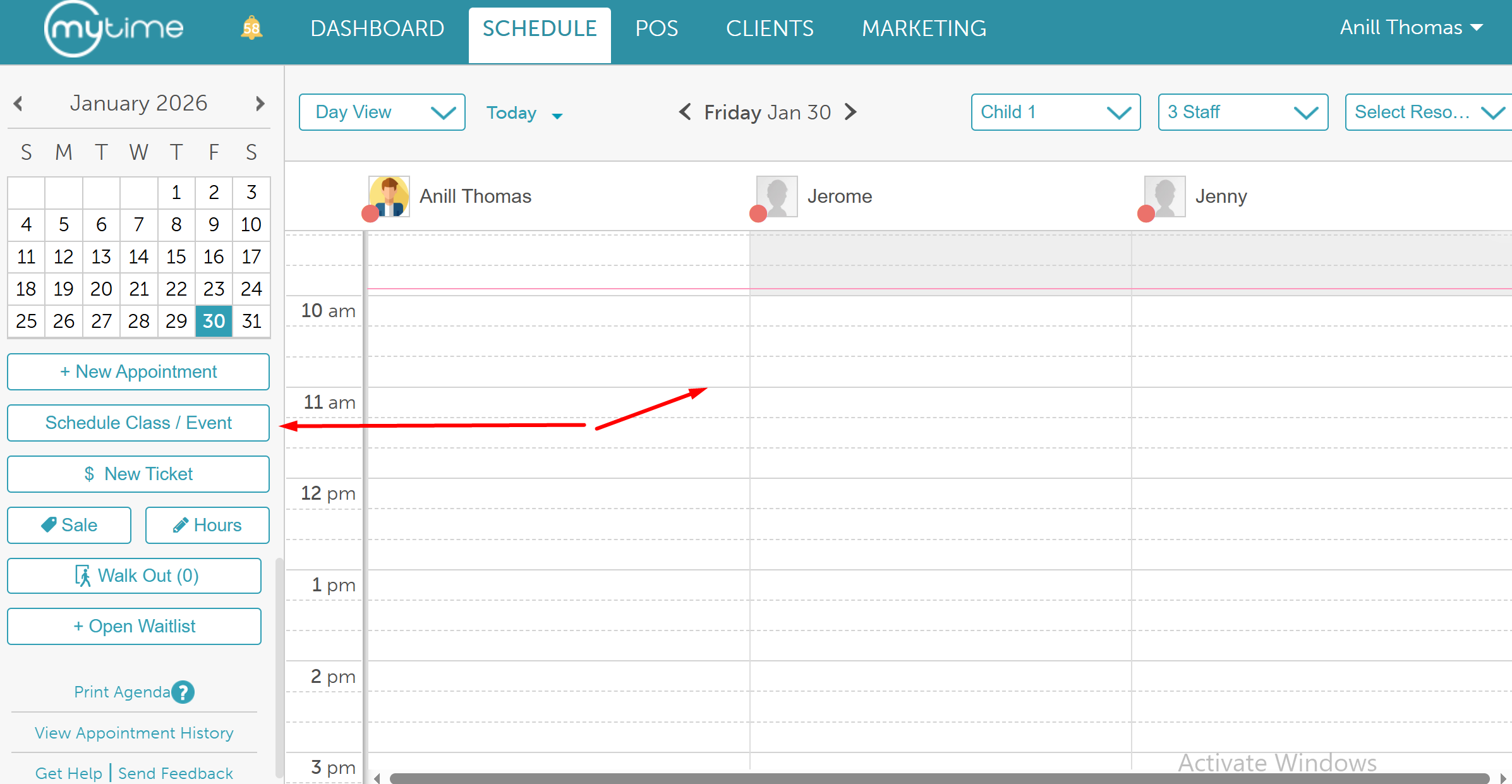
- Click on the ‘Schedule Class/Event’ button below the calendar on the left-hand side of the Schedule or on a specific time slot directly in the schedule
- When the class/event modal opens, complete any required fields that are not already prefilled
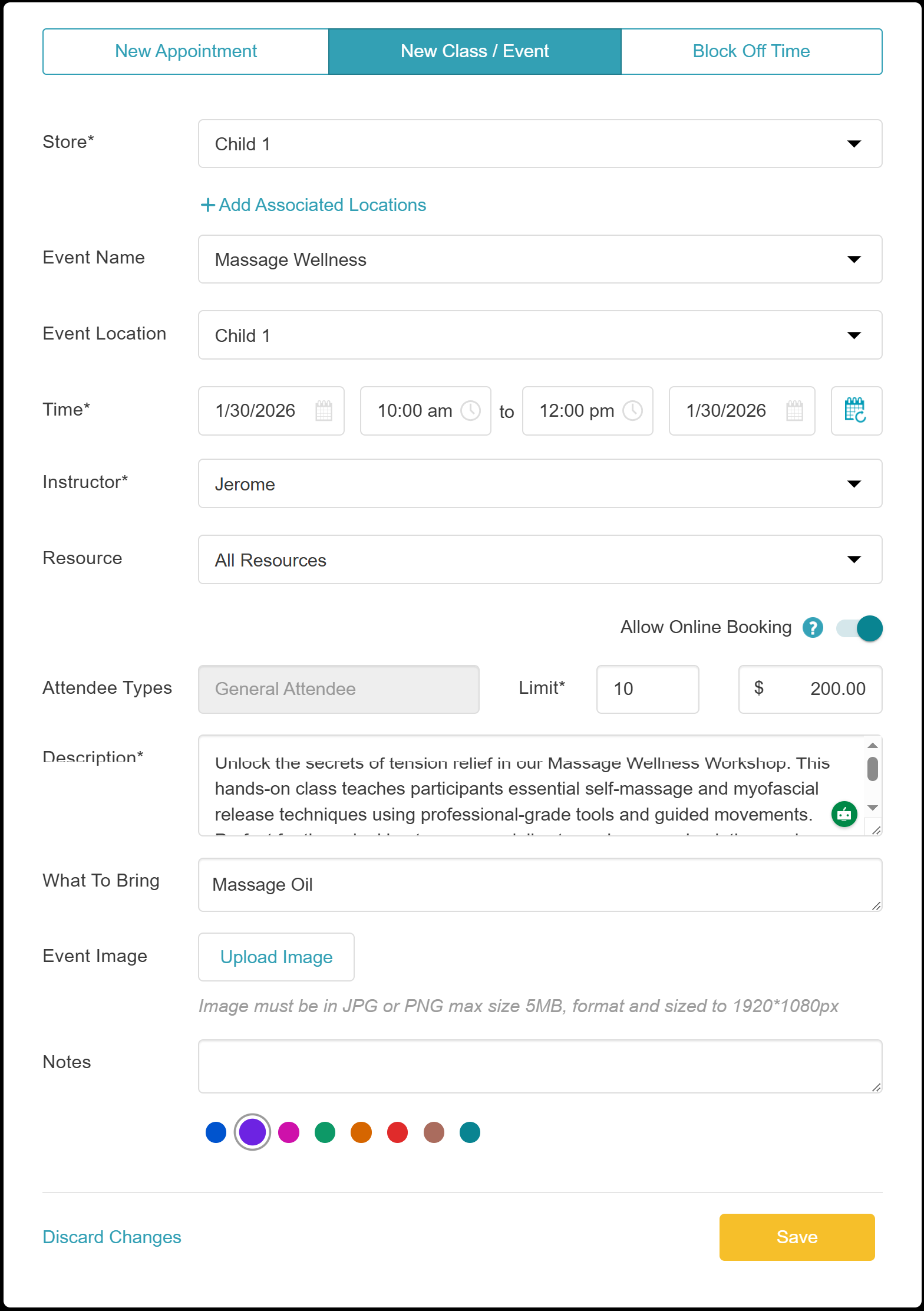
- In the Time field, click the Recurring icon (calendar with a refresh symbol) on the right-hand side.

- Set Recurring Session Frequency: When the Set Recurring Session Frequency modal opens, define how often the class or event should repeat using the options below:
- Repeat: Choose the session cadence—daily, weekly, or monthly.
- Repeats Every: Specify the interval between sessions. For example, to schedule a session every two months, select "Monthly" and enter 2.
- Daily: Selected by default.
- Weekly: Select the day(s) of the week the session should occur.
- Monthly: Choose the number of months between sessions.
- Select whether the session repeats on the same calendar date or on the same week and day of the month.
- Ends: Set when the series should stop by choosing either:
- A specific end date, or
- A total number of occurrences.
- Enrollment Window:
- First Session Only: Clients can enroll only at the start of the series.
- Anytime During the Series (Default): Clients may enroll at any point in the series without attending the first session.
- Session Commitment:
- All Remaining Sessions: Clients are automatically enrolled in every remaining session once they join.
- Individual Sessions, Client Chooses (Default): Clients can select specific sessions without committing to the full series.
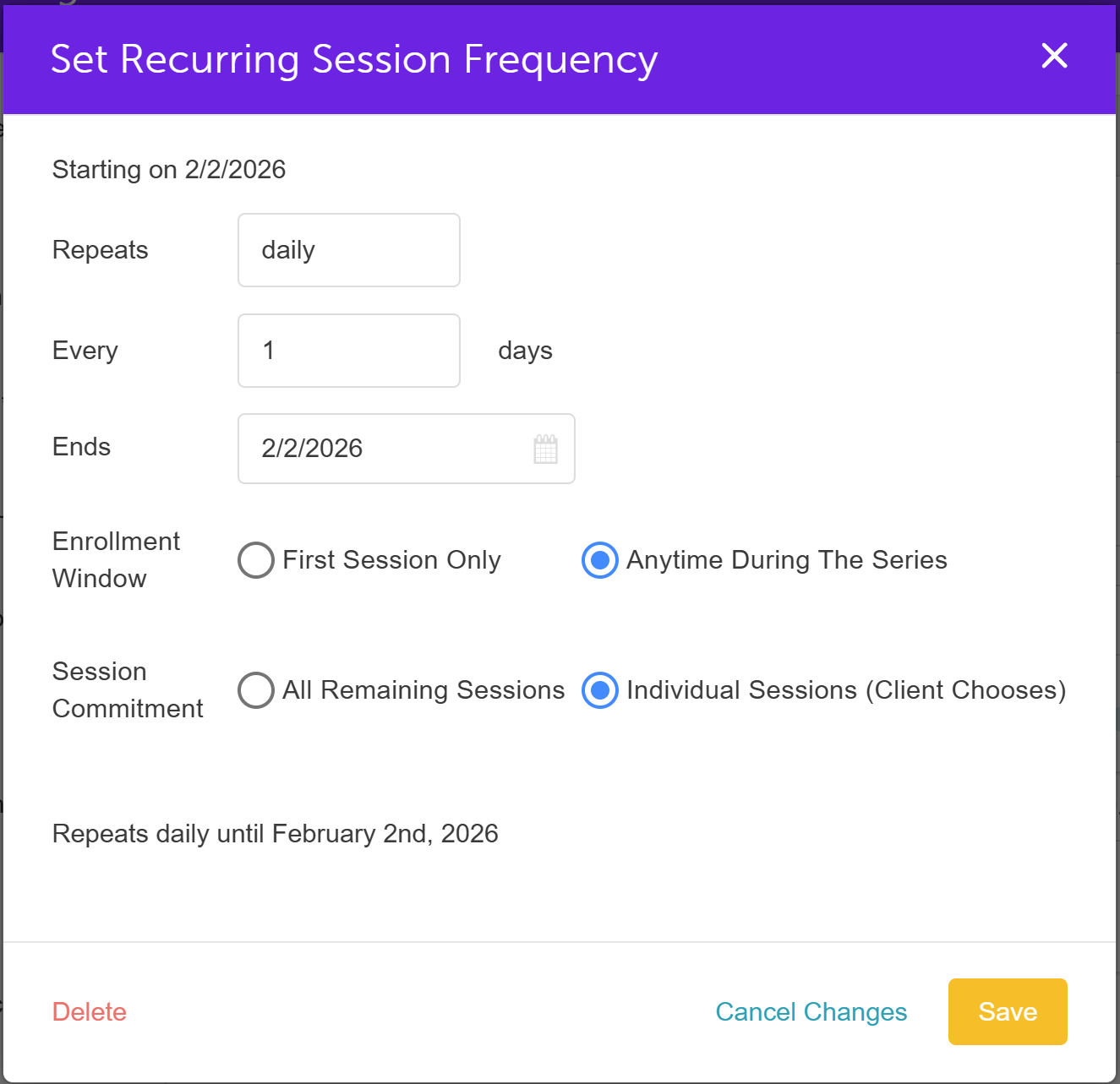
- After configuring the recurring options, click Save.
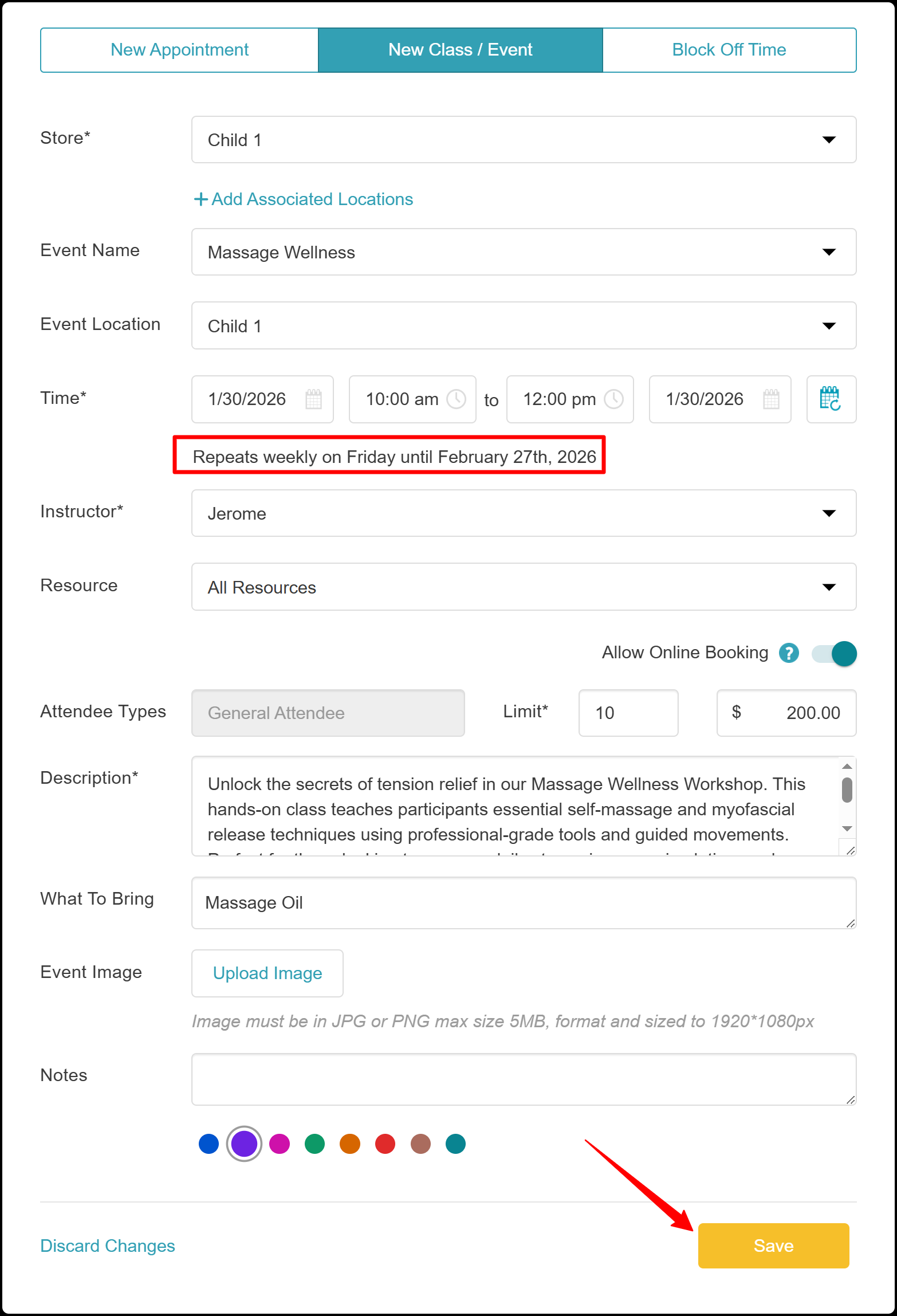
- The recurring frequency will appear on the class/event modal. Review the details, then save the class or event.
Adding Attendee to Recurring Classes/Events
- Navigate to your schedule
- Locate and open the class/event on the schedule
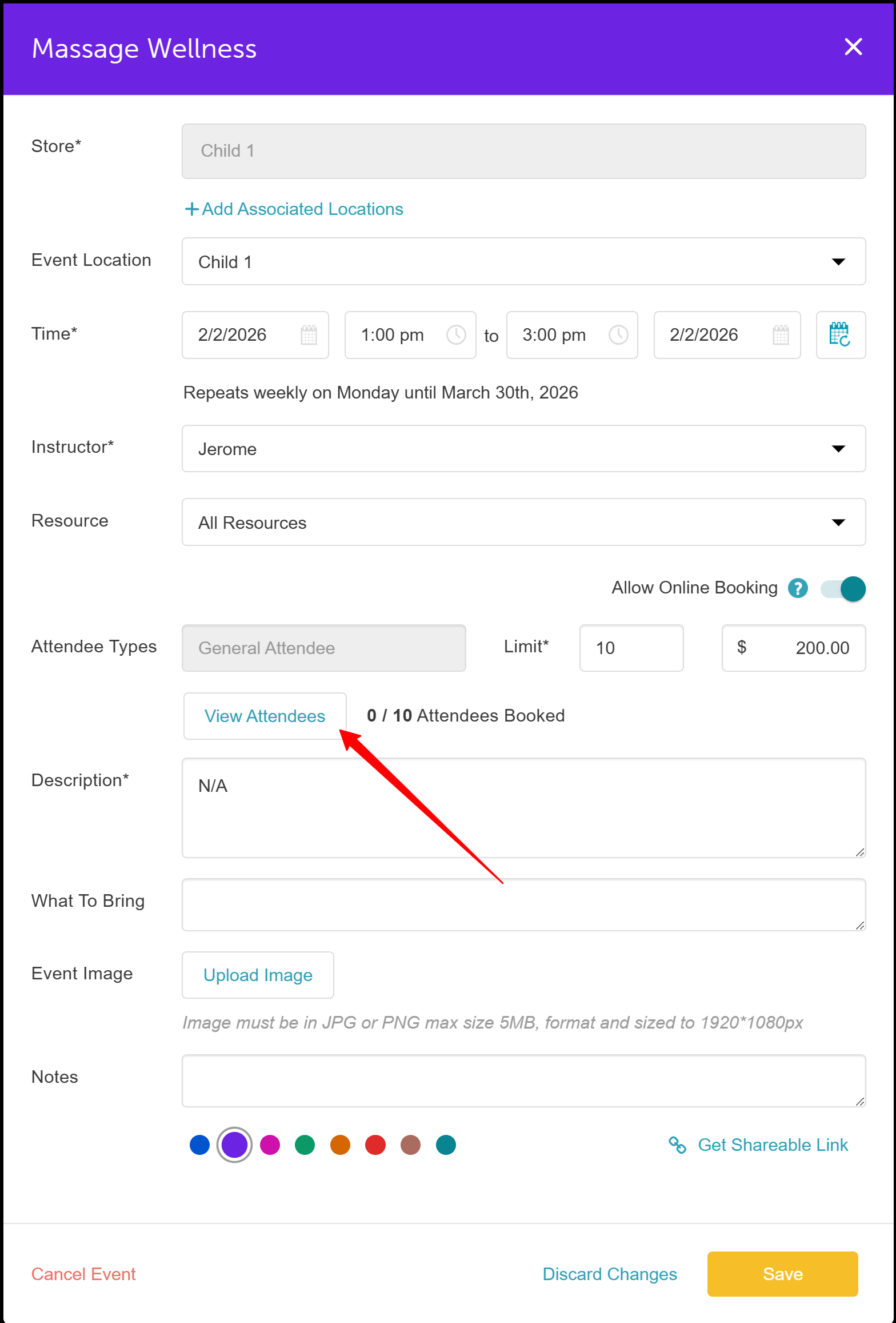
- Select the View Attendees button
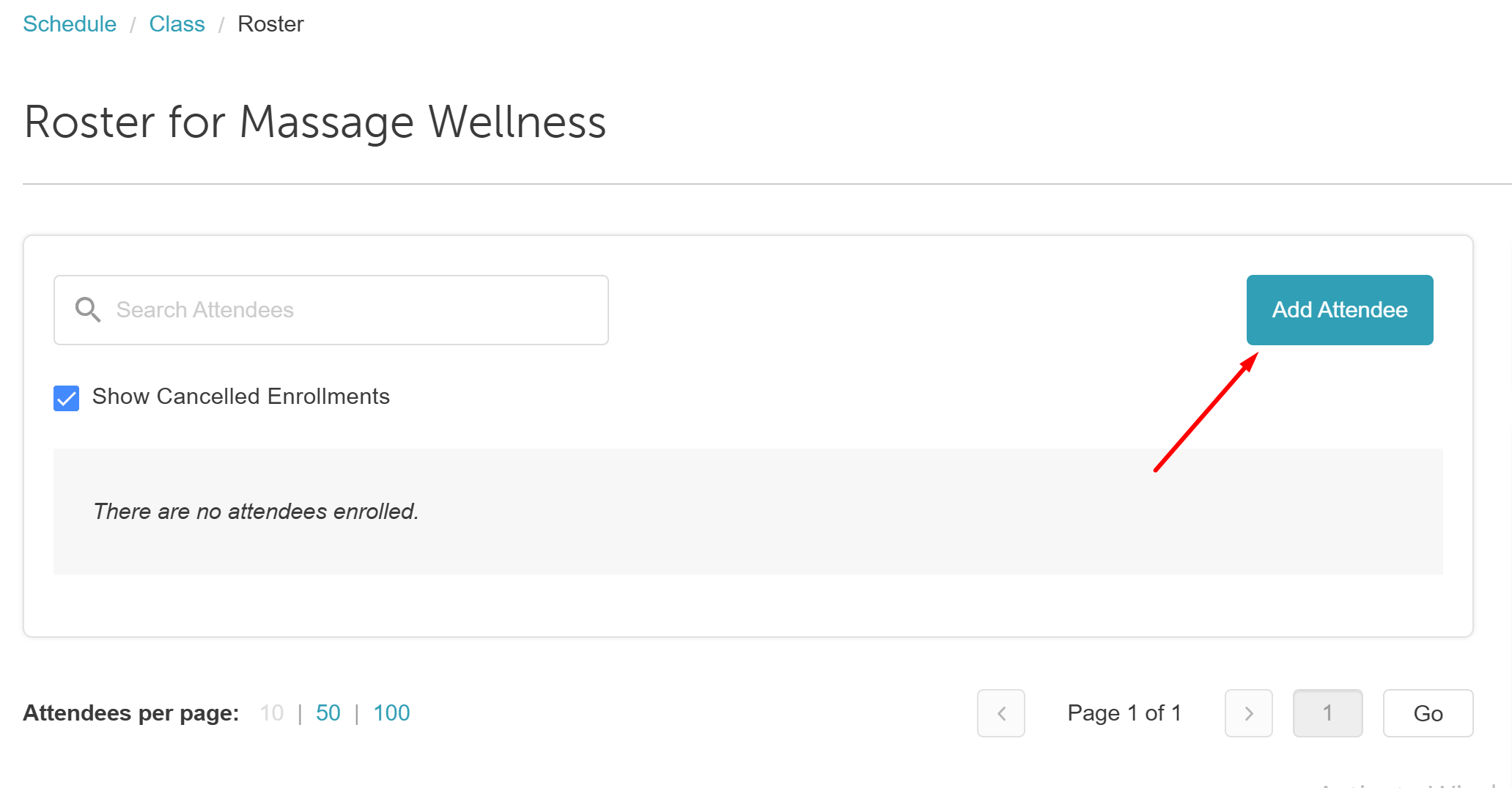
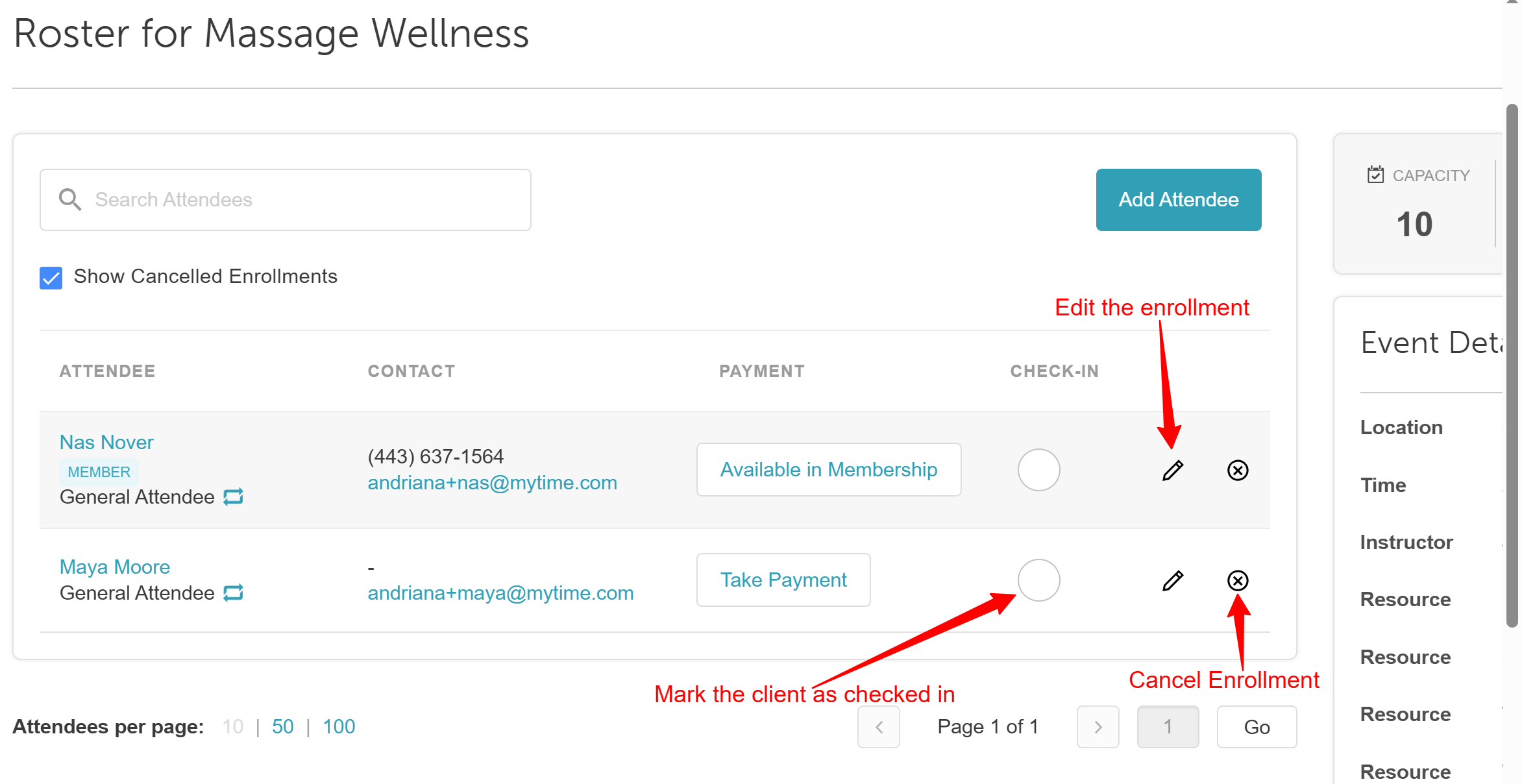
- When the roster opens, click Add Attendee
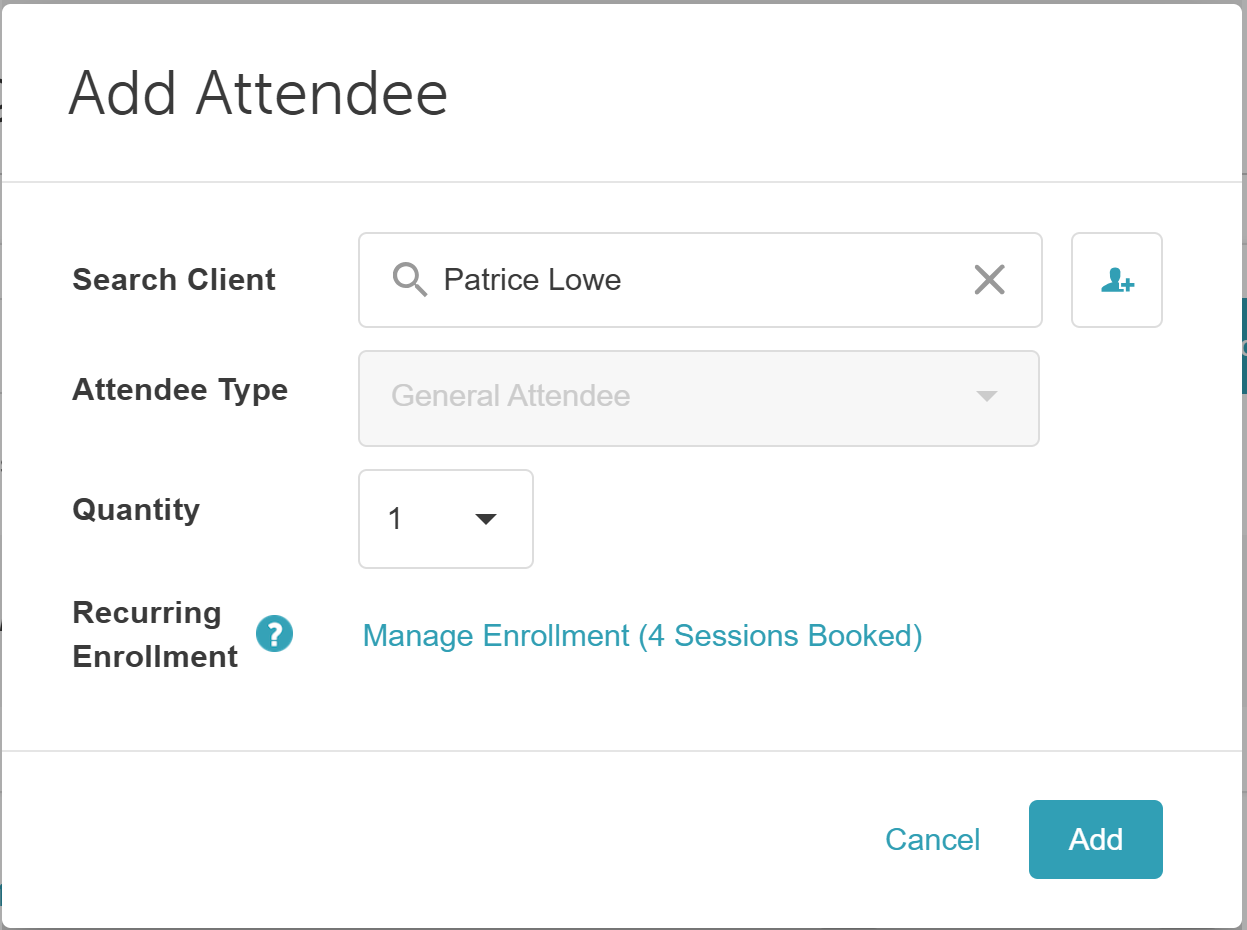
- Add an attendee. You can complete one or more of the following actions:
- Select a client:
- Search for an existing client using the search bar, or
- Create a new client by clicking the Add Client (+) icon.
- Choose an attendee type: If the class offers multiple attendee types, select the appropriate option.
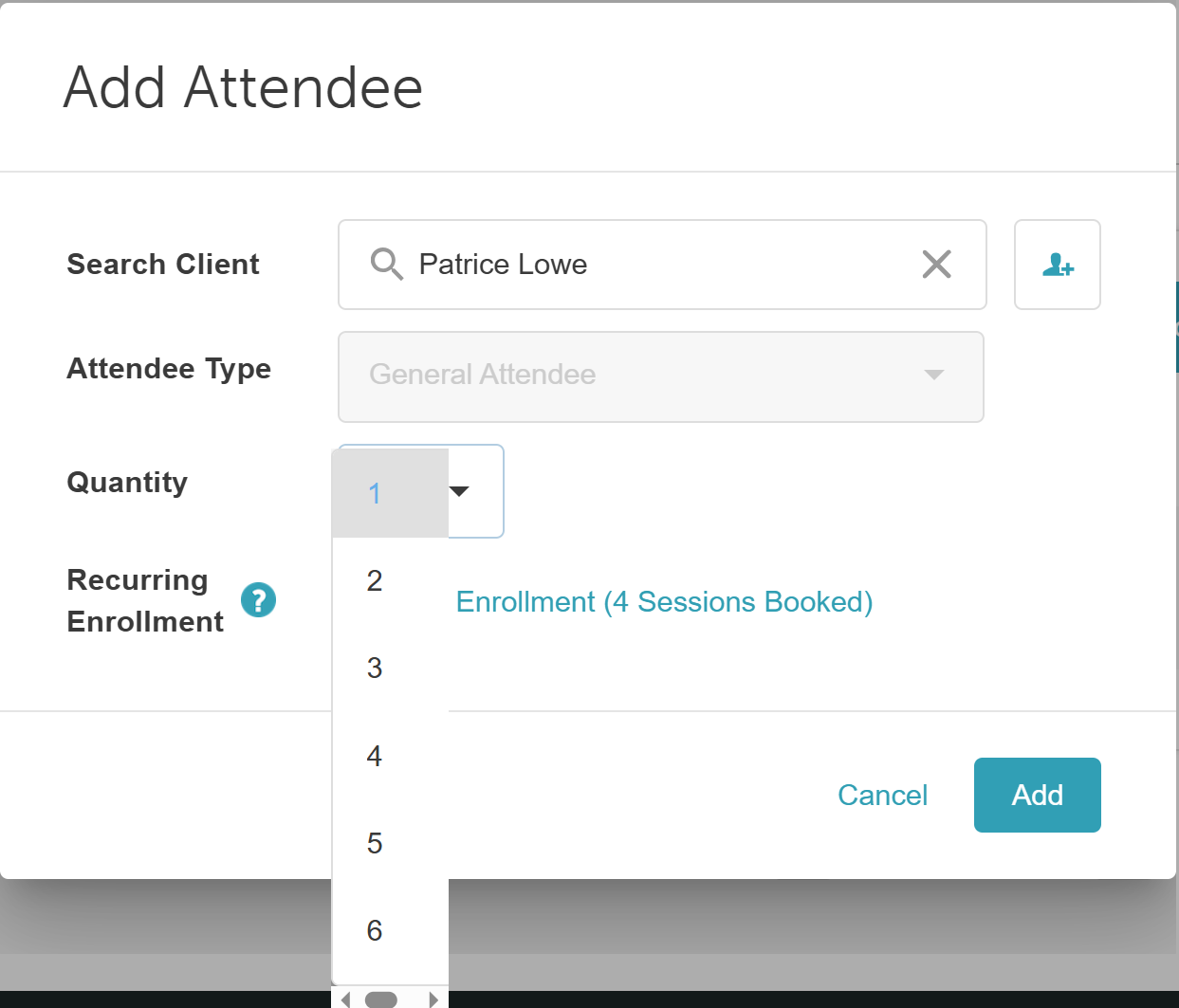
- Reserve multiple spots (optional):
- If the hidden setting "Allow Selecting Session Enrollment Attendee Quantity on Roster Page" is enabled, a Quantity dropdown will appear.
- Use this to reserve multiple spots for a single client.
- Manage enrollment for multiple sessions (optional): To enroll a client in multiple dates within the series, click Manage Enrollment (X Sessions Booked).
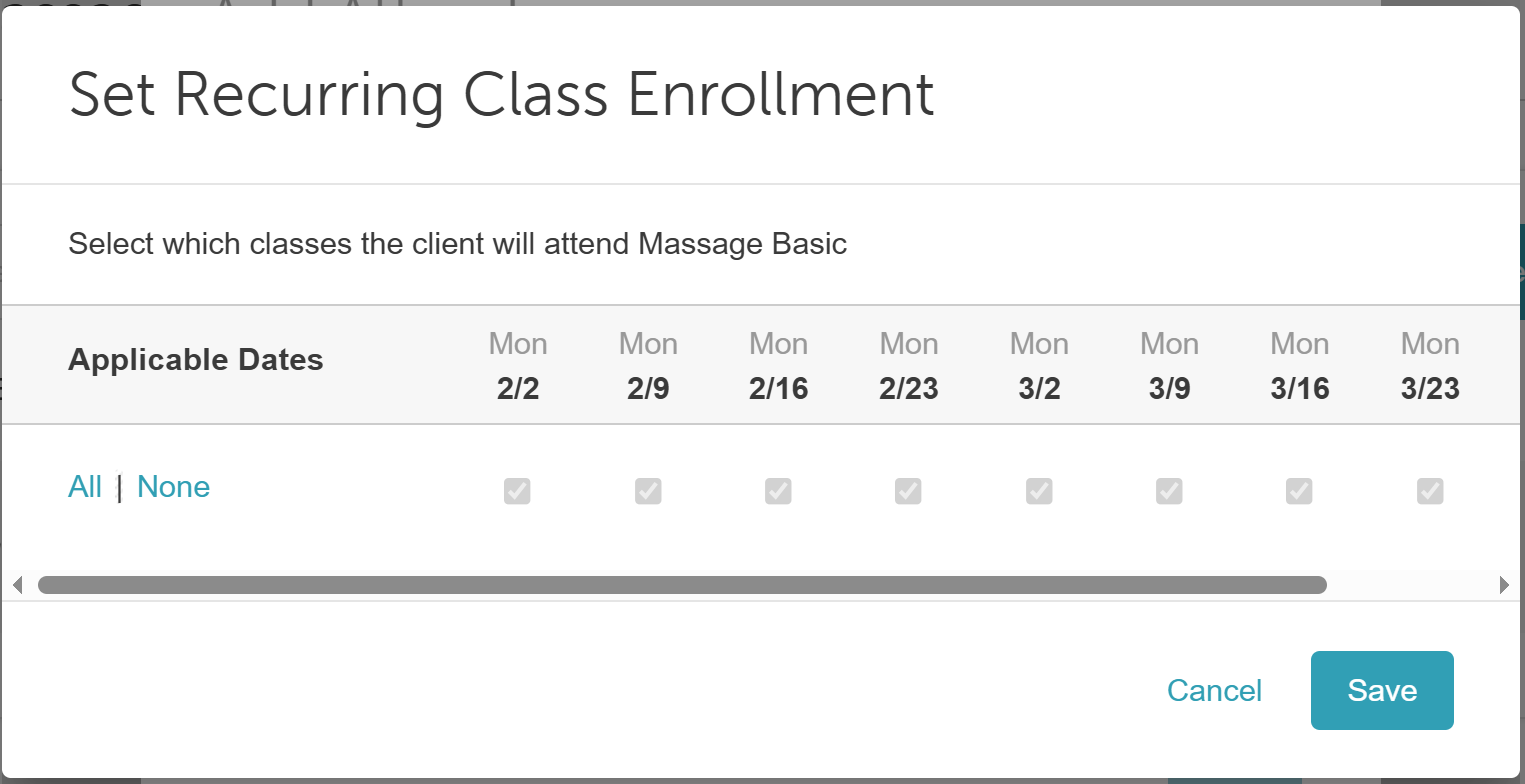
- Clicking it opens the Set Recurring Class Enrollment modal, where you can select specific session dates.
- For more detail, view the following scenarios here
- Select a client:
- Once the client and session details are set, click Add.
- The system will automatically create individual bookings for each selected session in the recurring series. You can then use the available roster action buttons to manage attendance as needed.
Recurring Class Configuration Scenarios
The behavior of recurring class enrollment depends on the combination of 'Enrollment Window' and 'Session Commitment' settings. Below are four common configuration scenarios:
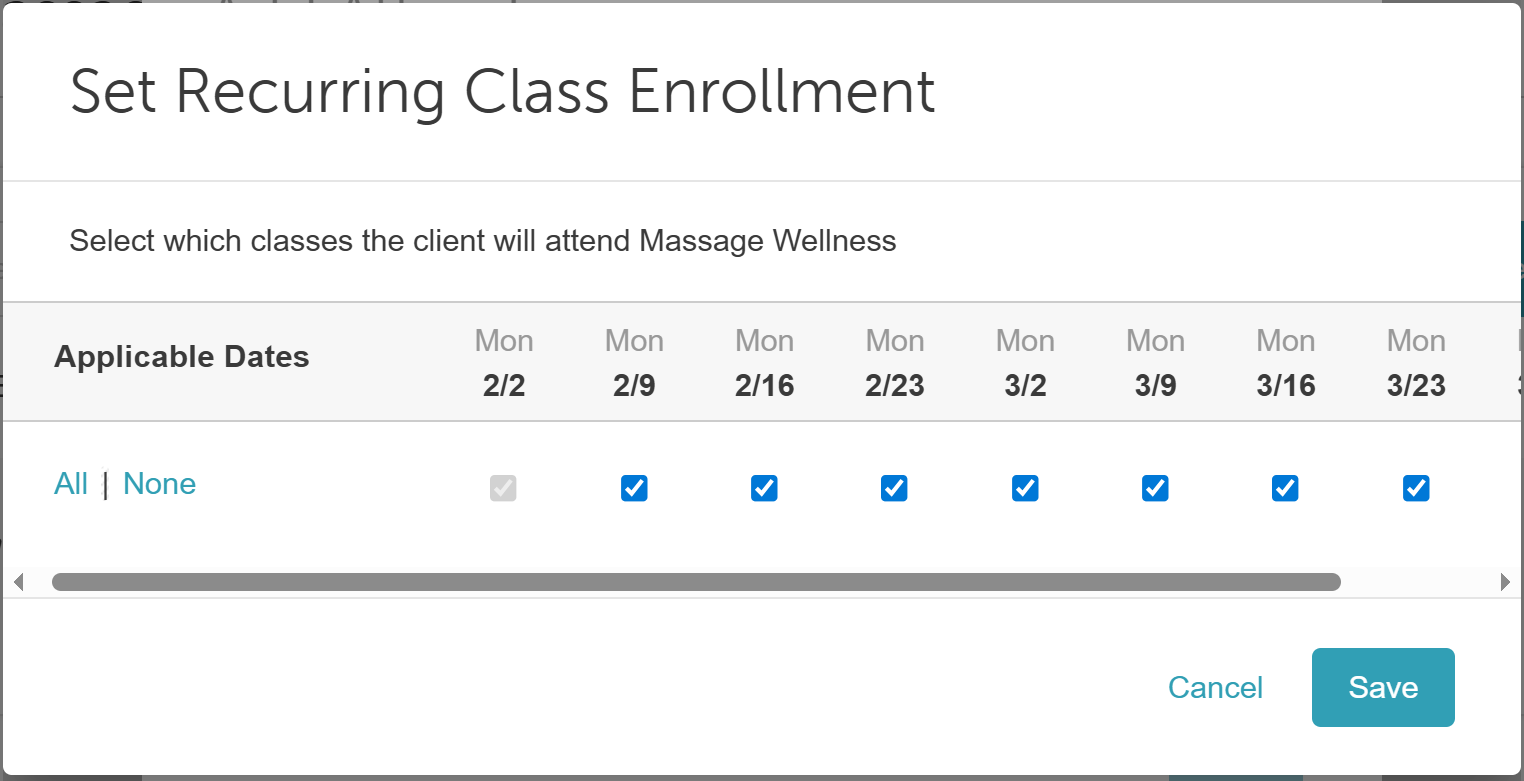
Scenario 1: "Open Booking (Anytime & Any Session)"
Enrollment Window: Anytime During the Series
Session Commitment: Individual Sessions (Client Chooses)
- Clients can enroll at any point in the series and select only the sessions they wish to attend. There is no requirement to commit to all sessions.
- Click 'Manage Enrollment (X Sessions Booked)' to open the configuration modal. The session you are currently viewing is selected and locked by default, so it cannot be unchecked.
- All other future sessions can be checked or unchecked according to the client’s preference.
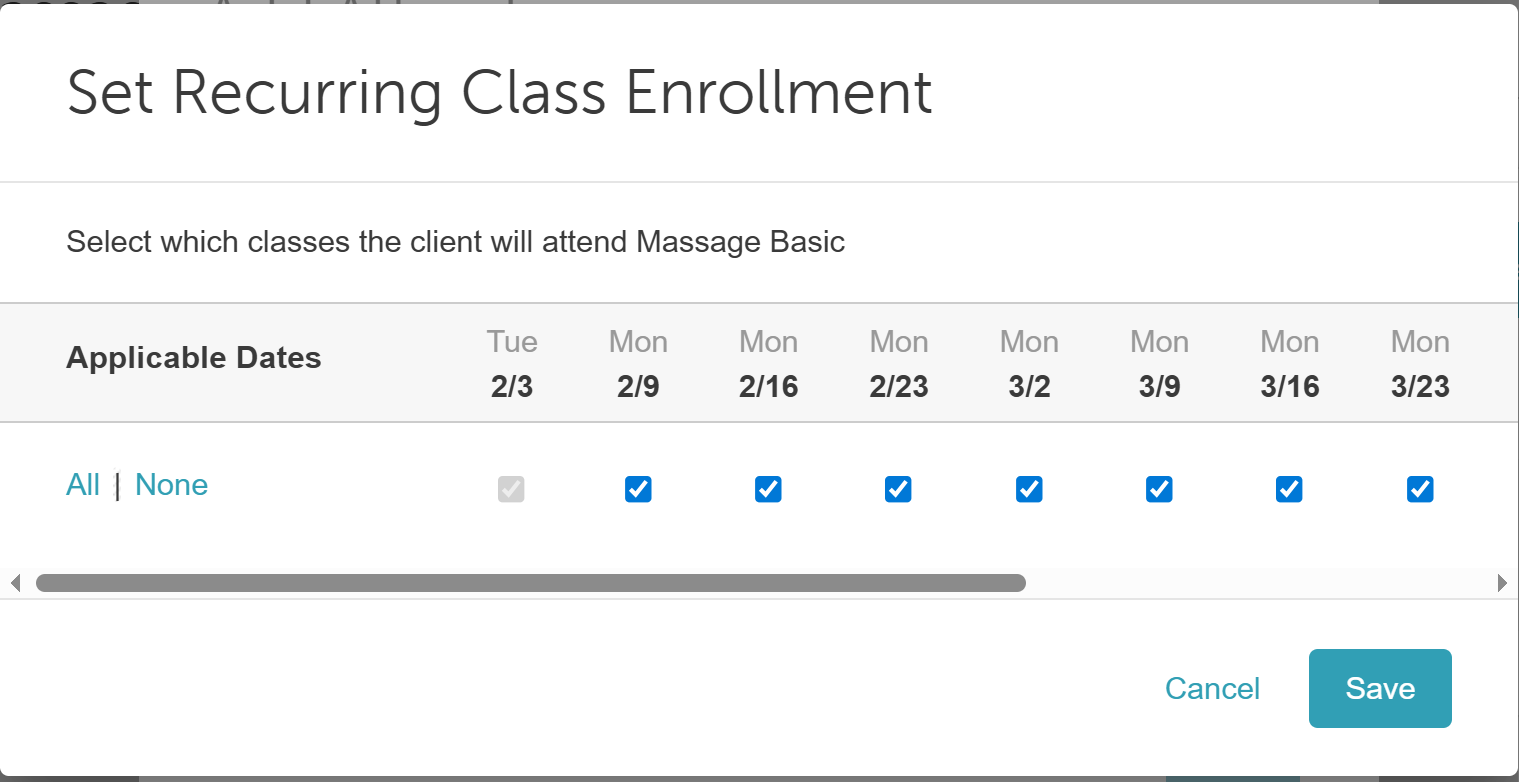
Scenario 2: "First-Session Start with Flexible Attendance"
Enrollment Window: First Session Only
Session Commitment: Individual Sessions (Client Chooses)
- Clients must enroll starting from the first session of the series but can choose which subsequent sessions to attend without committing to all.
- Click 'Manage Enrollment (X Sessions Booked)' to open the configuration modal. The first session is selected and locked.
- Future sessions can be manually selected or deselected based on the client’s preferences.
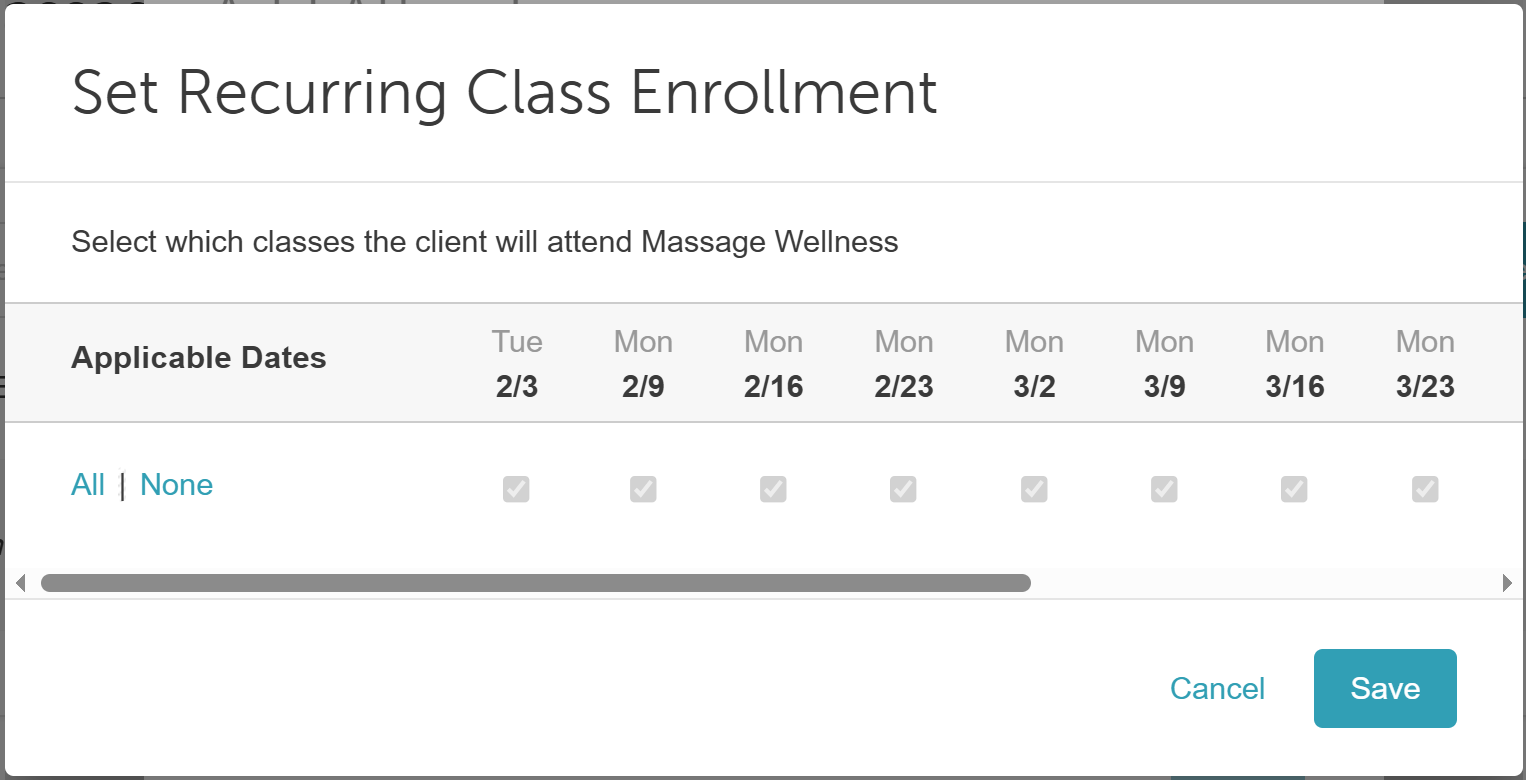
Scenario 3: "Rolling Enrollment with Full Commitment"
Enrollment Window: Anytime During the Series
Session Commitment: All Remaining Sessions
- Clients can join at any point in the series, but once enrolled, they are automatically signed up for all remaining sessions.
- Click 'Manage Enrollment (X Sessions Booked)' to open the configuration modal.
- If viewing from the first session, all sessions are locked and cannot be unchecked.
- If viewing from a mid-series session, past sessions can be unchecked, but all current and future sessions remain locked.
Scenario 4: "Fixed Course (Must Start & Complete All)"
Enrollment Window: First Session Only
Session Commitment: All Remaining Sessions
- This is the most restrictive configuration. Clients must enroll at the first session and are committed to every single session.
- Click 'Manage Enrollment (X (Number) Sessions Booked)' to open the configuration modal. All sessions will be selected.
- All sessions are locked and cannot be unchecked.
For more information, contact us at support@mytime.com or (385) 233-6964.
Related Articles:
Adding Family Members to Class Sessions
Was this article helpful?
That’s Great!
Thank you for your feedback
Sorry! We couldn't be helpful
Thank you for your feedback
Feedback sent
We appreciate your effort and will try to fix the article