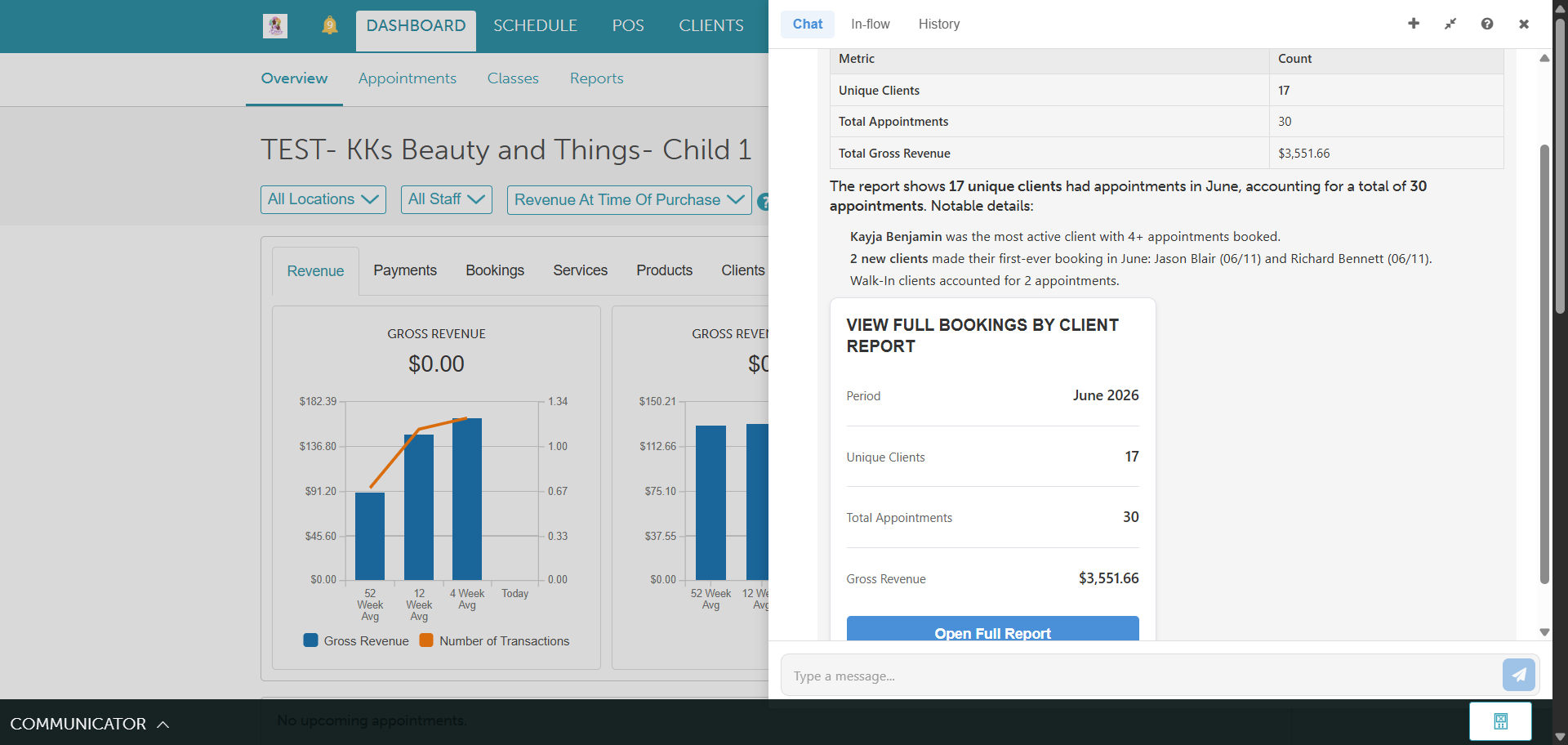
The Staff AI Assistant allows you to ask questions about your business performance directly inside your dashboard chat panel. The AI generates instant summaries and, whenever possible, provides an Open Full Report button so you can open the interactive report in a new browser tab with your requested date range pre-applied.
Things to Know:
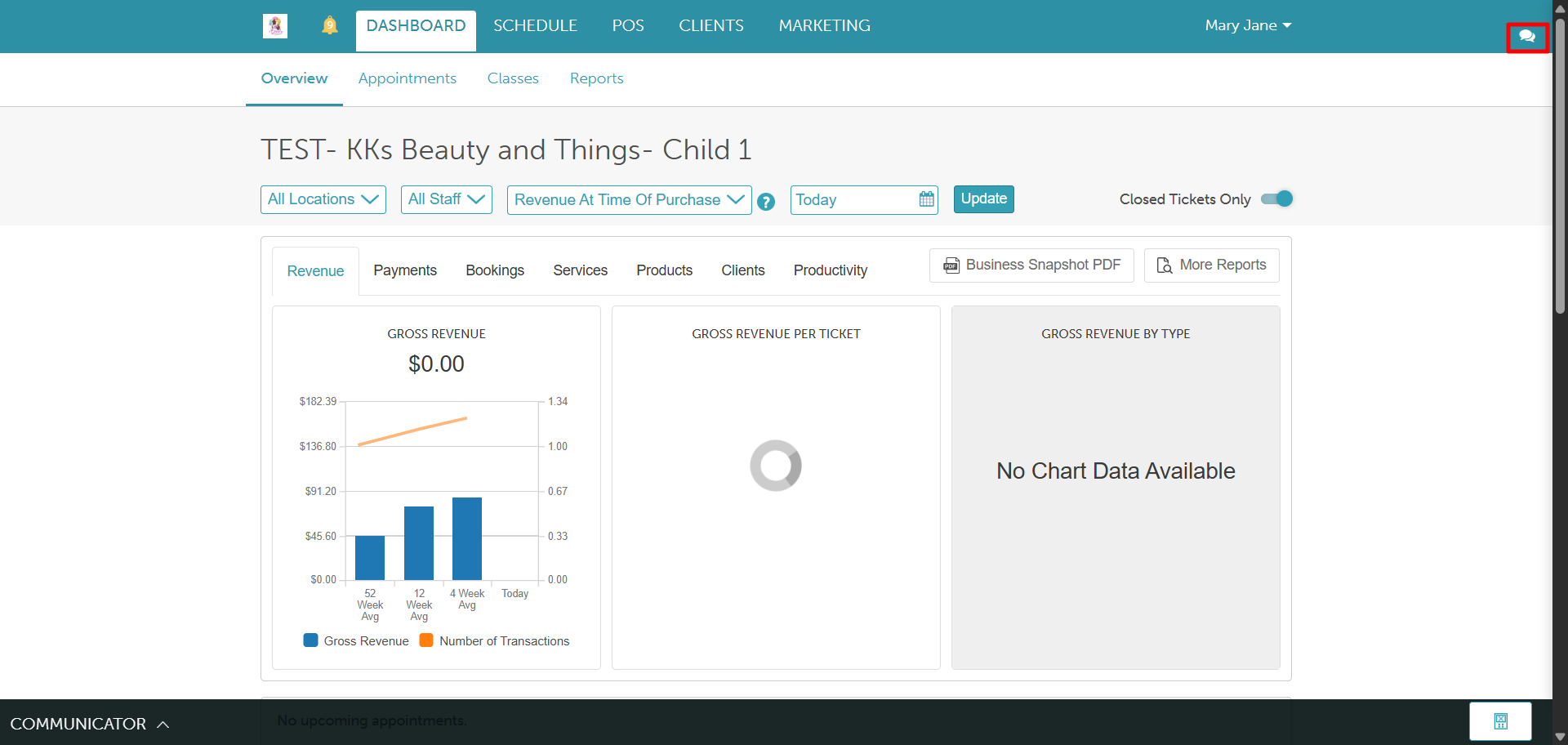
- Once the Accessing Account Settings permission and Enable Staff AI Assistant setting are enabled, the AI chat button appears in your Dashboard navigation bar.
- The AI strictly respects your business's permission settings. If an employee cannot view a specific report under Dashboard > Reports, the AI blocks them from viewing or summarizing it in chat.
- Report Links & Search: AI finds the correct report even if you don't use its exact title. If a query is unclear, it uses an automatic keyword backup to find the right page.
- Asking for a report generates a direct link to open the exact page you need. It handles both standard reports and custom reports (such as franchise-specific or custom compensation reports). Pre-filled
- For complex log pages (like the Audit Report), the system automatically pre-fills required settings so the page loads data instead of opening blank.
- If a quick chart exists only in the chat window, or if you lack permission to view the underlying page, the Open Full Report button is automatically hidden so you never click a broken link.
- Date & Filter Behavior
The AI maps your requested date range directly to the report's underlying date filter (e.g., appointments look at booking dates, while memberships look at purchase dates). This prevents the report from resetting to the current month when opened.
For revenue or payroll queries, the AI summarizes the exact timeframe you requested in chat. However, clicking "Open Full Report" shifts the date range to match your business's official pay period.
When you click Open Full Report, the page opens using whatever location or staff member you were actively viewing under Dashboard > Reports before opening chat. Example: If you are currently viewing Location A but ask the AI for an "All Locations" report, clicking the button opens the report filtered to Location A.
Data Accuracy & Automated Email Reports
AI summaries match the exact totals and footers shown in your report interface, using standard accounting logic to explain any differences between reports. When asking for specific details (e.g., "Which clients booked the Nail Trimming add-on?"), the AI provides step-by-step instructions on how to expand the report to view individual records.
Beyond live chat, the system can automatically compile and email regular performance updates, such as a Daily Revenue Summary, Lapsed Clients Overview, or No-Show Follow-Up Summary.
Once the setting is turned on, follow these steps to use it:
- Click the AI Chat button in your top Dashboard navigation bar.
- Choose a prompt from the Reports and Insights section (e.g., "Recent client reviews"), or type your question directly into the chat box (e.g., "How many clients booked an appointment in June?").
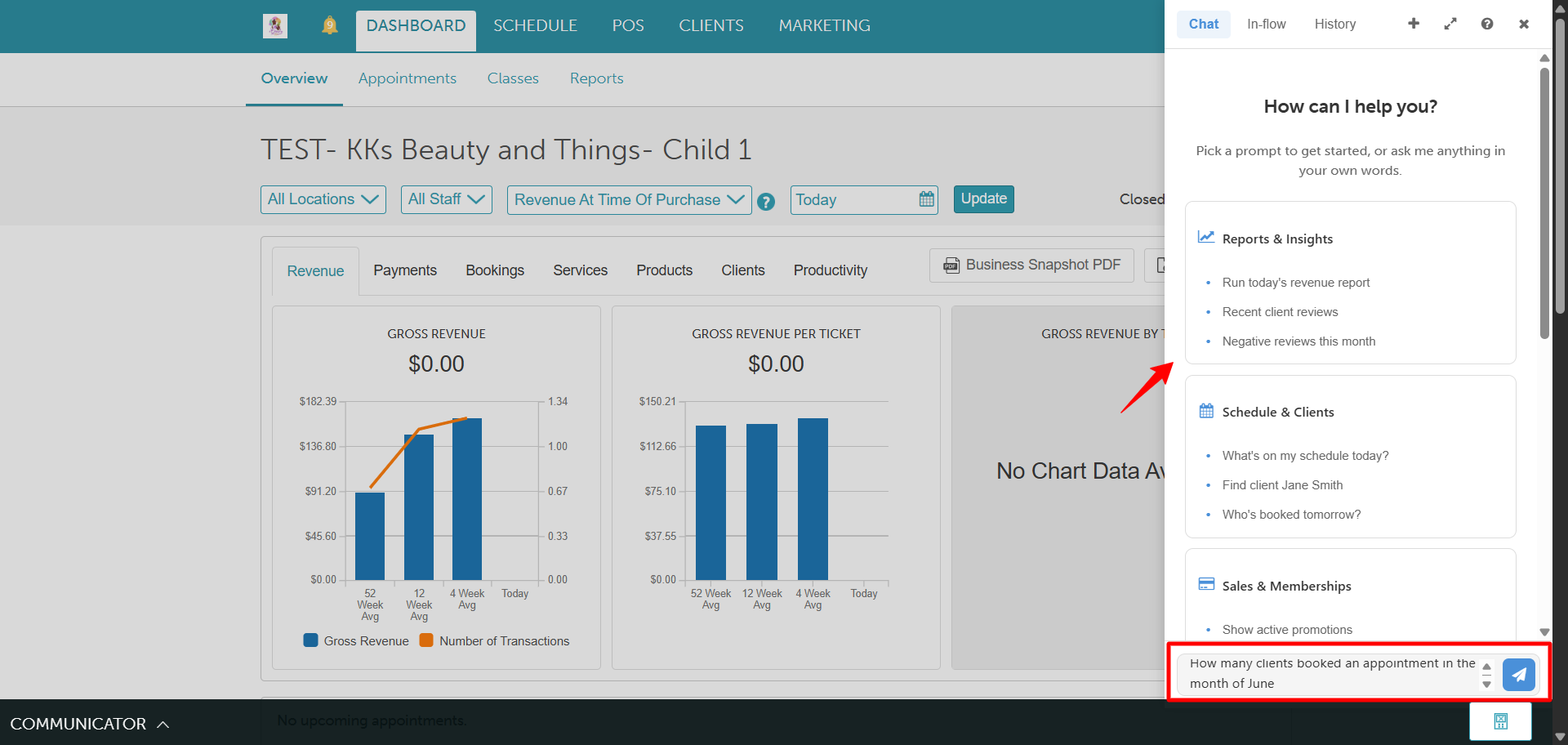
Click the Send icon.
Review the data summary generated by the AI.
- (Optional) Click the Open Full Report button on the chat card to open the interactive data page in a new browser tab
Related Articles:
- Reports Overview
- Daily Payments Report
- Daily Revenue Report
- Comparison of the Daily Revenue Report, Daily Payments Report, and Daily Compensation
- Location Productivity Report
- Client Revenue Report
- By Client Report
- Client Type Report
- Lapsed Client Report
- By Staff Member Report
- Staff Productivity Report
- Ratings Report
- Inventory Report
- Inventory Adjustments Report
- Inventory Turns Report
- Product Sales Analysis Report
- Product Sales Detail Report
- Service Sales Detail Report
- Environmental Fees Report
- Sale Tax Collected Report
Was this article helpful?
That’s Great!
Thank you for your feedback
Sorry! We couldn't be helpful
Thank you for your feedback
Feedback sent
We appreciate your effort and will try to fix the article