The Upcoming Expirations report provides a centralized view of all pets and their vaccination due dates, automatically sorted to highlight the earliest expirations first. This report helps pet businesses maintain safety compliance and keep health records up to date for every animal in their care.
Things to know:
- The ability to access this report is governed by the "Accessing Reports" access control settings
- This report is only visible on pet-based accounts.
- All pets with at least one completed expiration reminder field are displayed
- Deceased pets and pets with no vaccination data on file are excluded from the report
- Expired dates are highlighted in red to make overdue records stand out
- Pets are sorted by expiration date, starting with those whose vaccinations have already expired, followed by those who will expire soonest.
- Vaccination columns automatically reflect the expiration reminder custom fields configured in your system. For example, if only Rabies Vaccination and Bordetella fields are configured, only those columns will appear
- To ensure data appears correctly in this report, your account must meet the following requirements:
- Field Type: The custom field must be an 'Expiration Reminder' field.
- Keyword Requirement: Custom expiration reminder fields must include the word "Vaccine" or "Vaccination" in the field name.
- Unique Identifier (UUID): Each field must be linked to a valid Expiration Reminder UUID.
- The report is primarily client and custom expiration field-based. However, it becomes appointment-based when the "Upcoming Appointment in Next 30 Days" filter is selected. For example, Sarah's dog, Rex, has a rabies vaccination expiring on June 15th:
- Standard View (Client-Based): Displays all pets with a saved expiration date, regardless of whether they have an upcoming appointment. Rex will appear on the list because he has a "Rabies Expiration" date saved in his profile.
Filtered View (Appointment Based): Restricts the report to pets with an appointment scheduled within the next 30 days. If Rex has a grooming session on June 10th, he will appear. If he has no upcoming appointment, he will not appear — even if his vaccination record is expiring soon.
Additionally, the report dynamically updates based on the start date and time of scheduled appointments. To ensure accurate results, keep the following in mind:
Start Time Rule: A pet will appear in the report only if they have an appointment scheduled to begin within the next 30 days.
Before the appointment: The pet will appear in the report leading up to the scheduled start time.
After the appointment begins: Once the start time has passed, the appointment is no longer considered upcoming, and the pet will no longer appear in the filtered results.
Multi-Day Appointments: The filter is based strictly on the appointment start time.
Pets currently in an active multi-day appointment (such as boarding) will not appear in the report once the appointment has started.
If the same pet has a separate upcoming appointment within the next 30 days, they will appear in the report based on that future start time.
Appointments Scheduled for Today: For same-day appointments, visibility is time-sensitive. For example: If a pet has an appointment at 2:00 PM, they will appear in the report before 2:00 PM. Once the time passes (e.g., 2:01 PM), they will no longer be included in the “upcoming” results.
- The report can only be exported in Summary View, which consolidates data by category such as location, staff member, or service type. This view is ideal for high-level analysis, allowing you to review total revenue and overall performance metrics without displaying individual transactions.
To access this report:
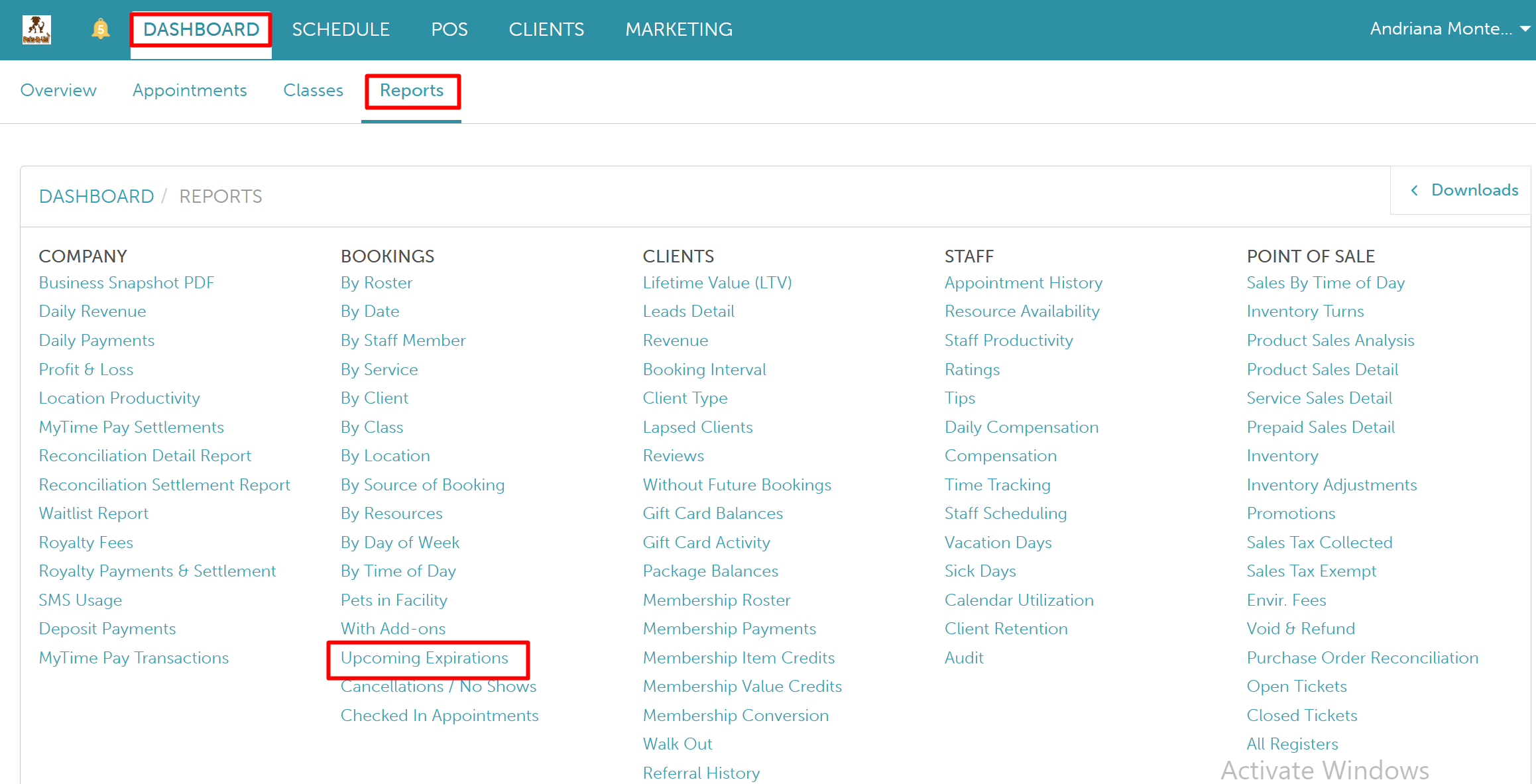
- Navigate to Dashboard
- Select the Reports tab
- Under the Bookings section, select the Upcoming Expiration report
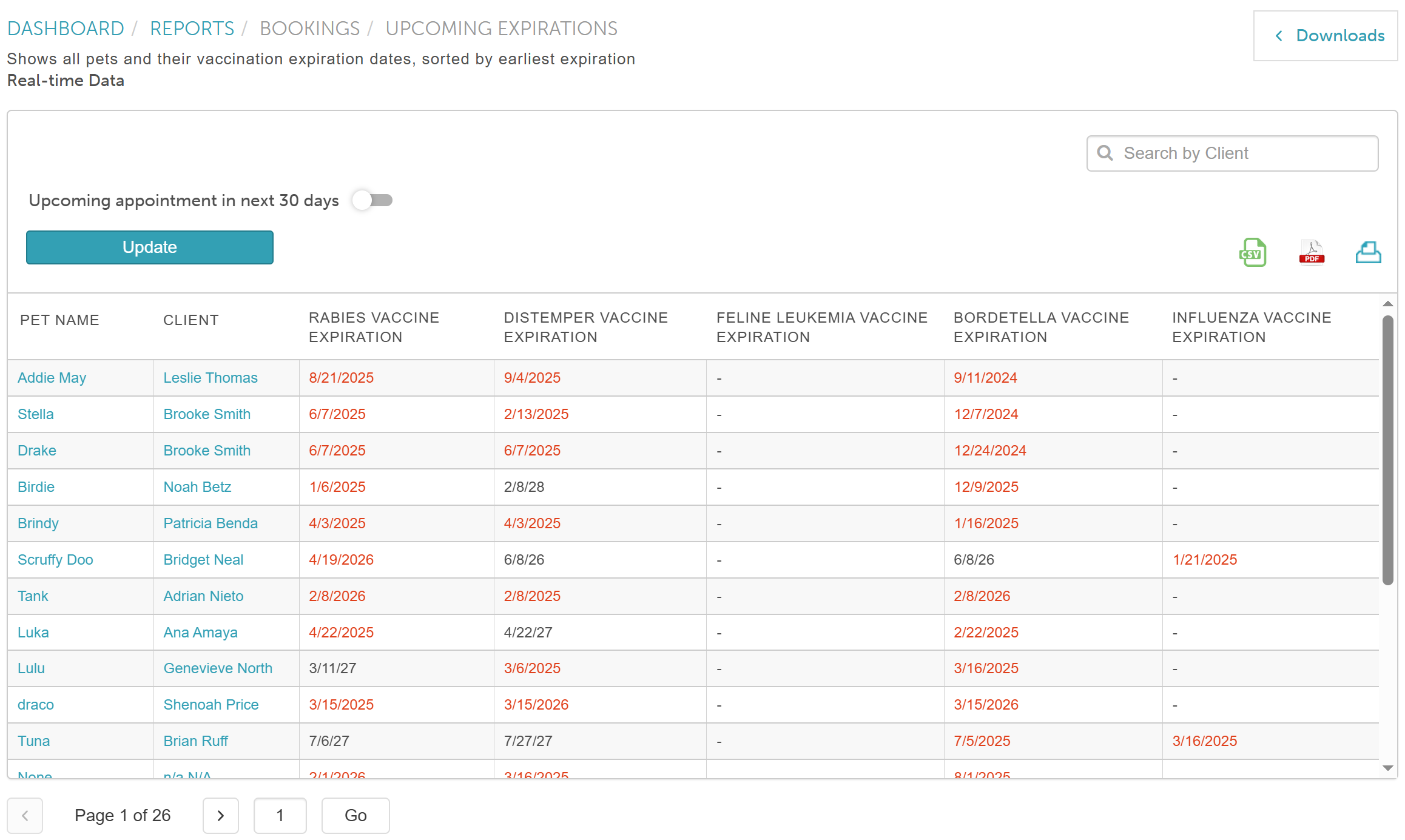
When the report opens, you can filter by a specific location and upcoming appointment in the next 30 days using the checkbox. You have the option to download the report as a CSV, PDF, or print version.
Once you have selected your filters, click on the UPDATE button to generate the desired data.
Report Filters
| Filter | Description |
| Location | The location where the client is associated
|
| Upcoming appointment in next 30 days | When this filter is enabled, the report only displays pets with a scheduled appointment within the next 30 days. This allows you to prioritize outreach and compliance for clients who are visiting soon, while automatically filtering out pets that do not have an upcoming visit on the calendar. |
Report Columns
| Column | Description |
| Pet Name | The name of the pet. Clicking this link opens the pet's profile. |
| Clients | The name of the pet owner. Clicking this link opens the client's profile. |
| Expiration Fields | Displays the expiration fields as separate columns based on the fields assigned to the location. Example: If a location has Rabies, Distemper, and Bordetella expiration fields configured, the report will display each as a separate column (Rabies Expiration, Distemper Expiration, Bordetella Expiration) showing the corresponding expiration date for each pet. |
For more information, contact us at support@mytime.com or (385) 233-6964.
Related Article:
Was this article helpful?
That’s Great!
Thank you for your feedback
Sorry! We couldn't be helpful
Thank you for your feedback
Feedback sent
We appreciate your effort and will try to fix the article