This report uses daily forecasting to show you exactly when and how much to order. It helps you stay fully stocked without over-ordering by comparing your current inventory against predicted sales.
Things to know:
- Access to this report is managed through the 'Accessing Reports' permission settings, as well as the 'Enable Purchase Order Items Auto Generation by Forecast' and 'Enable Inventory Replenishment Forecasting' hidden settings.
- To calculate order quantities accurately, you must configure these two settings:
- Vendor Lead Time: Set this within the Vendor Profile for each location. This represents the number of days it takes for a vendor to deliver products after an order is placed
- Category Forecast Period: Set this under Business Setup > Settings by select the Category Forecast Period hyperlink. This defines how many days of stock you want to have on hand. You can set this per product category and location
- Note: The system requires sufficient historical sales data to generate an accurate forecast. If the Forecast Period is set to zero, the system will not generate forecasts for that category
- Updating the vendor lead time or forecast period will trigger a re-forecast.
- Vendor Lead Time: Changing the vendor lead time for a specific location will re-forecast replenishments for that location only
- Category Forecast Period: Changing a category's forecast period for a location will re-forecast replenishments for all locations and all vendors
- Once the vendor lead time and forecast period is set there will be a daily forecast executed to generate a Replenishment report. It will only forecast for SKUs that have enough historical consumption data.
- The system uses the following formula to determine the order quantity: (forecasted reorder point + forecasted consumption) - (quantity on hand + quantity on order).
- To quickly address stock issues, use the checkboxes below to focus on your most urgent inventory needs:
Only SKUs Below MIN: Use this to identify products that have already dropped below your safety stock level. This is critical if your forecasted sales are low, but your current physical stock is already at a risky level.
Only SKUs Below Reorder Point: Use this to see exactly which items need to be ordered now. This filter identifies products that won't have enough stock to last until your next delivery arrives.
The Search Bar allows you to locate specific items within the report quickly. You can filter the results by entering any of the following criteria:
Product Name
SKU
Brand
Category
- Replenishment data updates only once per day. Please keep the following in mind:
- If you change a forecast period for a product category, the Inventory Replenishment report will not reflect those changes until the following day
- Once an order is created, those items are removed from the "Auto Generate by Forecast Replenishment" list. You cannot take further action on these items or view updated data until the system generates the new data in the Inventory Replenishment report the next day
- The Replenishment Report automatically sets the default start date based on your local timezone and forecast schedule, ensuring inventory data is populated on load.
- When a replenishment-based purchase order is submitted, the system assigns that PO # to the vendor and location in the Inventory Replenishments report—even for products that weren't included in that specific order. Once a PO # is assigned, those records are 'locked' and will no longer be used to generate future purchase orders.
- Exports are limited to Summary View, which consolidates data by category (such as location, staff member, or service type). This format is designed for high-level analysis of performance metrics rather than individual transaction tracking.
- When the report is downloaded as a PDF, all active filters at the time of export are clearly listed. This helps define the data shown and provides context for the parameters used
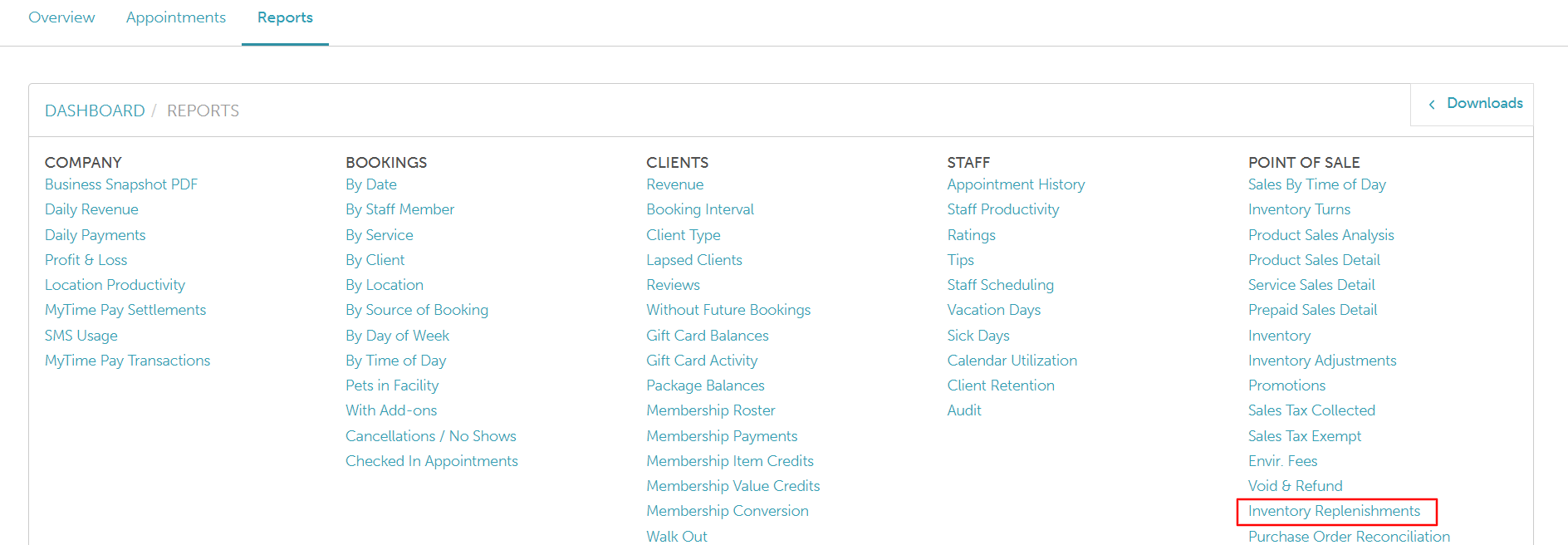
To access this report:
Navigate to Dashboard
Select the Reports tab
Under the Point of Sale section, select the Inventory Replenishments report
To generate your report, simply select your Location, Vendor, Date, or PO Status and click UPDATE to view the results.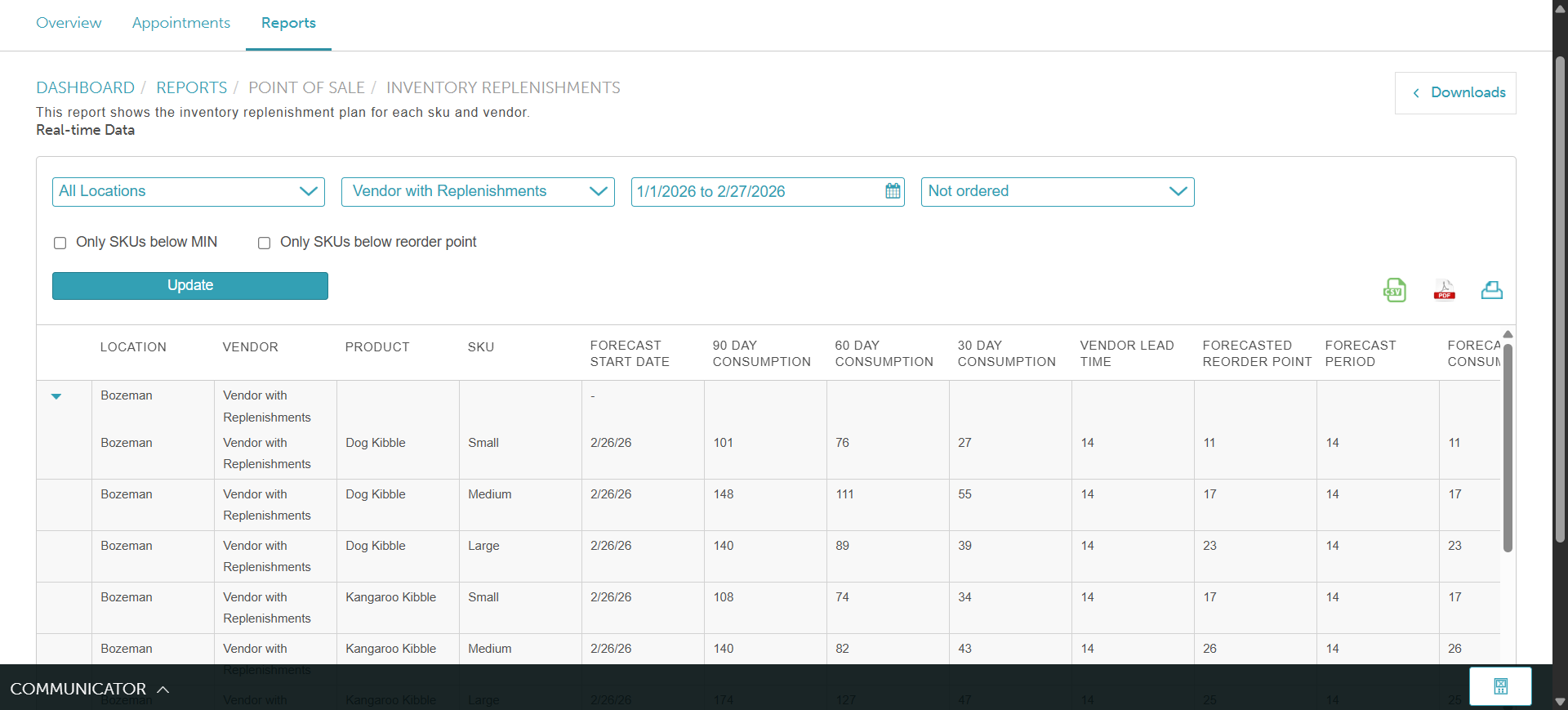
Report Filter
| Filter | Description |
| Location | The location where the product is stored and where the replenishment is needed.
|
| Vendor | The supplier responsible for providing the product |
| Date Range | Select a specific timeframe to view replenishment data and forecasts generated during that period. |
| Purchase Order Status | Filter the report by specific purchase order statuses or identify products that have not yet been ordered. |
Report Toggles
| Checkbox | Description |
Only SKUs Below MIN | Displays products that have fallen below the defined minimum stock threshold. This helps identify low-stock items, even if forecasted demand is minimal. |
Only SKUs Below Reorder Point | Identifies items that must be reordered immediately. These products do not have enough projected inventory to last until the next delivery arrives. |
Report Column
| Column | Description |
| Location | The location where the product is stored and where replenishment is required. |
| Vendor | The supplier responsible for providing the product. |
| Product | The name of the product being forecasted for replenishment. |
| SKU | The unique identifier used to track the product in your inventory. |
| Manufacturer SKU # | The unique stock-keeping unit for this product version. |
Quantity to Order | The system-suggested order quantity. It is calculated as: (Forecasted Reorder Point + Forecasted Consumption) − (On Hand + On Order) This number may vary by ±1 when fractional quantity forecasting is enabled but fractional quantities are not allowed. |
Forecasted Reorder Point | The predicted quantity needed to cover the vendor lead time (the gap between ordering and delivery). |
| MIN | The minimum stock threshold for each SKU, displayed so you can easily reference your safety levels when using the "Only SKUs below MIN" checkbox. |
On Hand + On Order | Total stock on hand combined with quantity on order, including all retail, back bar, and on-order items. |
30 Day Consumption | Displays usage over the last 30 days. For reference only; does not impact the forecast calculation. |
| 60 Day Consumption | Displays usage over the last 60 days. For reference only; does not impact the forecast calculation. |
90 Day Consumption | Displays usage over the last 90 days. For reference only; does not impact the forecast calculation. |
| Forecast Start Date | The date the replenishment calculation begins. This serves as the starting point for both the vendor lead time and the forecast period. |
Vendor Lead Time | The number of days between placing an order and receiving it. This value is used to calculate the Forecasted Reorder Point. |
Forecast Period | The number of days you want your new stock to last; this value is used to calculate your Forecasted Consumption. |
Forecasted Consumption | The predicted number of items needed for your "Forecast Period" (how long you want the stock to last). |
| PO# | The purchase order number associated with the product. |
For more information, please contact our support team at support@mytime.com.
Related Articles:
Auto-Generate Purchase Order by Forecast
Auto Generate Purchase Order by Max Quantity
Was this article helpful?
That’s Great!
Thank you for your feedback
Sorry! We couldn't be helpful
Thank you for your feedback
Feedback sent
We appreciate your effort and will try to fix the article