This report breaks down your revenue by the time of day when sales occurred, helping you identify your busiest and most profitable hours.
Things to know:
- The ability to access this report is governed by the "Accessing Reports" access control settings
- This report mirrors the Daily Revenue report but breaks down revenue by time of day.
- Only closed tickets are included in these calculations.
- Tips and sales tax are not included in the revenue displayed
- For accounts that are in holding status, the report will not display any data until the account is set live.
- The "Year To Date" option on the date filter allows you to quickly view data from January 1st through the current date without manually selecting a date range.
- Revenue from closed tickets is listed on the date the ticket was closed (Note: this may be different from the date of the appointment).
- Refunds will be reflected on the date the refund was processed, rather than the original ticket date. For example, if an item was purchased on November 13th for $100 but refunded on November 23rd, the report will display the original revenue on November 13th and the refund on November 23rd.
- Revenue from deposits is displayed on the date the ticket is closed, not the date the deposit was processed. For example, if an appointment is scheduled for March 9th with a value of $200 and a deposit of $50 was taken on March 4th, no revenue will be shown when filtering by March 4. However, when filtering by March 9 (the date the appointment took place and the ticket was closed), the total revenue of $200 for the service, including the deposit, will be displayed.
- Any additional payments made on tickets closed in the past will be reflected on the date the payment was processed. Example: If a ticket was closed in October for $20 and later edited in November with an additional payment of $10:
- The revenue for October will remain at $20.
- The revenue for November will reflect the additional $10 payment.
- For businesses that do not offer packages, memberships, classes, services, gift cards, appointments, or appointment-related fees (such as environmental or cancellation fees), the system automatically hides any report columns related to those features. For example, if an account does not offer classes, the classes column will not appear in the report.
- The report can only be exported in Summary View, which consolidates data by category such as location, staff member, or service type. This view is ideal for high-level analysis, allowing you to review total revenue and overall performance metrics without displaying individual transactions.
- For accounts with an active Loyalty subscription, a “Loyalty Prepaid” column will automatically appear in reports when the Time of Use filter is selected. This column reflects the value of loyalty credits redeemed for services. To ensure accurate financial reporting, the system automatically subtracts this amount from your net revenue. This is because the revenue was already recognized when the credits were originally purchased—not when they are redeemed. Note: The Loyalty Prepaid column will not appear when the report is filtered by Revenue at Time of Purchase.
- Example: If a client books a service using $100 in loyalty credits, and you run your report for February using the Time of Use filter:
- Gross Revenue: $100 (value of the service performed)
- Loyalty Prepaid: $100 (value covered by loyalty credits)
- Net Revenue: $0 ($100 – $100)
- Loyalty Prepaid: Shows $100 (the value redeemed from the credits).
- Net Revenue: Shows $0 ($100 Gross - $100 Loyalty Prepaid).
- Gross Revenue: $100 (value of the service performed)
- Example: If a client books a service using $100 in loyalty credits, and you run your report for February using the Time of Use filter:
To access this report:
- Navigate to Dashboard
- Select the Reports tab
- Under the Point Of Sale section, select the "Sales By Time of Day" report
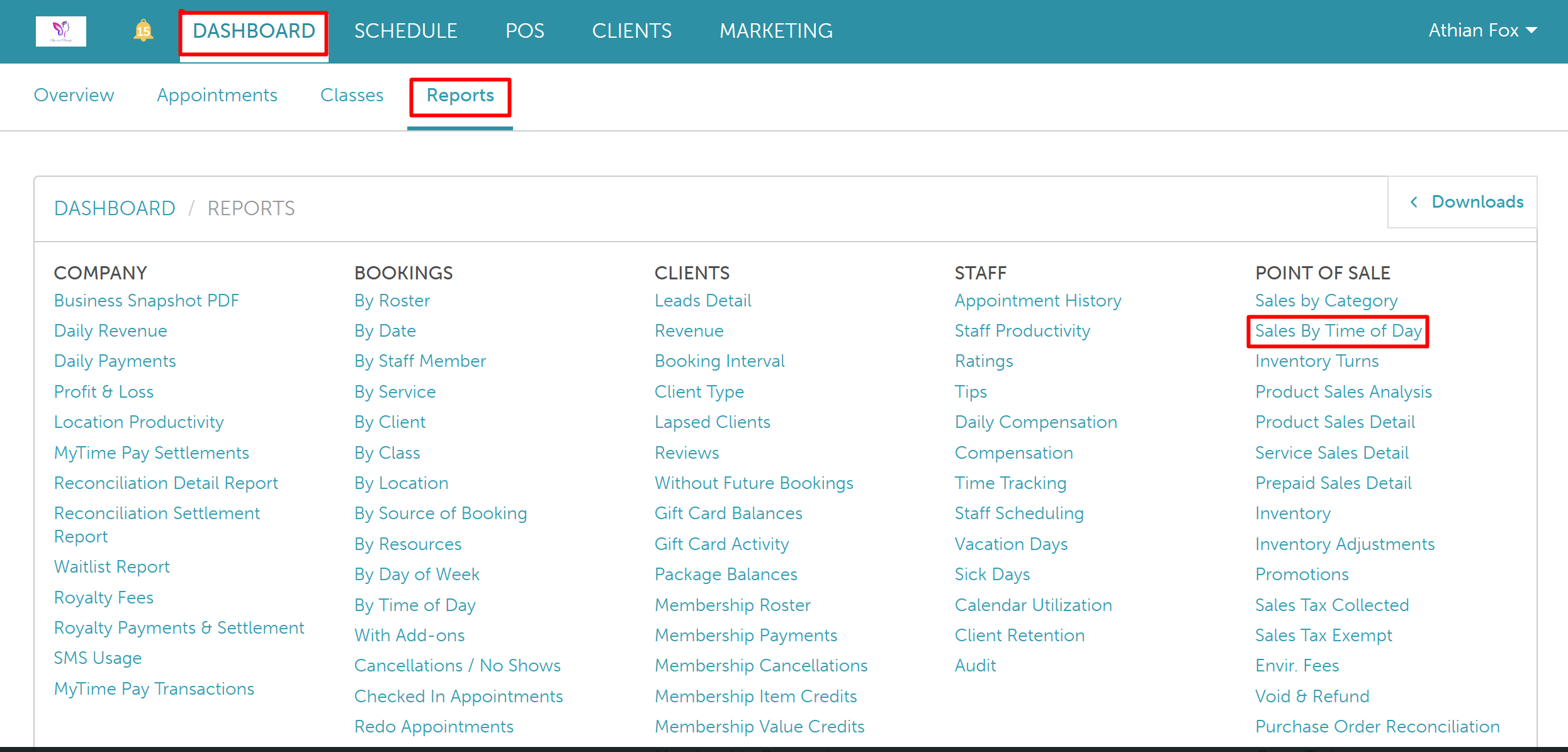
When the report opens, you can filter by a specific location, staff, and date. You can also choose to view the report by revenue at the time of purchase or use. Once you have selected your filters, click on the UPDATE button to generate the desired data. 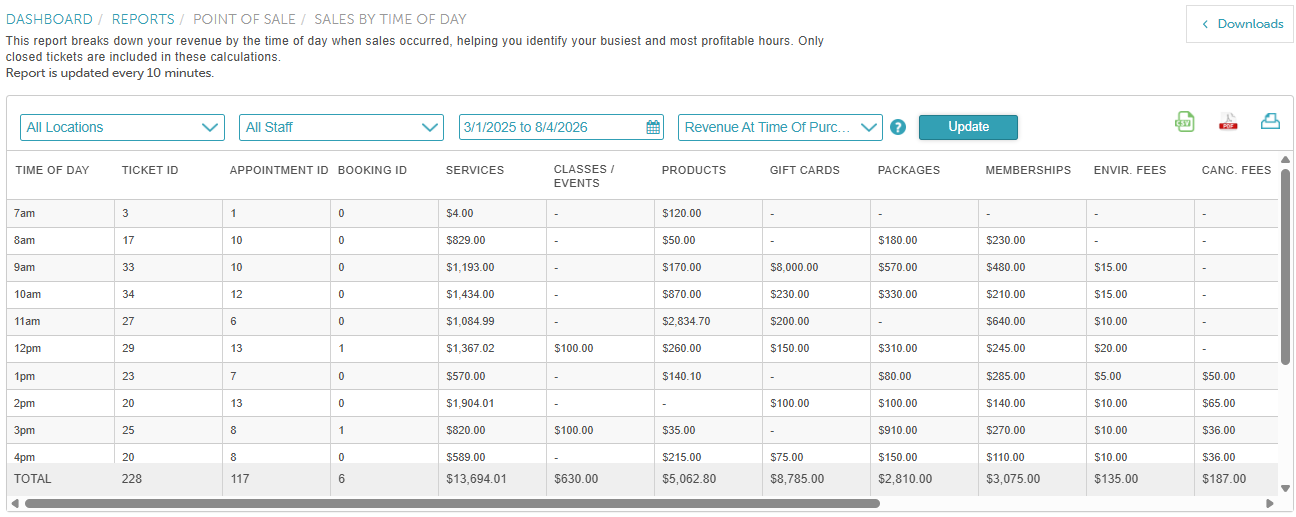
Report Filters
| Filter | Description |
| Location | The location where the transaction took place
|
| Staff | The staff member assigned to the transactions during the date range and location selected. |
| Date | This range will determine the transactions that were completed during the date range selected. |
| Revenue At | If “Revenue At Time of Use” is selected:
If “Revenue At Time of Purchase” is selected:
|
Report Columns
| Column | Description |
| Time of Day | The hourly intervals show when transactions were completed and tickets were closed. You can click the column header to sort these intervals in ascending or descending order. Example: If a ticket was closed at 2:45 PM, it will appear under the 2 PM time interval. |
| Ticket ID | Displays the total number of tickets that were closed within that time interval. You can click the column header to sort these time intervals in ascending or descending order. |
| Appointment ID | Displays the total number of appointments that have completed tickets within that time interval. You can click the column header to sort these time intervals in ascending or descending order. |
Booking ID | Displays the total number of bookings within that time interval. You can click the column header to sort these time intervals in ascending or descending order. |
Services | Revenue generated for all appointments within that time interval. Does not include taxes and tips. |
| Classes | Revenue generated for all classes and events within that time interval. Does not include taxes. |
| Products | Revenue generated for all products sold and miscellaneous charges within that time interval. Does not include taxes. |
| Gift Cards | Revenue generated by gift cards sold within that time interval. The Gift Card column will not be displayed if the "Revenue At Time Of Use" filters are selected. |
| Packages | Revenue generated by packages sold within that time interval. Does not include taxes. The Package column will not be displayed if the "Revenue At Time Of Use" filter is selected. |
| Memberships | Revenue generated by memberships sold within that time interval. Does not include taxes. The Membership column will not be displayed if the "Revenue At Time Of Use" filter is selected. |
| Environmental Fees | Revenue generated by environmental fees collected on appointments within that time interval. Does not include taxes. |
| Cancellation Fees | Revenue generated by cancellation fees collected on appointments within that time interval. |
Gross Revenue | Sum of all revenue generated within that time interval. |
| Discounts | Includes discounts for all item types (service, product, membership, package, gift card, misc. fee, cancellation fee). |
| Refunds | Includes refunds for all item types (service, product, membership, package, gift card, misc. fee, cancellation fee) during the date range selected. |
| Loyalty Prepaid | This column displays loyalty redemptions applied to services and products. |
| CC Surcharge | Shows the total amount collected from credit card surcharges within that time interval. |
| Net Revenue | Gross Revenue + CC Surcharges - Refunds - Discounts |
For more information, contact us at support@mytime.com or (385) 233-6964.
Related Articles:
Was this article helpful?
That’s Great!
Thank you for your feedback
Sorry! We couldn't be helpful
Thank you for your feedback
Feedback sent
We appreciate your effort and will try to fix the article