Once your promotion has been created, you can duplicate it to quickly launch similar offers without starting from scratch. In this article, we will guide you through the steps for duplicating a promotion and updating its details.
Things to know:
- The ability to duplicate promotions is governed by the "Accessing Promotions" access control setting.
- There are 4 promotion statuses:
- Live: The promotion is currently active
- Paused: The promotion has been paused and cannot be used
- Scheduled: The promotion is set to start at a later date
- Expired: The valid date set on the General Setting page has passed
- Promotions can be sorted by the following criteria on the Promotions page, based on the filters you select:
- Location: Displays all promotions that were created for that location
- Status: Sorted in this order: Scheduled, Live, Paused, Expired.
- Name: Sorted alphanumerically by symbols, then numbers, then letters.
- Start Date: Sorted with the most recently created promotions first, going backward to the earliest.
- End Date: Sorted with promotions that have no expiration (Ongoing) first, then those with the farthest end dates, and finally those closest to the current date.
- Discount Type: Sorted in this order: Free, Percentage (%), Dollar ($) discounts.
- For franchise businesses using global promotions, please note that these promotions cannot be duplicated at the child (location) level. All changes must be made at the parent level.
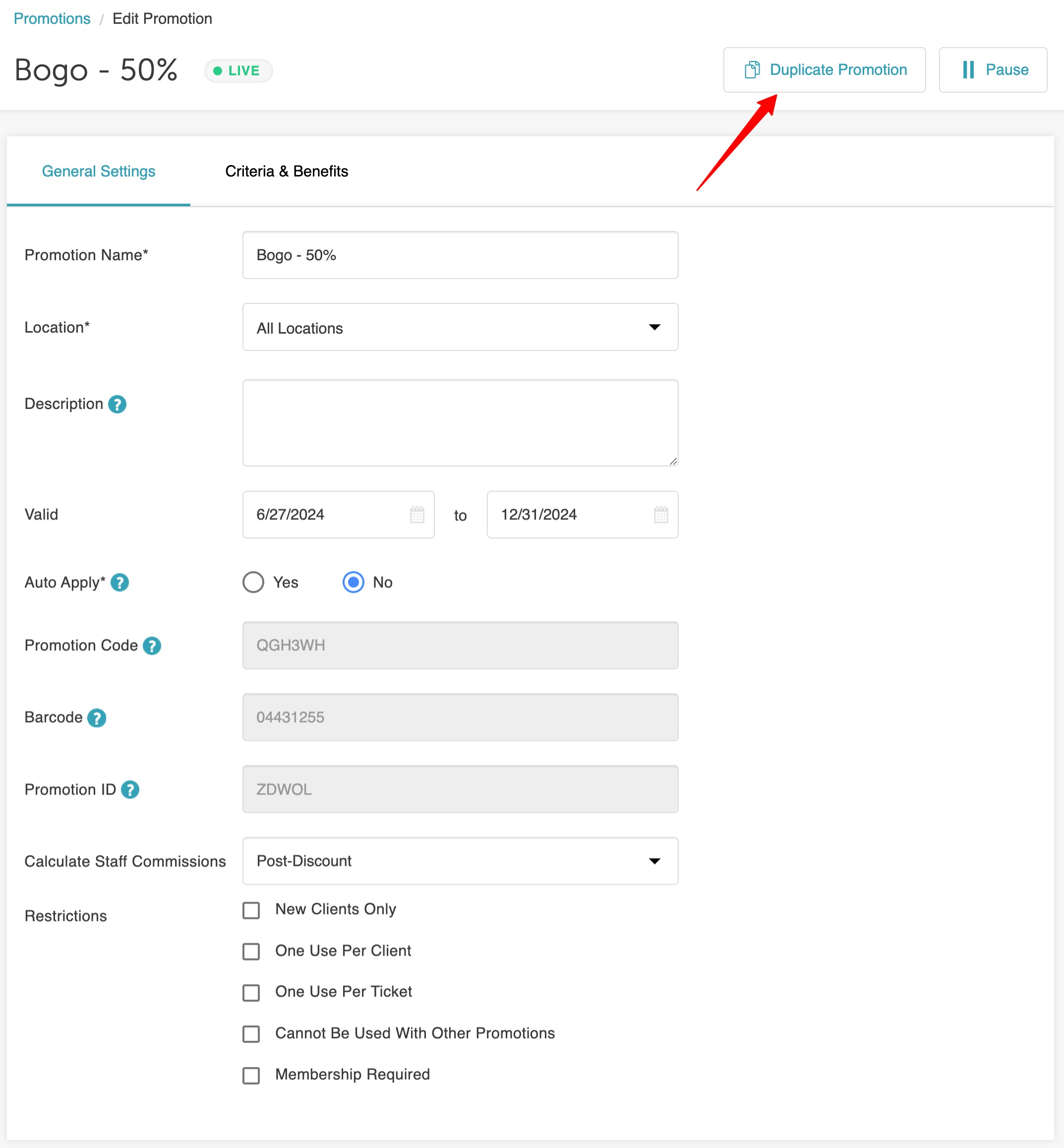
- Duplicating promotions can be done 2 ways, using the duplicate icon on the promotion's main page or using the Duplicate Promotion button when you open the promotion.
To duplicate a promotion:
- Navigate to Marketing > Promotions
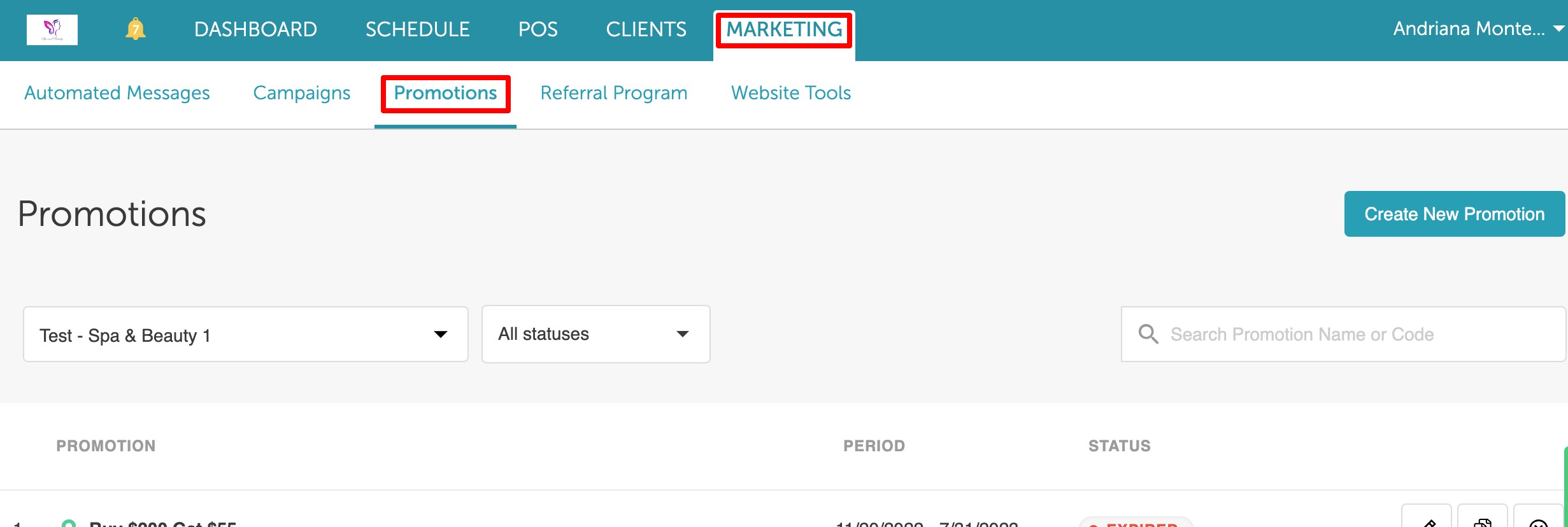
- Locate the promotion you want to duplicate
- There are two ways to duplicate a promotion:
- Click the Duplicate icon directly from the main page, or

- Click the Edit icon on the main page, then select Duplicate Promotion at the top
- Click the Duplicate icon directly from the main page, or
- The Duplicate Promotion modal will appear. Enter the following information:
- New Promotion Name: The name for the duplicated promotion
- Promotion ID (optional): Use this field if the promotion needs to reference an external ID or tracking number. If left blank, the system will generate one automatically
- Barcode (optional): Add a barcode if you want MyTime POS to apply the promotion when scanned. If left blank, the system will generate one automatically
- Promotion Code: Enter a code for promotion redemption online and in-store. You can create your own code or leave it blank for the system to generate one
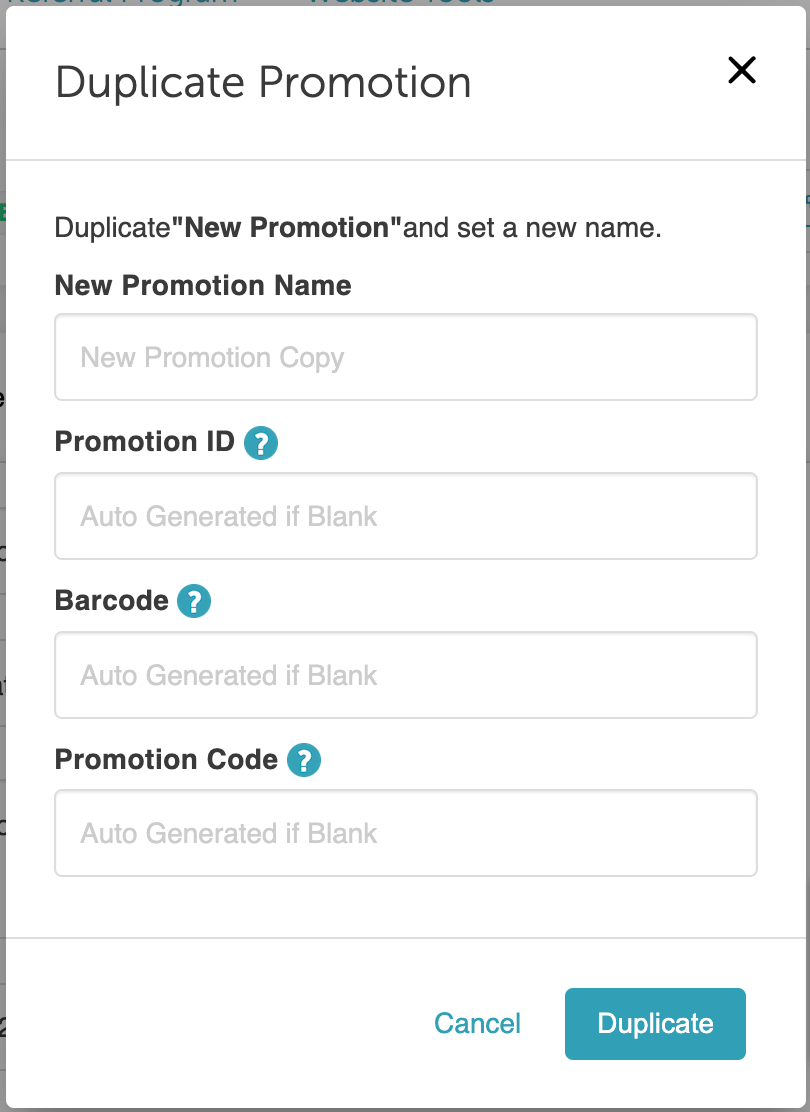
- Click Duplicate
- You will be directed to the duplicated promotion’s settings. All settings from the original promotion are copied except for the fields entered above
- Make any additional edits on the General Settings and Criteria & Benefits pages, if needed
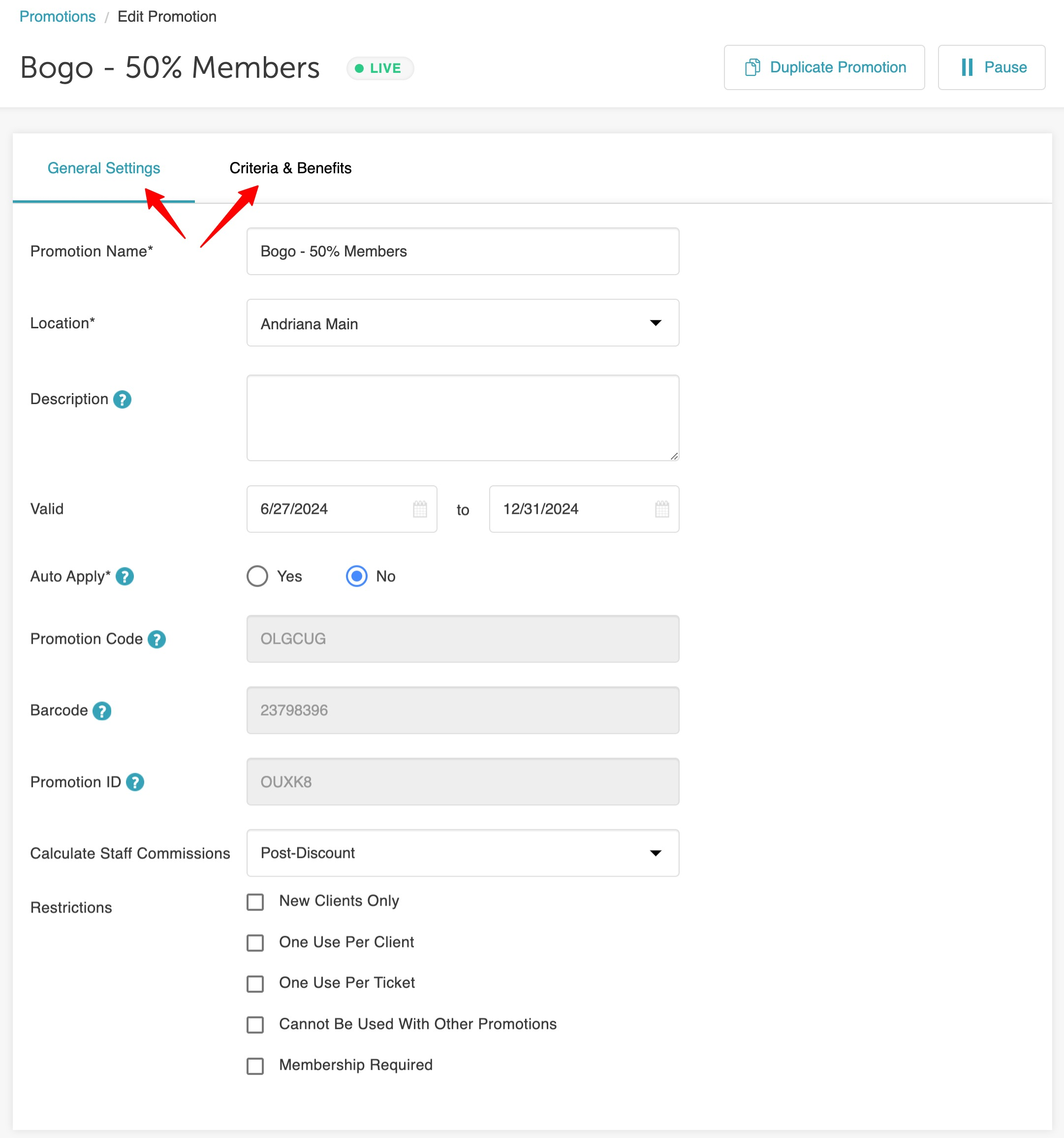
- Click Save Changes
For more information contact us at support@mytime.com.
Related Articles:
- Global Promotions
- Promotion General Settings & Restrictions
- Promotion Criteria and Benefits
- Service Promotion Setup
- Class Promotion Setup
- Product Promotion Setup
- Gift Card Promotion Setup
- Membership Promotion Setup
- Package Promotion Setup
- Applying Promotions Online
- Promotions Report
Was this article helpful?
That’s Great!
Thank you for your feedback
Sorry! We couldn't be helpful
Thank you for your feedback
Feedback sent
We appreciate your effort and will try to fix the article