The Notes section of a client profile contains internal notes that each staff member took about the client. They are easily accessible from any device, allowing you to instantly learn about client preferences. Staff members can create multiple client notes as separate entries, each with a date and time stamp and an audit trail with the name of the staff member who created the note.
Things to Know:
- The ability to add/edit client notes on a client's profile is governed by the "Accessing Client Records" access control setting.
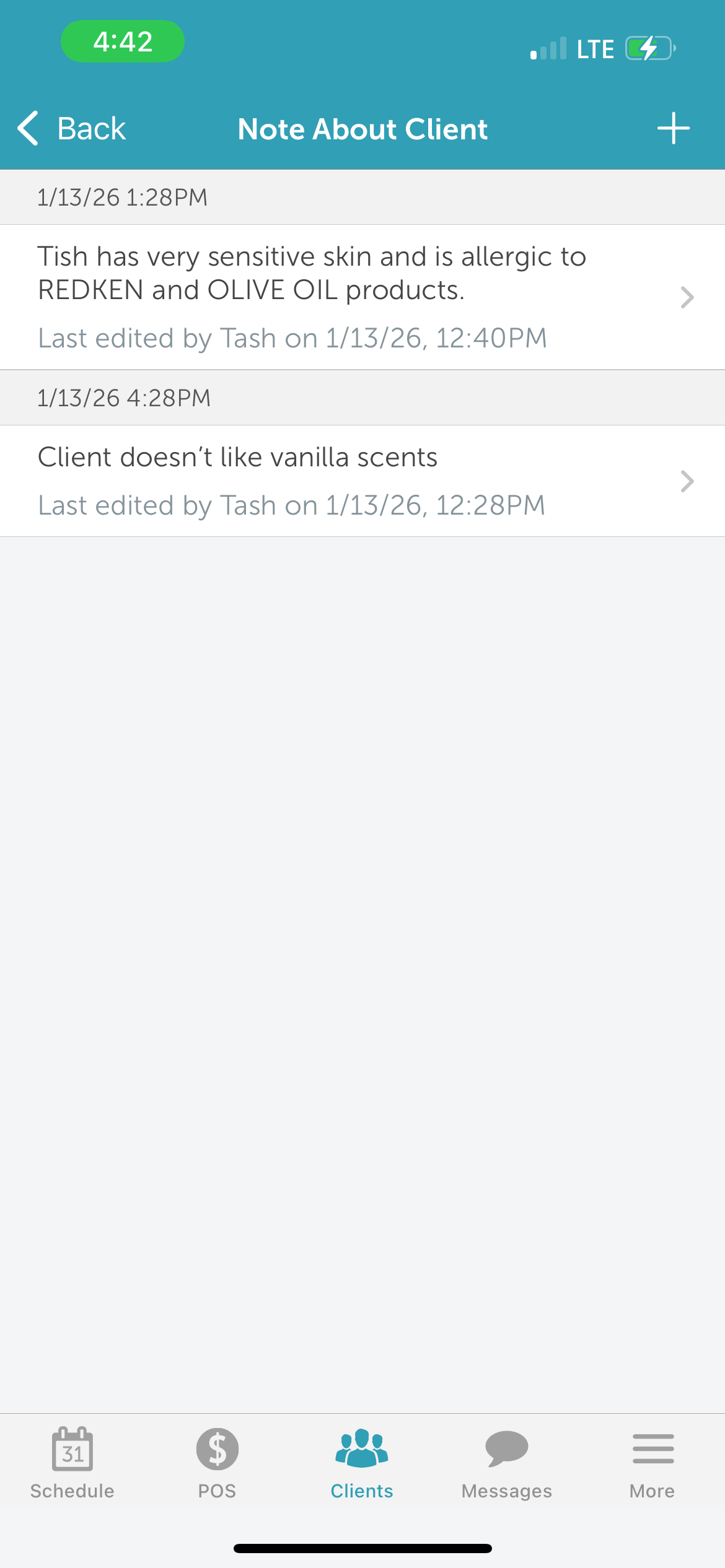
- Client notes will be displayed in reverse chronological order from the client's profile
- You can "pin" specific notes to keep them on top at all times. Pinned notes can also be "unpinned".
All client notes will be shown on the appointment modal with pinned notes appearing first
- There is no limit to the number of notes that can
CONTENTS
Adding Client Notes
To add client notes:
1. Log into the app. For detailed instructions, learn more here
2. Once signed in you will be directed to the schedule by default
3. Choose the "Clients" icon located at the bottom of the screen
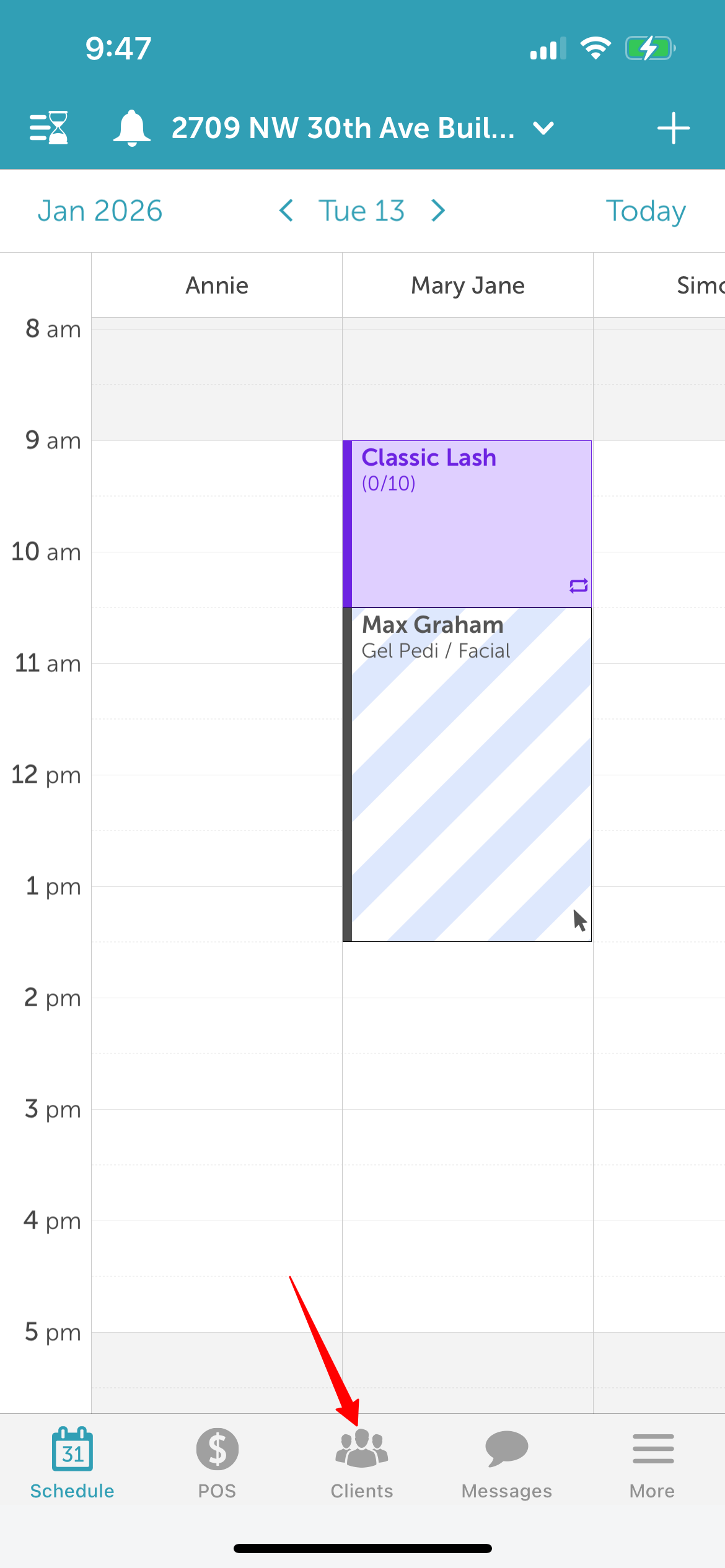
4. Type the name of the client in the 'Search' field or select the client from the client list
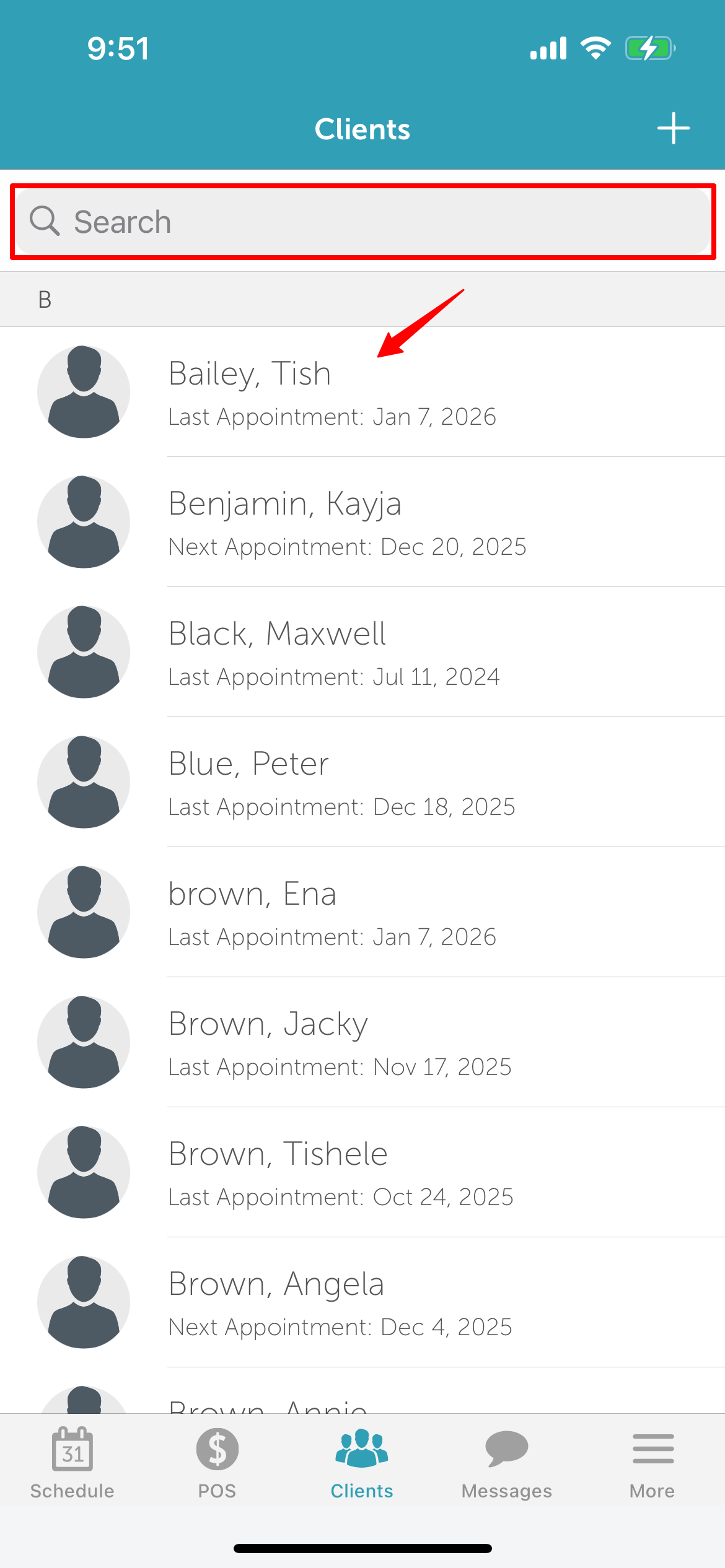
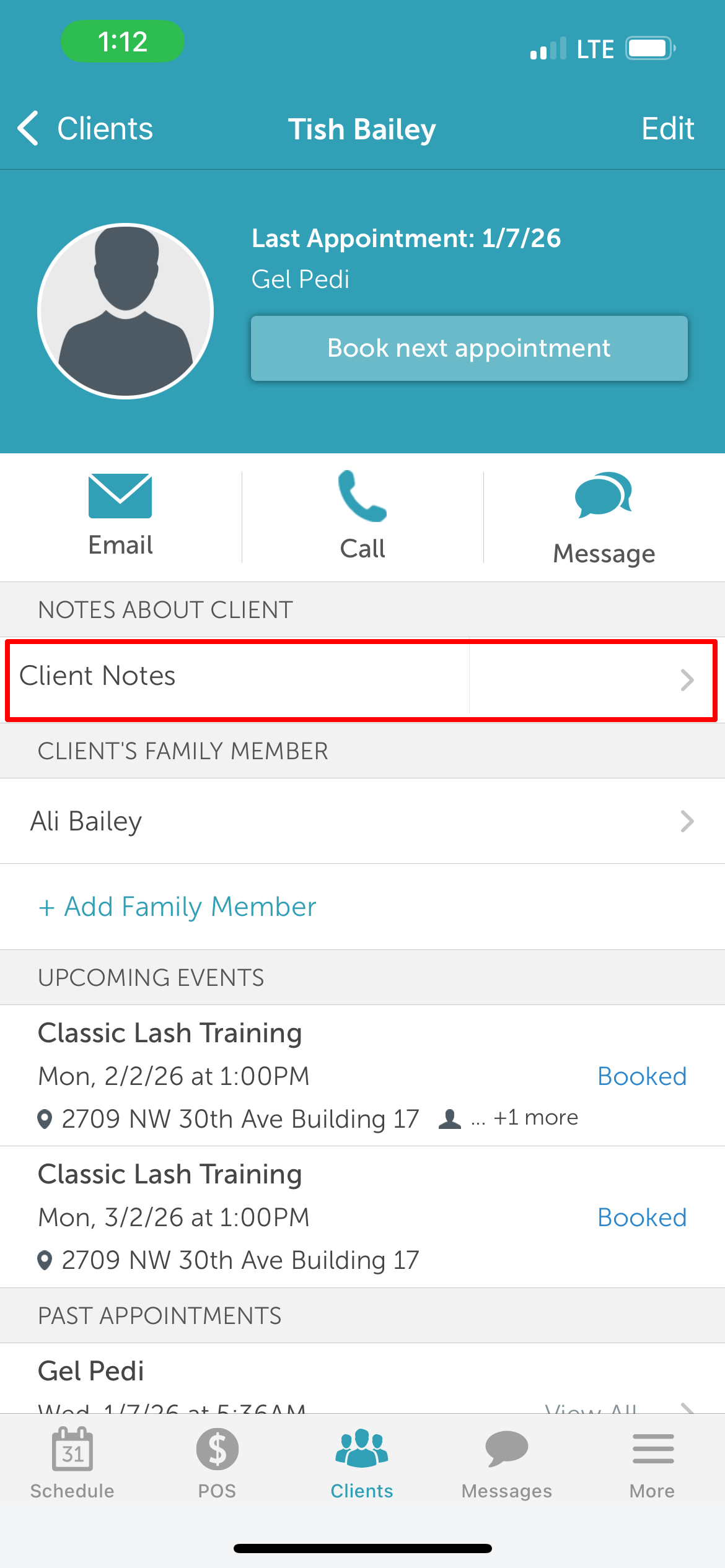
5. In the 'Notes about client' section of the client profile, select 'Client Notes'
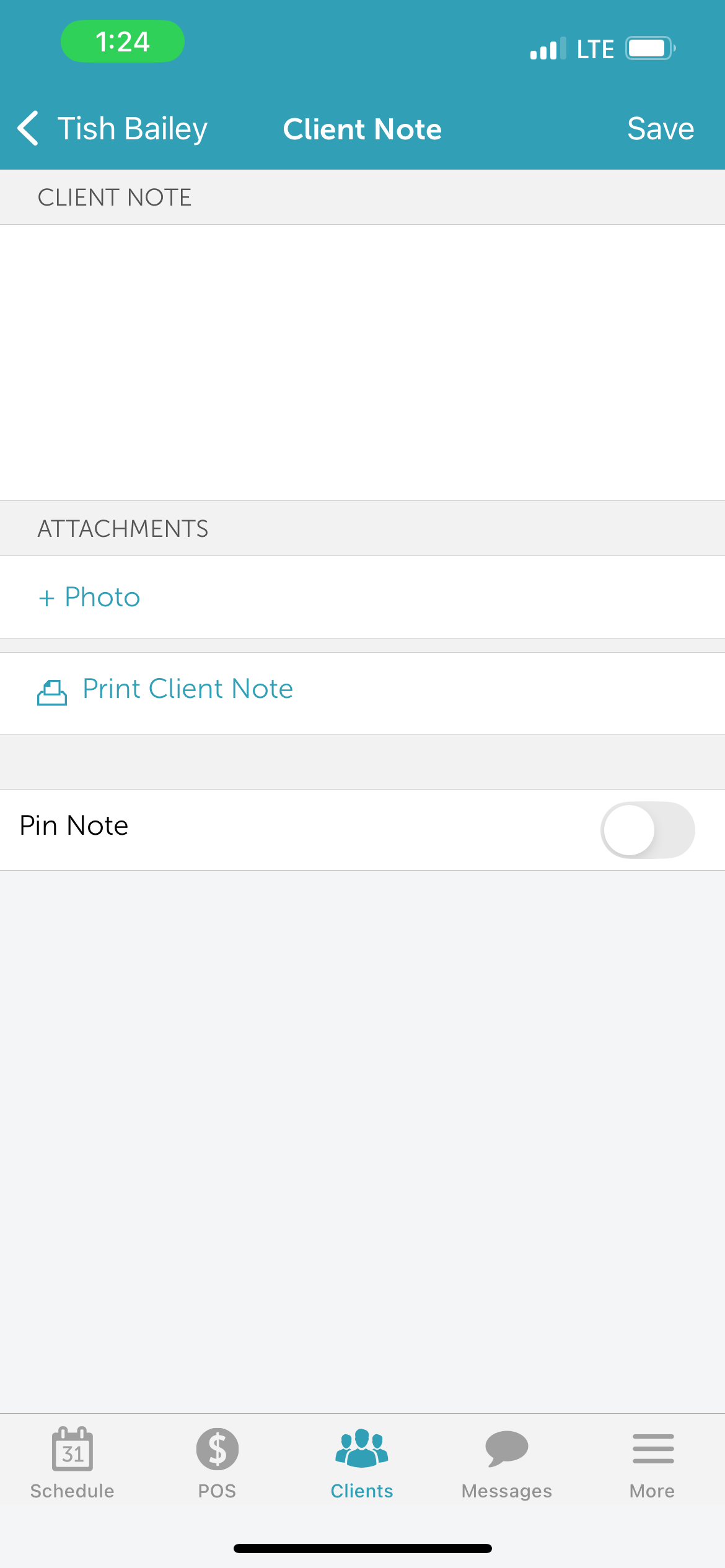
6. On the 'Client Note' screen
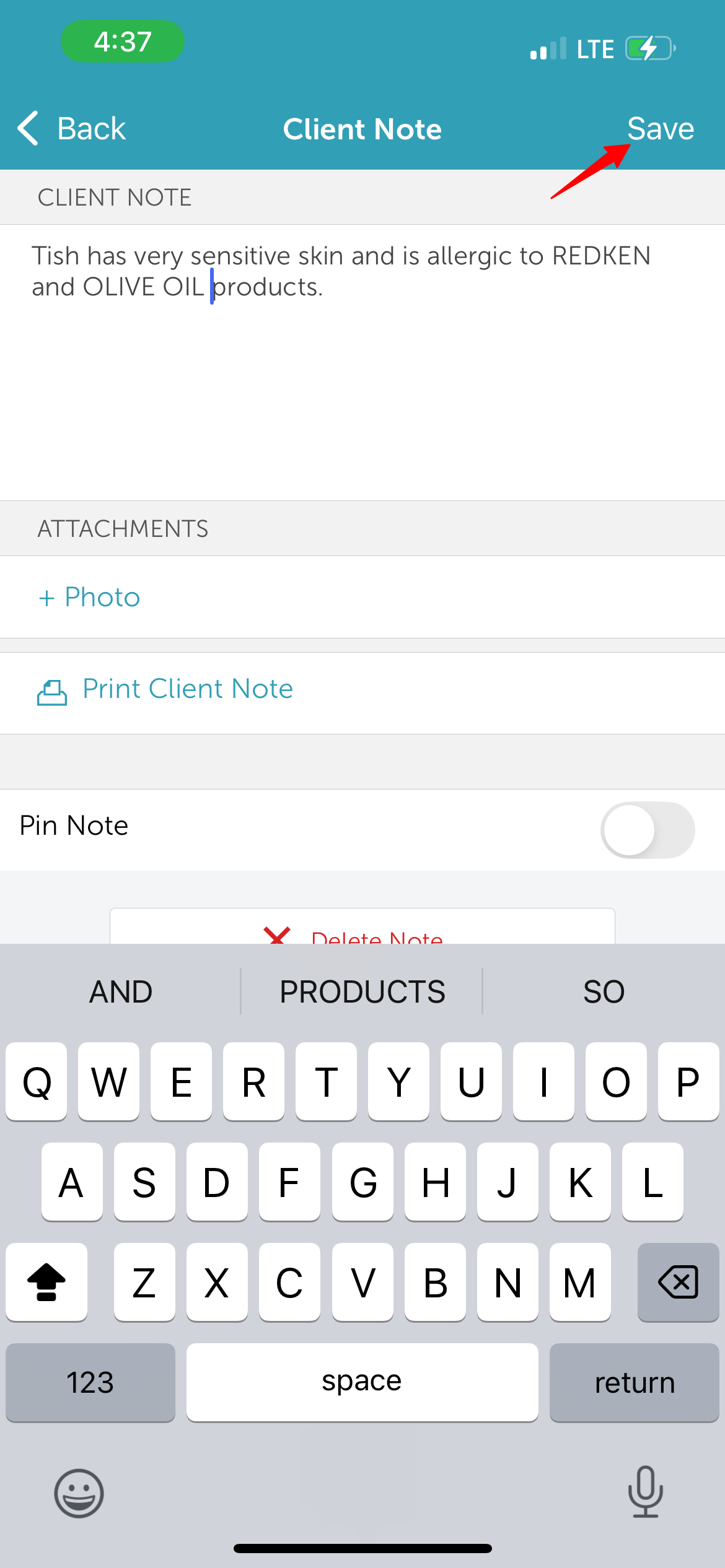
- Type the desired note in the 'Client Note' field
- Select '+ Photo' to add images
- To print client note, click 'Print Client Note'
- To pin client note, toggle the 'Pin Note' button
- Click 'Save' at the top right of the screen
7. Once saved, the notes will be visible in the 'Notes About Clients' section on the client profile
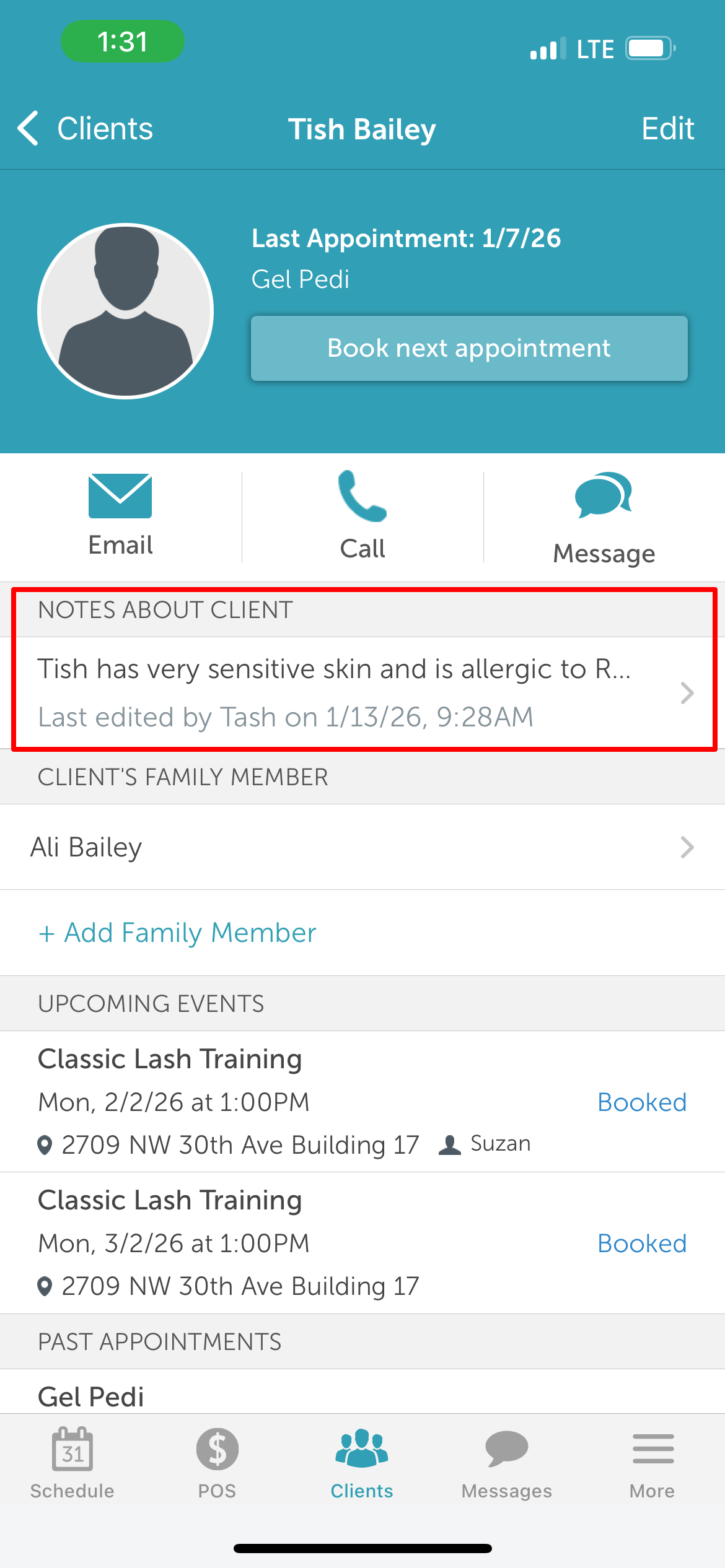
Add Additional Client Notes
To add additional client notes:
1. Click the previously added note to open the 'Note About Client' screen
2. Click the '+' icon at the top right of the screen
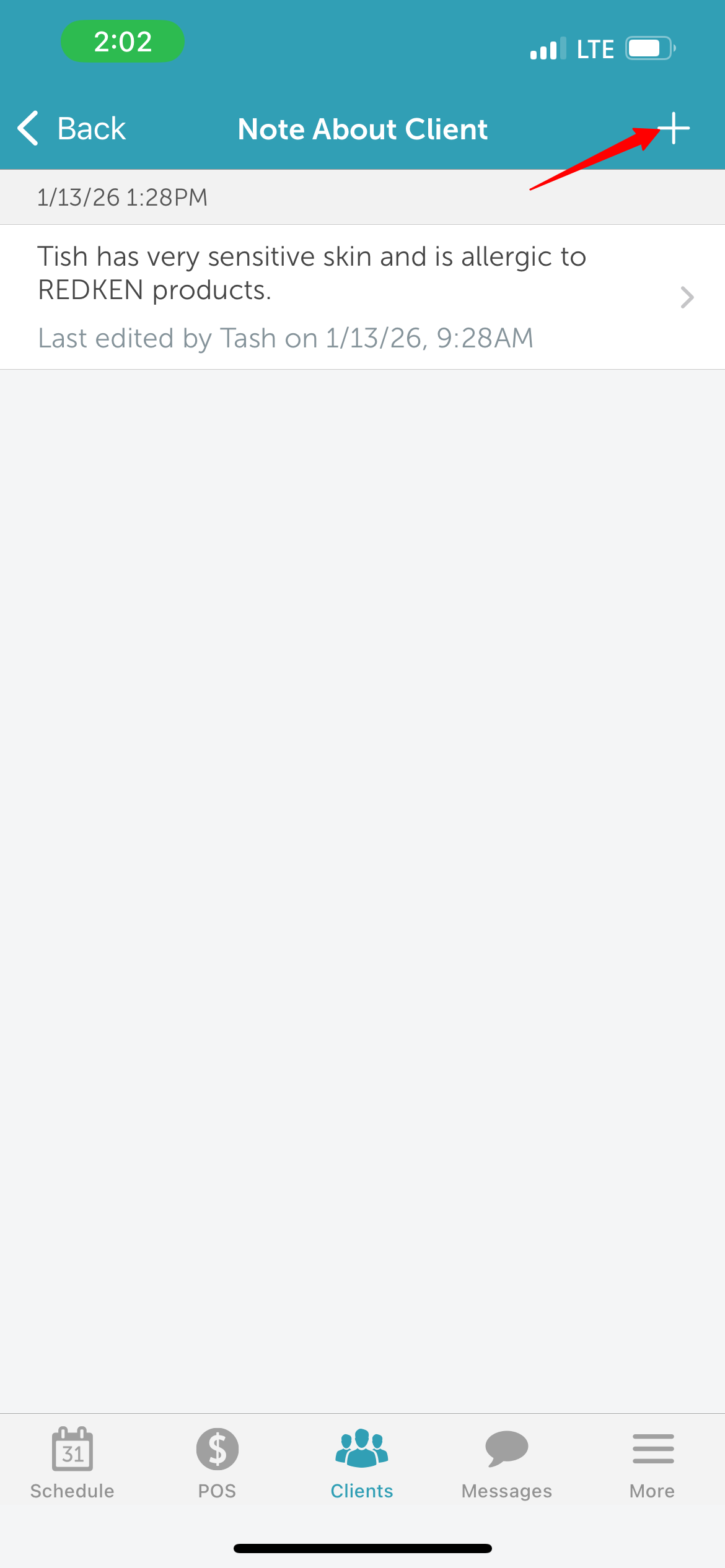
3. Once saved, the new client note will be displayed on the 'Note About Client' screen
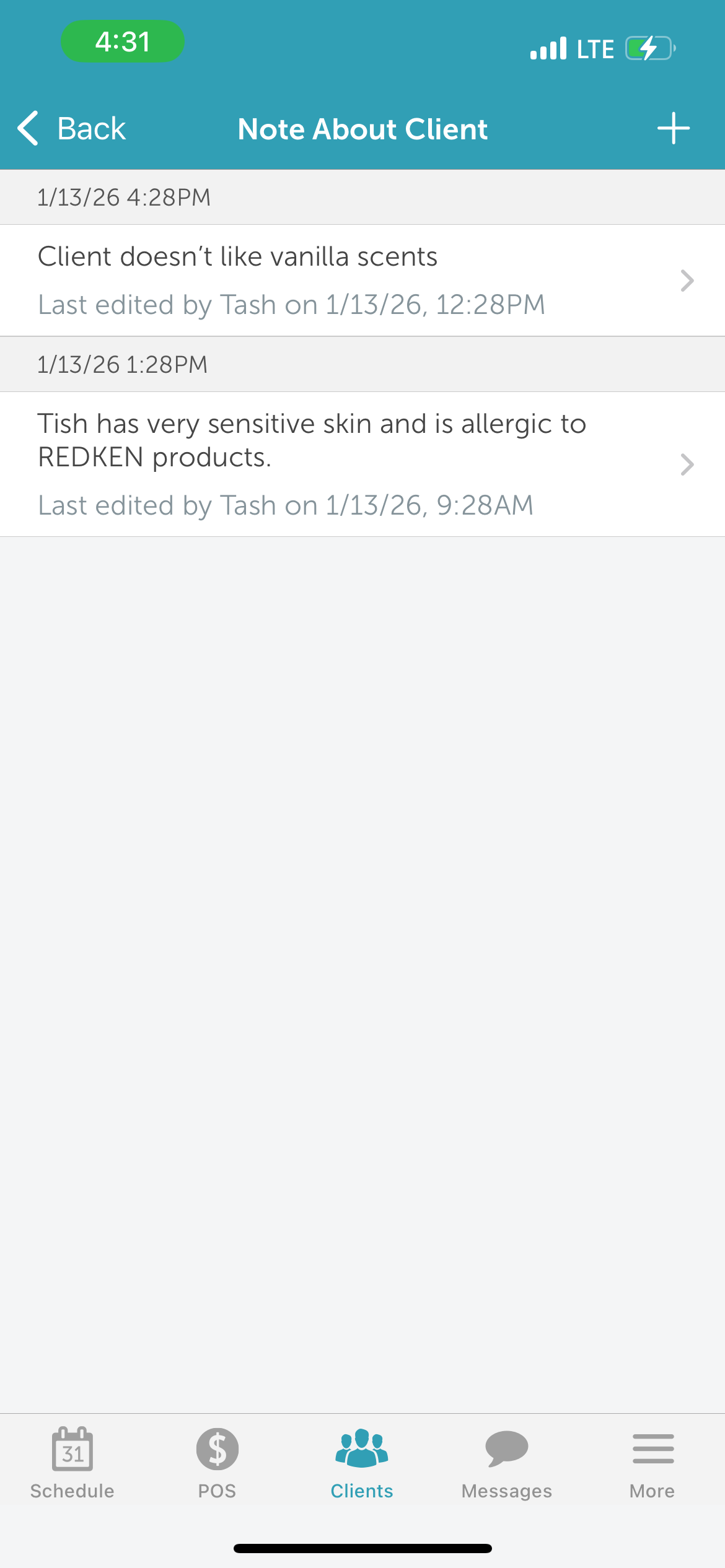
Editing Client Notes
To edit client notes:
1. From the 'Note About Client' screen, select the client note you want to edit
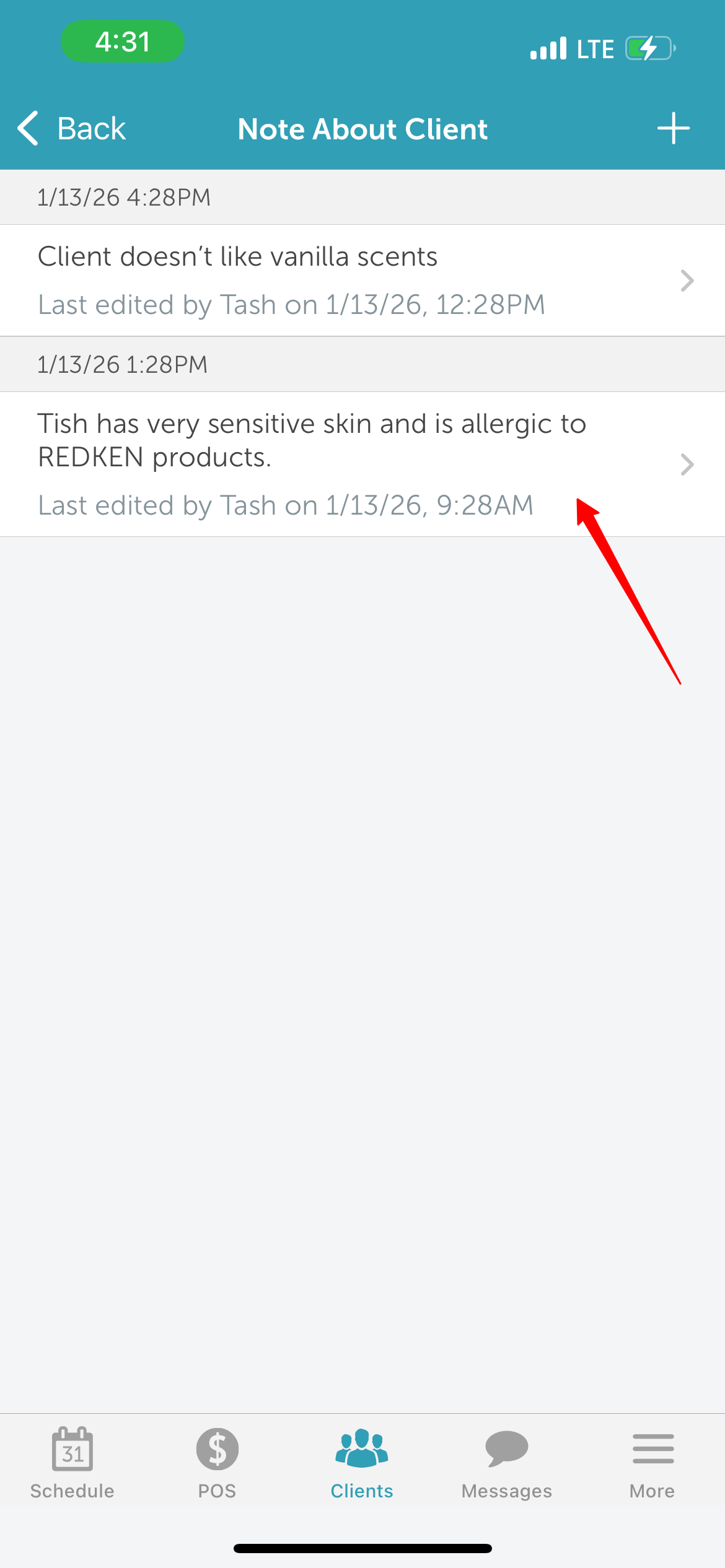
2. Make the desired changes and click 'Save' at the top right of the screen
3. The updated note will appear at the top of the 'Note About Client' screen
For more information contact us at support@mytime.com.
Related Articles
Adding Clients on Scheduler App
Was this article helpful?
That’s Great!
Thank you for your feedback
Sorry! We couldn't be helpful
Thank you for your feedback
Feedback sent
We appreciate your effort and will try to fix the article