With MyTime, sending invoices is quick and effortless. Whether a client opts to pay later or you need to manage billing off-site, you can generate invoices directly from the POS within the Scheduler app in just a few clicks and share them instantly—ensuring payments and POS tickets stay perfectly in sync.
Things to Know:
- Invoices can be shared via a link or sent directly through the Communicator for a quick, seamless experience.
- If changes are made to the POS ticket, staff must click Send Invoice again for the updates to apply. Clients will see changes after refreshing the invoice page if it was already open.
- POS tickets automatically update with any invoice changes, and once payment is completed, the ticket closes automatically.
- Clients cannot edit an invoice once the associated POS ticket has been closed.
- Clients can add tips for services if the "Allow clients to leave tips?" setting is enabled.
- Clients can pay using a saved card or enter a new card at the time of payment.
- If the "Require credit card on file to purchase membership" setting is enabled, clients must have a saved card to purchase a membership via invoice. If disabled, a saved card is not required.
- Membership value credits are displayed based on the amount used, regardless of whether the 'Apply Membership Value Credits' setting is configured to apply before tax or after tax.
- Invoices for prepaid appointments show a $0 balance and include any relevant in-package or in-membership labels.
- Invoices for walk-ins will not show a 'Review & Pay' option; these clients must manually enter their card details to pay
- Multiple manual promotion codes can be applied if the promotions are stackable. Learn more here
- Any configured surcharges are automatically included on invoices. Learn more about surcharges here.
- Prices displayed on an invoice are shown in the company’s selected currency.
- A language selector is available on the Invoice page. The list of languages shown is determined by the languages enabled in the company’s language settings.
- Once an appointment is marked as completed, a transactional email can automatically be sent to the client with their invoice to complete payment. This functionality is controlled by the “Send Invoice Automatically When Appointment is Completed” hidden setting, which can only be enabled by the MyTime team. To enable this setting, please contact support@mytime.com. Learn more here
To generate and share an invoice:
1. Log in to the app. For step-by-step login instructions, learn more here
2. You’ll land on the Schedule screen. From the navigation menu, tap the POS icon
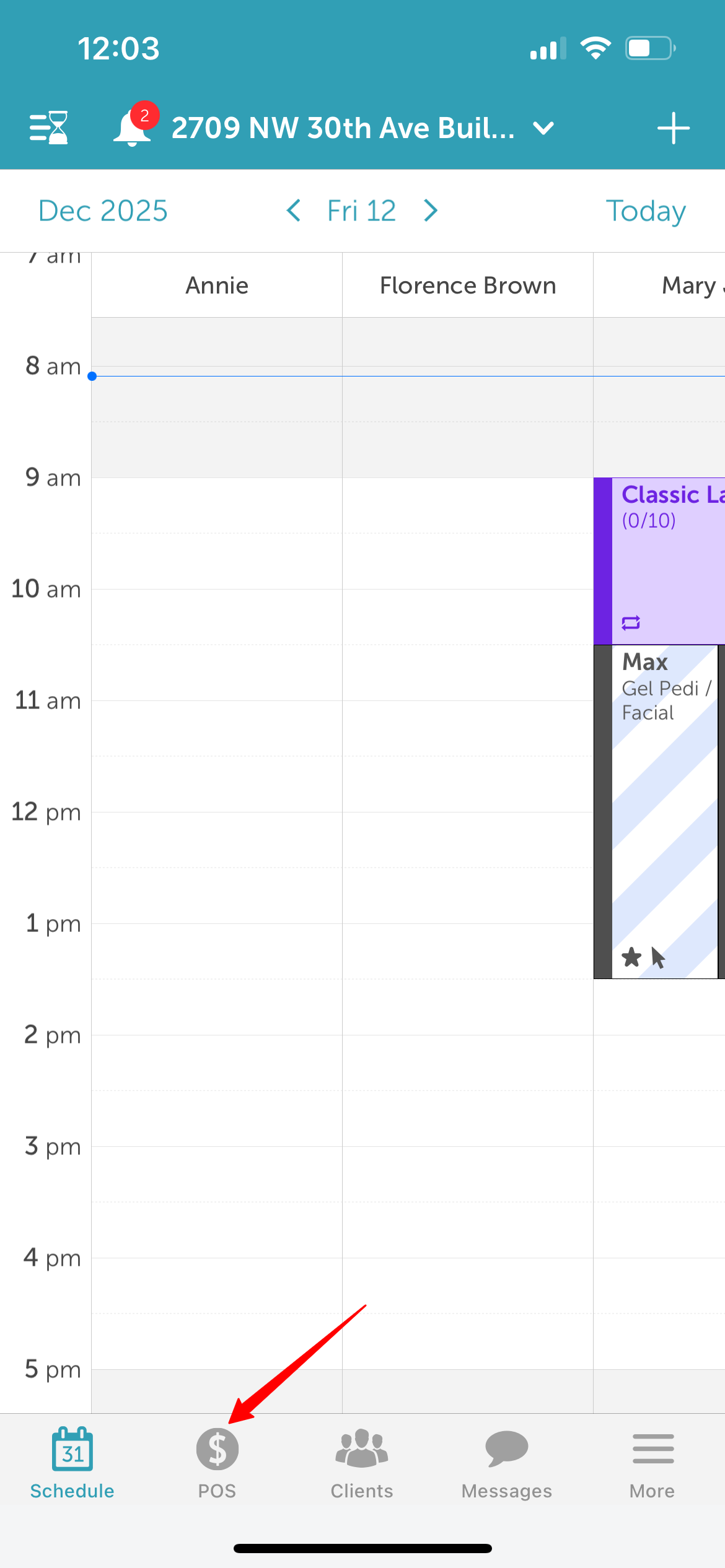
3. In the POS:
- Add a client.
- Create an appointment or add a service or product, including gift cards, memberships, or packages.
- Select the appropriate staff member.
- Save changes
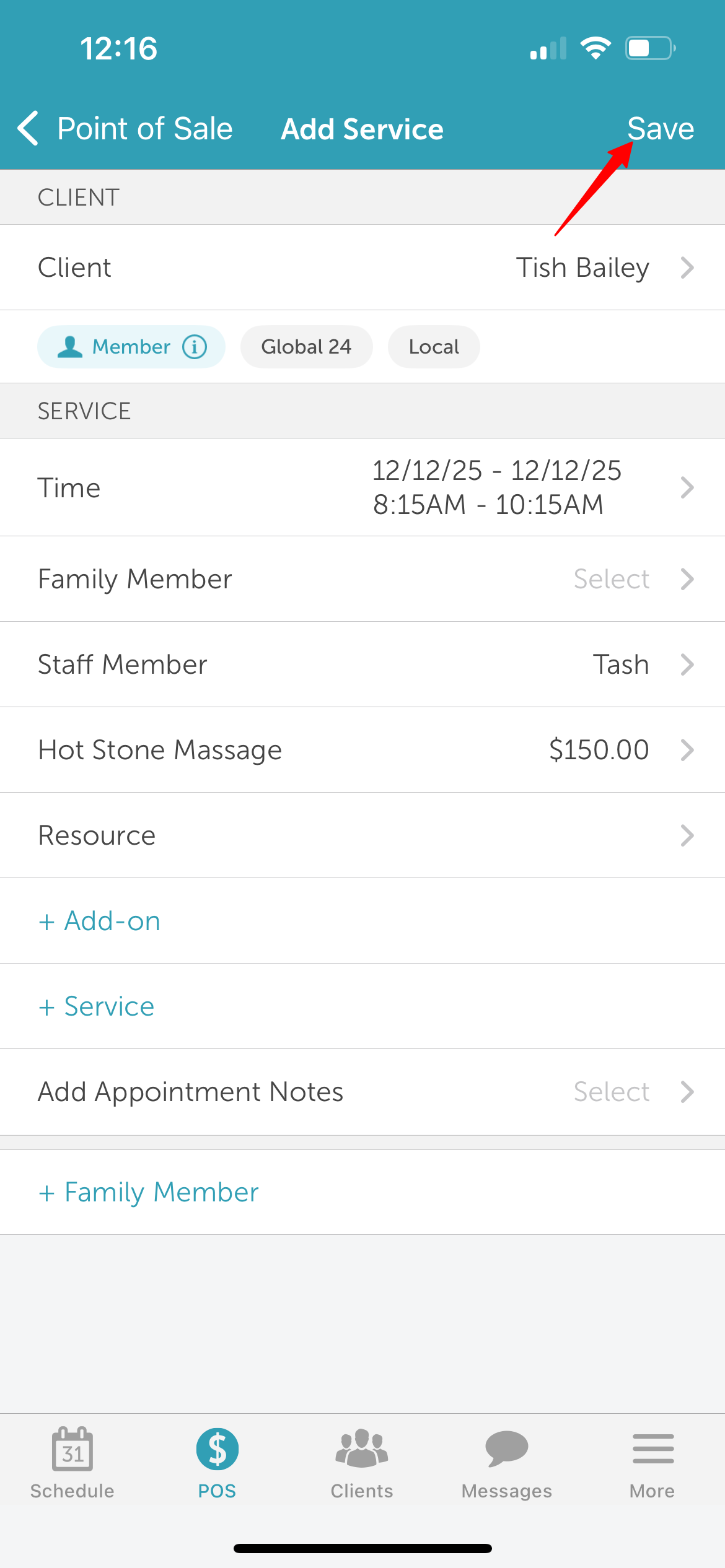
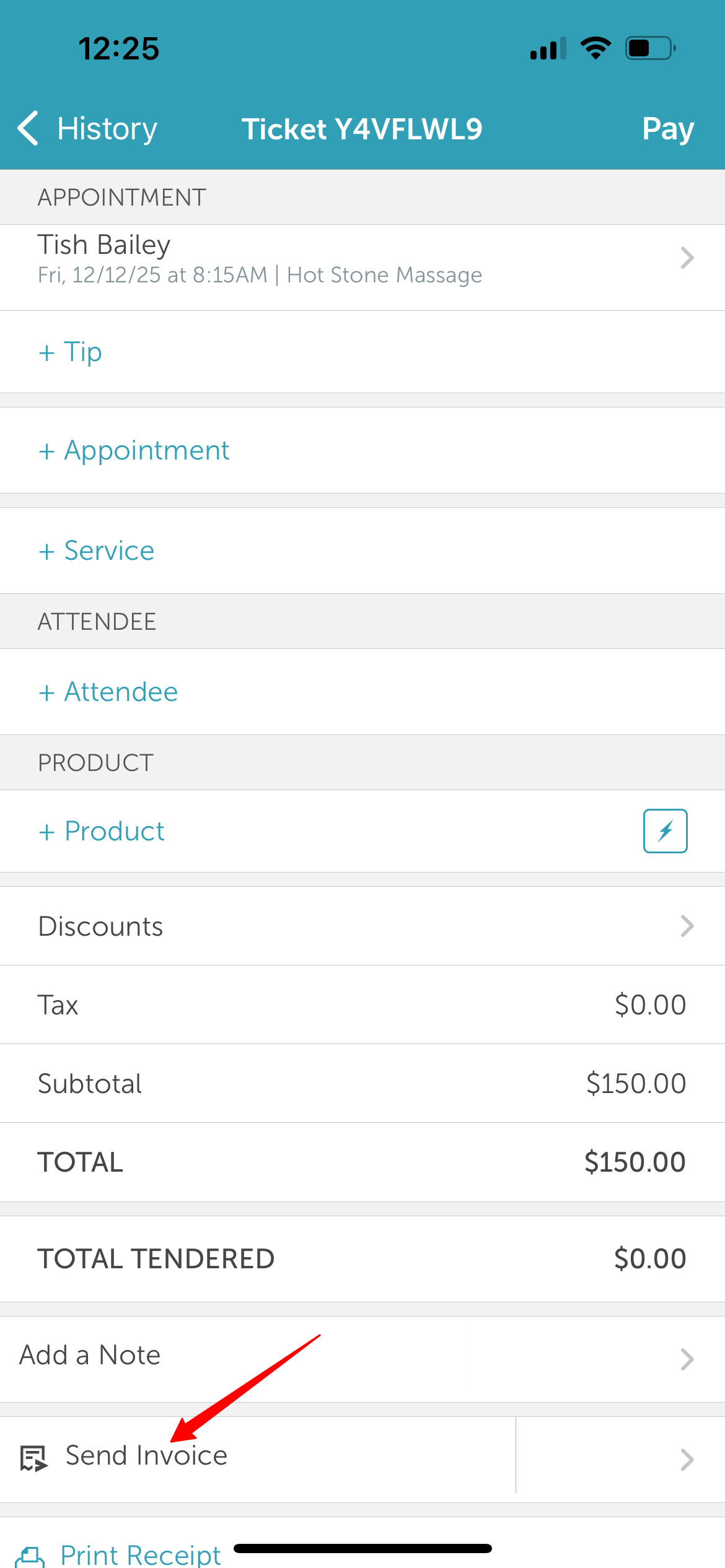
4. At the bottom of the screen, tap Send Invoice.
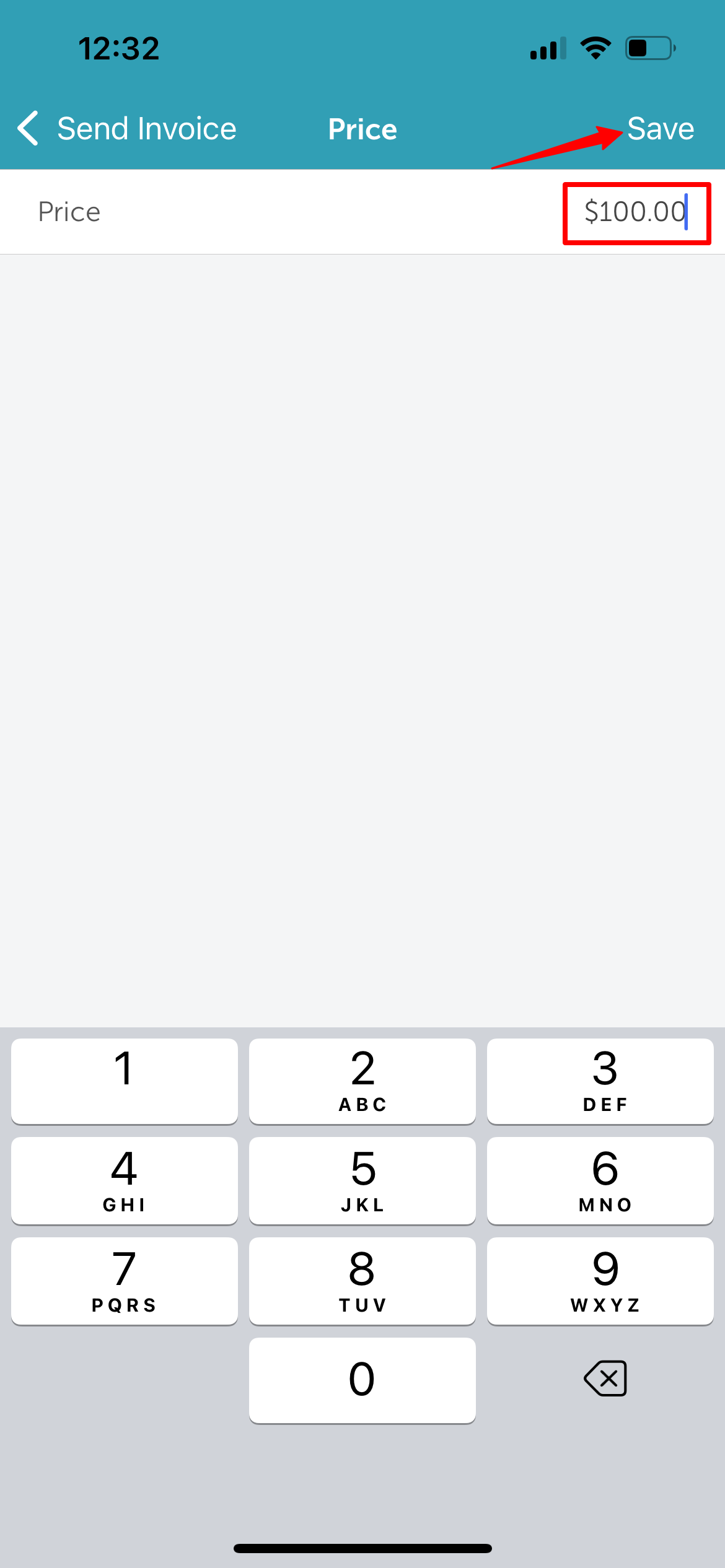
 5. On the Send Invoice page, select Payment Amount if you need to adjust the amount shown on the invoice.
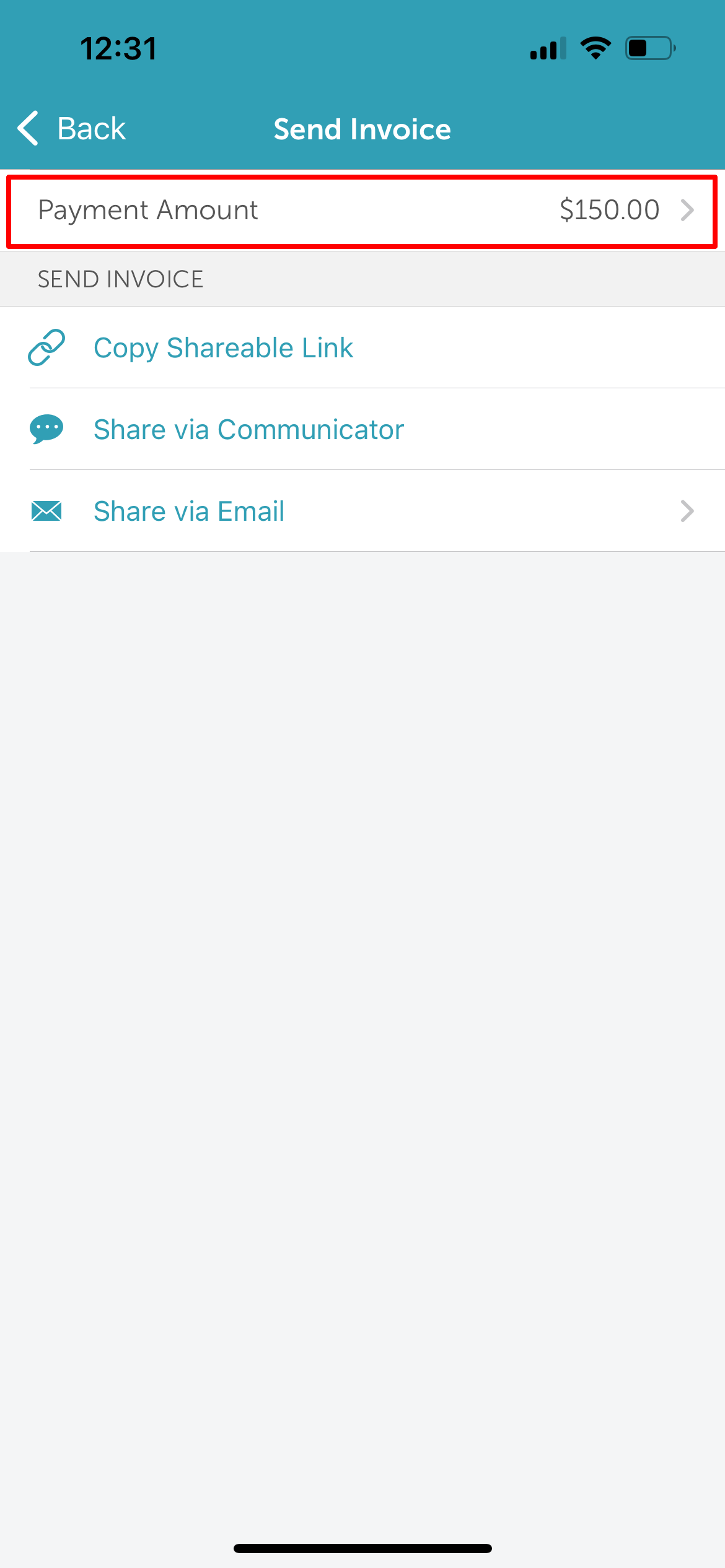
6. Save your changes after making any adjustments.
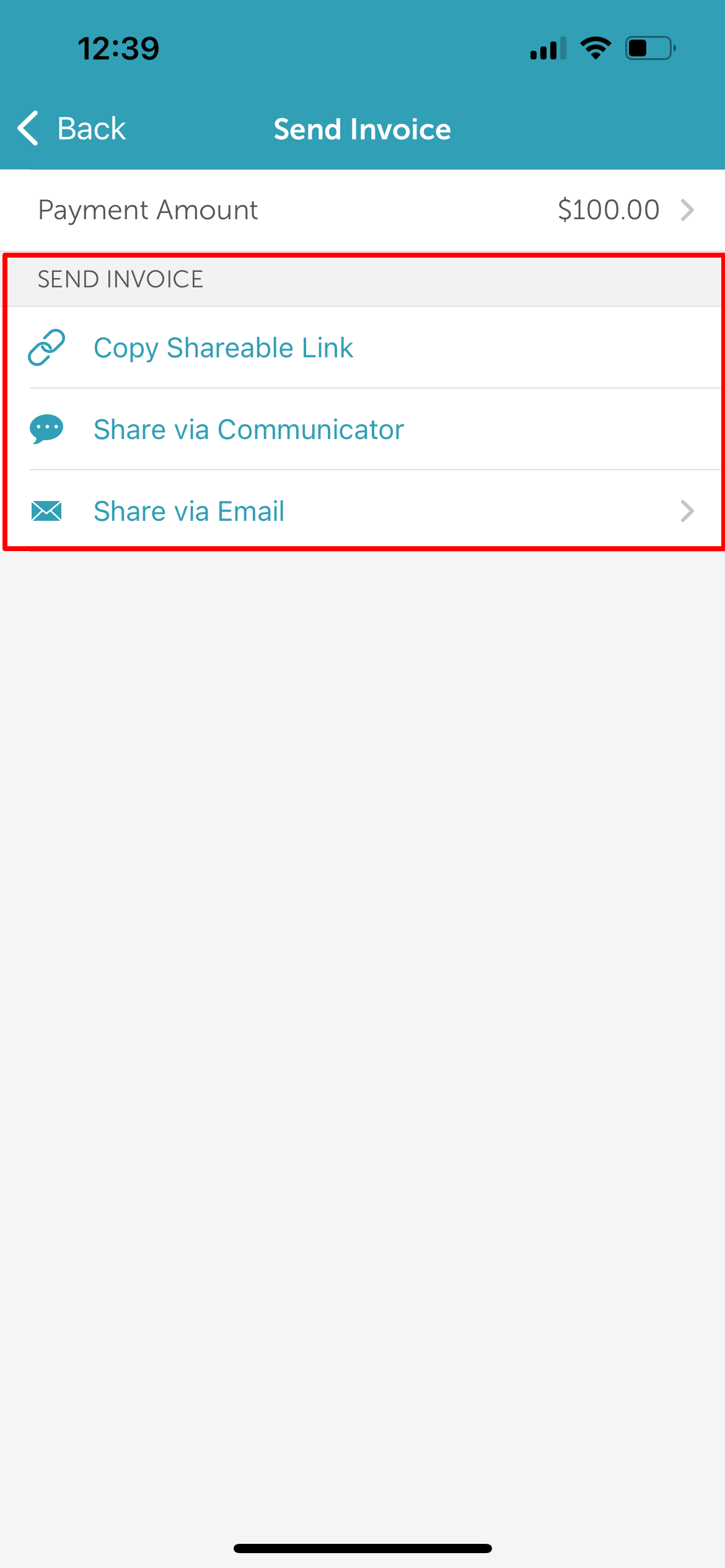
7. In the Send Invoice section, choose one of the following options to send the invoice to your client:
- Copy Shareable Link – Copies the payment link to your clipboard so you can share it manually.
- Share via Communicator – Opens the Communicator and automatically pastes the invoice link for direct sending to the client. Note: This option is only available when a client is attached to the ticket.
- Share via Email - Exposes an email address field on the 'Send Invoice Link' modal. This field will be prefilled with the client's email address but also allows you to edit the email address displayed
8. Keep the ticket open until the client completes payment using the invoice link.
For more information, contact us at support@mytime.com or (385) 233-6964.
Related Articles:
Paying Invoices Online & Managing Saved Cards on File
Configure Invoice Notification
Was this article helpful?
That’s Great!
Thank you for your feedback
Sorry! We couldn't be helpful
Thank you for your feedback
Feedback sent
We appreciate your effort and will try to fix the article