Whether due to schedule changes, cancellations, or other circumstances, classes can be refunded promptly and efficiently, ensuring a seamless experience for clients. In this article, we will guide you through the steps to refund classes.
Things to know:
- The ability to refund a ticket is controlled by the "Accessing Closed Tickets" access control
- Once a ticket is closed, you can only edit or issue a refund
- You cannot refund an amount higher than the amount for the class
- Once a ticket is fully refunded, or partially refunded, it cannot be reopened
- Tickets closed with a credit card as the payment method must be refunded to the same credit card and cannot be refunded using alternative methods, such as cash. However, for tickets closed with cash payments, refunds can be processed to gift cards if the "Enable Refund to Gift Card" setting is activated.
- Refunding Items Covered by Credits: Direct refunds are not available for class enrollments that were covered by a membership or package credit; the 'Refund' button will not be displayed.
- Workflow to Process Credit Returns: To return the credit, you must select 'Edit Ticket', remove the credit usage from the line item, and process payment for the remaining balance. Once removed, the credit is handled based on the following rules:
- Original Allotment Active: The credit returns directly to its original credit allotment.
- Original Allotment Expired: The credit rolls into the next active credit allotment created after the most recent successful billing date.
- Example: A client has a monthly membership billed on the 1st of each month with non-rolling credits. If they used credits in June and you edited the ticket on September 7th, the refunded credit applies to the allotment created on September 1st.
- No Valid Allotments: If no applicable credit allotment exists for the refunded items, an error message will indicate that the credits cannot be refunded. In this case, you can manually adjust the client's membership credits or apply a discount for the equivalent amount.
- Cross-Membership Restrictions: Credits cannot be transferred or refunded from one membership type to another, even if both memberships include identical items and are currently active (e.g., transferring credits between Volume Tier 1 and Volume Tier 2 memberships is not supported).
- Workflow to Process Credit Returns: To return the credit, you must select 'Edit Ticket', remove the credit usage from the line item, and process payment for the remaining balance. Once removed, the credit is handled based on the following rules:
- When a class ticket is fully refunded, the commission will be removed. If the ticket is only partially refunded, the commission will be adjusted based on the remaining amount.
To refund class enrollment:
- Navigate to POS > Closed Tickets
- Add desired filters and select "Update "
- Enter the client’s name or ticket ID in the "Search by Client Name, Ticket ID" field
- Select the ticket number to open the ticket
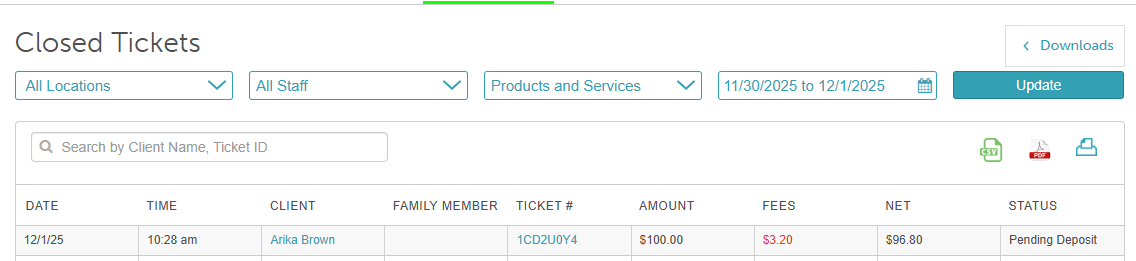
- Once the ticket opens, scroll to the bottom of the screen and click the "Refund" button

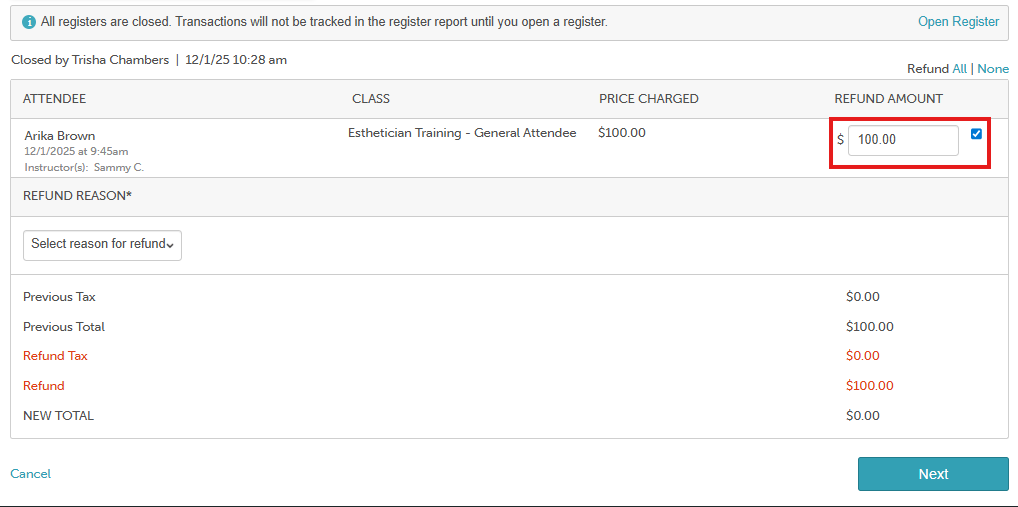
- Select the checkbox next to the class enrollment you want to refund
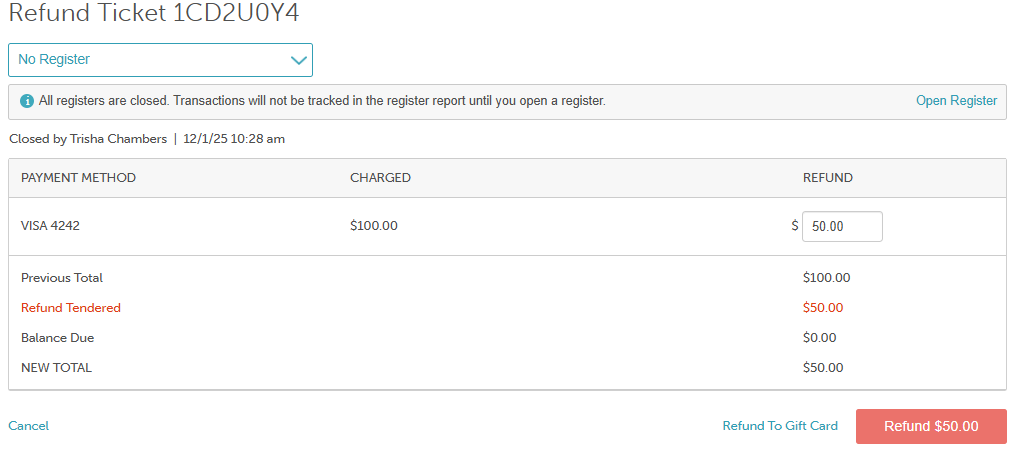
- By default, the system displays the full amount available for refund. To issue a partial refund, enter the amount you would like to refund
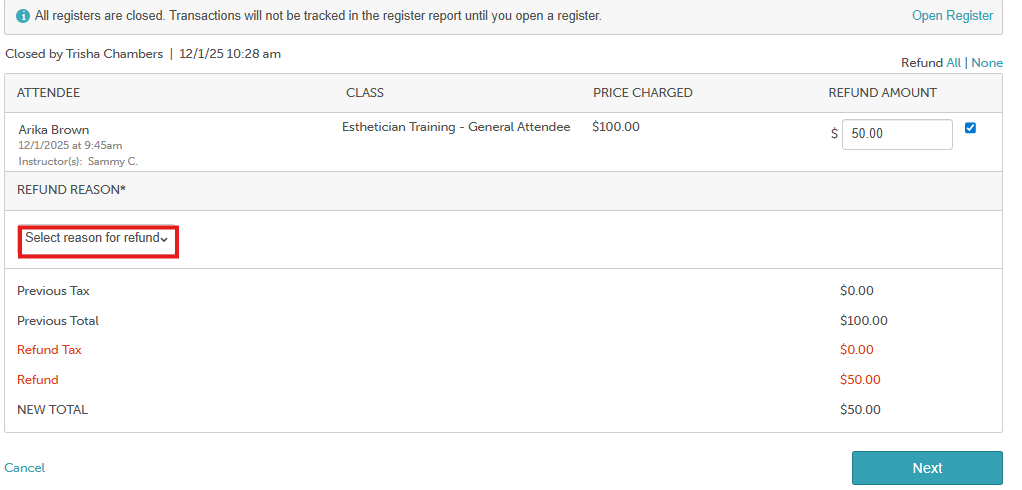
- If configured in your settings, select a refund reason
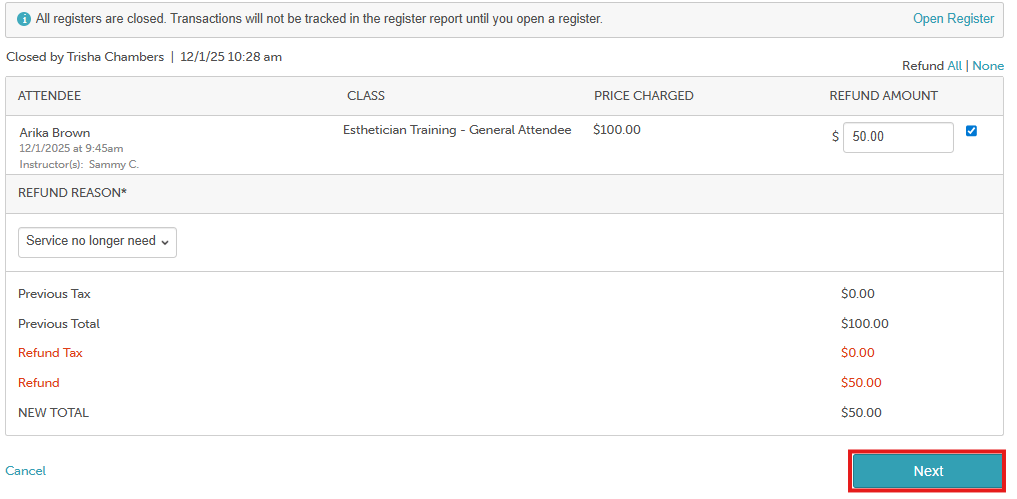
- Click the "Next" button
- Select the "Refund x amount" button to complete the refund
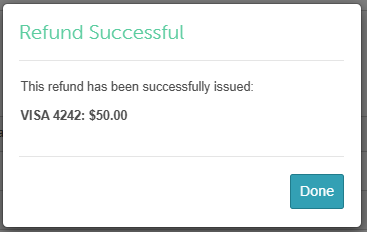
- Click "Done"
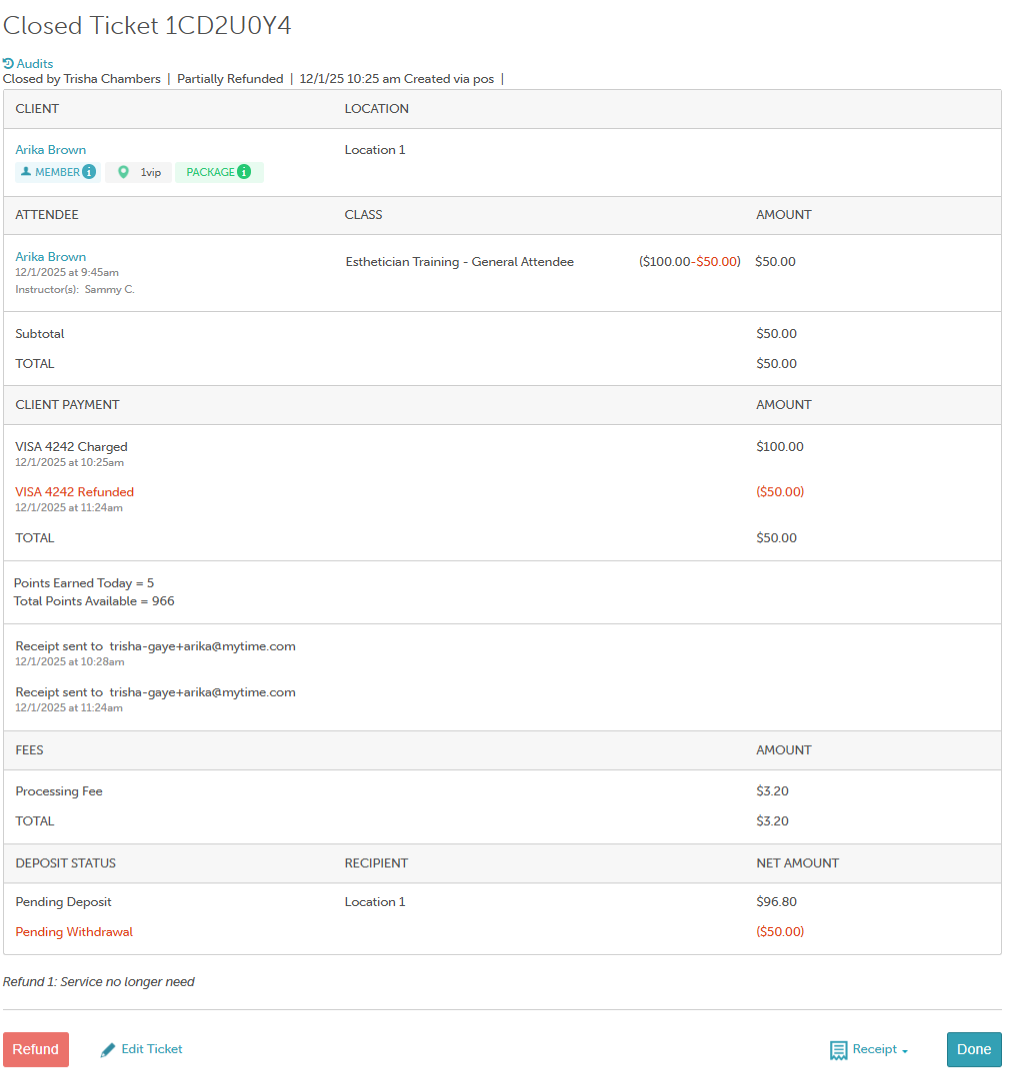
- You will then be directed to view the ticket with the refund details
For more information, contact us at support@mytime.com or (385) 233-6964.
Related Articles:
Canceling Class Sessions/Events
Canceling Classes on Scheduler App
Canceling Classes/Events via the Guest App
Was this article helpful?
That’s Great!
Thank you for your feedback
Sorry! We couldn't be helpful
Thank you for your feedback
Feedback sent
We appreciate your effort and will try to fix the article