At MyTime, you have the flexibility to create additional messages that are unique from the original automated message templates. You can easily rearrange messages in the sequence using drag-and-drop, as well as edit or delete them whenever you wish. This flexibility helps you personalize your communication, boost client engagement, and deliver timely, relevant messages throughout the customer experience.
Things to know:
- The ability to customize, rearrange, edit, and delete automated messages in a sequence is controlled by a hidden setting that must be enabled by the MyTime team, along with the "Accessing Automated Messages" access control setting.
- You can filter templates by category directly from the main page. Select a single category, such as Booking Notifications, or select multiple categories at once to narrow down your view and find exactly what you need without scrolling through the full list.
- You can rearrange, edit, or delete templates for the following automated message types:
- Post-Appointment Messages
- Pre-Appointment Messages for Booked Appointments
- Class Confirmations
- Appointment Confirmations
- Expiration Reminders
- Package Upcoming Expiration Reminders
- Changing the order only affects how messages appear in the list, it does not change their scheduled delivery time. Example:
- Template A is set to send immediately after an appointment
- Template B is set to send one hour later
- Even if you move Template B above Template A in the list, Template A will still be sent first because its trigger is immediate
- You can delete a message either directly from its template or from the overall list of notifications within the sequence
Contents
- Customizing New Automated Messages in a Sequence
- Rearranging Automated Messages in a Sequence
- Deleting Automated Messages in a Sequence
Customizing New Automated Messages in a Sequence
Once the hidden setting has been enabled, you can add customized messages to any supported sequence.
- Go to Marketing > Automated Messages
- Locate the template you want to update
- Click the arrow next to the template name to expand the list of notifications
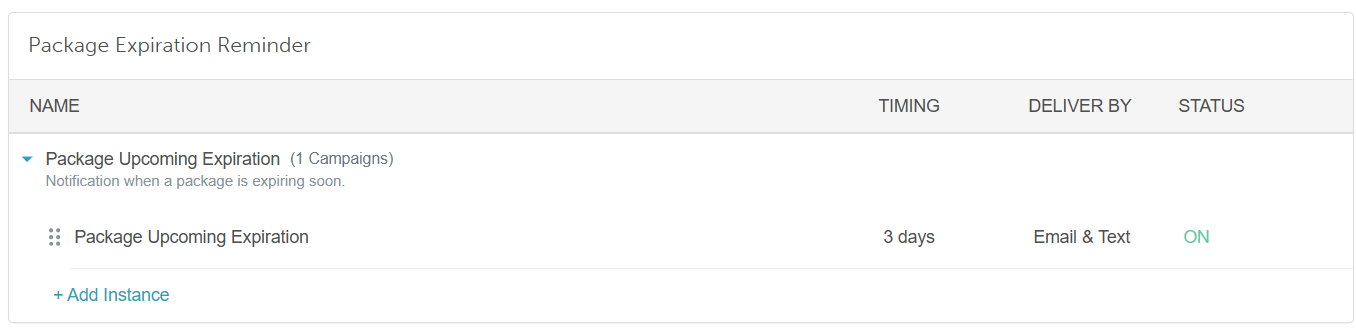
- Click + Add Instance
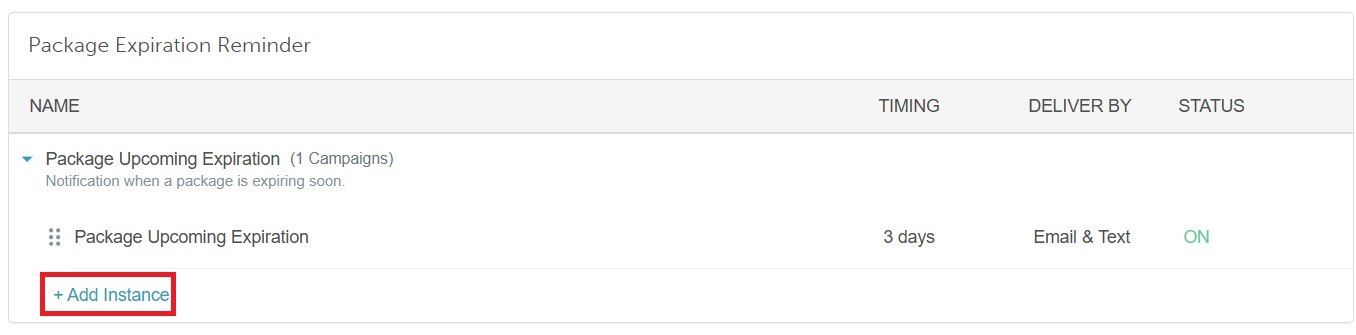
- Customize the new message template. Learn more here
- Click Save to apply your changes
Rearranging Automated Messages in a Sequence
You can change the display order of messages within a sequence using drag-and-drop.
- Go to Marketing > Automated Messages
- Find the template you want to update
- Expand the sequence by clicking the arrow next to the template name

- Click and hold the drag handle next to the message
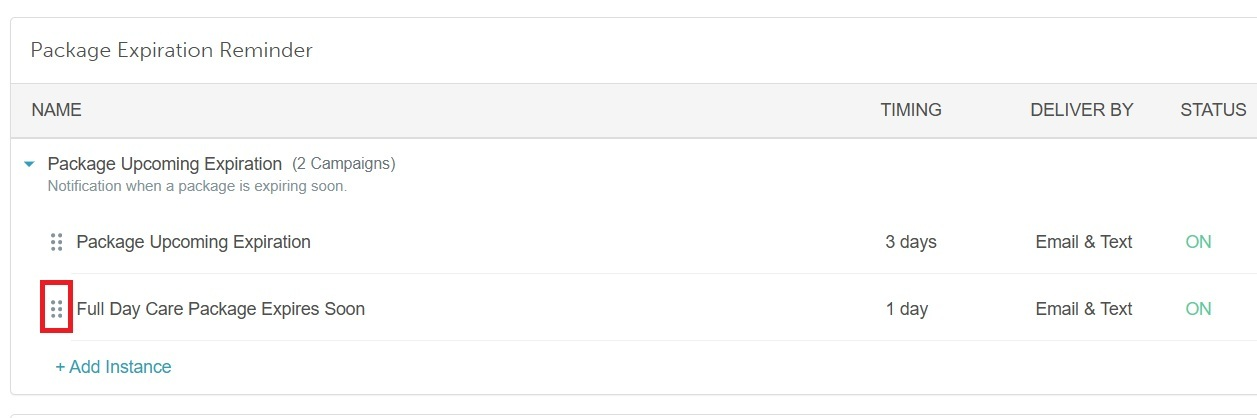
- Drag the message to the desired position
Note: Rearranging messages does not change their scheduled timing.
Deleting Automated Messages in a Sequence
You can remove any custom or existing message from the sequence.
- Go to Marketing > Automated Messages
- Locate the desired template
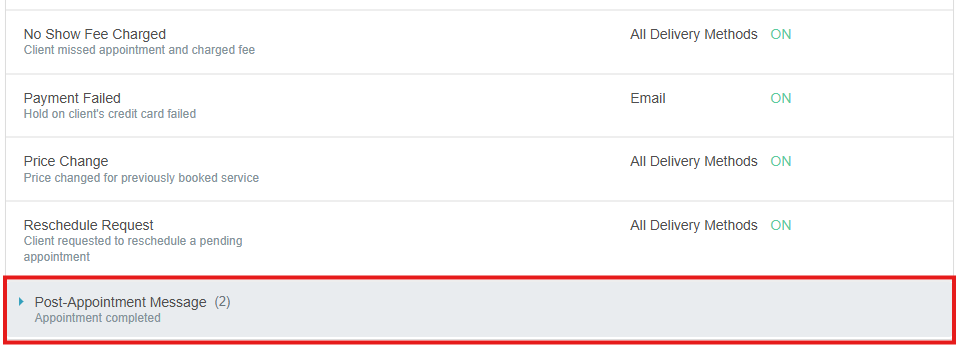
- Expand the sequence by clicking the arrow next to the template name
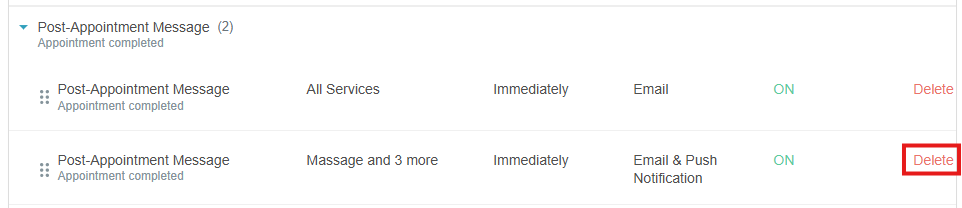
- Click "Delete" on the message you want to remove
Related Articles:
Configure Pre-Appointment/Pre-Class Reminder Notifications
Automated Drip Campaign For Rebooking Reminders
Configure Appointment Review Notification
Configure Expiration Reminder Notifications
Configure Package Expiration Reminder Notifications
Configure Package Notifications
Was this article helpful?
That’s Great!
Thank you for your feedback
Sorry! We couldn't be helpful
Thank you for your feedback
Feedback sent
We appreciate your effort and will try to fix the article