The Auto Generate by AI Forecast Based on Consumption for a Date Range feature enables the system to predict the required quantity for each SKU based on factors such as seasonality, business trends, and SKU popularity, and then generates a draft purchase order for your review.
Things to know:
- The ability to auto-generate purchase orders is governed by the Manage Purchase Orders access control setting
- The Purchase Orders page relies directly on vendor data to load properly. Consequently, access to Purchase Orders depends on having vendor visibility enabled for that staff role.
- Granting a staff role View, Receive, or Manage access to Purchase Orders requires that role to also have at least View or Manage access to Vendors.
- Location permissions must match. Assigning Purchase Order access to All Locations or Their Location(s) requires Vendor access to be set to View or Manage for those exact same locations.
- To perform specific actions on a draft Purchase Order (PO), the following permissions are required:
- Create, edit, or delete drafts: Requires Manage Purchase Orders
- Edit item costs: Requires Manage Purchase Orders and Edit Inventory Costs
- Edit order quantities: Requires Manage Purchase Orders and Edit Inventory Quantity
- View costs (read-only): Requires View Inventory Costs
- When staff members are granted permission to manage purchase orders “At Their Locations” but not “All Locations,” their access is limited to their assigned location(s).
- Staff can create, cancel, check in, and complete purchase orders only for their assigned location.
- If they open a purchase order associated with a different location, they will have view-only access and cannot make any changes.
- To manage purchase orders across all locations, the “All Locations” permission must be enabled.
- Visibility of the Auto Generate by AI Forecast Based on Consumption for a Date Range option is controlled by a hidden setting that must be enabled by the MyTime team. To enable it, contact support@mytime.com.
- When selecting Auto Generate by AI Forecast Based on Consumption for a Date Range, the system suggests a default start date (current date) and end date. You can adjust these dates, but the start date must be on or before the end date; otherwise, the Auto Generate button will be disabled.
- Minimum Order Quantity (MOQ) logic:
- If the forecasted quantity is below the MOQ, the system rounds up to meet the MOQ.
- If it exceeds the MOQ, the system uses the forecasted value as-is.
- Forecast-based quantities are rounded up to the nearest multiple of the SKU’s MOQ without exceeding the max limit. Example: MOQ = 5, Min = 10, Max = 30, Current Stock = 12 → the system generates 15.
- When Auto Generating by AI Forecast Based on Consumption for a Date Range, the system also includes products generated by Max. For example, if Max adds 10 SKUs and Forecast adds 2, all 12 SKUs will appear in the PO.
- Understanding Purchase Order Quantity Icons
- When Auto Generating by AI Forecast Based on Consumption for a Date Range or replenishment needs, you may notice an information icon next to the Quantity Ordered field. This icon indicates that the system has prioritized your "Max" stock level over the "Forecast" amount. Hover over the icon to see which of the following reasons applies to that item:
- Forecast Limit Exceeded: The calculated forecast exceeds your defined maximum limit. Note: You can adjust this limit in your Business Settings.
- Sufficient Stock or Zero Forecast: The system calculated zero predicted consumption for this SKU, or your current available stock is already sufficient to cover the predicted demand.
- Insufficient Historical Data: There is not enough historical sales or usage data available to generate a reliable forecast for this specific item.
- SKU Excluded from Report: This SKU was omitted from the replenishment report. This typically occurs due to an unconfigured forecast period or a complete lack of historical data.
- An icon next to Quantity Ordered indicates how the value was added:
- Blue: Manually entered
- Orange: Auto-generated by Max
- Grey: Auto generated by AI Forecast Based on Consumption for a Date Range
- Hovering shows a tooltip with the source. If a generated quantity is edited, the icon updates to manual. Reverting restores the original icon.
- Product Forecasting & Consumption Tools
- Next to each product, you will find icons designed to help you predict and review inventory demand.
- Product Forecast Chart
- The Forecast Chart icon allows you to visualize future inventory needs. If the SKU was generated by Auto Generate by AI Forecast Based on Consumption for a Date Range and contains sufficient data, clicking this icon opens a modal featuring:
- Training Data (Blue): A visual of your historical usage trends.
- Forecast Data (Orange): The predicted future demand for the product.
- Interactive Controls: You can zoom, pan, and toggle views by Day, Week, or Month. The chart also utilizes gap smoothing for clearer trends and a product dropdown for quick SKU comparisons.
- Note: The icon will appear next to all products, but forecast data will only display for SKUs with active forecasting data.
- Consumption History Icon
- A separate icon provides a snapshot of actual usage over the past 30, 60, and 90 days. This view includes periods of zero usage, ensuring staff can accurately review demand trends and distinguish between low demand and out-of-stock scenarios.
- For each item in the draft PO, the system displays the Quantity on Hand and Max value. By default, forecasted quantities are not capped. Enabling the Limit Purchase Order Forecasting by Max setting ensures forecasted amounts never exceed the SKU’s max.
- When saving a draft purchase order, a confirmation pop-up will appear displaying the save status and purchase order number.
- Additional hidden settings can be enabled to control forecast eligibility and performance:
- Inventory Forecast Eligibility Period (Days): Defines how far back to look (e.g., 90 days).
- Minimum Number of Forecastable Days: The SKU must show usage on at least this many days within the eligibility window.
- Historical Data Requirement: At least 3 months of data is required; up to 1 year is used when available.
- Maximum SKUs Forecasted in One Request: A performance limit can restrict how many SKUs are forecasted at once. Actual SKUs included may be fewer if some have zero forecasted demand.
- Products with a maximum forecast value of zero are excluded from the forecast limit calculation during Auto Generate by AI Forecast Based on Consumption for a Date Range. This ensures that products without forecasted demand do not reduce the number of other products that can be included in the forecast.
- When auto-generating purchase orders via AI forecasting, quantities are displayed as whole numbers by default. Decimal quantities are only shown when the "Enable Fractional Quantities" setting is turned on.
Contents
- Auto-Generate Purchase Order by AI Forecast Based on Consumption for a Date Range
- Auto-Generate Purchase Order by AI Forecast Based on Replenishment Settings
Auto-Generate Purchase Order by AI Forecast Based on Consumption for a Date Range
- Navigate to POS > Inventory
- Select Purchase Orders from the left panel
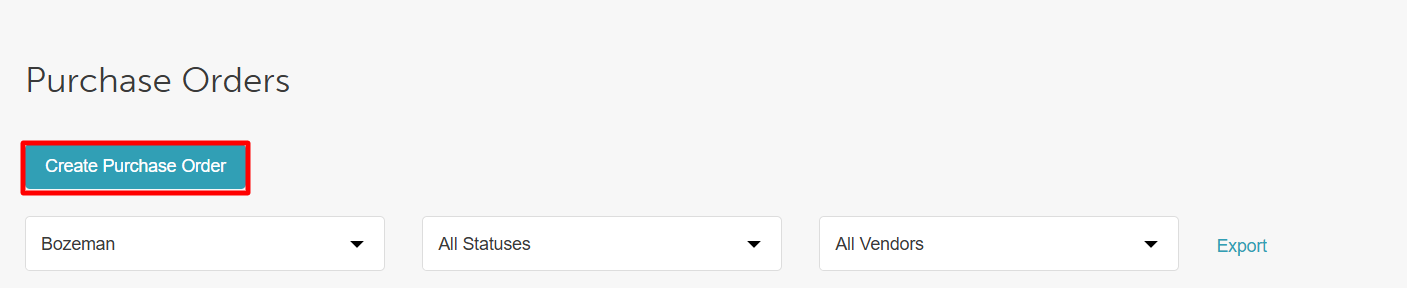
- Click the Create Purchase Order button in the upper right corner
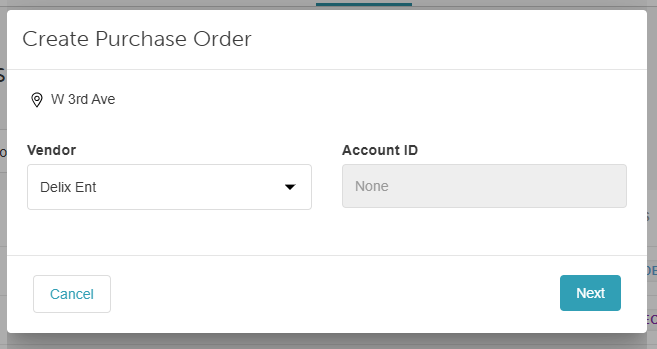
- Choose a supplier from the Vendor list then select "Next"
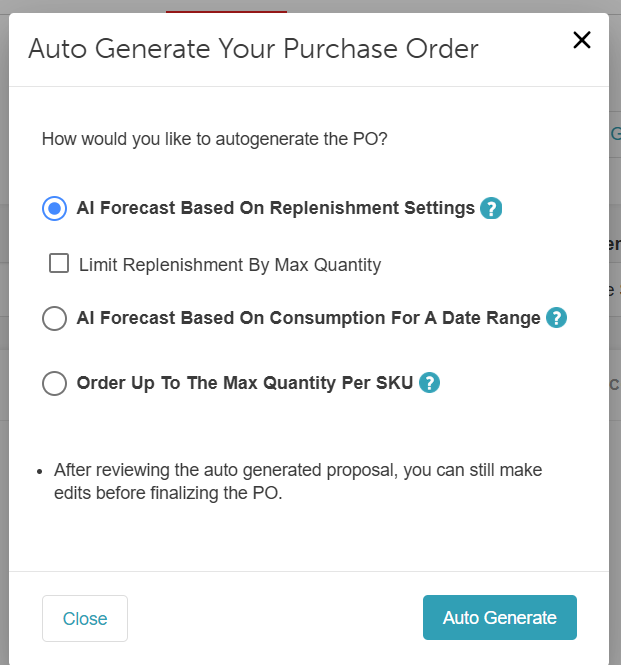
- Add products to your purchase order using the "Auto Generate" button
- Select the "AI Forecast Based on Consumption for a Date Range" option
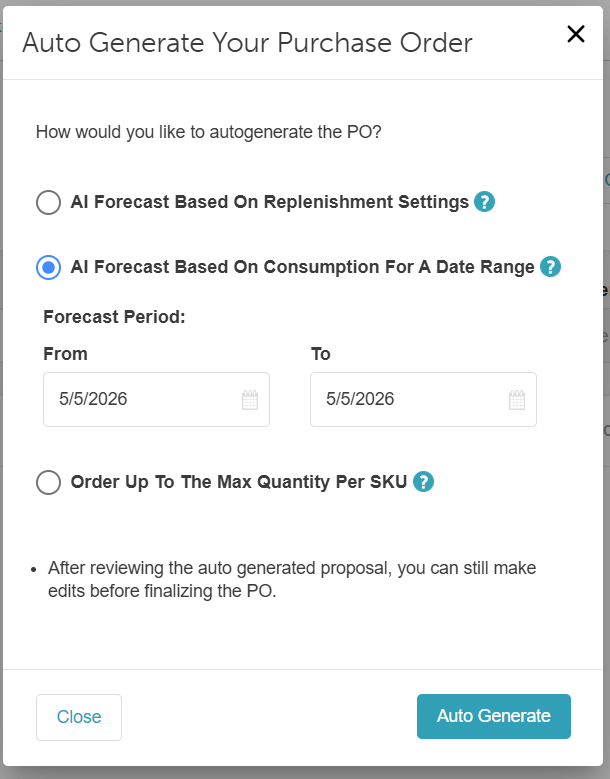
- Select a start date and an end date
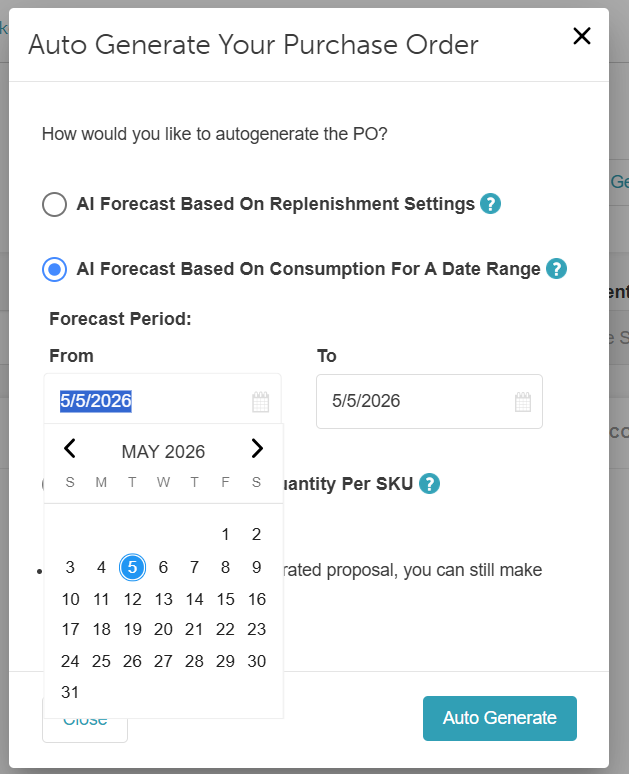
- Click on the "Auto Generate" button
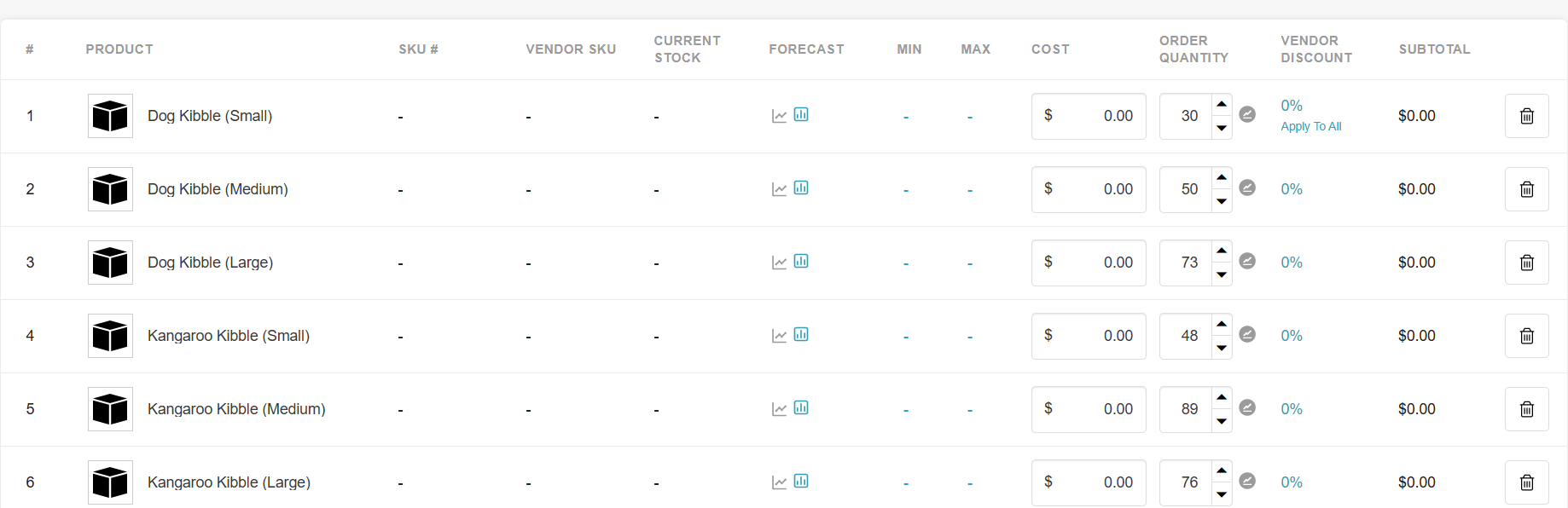
- Next to each generated product is a chart and a forecast icon; clicking the forecast icon opens a modal displaying its historical consumption over the past 30, 60, and 90 days, even if there was no usage during those periods. For products created using Auto Generate by AI Forecast Based on Consumption for a Date Range, clicking the chart shows both past usage and predicted demand for more accurate planning.
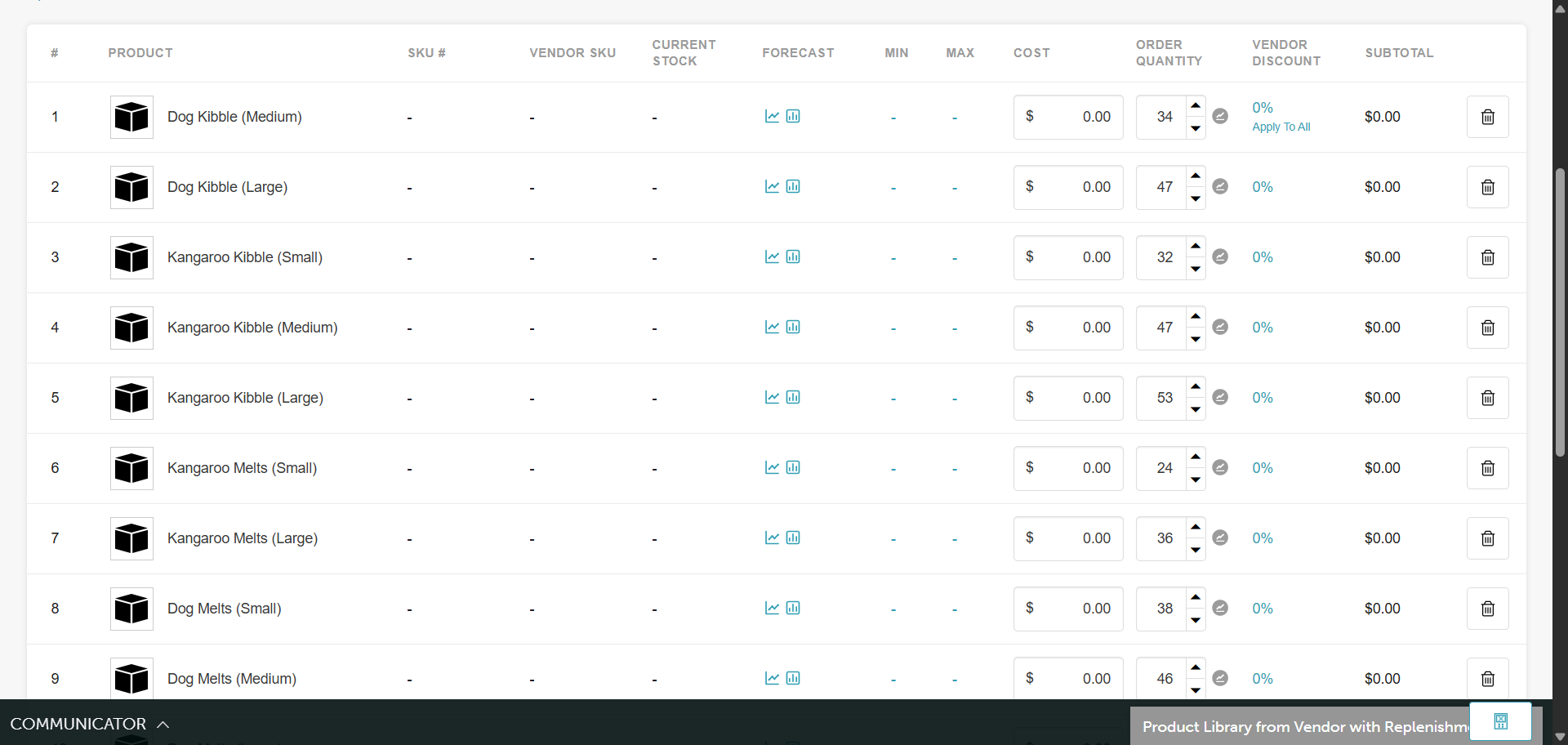
- The generated products will also be displayed with their quantity on hand, maximum quantity, cost, ordered quantity, and subtotal
- Once the products generated are acceptable, click the 'Submit Purchase Order' button at the top right-hand corner
- The purchase order will be created and display the full information of the order
Auto-Generate Purchase Order by AI Forecast Based on Replenishment Settings
Inventory replenishment is the process of restocking items to maintain ideal inventory levels. By using Auto-Generate Purchase Order by AI Forecast Based on Replenishment Settings, historical sales data is analyzed to predict future demand, determining exactly when and how much you should reorder.
Things to Know
- Two hidden settings must be activated before use. Please contact support@MyTime.com to enable them.
- Access is governed by the "Manage Purchase Orders," "Accessing Account Settings," and "Manage Inventory Vendors" access control settings.
- To calculate order quantities accurately, you must configure the following two settings:
- Vendor Lead Time: Set within the Vendor Profile for each location. This represents the number of days it takes for a vendor to deliver products after an order is placed.
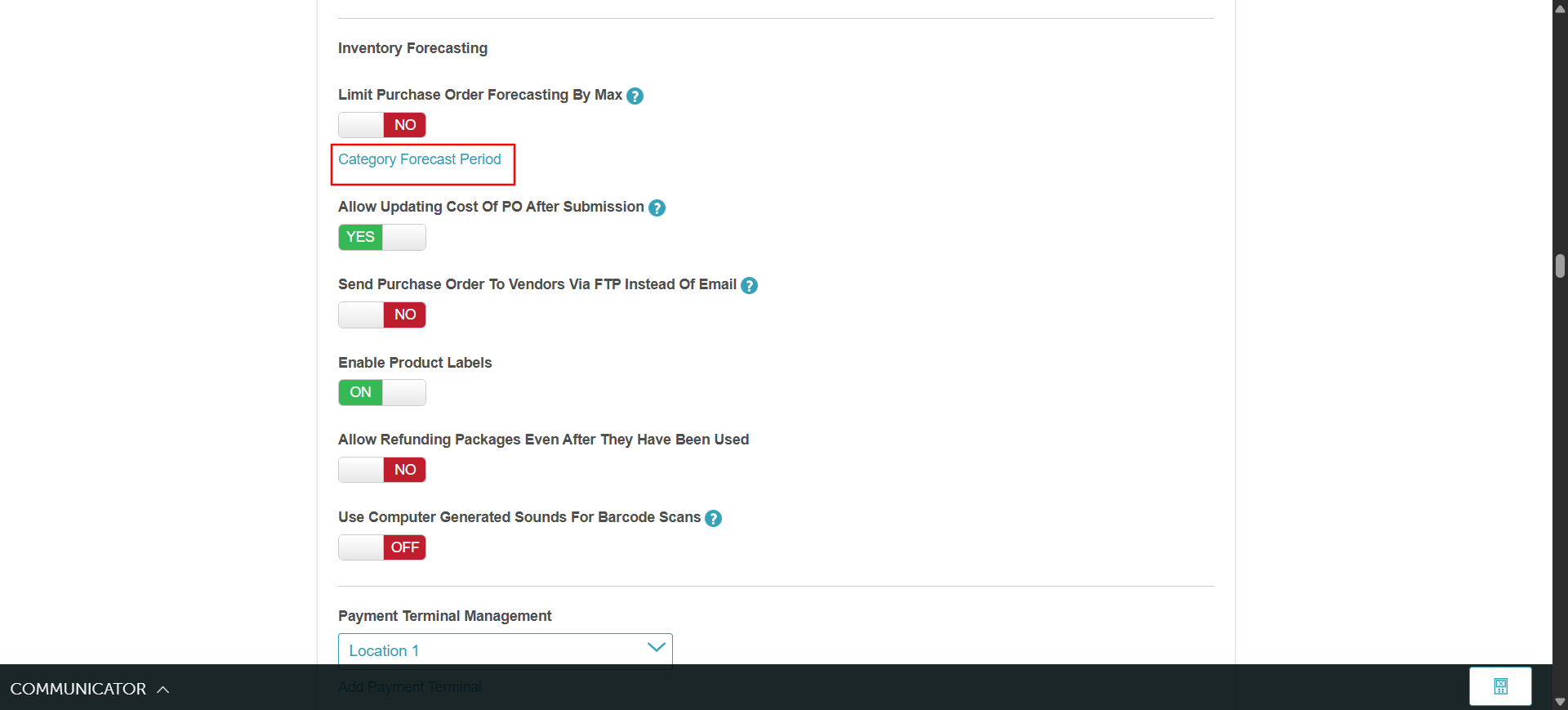
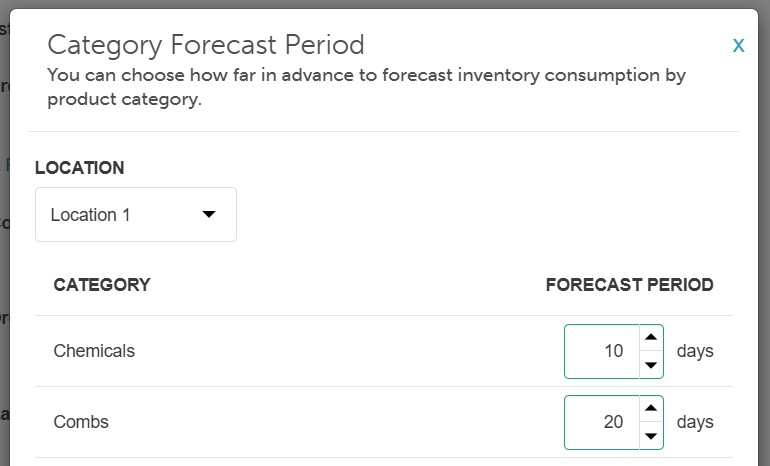
- Category Forecast Period: Set under Business Setup > Settings by selecting the Category Forecast Period hyperlink. This defines how many days of stock you want to have on hand and can be configured per product category and location.
- Sufficient historical sales data is required to generate an accurate forecast. If the Forecast Period is set to zero, forecasts will not be generated for that category.
- Updating the vendor lead time or forecast period will trigger a re-forecast:
- Vendor Lead Time: Changing the vendor lead time for a specific location will re-forecast replenishments for that location only.
- Category Forecast Period: Changing a category's forecast period for a location will re-forecast replenishments for all locations and all vendors.
- A daily forecast runs for all locations, with results visible in the Inventory Replenishments report:
- Forecasted Reorder Point: The predicted number of items needed to cover the lead time (the gap between ordering and delivery).
- Forecasted Consumption: The predicted number of items needed for your forecast period (how long you want the stock to last).
- Historical Data (30/60/90 days): Shows past consumption for reference only and does not affect future forecasts.
- Replenishment data updates once per day. Please keep the following in mind:
- If you change a forecast period for a product category, the Inventory Replenishment report will not reflect those changes until the following day.
- Once an order is created, those items are removed from the Auto-Generate Purchase Order list and cannot be acted on until new data is generated in the Inventory Replenishment report the following day.
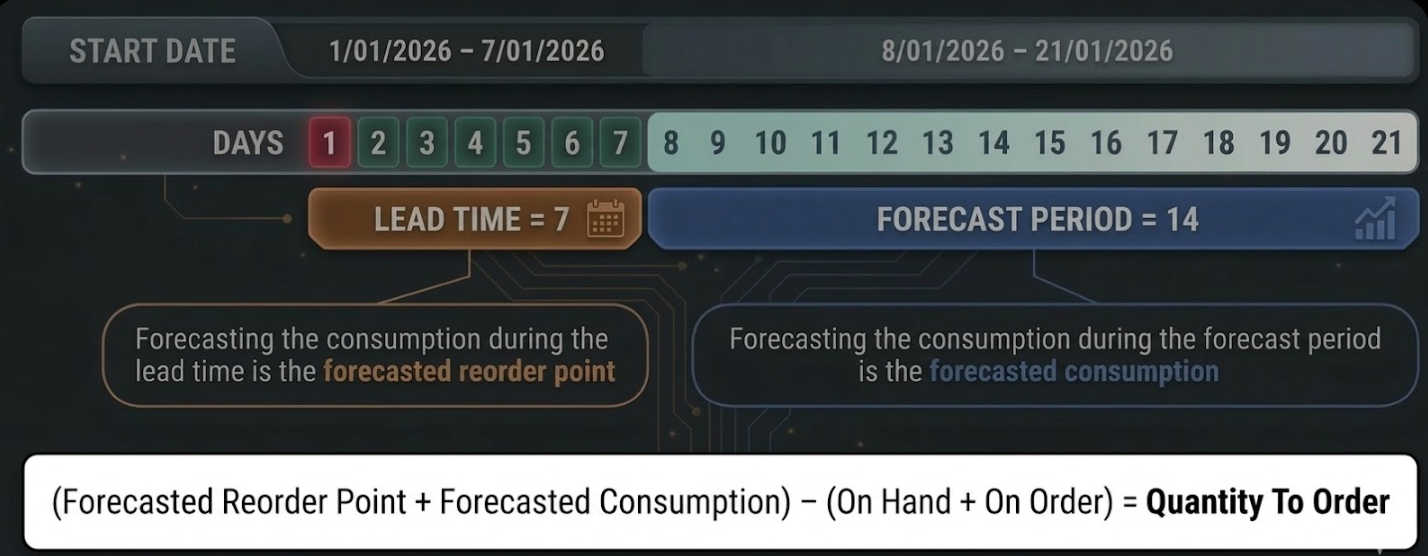
- When selecting AI Forecast Based on Replenishment Settings on a purchase order, the following formula is used to determine order quantity: (Forecasted Reorder Point + Forecasted Consumption) − (Quantity On Hand + Quantity On Order)
- Products are only added to the PO if the calculated order amount is greater than zero.
- If a product has a Minimum Order Quantity, it will be applied to the final result.
- When a purchase order is auto-generated, SKUs that either lack forecast data or have a "Rejected Forecast" status will be included, as long as current stock is below the Minimum (MIN) level. These items will be replenished up to their Maximum (MAX) level to ensure stock remains consistently available and help prevent shortages.
- When a replenishment-based purchase order is submitted, that PO number is assigned to the vendor and location in the Inventory Replenishments report — even for products not included in that specific order. Once a PO number is assigned, those records are locked and will no longer be used to generate future purchase orders.
Contents
- Configure Vendor Lead Time
- Configure Category Forecast Periods
- Auto-Generate Purchase Order by AI Forecast Based on Replenishment Settings
Configure Vendor Lead Time
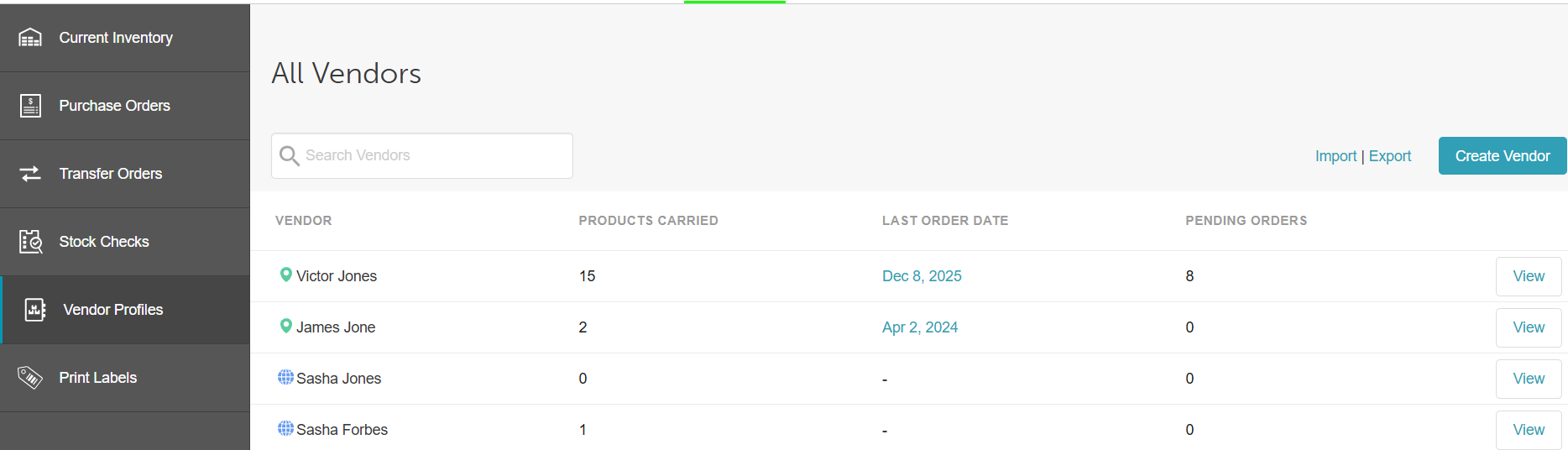
- Navigate to POS > Inventory and select Vendor Profiles
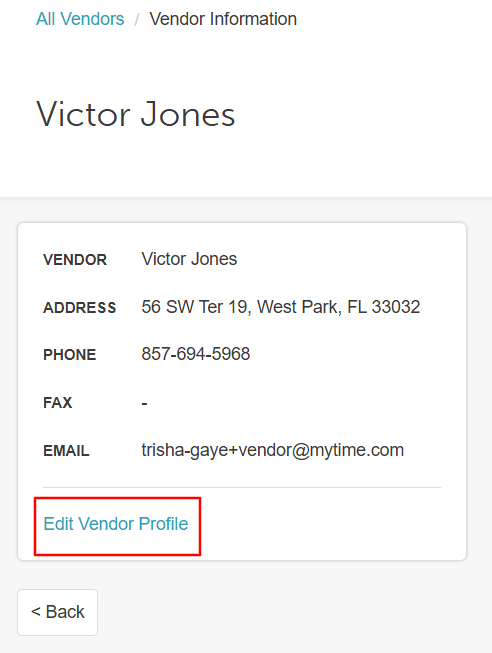
- Select a vendor and click Edit Vendor Profile
- Check the box for each applicable location
- In the Lead Time column, enter the number of days (up to 999) it takes to receive orders
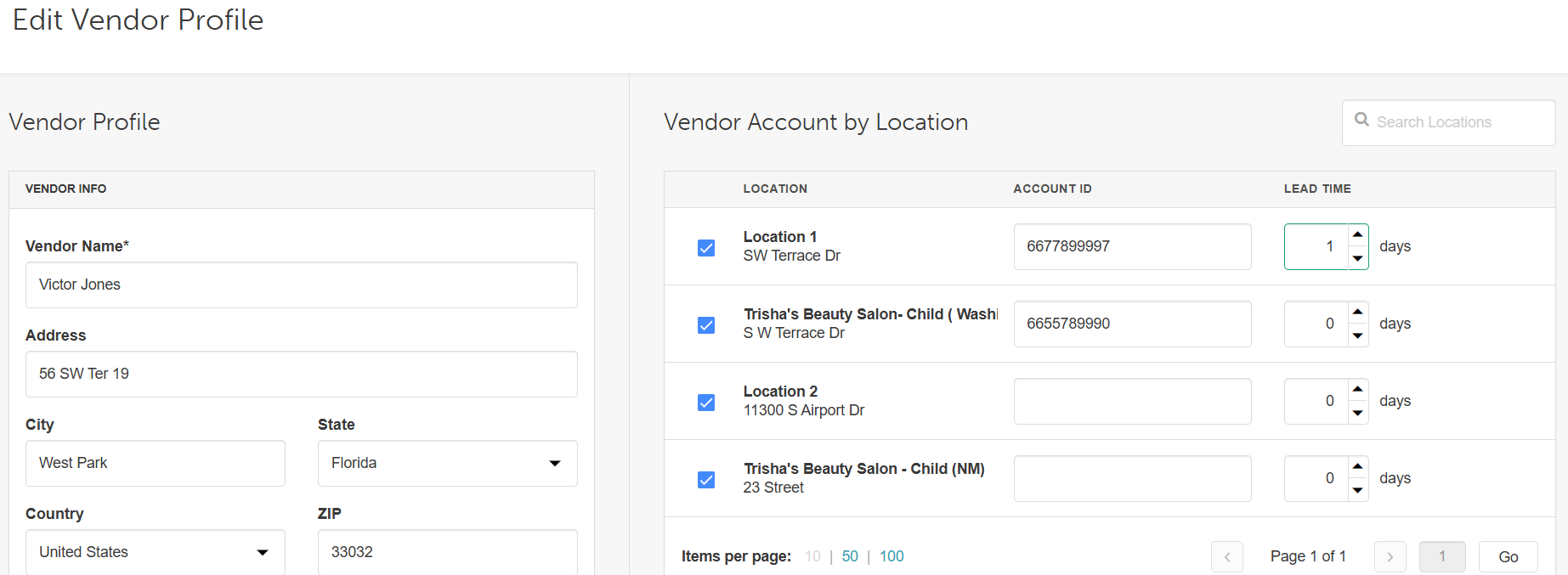
- Click Save
Configure Category Forecast Periods
Once the hidden settings are enabled:
- Navigate to Business Setup > Settings
- In the POS section, click the Category Forecast Period hyperlink
- Filter by Location
- Enter the desired number of days of stock for each category
- Click Save
Auto-Generate Purchase Order by AI Forecast Based on Replenishment Settings
- Navigate to POS > Inventory > Purchase Orders
- Click Create Purchase Order in the upper-right corner
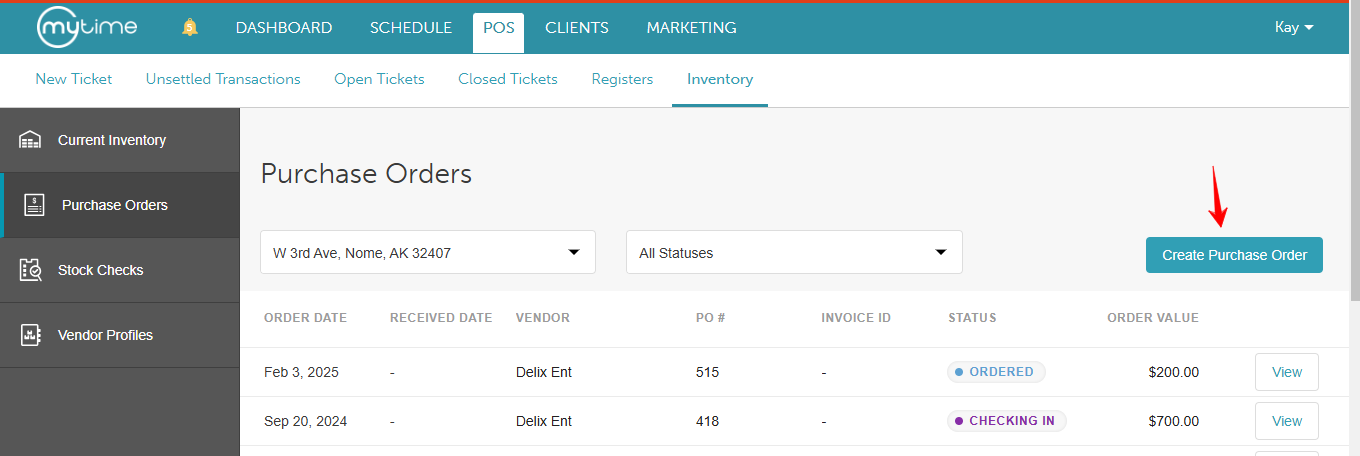
- Choose a vendor and click Next
- Click Auto Generate and select AI Forecast Based on Replenishment Settings
- Review each generated product:
- A forecast icon shows historical consumption (30/60/90 days)
- Clicking the chart displays past usage and predicted demand
- Products display quantity on hand, max quantity, cost, ordered quantity, and subtotal
- Once satisfied, click Submit Purchase Order
Scenario
- Lead Time: 7 days (the time it takes for the order to arrive)
- Forecast Period: 14 days (the period you are buying stock for)
How the dates are applied:
- Lead Time (Jan 1 – Jan 7): The Forecasted Reorder Point is calculated based on expected demand during this window, ensuring stock doesn't run out before the new shipment arrives.
- Forecast Period (Jan 8 – Jan 21): The Forecasted Consumption for these 14 days is calculated to determine how much stock is needed to last until the next ordering cycle.
If you have any questions, please contact our Support Team at support@mytime.com.
Related Articles:
Was this article helpful?
That’s Great!
Thank you for your feedback
Sorry! We couldn't be helpful
Thank you for your feedback
Feedback sent
We appreciate your effort and will try to fix the article