In this article, we will walk through the steps on how to mark staff members as preferred for clients on the scheduler app.
Things to know:
- The ability to mark a staff member as preferred on the client profile is controlled by the "Accessing Client Records" access control setting.
- On the Scheduler app, you can only add a preferred staff member to a client profile manually.
- Adding a preferred staff member to a client’s profile shows the client’s preferred provider but does not automatically assign that staff member to every appointment booked.
- If a client has a preferred staff member selected on their profile, the system will not automatically assign online bookings to that staff member. The client must explicitly select their preferred staff during the booking process. If no staff preference is selected, the booking will follow the round-robin assignment logic. Learn more about the round-robin mechanism here.
To mark a staff member as preferred on a client profile, simply:
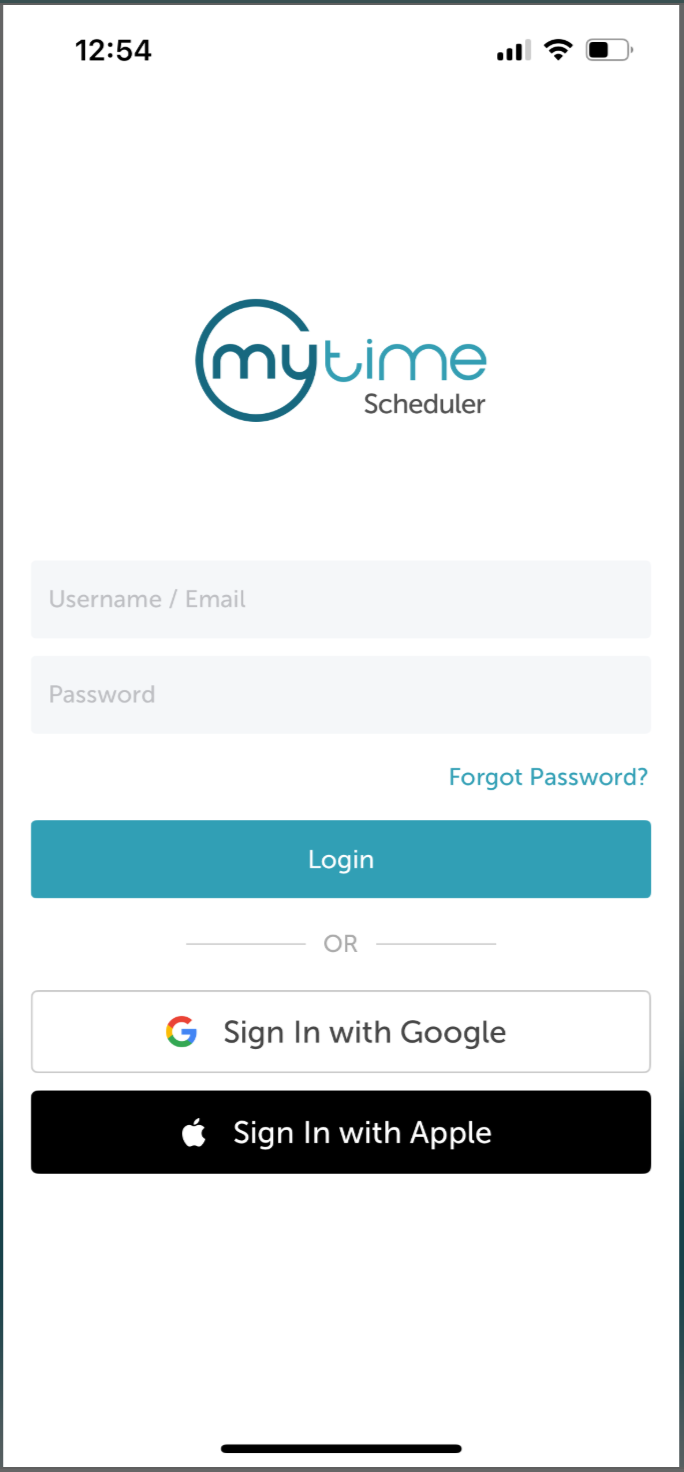
- Launch the MyTime Scheduler app on your device
- Choose your login method:
- Standard: Enter your registered email address and password, then tap 'Sign In'
- Social Login: Select 'Continue with Google' or 'Continue with Apple' to use your existing credentials for a faster login experience. For detailed instructions, learn more here
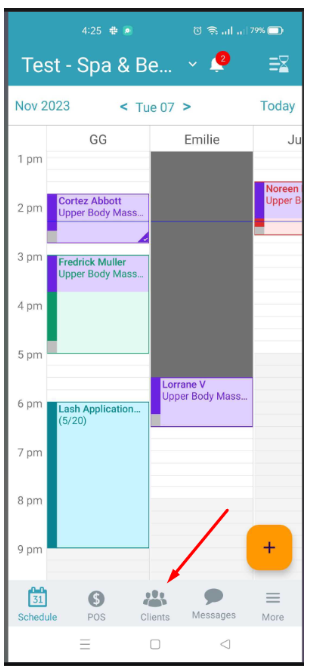
- Once signed in you will be directed to the schedule by default
- Select the clients icon at the bottom
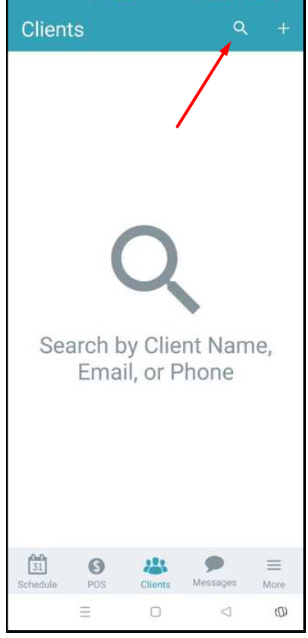
- Search and locate the client you wish to edit
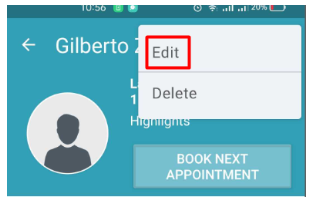
- On the client's profile, select the 3 dots at the top right-hand corner of the screen
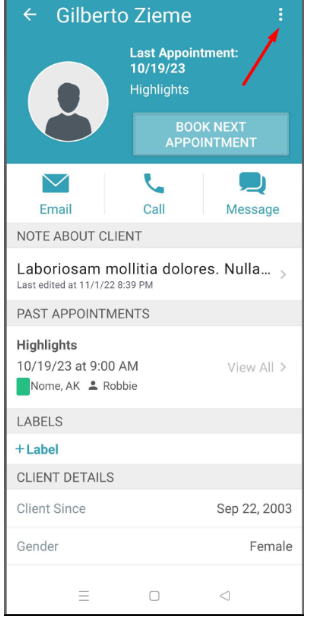
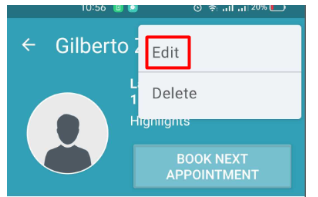
- The "Edit" and "Delete" options will be exposed, select Edit
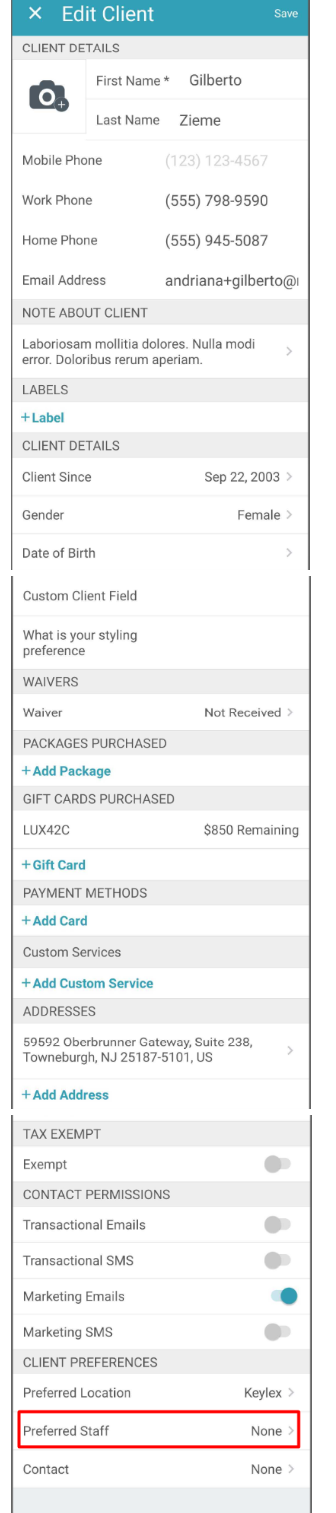
- On the Edit Client screen, scroll to the bottom to locate Preferred Staff in the Client Preference section. Tap to open
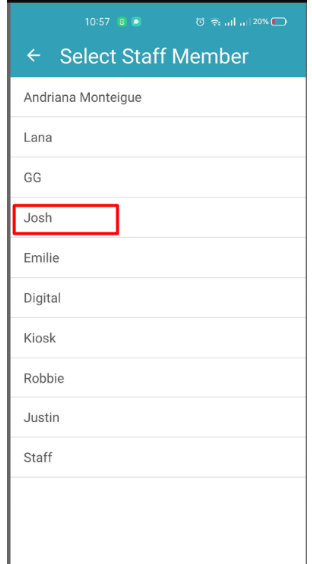
- Select preferred staff. In this example, we will select Josh
- The staff member's name will be updated on the Edit Client screen
- Save changes
You have successfully marked your staff member as preferred.
For more information, contact us at support@mytime.com.
Related Articles:
Installing MyTime on Scheduler App (Android and iOS)
Signing into MyTime on Scheduler App (Android and iOS)
Was this article helpful?
That’s Great!
Thank you for your feedback
Sorry! We couldn't be helpful
Thank you for your feedback
Feedback sent
We appreciate your effort and will try to fix the article