MyTime allows businesses to automatically lock their accounts after a period of inactivity, helping to protect sensitive data. You can set separate timeouts for the Scheduler web app and mobile app. If no value is entered for the mobile app, it will use the same auto-lock time set for the web app.
Things to know:
- This feature is controlled by the "Accessing Account Settings" access control setting
- The web and mobile app can have different timeout durations to meet your business needs
- If the "Auto-lock mobile app after" field is left blank, the system will default to the "Auto-lock web app after" value
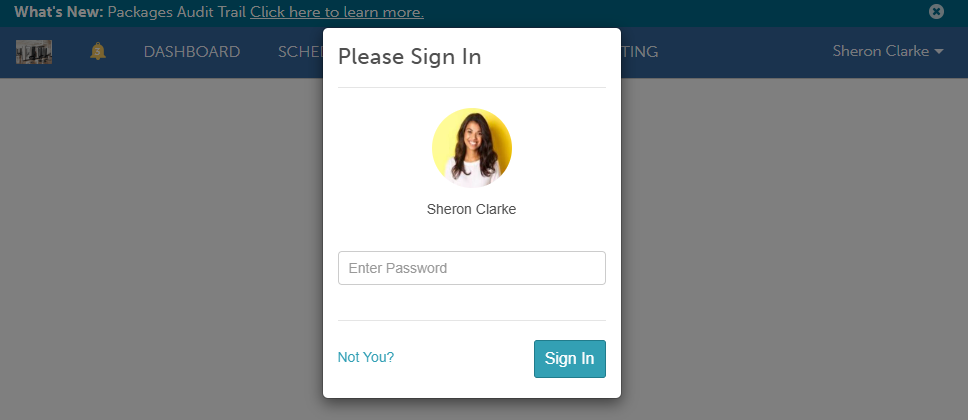
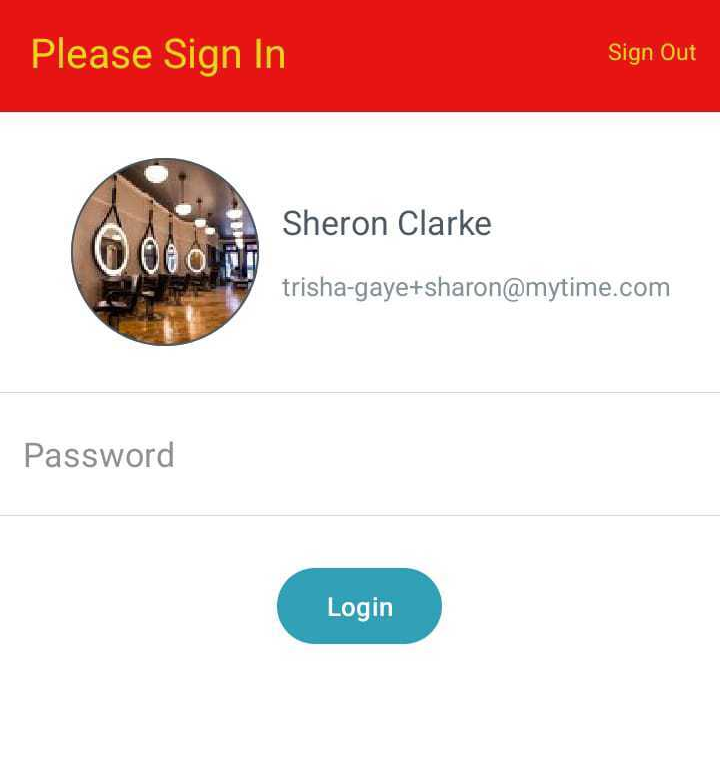
- Once locked, users must enter their password to resume their session
- Shorter durations are recommended for shared devices or high-traffic environments to prevent unauthorized access.
- Auto-lock via Inactivity (Web & Mobile)
- Once configured, the system enforces the timeout based on the seconds entered
- When the limit is reached, the account locks and a sign-in modal appears, prompting the user for their password to regain access
Auto-lock after POS Ticket is Closed
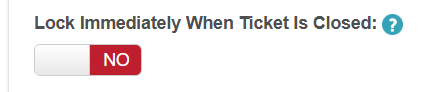
You can also enable your account to lock the screen immediately after a ticket is closed, requiring re-authentication before the next sale
When this specific setting is enabled, the system will immediately lock the session as soon as a staff member closes a ticket in the POS. A sign-in modal will appear, requiring the staff member to re-authenticate before starting the next sale
The setup option displayed in the top-right user menu depends on how you access the account and your assigned role:
When navigating from the Parent Account (Location Management tab):
Admin: Displays Business Setup when viewing the location account.
Login As: Displays Location Setup when viewing the location account.
When logged in directly at the Location Level:
Location Owners & Location Managers: Display Location Setup.
Service Providers & All Other Roles: Display Profile Setup.
To enable auto-lock:
- Go to Business Setup / Location Setup > Settings
- Under the Staff section, enter your desired inactivity time (in seconds) for:
- Auto-Lock Web App After
- Auto-Lock Mobile App After
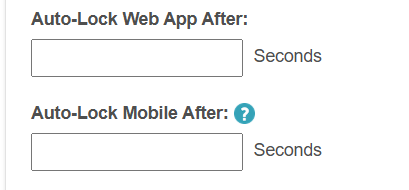
- Toggle "Lock Immediately When Ticket is Closed" to ON if you want the screen to lock the moment a POS transaction is finished
- Select Save
For more information, contact us at support@mytime.com or (385) 233-6964.
Related Articles:
Installing and Signing into MyTime Scheduler App (Android and iOS)
Was this article helpful?
That’s Great!
Thank you for your feedback
Sorry! We couldn't be helpful
Thank you for your feedback
Feedback sent
We appreciate your effort and will try to fix the article