This article outlines how to set up color configurations for your franchise accounts’ Dashboard and Scheduler App to ensure a consistent, on-brand experience across all platforms. It guides you through customizing navigation bars, footers, mobile layouts, and widget components so they align with your organization’s visual identity.
Things to know:
- For franchise businesses, these settings are available and managed exclusively at the parent account level.
- The selected color customizations apply only to the assigned child accounts and do not impact the parent account.
- Dashboard color settings enable you to tailor the color scheme across key interface elements, including the top navigation bar, the secondary navigation bar directly beneath it, the footer section, and the web mobile view. This ensures a consistent and branded visual experience across both desktop and mobile platforms.
- Mobile color settings allow you to customize the color scheme of navigation elements within the Scheduler app.
Contents:
Dashboard Color Settings
To configure color settings for the Dashboard:
Login as the parent account owner
Navigate to Business Setup > Settings
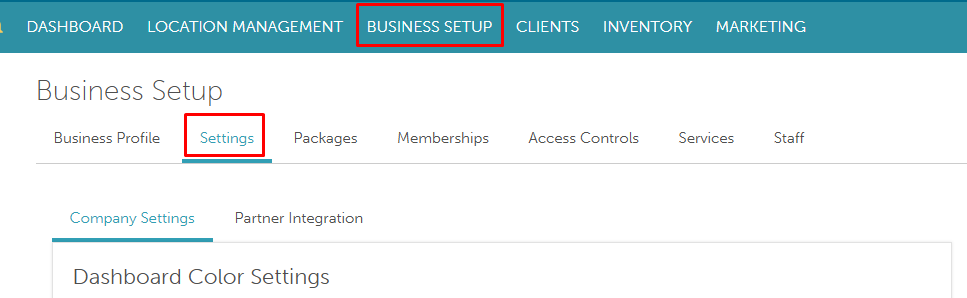
At the top of the page, locate the Dashboard Color Setting section
Customize the following options as needed:
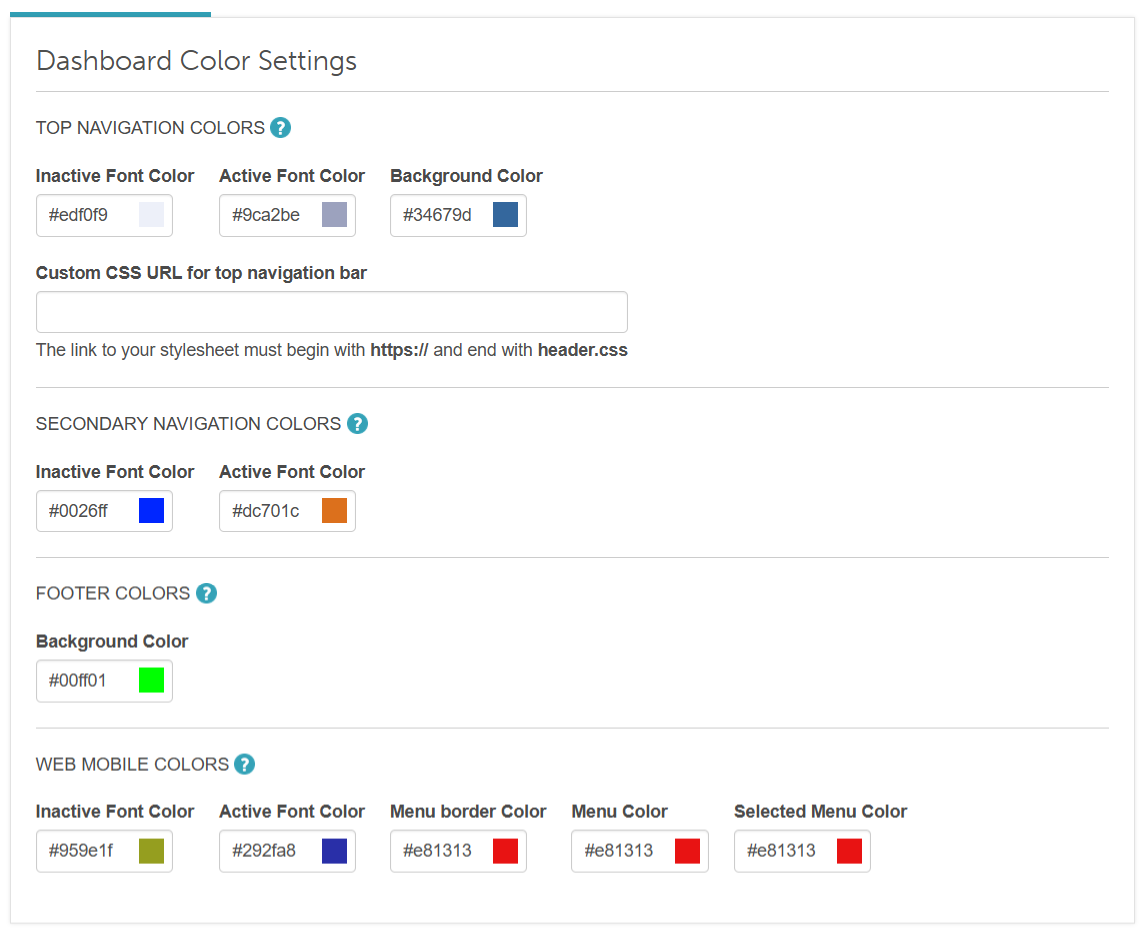
Top Navigation Colors: The color of the top navigation bar.
Inactive Font Color: Color for unselected tabs
Active Font Color: Color for selected tabs
Background Color: Background color of the top navigation bar

Secondary Navigation Colors: The color of the secondary navigation bar, located below the top navigation.
Inactive Font Color: Color for unselected tabs
Active Font Color: Color for selected tabs

Footer Colors: The color of the footer located at the bottom of the page
Background Color: Footer's background color

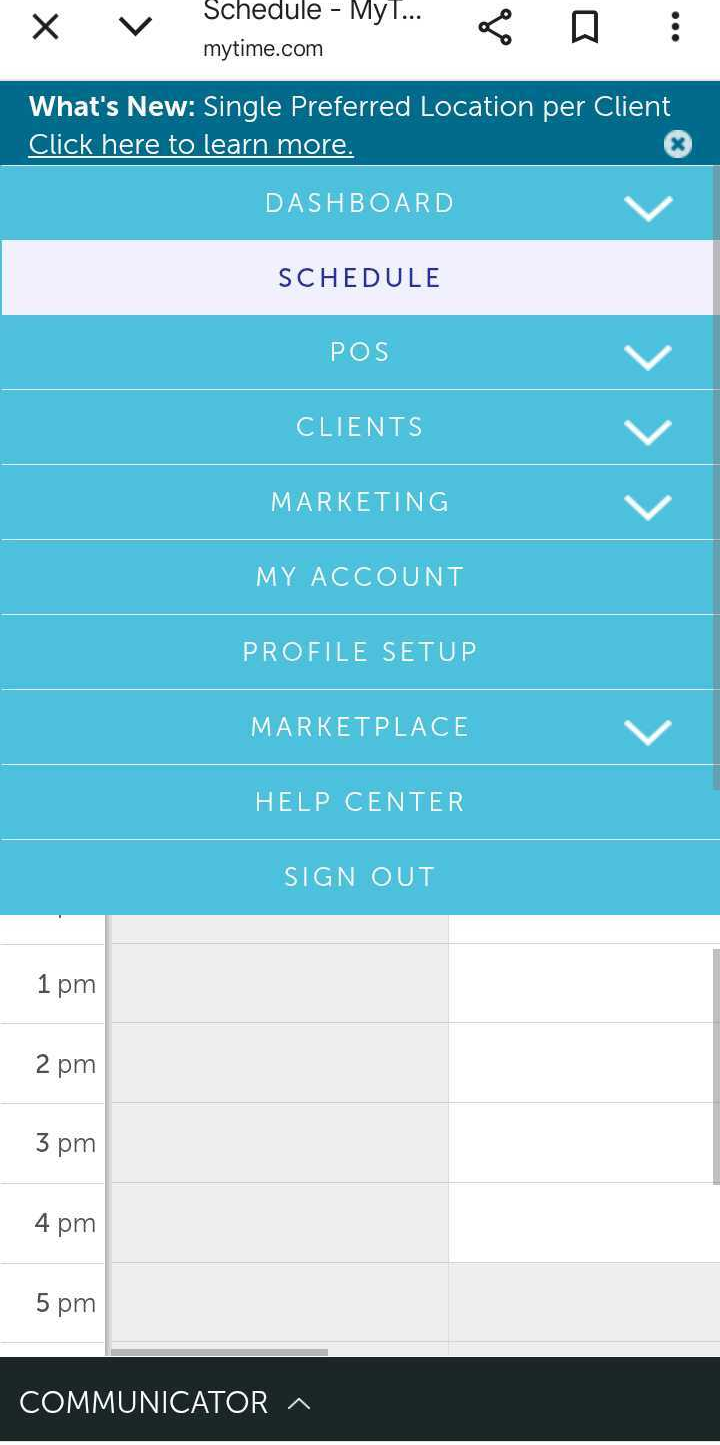
Web Mobile View Colors: The color scheme for the web mobile view
- Inactive Font Color: Color for unselected tabs
- Active Font Color: Color for selected tabs
Menu border Color: Border color around menu items
Menu Color: Color of the menu items
Selected Menu Color: Color of selected menu items
Scroll to the bottom of the page and click save.
Mobile App Color Settings
To configure color settings for the Scheduler app:
Navigate to Business Setup > Settings
Below the Dashboard Color Setting section, locate the Mobile App Color Setting section
Customize the following:
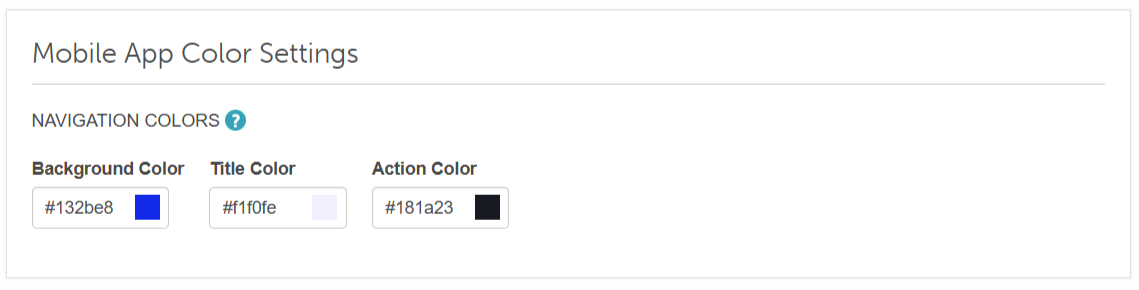
Background Color: App background color
Title Color: Title color within the Scheduler app
Action Color: Color of action buttons within the Scheduler App
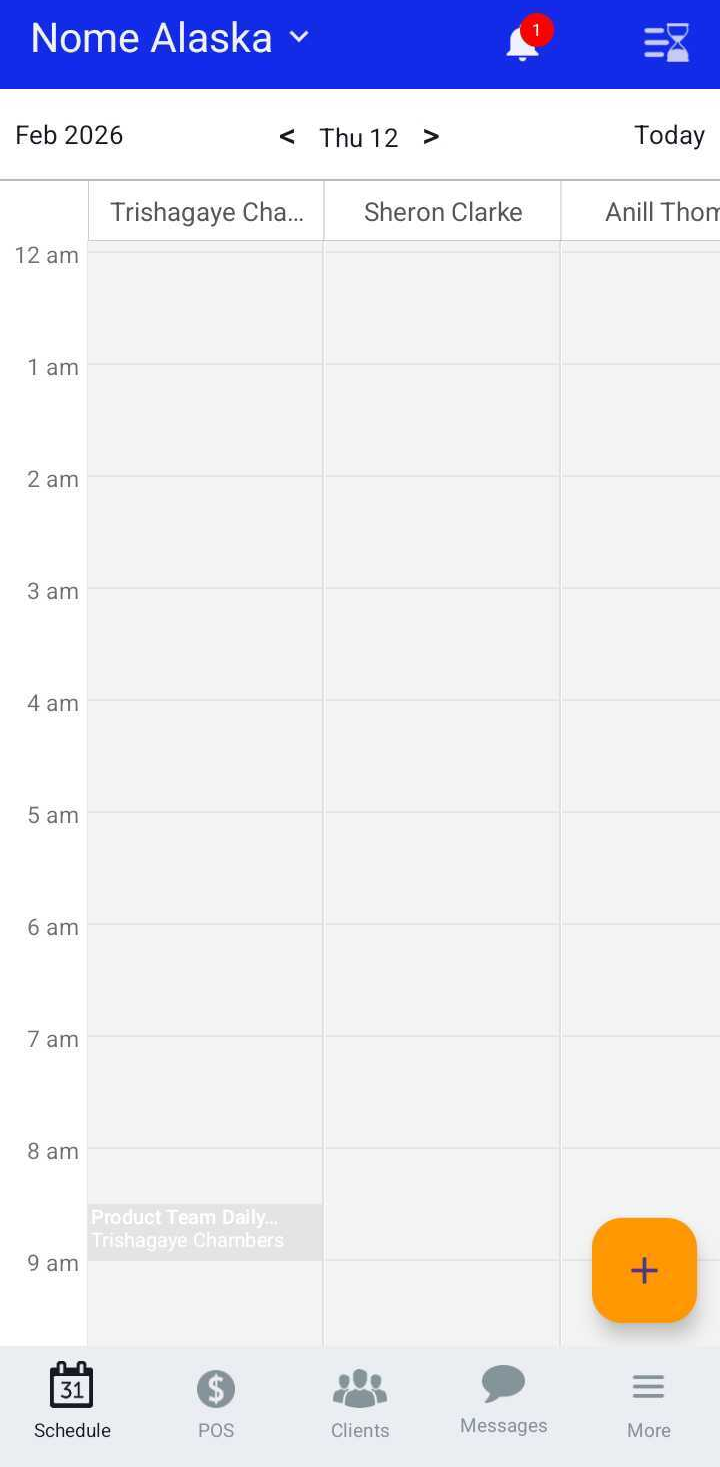
Save your changes
For more information, contact us at support@mytime.com or (385) 233-6964.
Related Articles:
Parent Account Settings That Impact Child Accounts
Installing and Signing into MyTime Scheduler App (Android and iOS)
Was this article helpful?
That’s Great!
Thank you for your feedback
Sorry! We couldn't be helpful
Thank you for your feedback
Feedback sent
We appreciate your effort and will try to fix the article