If you need some time after an appointment for cleanup or anything, you can add time to the end of each service, we call this buffer time. You can always add, remove, or change the duration of buffer time for a specific service right from your Service Menu.
Things to know:
- The ability to configure buffer time for services is governed by the "Assigning Service Durations" access control setting.
- Buffer time is only allowed at the end of the appointment
- Buffer times show as unavailable to clients booking online
- The appointment schedule will show the full length of the appointment (including the buffer time). The buffer time will be marked in grey.
- Buffer times can be assigned resources on the service menu. The buffer time will be displayed under the resource for that specific appointment on the schedule once it has been assigned.
- Appointments with multiple services and a buffer time for the final service may end up lasting longer than needed. However, you can opt to disregard the final buffer time. This option is controlled by a hidden setting. For assistance, please contact our Support Team at support@mytime.com.
- For franchise businesses, the buffer time for global services can only be configured at the parent level. It cannot be modified at the child level.
- The Online Booking Widget automatically protects staff buffer time to prevent double-bookings, even for couples services or appointments that involve multiple staff members.
- Each staff member gets their own buffer blocked on their schedule immediately after their last completed service. For multi-staff appointments, the appointment modal displays these as separate buffer times for each person instead of a single combined buffer at the end of the entire booking.
- If a staff member performs multiple services within a single booking, their buffer blocks for the maximum buffer time among those services (for example, a 15-minute and a 30-minute service buffer results in a single 30-minute buffer). This rule applies even if their final service has no buffer of its own.
- A staff member’s buffer only blocks their own individual schedule. It never pushes back another staff member’s start time or delays the client's overall appointment time.
- A shared couples or group booking uses one shared buffer sized to the longest buffer time among the assigned staff, blocking both schedules simultaneously. If one staff member later performs an additional solo service within that same booking, their buffer moves to the end of that solo service while the other staff member retains the shared couples buffer.
- In-store when an appointment is split across multiple staff members, the system automatically schedules buffer time for each staff member individually—ensuring everyone gets adequate prep time without overbooking
- Individual Placement: Each assigned staff member receives a buffer placed immediately after the last service they perform in that appointment. Example: An appointment includes a Haircut (10-min buffer) and a Color Treatment (15-min buffer), each assigned to a different stylist. After the appointment ends, stylist A receives a 10-minute buffer block immediately following their haircut, and stylist B receives a 15-minute buffer block immediately following their color treatment — each placed on their own calendar independently.
- Multiple Services: If a staff member performs multiple services, their buffer duration is set to the longest buffer time among their assigned services
- Shared/Couples Services: Shared or couples services use a single buffer covering all assigned staff members, sized to the longest configured buffer time for that service
- Independent Scheduling: A staff member’s buffer only blocks their own schedule; it does not delay or shift the start times of services performed by other staff members.
- The setup option displayed in the top-right user menu depends on how you access the account and your assigned role:
- When navigating from the Parent Account (Location Management tab):
- Admin: Displays Business Setup when viewing the location account.
- Login As: Displays Location Setup when viewing the location account.
- When logged in directly at the Location Level:
- Location Owners & Location Managers: Display Location Setup.
- Service Providers & All Other Roles: Display Profile Setup.
Contents
- Configure Buffer Time for Services
- Buffer Time on Schedule
- Buffer Time on Appointment Modal
- Buffer Time Online
Configure Buffer Time for Services
To set up buffer time for a service:
- Navigate to Business Setup / Location Setup > Services Menu
- Click on edit next to the appropriate service. In this example, we will be editing the Mud Facial service.
- Next hit the Advanced button in the top right-hand corner of the screen.
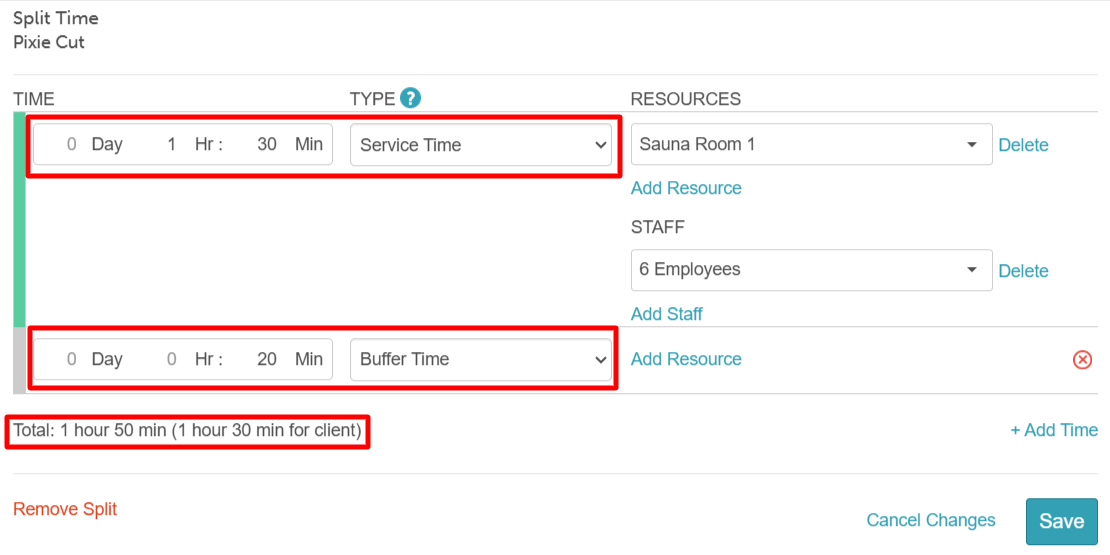
- Next, click on +Add time and then select the Buffer Time option
- Once you are satisfied, remember to save your changes!


Buffer Time on Schedule

Buffer Time on Appointment Modal

Buffer Time Online
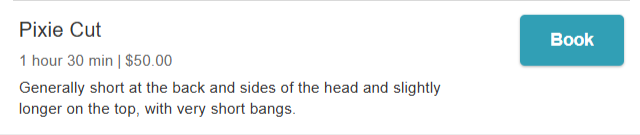
A service with buffer time will not include the buffer time in the total service duration displayed on the booking widget. The buffer time is accounted for internally but remains hidden from the client view.
Example:
Service with Buffer Time Online
Related Articles:
- Creating Services
- Service Categories/Services/Add Ons
- Add-On Services
- Service Pricing & Duration Same for all Locations and Staff Members
- Service Pricing & Duration by Location / Staff Member
- Service Pricing & Duration by Title / Location Group
- Service Pricing & Duration by Location Group (without titles)
- Processing Time for Services
Was this article helpful?
That’s Great!
Thank you for your feedback
Sorry! We couldn't be helpful
Thank you for your feedback
Feedback sent
We appreciate your effort and will try to fix the article