This article will guide you through the steps to reschedule appointments using the scheduler app.
Things to know:
- The ability to reschedule appointments is governed by the "Accessing Appointments" access control setting.
- Once an appointment is marked as completed, it cannot be rescheduled
- If the "Appointment Rescheduled" automated message is enabled in your Marketing tab, clients will be notified about any changes made on appointments
- To prevent the client from receiving notification about the rescheduling, you can deselect the "Notify client of change" option located at the bottom of the appointment screen
- Appointments without a linked ticket will display the "Check out" button on the appointment screen, while appointments linked to a ticket will feature the option "View Ticket"
To rescheduling appointments on the scheduler app:
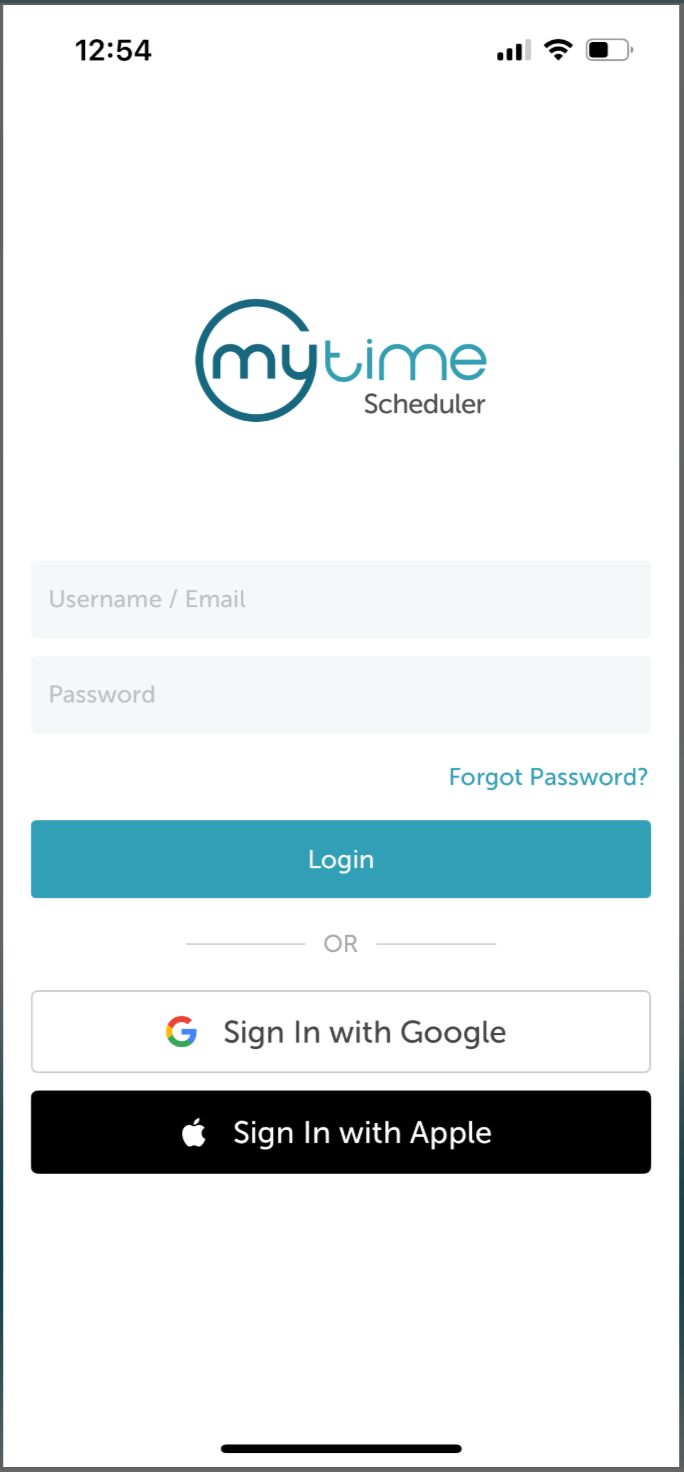
1. Launch the MyTime Scheduler app on your device
2. Choose your login method:
- Standard: Enter your registered email address and password, then tap 'Sign In'
- Social Login: Select 'Continue with Google' or 'Continue with Apple' to use your existing credentials for a faster login experience. For detailed instructions, learn more here
3. You will be directed to the schedule by default 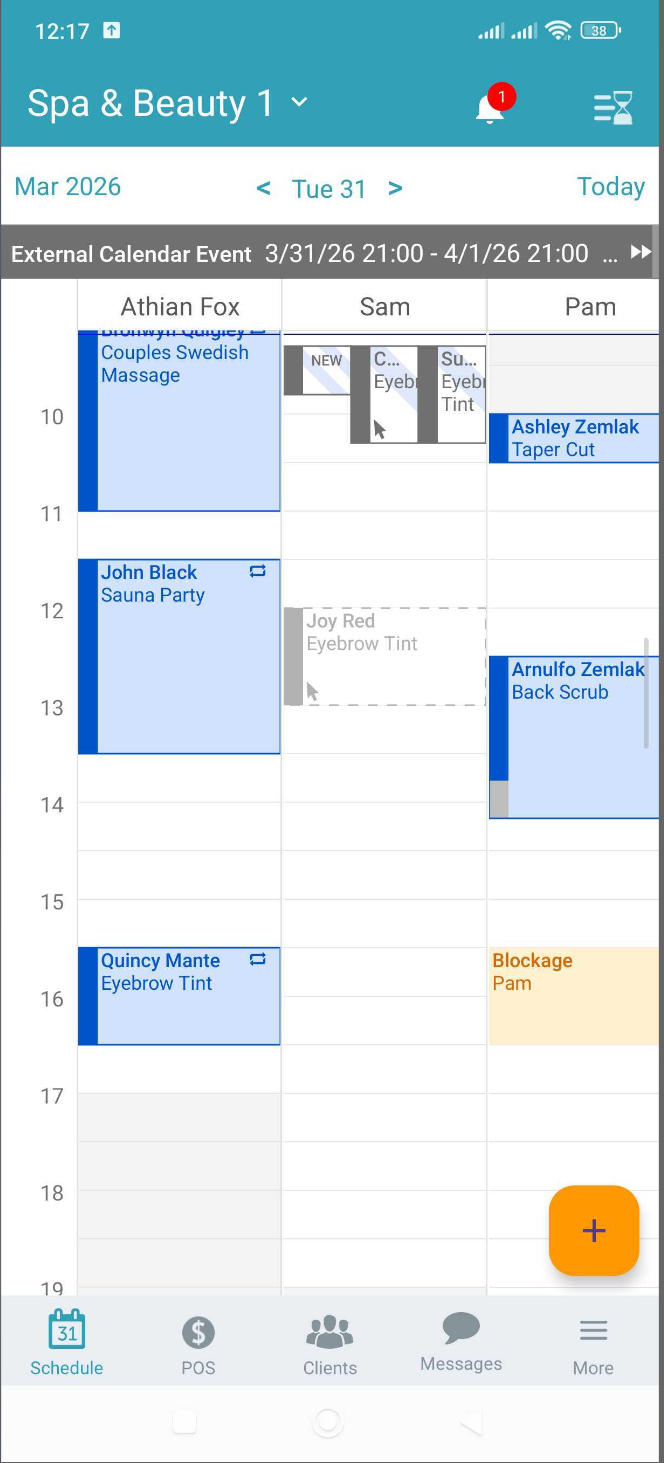
4. Locate and select the appointment you would like to reschedule

4. From the appointment screen, select "Reschedule"

5. Select the preferred start and end dates and times

6. You can also adjust the date and time of an appointment using the "Select Time Visually" option. You will be directed to the schedule
7. Save
After saving, the schedule will reflect the updated date and time for the appointment
For more information contact us at support@mytime.com or (385) 233-6964.
Related Articles:
Installing MyTime on Scheduler App (Android and iOS)
Signing into MyTime on Scheduler App (Android and iOS)
Schedule Multi-Client Appointment on Scheduler App
Was this article helpful?
That’s Great!
Thank you for your feedback
Sorry! We couldn't be helpful
Thank you for your feedback
Feedback sent
We appreciate your effort and will try to fix the article