Providing your appointment intake forms online allows you to gather essential information from clients before they complete their booking. In this article, we’ll guide you through the steps your client will take to fill out the intake forms online.
Things to know:
- Intake forms are built using custom fields. You’ll need to create your custom fields first before adding them to a form. Learn how to create custom appointment fields here.
- Once a custom field is added to an intake form and assigned to a specifically linked to a service, class, or membership., it will automatically appear on your booking widget
- If a field is marked as "Required," clients must complete it before they can finalize their booking
- All data collected is stored on the appointment
- Any descriptions you add to your custom fields will be displayed directly above the field in both the online widget and your in-store interface
To access the appointment intake form online, your clients should:
- Navigate to your booking site via your custom URL or the "Book Now" button
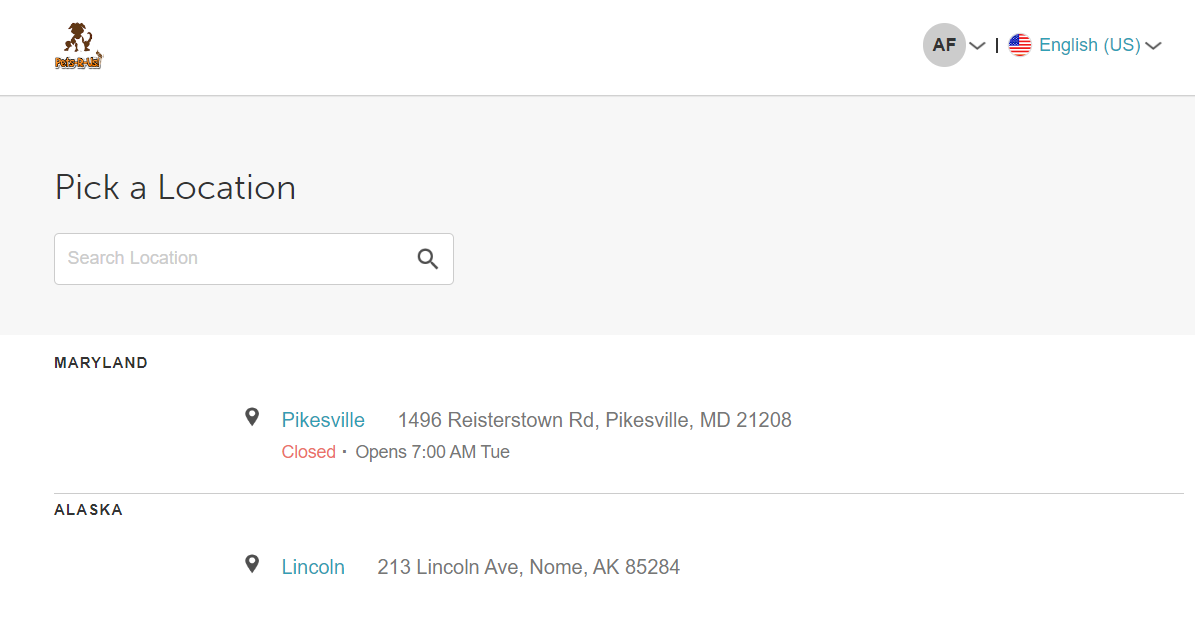
- If your business has multiple sites, choose the preferred location
- Choose the desired service and a preferred staff member (optional)
- Select an available date and time from the calendar
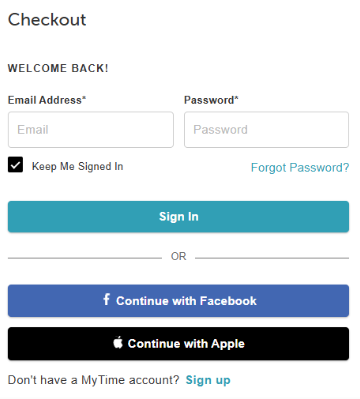
- Proceed to the checkout page and sign in using your account, Facebook, Apple, or create a new profile
- Once signed in, the intake form will appear in the left-hand panel. All required fields must be filled out to continue
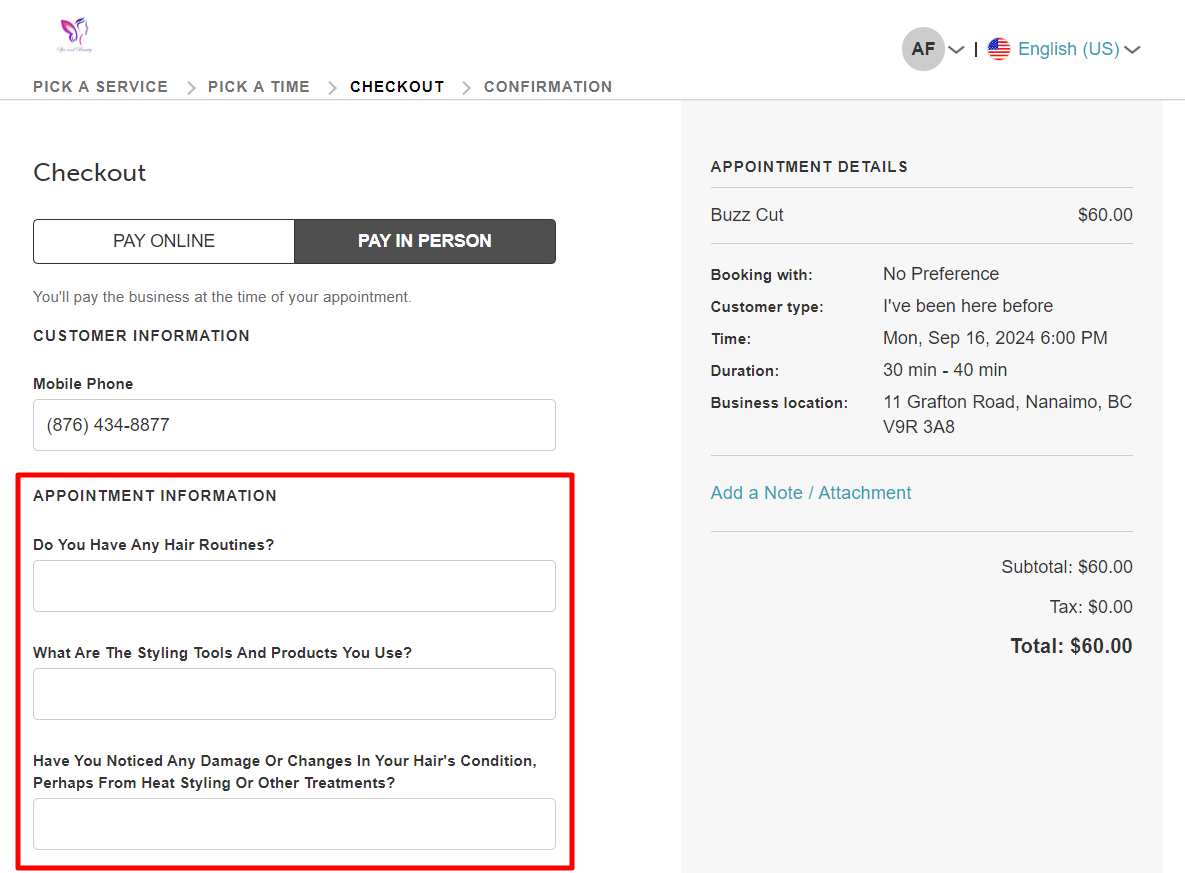
- Review the details, enter your payment information (if required), and select "Complete Booking"
For more information, contact us at support@mytime.com or (385) 233-6964.
Related Articles:
Creating Custom Appointment Fields
Creating Appointment Intake Forms
Generating Appointment Intake Forms
Was this article helpful?
That’s Great!
Thank you for your feedback
Sorry! We couldn't be helpful
Thank you for your feedback
Feedback sent
We appreciate your effort and will try to fix the article