MyTime enables you to synchronize your external Google calendar with your scheduler, ensuring that you won’t receive bookings in MyTime during events scheduled in your external calendar
Things to know:
- The ability to sync your Google Calendar with MyTime is governed by the "Accessing Staff & Availability" access control setting.
- Any updates made in MyTime will reflect on Google Calendar, and vice versa
- Canceling an appointment in MyTime will remove it from Google Calendar
- Each staff member can sync with one external calendar.
- If the calendar is disconnected and reconnected for the same staff member and calendar, all appointments created during the disconnect period will sync to Google Calendar.
- After disconnecting, future changes in MyTime won’t update on Google Calendar. However, previously synced events will remain and must be manually deleted if needed.
To sync MyTime scheduler to your external calendar:
- Launch the MyTime Scheduler app on your device
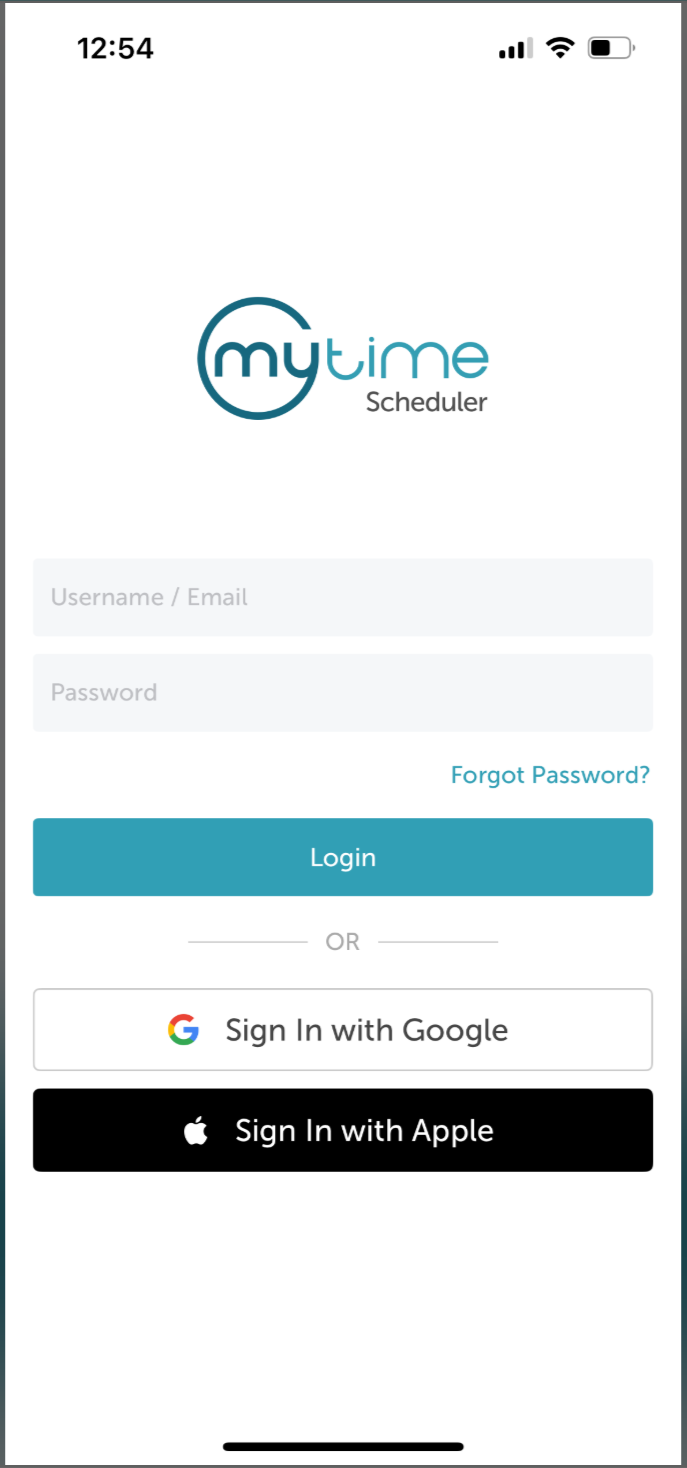
- Choose your login method:
- Standard: Enter your registered email address and password, then tap 'Sign In'
- Social Login: Select 'Continue with Google' or 'Continue with Apple' to use your existing credentials for a faster login experience. For detailed instructions, learn more here
- Once signed in you will be directed to the schedule by default
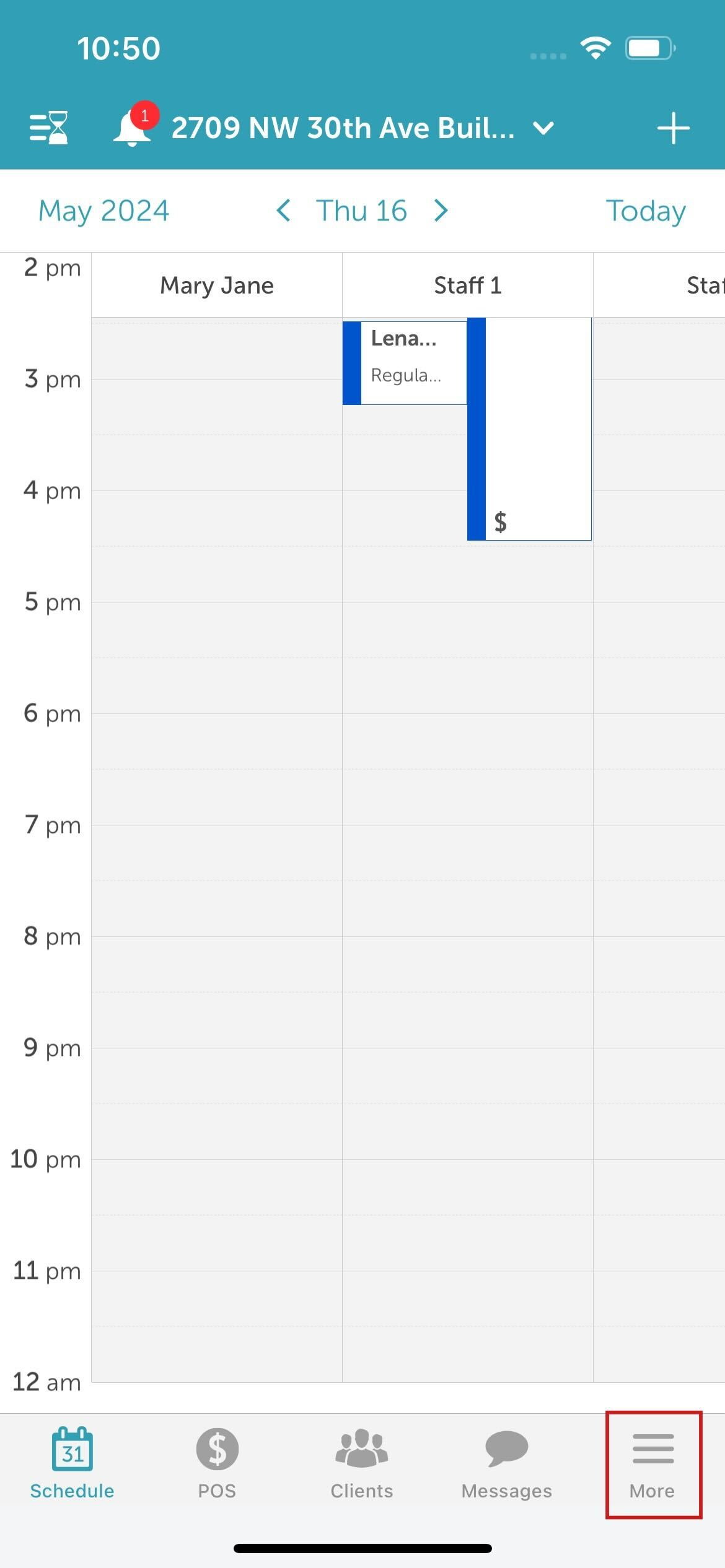
- Select More at the bottom of the screen
 Select Account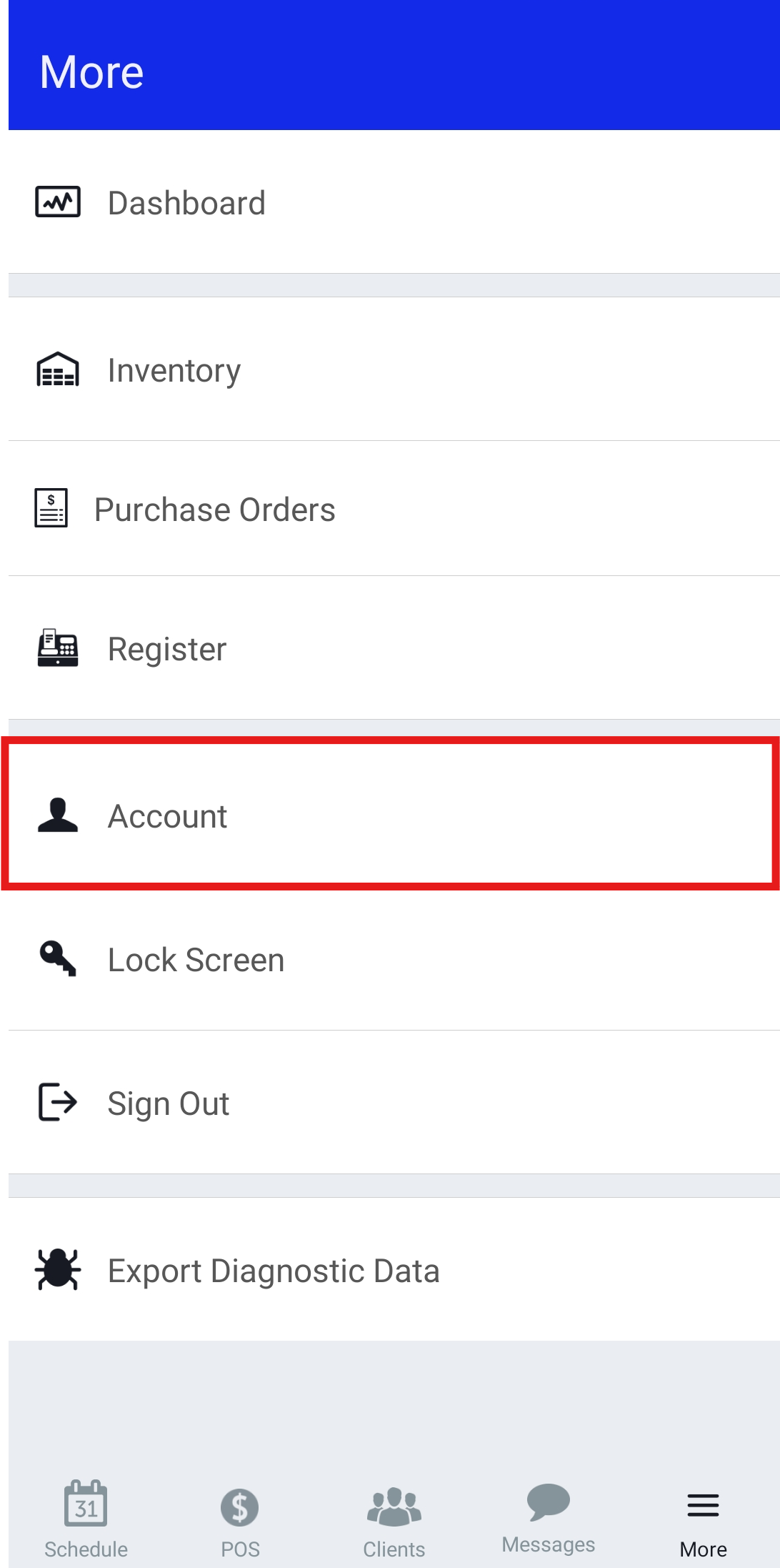
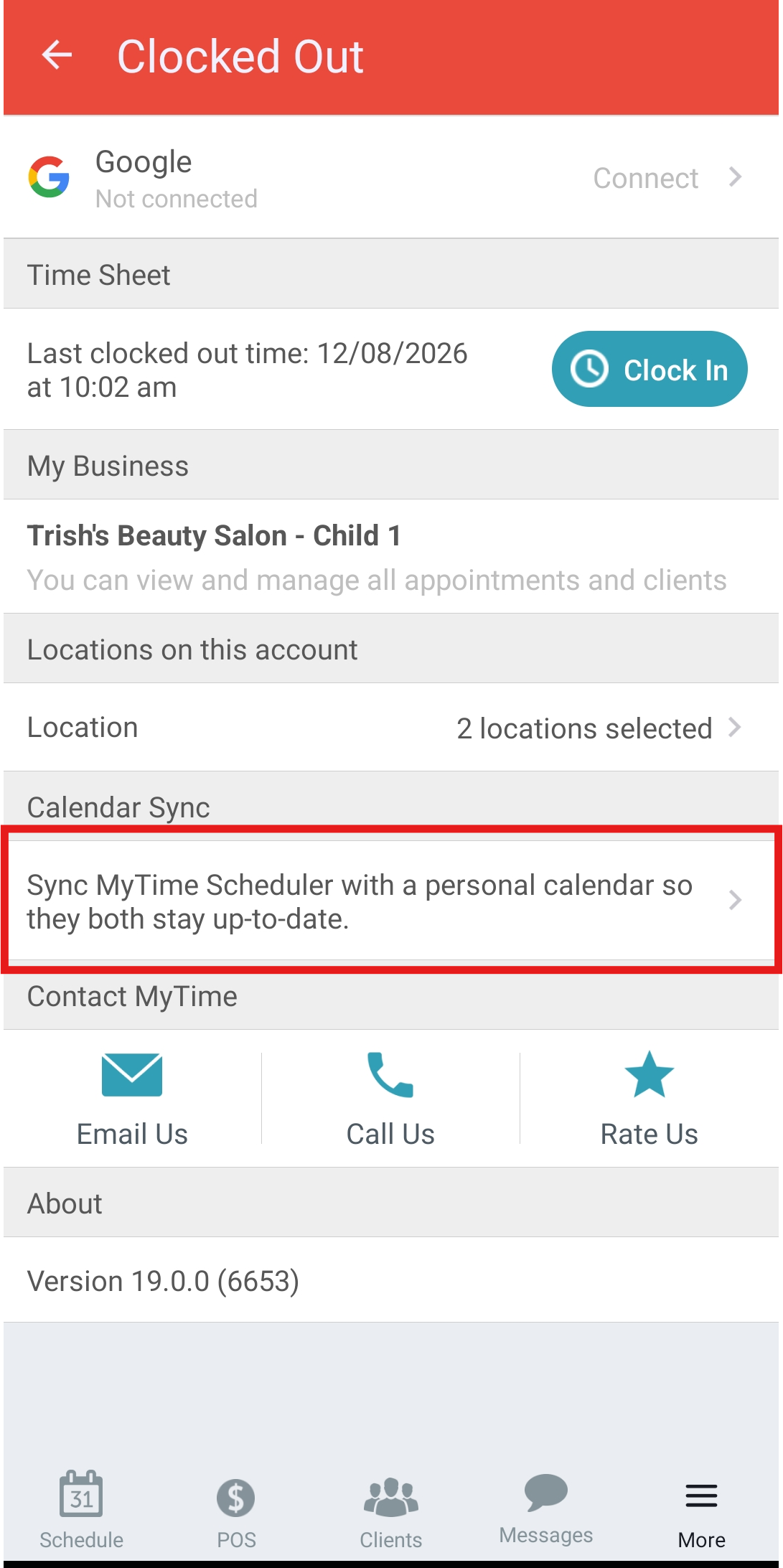
- Under Calendar Sync, select Sync MyTime Scheduler with a personal calendar so they both stay up-to-date
- Select Google Calendar
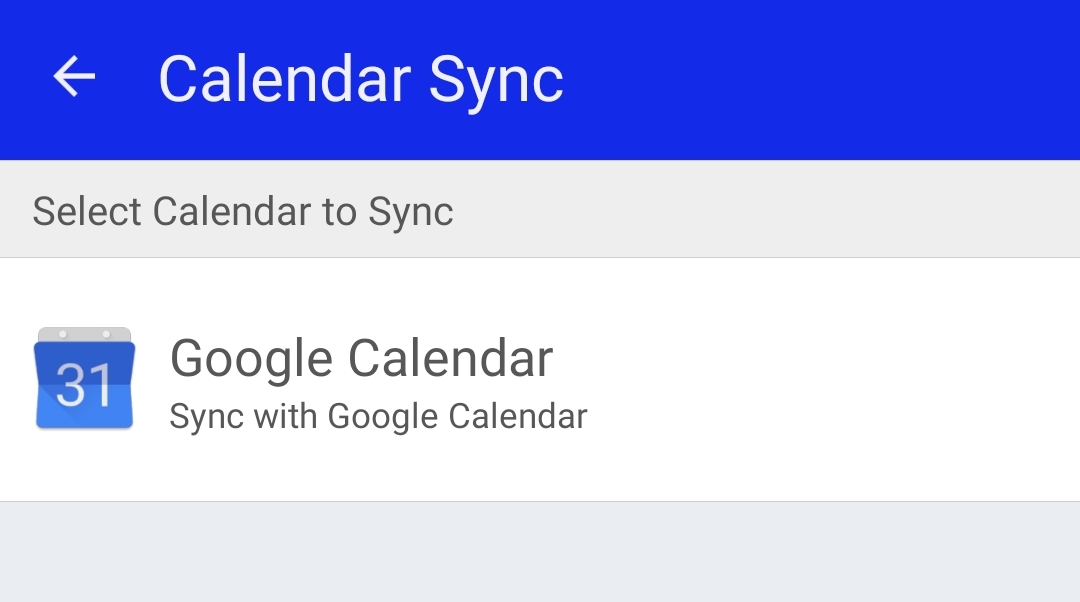
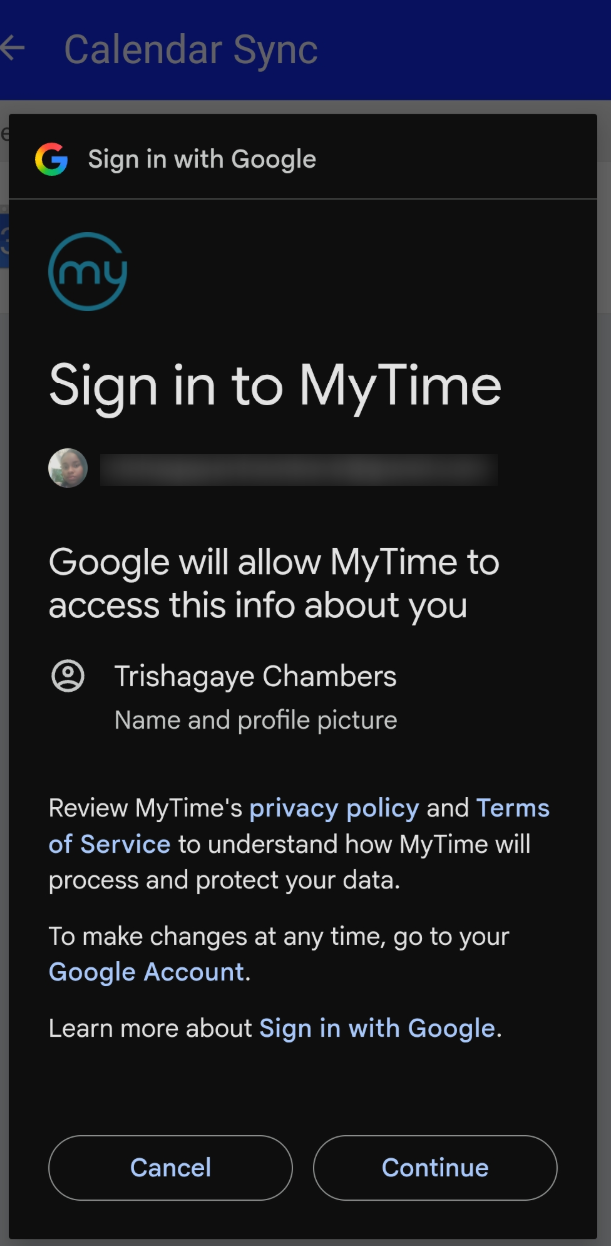
- Choose the Google account you wish to connect
- Grant MyTime access to your Google Calendar
- Select the specific Google Calendar where MyTime appointments should appear
- Select Done
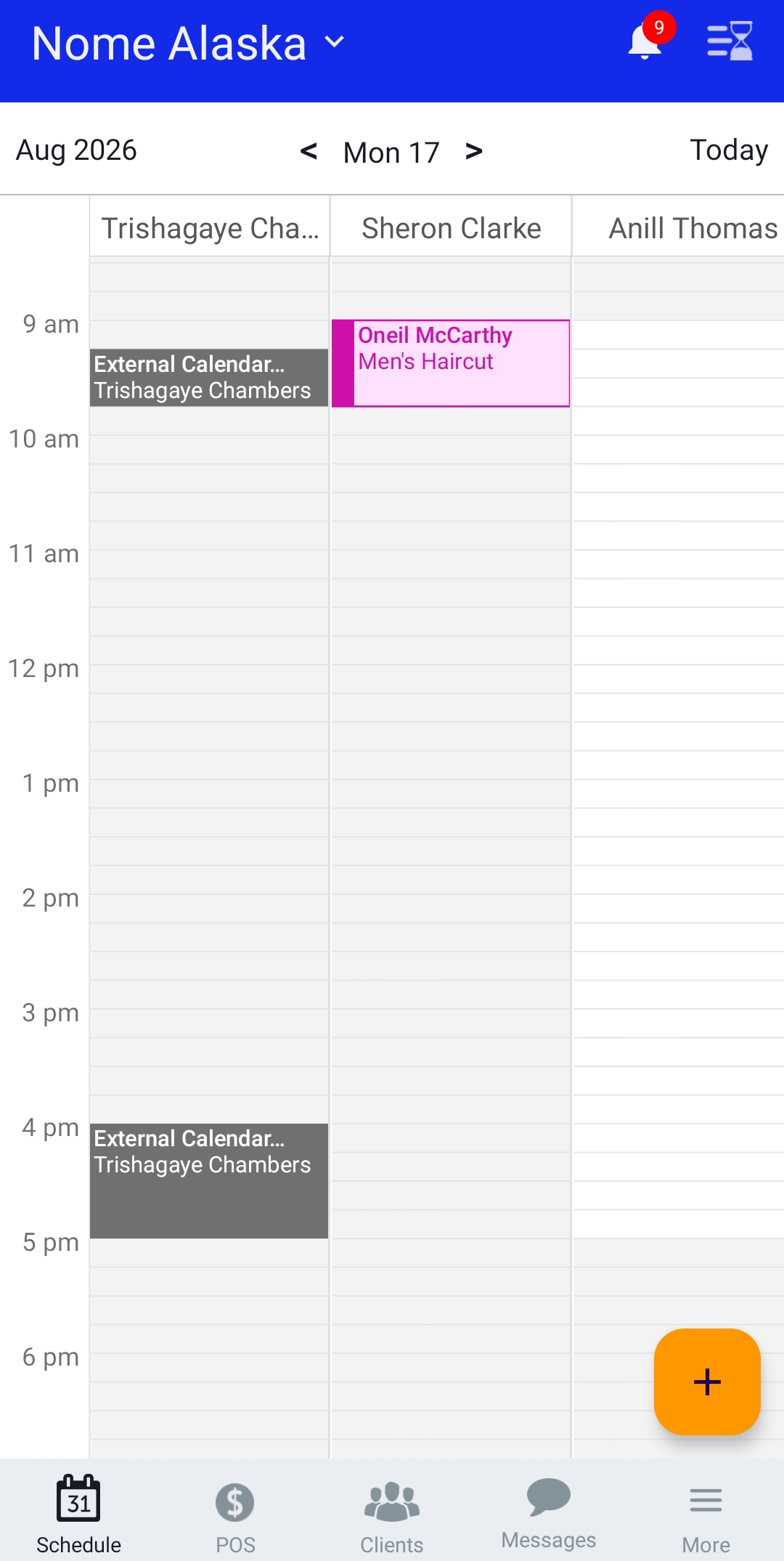
- Once connected, your MyTime schedule will automatically sync with your Google Calendar.
For more information, contact us at support@mytime.com or (385) 233-6964.
Related Articles:
Installing MyTime on Scheduler App (Android and iOS)
Signing into MyTime on Scheduler App (Android and iOS)
Was this article helpful?
That’s Great!
Thank you for your feedback
Sorry! We couldn't be helpful
Thank you for your feedback
Feedback sent
We appreciate your effort and will try to fix the article