You can gain more insight into your business by generating a convenient report to track invaluable
appointment metrics by staff members. Canceled appointments will not appear on this report.
Things to know:
- The ability to access this report is governed by the "Accessing Reports" access control settings
- For accounts that are in holding status, the report will not display any data until the account is set live
- Tips and sales tax are not included in the revenue displayed
- Revenue from closed tickets is listed on the date the ticket was closed (Note: this may be different from the date of the appointment).
- Refunds are reflected on the date the refund was processed, not the original ticket date. Example: If a $100 item is purchased on November 13th and refunded on November 23rd, the report will show $100 in revenue on the 13th and a $100 deduction on the 23rd.
- Revenue from deposits is displayed on the date the ticket is closed, not when the deposit was initially paid. Example: If a client pays a $50 deposit on March 4th for a $200 service on March 9th, no revenue appears on March 4th. On March 9th (when the ticket is closed), the full $200 including the deposit will be displayed.
- Any additional payments made on tickets closed in the past will be reflected on the date the payment was processed. Example: If a ticket was closed in October for $20 and later edited in November with an additional payment of $10:
- The revenue for October will remain at $20.
- The revenue for November will reflect the additional $10 payment.
- When filtered by "Revenue At Time of Purchase," services covered by membership, gift card, and package will appear in the Service Revenue column and the Prepaid column. To calculate net revenue, these values are deducted from the gross total. For additional customization, you can enable the “Deduct Prepaid Amount from Gross Revenue in Reports" hidden setting. When enabled, prepaid amounts are automatically deducted from gross revenue (displayed as $0), and the Prepaid column is hidden.
- For multi-day appointments, you can configure your account to display revenue earned on the final date of the appointment instead of the first. For example, if an appointment runs from September 6, 2024, to September 20, 2024, the revenue will be recorded on September 20, 2024. This feature is managed through a hidden setting that only the MyTime team can enable. To activate this setting, please reach out to our Support Team at support@mytime.com. Note that once enabled, this change is irreversible and will only apply to appointments and tickets created after activation.
- For pet merchants, the report will show the word “deceased” in parentheses next to the name of the pet that was marked as deceased.
- For bookings involving multiple staff members in a multi-staff appointment, the revenue will be divided equally among all staff members.
- You can export the report in either Summary or Detailed View, depending on your reporting needs:
- Summary View: Consolidates data by category (such as location, staff member, or service type). This is ideal for high-level analysis, allowing you to review total revenue and overall performance without looking at individual transactions.
- Detailed View: Provides a line-by-line breakdown of every transaction (or "ticket"). This view is best for auditing specific sales, reviewing individual client history, or reconciling exact payment amounts for a specific day.
- For locations with a Store ID, the Store ID column will be included in the detailed report export when downloaded as CSV/PDF but will not appear in the summary report under the "By Staff Member" filter.
- When filtered to "By Location", the Store ID column will be visible in both the summary and detailed reports when downloaded as CSV/PDF.
- If filtering by a location without a Store ID, the Store ID column will still appear in both the summary and detailed downloads (CSV/PDF).
- When viewing reports By Location, all active locations remain on the report—even if they have no sales or bookings during the selected date range.
- Locations with Activity: Display in the main list with their complete totals and data. Click the expand arrow on any location row to view its individual data.
- Locations without Activity: Group at the bottom of the list with $0 totals, ensuring full visibility across all business locations.
- This report is not visible to businesses that do not offer appointments.
- For accounts with an active Loyalty subscription, a “Loyalty Prepaid” column will automatically appear in reports when the Time of Use filter is selected. This column reflects the value of loyalty credits redeemed for services. To ensure accurate financial reporting, the system automatically subtracts this amount from your net revenue. This is because the revenue was already recognized when the credits were originally purchased—not when they are redeemed. Note: The Loyalty Prepaid column will not appear when the report is filtered by Revenue at Time of Purchase.
- Example: If a client books a service using $100 in loyalty credits, and you run your report for February using the Time of Use filter:
- Gross Revenue: $100 (value of the service performed)
- Loyalty Prepaid: $100 (value covered by loyalty credits)
- Net Revenue: $0 ($100 – $100)
- Loyalty Prepaid: Shows $100 (the value redeemed from the credits).
- Net Revenue: Shows $0 ($100 Gross - $100 Loyalty Prepaid).
- Gross Revenue: $100 (value of the service performed)
- Example: If a client books a service using $100 in loyalty credits, and you run your report for February using the Time of Use filter:
To access this report:
- Navigate to Dashboard
- Select the Reports tab
- Under the Bookings section, select the By Staff Member report

When the report opens, you can filter by a specific location, staff, and date. You can choose to view the report by date or location. If the By Location button is used at the top of the report, you will be able to easily compare metrics across locations and location groupings to see which locations are doing better or worse on that dimension.
Below the By Location button, you have the option to download the report as a CSV, PDF, or print version.
Once you have selected your filters, click on the UPDATE button to generate the desired data.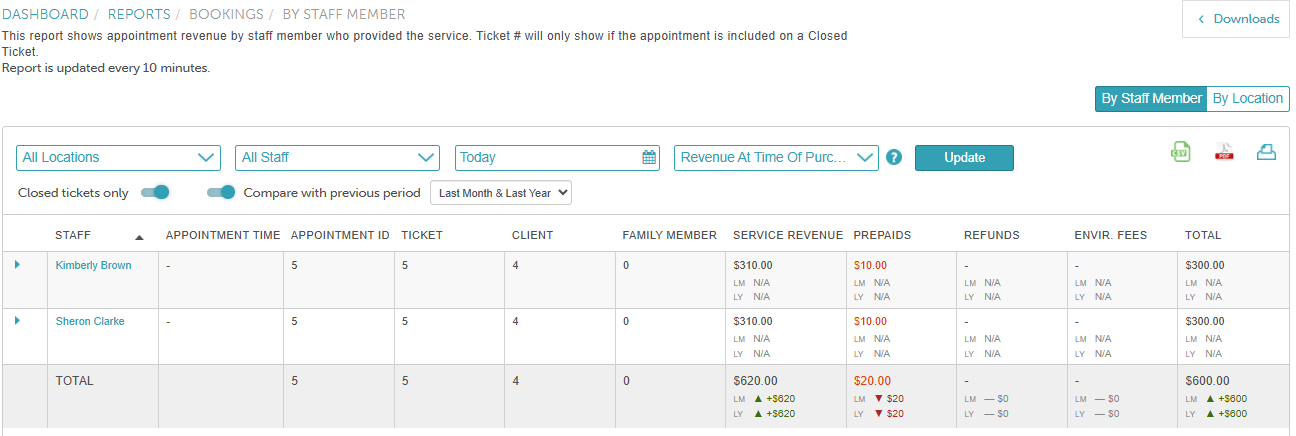
Report Filters
| Filter | Description |
| Location | The location where the appointment took place
|
| Staff | The staff member who performed the service during the date range and location selected. |
| Date | This range will determine the appointments that were booked during the date range selected. |
| Revenue At | If “Revenue At Time of Use” is selected:
If “Revenue At Time of Purchase” is selected:
|
| Closed Tickets Only | When this option is toggled on, the report will display only closed tickets. When toggled off, it will include both open and closed tickets. |
| Compare with [Past Periods] | This toggle allows you to benchmark your current metrics against the same period in the previous month or previous year. When enabled, select 'Last Month,' 'Last Year,' or 'Last Month & Last Year' from the dropdown.
How Data Matching Works: 1. By Staff Member Comparisons: When this option is selected, the report automatically lists your data by individual employee.
2. By Location Comparisons: When this option is selected, the report groups your transactions together by location.
|
Report Columns
| Column | Description |
| Location | The location where the appointment took place |
| Staff | The staff member who performed the service during the date range and location selected. Clicking this link opens the staff member's profile. |
| Appointment Time | The date and time the appointment took place |
| Appointment ID | The classifying number associated with an appointment. Clicking this link opens the appointment modal in Scheduler. A unique alphanumeric code generated for each scheduled appointment. The ID is displayed at the bottom of the appointment modal and included in client confirmation emails. Clicking the Appointment ID opens the appointment directly on the Schedule. |
| Ticket | The ticket associated with the appointment. Clicking this link opens the ticket in MyTime POS. |
| Client | Client associated with the appointment. Clicking this link opens the client's profile. |
| Service Revenue | Revenue generated for appointments during the date range selected. Does not include taxes and tips. |
| Prepaid | This column includes redemptions made using package credits, gift cards, referral credits, and membership item or value credits. The Prepaid column is not displayed when the report is filtered by "Revenue At Time Of Use" or if the “Deduct Prepaid Amount from Gross Revenue in Reports” hidden setting is enabled. |
| Refunds | Service refunds that were processed during the date range selected. |
| Environmental Fees | Revenue generated by environmental fees collected during the date range selected. Does not include taxes. |
| Loyalty Prepaid | This column displays loyalty redemptions applied to services. |
| Total | Total service revenue generated for the date range selected (Service Revenue - Prepaid - Refunds + Environmental Fees). |
For more information, contact us at support@mytime.com.
Related Articles:
Was this article helpful?
That’s Great!
Thank you for your feedback
Sorry! We couldn't be helpful
Thank you for your feedback
Feedback sent
We appreciate your effort and will try to fix the article