The Auto-Generate Order up to Max Quantity per SKU feature compares the maximum quantity against current back bar and retail stock levels for a given location. Orders are auto-generated based on the minimum order quantity (MOQ). If a vendor SKU has an MOQ, the order quantity must be in multiples of that MOQ.
Things to know:
- The ability to auto-generate purchase orders is governed by the "Manage Purchase Orders" access control setting
- The Purchase Orders page relies directly on vendor data to load properly. Consequently, access to Purchase Orders depends on having vendor visibility enabled for that staff role.
- Granting a staff role View, Receive, or Manage access to Purchase Orders requires that role to also have at least View or Manage access to Vendors.
- Location permissions must match. Assigning Purchase Order access to All Locations or Their Location(s) requires Vendor access to be set to View or Manage for those exact same locations.
- To perform specific actions on a draft Purchase Order (PO), the following permissions are required:
- Create, edit, or delete drafts: Requires Manage Purchase Orders
- Edit item costs: Requires Manage Purchase Orders and Edit Inventory Costs
- Edit order quantities: Requires Manage Purchase Orders and Edit Inventory Quantity
- View costs (read-only): Requires View Inventory Costs
- When staff members are granted permission to manage purchase orders “At Their Locations” but not “All Locations,” their access is limited to their assigned location(s).
- Staff can create, cancel, check in, and complete purchase orders only for their assigned location.
- If they open a purchase order associated with a different location, they will have view-only access and cannot make any changes.
- To manage purchase orders across all locations, the “All Locations” permission must be enabled.
- If a SKU has a maximum quantity set but no minimum (or the minimum is set to 0) and the current quantity is greater than the minimum, no order will be placed
- If the current retail quantity is at or below the minimum threshold, stock will automatically be reordered based on the following rules:
- Orders are placed in multiples of the Minimum Order Quantity (MOQ).
- The maximum quantity limit may be exceeded if necessary to satisfy MOQ requirements.
- If the MOQ is 0, only the exact quantity needed to reach the maximum limit will be ordered.
- Example 1: MOQ Causes Exceeding the Max
- Current Quantity: 2 | Minimum: 5 | Maximum: 10 | MOQ: 10
- Since the quantity is below the minimum, 1 MOQ (10 units) will be ordered, bringing the total to 12 units — exceeding the max of 10.
- Example 2: MOQ is Zero
- Current Quantity: 8 | Minimum: 10 | Maximum: 15 | MOQ: 0
- Only the amount needed to reach the maximum will be ordered. In this case, 7 units are ordered to bring the total to 15, and the max is not exceeded.
- Order quantities are rounded up to the nearest multiple of the product's MOQ to ensure alignment with vendor requirements while staying within defined stock limits.
- If you attempt to auto-generate an order while an existing auto-generated PO is already in place, a warning will appear: "All existing items in the Purchase Order will be overwritten."
- In a purchase order, an icon next to the Quantity Ordered field indicates how each product's quantity was added:
- Blue: Quantity was entered manually
- Orange: Quantity was auto-generated by Max
- Grey: Quantity was auto-generated by Forecast
- Hovering over the icon displays a tooltip identifying whether the quantity was generated by Max, Forecast, or entered manually.
- If a quantity originally generated by Max or Forecast is later edited manually, the icon and tooltip will update to reflect the manual entry. Re-entering the original generated quantity will restore the icon and tooltip to their original status.
- Product Forecasting & Consumption Tools
- Next to each product, icons are available to help predict and review inventory demand.
- Product Forecast Chart: Click the Forecast Chart icon to visualize future inventory needs. If the SKU was generated by a forecast and contains sufficient data, a modal will open featuring:
- Training Data (Blue): A visual of historical usage trends
- Forecast Data (Orange): Predicted future demand for the product
- Interactive Controls: Zoom, pan, and toggle views by Day, Week, or Month. The chart uses gap smoothing for clearer trends and includes a product dropdown for quick SKU comparisons
- Note: The icon appears next to all products, but forecast data will only display for SKUs with active forecasting data.
- Consumption History Icon: Provides a snapshot of actual usage over the past 30, 60, and 90 days, including periods of zero usage, so staff can accurately review demand trends and distinguish between low demand and out-of-stock scenarios.
- Draft Purchase Orders
- Draft purchase orders will display the following:
- Quantity on Hand: Current stock level in both retail and back bar inventories
- Max: The desired maximum stock level used to calculate the reorder quantity
- When saving a draft purchase order, a confirmation pop-up will appear displaying the save status and purchase order number.
- Auto-generated purchase orders list products alphabetically.
To auto generate a purchase order by max quantity:
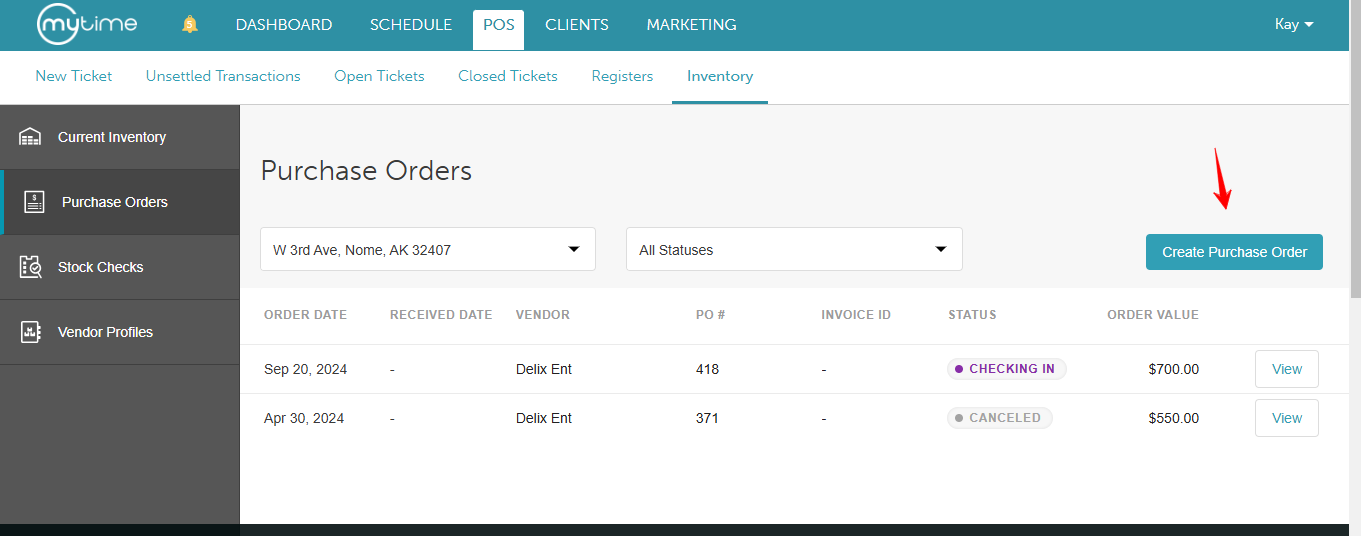
- Navigate to POS > Inventory
- Select Purchase Orders from the left panel
- Click Create Purchase Order button in the upper right corner
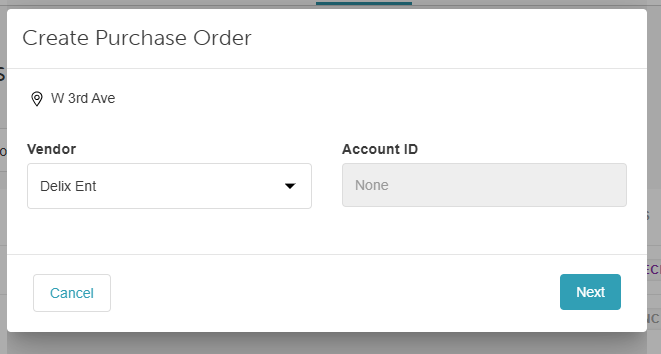
- Choose a supplier from the Vendor list then select "Next"
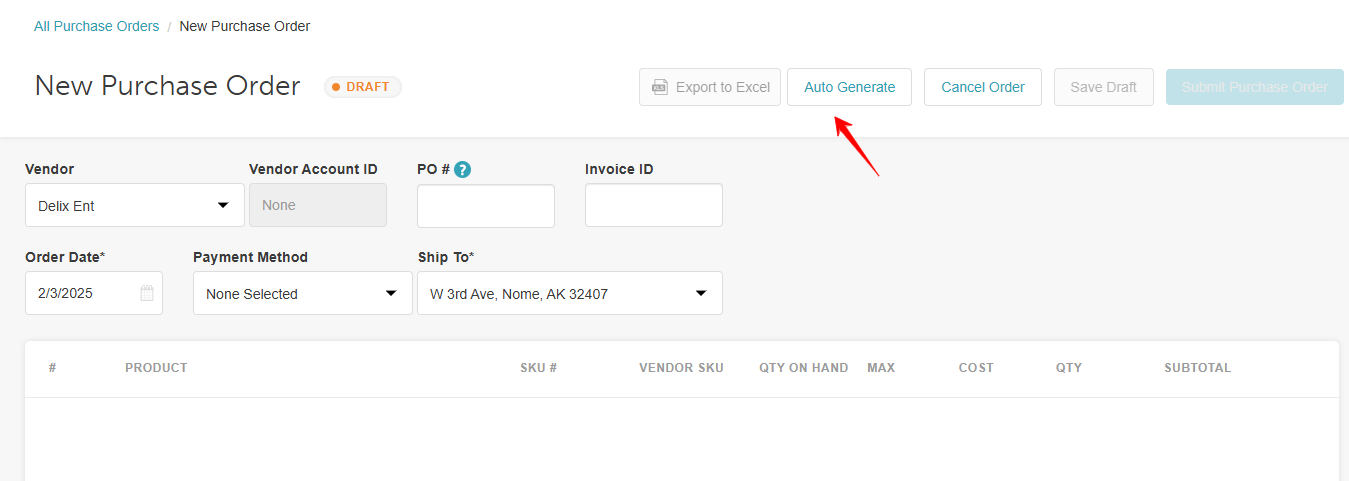
- Add products to your purchase order using the "Auto Generate" button
- Select the option to Auto Generate Order up to the Max Quantity per SKU
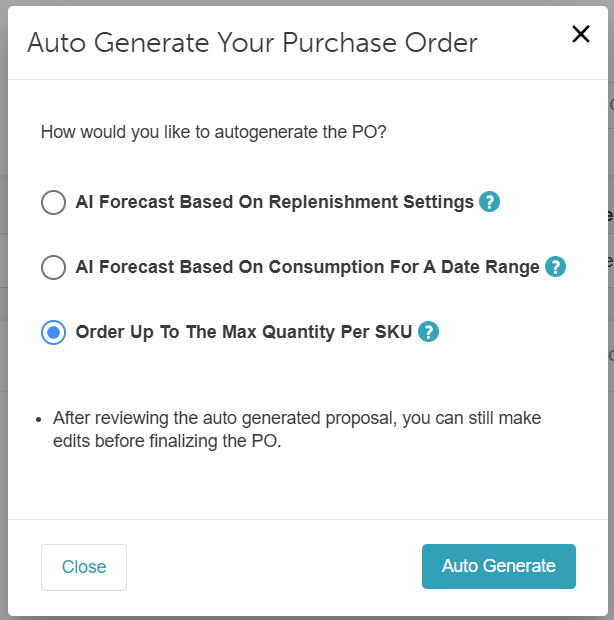
- Click on the "Auto Generate " button
- The generated products will be displayed with the quantity on hand, max quantity, cost, quantity, and subtotal
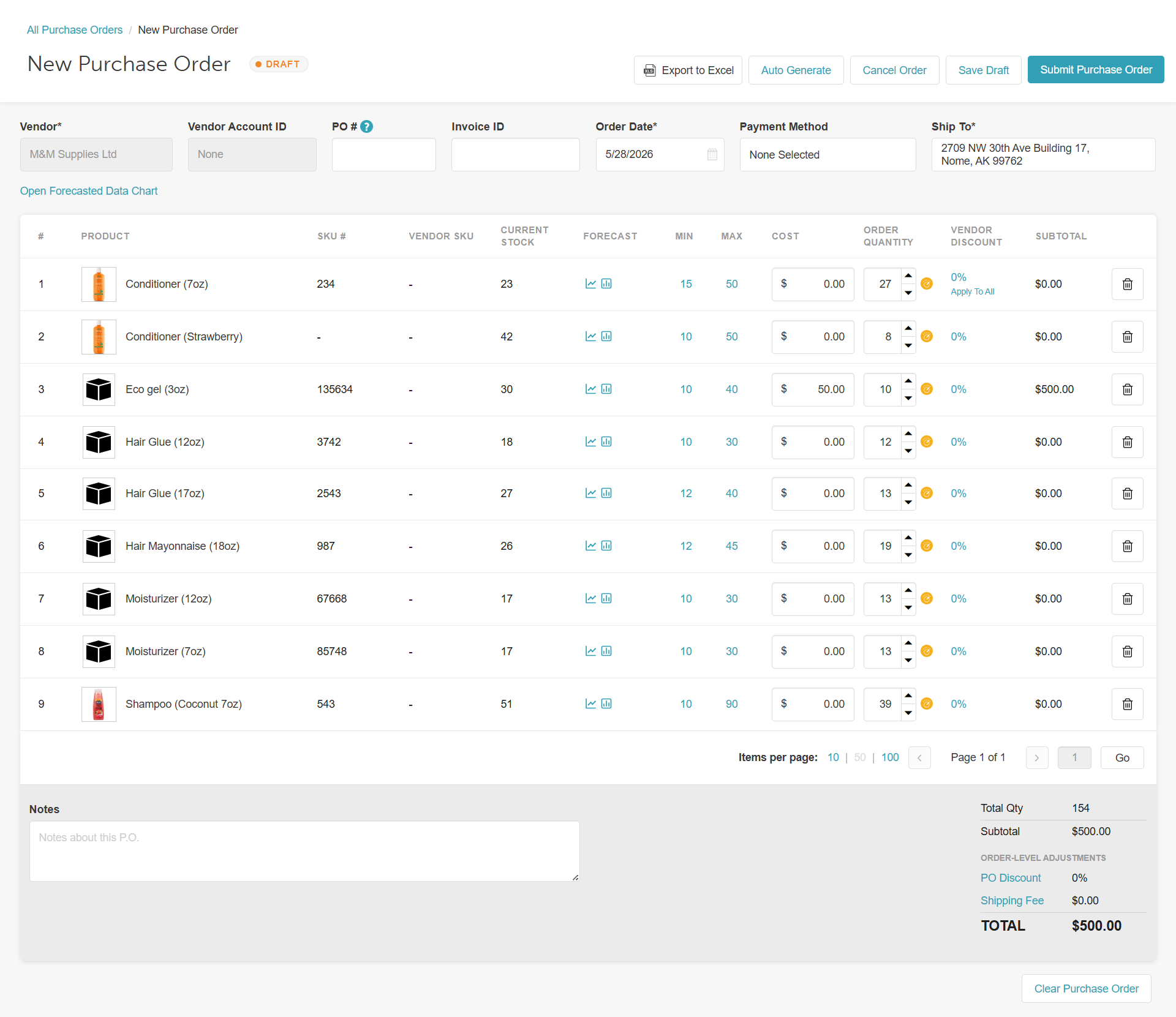
- Once the products generated are acceptable, click the 'Submit Purchase Order' button at the top right-hand corner
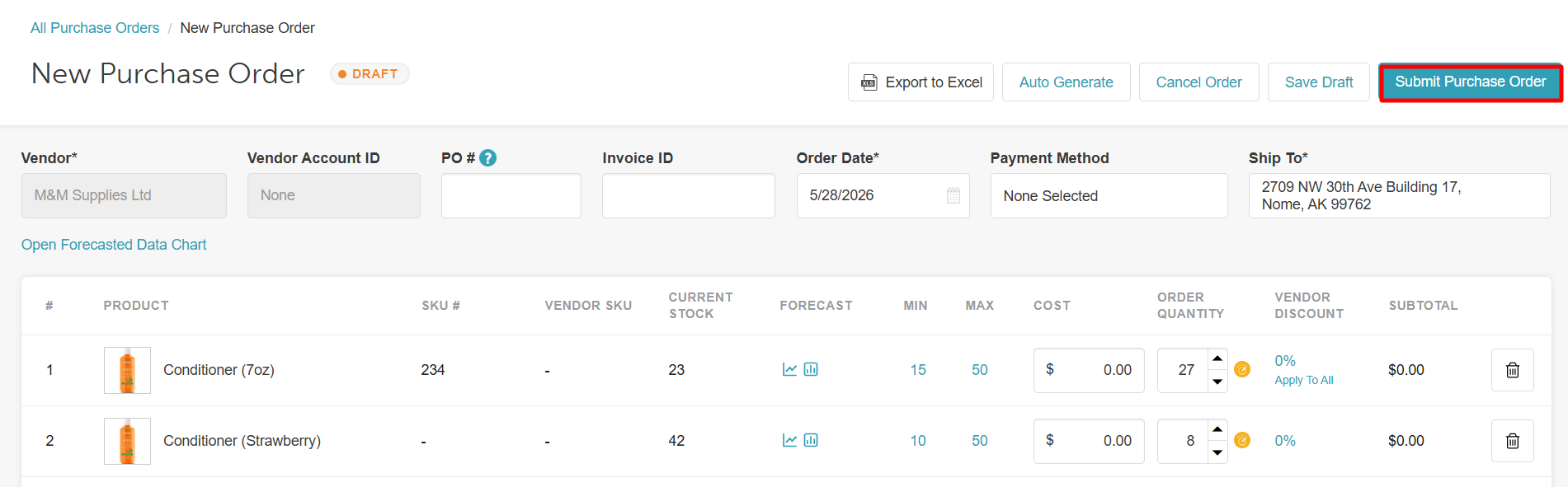
- The purchase order will be created and display the full information of the order
If you have any questions, please contact our Support Team at support@mytime.com.
Related Article:
Was this article helpful?
That’s Great!
Thank you for your feedback
Sorry! We couldn't be helpful
Thank you for your feedback
Feedback sent
We appreciate your effort and will try to fix the article