Creating Employee Intake Form (SOAP Notes)
Modified on Tue, 29 Sep at 9:36 AM
An employee intake form (SOAP note) is a structured way for staff to document information about a client during or after an appointment. The information is stored on the appointment modal and is not visible to the client. This article covers how to configure and create employee intake forms.
Things to know:
- The ability to create and customize employee intake forms is governed by the "Manage Client Setup" access control setting. The ability to edit these forms within the appointment modal is governed by the "Accessing Appointments Staff Intake Forms" access control setting.
- For franchise businesses, employee intake forms can be created at both the parent and child level.
- For franchise businesses, custom fields can be created at the parent (franchisor) or child (franchisee) level
- Custom fields can be designated as required fields, indicating that staff members must provide information for these fields before proceeding
- Employee intake forms can include any custom field created for clients, pets/family members, and appointments:
- If a client custom field is added to the employee intake form, the custom field and responses will be stored on the client's profile
- If a pet custom field is added to the employee intake form, the custom field and responses will be stored on the pet's profile
- If an appointment custom field is added to the employee intake form, the custom field's responses will be stored on the employee intake form
- You can add descriptions to custom fields in your intake form, and these descriptions will be visible on the form before the field they were added to.
- Employee intake forms only appear in-store on the appointment modal.
- The text displayed for the hyperlink is controlled by the "Employee Intake Form Label" setting. If no text is entered, the default label "Employee Intake Form" will be used.
- Multiple employee intake forms can be created and accessed via the hyperlink displayed on the appointment modal.
- The employee intake form hyperlink will only appear on the appointment modal if a form is configured and assigned to a service. Fields will display in the same order as configured.
- When logged in as an owner, all employee intake forms are visible on the appointment modal. For all other roles, only forms configured specifically for that role will be visible.
- Owners of child companies have access to all employee intake forms created at both the parent and child level.
- You can add descriptions to custom fields in your intake form. Descriptions are displayed on the form just before the corresponding field.
- Employee intake forms can be reordered by dragging and dropping them under Clients > Intake Forms. The updated order will be reflected on the appointment modal. For franchise businesses, global forms are reordered at the parent level, while local forms can only be reordered at the child level.
- When the "Enable Employee Appointment Intake Forms" setting is activated, appointment waivers will no longer appear in the Appointment Notes section. To ensure waivers are displayed when this setting is enabled, they must be included in an Employee Intake Form.
- Waivers are displayed in the order specified in the employee intake form configuration for both incomplete and completed forms.
- You can add or delete waivers for both incomplete and completed employee intake forms. Additional options include downloading waivers, marking them as already signed, and printing waivers.
- Appointment waivers do not include audit trails, and the audit trail button will not be displayed for them.
- The setup option displayed in the top-right user menu depends on how you access the account and your assigned role:
- When navigating from the Parent Account (Location Management tab):
- Admin: Displays Business Setup when viewing the location account.
- Login As: Displays Location Setup when viewing the location account.
- When logged in directly at the Location Level:
- Location Owners & Location Managers: Display Location Setup.
- Service Providers & All Other Roles: Display Profile Setup.
Contents:
Employee Intake Form Configuration
Before creating custom fields and employee intake forms, you first need to enable and configure the settings:
- Navigate to Business Setup / Location Setup > Settings
- Locate the setting Enable Employee Appointment Intake Forms in the Calendar section
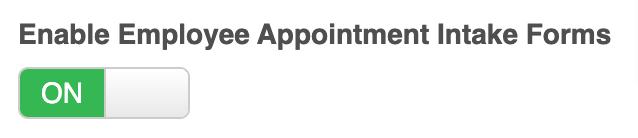
- Toggle to 'On' to enable the setting
- In the "Employee Intake Form Label" field, enter your preferred name for the employee intake form hyperlink displayed on the appointment modal
- To automatically populate previously entered values on new appointments, enable the "Show Previous Values on Employee Intake Forms" setting
- Select Save


Creating Custom Fields
To create custom fields:
- Navigate to the Clients tab
- Select Manage Clients
- Select Customize Client Fields
- Click the + Add Field under the client/family member/pet/appointment section
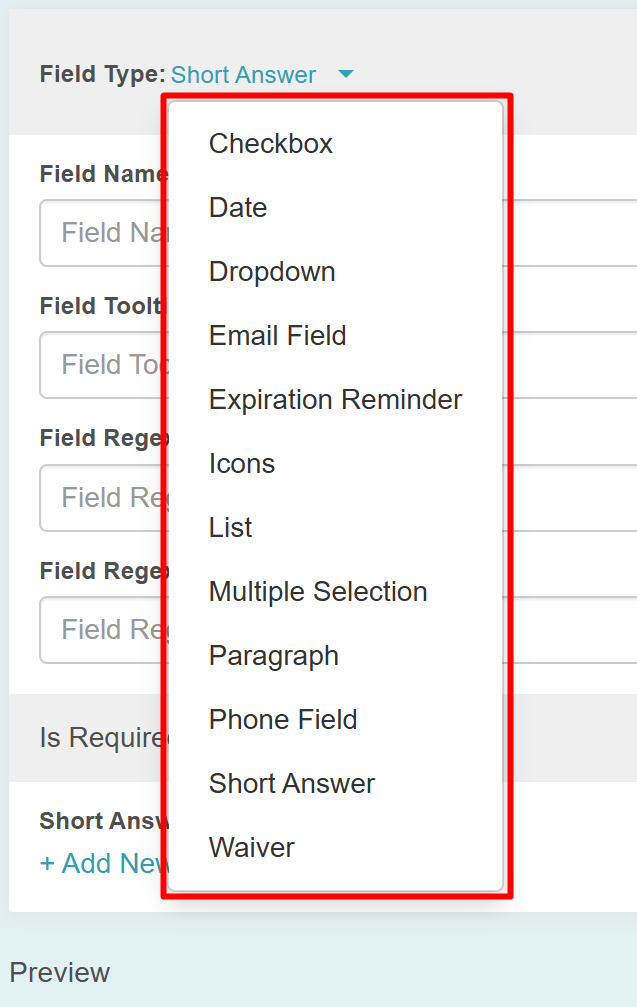
- Click the dropdown in the 'Field Type' section to select the field type you'd like to create (checkbox, dropdown, short answer, etc)
- Next, complete the field options
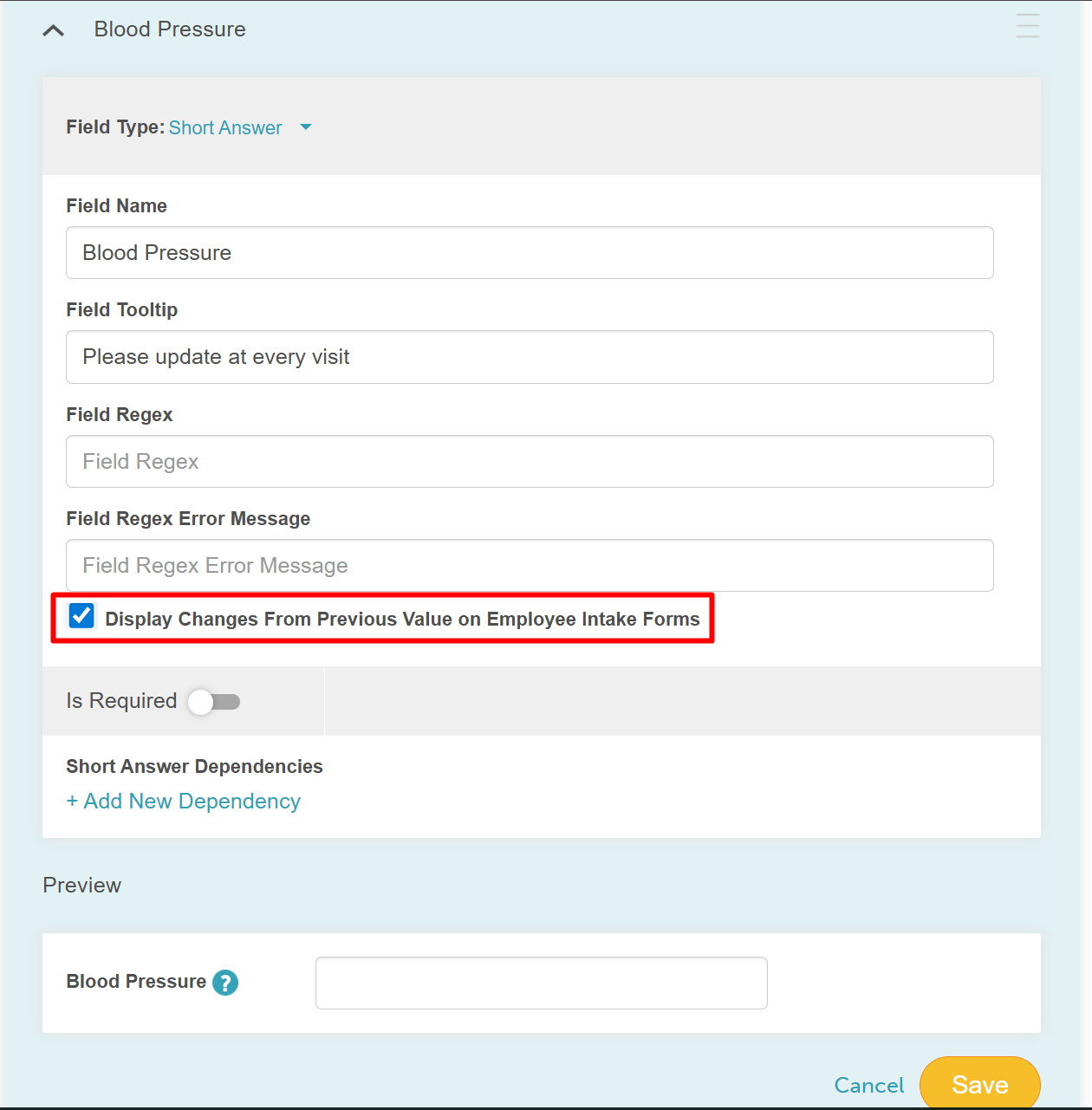
- If the new field is an appointment field, the "Display Changes From Previous Values on Employee Intake Forms" checkbox will be displayed. Checking this checkbox will display previous numeric values along with the calculation of the difference between the previous and current values entered. For example, blood pressure measurements
- Save

Creating Employee Intake Forms
To create employee intake forms:
- Click the Intake Form link at the top
- On the intake form page, select the Create New Intake Form link in the Appointment Intake Form section
- Enter a name for your form, for example, “Staff Intake Form / SOAP Notes”. Please note: You can name your form anything of our preference; however, the name displayed on the hyperlink on the appointment modal will be whatever is entered in the Employee Intake Form Label setting
- Configure your intake form expiration.
- You can set a specific window between 1 and 99 days for each form or leave the field blank if you prefer they never expire.
- Entering "0" or any number higher than "99" will trigger a "Must be between 1 and 99 days" error.
- The expiration period begins the moment a link is generated, whether it is sent via email/SMS or generated in-store
- Once a link expires, it is immediately blocked. If a client attempts to submit a form after it has expired, the submission will fail with an error message: "Sorry, this intake form has expired." Please ask the business to send you a new one."
- Sending a new link to a client resets the expiration window, providing them with the full duration of your configured timeframe.
- The intake form expiration setting is not retroactive and only applies to forms sent after the feature is enabled. For example, if you send a form on Monday while the setting is off, that link will remain active indefinitely, even if you turn on a 2-day expiration limit later that Wednesday. The new expiration rules will only affect forms sent from Wednesday onward; original links sent before the change will not be affected and will stay active until completed.
- Specify which specific services, among those offered by your business, should have this intake form associated with them. Multiple services can be selected. If your MyTime account has the classes feature enabled, you'll also have the option to specify which classes should have this intake form associated with them
- Underneath the services, you'll find the "For Staff" checkbox. When selected, the staff roles established for your business will be visible
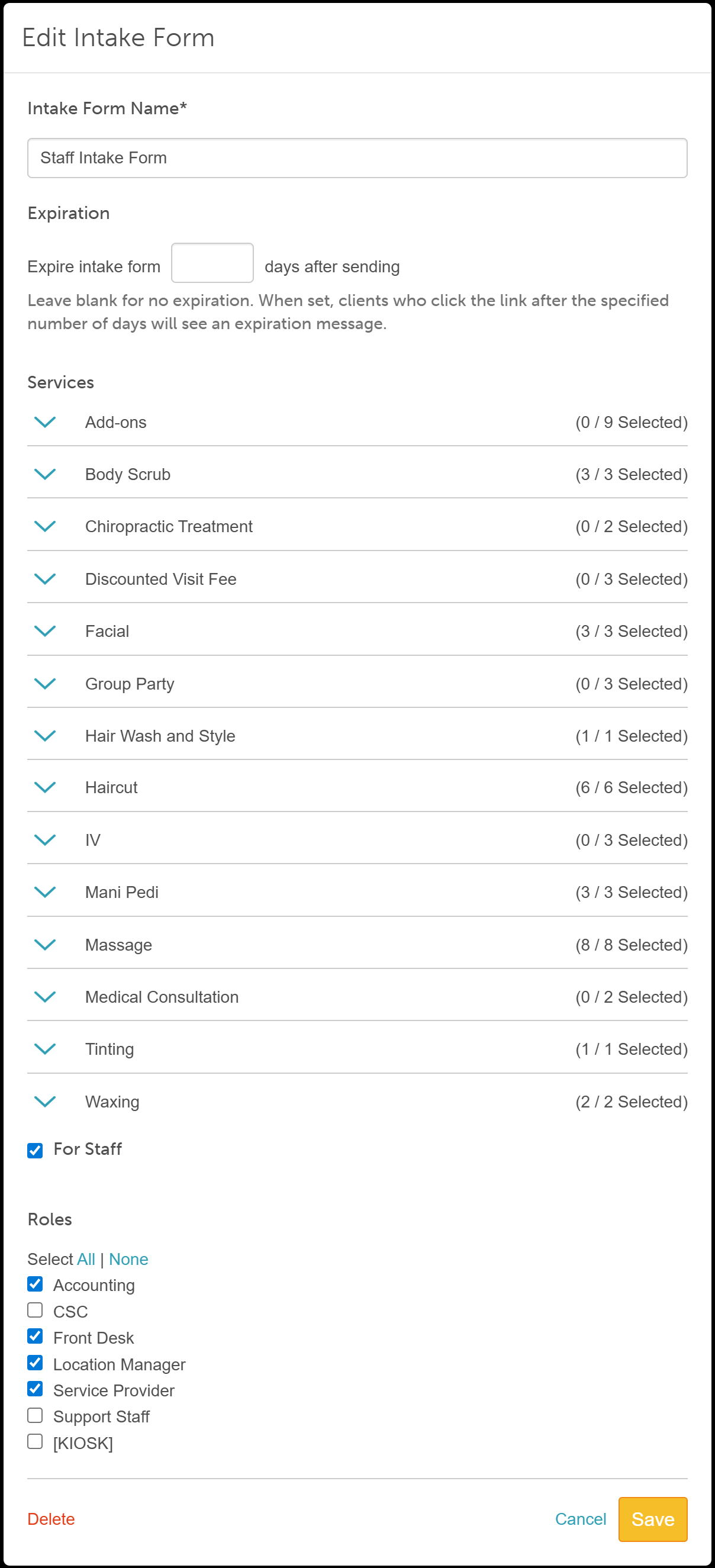
- Select the staff roles to which this intake form should be assigned
- Save
- You'll find a list of custom fields and default fields on the left side of the screen. Simply place a checkmark (or tick) next to the fields you wish to include on your intake form
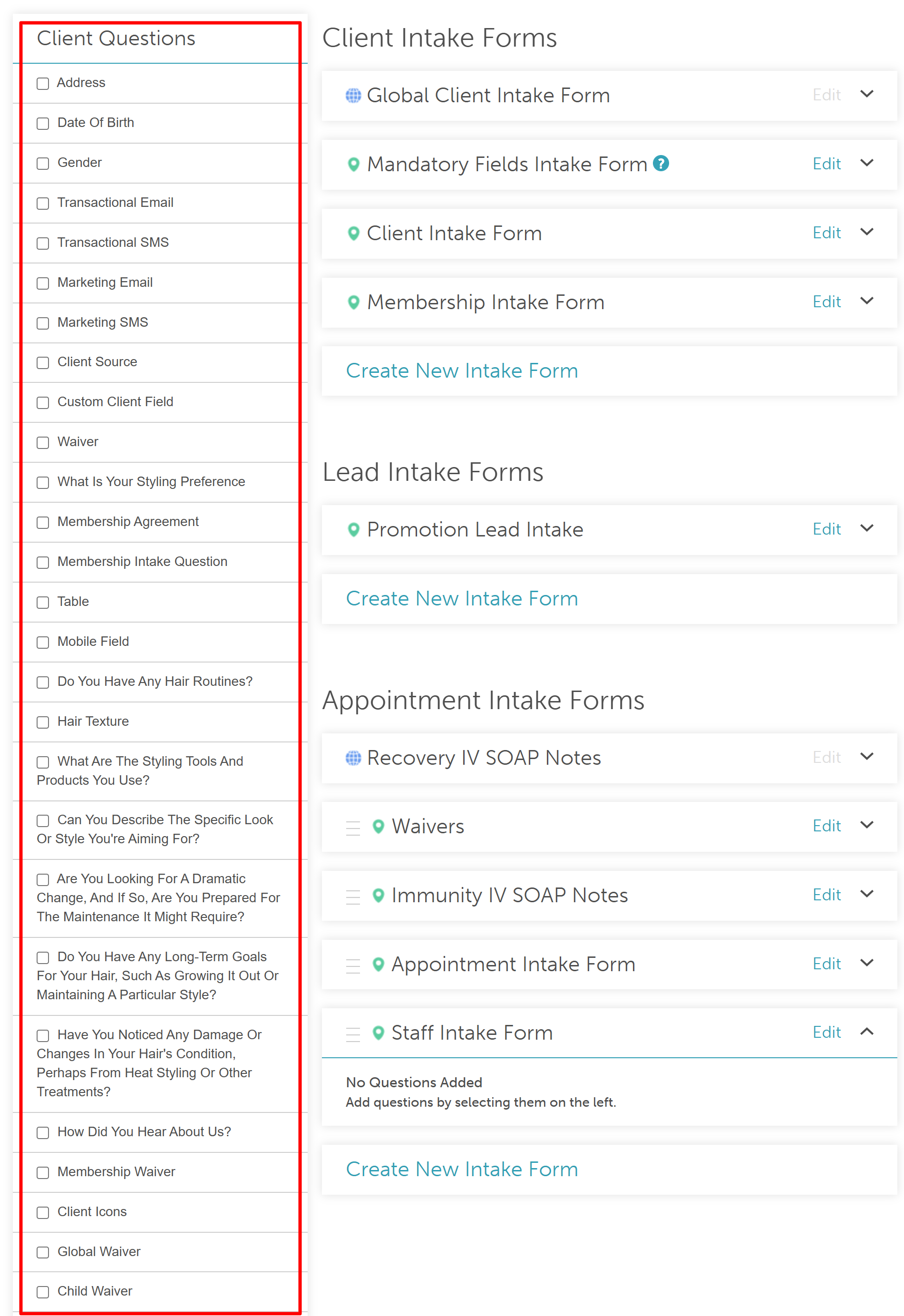
- The selected fields will appear below the Staff Intake Form in the "Appointment Intake Form" section
- Once the custom fields are added, you can expand them to add a description per field by clicking the dropdown arrow to the left
- Add your description, state if it should be required, and decide if it should be asked every time
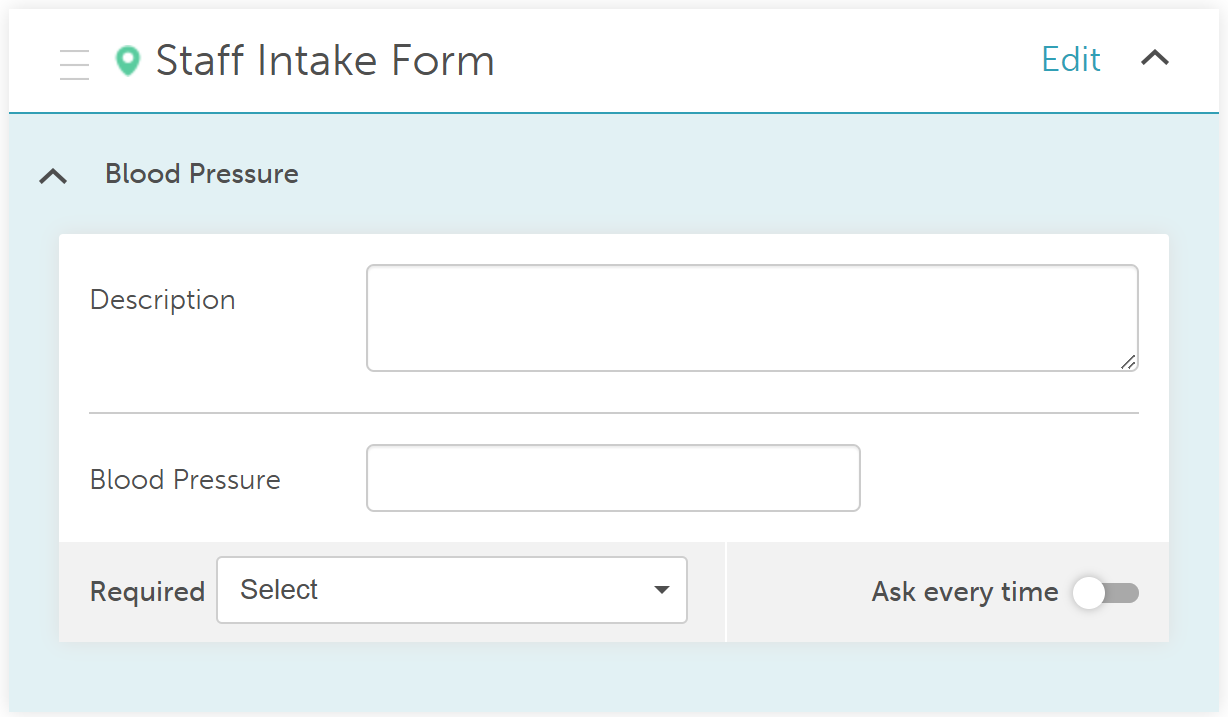
- The description will be added automatically to the intake forms


For more information, contact us at support@mytime.com.
Related Article:
Generating Employee Intake Form (SOAP Notes)Was this article helpful?
That’s Great!
Thank you for your feedback
Sorry! We couldn't be helpful
Thank you for your feedback
Feedback sent
We appreciate your effort and will try to fix the article