Maintain a clean, accurate inventory by removing outdated brands and categories. This guide covers the requirements, franchise rules, and reporting impacts of deleting these items from MyTime.
Things to know:
- The ability to delete product brands and categories is controlled by the “Accessing Inventory Details” access control setting
- For franchise businesses using global products, product brands and categories must be deleted at the parent level
- Before deleting a product category, ensure that no products are assigned to it
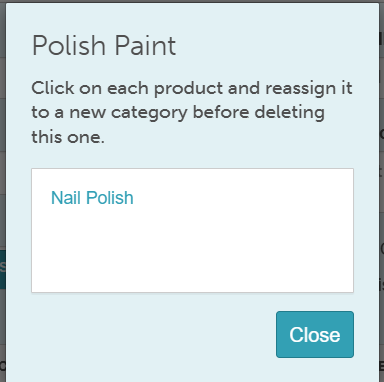
- If the category is still in use, a pop-up will display all associated products
- You can click on any product in the list to navigate directly to its settings and reassign it to a different category
- Once all products have been reassigned and the category is empty, it can be successfully deleted
- The Inventory Turn report will reflect the updated category after a product’s category is changed or deleted. However, sales reports, such as the Product Sales Detail report will continue to display historical data based on the category assigned at the time of the sale.
- Commission Based on Product Category: If a product category is deleted and its products are reassigned to a different category, staff will only continue to earn commission if the new category is eligible for compensation. If the new category is not eligible, commission will no longer be applied.
- Inventory Forecast: The system generates daily replenishment reports for products in categories with a defined forecast period. When a category is deleted, forecasting for all products previously assigned to that category stops immediately.
- If a product category is deleted, any tax associated with that category will also be removed
Contents
Deleting a Product Category
- Deleting a Product Category
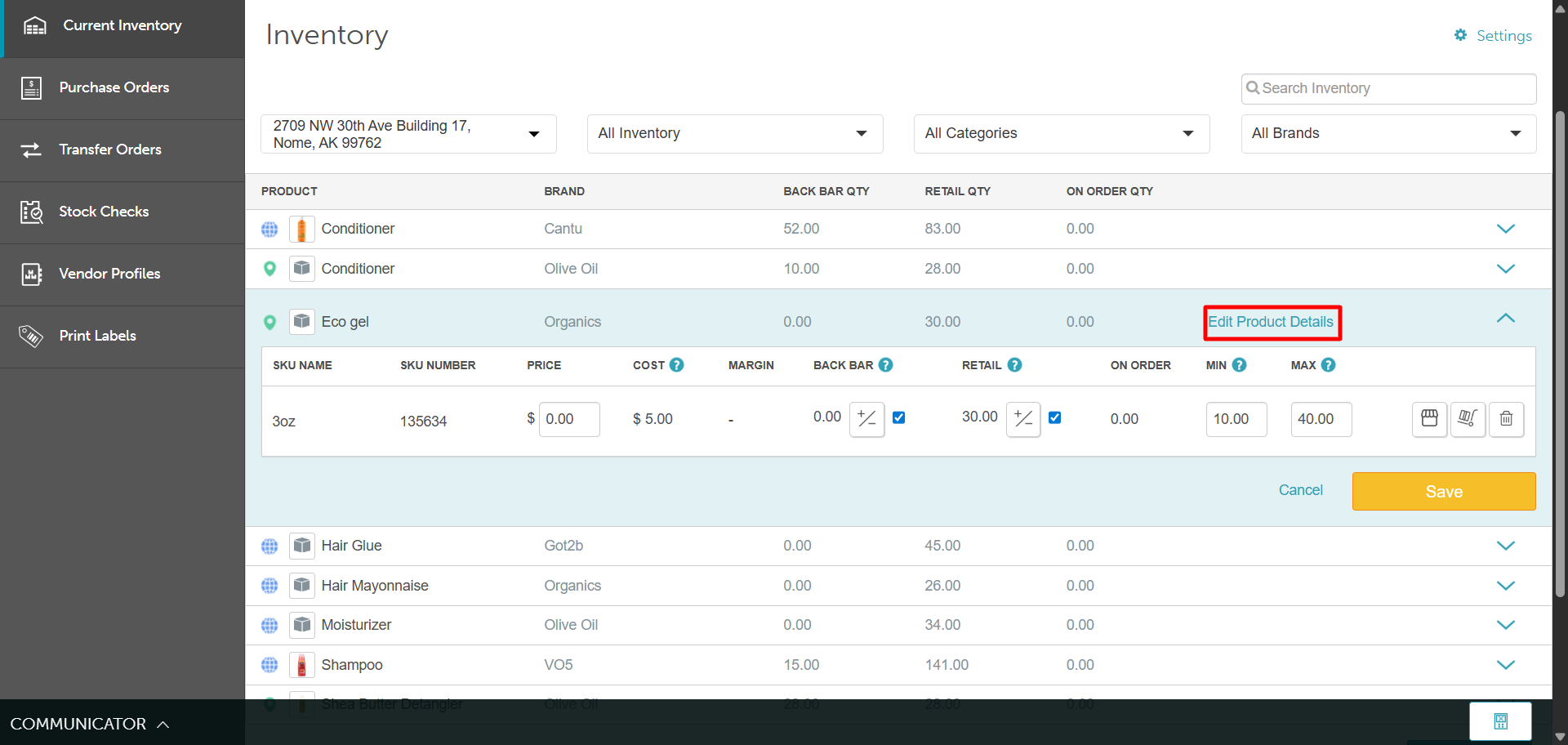
- Navigate to POS > Inventory
- Locate a product and click the arrow on the right to expand its details
- Click Edit Product Details
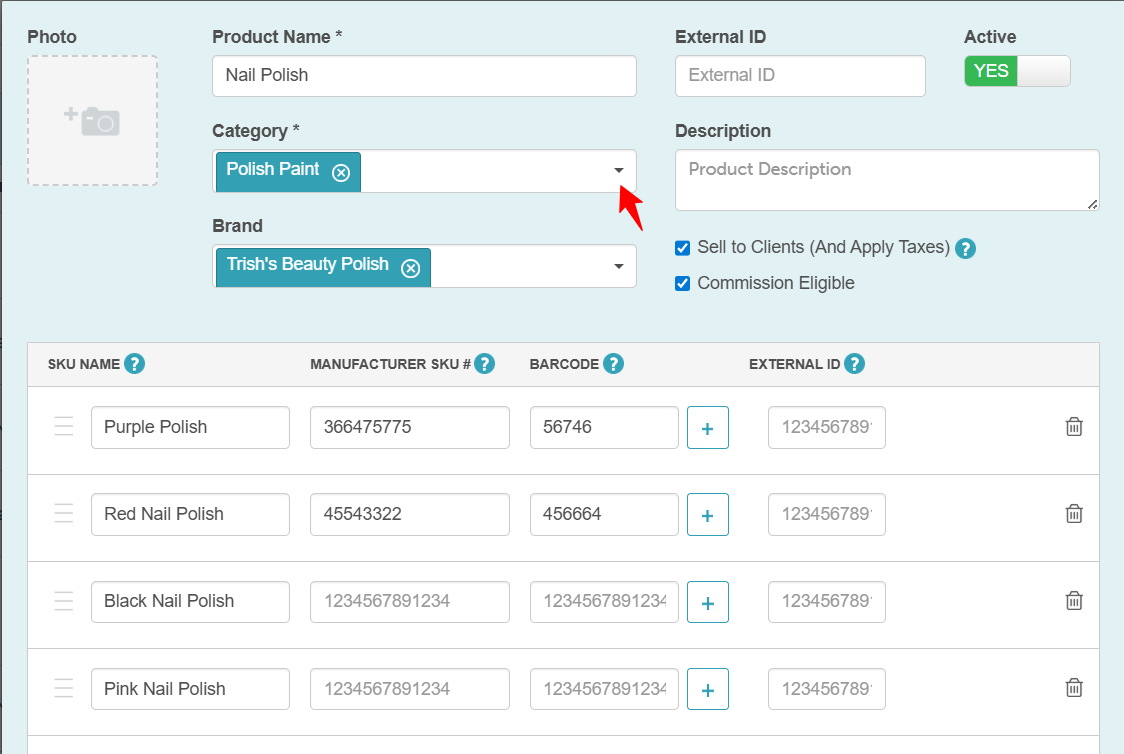
- Click the dropdown arrow next to the Category field
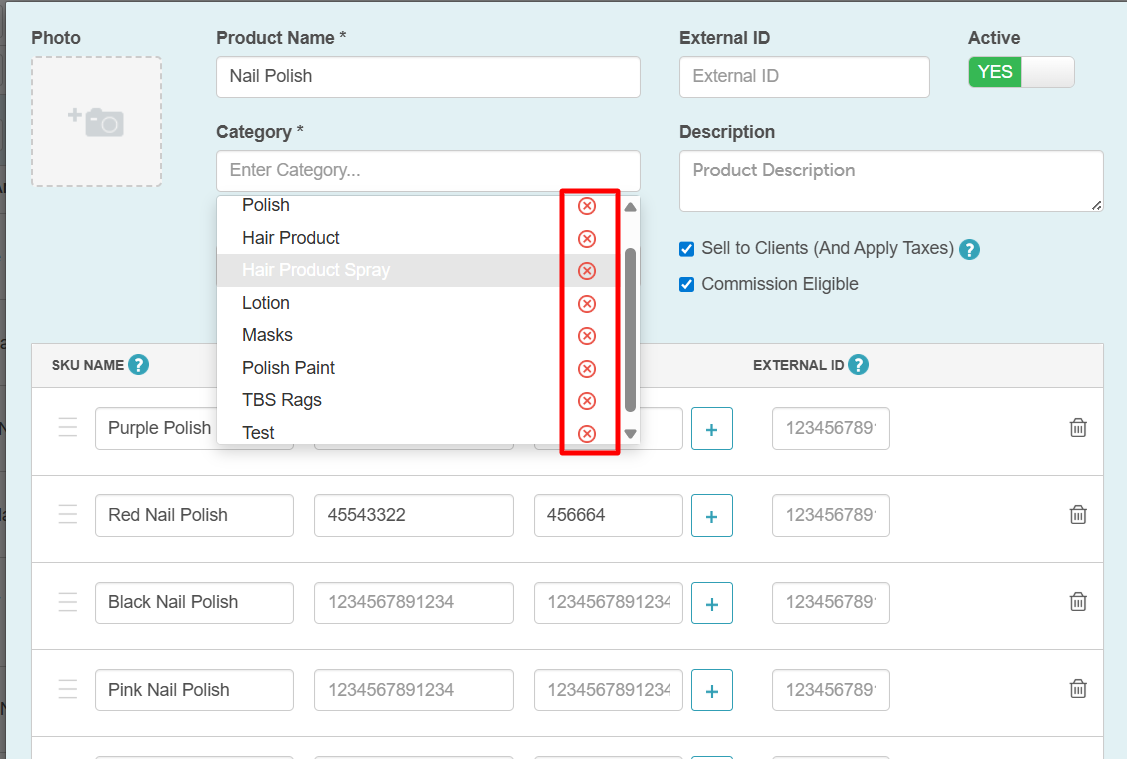
- Click the red X next to the category you want to delete
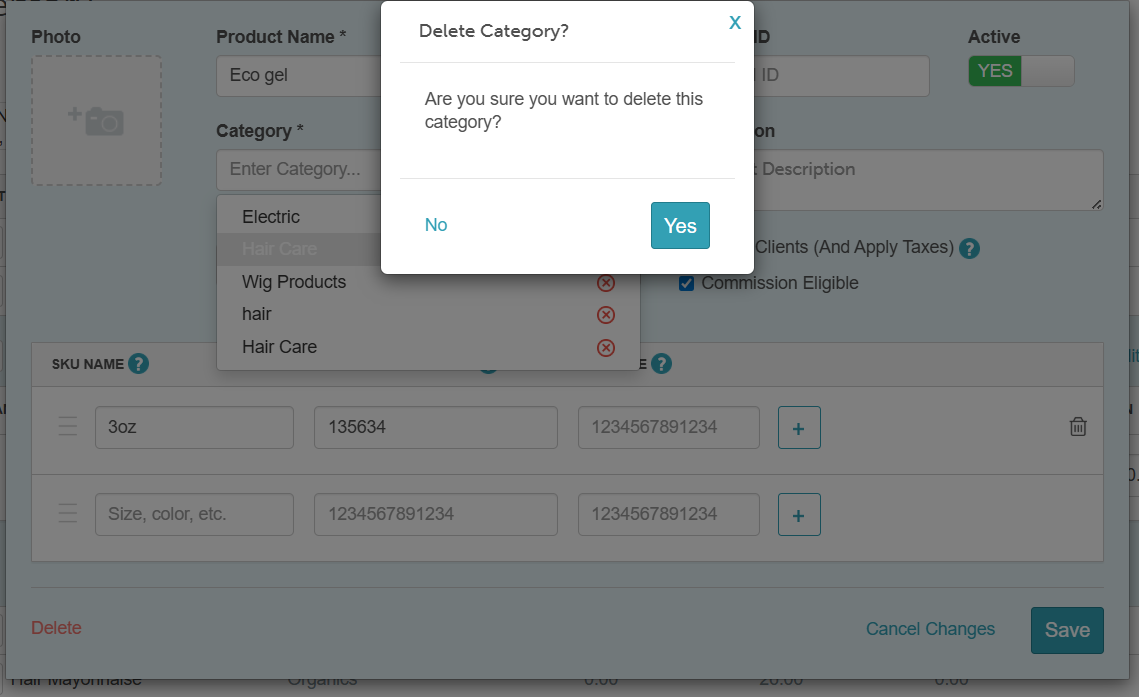
- Click Yes on the confirmation pop-up
- If the category is still in use, a modal will appear displaying all products currently assigned to it:
- Click any product to open its settings in a new browser tab
- Use the category dropdown to assign the product to a different category
- Once all products have been reassigned and the category is empty, repeat the deletion steps
- After successfully deleting the category, click Save
Deleting a Product Brand
- Navigate to POS > Inventory
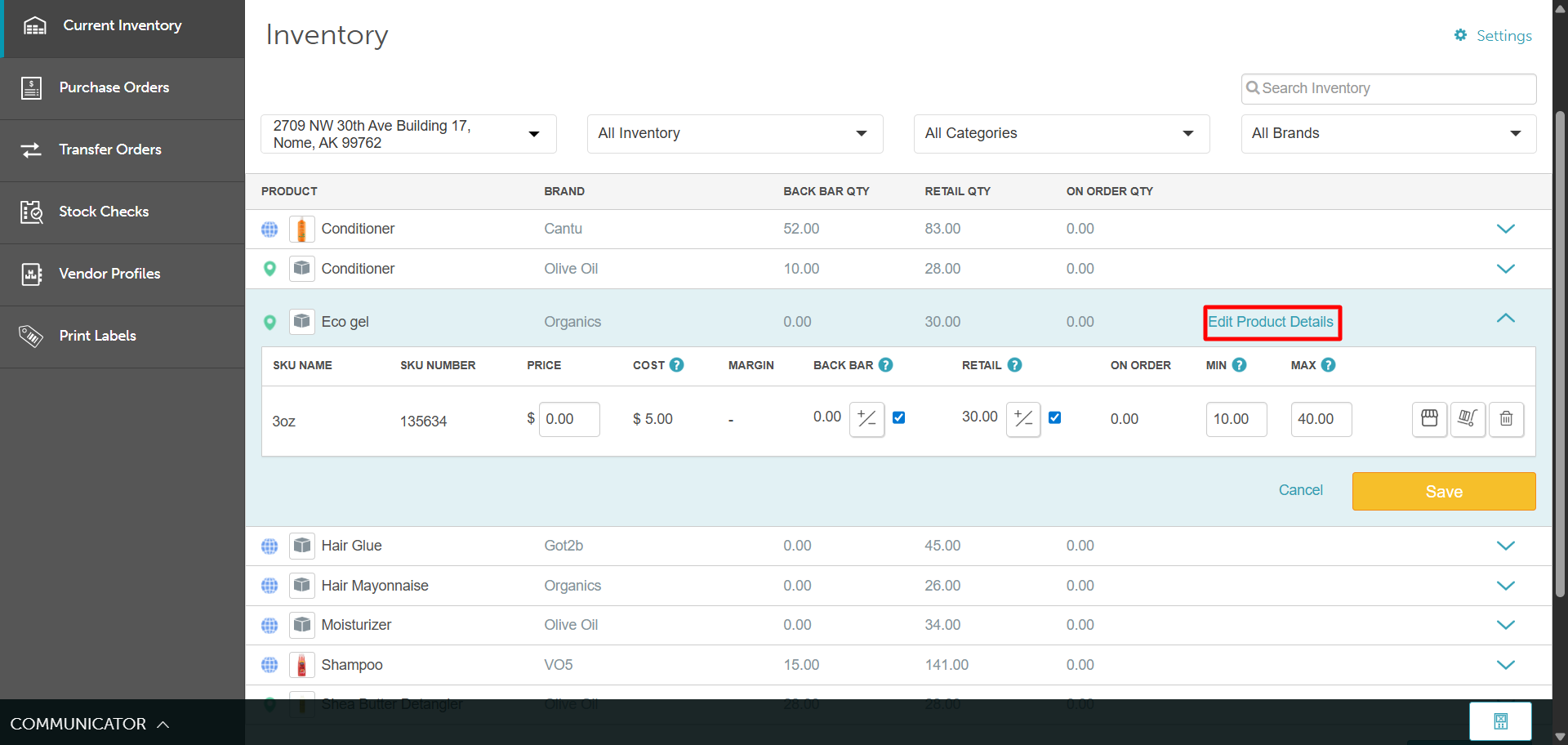
- Locate a product and click the arrow on the right to expand the details
- Click Edit Product Details
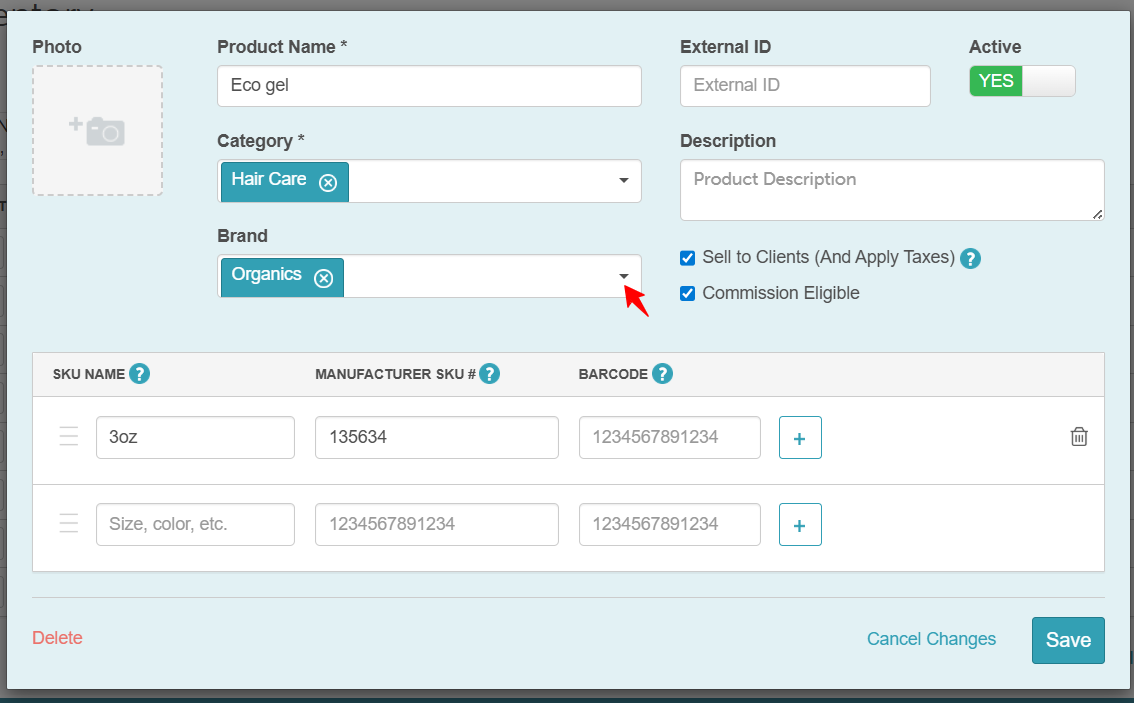
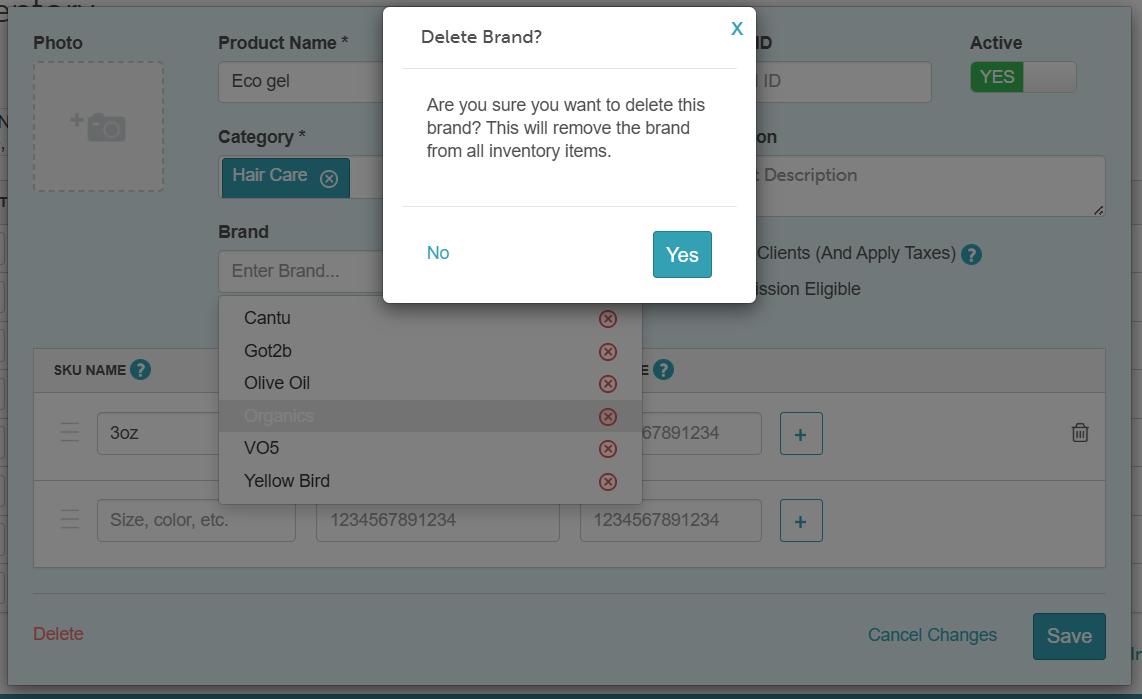
- Click the dropdown arrow next to the Brand field
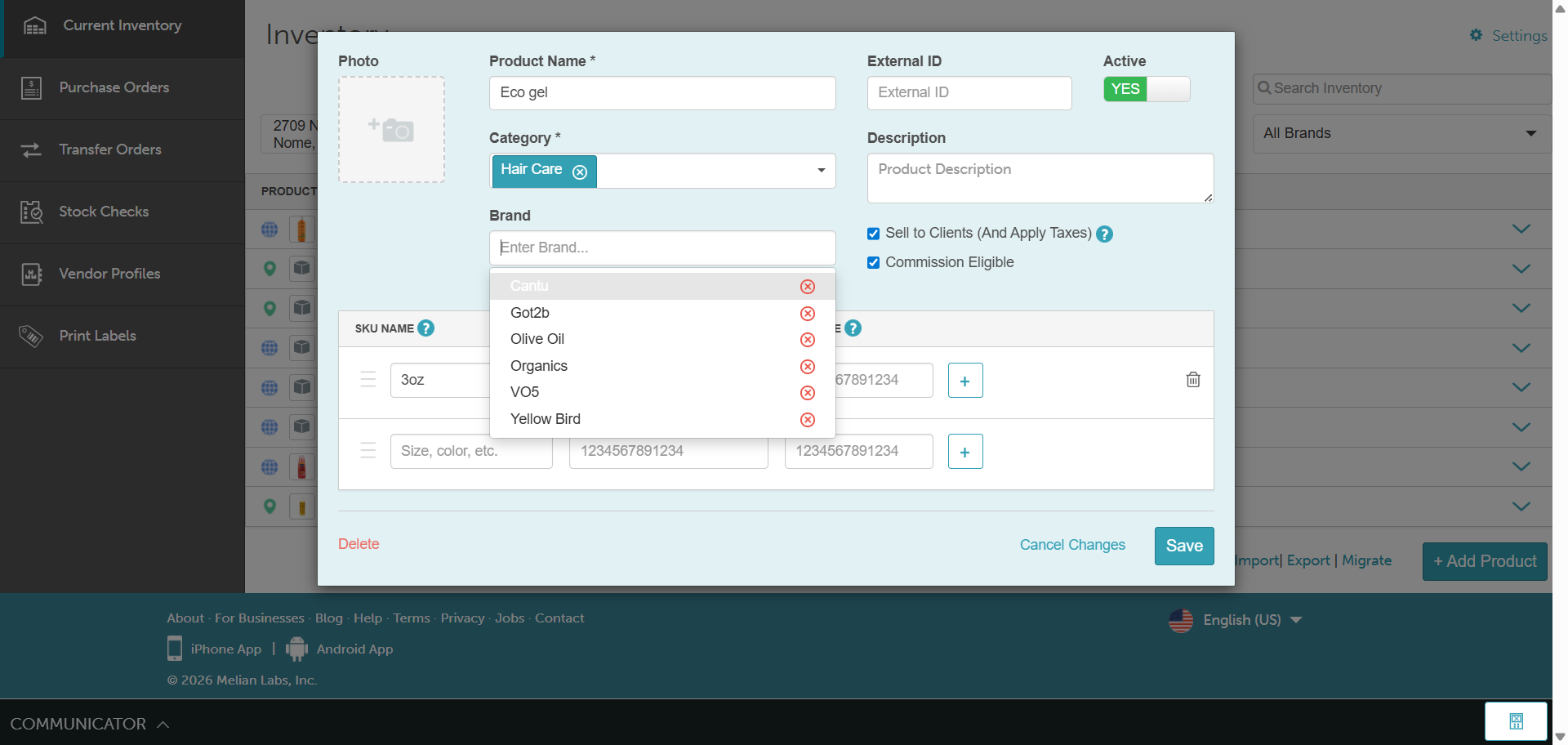
- Click the red X next to the brand name in the list
- Click Yes on the confirmation pop-up to delete
- Click Save
For more information, contact us at support@mytime.com or (385) 233-6964.
Related Articles:
Deleting Products in Inventory on Scheduler App
Was this article helpful?
That’s Great!
Thank you for your feedback
Sorry! We couldn't be helpful
Thank you for your feedback
Feedback sent
We appreciate your effort and will try to fix the article