The visit count on an appointment tile shows how many times a client has booked and completed services within that specific service category. This gives your staff an instant snapshot of a client's visit history right from the schedule.
Things to know:
- The ability to view the service count on appointment tiles is governed by the "Accessing Appointments" access control and the "Display Service Count on Appointment Tiles" setting.
- Counts are calculated per service category, not per individual service name. For example, if a client completes three different services categorized under Haircuts, the Haircut category count displays as 3.
- Excluded Items:
- Cancellations & No-Shows: Canceled or uncompleted appointments do not increment the count.
- Add-Ons: Add-on services are excluded from visit totals because they are not categorized as standalone service categories.
- Excluded Items:
- How Visit Counts Are Calculated:
- Standard Client Accounts: The visit counter increases chronologically as services within that category are marked as Completed. When viewing future appointments on the schedule, the tile displays the projected visit number (e.g., if a client has completed 3 massage appointments, their next booked massage appointment displays as visit #4).
- Pet Care Business Logic (Client-Level Accumulation):For pet care businesses, the service category visit count is tracked at the client level, combining completed visits across all pets registered to that owner.
- Combined Pet History: The visit count increments whenever any pet belonging to the client completes a service in that category.
- Multi-Pet Example: If Max completes 2 grooming appointments and Bella completes 1 grooming appointment, the owner's total completed grooming visits equal 3. The next grooming appointment booked for either Max or Bella will display as visit #4.
- Top-Right Menu Setup Labeling: The label displayed for system settings in the top-right user menu adapts based on your assigned role and how you accessed the location account:
- Business Setup: Displayed for Admins accessing a child account from the Parent Account (Location Management tab).
- Location Setup: Displayed for:
- Users in a "Login As" session initiated from the Parent Account.
- Location Owners and Location Managers logged in directly at the location level.
- Profile Setup: Displayed for Staff, Service Providers, and all other roles logged in directly at the location level.
Contents:
- Enable Number of Appointment Visits Setting
- View Number of Appointment Visits on Schedule
- Number of Appointment Visits Based on Appointment Type
Enable Number of Appointment Visits Setting
- Navigate to Business Setup / Location Setup > Settings

- Scroll to the Calendar section
- Locate the “Display Service Count on Appointment Tiles” setting
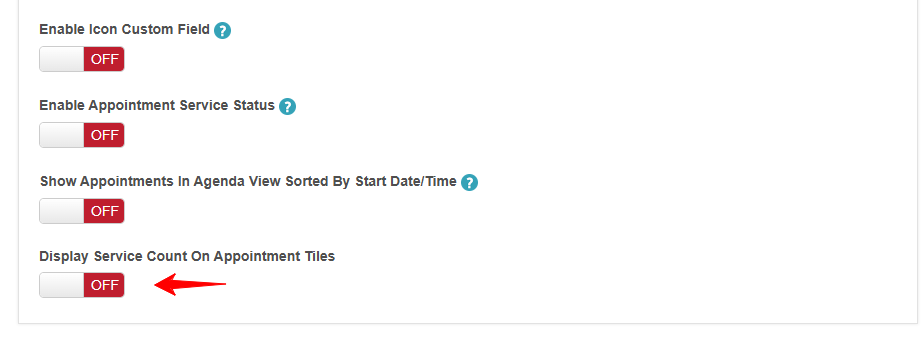
- Toggle the setting to 'Yes'
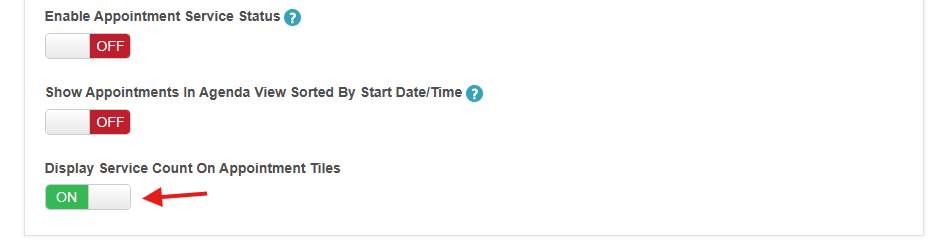
- Scroll to the bottom of the page and click 'Save'
View Number of Appointment Visits on Schedule
To see appointment visit counts on the schedule:
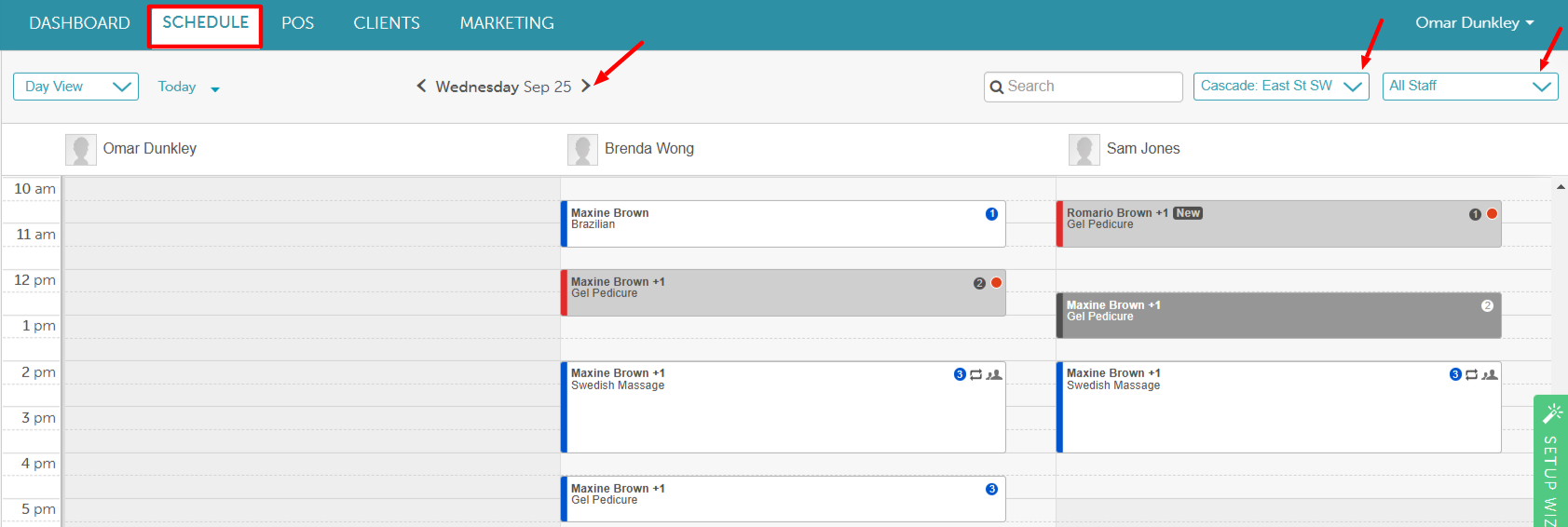
- Go to Schedule
- Use filters to select the desired date, location, and staff member

- Locate the visit count displayed next to the service name on each appointment tile, which shows how many times the client has completed appointments in that service category
Visit Count Based on Appointment Type
The visit count calculates differently depending on the appointment's status, scheduling structure, or booking type:
| Appointment Type | Behavior & Example |
| Completed Appointments | Past completed appointments are assigned consecutive numbers. Example: Maxine completes a Swedish Massage on Jan 1 (1), Mar 1 (2), and May 1 (3). |
| Future Appointments | Future bookings reflect the projected next visit number based on completed history. Example: Lucy completed 2 Gel Pedicures in the past and has 3 upcoming bookings. All 3 future appointment tiles will display "3" until completed. |
| Recurring Appointments | Canceling or deleting a recurring instance updates subsequent counts automatically. Example: Maxine completes Jan (1) and Feb (2) massages, but cancels Mar. Her upcoming April and May tiles show "3" until completed. |
| No-Show Appointments | No-shows display the current count but do not advance the visit progression. Example: Samantha’s 5th Gel Pedicure is marked as a No-Show. Her next scheduled appointment will still show "5" rather than advancing to 6. |
| Waitlist Appointments | Waitlisted entries display the projected visit count while waiting for confirmation. Example: Troy completed 2 Hot Stone Massages. When placed on the waitlist for a new slot, the tile displays "3." |
| Couples Appointments | Tracks primary account history only; guest histories are excluded. Example: Marsha books a Couples Massage with Phillip. The tile count reflects Marsha's category history only. |
| Service Group Appointments | Displays the highest individual category count among all services in the group. Example: Jade completed 1 Gel Manicure in the past. She books a Service Group containing a Gel Manicure and a Gel Pedicure. The group tile displays "2." |
For more information, contact us at support@mytime.com.
Related Articles:
Scheduling Appointments for Clients
Scheduling Appointment for Family Members
Scheduling Appointment for Pets
Scheduling Multi-Staff Appointments
Scheduling Recurring Appointments
Appointments / Bookings Report
Booking Appointments for Multi-Client Services In-store
Was this article helpful?
That’s Great!
Thank you for your feedback
Sorry! We couldn't be helpful
Thank you for your feedback
Feedback sent
We appreciate your effort and will try to fix the article