At MyTime, you can configure your account to automatically deduct membership value credits (dollar balances) to cover late cancellation and no-show fees. When enabled, the system uses a client's available item credits first (if applicable) and then applies their membership value credits, ensuring your business is compensated for lost time while providing a seamless experience for members.
Things to know:
- The ability to cancel an appointment or mark an appointment as a no-show is controlled by the “Accessing Appointments” access setting.
- This functionality is controlled by the "Consume membership value credits for the cancellation/no show policy" hidden setting. Please contact MyTime support to enable this setting.
- If an appointment is already checked in, it must be checked out before it can be marked as a no-show.
- Walk-in clients are excluded from using value credits for cancellation or no-show fees.
- Eligible Value Credits: Only active, unexpired value credits valid for your business can be applied. If a value credit is restricted to specific services or items, it will only apply if the canceled appointment includes at least one of those services.
- Credit Consumption Order: If a client has both item credits and value credits, item credits are consumed first for eligible services, followed by value credits for any remaining fee balance. Only the uncovered remainder is charged to a card or collected in POS.
- Deposits Paid with Value Credits: If a client paid an initial booking deposit using value credits and later cancels within the cancellation window, that deposit is retained to cover the deposit portion of the fee.
- If staff selects "No Thanks" when prompted to charge a cancellation fee, no additional fee is charged beyond any deposit already collected at booking.
- How Payment is Processed (Online vs. In-Store):
- Client Cancels Online: Value credits are applied automatically to the ticket, and the client's card on file is charged any remaining balance. If value credits cover the entire fee, the ticket closes automatically.
- Staff Cancels or Marks No-Show: Nothing is charged to a card automatically. Instead, the modal previews the available value credits, and an open cancellation ticket is created in POS for staff to review and close.
- Refunding & Status Changes:
- If a cancellation fee ticket paid with value credits is refunded in POS, the consumed value credits are automatically returned to the client's balance.
- When an appointment marked as a no-show is updated to Showed Up, value credits are returned unless:
- The ticket is shared with other appointments from a group cancellation, or includes additional products/services.
- The original membership credit has since expired (if an active, unexpired credit from the same membership benefit exists, the balance is returned there instead).
- Reporting: Cancellations and no-shows where fees are paid using membership value credits are tracked in the Cancellations / No-Shows Report.
Contents
- Paying No-Show Fees with Membership Value Credits
- Paying Cancellation Fees with Membership Value Credits In-Store
- Paying Cancellation Fees with Membership Value Credits Online
- Example Scenario
Paying No-Show Fees with Membership Value Credits
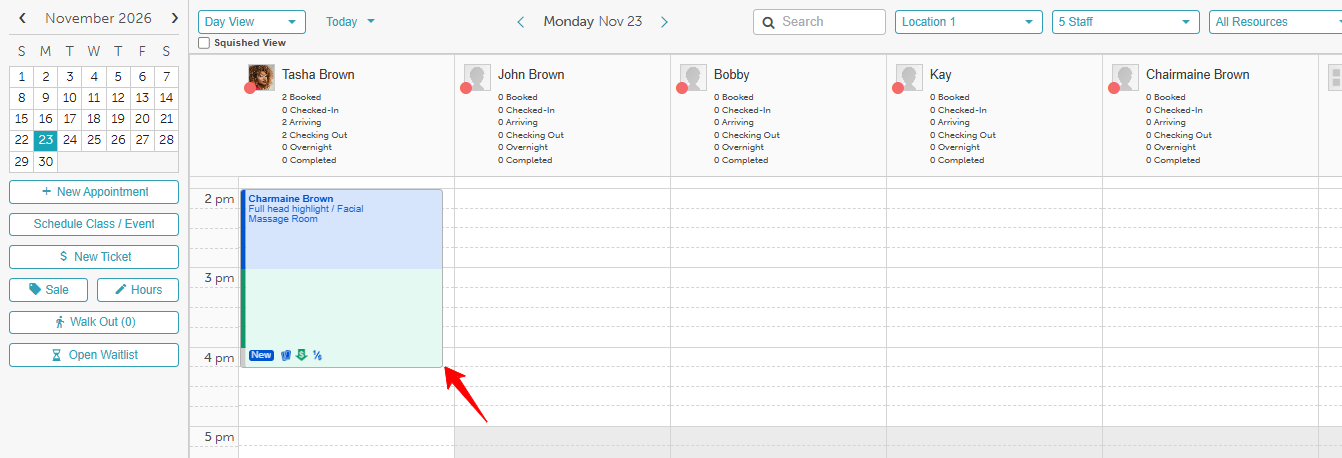
- Navigate to the Schedule
- Locate and open the appointment
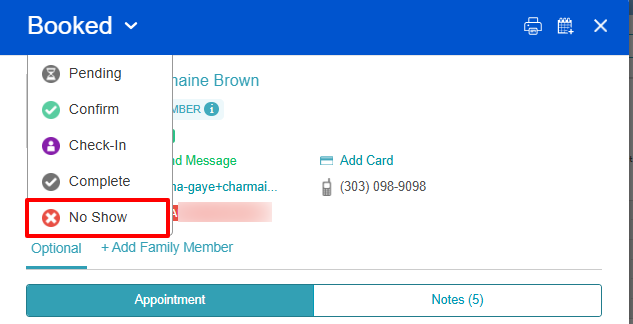
- Click the drop-down next to the Booked status and select No Show
- A modal will appear asking if you would like to charge a cancellation fee, displaying a clear breakdown:
- Cancellation Fee (Credits): Any membership/package item credits consumed for eligible services (if applicable).
- Cancellation Fee ($ Credits): The dollar amount of membership value credits that will be consumed toward the fee.
- Cancellation Fee (Deposit): Any prepaid deposit applied toward the cancellation fee (only shown if a deposit was collected at booking).
- Cancellation Fee (Remaining): The remaining balance owed by the client for any fees not covered by credits or deposits.
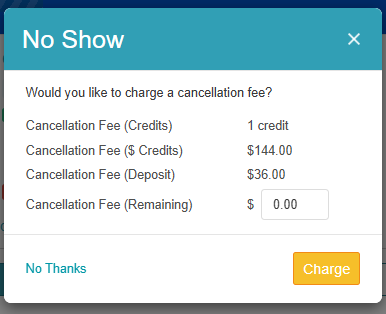
- Cancellation Fee (Credits): Any membership/package item credits consumed for eligible services (if applicable).
- Click "Charge" to consume the value credits and process any remaining fee, or click "No Thanks" to waive additional fees.
- Clicking Charge redirects you to POS, where the value credits are applied as Membership Value Credit Received. Complete payment for any remaining balance and close the ticket.
Paying Cancellation Fees with Membership Value Credits In-Store
Navigate to the Schedule
- Locate and open the appointment
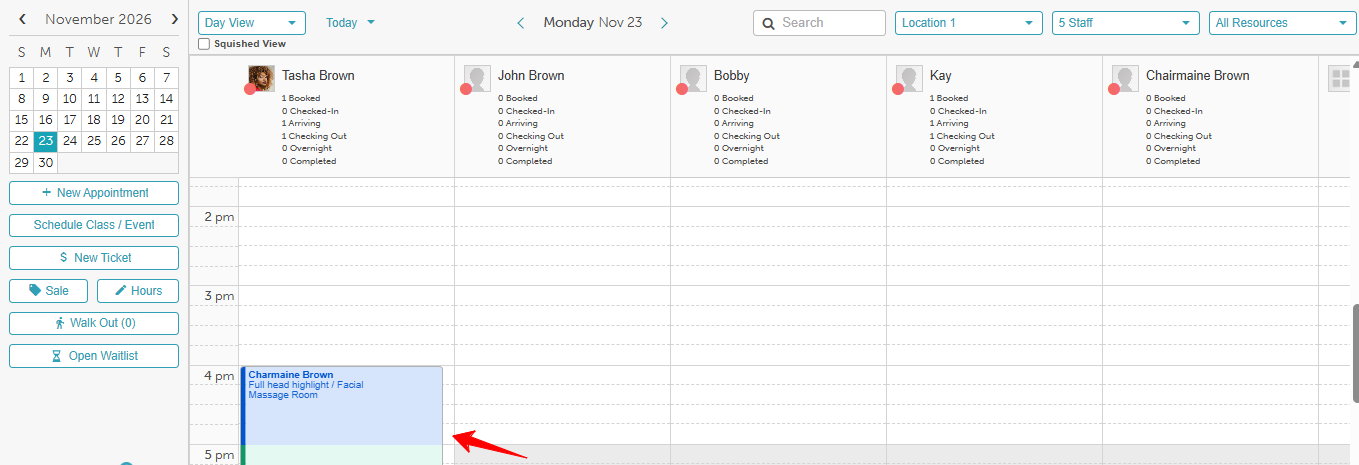
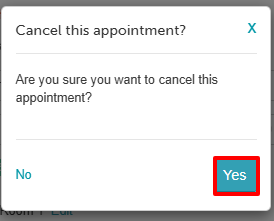
- Click Cancel Appointment and confirm by selecting Yes on the pop-up
- Select a cancellation reason (if prompted)
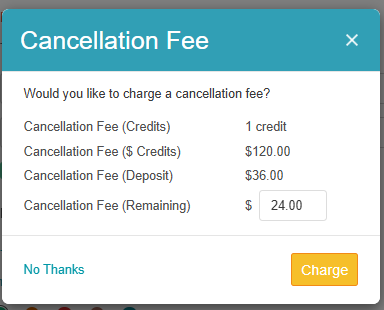
- Review the fee breakdown modal:
- Cancellation Fee (Credits): Any item credits consumed for eligible services (if applicable).
- Cancellation Fee ($ Credits): The dollar amount of membership value credits that will be consumed toward the fee.
- Cancellation Fee (Deposit): Any prepaid deposit applied toward the cancellation fee (only shown if a deposit was collected at booking).
- Cancellation Fee (Remaining): The remaining balance owed by the client after credits and deposits are applied.
- Cancellation Fee (Credits): Any item credits consumed for eligible services (if applicable).
- Click "Charge" to consume the credits and process remaining fees, or "No Thanks" to waive additional fees.
- Complete the transaction in POS and close the ticket. The client's value credit balance will automatically decrease by the amount used.
Paying Cancellation Fees with Membership Value Credits Online
- Navigate to your business website or Booking Widget
- If your business has multiple locations, select the preferred location to view the correct calendar
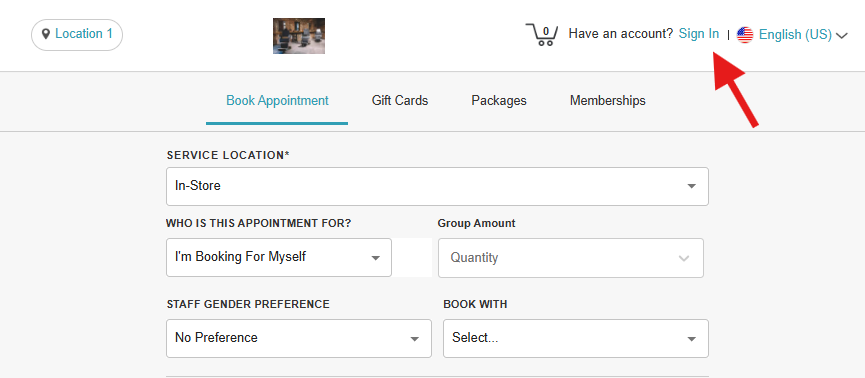
- Click the Sign In button at the top of the page
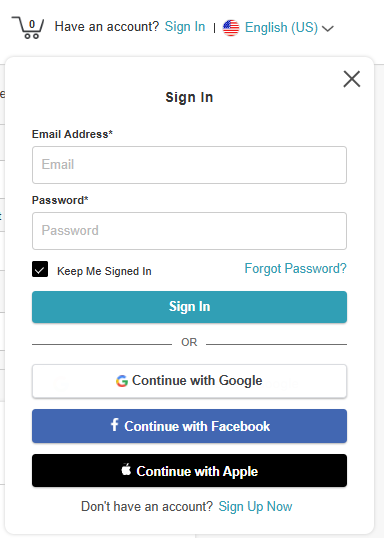
- Choose a login method:
- Standard: Enter the registered email address and password, then click Sign In
- Social Login: Select Continue with Google, Continue with Apple, or Continue with Facebook
- Standard: Enter the registered email address and password, then click Sign In
- Click the dropdown next to your initials and select Account
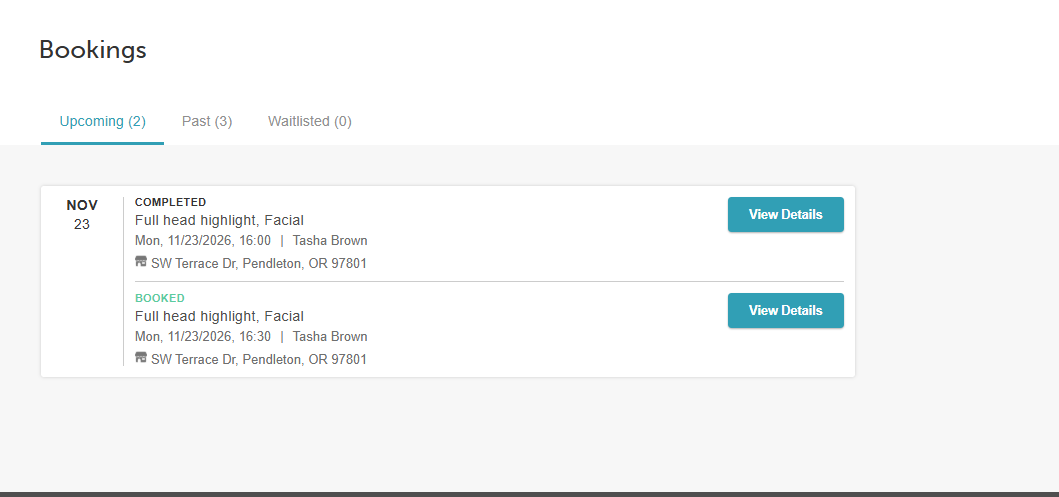
- In the left sidebar, click Bookings
- Click View Details next to the appointment to be canceled
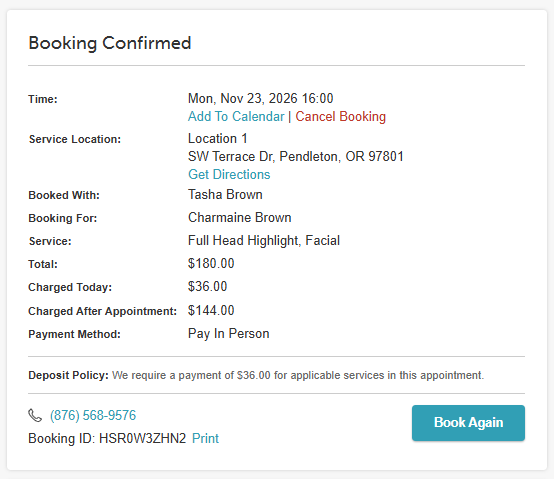
- Select Cancel Booking
- Before confirming the cancellation, the fee breakdown will be displayed, showing any Cancellation Fee ($ Credits) applied alongside deposits and remaining balances.
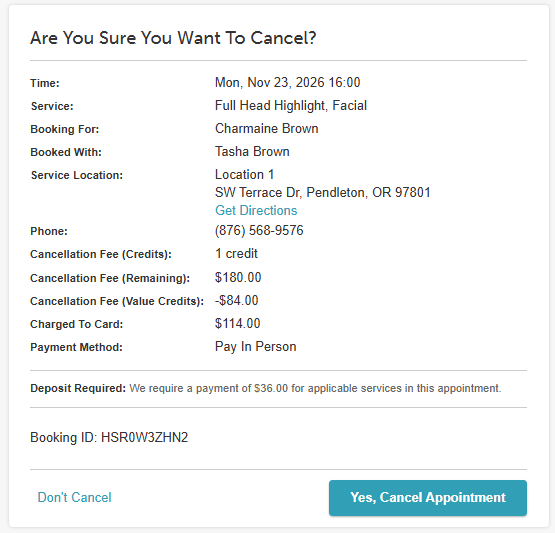
- Confirm by clicking Yes, Cancel Appointment. Any applicable value credits will be deducted automatically, and any remaining balance will be charged to the card on file.
Example Scenario
A client holds a membership with 1 item credit (valid for a Swedish Massage) and $30 in membership value credits. They book a single appointment with two services and pay a $10 deposit at booking:
- Swedish Massage ($100): Covered by 1 membership item credit.
- Men's Cut ($50): Uncovered ($10 deposit applied at booking).
- Upon late cancellation (under a Full Service Price cancellation policy):
- Item Credits Applied First: 1 membership item credit is redeemed to cover the $100 Swedish Massage.
- Deposit Applied: The $10 deposit already paid at booking is subtracted from the $50 Men's Cut, leaving $40.
- Value Credits Applied Next: The client's $30 in membership value credits are automatically applied toward the remaining $40 fee.
- Outcome: The client only owes the remaining $10 via card or POS. In POS, the closed cancellation ticket displays $30.00 Membership Value Credit Received, and the client's value credit balance updates to $0.
- Item Credits Applied First: 1 membership item credit is redeemed to cover the $100 Swedish Massage.
For more information, contact us at support@mytime.com or (385) 233-6964.
Related Articles:
- Consume Package & Membership Item Credits for Cancellation and No-Show Fees
- How Do Cancellation Fees Work for Appointments / Class Enrolments Covered by Packages or Memberships?
- Marking Appointments as No-Show
- Canceling Appointments In-store
- Canceling Appointments Online
Was this article helpful?
That’s Great!
Thank you for your feedback
Sorry! We couldn't be helpful
Thank you for your feedback
Feedback sent
We appreciate your effort and will try to fix the article