A gift certificate functions as a payment method, covering the specific services, classes, or products on the ticket. Once purchased, staff can redeem it in-store by scanning the barcode or entering the gift certificate code into the Apply Gift Card field in POS.
Things to know:
- The ability to redeem gift certificates in the POS is controlled by a hidden setting and the "Creating Tickets" access control permission.
- To configure gift certificates for in-store sales, click here.
- Franchise Businesses:
- Global vs. Local Availability
- Global Gift Certificates: Created at the parent account level. These can be redeemed across all locations under the parent account.
- Local Gift Certificates: Created at a specific child location. These can only be redeemed at that specific location. If entered anywhere else, the POS will reject the code.
- Global vs. Local Availability
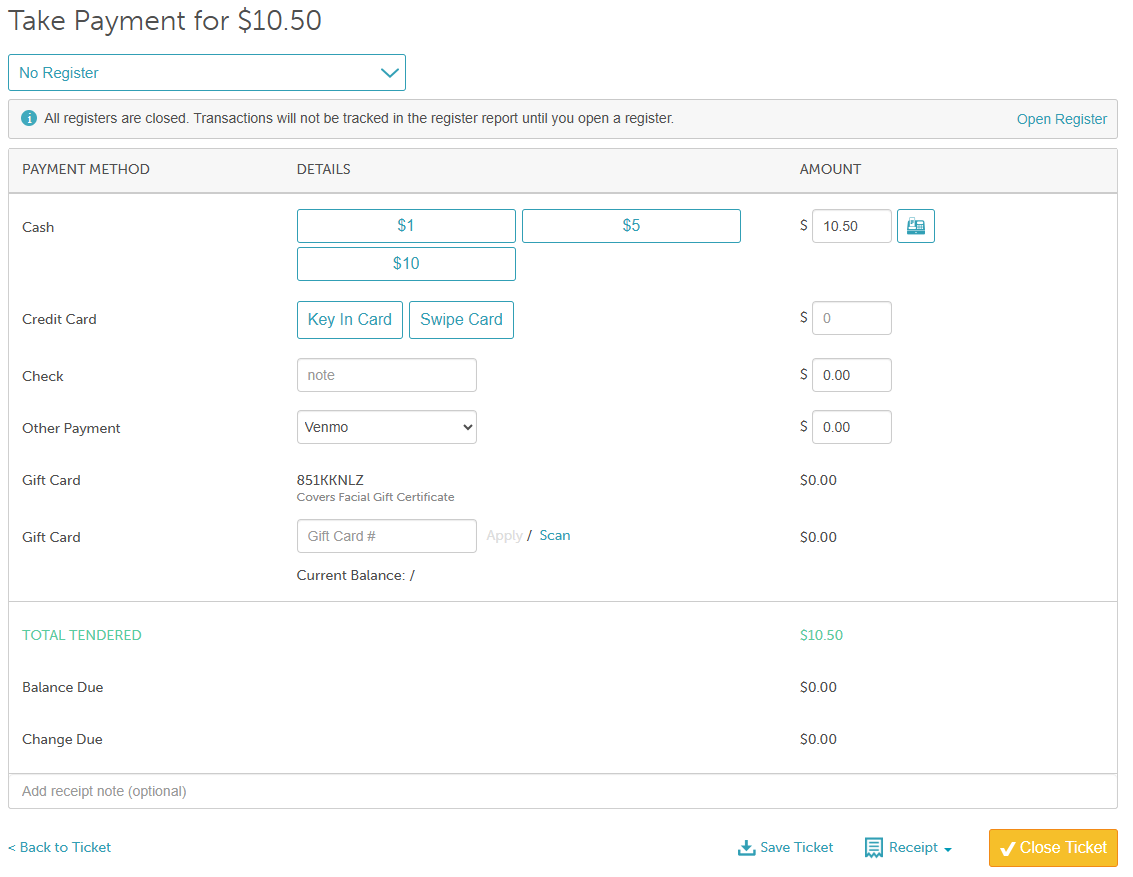
- Gift certificates cannot be used to pay for taxes or additional fees.
- Staff can send clients an invoice link from the POS ticket via email, Communicator, or a direct link. When opening the invoice link, clients can enter their gift certificate code in the Gift Card section to pay for eligible services, classes, or products directly from the payment page.
- An audit trail is located directly on the gift certificate, this shows its detailed usage history and redemption activity.
To redeem a gift certificate in POS, follow these steps:
- Navigate to POS > New Ticket
- Select the location from the drop-down menu
- Add a client to the ticket
- Add the item(s) to the ticket
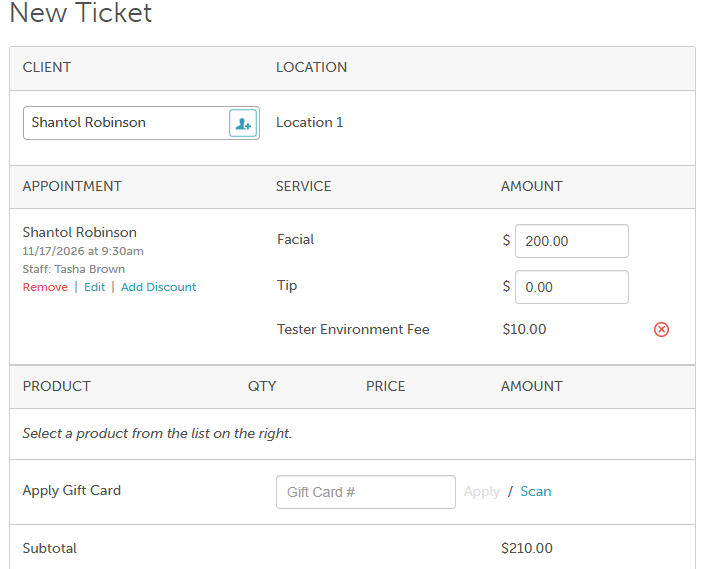
- In the "Apply Gift Card" field, click Scan to scan the QR code with a barcode scanner, or enter the gift certificate code manually.
- Once applied, a gift certificate label appears next to the item to confirm coverage and display its usage (e.g., 3/5).
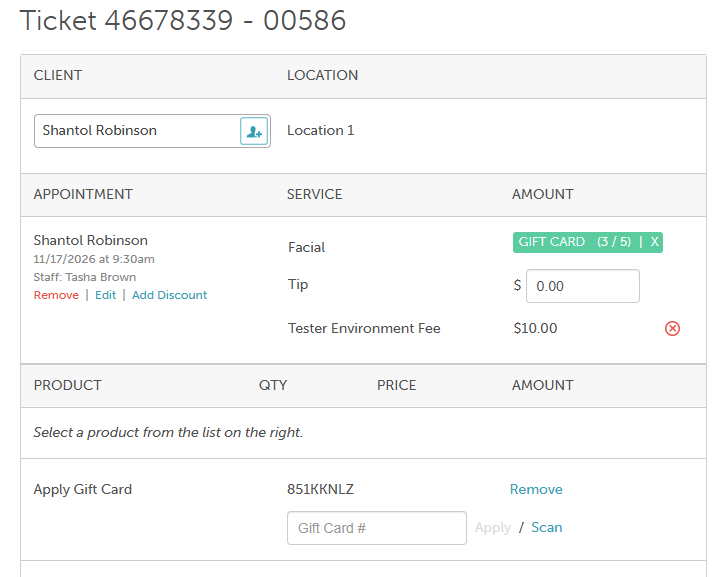
- Select "Take Payment" if there are any applicable taxes or fees on the ticket that the client needs to pay out of pocket.
- Once payment is received, close the ticket.
If you have any questions, please contact our Support Team at support@mytime.com.
Related Articles:
Selling Gift Certificates in POS
Was this article helpful?
That’s Great!
Thank you for your feedback
Sorry! We couldn't be helpful
Thank you for your feedback
Feedback sent
We appreciate your effort and will try to fix the article