At MyTime, you can keep specific class sessions active and bookable online while removing them from your main Booking Widget schedule. This allows you to host private sessions, VIP events, or exclusive member classes without cluttering your general class list, giving you full control over who can discover and register for your sessions via direct, shareable links.
Things to know:
- The "Schedule Classes/Events" setting must be enabled and staff must have the ability to schedule classes and events.
- Allow Online Booking must be switched on in the class session modal. (If turned off, the session is completely unavailable online and the hide toggle will not appear.)
- Once online booking is active, switch on the "Hide from Booking Widget menu" toggle to keep the session hidden online
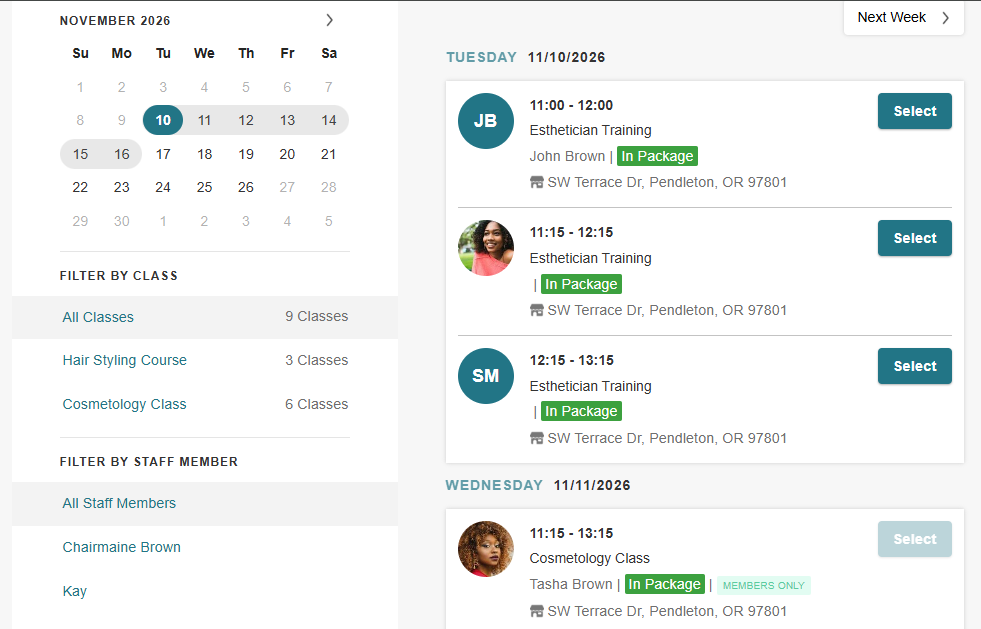
- Hidden sessions do not appear on your Booking Widget calendar or class list. They are also excluded from instructor dropdowns, category counts, and date availability dots.
- Clients can only access, book, or join the waitlist for a hidden class session by using its direct shareable link.
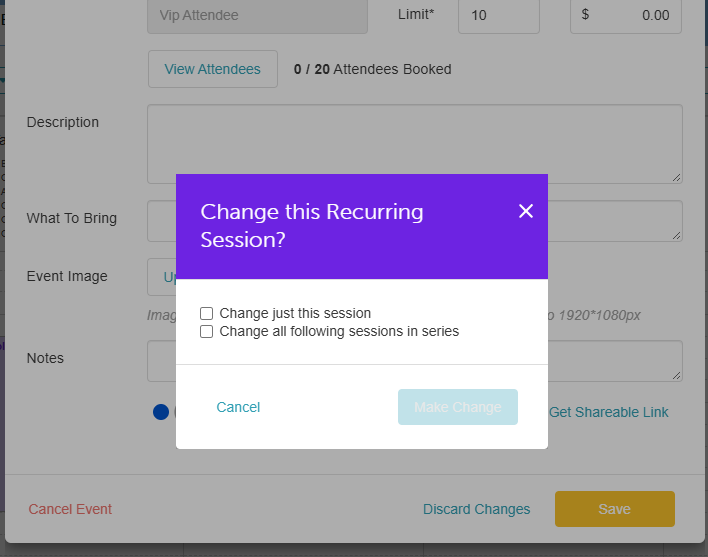
- When updating a class session that is part of a recurring series, choose how you want the change applied:
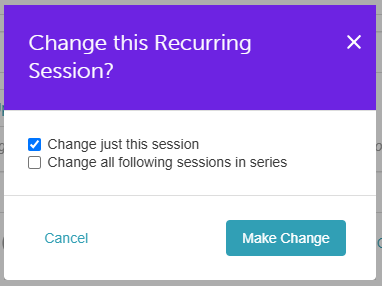
- Change just this session: Hides only the selected occurrence, leaving the rest of the series visible on your public schedule.
- Change all following sessions in series: Hides the selected occurrence and all future sessions in the series from your public schedule.
Contents
How to Hide a Class Session Online
- How to Hide a Class Session Online
- Navigate to the Schedule.
- Filter by your desired location and date.
- Schedule a new class session or select an existing class to update.
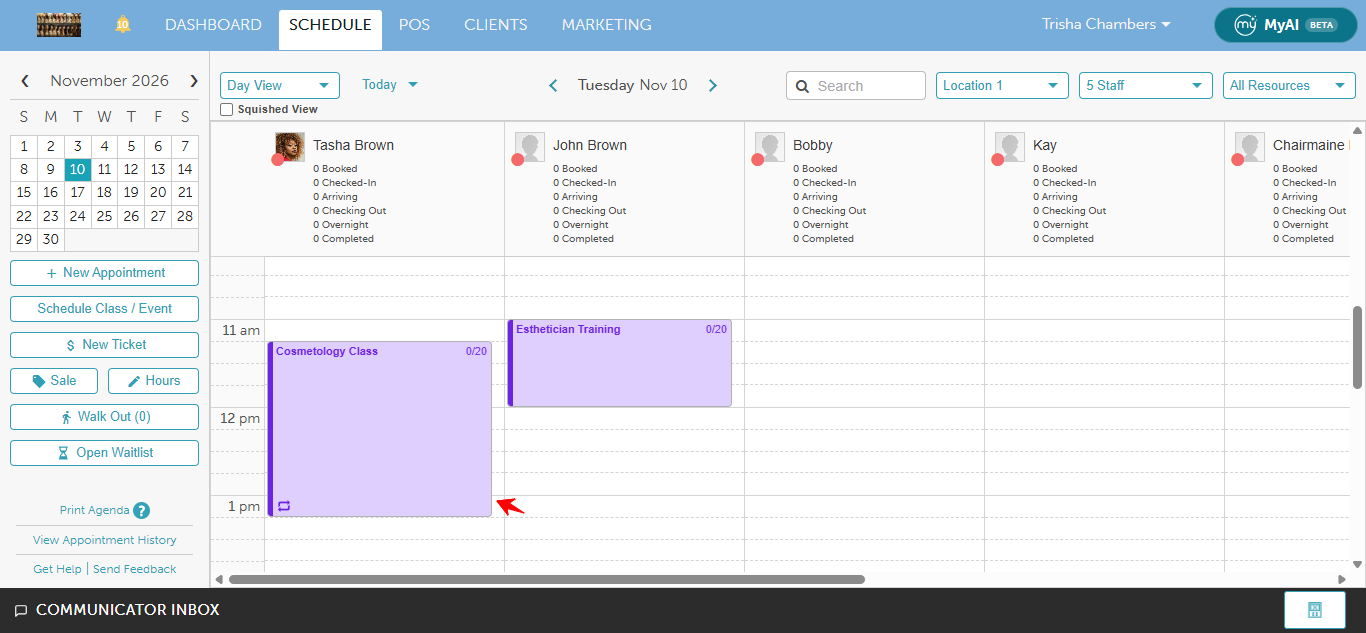
- In the class modal, locate the Hide from Booking Widget menu toggle next to the Allow Online Booking option.
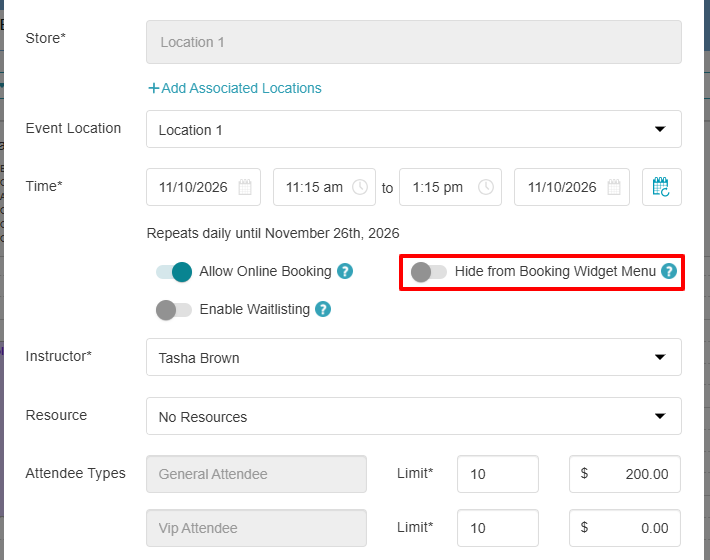
- Toggle the setting to Yes.
- Click Save.
- For recurring classes, a prompt will appear asking you to choose either Change just this session or Change all following sessions in series.
- Click Make Change to confirm.
- Once saved, the class session will be hidden from your public Booking Widget menu.
.
Sharing a Hidden Class with Clients
Because hidden sessions do not appear publicly online, clients must access them via a direct link:
- Schedule a new class session or select an existing class to update.
- In the class modal, click Get Shareable Link.
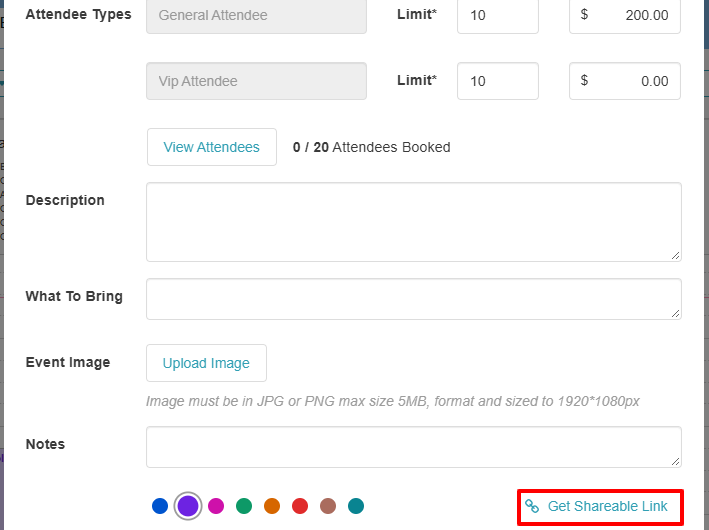
- Copy and send the URL directly to your clients (via email, SMS, or private invitation).
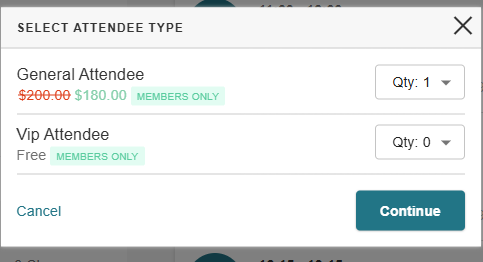
- When clients open the link, the class session is preselected so they can check out or join the waitlist.
For more information, contact us at support@mytime.com or (385) 233-6964.
Related Articles:
Was this article helpful?
That’s Great!
Thank you for your feedback
Sorry! We couldn't be helpful
Thank you for your feedback
Feedback sent
We appreciate your effort and will try to fix the article