The Client Lifetime Value (LTV) Report helps you understand how valuable each client is to your business over the course of their relationship with you. Rather than looking only at how much a client has spent in the past, MyTime combines their actual spending to date with an estimate of how much more they are likely to spend in the future. The easiest way to think about it is:
Lifetime Value = What the client has already spent + What we reasonably expect them to spend in the future
For example, if a client has already spent $1,500 and MyTime estimates that they are likely
to spend another $700 in the future:
Lifetime Value = $1,500 + $700 = $2,200
This allows MyTime to distinguish between clients who may have similar histories but very
different likelihoods of returning.
Things to know:
Access Control: The ability to access this report is governed by the Accessing Reports access control setting.
Smart LTV Calculation: Unlike basic formulas that treat all clients the same, MyTime looks at how recently a client visited. A client who visited last week has a higher projected future value than someone who hasn't visited in a year.
Smart Recency Model: Projections slide down gradually based on days since the last visit. A client who visited yesterday and one who has been away 18 months receive very different projections, even if their past spend is identical.
Lapsed Clients ($0 Future Value): Once a client passes your location's lapse threshold, their status becomes Lapsed, Projected Lifespan Remaining and Projected Future Spend show $0.00, and LTV equals Total Spend to Date. Lifespan to Date freezes on their effective lapse date (last visit + threshold). If a lapsed client returns, their status becomes Active again and projections resume.
New Clients (<12 Months): For clients with less than a year of history, MyTime bases visit projections on similar clients with the same tenure. After 12 months, the client's own history is used.
Automatic Status Tracking: Client status updates dynamically based on days since their last visit:
Active Status: The client visited recently and is well within the expected time frame for a return appointment.
Calculation: Days since last visit is less than 60% of your threshold.
180-Day Example: 180 days x 0.60 = 108 days.
If a client visited 0 to 107 days, they are marked Active.
Impact on LTV: Projections remain strong. Their full historical visit frequency and average spend are used to calculate expected future revenue.
At Risk Status: The client is overdue for their normal return visit and is approaching the point where they may never come back.
Calculation: Days since last visit is between 60% and $100% of your threshold.
180-Day Example: $180 days x 0.60 = 108 days up to $180 days.
If a client hasn't visited in 108 to 179 days, they are marked At Risk.
Impact on LTV: Projections automatically decay. Historical data shows overdue clients return less frequently, MyTime reduces their Projected Future Visit Frequency and Projected Remaining Lifespan, lowering their overall projected future spend.
Lapsed Status: The time since the client's last visit has exceeded the threshold where 95% of returning clients normally come back. The system now considers them lost/churned.
Calculation: Days since last visit has reached or exceeded 100% of your threshold.
180-Day Example: $180 days x 1.00 = 180 days.
If a client hasn't visited in 180+ days, they are marked Lapsed.
Impact on LTV:
Projected Future Spend immediately drops to $0.00.
Lifespan to Date freezes on day 180 (it stops growing indefinitely).
Lifetime Value (LTV) becomes equal to their Total Spend to Date.
Note: If the client returns in the future, their status automatically flips back to Active, and projections start up again.
- Model Eligibility & Benchmarking: Locations with at least 100 active clients and 12 months of visit history use their own custom data model. Newer or smaller locations automatically borrow benchmark models from their Franchise/Brand or the MyTime Default pool.
- Monthly Recalculation Schedule: Projections are automatically updated on the 1st of every month using your business’s latest transaction and visit data.
- Client Grouping: Each primary client account appears as a single row in the report. Spending and visits across all associated family members or pets are grouped under that primary client account.
- Visit Counting: Visits are tracked per individual family member or pet. For example, if a client brings two pets or two family members to a single appointment, MyTime counts that transaction as 2 total visits.
- Minimum Visit Threshold (< 5 Visits): Clients with fewer than 5 completed visits will display N/A for projections and total LTV, accompanied by the tooltip "Too few visits, not enough data." These clients will still receive an Active, At Risk, or Lapsed status based on their recency.
- In the client search results, the system displays the pet or family member's name in parentheses immediately following the primary client's name. This ensures that staff can quickly identify the correct client when multiple clients share the same name. Example:
- Search Query: You search for "John Smith."
- Search Result: The system displays John Smith (Buddy) for a pet, or John Smith (Sarah) for a family member.
- For pet businesses, the report will show the word “deceased” in parentheses next to the name of the pet that was marked as deceased
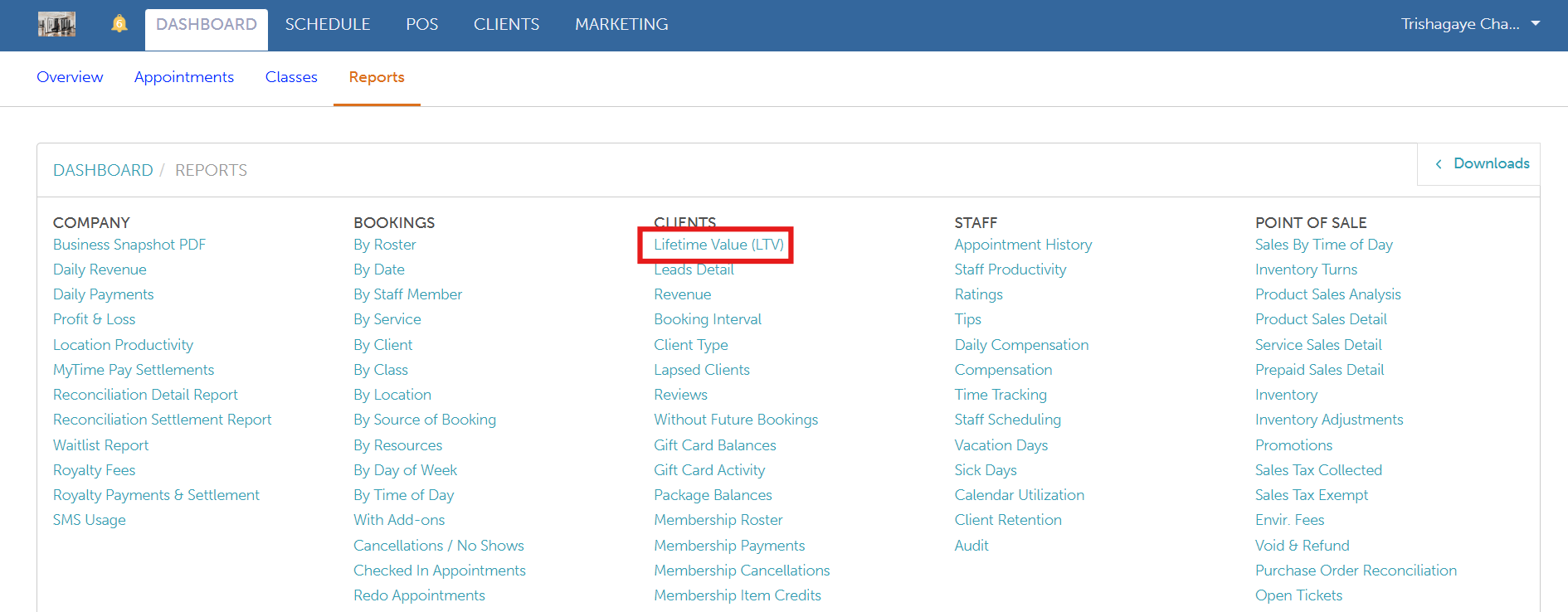
To access this report:
- Navigate to Dashboard
- Select the Reports tab
- Under the Clients section, select the Lifetime Value (LTV) report
When you open the report, you can refine the data using the following filters: Location, Membership Status, Client Source, and Client Since date. After selecting your filters, click the Update button to generate the corresponding results.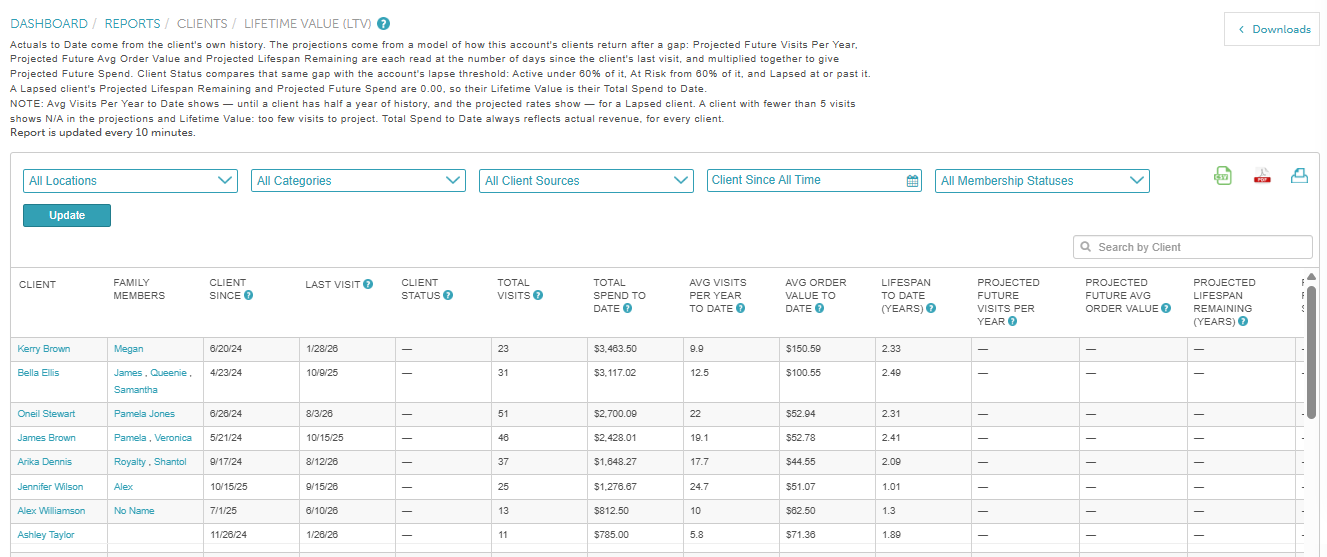
Report Filters
| Filter | Description |
| Location | Filter the report by specific business locations. When selected, only clients who have a recorded visit at the chosen location(s) will be included.
|
| Services / Categories | Filter clients based on specific service categories (e.g., Grooming, Daycare). |
| All Client Sources | Only available for businesses with client source tracking enabled. This multi-select dropdown lets you filter clients based on how they originally came to your business. Selecting multiple sources will show clients from any of the selected sources. A special "(none)" option is available to include clients who do not have a source recorded. |
| Client Since | The "Client Since" date reflects the first completed transaction, not the date the client profile was created. |
| Membership Status | This filter is available only for accounts with a Membership subscription and lets you segment clients based on their membership activity.
|
Report Columns
| Column | Description |
| Client | Displays the client’s first and last name. The name is hyperlinked; clicking it will redirect you to the client’s profile. |
| Family Member | Displays the family member's name associated with the client profile as a hyperlink. Clicking the name redirects you to the client profile to view the family member's information. Note: The name only appears if the family member was specifically included on a closed ticket. |
| Pet | Displays the pet's name associated with the client profile as a hyperlink. Clicking the name redirects you to the client profile to view the pet's information. Note: The name only appears if the pet was specifically included on a closed ticket. |
| Client Since | The date of the client's first completed appointment, class session, or closed ticket. |
| Last Visit | The calendar date of the client's most recent completed appointment, class session, or closed ticket. |
| Client Status | Indicates whether the client is returning within their normal visit timeframe (Active), overdue for an appointment (At Risk), or has stopped coming past the normal return window (Lapsed). |
| Total Visits | The total count of completed appointments or tickets recorded across the client's entire history with your business. Visits are counted per individual family member or pet (for example, bringing two pets or family members to a single appointment counts as 2 total visits). |
| Total Spend to Date | Displays a client's actual, all-time net spending across their entire history with your business. Formula: {Gross Sales} - {Discounts} - {Prepaids} - {Refunds}. Calculation: $800.00 gross - $100.00 discounts =$700.00 net spend Pro Tip: Click the header of this column to quickly sort your list and instantly identify your highest-paying all-time customers. |
| Avg Visits Per Year to Date | Displays a client's historical annual visit rate across their entire relationship with your business. Displays an em dash (—) if the client has less than 0.5 years (6 months) of history. Formula: Total Visits / Lifespan to Date (Years) Calculation: 20 visits / 1.67 years =$ 12.00 visits/yr |
| Avg Order Value to Date | Displays the client's historical average net spend per visit. Formula: Total Spend to Date / Total Visits Calculation: $700.00 / 20 visits = $35.00 per visit |
Lifespan to Date (Years) | Displays the total elapsed time between a client's first visit and today. For Lapsed clients, this counter freezes on their effective lapse date. Formula: Today's Date - Client Since Date Calculation: Oct 19, 2026 - Apr 12, 2025 =$ 1.67 years |
| Projected Future Visits Per Year | Estimates how many times per year a client is expected to visit going forward. Instead of assuming clients will keep visiting at their exact historical rate forever, MyTime adjusts their past visit frequency based on how recently they last visited. Formula: Past Visits Per Year x Visit Factor Components:
|
| Projected Future Average Order Value | Estimates the average dollar amount a client is expected to spend on each future visit. Formula: AOV to Date x Spend Factor AOV to Date: The client’s historical average spend per visit (Total Spend to Date / Total Visits). Spend Factor: A multiplier (typically between 0.90 and 1.05) derived from historical client data for your business: Calculation Examples: Jane has an AOV to Date of $35.00:
|
Projected Lifespan Remaining (Years) | Estimates how many more years a client is expected to remain active before they stop coming to your business. How it is Calculated: MyTime determines this by comparing the time elapsed since a client's last visit against your business's typical return patterns:
|
| Projected Future Spend | The total estimated revenue a client will generate during their remaining lifespan with your business. Displays $0.00 for Lapsed clients and N/A for clients with under 5 visits. Formula: Projected Visits/Year x Projected Future AOV x Projected Remaining Lifespan Calculation: 13.60 visits x $32.59/visit x 3.15 yrs = $1,396.16 future spend |
| Lifetime Value | The total estimated financial value of a client across their entire lifecycle (past actuals plus forecasted future spend). Displays N/A for clients with under 5 visits. Formula: Total Spend to Date + Projected Future Spend Calculation: $700.00 spend to date + $1,396.16 future spend =$ $2,096.16 LTV |
For more information, contact us at support@mytime.com or (385) 233-6964.
Related Articles:
Was this article helpful?
That’s Great!
Thank you for your feedback
Sorry! We couldn't be helpful
Thank you for your feedback
Feedback sent
We appreciate your effort and will try to fix the article