Custom icons in MyTime allow businesses to tag client and family member profiles with visual indicators. These icons appear directly on the schedule, enabling staff to identify key details—such as allergies, VIP status, or behavioral notes—for both the primary account holder and their family members at a glance.
Things to know:
- The ability to manage and configure custom icons is governed by the "Manage Client Setup" access control setting.
- For franchise businesses with global client sharing enabled, custom icons can be created at either the global (parent) level or the local (child) level.
- Icons can be selected from predefined options provided by MyTime or uploaded using SVG (Scalable Vector Graphics) format for full customization.
- If a custom family member icon field is marked as required, the system will require that information before saving.
- Once created, custom icons will be available when editing family member details but will not be automatically assigned—they must be manually selected per profile.
- Multiple icons can be assigned to a single family member profile, allowing for a rich representation of client characteristics.
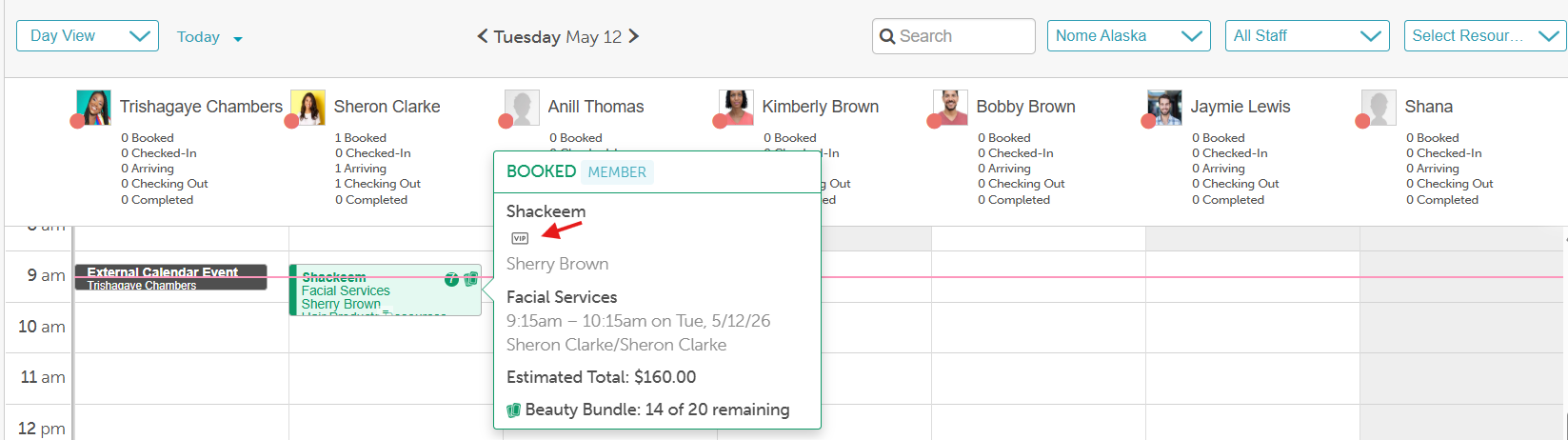
- After assignment, icons will be visible on both the appointment modal and appointment tooltip in the Scheduler.
- The setup option displayed in the top-right user menu depends on how you access the account and your assigned role:
- When navigating from the Parent Account (Location Management tab):
- Admin: Displays Business Setup when viewing the location account.
- Login As: Displays Location Setup when viewing the location account.
- When logged in directly at the Location Level:
- Location Owners & Location Managers: Display Location Setup.
- Service Providers & All Other Roles: Display Profile Setup.
Contents:
Enable Icon Fields
Before adding icons, you must enable the feature on your account:
- Go to Business Setup / Location Setup > Settings
- Scroll to the Calendar section
- Toggle "Enable Icon Custom Field" to Yes
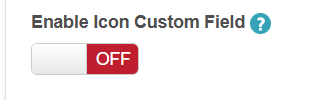
- Click Save at the bottom of the page
Create Custom Icon Fields
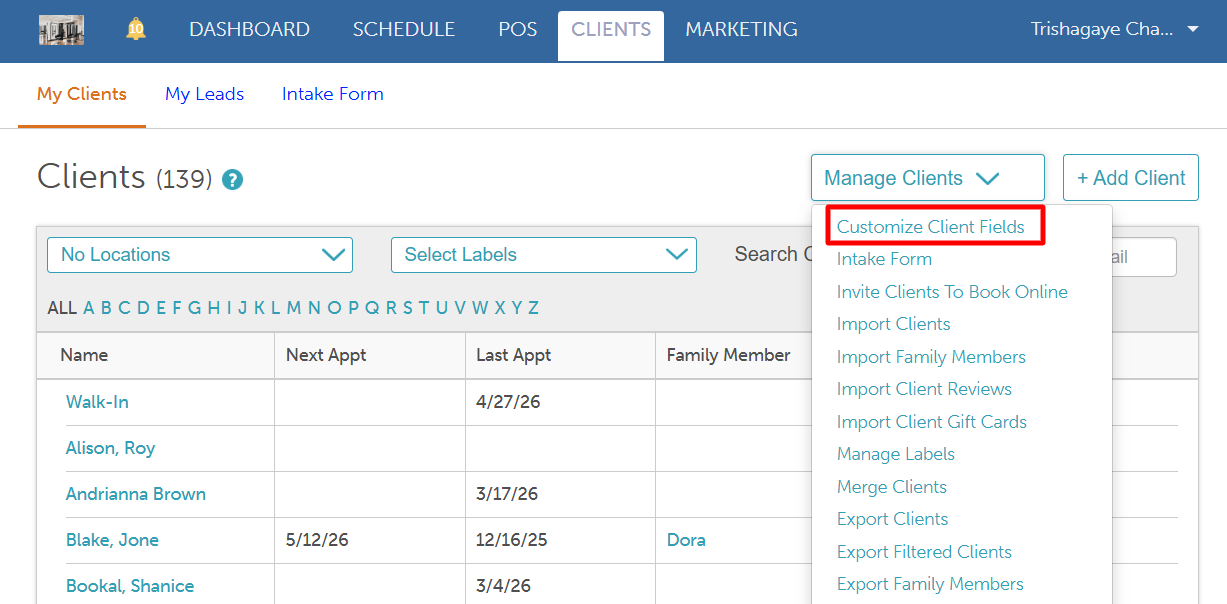
- Navigate to Clients > Manage Clients > Customize Client Fields
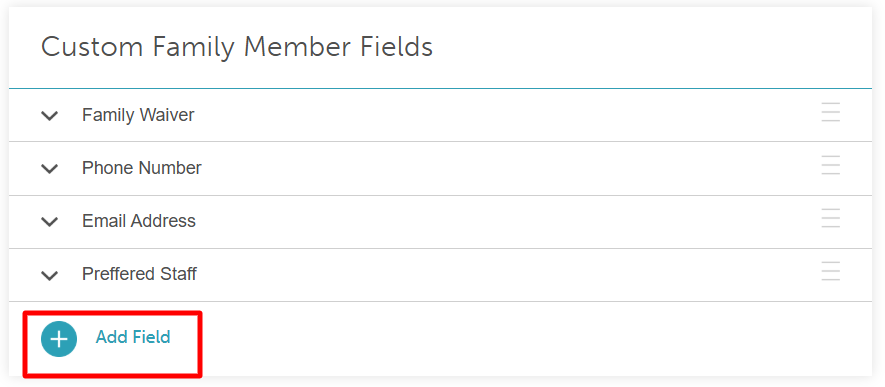
- Locate the Custom Family Member Fields section and select "Add Field"
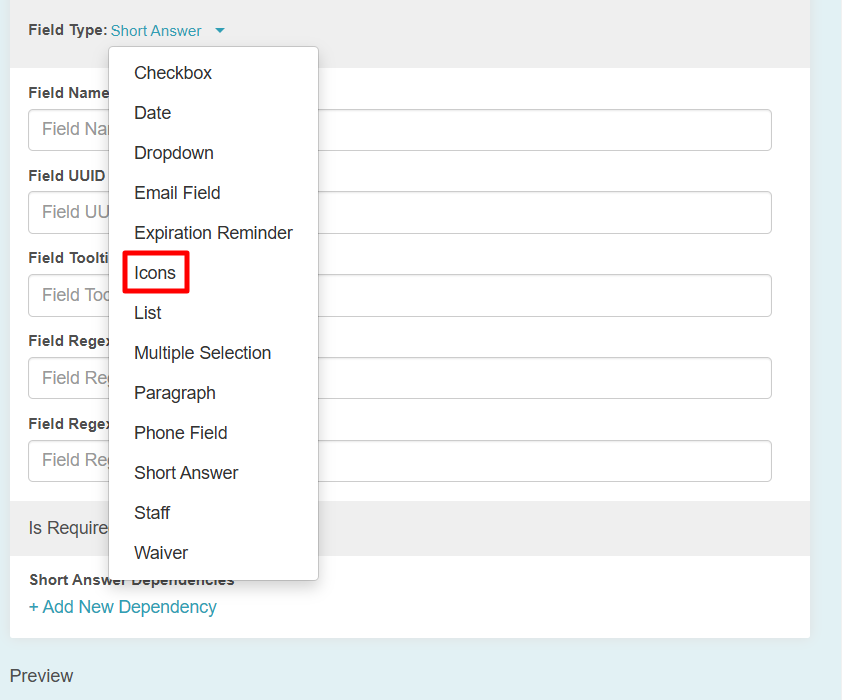
- Set the Field Type dropdown to Icons
- Enter a Field Name (e.g., "Family Member Icon")
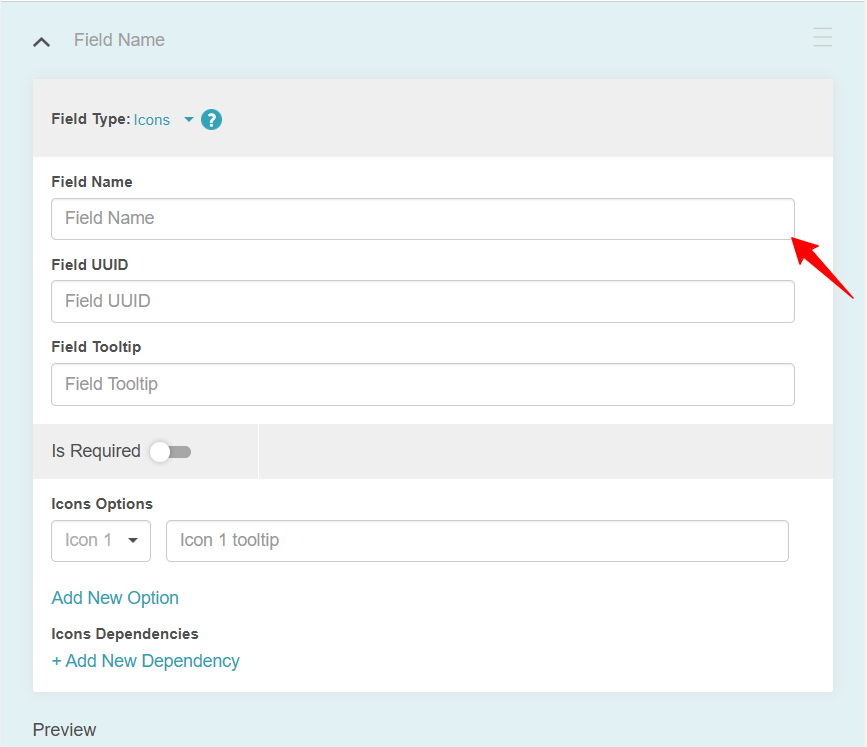
- Add icons:
- Click the dropdown arrow to select from predefined icons
- Select "+Add New Option" to upload your own SVG files from your device
- Enter a tooltip for each icon so staff understand what the symbol represents when hovering over it
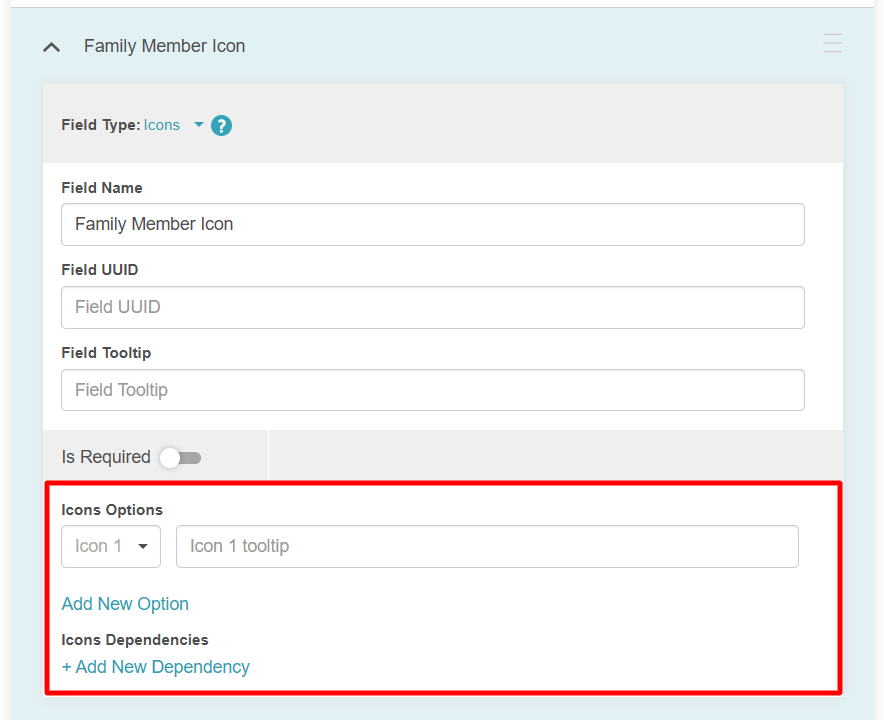
- Click Save.
Assign Icons to Profiles
- Go to the Clients tab and filter by the correct location
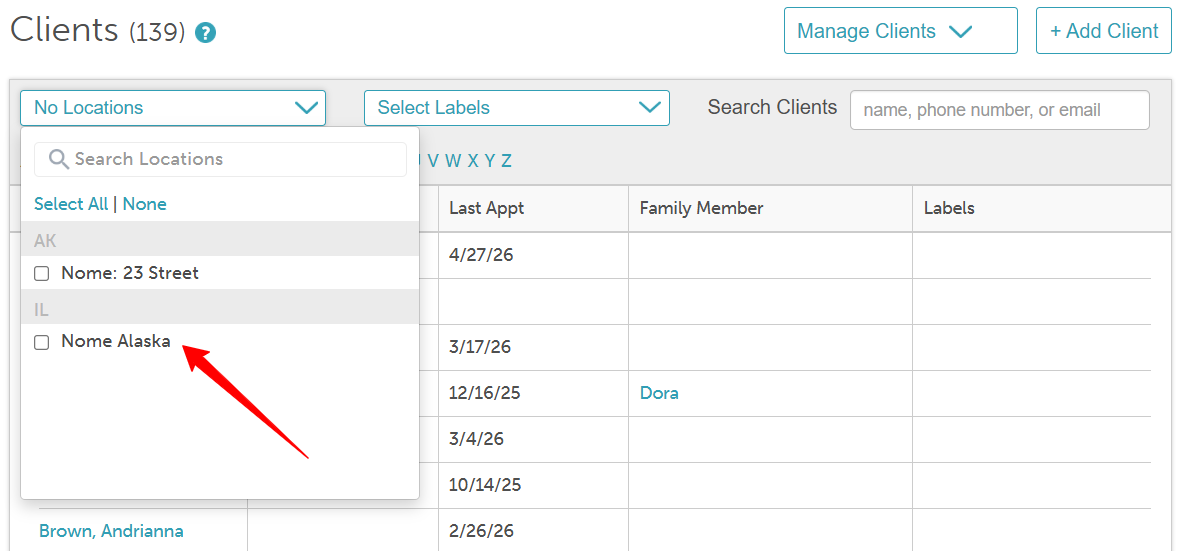
- Search for and select the desired client
- Click the Edit (pencil) icon next to the specific family member's profile
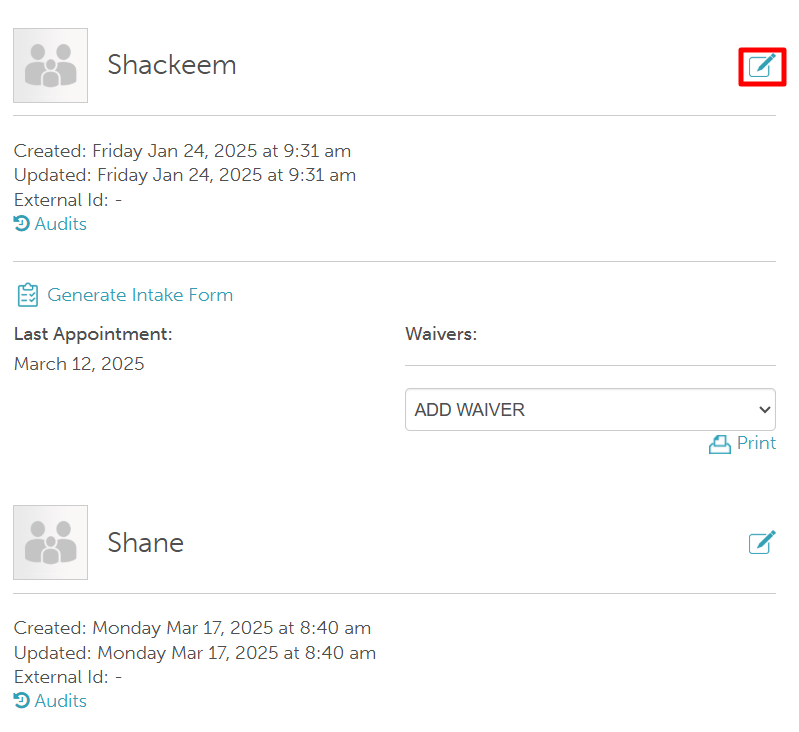
- Locate the family member icon field and select the applicable icon(s)
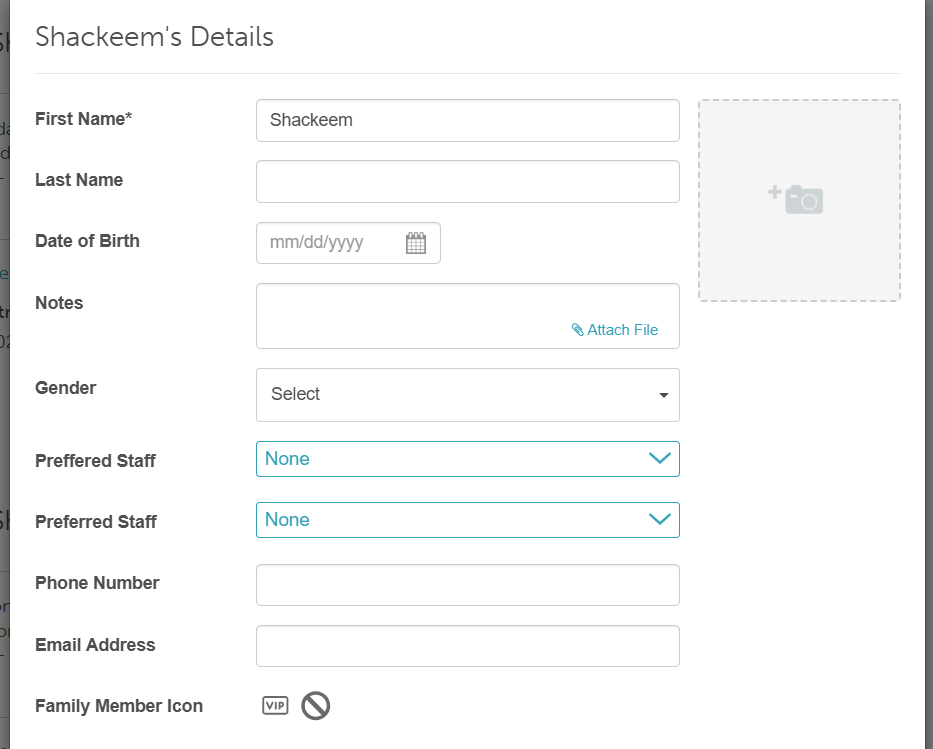
- Click Save. The icons will now be displayed within the profile editing interface
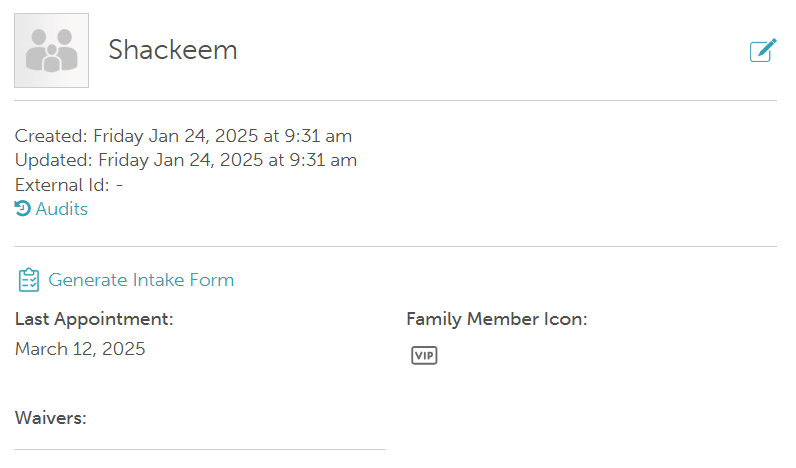
Where Icons Appear
Once assigned, icons are visible in the following areas:
- Family Member Profile: Displayed directly on the family member's profile
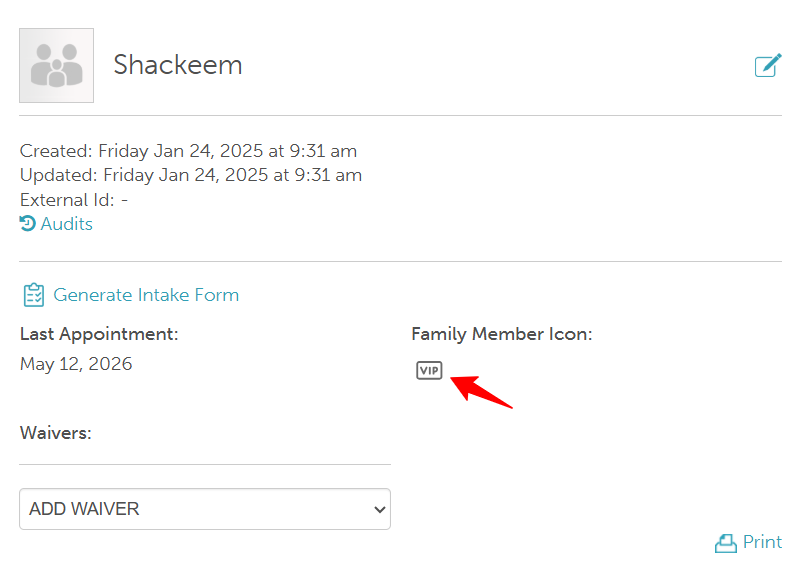
- Appointment Modal: Visible when clicking an appointment on the Scheduler

- Appointment Tile: Visible when hovering over an appointment on the Scheduler
For more information, contact us at support@mytime.com.
Related Articles:
Creating Custom Family Member Fields
Creating Family Member Intake Forms
Adding Family Members Manually
Adding Family Member on Scheduler App
Was this article helpful?
That’s Great!
Thank you for your feedback
Sorry! We couldn't be helpful
Thank you for your feedback
Feedback sent
We appreciate your effort and will try to fix the article