MyTime provides the option to mandate a prepaid deposit during the class booking process. This feature allows you to impose a deposit fee, either in a fixed dollar amount or as a percentage, for particular classes or across all classes.
Things to know:
- The ability to configure deposits for classes is controlled by both the 'Accessing Classes Menu' and 'Accessing Account Settings' access control settings.
- The deposit fee is set per account, not per location. If an account has multiple locations, the deposit fee will be applied to all locations.
- The deposit fee cannot be tailored to a specific client type. For instance, new client vs. existing client
- A class cannot have a cancellation fee as well as a deposit. If a deposit is set for a class, no cancellation fee will be charged.
Class Cancellations with a Deposit: If a client cancels a class session after paying a deposit, the system automatically converts that prepaid deposit into the cancellation fee. If Cancellation Fees Tax is enabled for the location, the configured tax rate is dynamically applied to that amount. The total amount previously paid by the client remains entirely unchanged—no additional charge or automatic refund is processed.
Examples of Tax Allocation
Example 1: Non-VAT (Exclusive Tax): If a 3% cancellation fee tax is configured and the client paid a $30.00 deposit for a class:
Class Cancellation Fee: $29.13
Cancellation Tax (3%): $0.87
Total: $30.00 (No additional charge is collected from the client)
Example 2: VAT-Inclusive Tax: If a 5% VAT-inclusive cancellation fee tax is configured and the client paid a $10.00 deposit:
Class Cancellation Fee: $10.00
Sales Tax (5% Incl.): $0.48
Total: $10.00 (The tax is absorbed inside the original deposit; no additional charge is collected).
- The reports will display the collected deposit in the Cancellation Fee column.
- Once cancelled, the deposit charged will appear as "Cancellation Fee" on the ticket
- If the class session is canceled, the payment we took at the time of booking remains as per your arrangement with your client. However, if desired, you can refund the deposit in POS.
- Percentage (%) deposit will always apply to the full price of the class before discounts
- The full price of the class, including sales tax (where applicable), will be charged for deposits requiring 100% upfront.
- Staff members can choose to waive the deposit when a client is registered for a class session in-store. If they choose to collect a deposit, they will be directed to the POS to take payment for the deposit fee.
- When collecting the deposit for classes in-store, you can edit the deposit amount to collect more or less than what is configured for the deposit
- Franchise businesses:
- Parent companies have the option to allow or prevent the implementation of deposit policies across child accounts. This is controlled by the “Enable Deposit” setting on Business Setup > Settings.
- When the setting is enabled at the parent level, it will also be active at the child level, but child accounts can always disable it.
- When the setting is disabled at the parent level, it cannot be turned on at the child level, and the deposit fee will not be applied to child accounts (even if it was previously enabled).
- The deposit fee that was paid will be displayed on SMS & email receipts
To collect a deposit for classes on the app, simply:
- Launch the MyTime Scheduler app on your device
- Choose your login method:
- Standard: Enter your registered email address and password, then tap 'Sign In'
- Social Login: Select 'Continue with Google' or 'Continue with Apple' to use your existing credentials for a faster login experience. For detailed instructions, learn more here
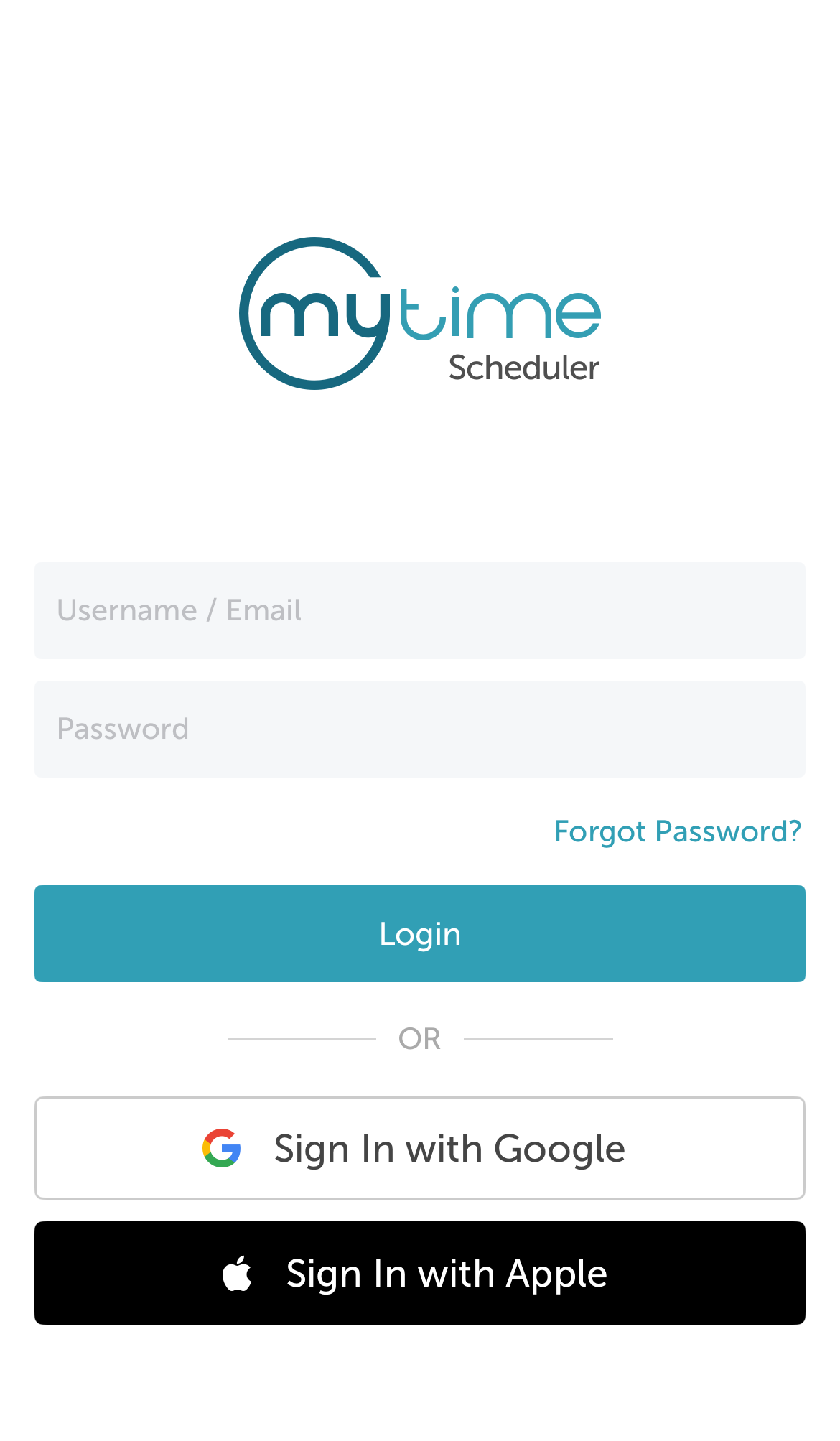
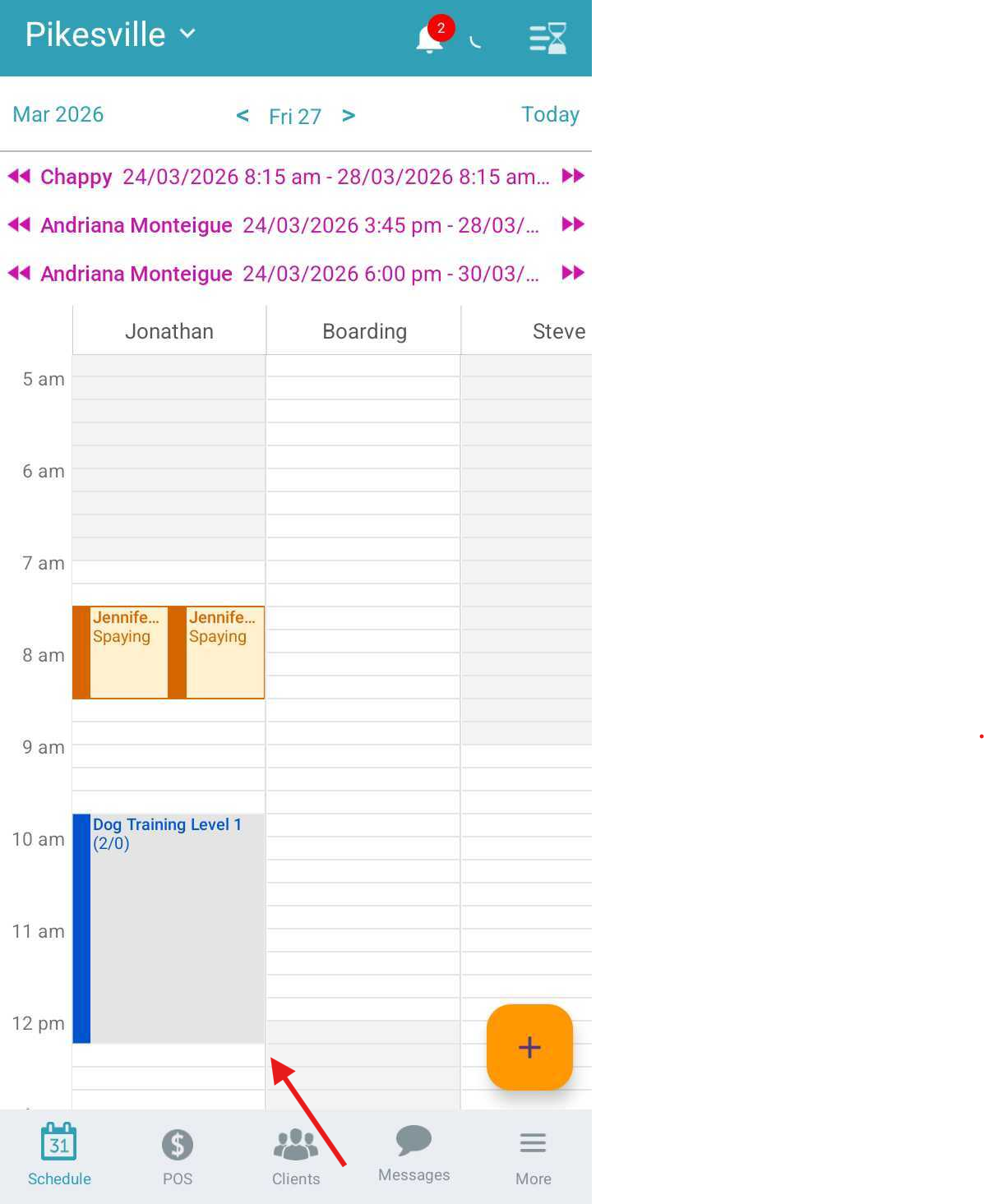
- Once signed in you will be directed to the schedule by default
- From the schedule view, locate and select the desired class session.
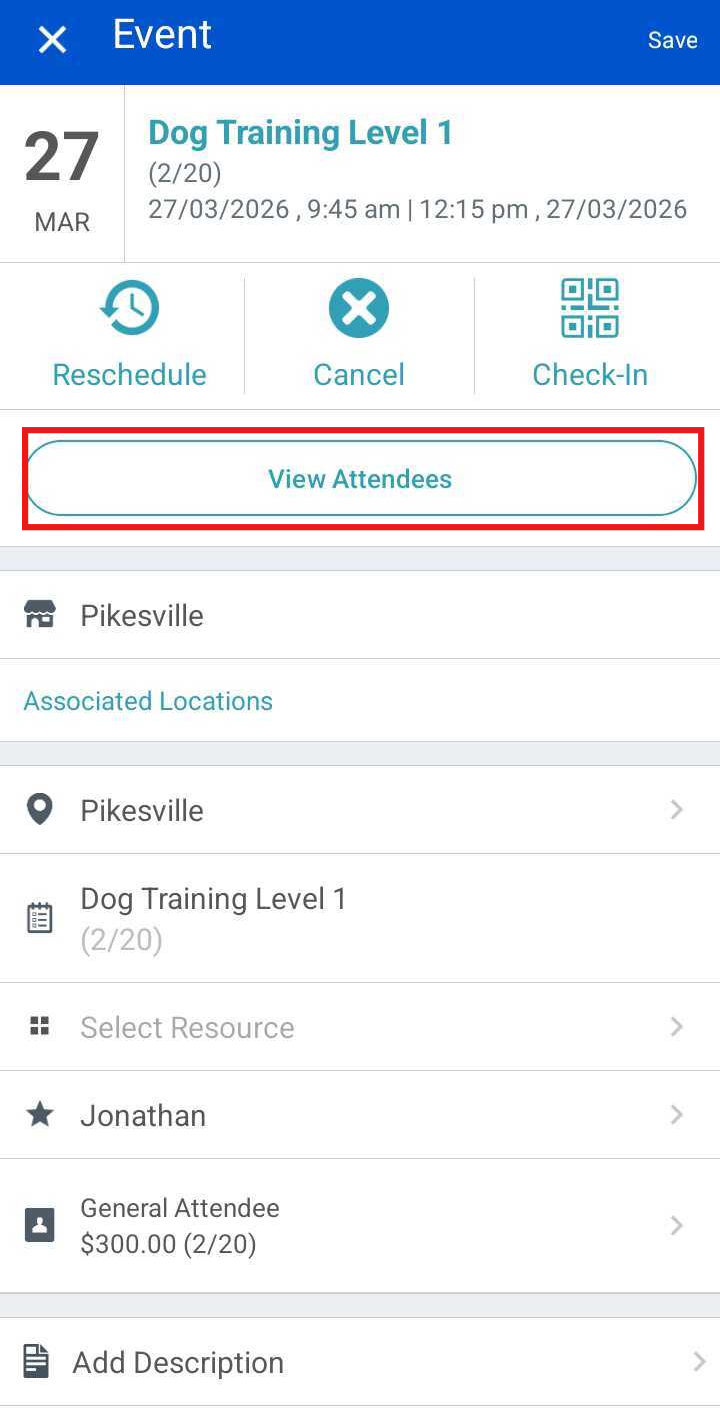
- Tap the "View Attendees" button
- Tap the ‘+’ button at the bottom of the screen
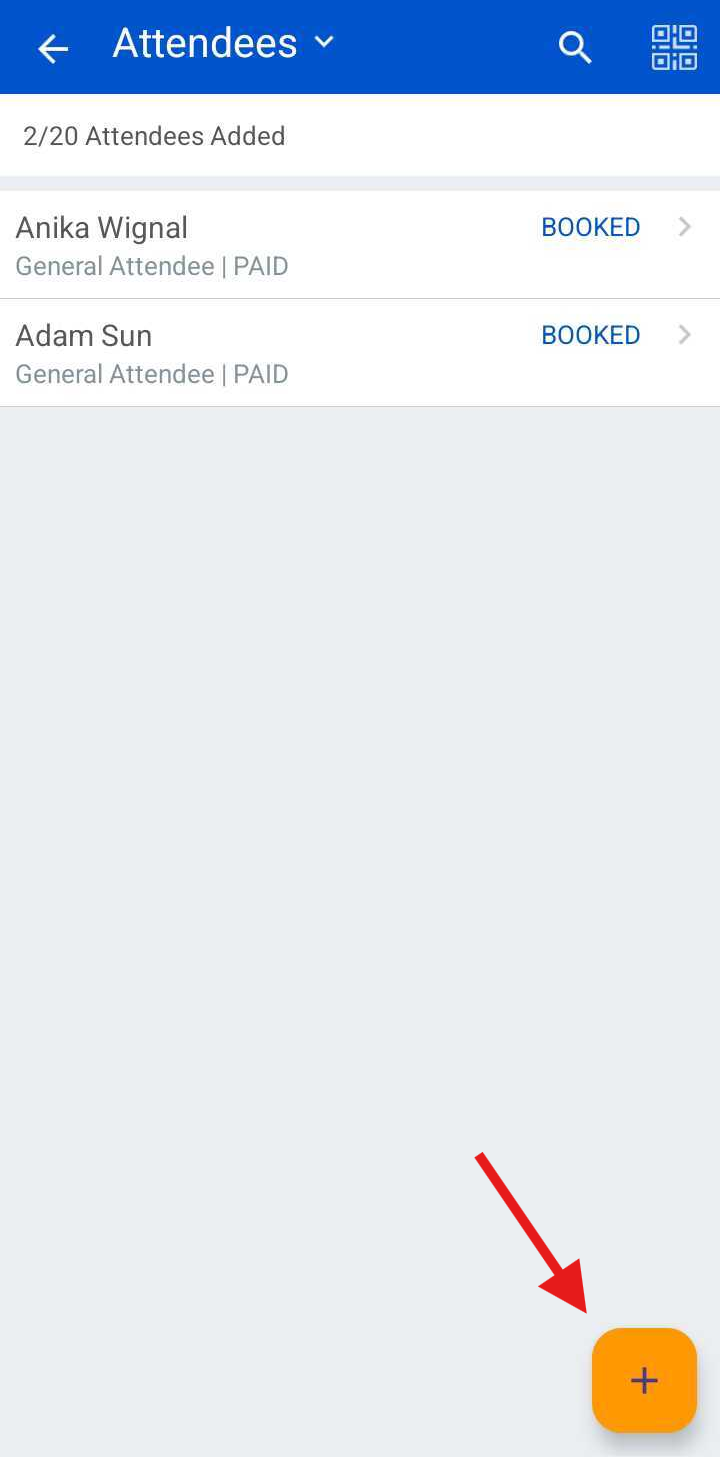
- Type the client's name in the Search field or select them from the client list
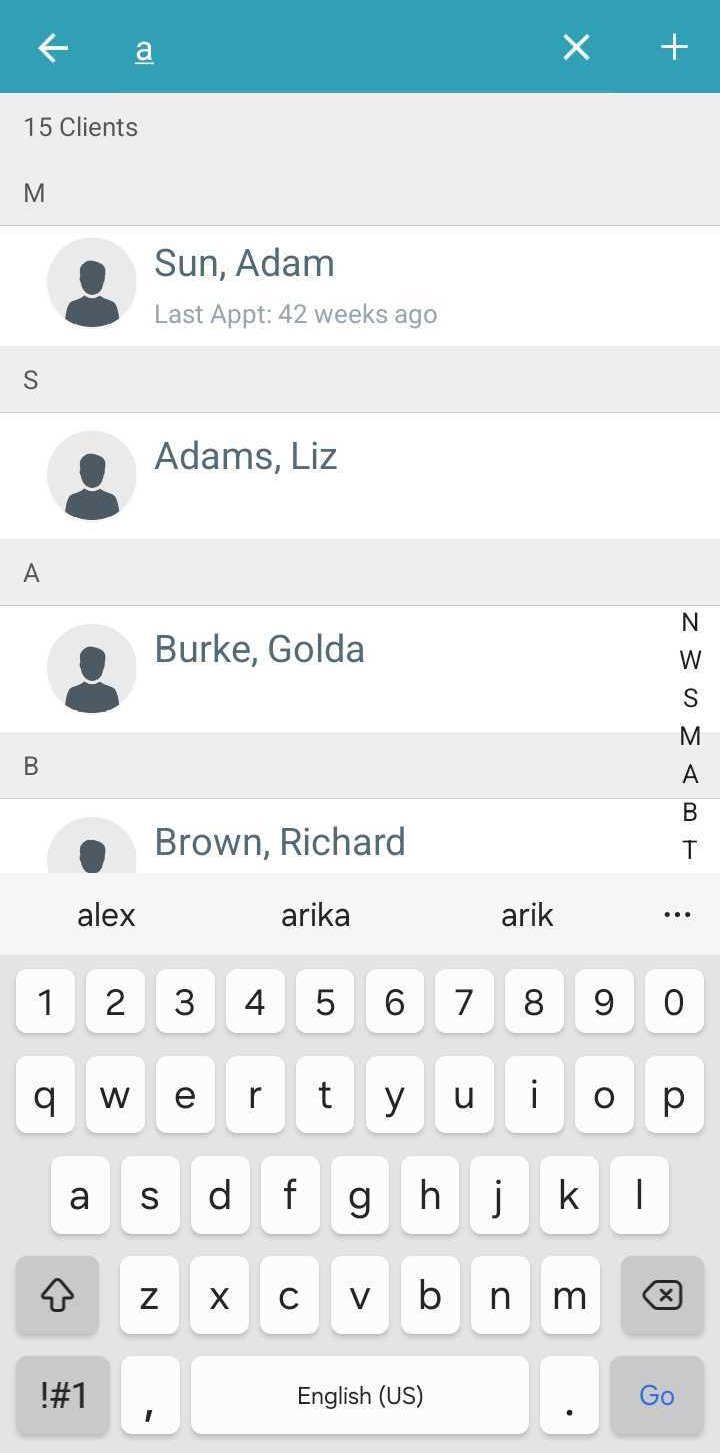
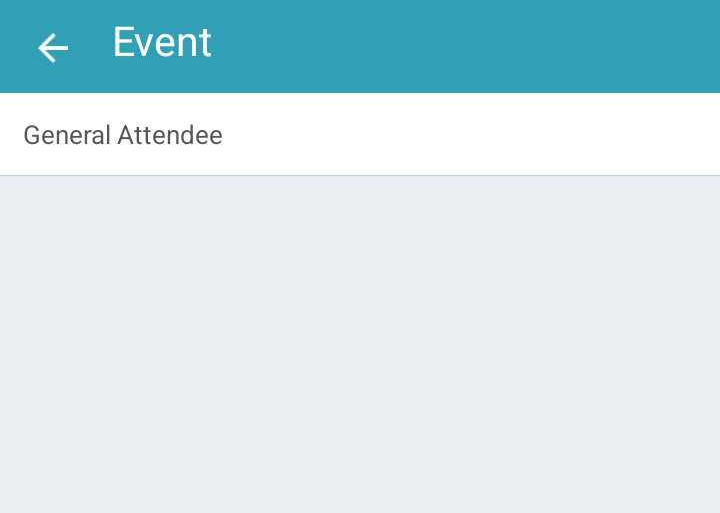
- Select the attendee type (e.g., Client or Pet)
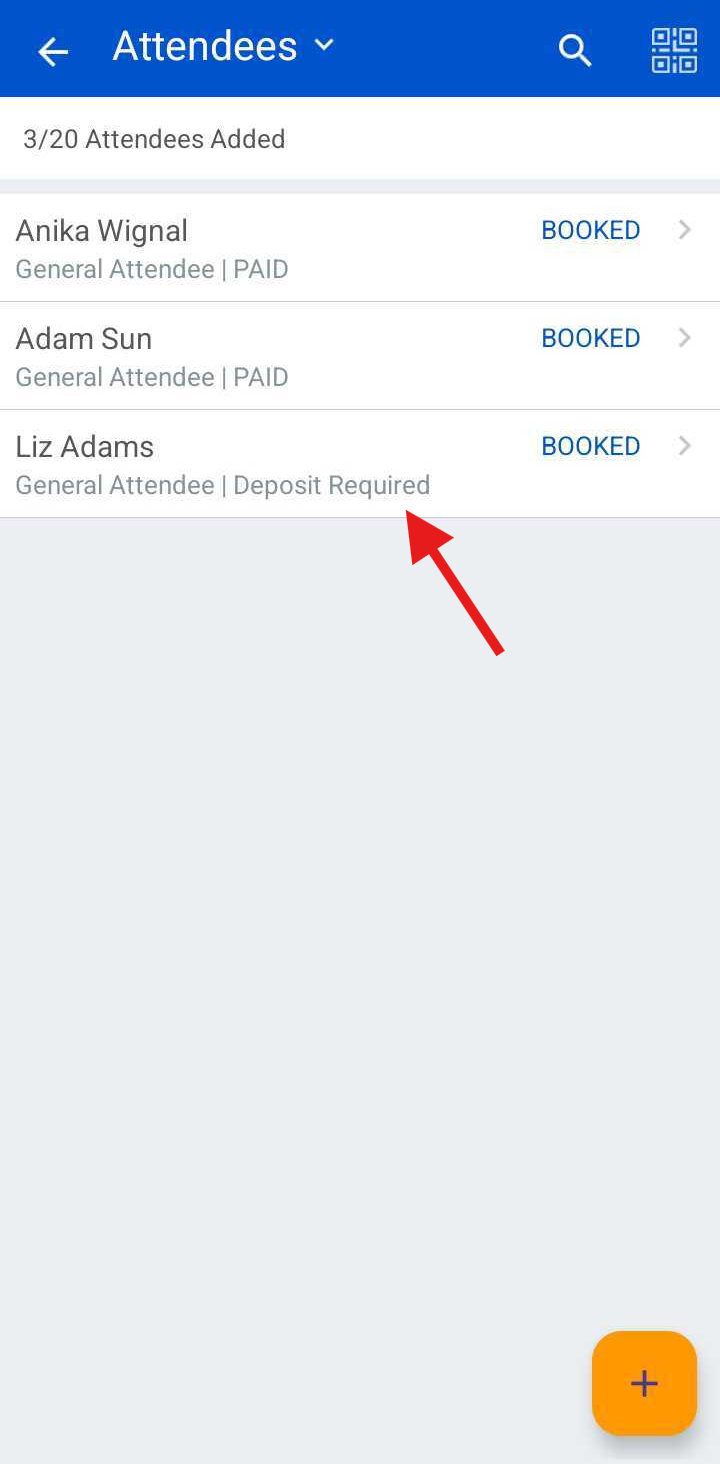
- Once the client is added, a "Deposit Required" notice will appear.
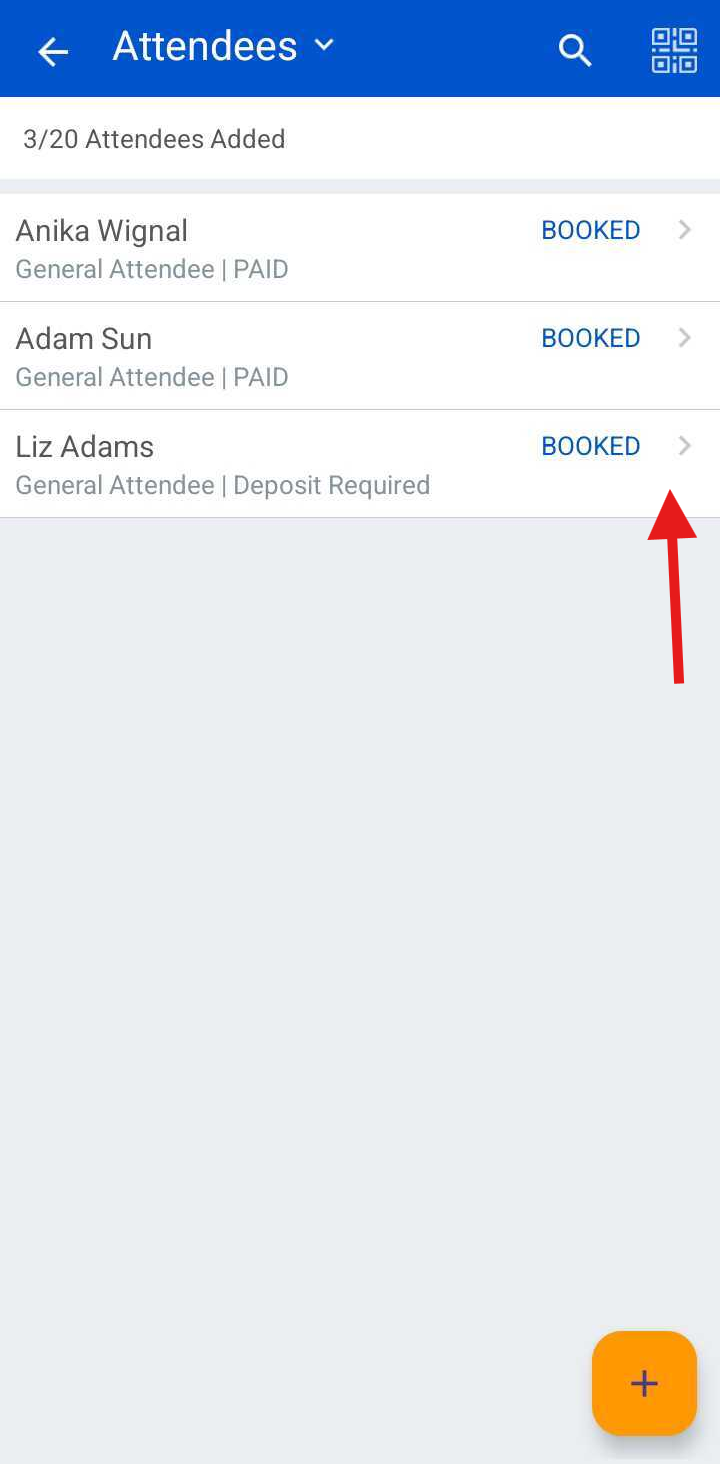
- Tap the arrow next to the "Booked" status
- Select the Pay Deposit option
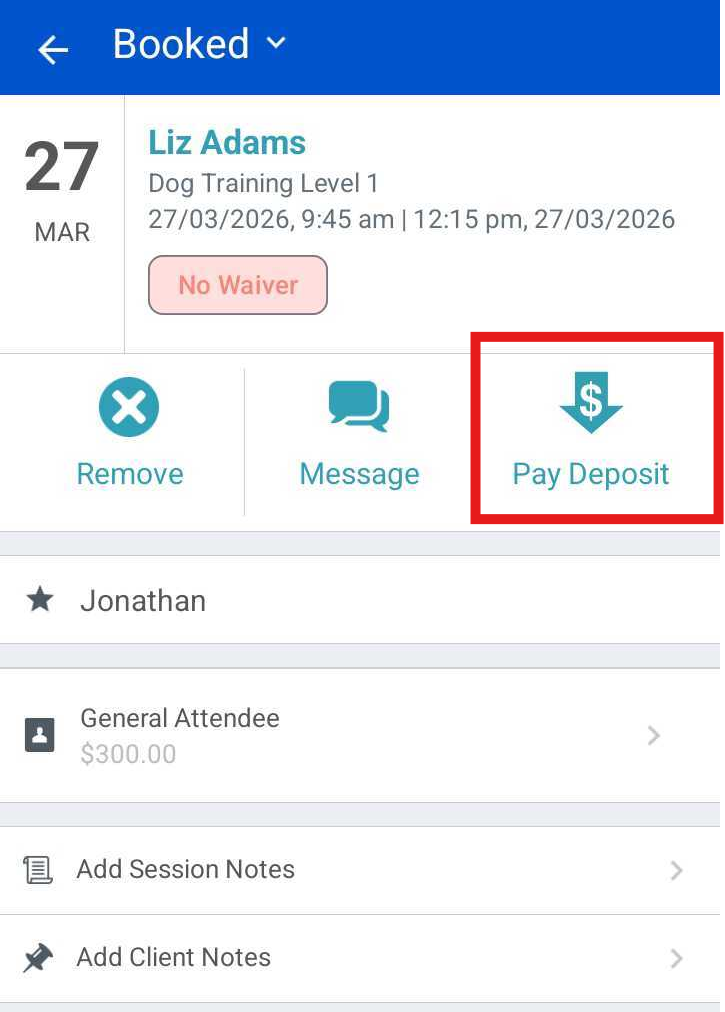
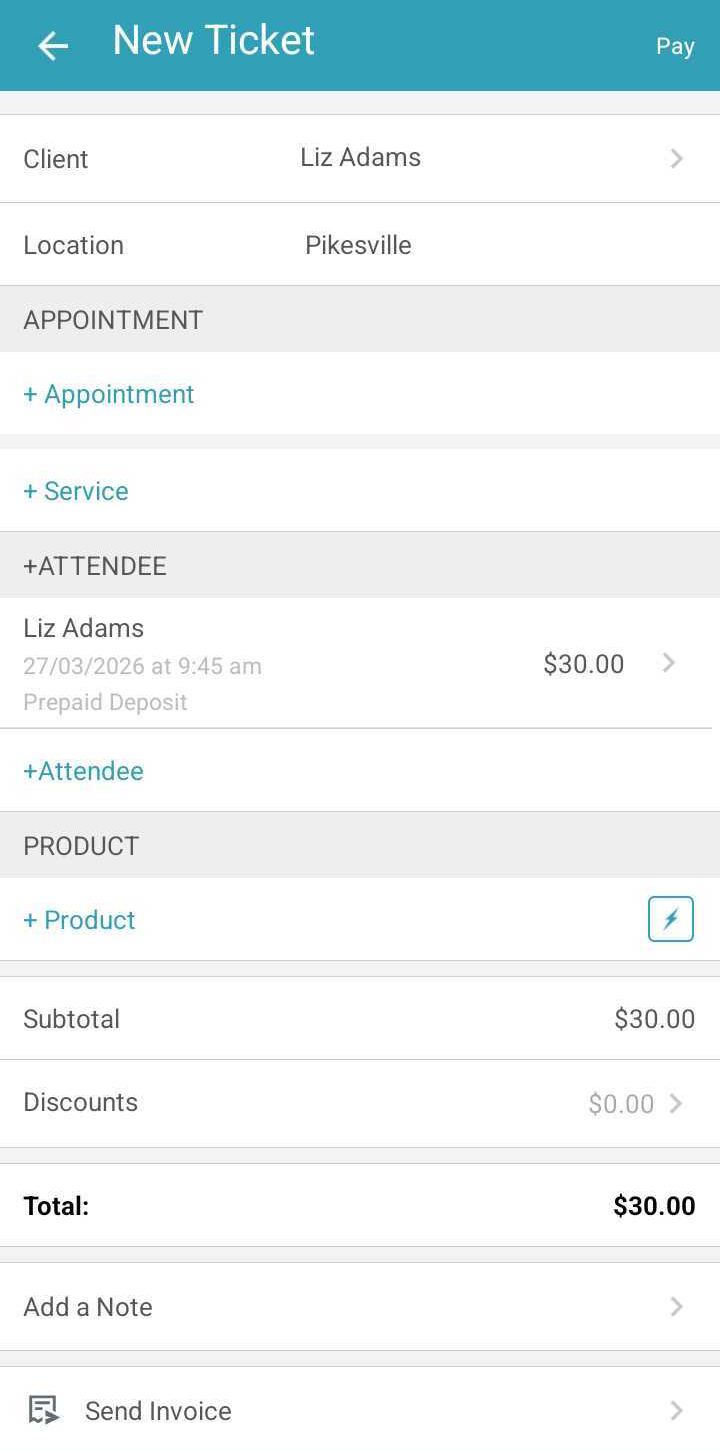
- You will be automatically redirected to the POS to process the payment and save the ticket.
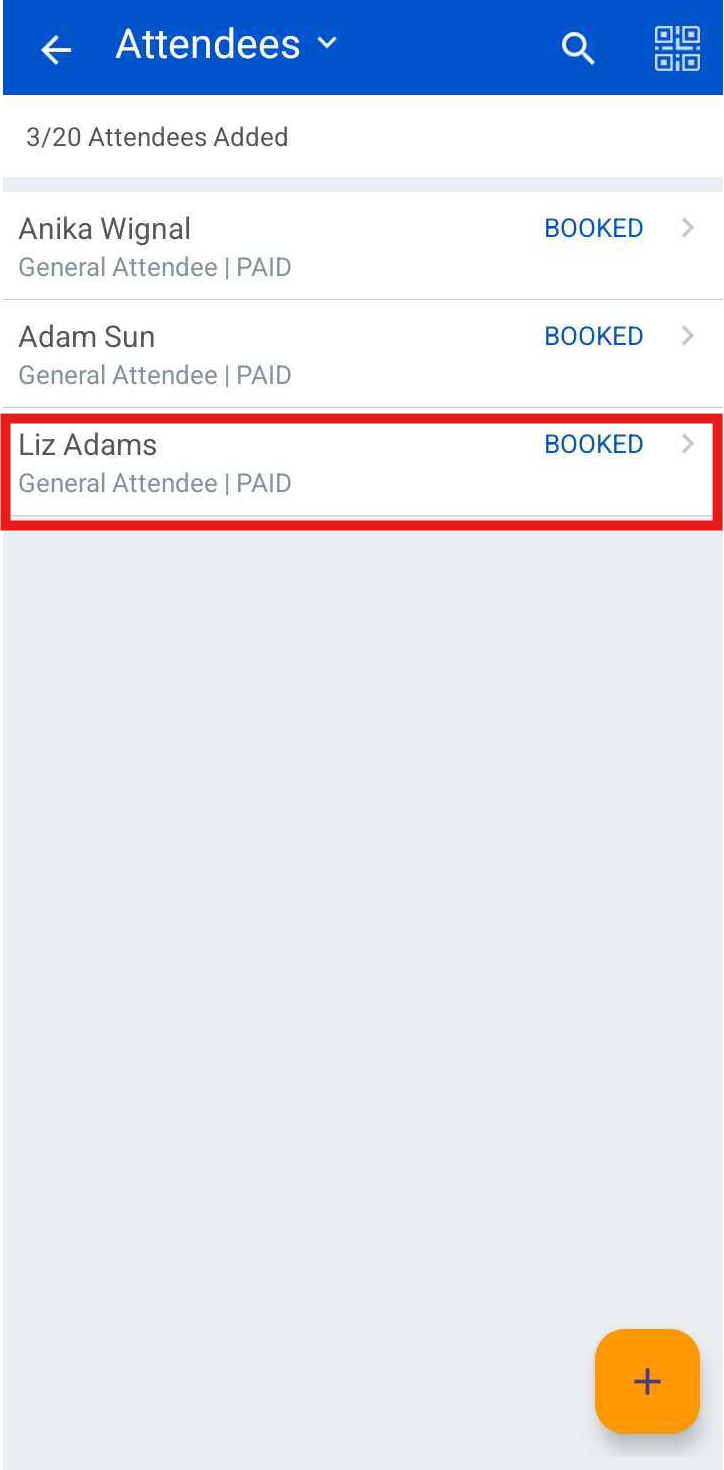
- After the payment is finalized, the app will redirect you back to the Attendees page, where the status will now indicate that the deposit has been paid.
If you have any questions, please contact our Support Team at support@mytime.com.
Related Article:
Was this article helpful?
That’s Great!
Thank you for your feedback
Sorry! We couldn't be helpful
Thank you for your feedback
Feedback sent
We appreciate your effort and will try to fix the article