This report shows all deposit payments collected for appointments and classes.
Things to know:
- The ability to access this report is controlled by the “Accessing Reports” access control setting and the “Require Deposit?” company setting.
- Franchise Accounts:
- If deposits are disabled at the parent level, child locations cannot enable them, and the report will not be visible.
- If enabled at the parent level, child locations can manage the setting for their own location.
- Data only populates for tickets created after the report was released.
- For accounts that are in holding status, the report will not display any data until the account is set live
- Deposits are reflected on the date they are collected. Example: An appointment is booked on April 1 for a service scheduled on May 10, and no deposit is collected at the time of booking. If the deposit is collected on April 5, the Deposit Payment Report will reflect the payment on April 5, not April 1 or May
- The report is broken down by payment method (cash, check, credit card, debit, gift card, etc.). Tickets where deposits are paid using membership value credits will appear in the report; however, no value will be displayed for those entries.
- If a deposit is split between membership value credits and another payment method (e.g., cash or card), only the amount paid using the non-membership payment method will be shown in the report.
- Refunds & Forfeitures:
- Same-Day Refunds: If a deposit is collected and refunded on the same calendar day, the transaction will show as $0.
- Different-Day Refunds: If a refund occurs on a later date than the original collection, a negative transaction will appear on the specific day the refund is processed.
- Forfeited Deposits: No changes will appear in the report. Since the payment was collected and retained by the business, it remains as a positive transaction on its original date.
- When viewing reports By Location, all active locations remain on the report—even if they have no sales or bookings during the selected date range.
- Locations with Activity: Display in the main list with their complete totals and data. Click the expand arrow on any location row to view its individual data.
- Locations without Activity: Group at the bottom of the list with $0 totals, ensuring full visibility across all business locations.
- You can export the report in either Summary or Detailed View, depending on your reporting needs:
- Summary View: Consolidates data by category (such as location, staff member, or service type). This is ideal for high-level analysis, allowing you to review total revenue and overall performance without looking at individual transactions.
- Detailed View: Provides a line-by-line breakdown of every transaction (or "ticket"). This view is best for auditing specific sales, reviewing individual client history, or reconciling exact payment
- When the report is downloaded as a PDF, all active filters at the time of export are clearly listed. This helps define the data shown and provides context for the parameters used
To access this report:
Navigate to Dashboard
Select the Reports tab
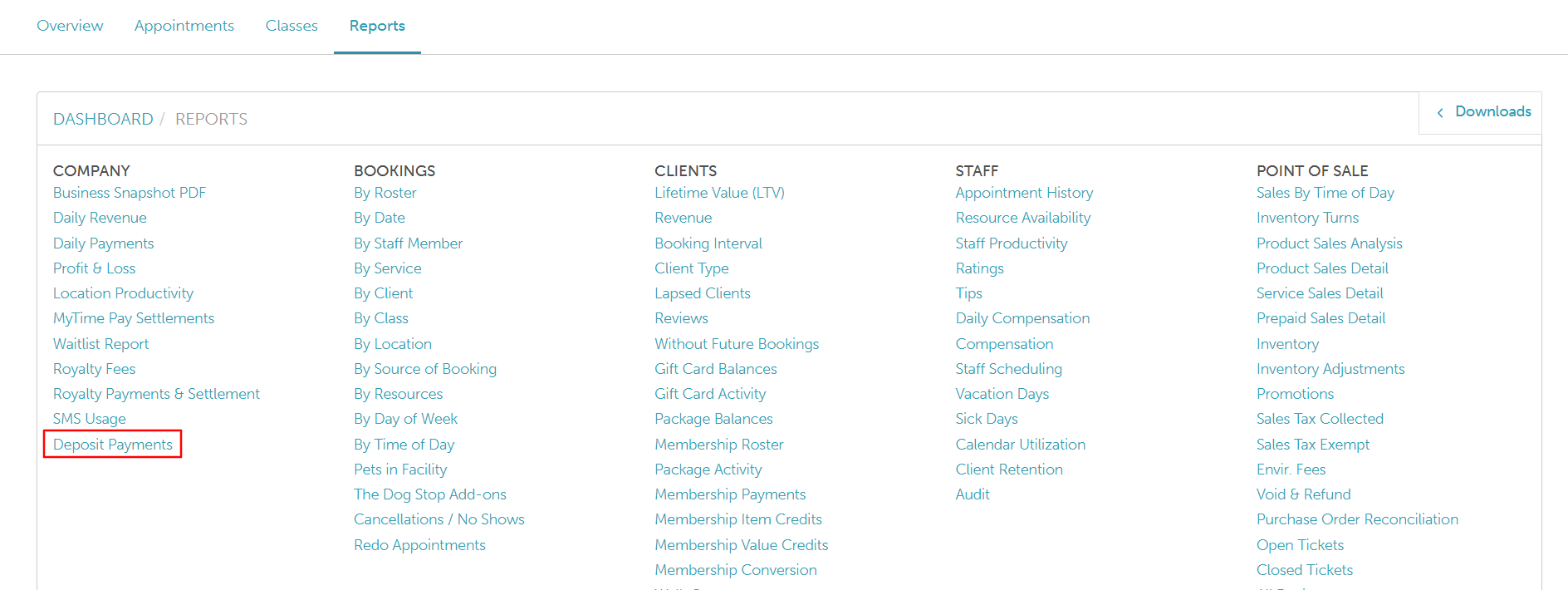
Under the Company section, select the Deposit Payments report
When the report opens, you can filter by a specific location, staff, and date. You can also choose to view the report by date or location. If the By Location button is used at the top of the report, you will be able to easily compare metrics across locations and location groupings to see which locations are doing better or worse on that dimension.
Once you have selected your filters, click on the UPDATE button to generate the data you are looking for. 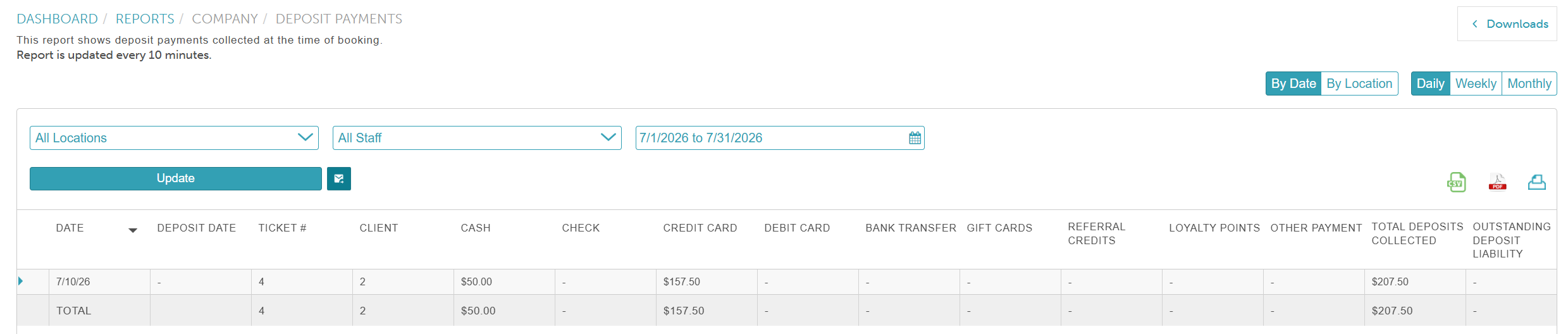
Report Filters
Filter | Description |
| Location | The location associated with the booking.
|
| Staff | Filter by the staff member assigned to the service or class session. |
| Date | Select a date range to view all deposits collected during that period. |
Report Columns
Column | Description |
| Date | Lists tickets and payments by the date payment was received. Click the arrow next to a specific date to expand the section and view individual ticket and payment details. |
Deposit Date | Displays the date payment was deposited into your bank account. |
| Ticket ID | Displays the ticket number associated with the payment. Click the link to open the ticket directly in POS. |
| Client | Identifies the client associated with the payment. Click the link to open the client's profile. |
| Payment Types (cash/credit card/bank transfer/check/gift card/referral credit/loyalty points/other payment) | Displays all deposit payments received, categorized by payment method. Data is captured regardless of whether a register was open at the time of payment. Membership value credits are excluded from this section. Note: The Referral Credits and Loyalty Points columns display only if these features are enabled in your account. |
| Total Deposits Payment | Shows the total deposit payments collected for the day (or per ticket when the date row is expanded). |
Outstanding Deposit Liability | Displays deposits collected for appointments that have not yet occurred, been applied to a completed ticket, or converted into a cancellation fee. A deposit counts toward your current liability only if all of the following conditions are met as of today's date:
|
Related Articles:
Was this article helpful?
That’s Great!
Thank you for your feedback
Sorry! We couldn't be helpful
Thank you for your feedback
Feedback sent
We appreciate your effort and will try to fix the article