When a client’s preferred time slot is fully booked, you can easily add them to your in-store waitlist. This feature ensures that clients are automatically notified the moment a spot becomes available, helping you maximize your schedule’s efficiency and capture revenue that might otherwise be lost to cancellations.
Things to know:
- To use the service waitlist, ensure the following settings are configured:
- Access Control: Ensure staff have the "Accessing Appointments" permission set to "Edit."
- Company Settings: The "Enable Appointment Waitlist" company setting must be enabled in order to use this feature
- The "Add to Service Waitlist" option appears automatically whenever a staff member attempts to book an appointment time slot that is already occupied.
- To optimize performance and ensure the schedule runs faster, the waitlist displays 25 clients per page. If you have more than 25 clients waiting, use the pagination controls at the bottom of the list to view additional entries.
- When an appointment slot becomes available, a waitlist notification is automatically sent to relevant waitlisted clients. The notification includes a direct booking link within the email. Clicking the link takes the client to a checkout page with the service, date, and time already selected. The client simply completes checkout to confirm the appointment—no need to search or re-enter details. Example: A client on the “Evening” waitlist receives a notification that a 5:00 PM slot has become available. The email includes a link such as “Book Friday, May 8, 2026, at 5:00 PM.” Clicking the link opens a pre-filled checkout page, allowing the client to confirm the booking in just a few steps.
- Spots are filled on a first-come, first-served basis, meaning the first client to successfully complete the booking will secure the available spot. Example: If three clients are notified of an opening, the first client to complete the booking will secure the spot, while the other two will no longer see availability once it has been filled.
- Notifications will not be sent if the opening occurs within the business’s advance booking cutoff window. Example:
- 9:00 AM: A 2:00 PM time slot becomes available. If the business has a 2-hour cutoff, the system sends notifications to all eligible waitlisted clients
- 1:30 PM: A 2:00 PM time slot opens again. Since this is within the 2-hour cutoff window, no notifications are sent.
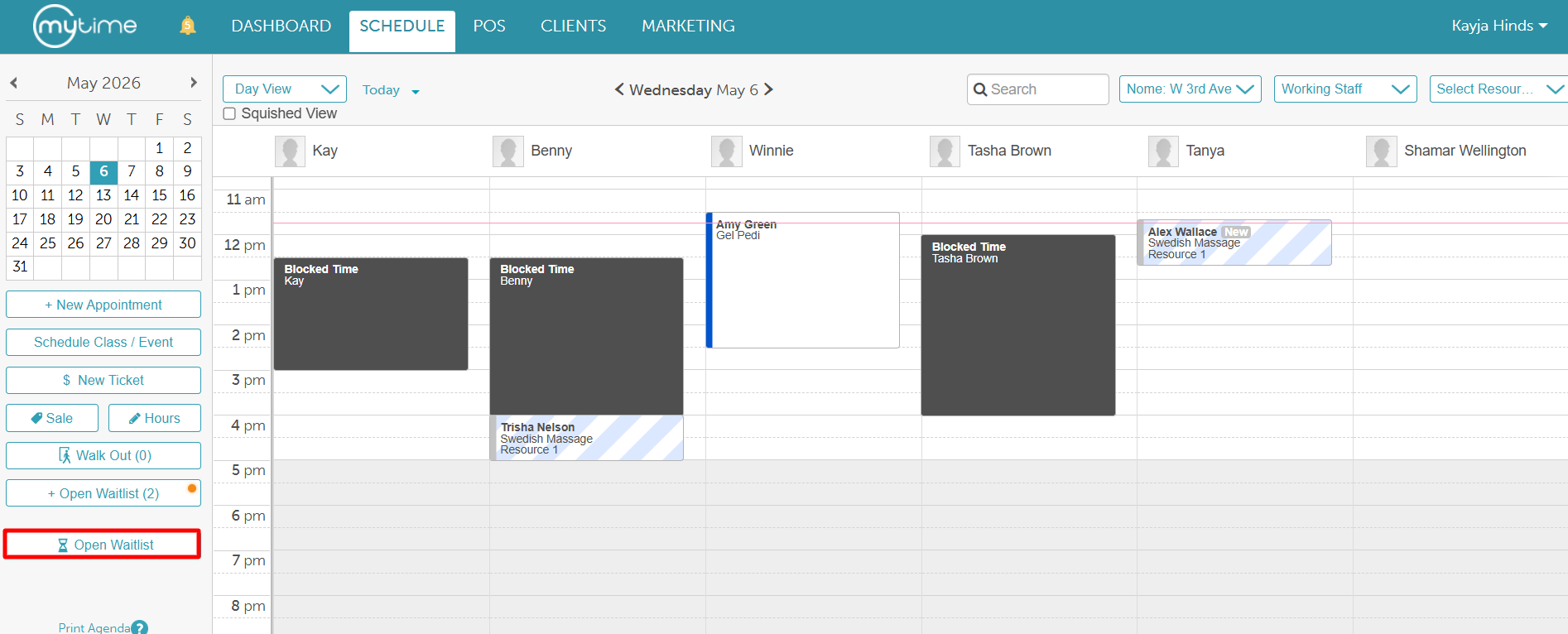
- When a client joins the service waitlist, their entry will not appear as a blue-and-white striped block directly on the main calendar grid; instead, you will be required to click the 'Open Waitlist' button on the left-hand panel of the schedule to view which clients are added to the waitlist
- The setup option displayed in the top-right user menu depends on how you access the account and your assigned role:
- When navigating from the Parent Account (Location Management tab):
- Admin: Displays Business Setup when viewing the location account.
- Login As: Displays Location Setup when viewing the location account.
- When logged in directly at the Location Level:
- Location Owners & Location Managers: Display Location Setup.
- Service Providers & All Other Roles: Display Profile Setup.
Contents:
- Enabling the Enable Service Waitlist Setting
- Adding a Client to the Service Waitlist from the Appointment Modal
- Adding Clients to the Service Waitlist from the Waitlist Modal
- Viewing and Managing the Service Waitlist
- Scheduling an Appointment from the Waitlist
Enabling the Enable Service Waitlist Setting
- Navigate to Business Setup / Location Setup > Settings
- In the 'Calendar' setting section
- Locate the "Enable Appointment Waitlist" setting
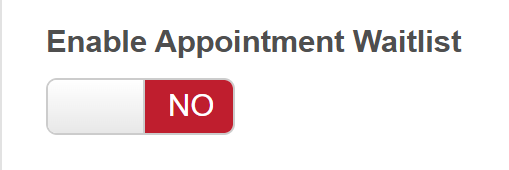
- Toggle to 'Yes'
- Scroll to the bottom of the page and save
Adding a Client to the Service Waitlist from the Appointment Modal
- Navigate to the Schedule
- Filter by location
- Click on the ‘New Appointment’ button below the calendar on the left-hand side of the Schedule or on a specific time slot directly in the schedule
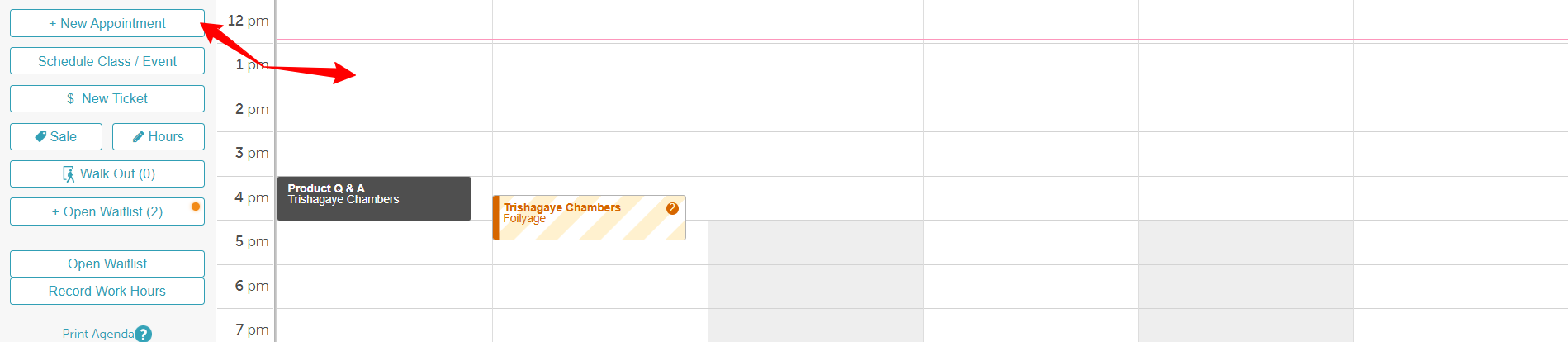
- Here you can fill in the necessary details for the appointment
- Client: You can search for an existing client using the search field or add a new client using the icon on the right-hand side.
- Appointment Date and time
- Service
- Staff
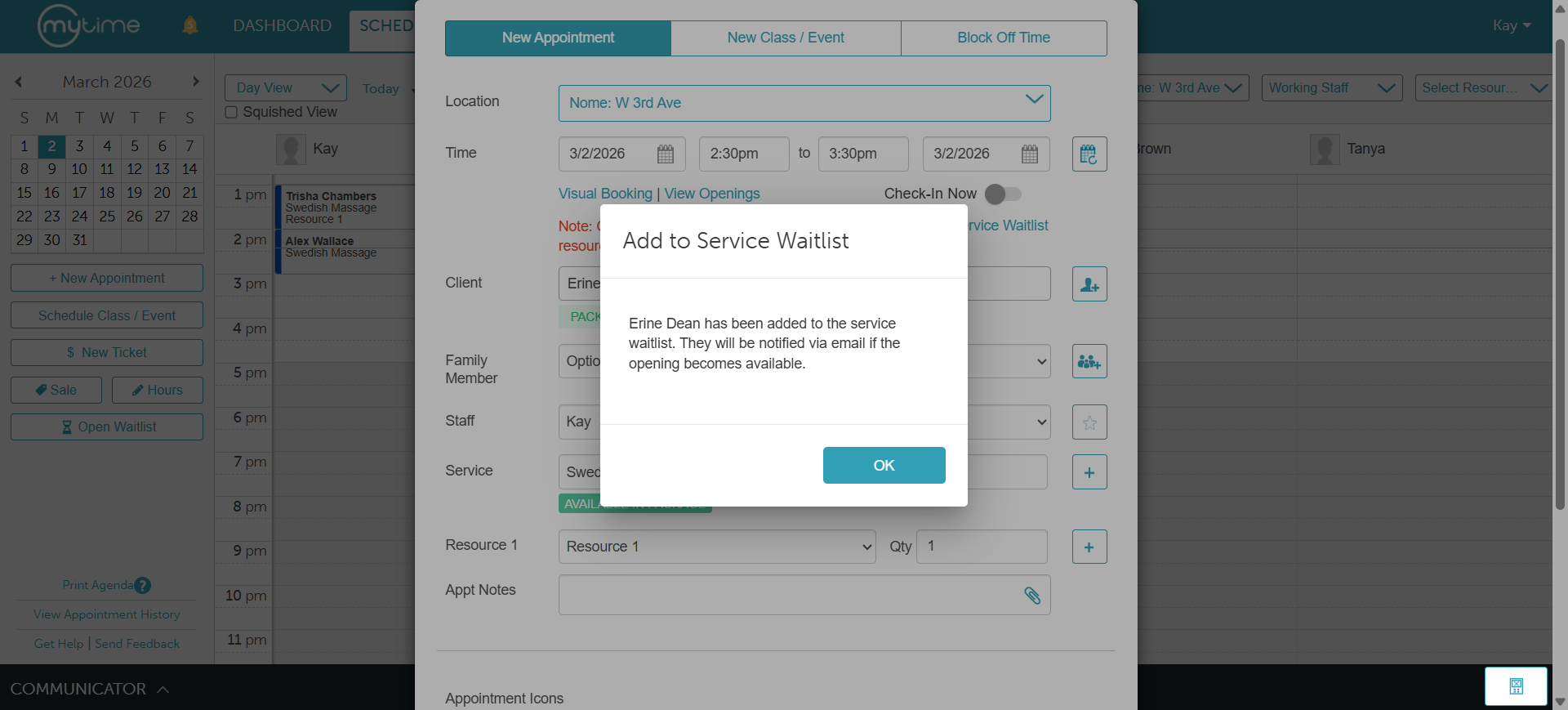
- The "Add to Service Waitlist" option will appear automatically once a selected time slot is fully booked
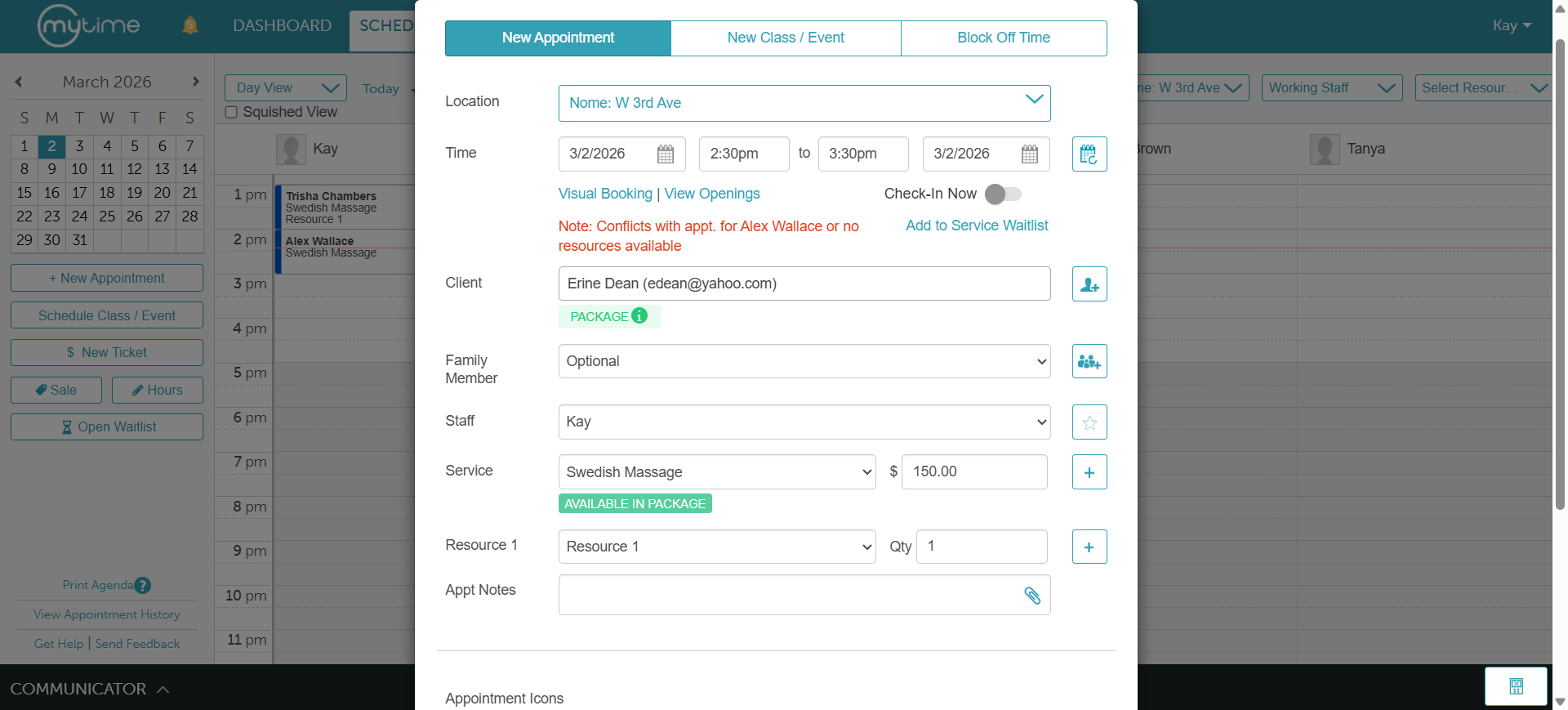
- A pop-up will appear asking if you would like to add the client to the waitlist; select "Yes."
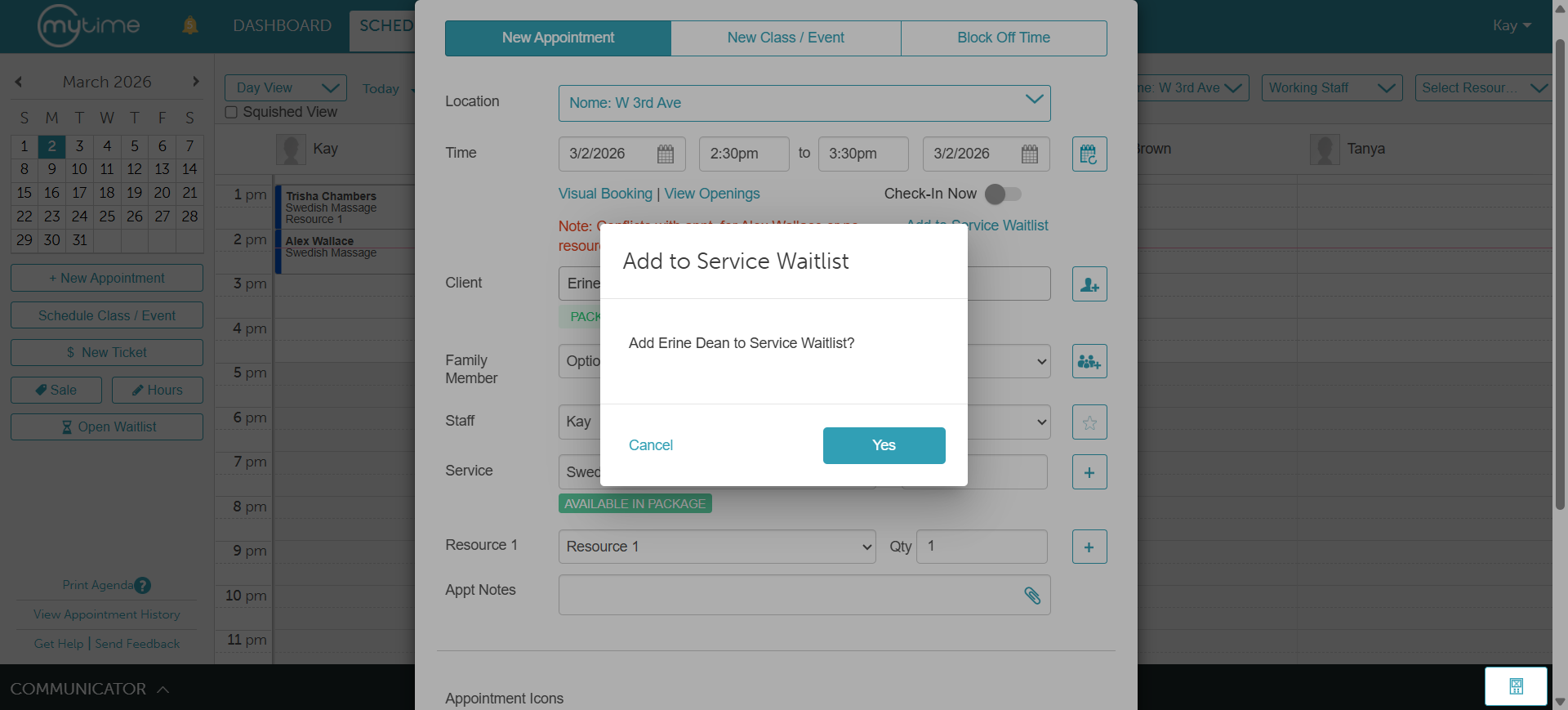
- A confirmation pop-up will then appear to verify that the client has been successfully added
Adding Clients to the Service Waitlist from the Waitlist Modal
- While entering client information, the system automatically checks your schedule in the background. If a spot is open for the preferred date, time, staff, and service, a "Book instead?" link will appear. Clicking this redirects you straight to the appointment modal without losing any of the details you already typed.
- Preserved Customizations: If you manually adjust the price, service duration, or service quantity (for multi-day services) inside the waitlist modal, those changes are saved and will automatically carry over when the appointment is eventually booked.
- Currently, you can only add one pet or family member per waitlist entry. Adding multiple pets or family members at the same time is not supported.
- When a pet or family member is added to the waitlist, their name will appear in the Family Member/Pet column next to the client's name.
- The Date field inside the waitlist modal automatically defaults to the current date.
- After successfully saving, the modal closes and automatically returns you to the main Waitlist view so you can see all waitlisted clients.
To add a client from the waitlist modal:
- Navigate to the Schedule
- Click the "Open Waitlist" button (located on the left side, below the calendar)
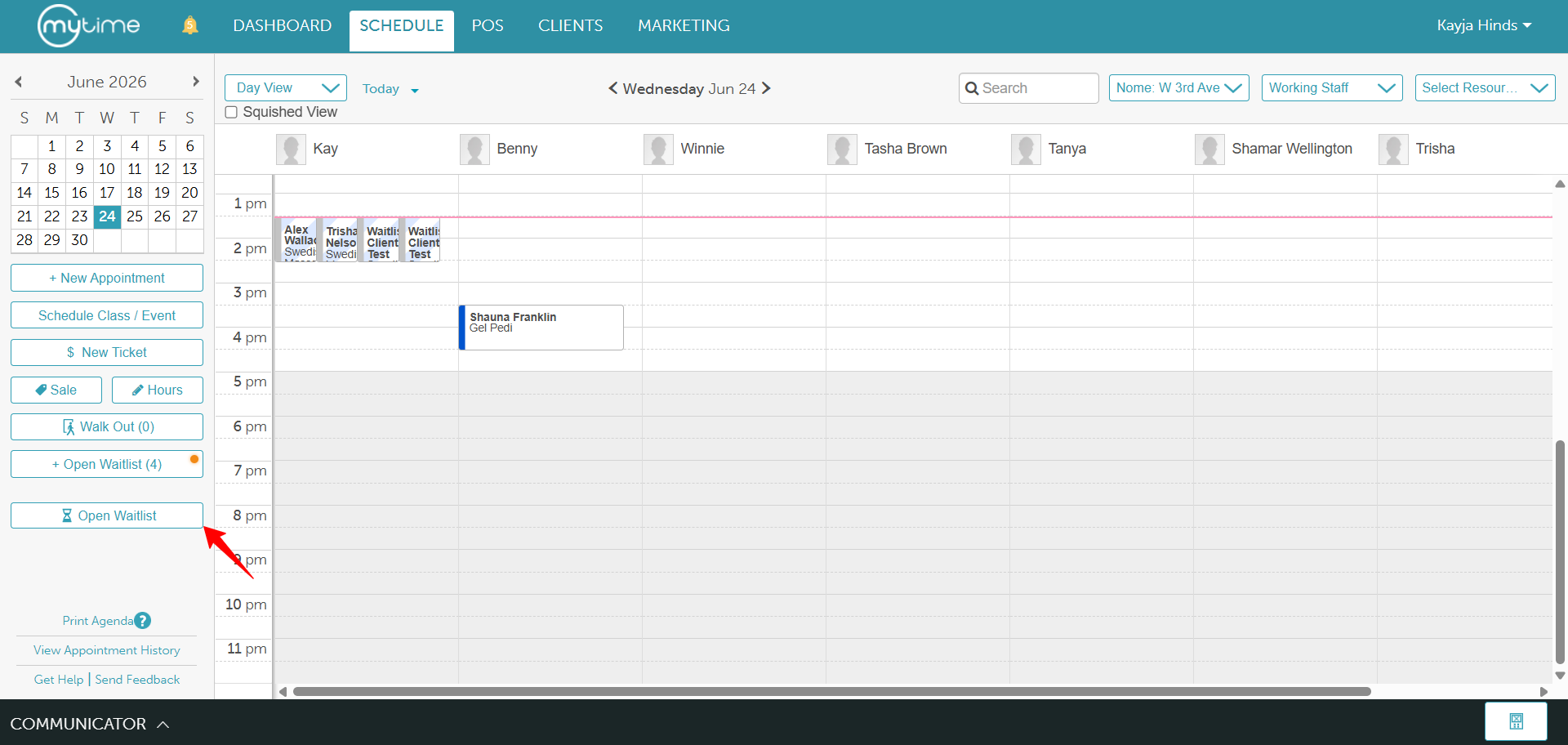
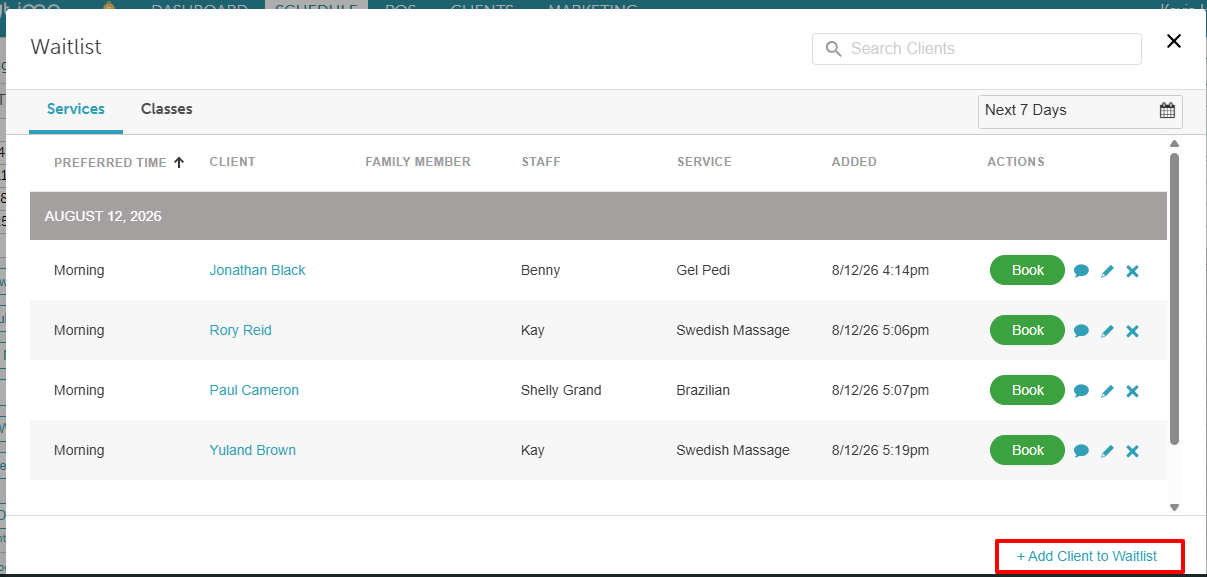
- On the Services tab, click the "+ Add Client to Waitlist" button in the bottom-right corner
- In the modal, search for and select the Client's name
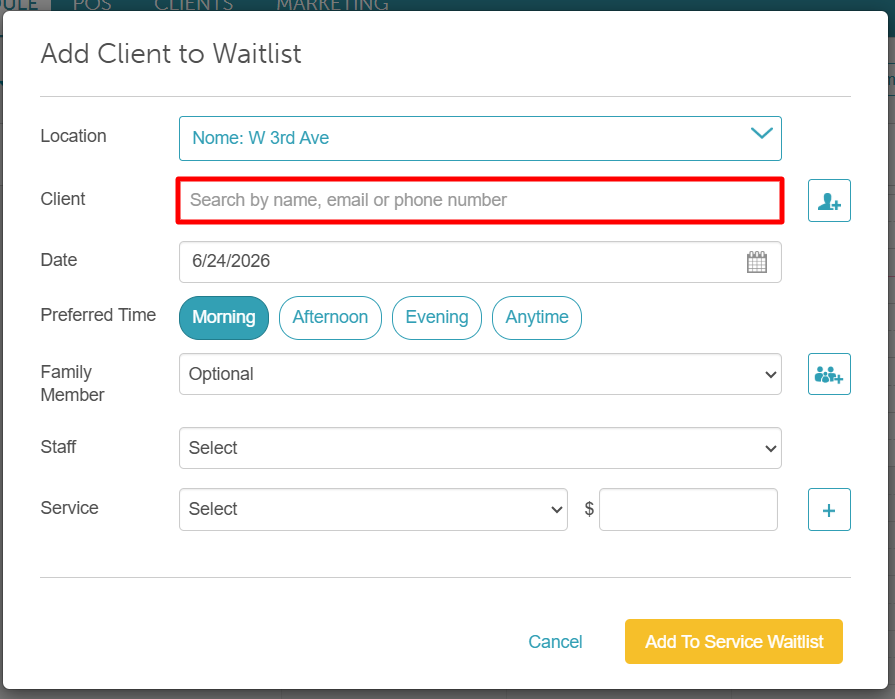
- Set the Date: The field will display the current date by default; change this if the client prefers a different day.
- Select the client's preferred time (Morning, Afternoon, Evening, or Anytime)
- Select the pet/family member (if applicable)
- Choose the requested staff member and service
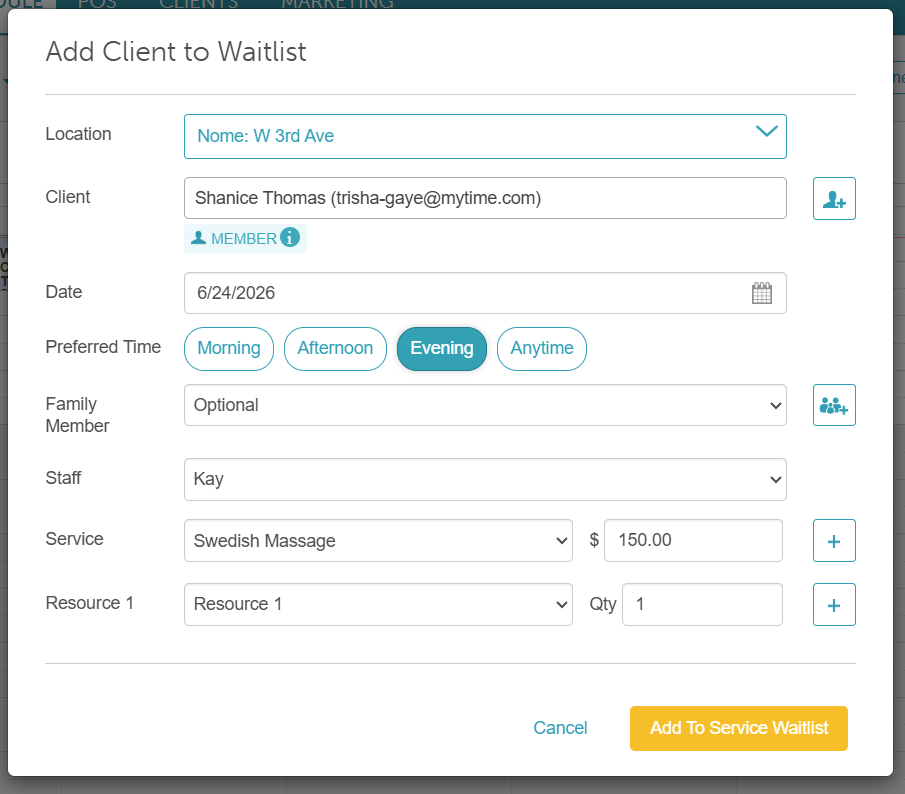
- Click the "Add to Waitlist" button to save
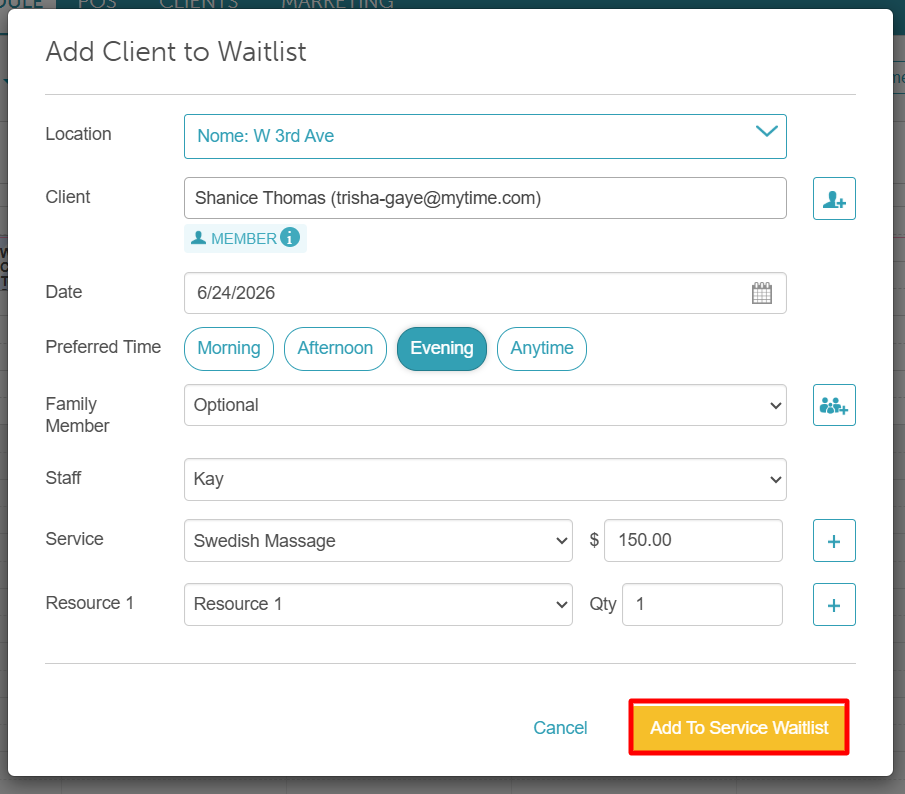
Viewing and Managing the Service Waitlist
Once clients are on the waitlist, you can easily track their status, message them, or move them into an open spot. Follow this guide to navigate the waitlist modal:
- Navigate to the schedule
- Locate the "Open Waitlist" button on the left below the calendar
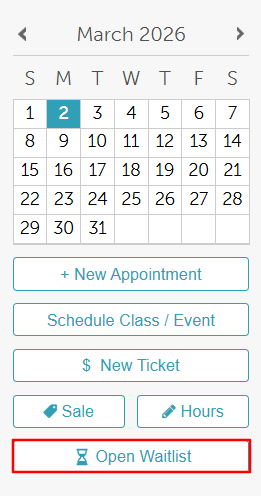
- The waitlist modal provides several ways to manage your list effectively:
- Search & Filter: Use the search bar to find a client by name or narrow your list down by specific dates.
- Review Details: View the client's preferred time, the staff member who added them, and the exact date and time they joined. You can also click a client’s name to open their full profile.
- Add New Entries: Click the "+ Add Client to Waitlist" button in the bottom-right corner
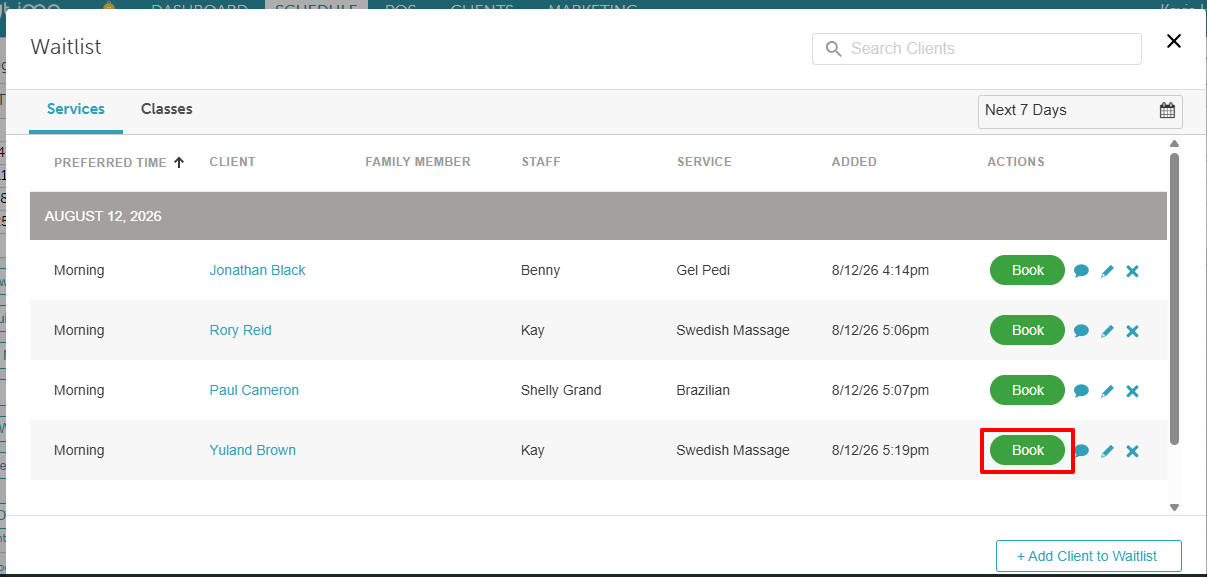
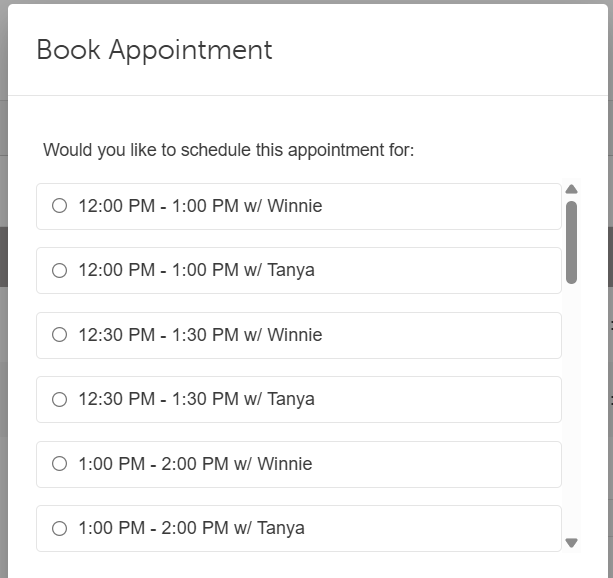
- Book a Client: Click "Book" to schedule an appointment for the client. A modal will appear with available time slots based on the following logic:
- Specific Staff Selected: If a specific staff member was requested, the modal displays only their available time slots.
- No Specific Staff Selected: If no specific staff member was selected, the modal displays all available slots across all qualified staff members, providing greater booking flexibility.
- To visually scan the schedule for openings, select "View Calendar". Available time slots are highlighted in green; simply click a green slot to schedule the appointment.
- Edit Service Waitlist Entry: Click the pencil icon next to the entry to open the Edit Waitlist Entry modal. You can update any of the following details:
- Client
- Pet/Family Member
- Staff
- Service or Price
- Date or Preferred Time
- Note: If another user books this entry before you save your changes, the system will notify you and cancel the update to prevent double-booking.
- Contact Client: Click the message icon to reach out directly via the Communicator.
- Remove Entry: Click the "X" icon to delete a client from the waitlist.
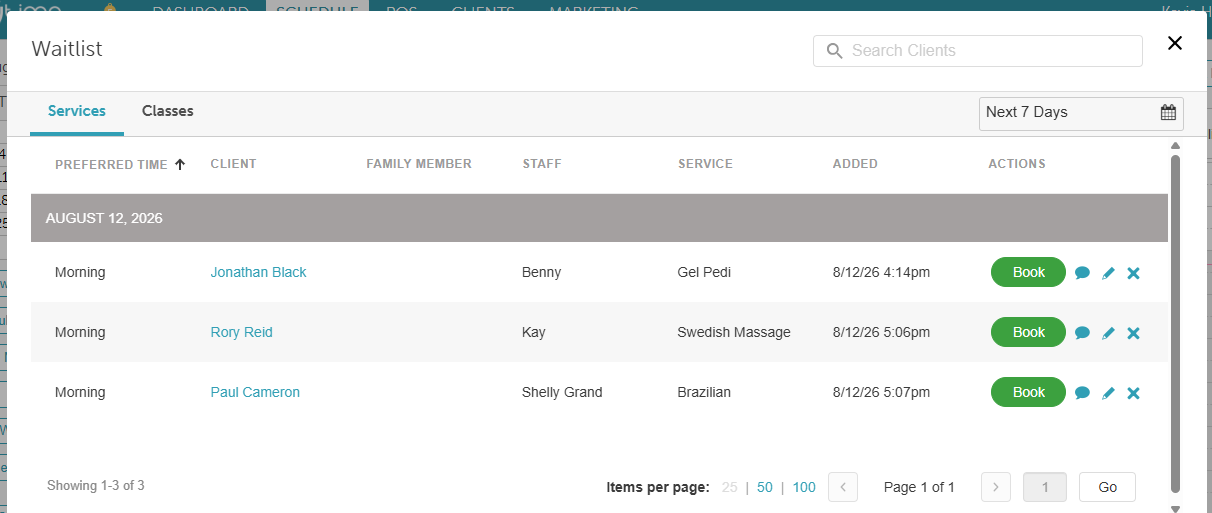
- When you are finished managing your entries, click the × in the top-right corner to return to the main schedule
Scheduling an Appointment from the Waitlist
- On the schedule, select the Open Waitlist hyperlink
- Locate the client you wish to book and select Book next to their name
- In the Book Appointment modal, select the desired time slot and staff member
- Select Book
- Optional — Visual Booking:
- To book using the calendar view, select View Calendar
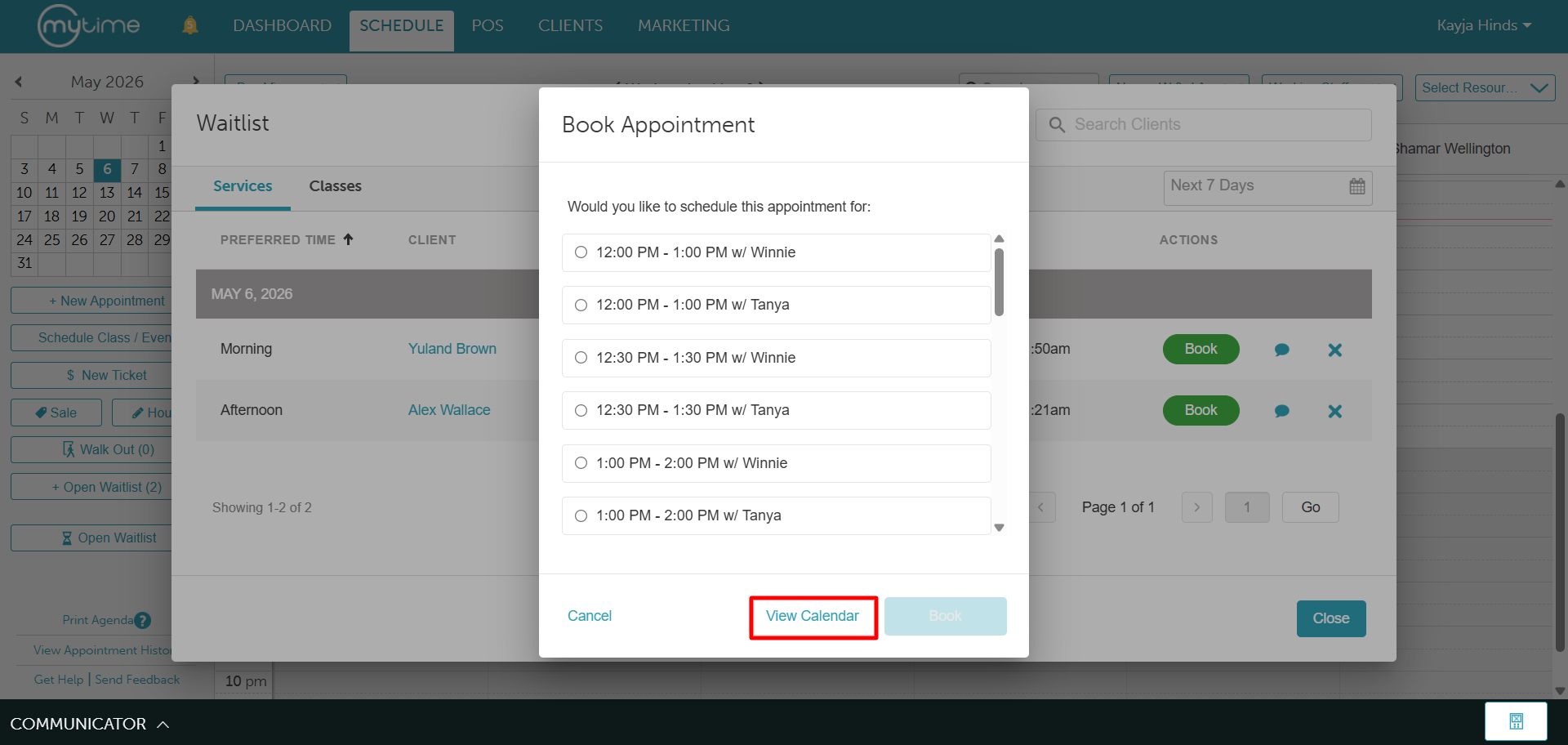
- Select a time slot highlighted in green
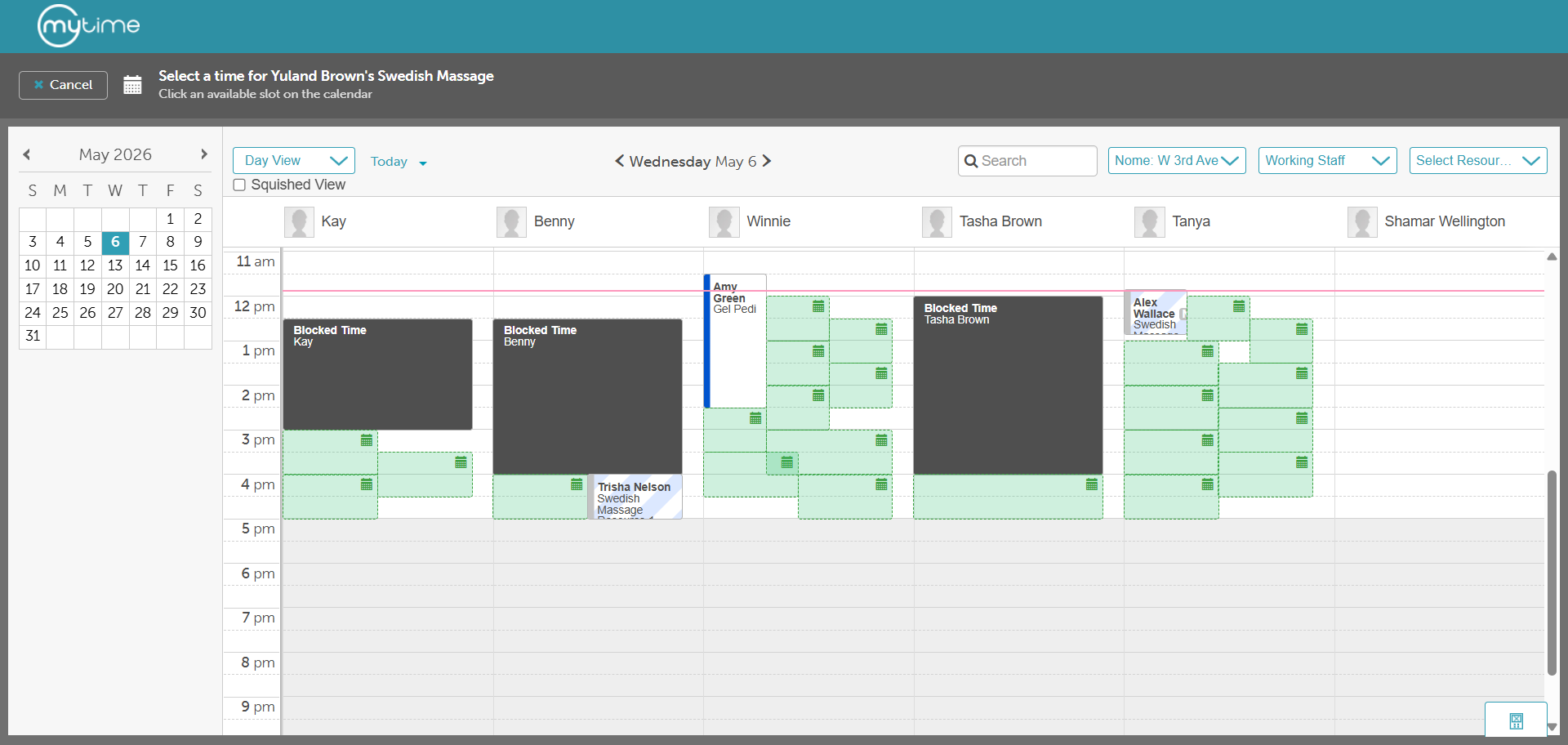
- Select Book Service
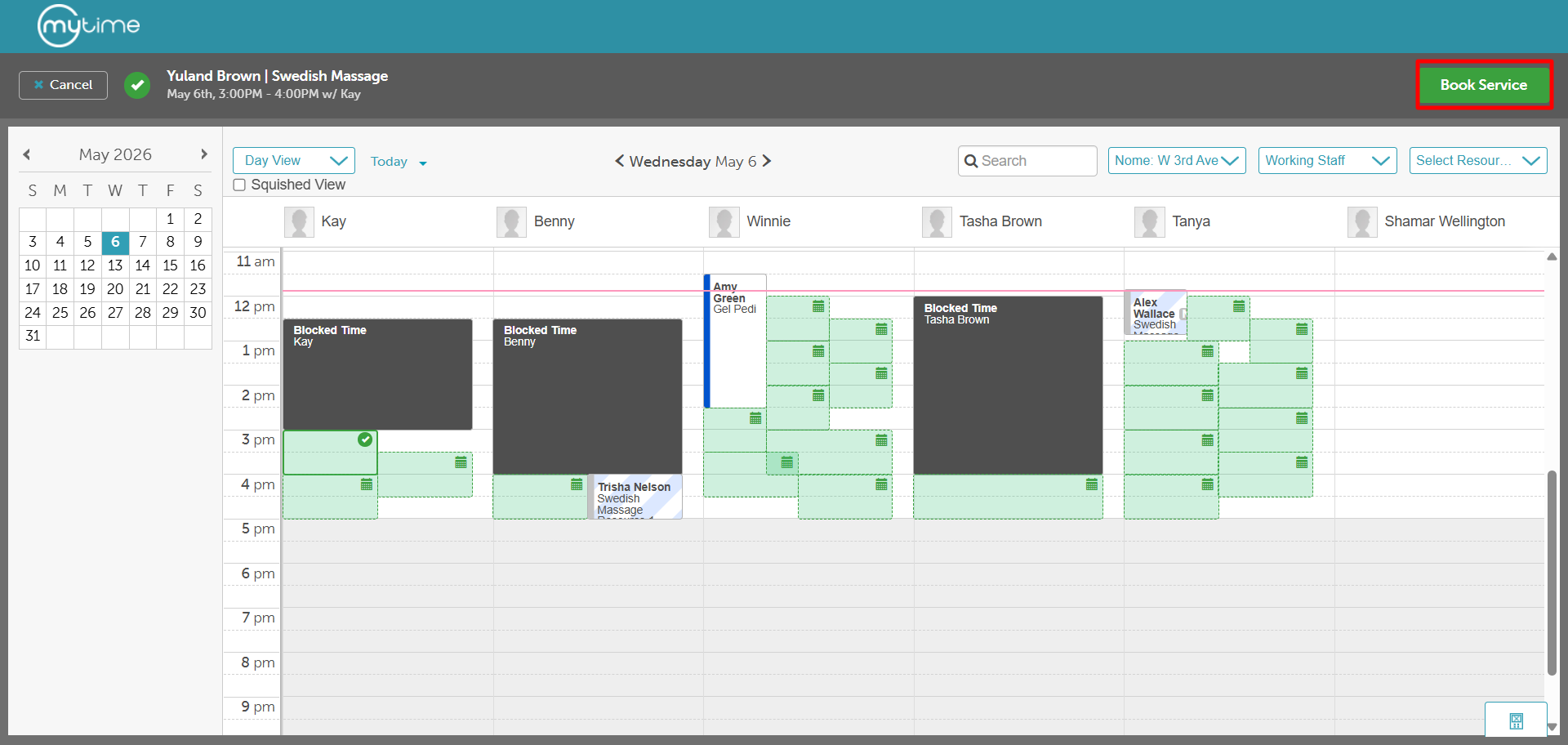
- To book using the calendar view, select View Calendar
The new appointment will now appear on the schedule under the chosen staff member and time.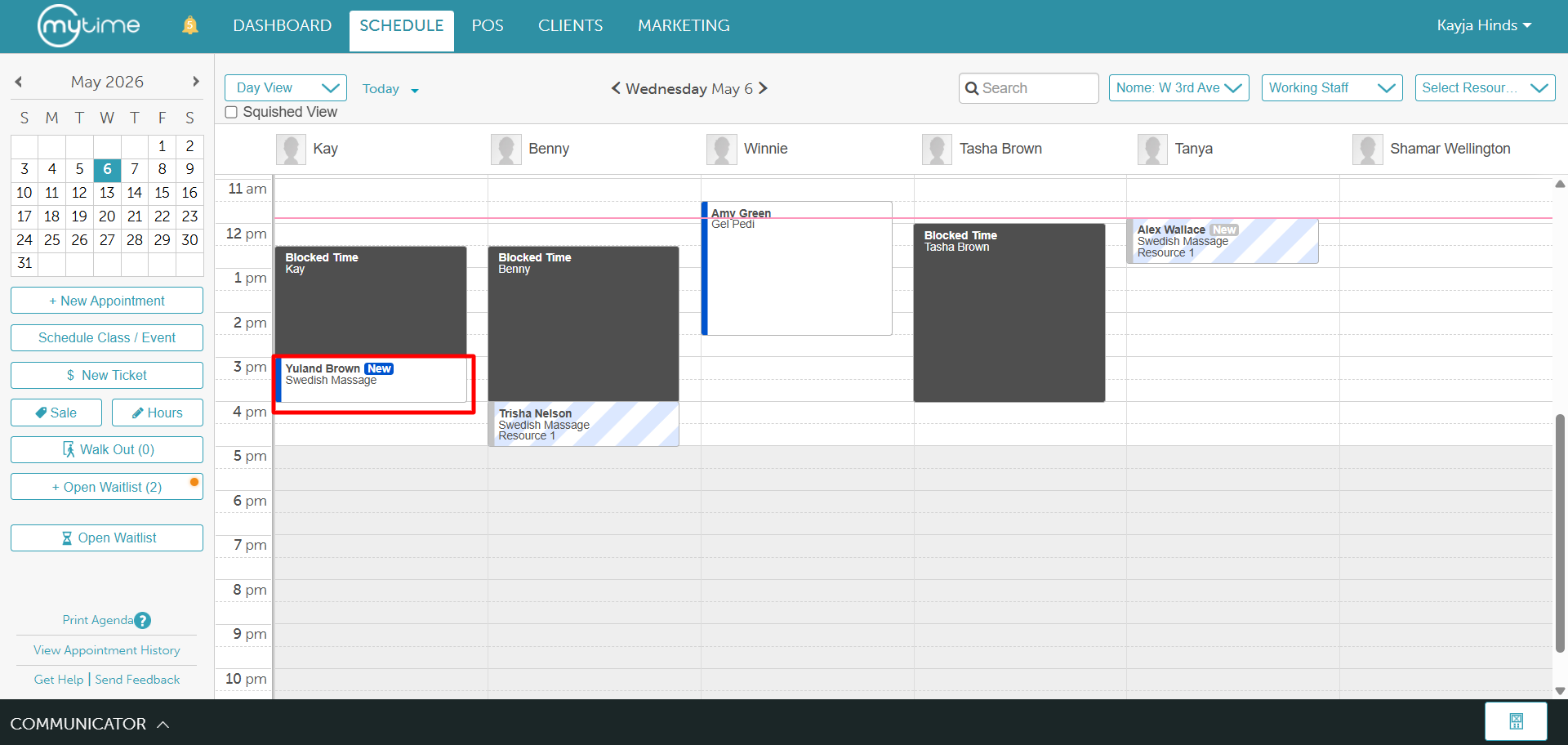
For more information, contact us at support@mytime.com or (385) 233-6964.
Related Article:
Was this article helpful?
That’s Great!
Thank you for your feedback
Sorry! We couldn't be helpful
Thank you for your feedback
Feedback sent
We appreciate your effort and will try to fix the article