When a client's preferred time slot is fully booked, staff can now add them to the service waitlist directly from the Scheduler App. Clients are automatically notified the moment a matching slot opens up, helping your business capture revenue from cancellations and keep clients engaged.
Things to know:
- The ability to add and manage waitlist entries is controlled by the "Accessing Appointments" access control permission. Staff must have this set to Edit.
- To use the Service Waitlist feature in the Scheduler App, the "Enable Appointment Waitlist" company setting must be enabled. Turning this setting on will then allow your staff to successfully add clients to the appointment waitlist. Learn more here
- The "Add to Service Waitlist" option appears automatically when a staff member attempts to book a time slot that is already fully booked.
- Clients can be waitlisted for a specific time of day: Morning (8 AM–12 PM), Afternoon (12–5 PM), Evening (5–9 PM), or Anytime.
- When adding a client to the service waitlist with a specific staff member and a preferred time window selected, the system automatically checks for open appointment slots in the background.
- If the selected staff member is free during that time window, a green banner will appear stating, "[Staff Name] is available during these times." Tapping this banner instantly opens a pre-filled booking flow using the client, service, duration, and price adjustments you already entered.
- If the green banner does not appear, there is no current availability matching those exact criteria. Simply select Add to Waitlist to save the entry. The client will remain on the waitlist and will be notified automatically if a matching slot opens up.
- When a slot becomes available, a waitlist notification is automatically sent to eligible clients with a direct booking link. The link pre-fills the service, date, and time so the client can confirm in just a few taps.
- Spots are filled on a first-come, first-served basis — the first client to complete checkout secures the slot.
- Notifications will not be sent if the opening occurs within the business’s advance booking cutoff window. Example:
- 9:00 AM: A 2:00 PM time slot becomes available. If the business has a 2-hour cutoff, the system sends notifications to all eligible waitlisted clients
- 1:30 PM: A 2:00 PM time slot opens again. Since this is within the 2-hour cutoff window, no notifications are sent.
- Clients can remove themselves from the waitlist at any time from the My Account → Bookings → Waitlisted section online or in the booking widget.
- Staff can view and manage the full waitlist, including booking clients into open slots, sending Communicator messages, and removing entries.
- For multi-pet or grouped appointments, each pet/resource can be added individually to the waitlist.
Contents:
- Adding a Client to the Service Waitlist from the Schedule
- Adding a Client to the Waitlist Directly from the Service Waitlist Screen
- Viewing the Current Waitlist
- Converting a Waitlist Entry to an Appointment
- Cancelling a Waitlist Entry
- Messaging a Client from the Waitlist
Adding a Client to the Service Waitlist from the Schedule
To add clients to the service waitlist on the scheduler app, simply:
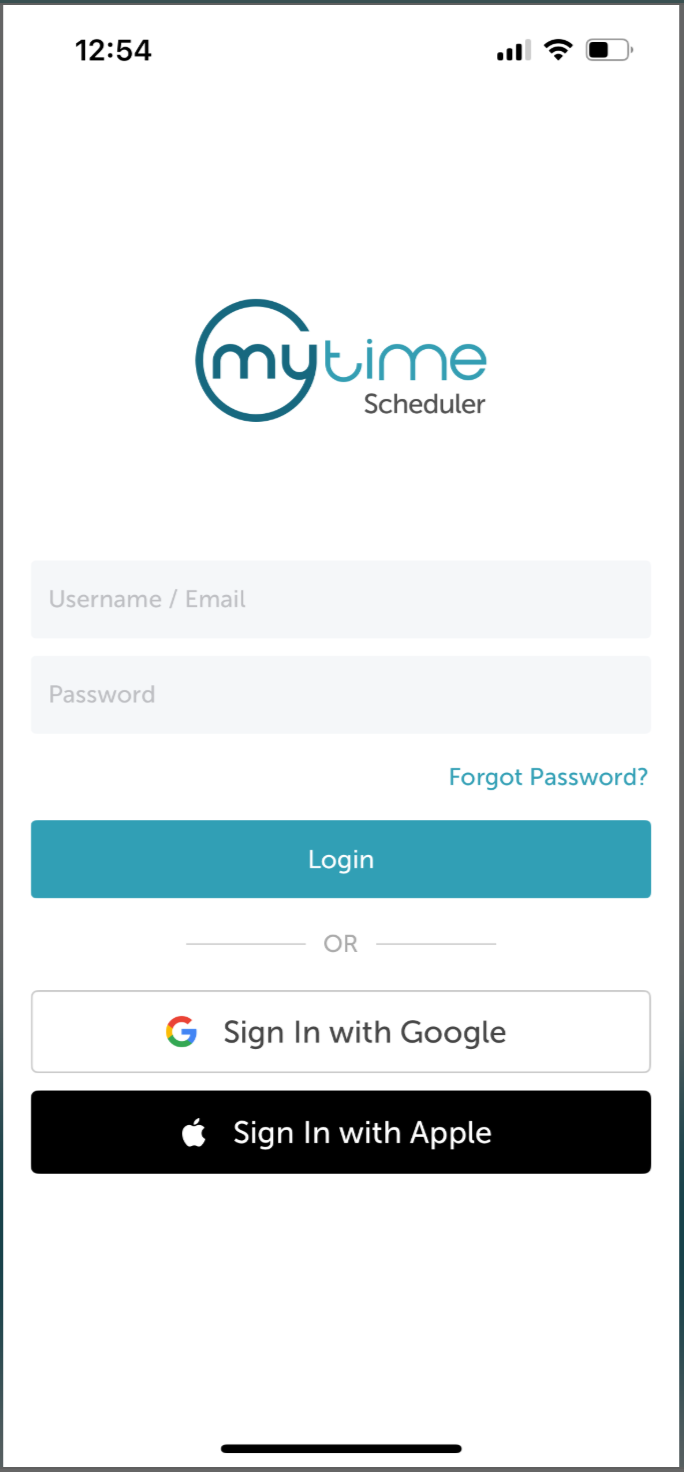
1. Launch the MyTime Scheduler app on your device
2. Choose your login method:
- Standard: Enter your registered email address and password, then tap 'Sign In'
- Social Login: Select 'Continue with Google' or 'Continue with Apple' to use your existing credentials for a faster login experience. For detailed instructions, learn more here
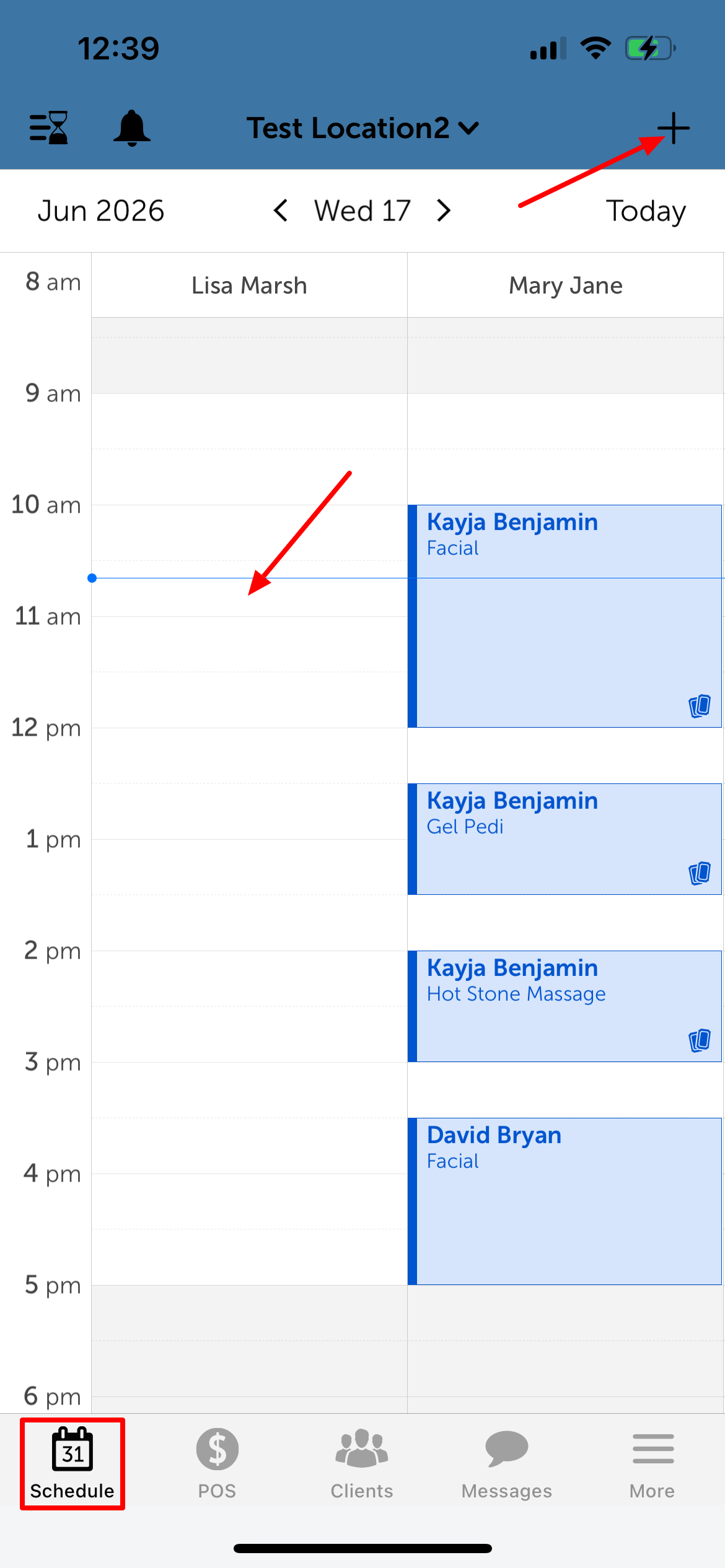
3. Navigate to the Schedule
4. Tap the + icon or tap directly on a specific time slot to create a new appointment.
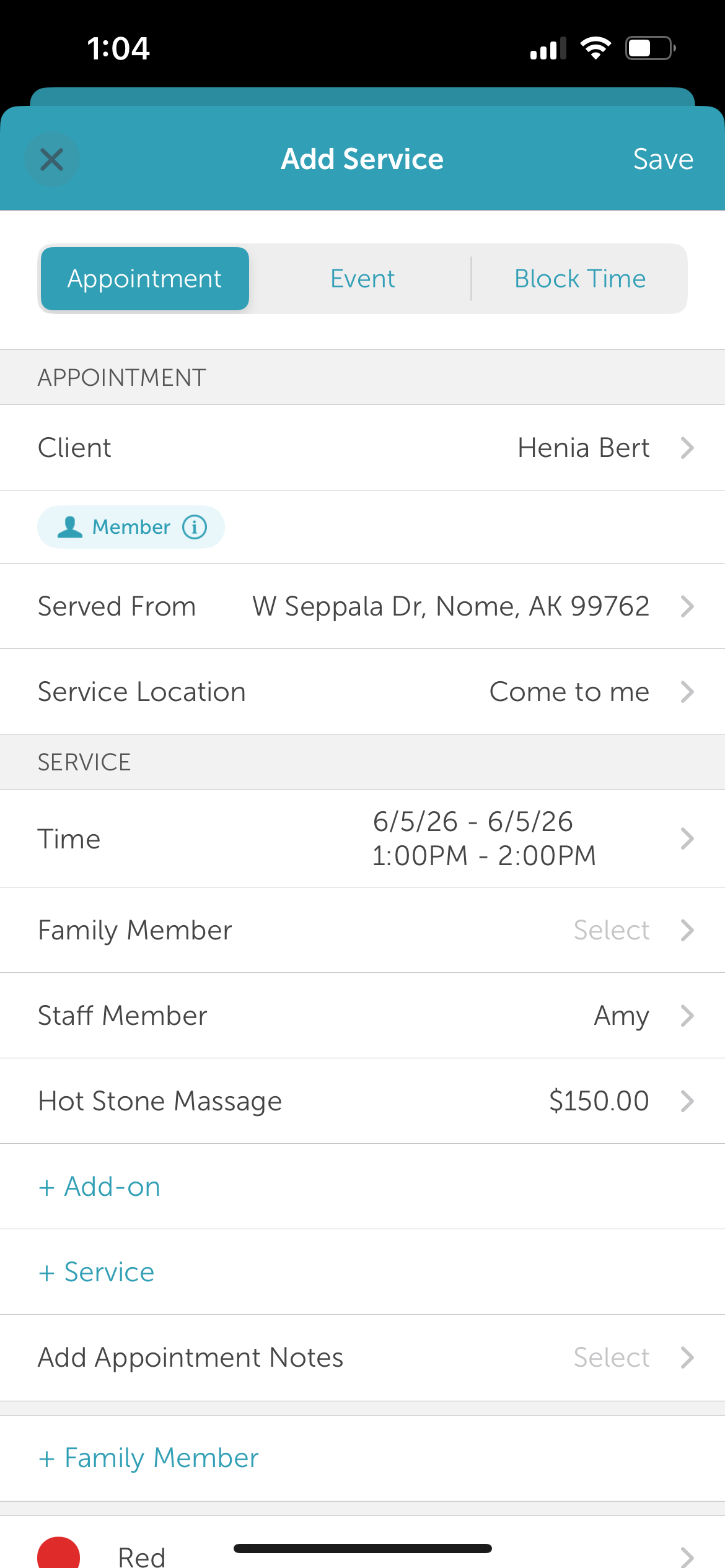
5. Enter the required booking information:
- Client: Search for an existing client or add a new profile using the + icon.
- Date & Time: Select the client's preferred date and time
- Pet/Family Member: Select the desired pet or family member profile (if applicable)
- Service: Choose the requested service
- Staff Member: Select a specific staff member
6. If the selected time slot is already fully booked, tap the Add To Waitlist option that appears on the screen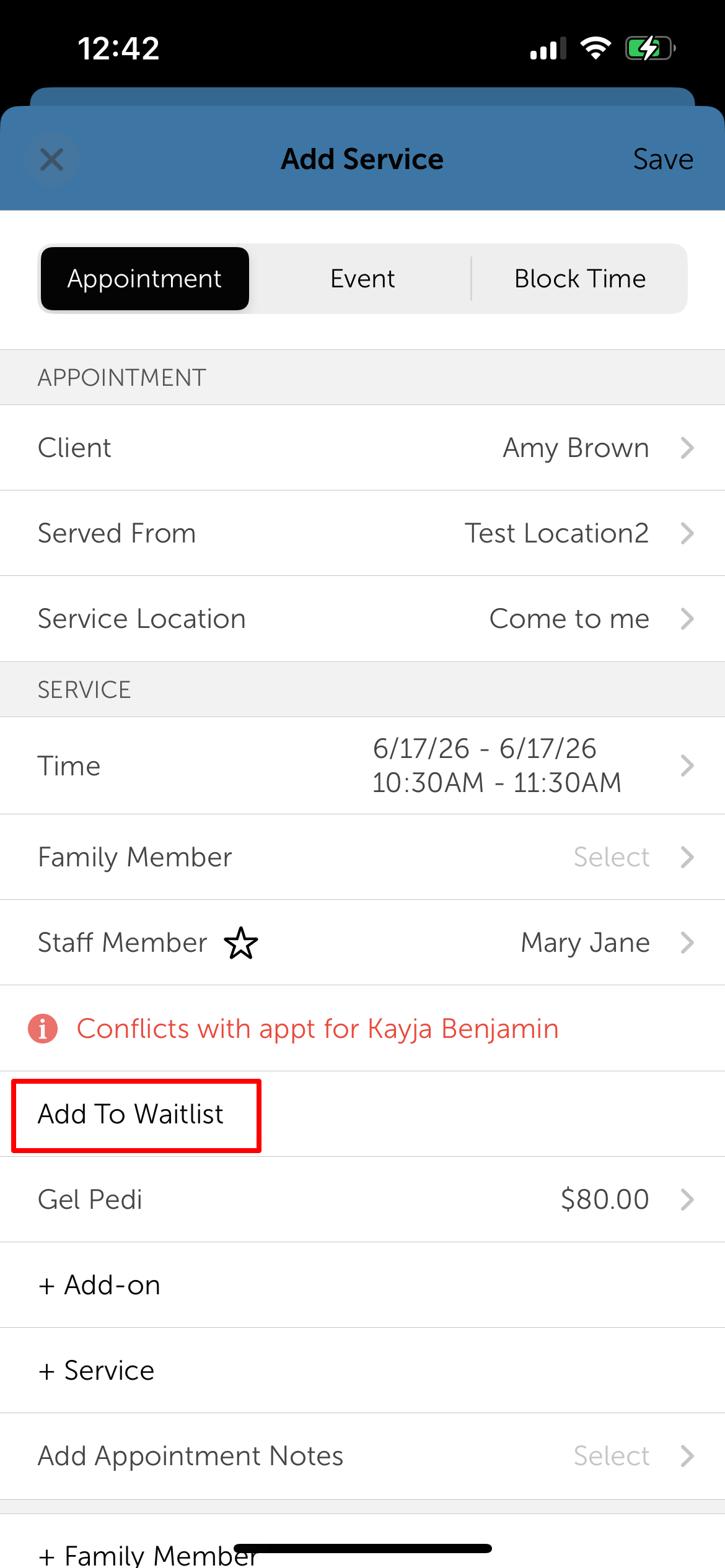
7. A confirmation message will appear verifying that the client has been successfully waitlisted. Tap Done to close out the window.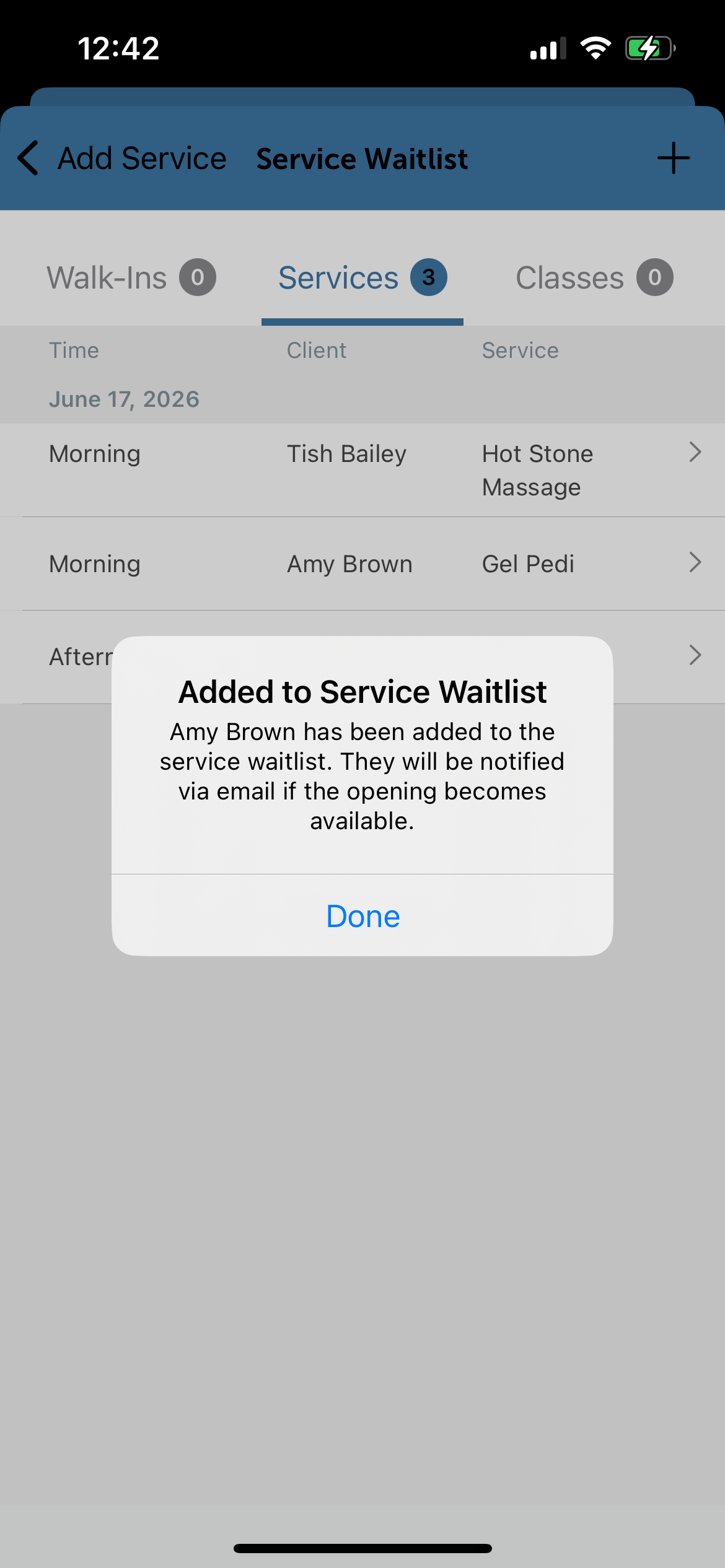
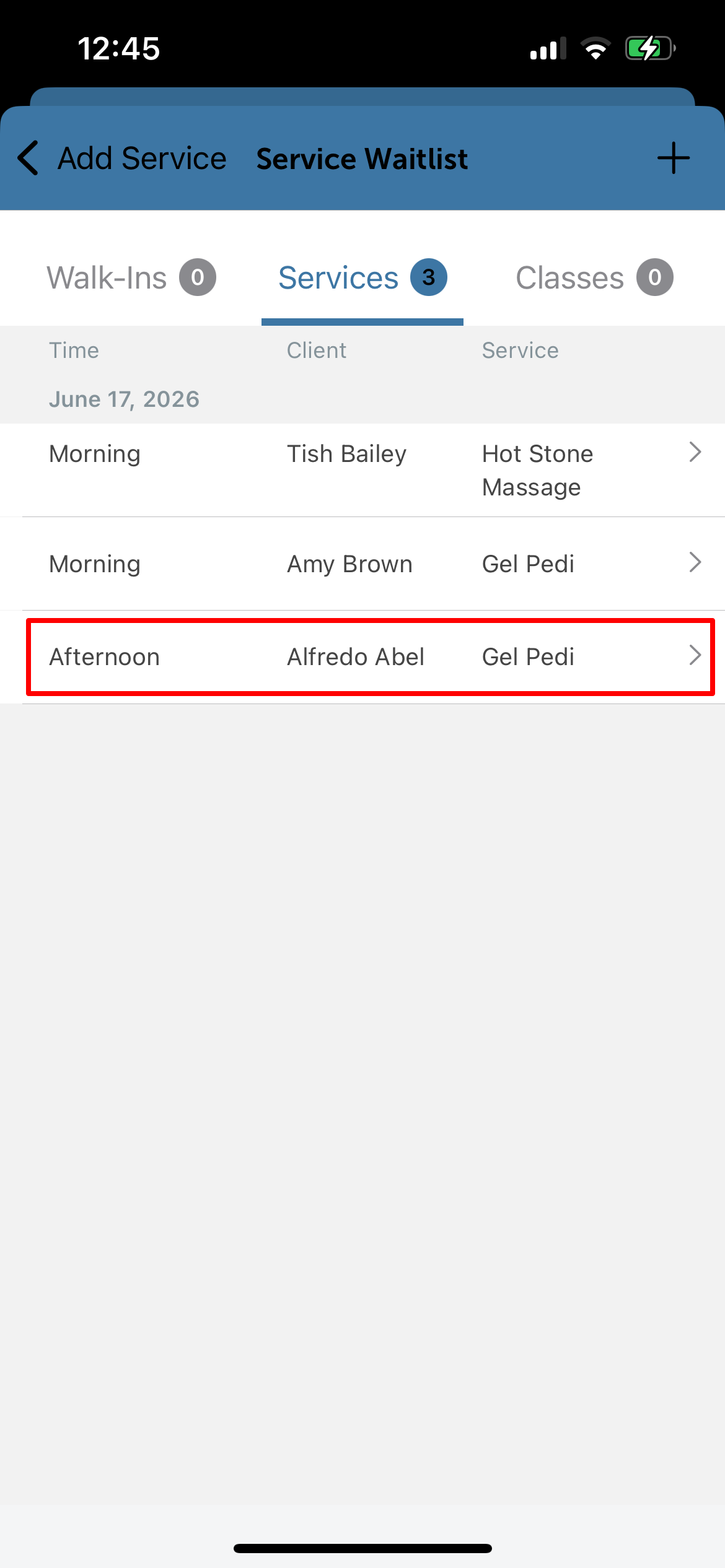
8. The client will now be visible on the waitlist
Adding a Client to the Waitlist Directly from the Service Waitlist Screen
1. From the Schedule screen, tap the Open Waitlist button in the top left corner.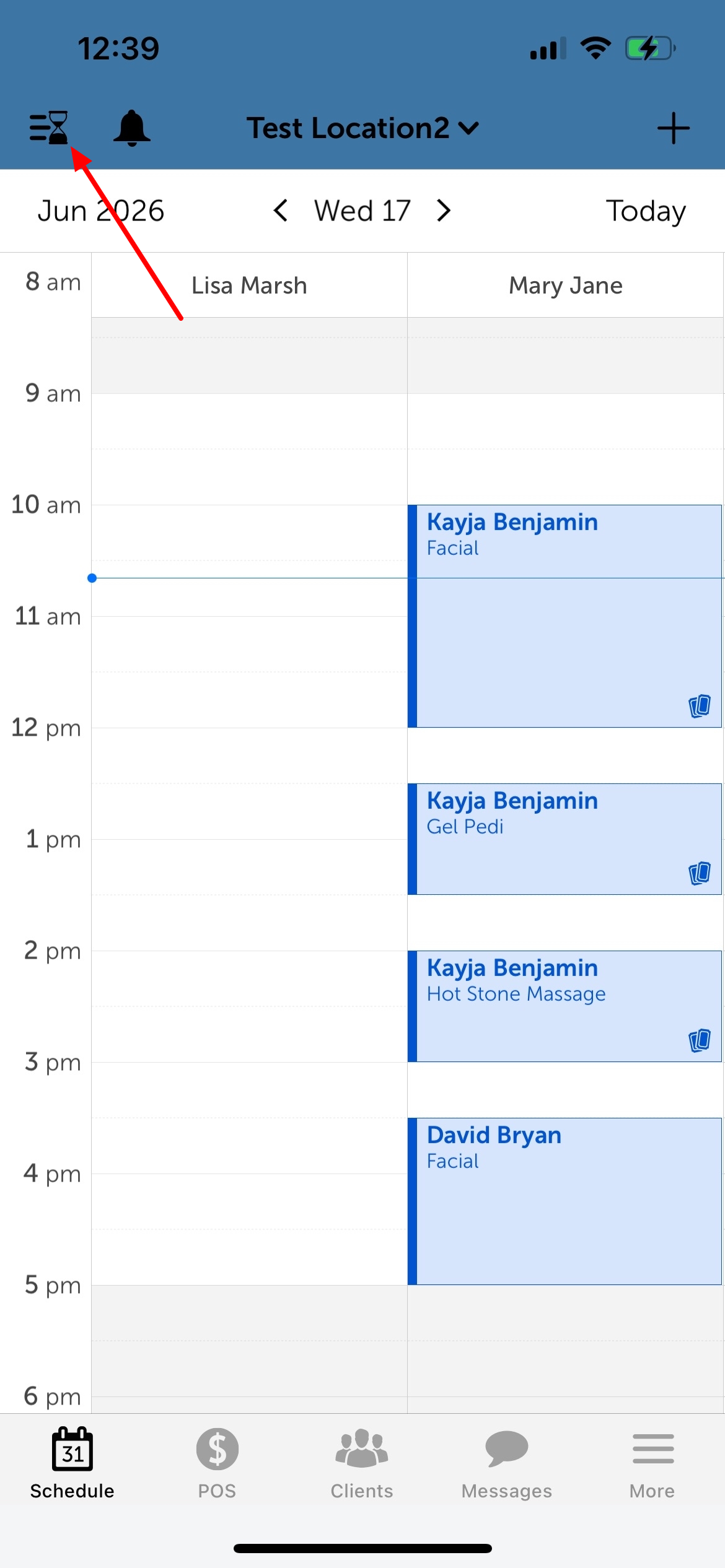
2. Tap the "Services" tab
3. Tap the "+" icon in the top right corner 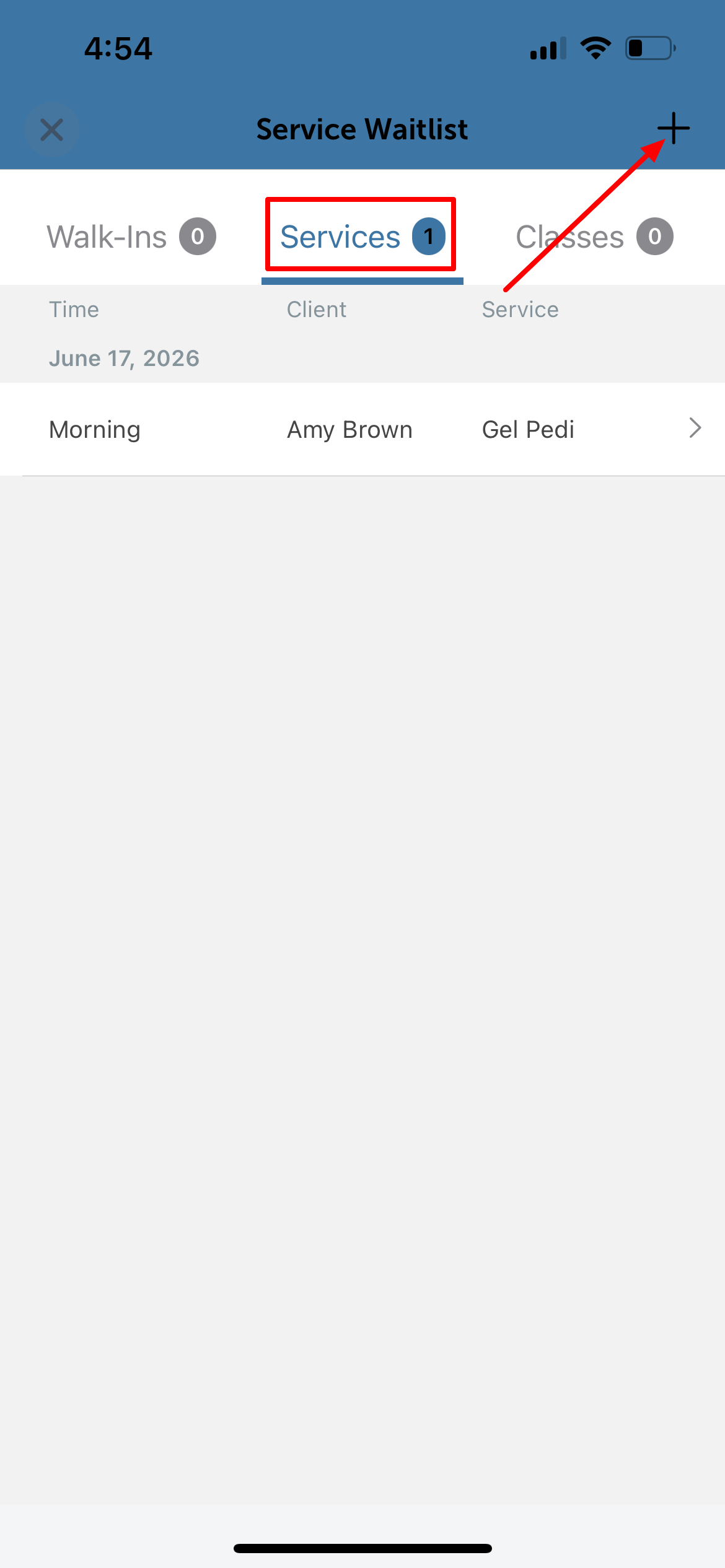
4. From the "Add Client to Waitlist" screen, fill in the following details:
- Client: Search for or add the client
- Location: Choose the desired location
- Preferences: Select the preferred date and time of day (Morning, Afternoon, Evening, or Anytime)
- Pet/Family Member: Select the profile, or add an additional pet/family member if needed.
- Service: Choose the desired service
- Appointment Notes: Add any relevant notes
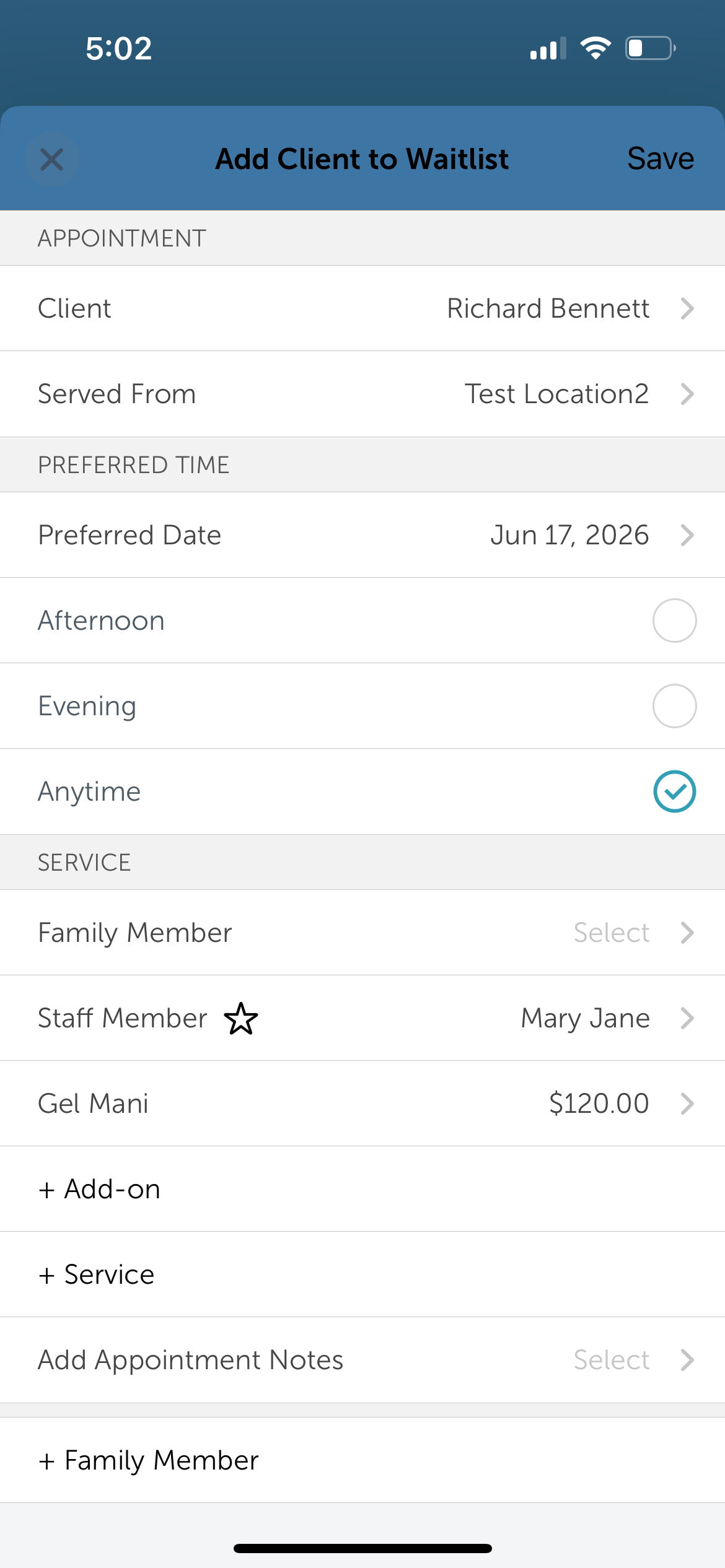
5. Tap 'Save' in the top right corner
6. The client will now be added to the service waitlist
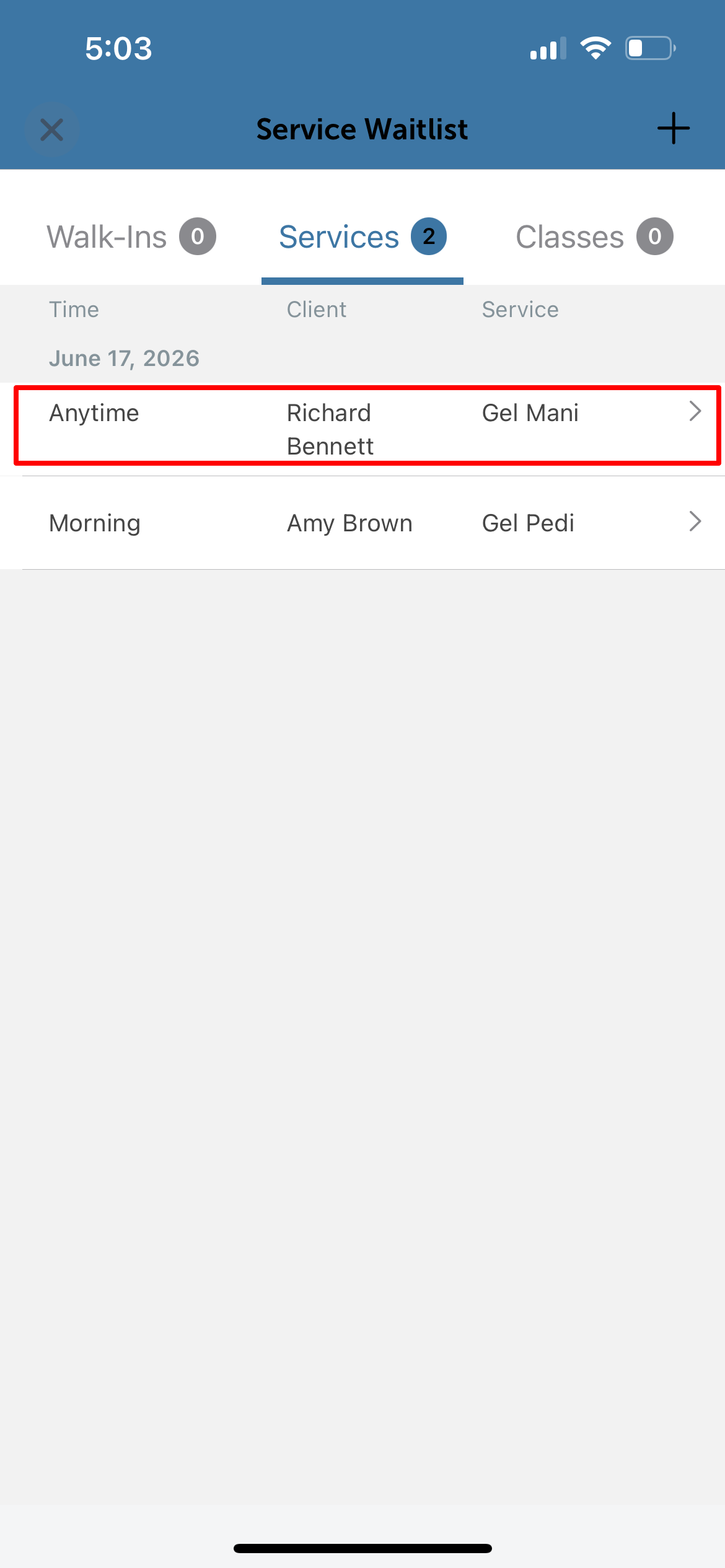
Viewing the Current Waitlist
To view the current waitlist:
1. From the Schedule screen, tap the Open Waitlist button in the top left corner 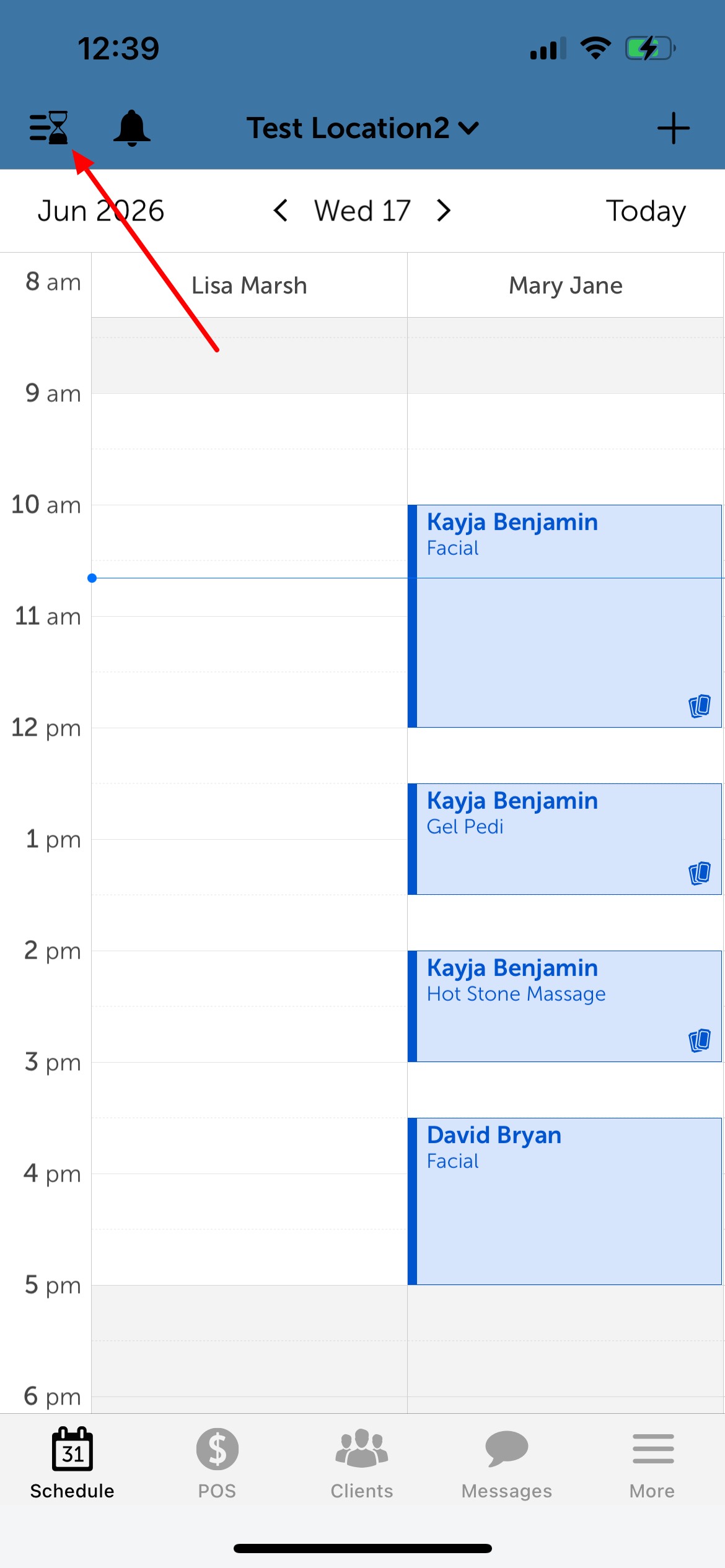
2. Tap the Services tab. The screen will display all clients currently waiting, showing their preferred time of day, client name, and preferred service.
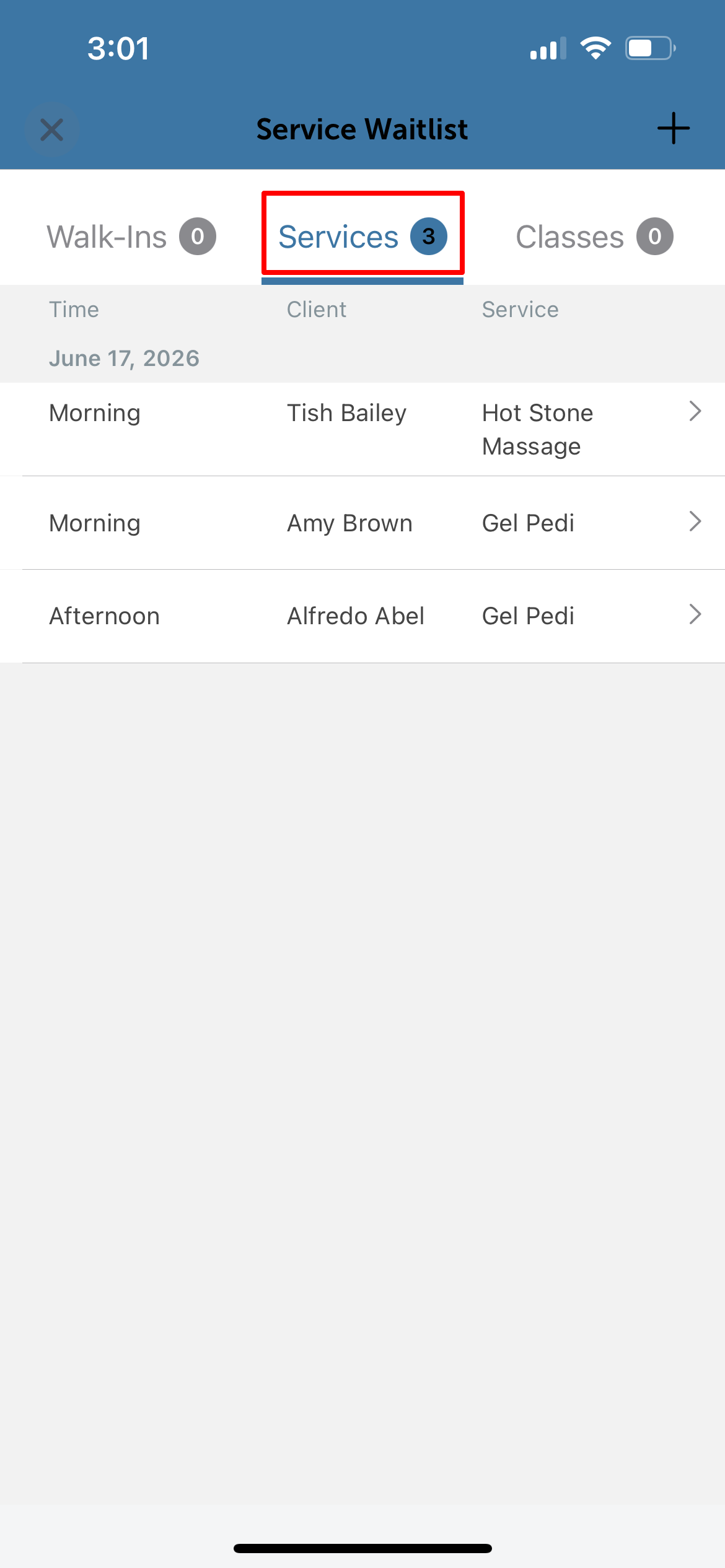
3. Tap the (>) arrow next to a client's name to open their full waitlist entry details 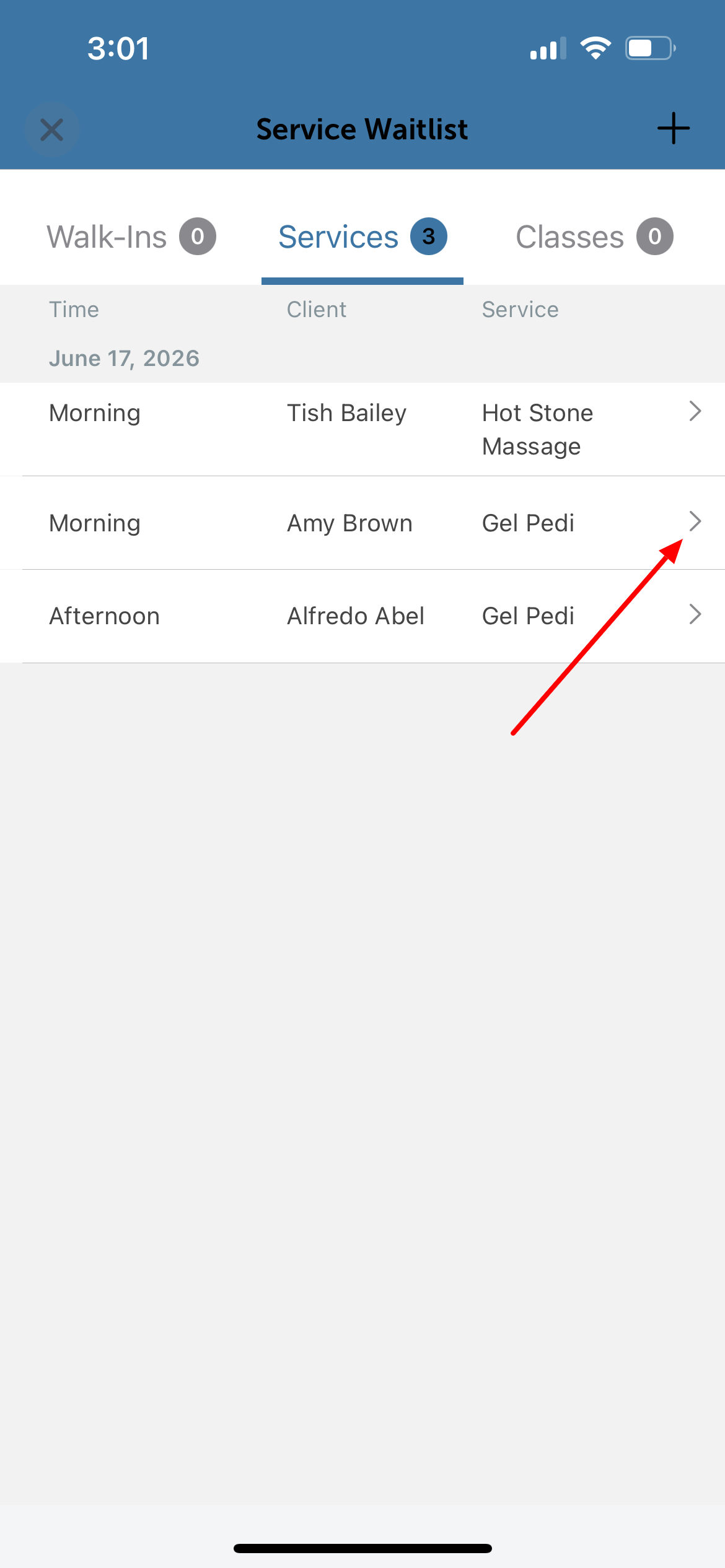
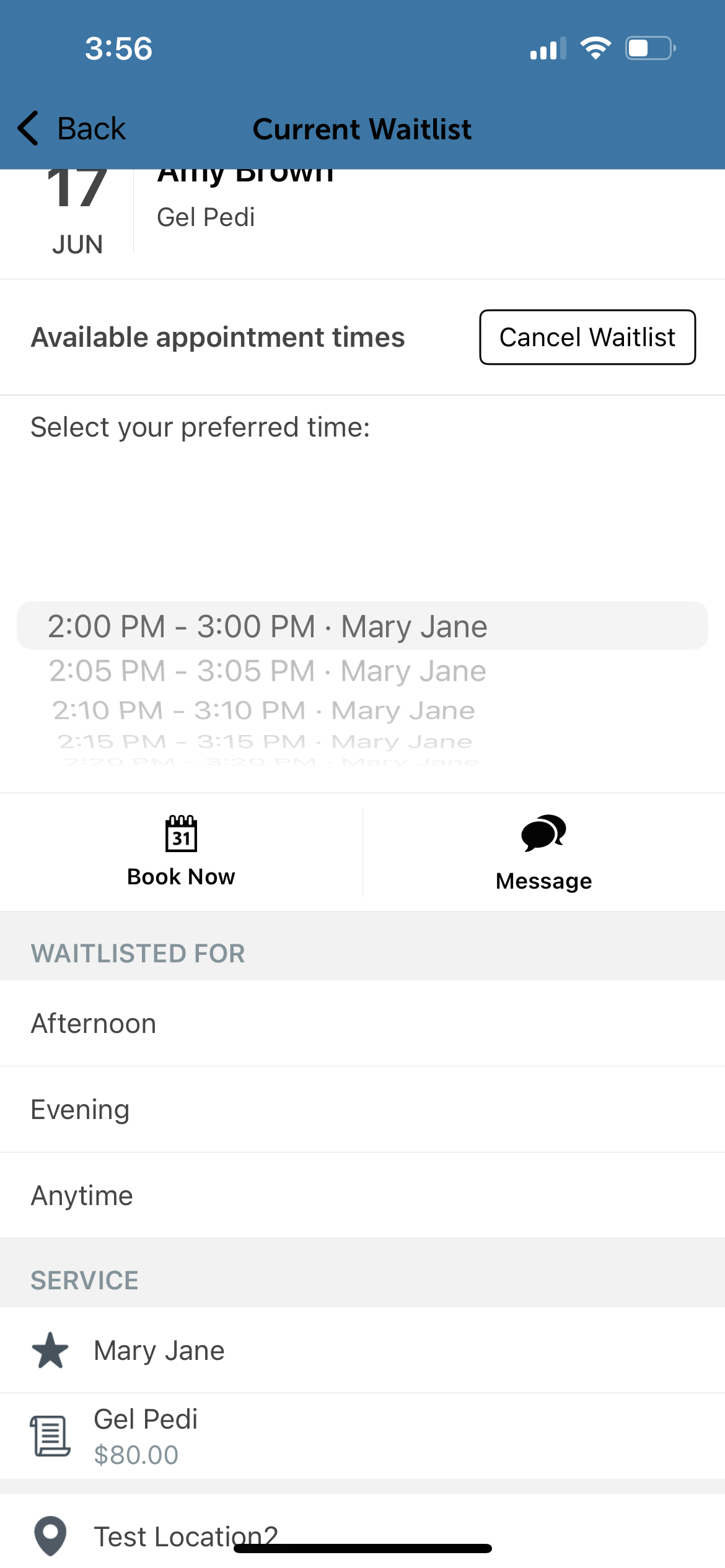
4. From this details screen, you can manage the entry using the following options:
- Cancel Waitlist: Delete or remove the client from the list if they no longer wish to be waitlisted
- Select Preferred Time: View or adjust their desired time slot preferences
- Book Now: Instantly schedule the client directly into an open time slot on the calendar.
- Communicate: Send a direct message to the client through the MyTime Communicator to provide real-time updates.
- Review Details: Look up the exact timestamp of when they were waitlisted, their requested staff member, service, and location.
Converting a Waitlist Entry to an Appointment
When a time slot opens up, and you're ready to move a client off the waitlist:
1. From the Service Waitlist screen, tap the client's entry 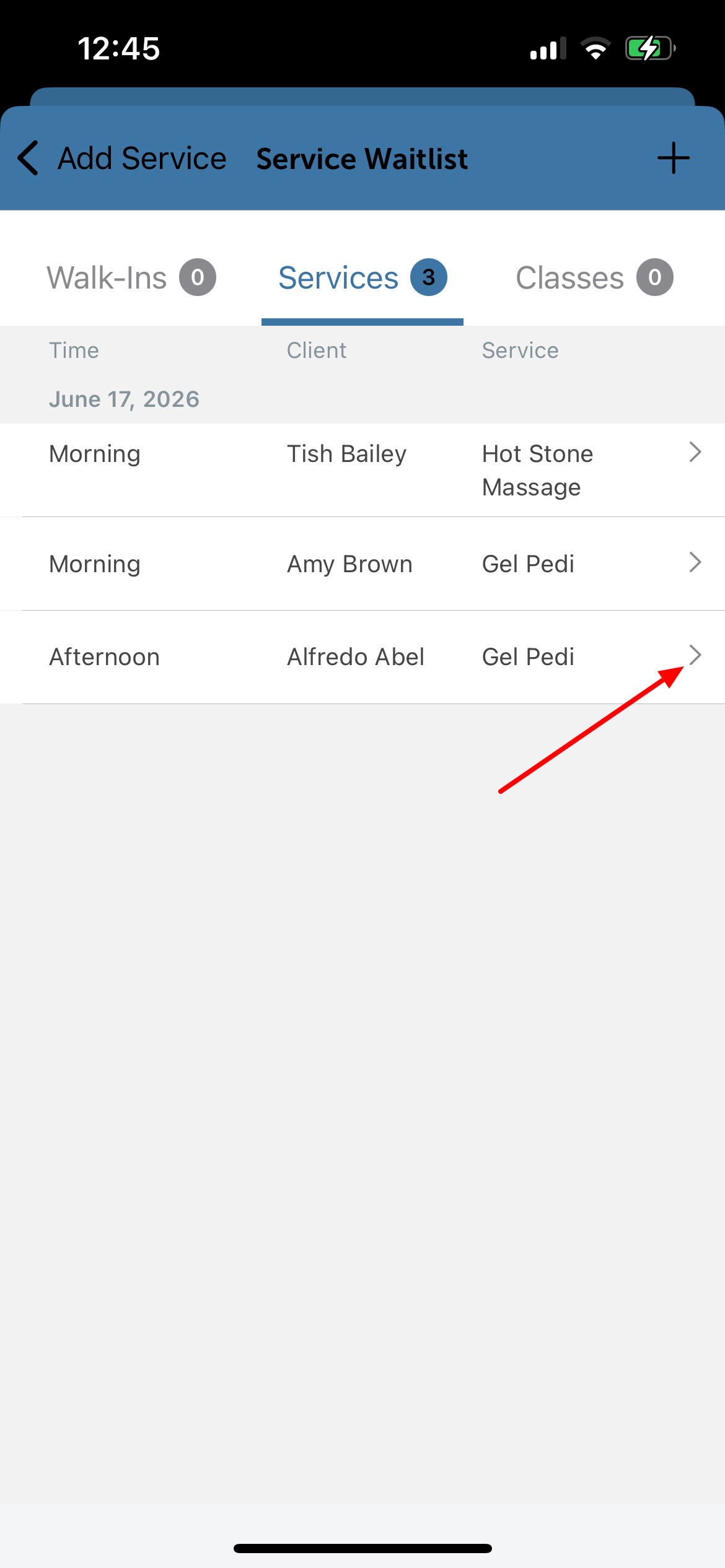
2. On the Current Waitlist page, select the desired time from the list, then tap "Book Now" 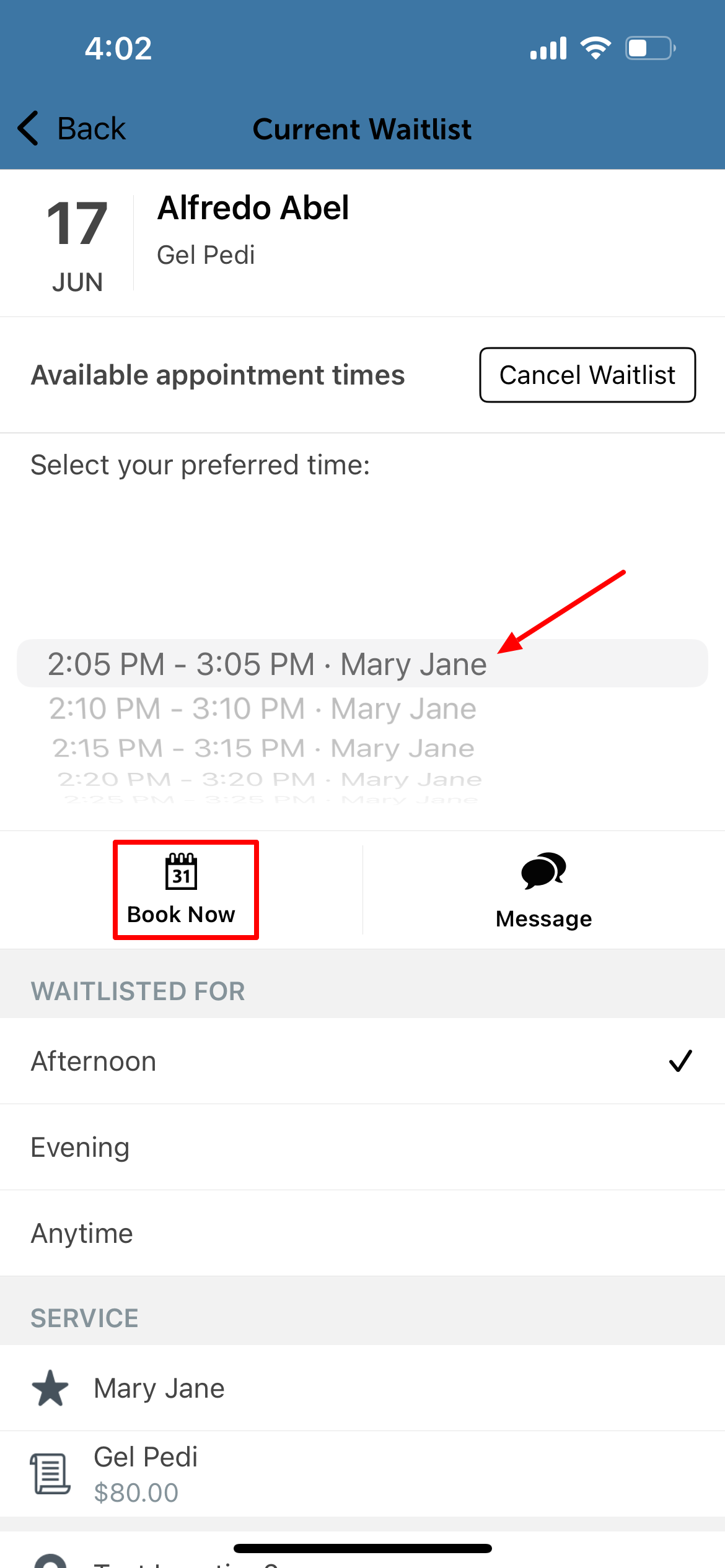
3. Confirm the appointment information and tap 'Save' in the top right corner 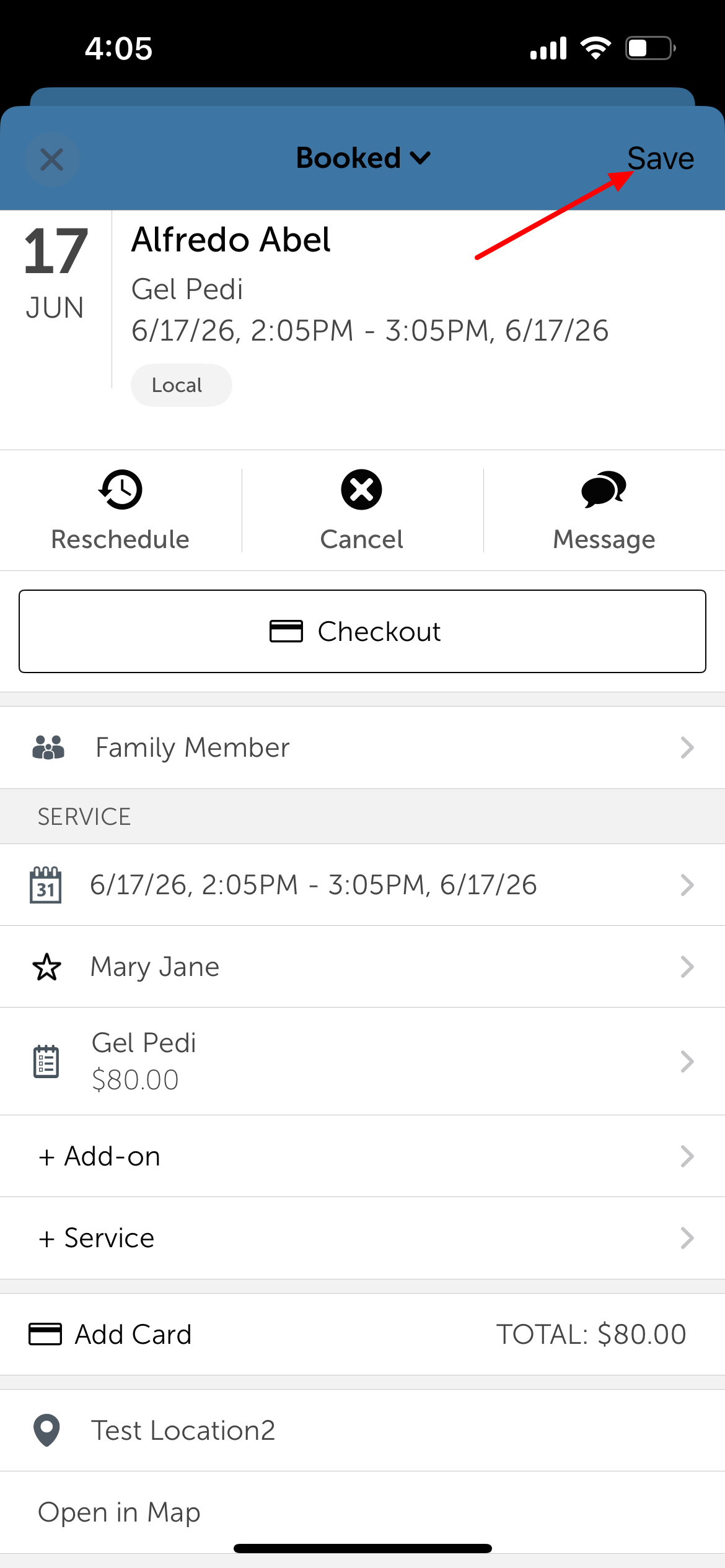
4. The client will automatically be removed from the waitlist, and their new appointment will appear on the schedule 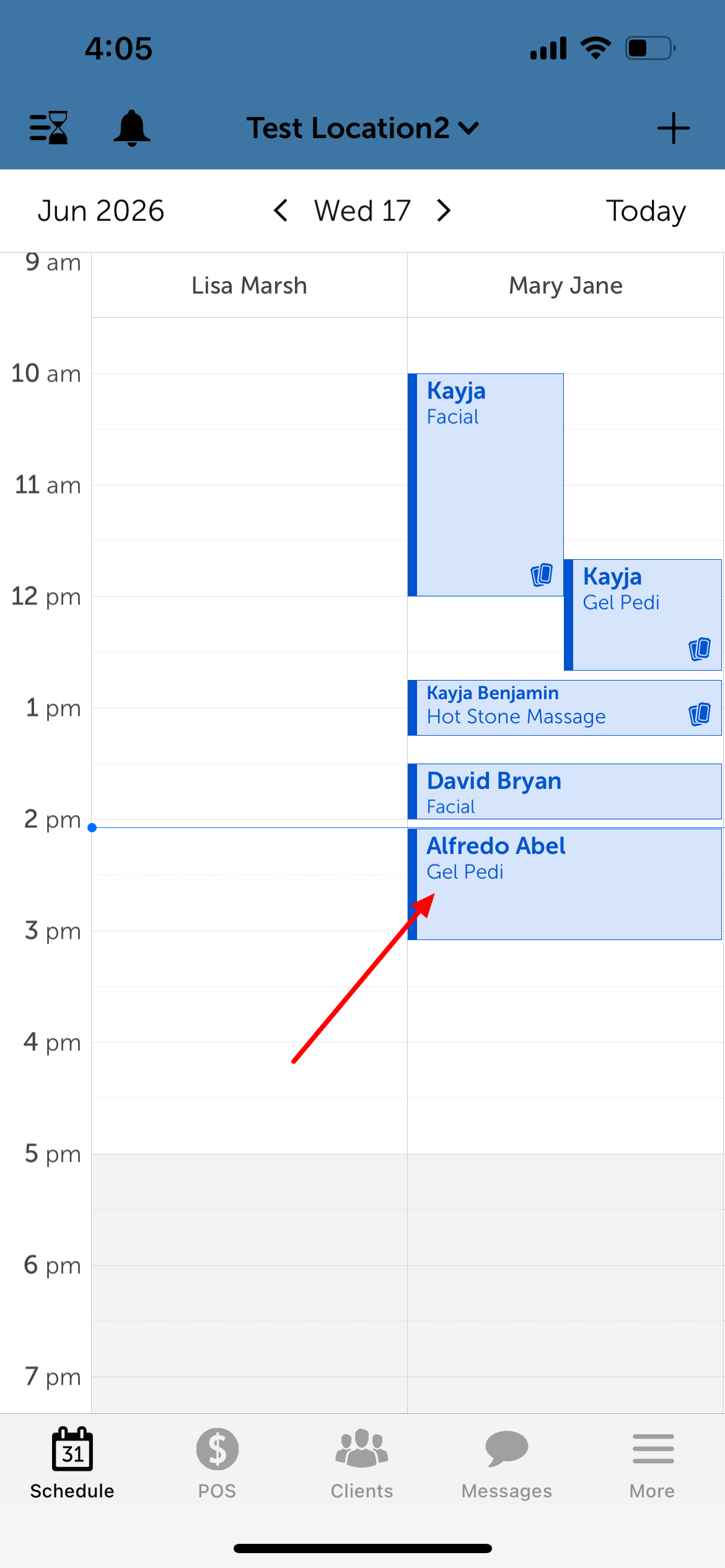
Cancelling a Waitlist Entry
1. From the Service Waitlist screen, tap the (>) arrow to open the client's entry 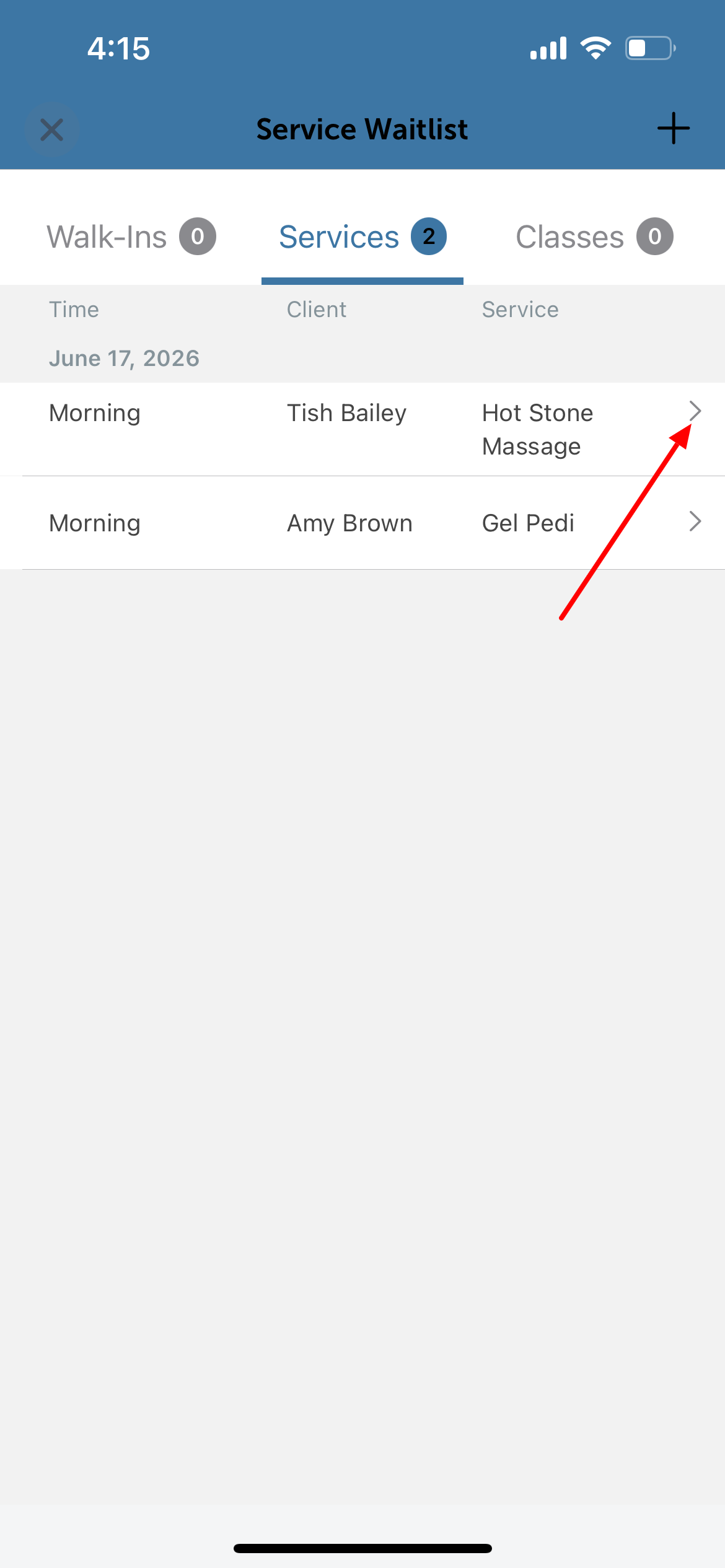
2. On the Current Waitlist screen, tap "Cancel Waitlist" 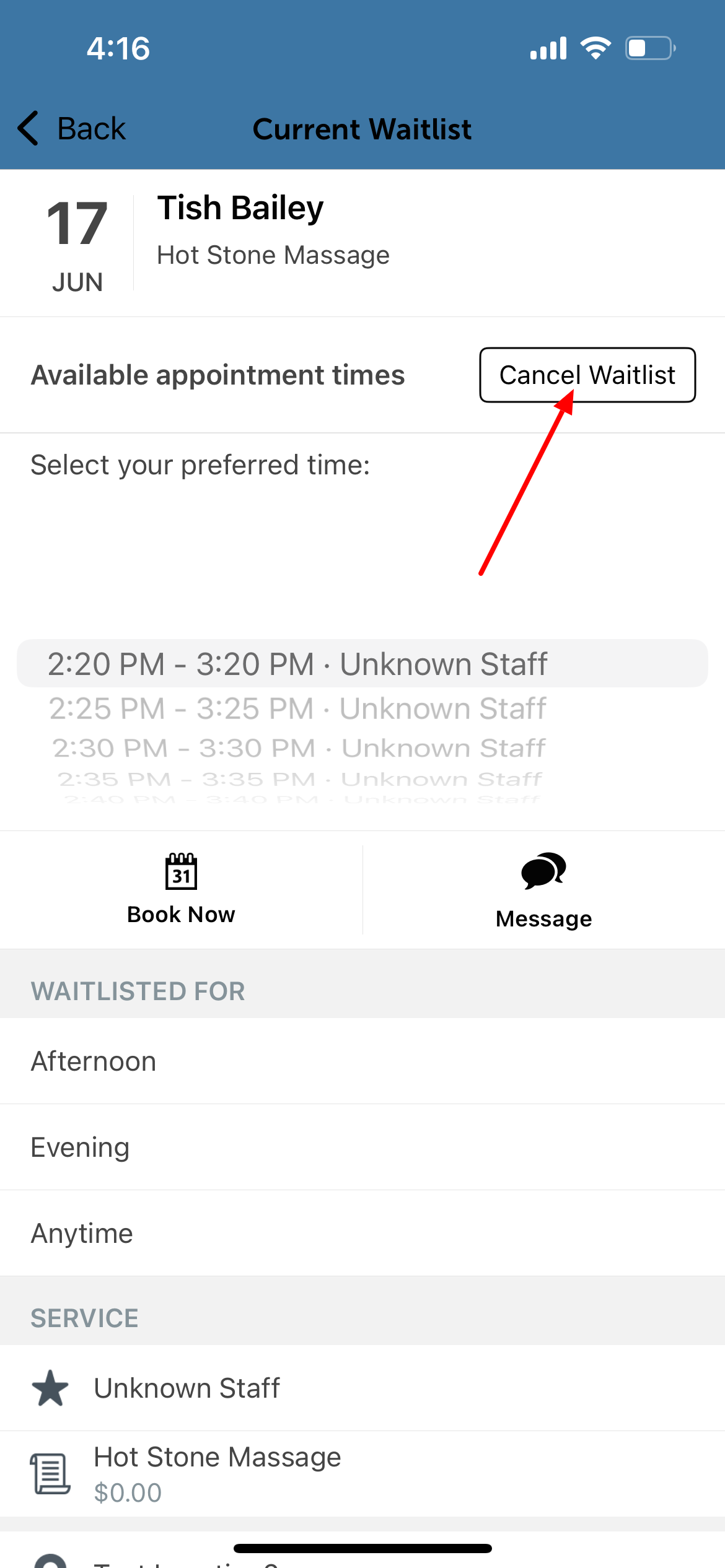
3. Confirm the cancellation when prompted. The client will be removed from the service waitlist.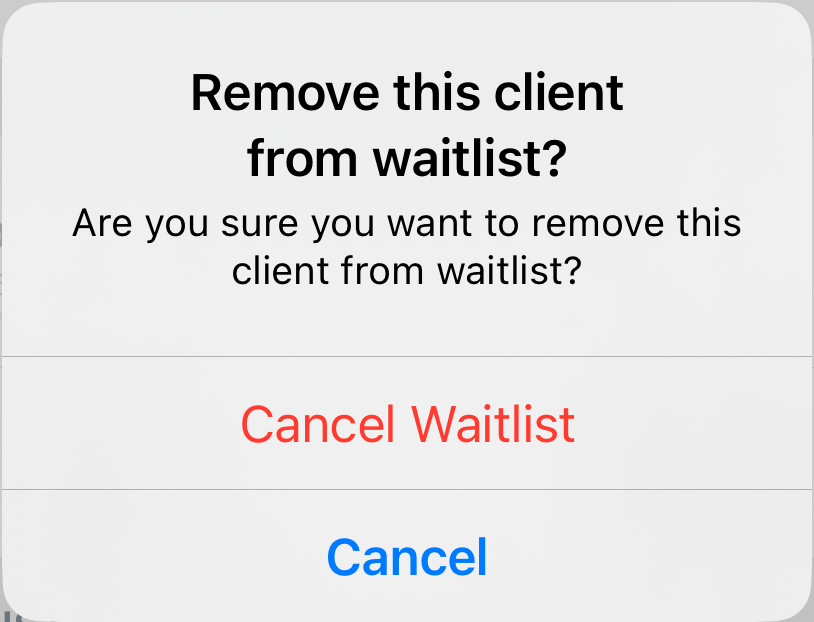
Messaging a Client from the Waitlist
1. From the Service Waitlist screen, tap the (>) arrow to open the client's entry 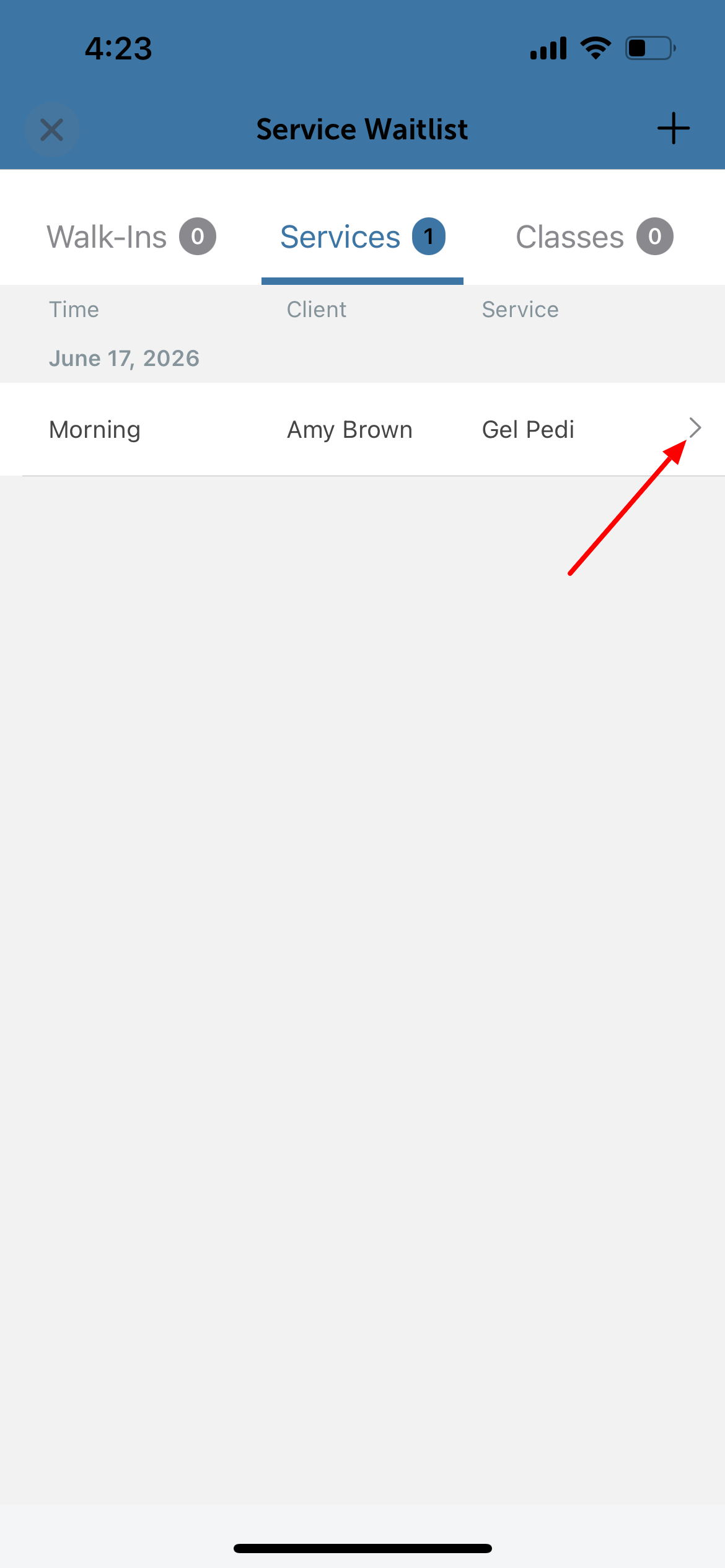
2. On the Current Waitlist screen, tap the Message icon 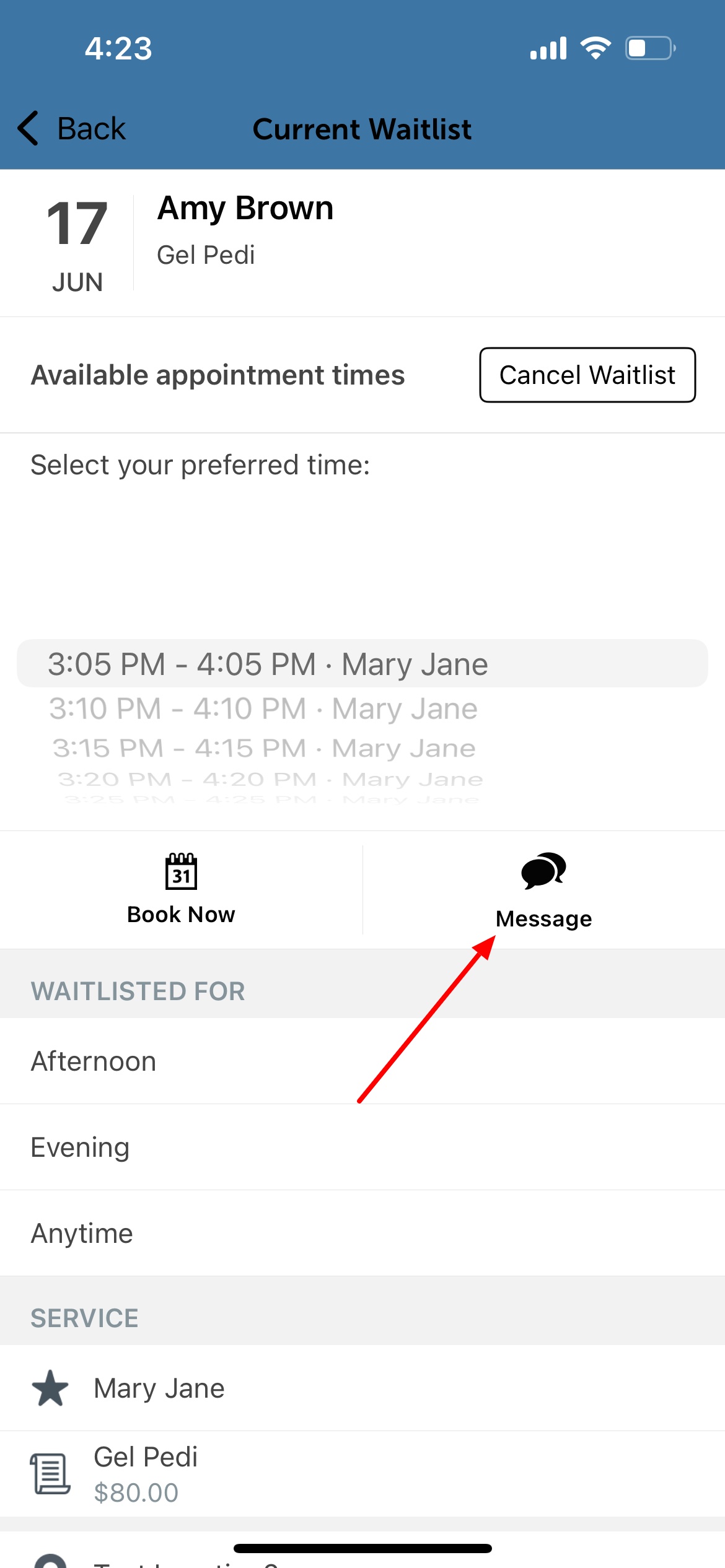
3. Compose your message using the MyTime Communicator
4. Tap Send 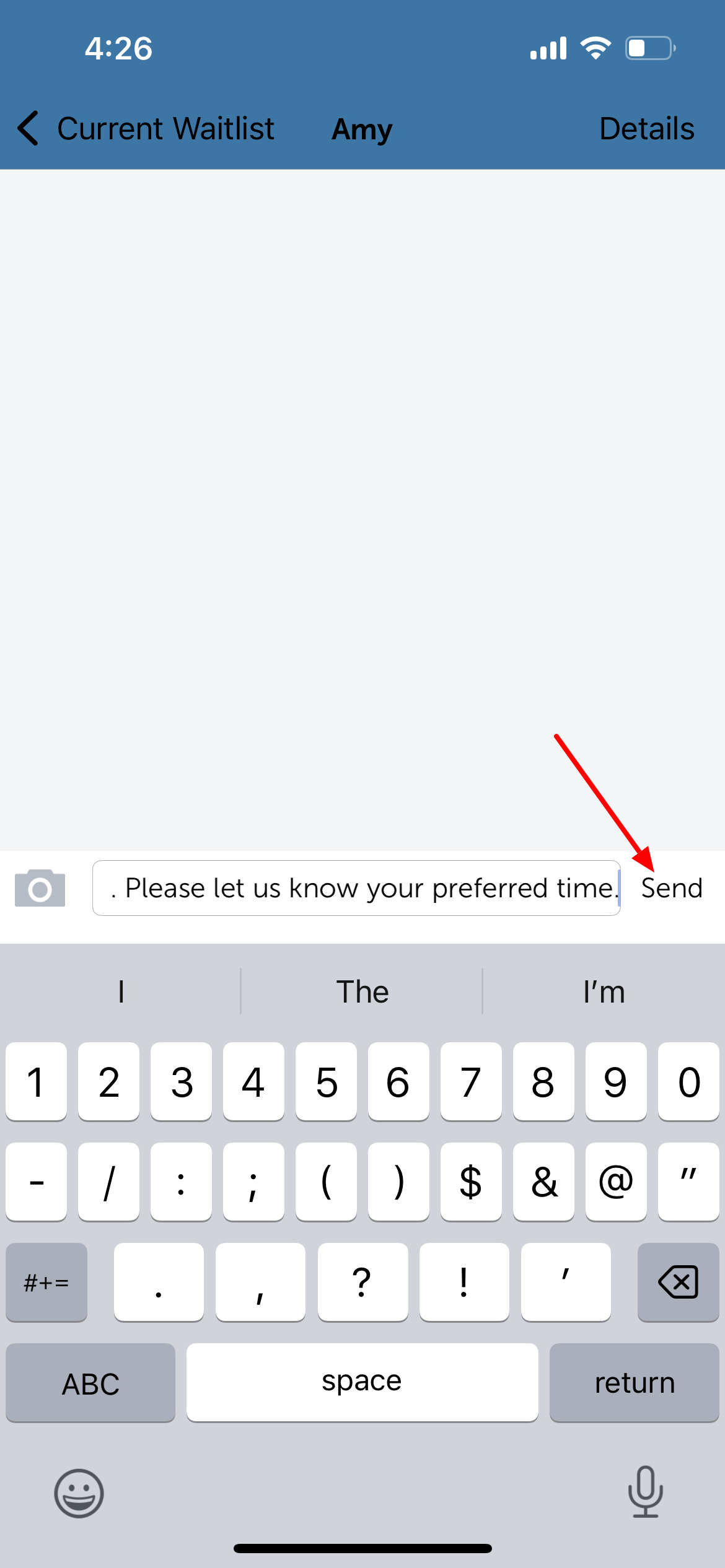
For more information, contact our Support Team at support@mytime.com or (385) 233-6964.
Related Articles
Was this article helpful?
That’s Great!
Thank you for your feedback
Sorry! We couldn't be helpful
Thank you for your feedback
Feedback sent
We appreciate your effort and will try to fix the article