When a specific time slot is unavailable, clients can add themselves to a waitlist to be notified the moment a spot opens up. This feature helps businesses fill last-minute cancellations and maximize revenue while providing clients a proactive way to snag their preferred times.
Things to know:
- To use the Service Waitlist feature, the "Enable Appointment Waitlist" company setting must be enabled
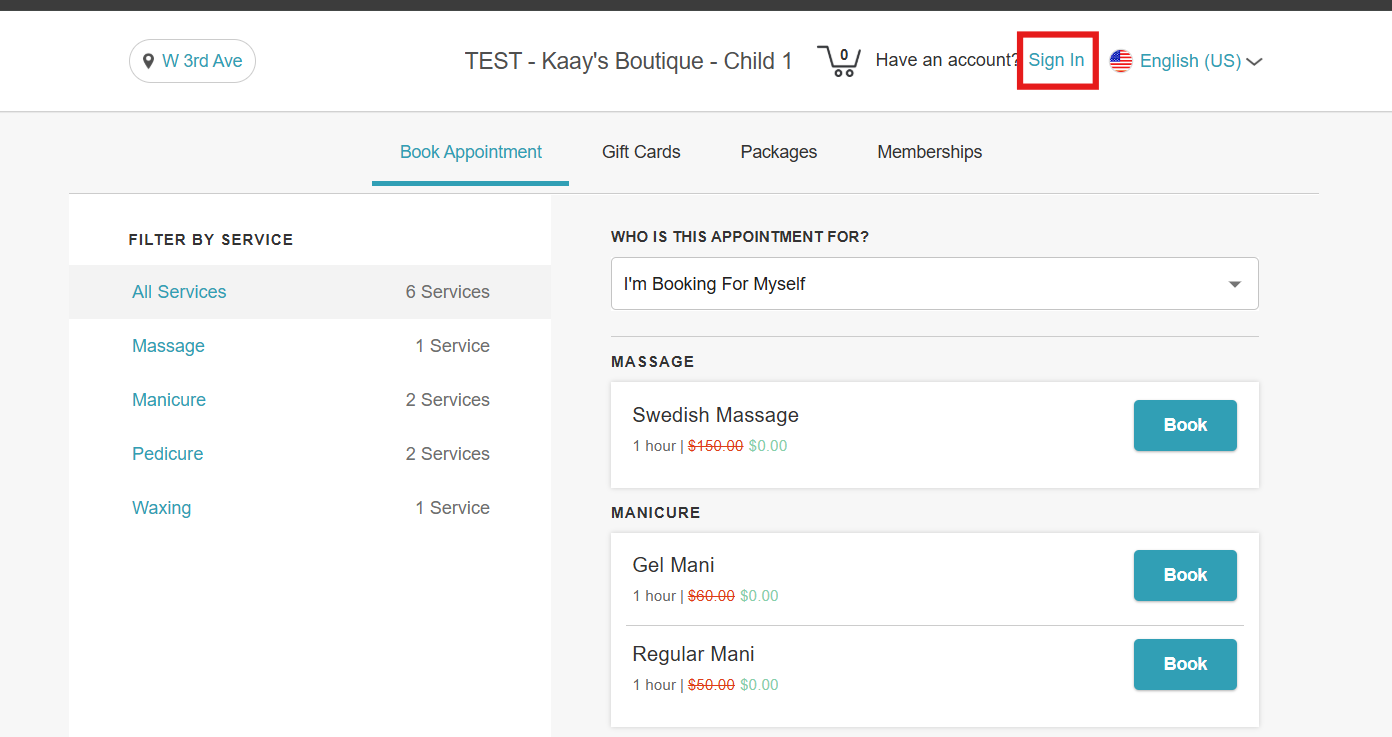
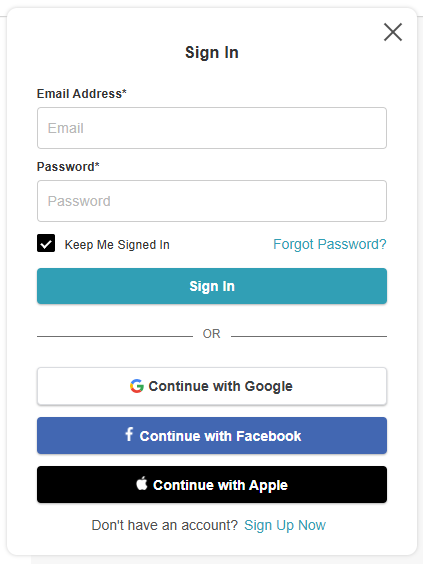
- Clients must be signed in to join a waitlist. If they are not logged in and select "Join Waitlist," they will see the message: “Please sign in to join the waitlist.”
- Clients can remove themselves from a waitlist at any time.
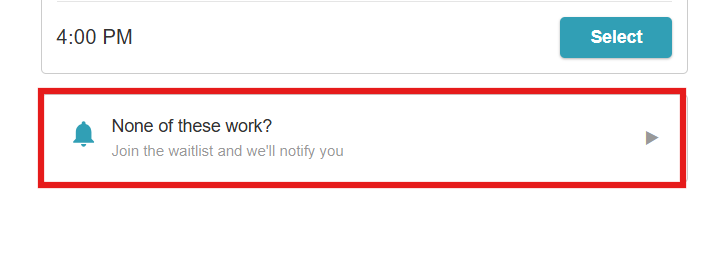
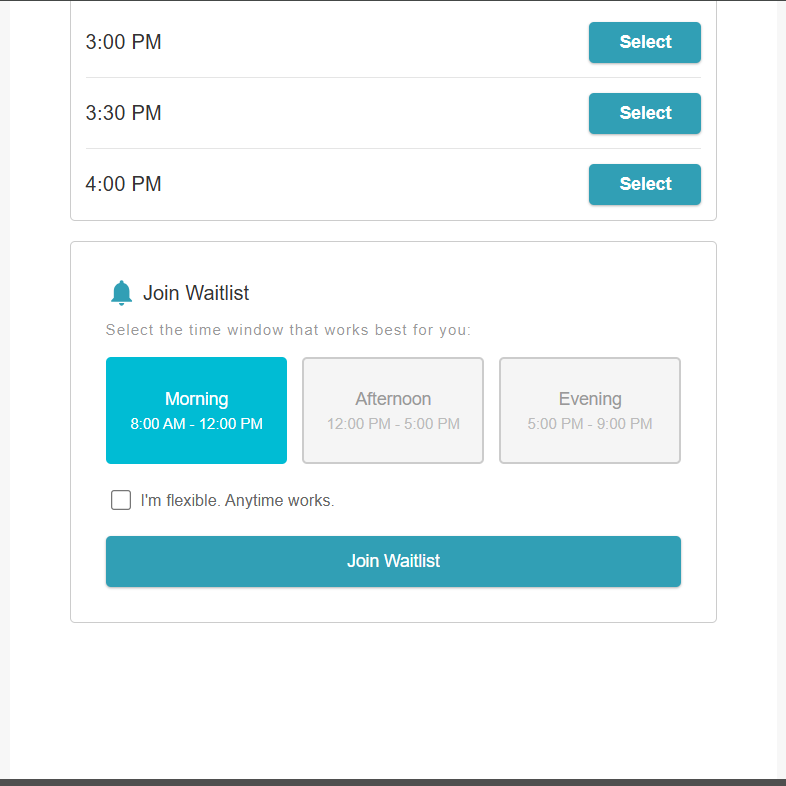
- When booking online, clients will first see available time slots. If none of the available times work for them, the "Join Waitlist" option will appear below the list.
- Clients can choose to be notified when an opening becomes available during specific parts of the day:
- Morning: 8:00 AM – 12:00 PM
- Afternoon: 12:00 PM – 5:00 PM
- Evening: 5:00 PM – 9:00 PM
- Clients can select “I’m flexible. Anytime works” to receive notifications for any opening throughout the day.
- Availability Rules:
- If appointment slots are available within a specific daypart, the option to join that waitlist section will be unavailable.
- If time slots are still available within a specific daypart, the option to join that waitlist section will also be grayed out. For example, If s are available between 2:00 PM and 4:00 PM, clients cannot join the Afternoon waitlist because availability already exists.
- When an appointment slot becomes available, a waitlist notification is automatically sent to relevant waitlisted clients. The notification includes a direct booking link within the email. Clicking the link takes the client to a checkout page with the service, date, and time already selected. The client simply completes checkout to confirm the appointment—no need to search or re-enter details. Example: A client on the “Evening” waitlist receives a notification that a 5:00 PM slot has become available. The email includes a link such as “Book Friday, May 8, 2026 at 5:00 PM.” Clicking the link opens a pre-filled checkout page, allowing the client to confirm the booking in just a few steps.
- Spots are filled on a first-come, first-served basis, meaning the first client to successfully complete the booking will secure the available spot. Example: If three clients are notified of an opening, the first client to complete the booking will secure the spot, while the other two will no longer see availability once it has been filled.
- Notifications will not be sent if the opening occurs within the business’s advance booking cutoff window. Example:
- 9:00 AM: A 2:00 PM time slot becomes available. If the business has a 2-hour cutoff, the system sends notifications to all eligible waitlisted clients.
- 1:30 PM: A 2:00 PM time slot opens again. Since this is within the 2-hour cutoff window, no notifications are sent.
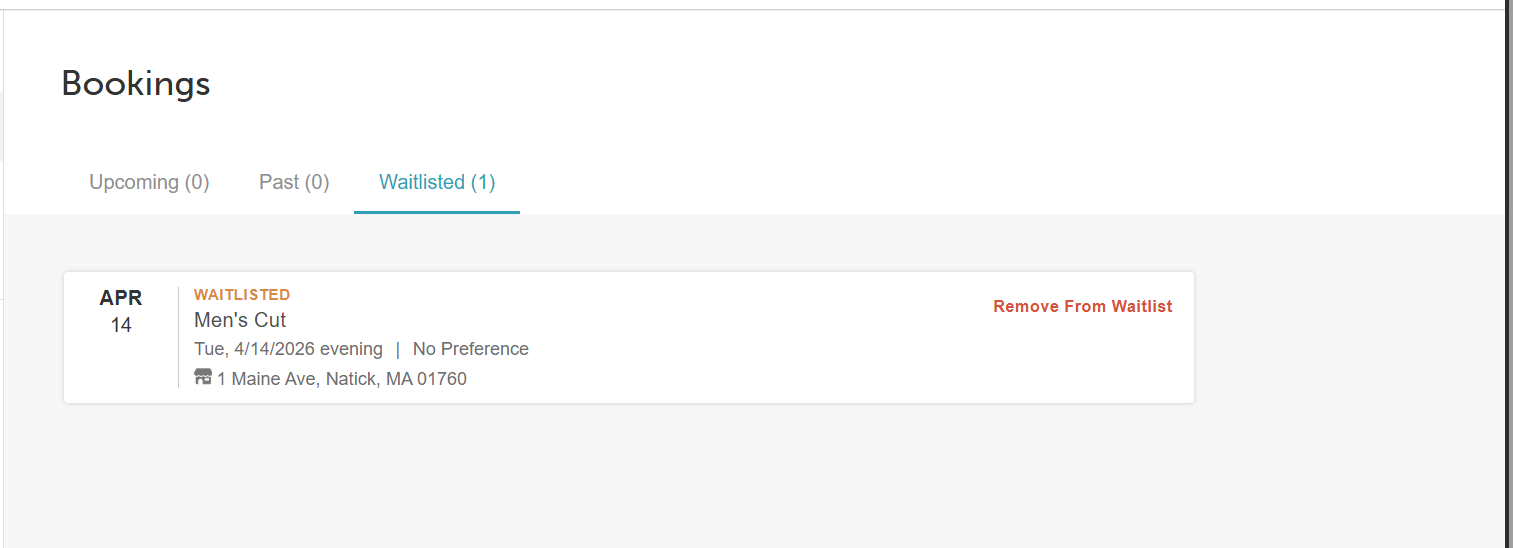
- Clients can view all services they have joined the waitlist for in the Waitlisted section under Account → Bookings.
- Staff can view the total number of waitlisted clients in-store using the waitlist modal.
- When a client joins the service waitlist, their entry will not appear as a blue-and-white striped block directly on the main calendar grid; instead, you will be required to click the 'Open Waitlist' button on the left-hand panel of the schedule to view which clients are added to the waitlist
Contents:
How to Join the Service Waitlist Online
Clients can easily add themselves to a service waitlist by following these steps:
- Navigate to your booking URL or click the Book button on your website
- Select the preferred location (if applicable)
- Click Sign In at the top-right corner of the booking widget
- Sign in using an existing MyTime account, Facebook, Google, or Apple ID, or create a new account.
- Choose the desired service.
- On the Pick a Time page, if the preferred slot is unavailable, scroll down and select “None of these work?”
- Choose the preferred time of day for the waitlist
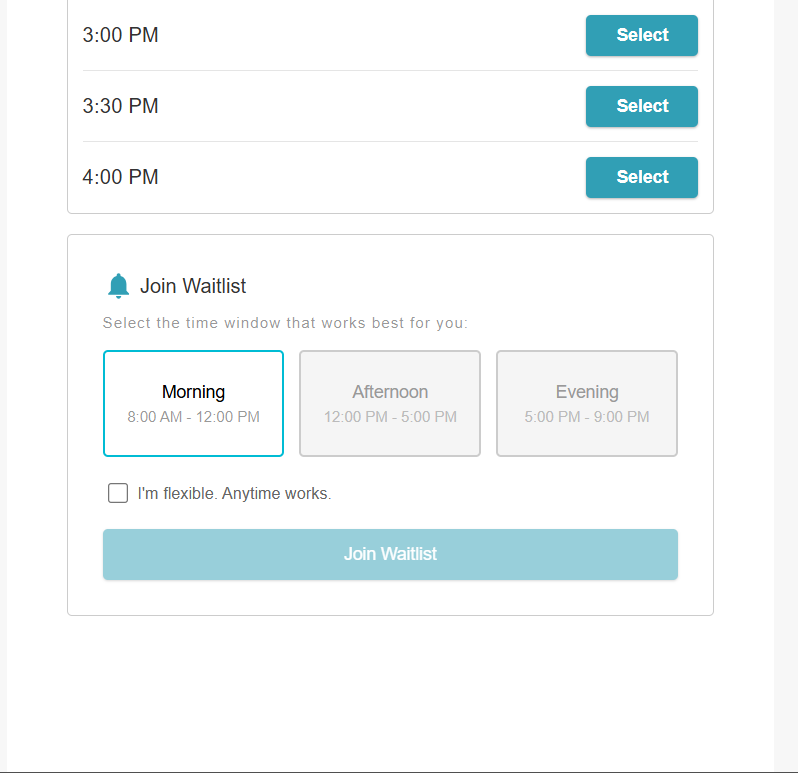
- Click "Join Waitlist"
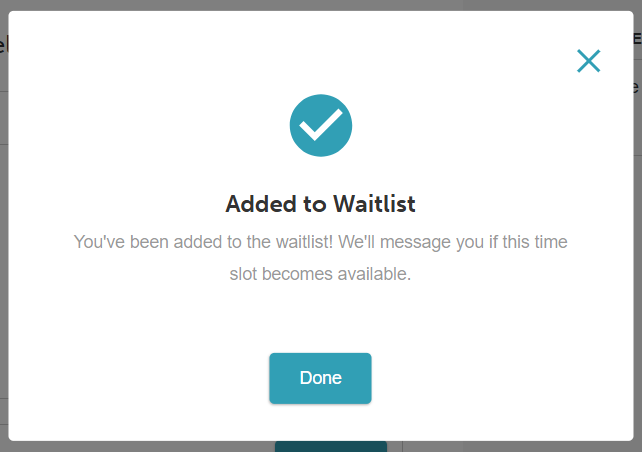
- A confirmation pop-up will appear, confirming that the client has been added to the waitlist
Leaving the Online Service Waitlist
Clients can remove themselves from a waitlist either through the Pick a Time page or the My Account section.
Leaving the Service Waitlist from the "Pick a Time" Page
There are two ways to leave the waitlist directly within the booking widget:
Option A: Using the Status Banner
On the Pick a Time page, a status banner will appear at the top of the widget to remind you that you are currently on the waitlist.

- Select "Leave Waitlist" within that banner
- The system will automatically scroll to the specific time of the day that was selected.
Confirm removal by selecting "Leave Waitlist."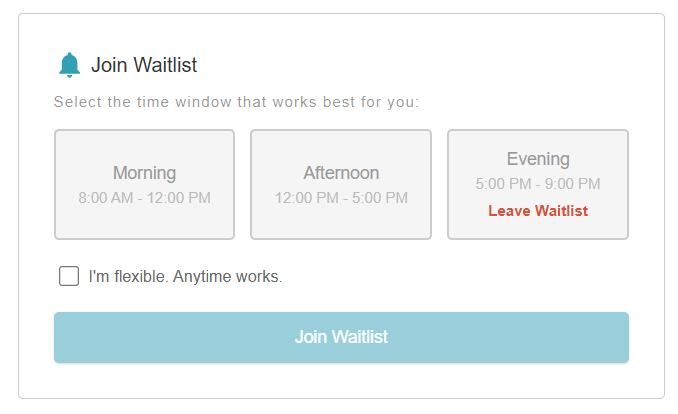
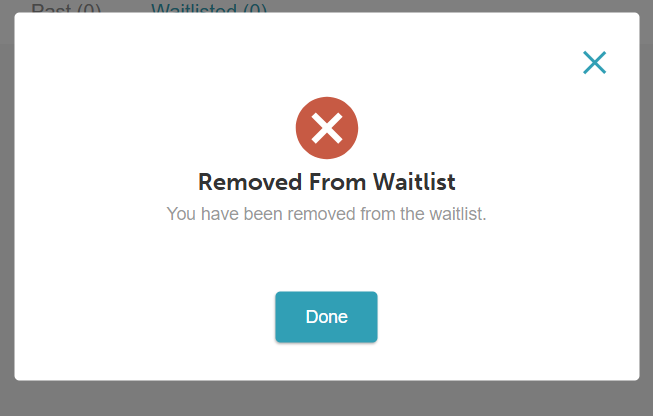
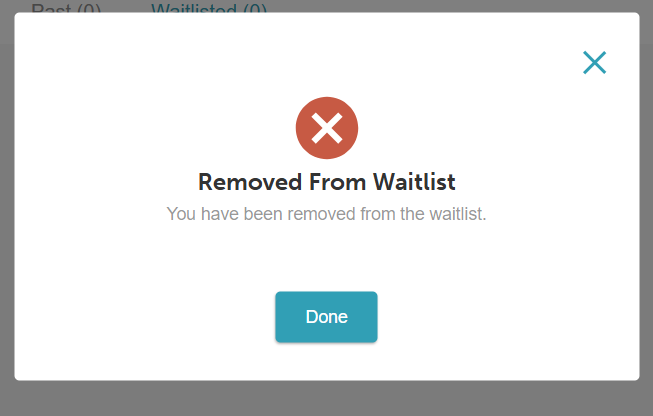
- Once the confirmation notification appears, select Done
Option B: Directly from the Time Slot
- Locate the specific time of day previously selected for the waitlist
- Select "Leave Waitlist"
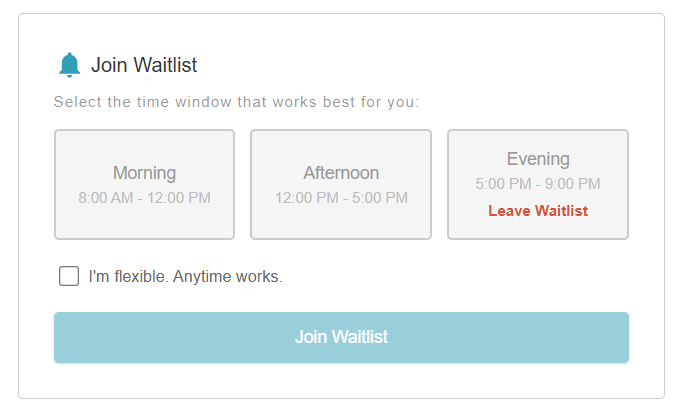
- Once the confirmation notification appears, select Done.
From the "My Account" Section
Clients can manage all waitlist entries through their profile settings:
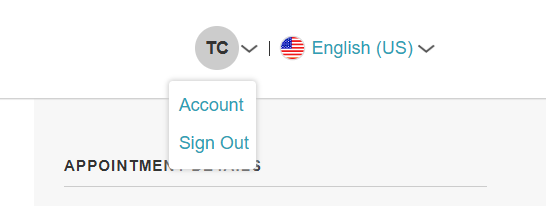
- Click the dropdown menu next to your initials and select Account
- Navigate to the Bookings tab.
- Select the Waitlisted tab.
- Locate the service and date, then select "Remove from Waitlist"
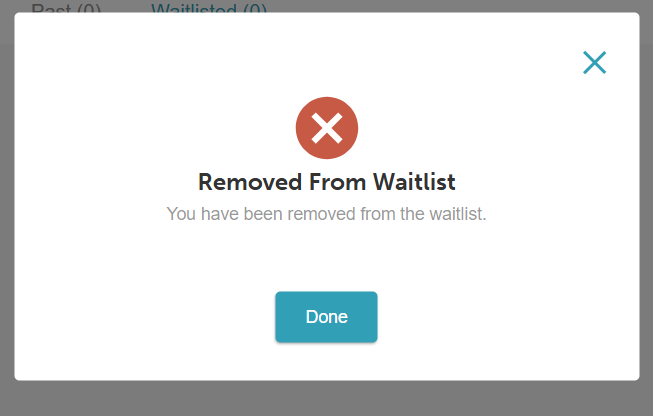
- Once the confirmation notification appears, select Done
For more information, contact us at support@mytime.com or (385) 233-6964.
Related Article:
Was this article helpful?
That’s Great!
Thank you for your feedback
Sorry! We couldn't be helpful
Thank you for your feedback
Feedback sent
We appreciate your effort and will try to fix the article